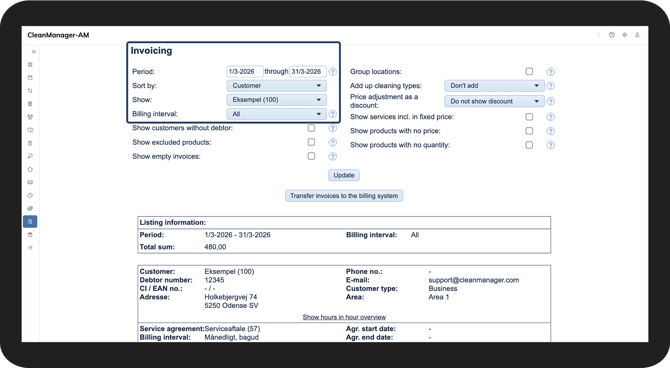
The Show excluded products function makes it possible to view cleaning types in Invoicing that are excluded from billing. They can be viewed for control purposes, but they are not included on the invoice.
INFO:
Supervisors can only view customers, if these customers are within the supervisor's assigned customer areas. For more information regarding this, go to Company Structure.
This is how you use the filter
 Set up the view. For more information about this, go to Sort view in Invoicing.
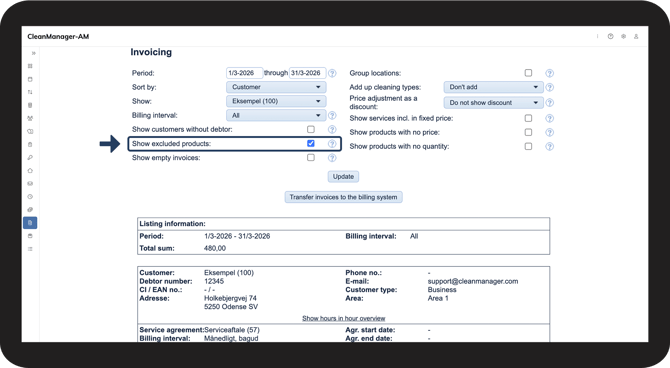
 Find the Show excluded products setting in the filters. Tick the checkbox to enable the function.
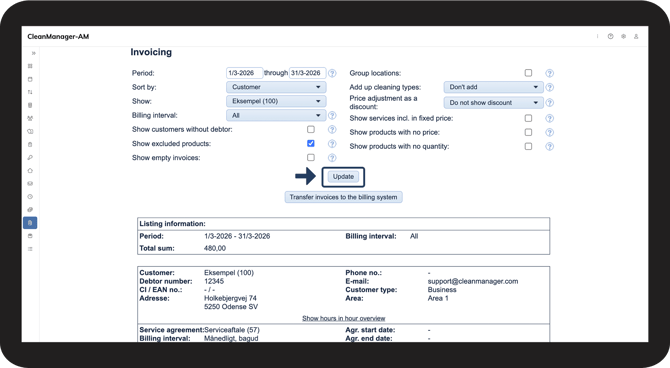
 Click Update to display Invoicing based on the selected criteria.
When the function is active:
The system displays all cleaning types that are excluded from billing. You can now view these item lines in Invoicing for review and setup.
 Review the cleaning types that are marked as excluded and assess whether this is correct.
If a product should not be excluded, you can change the setting on the cleaning type. Once updated, the cleaning type will be included in Invoicing again and can be exported to the billing system.
Read more in this article about how to edit cleaning types:
Edit cleaning type.
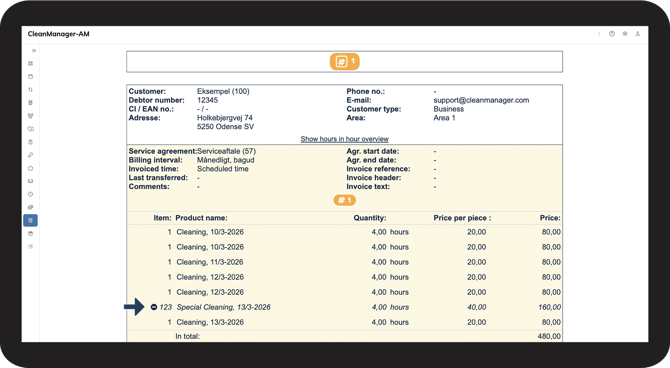
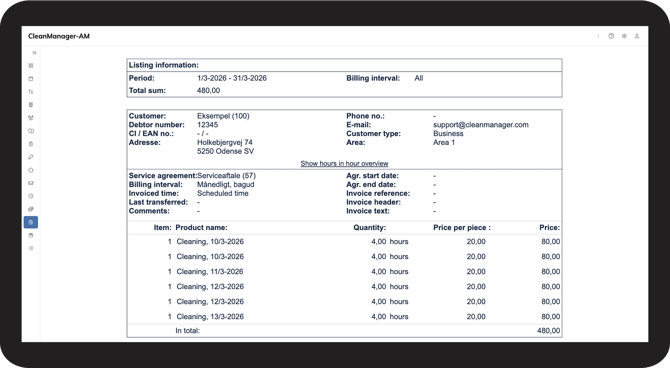
 When the function is disabled, excluded products are not displayed in Invoicing. This may be relevant if you only want to view products that will be included on the invoice.
Continue to the user guide: Show empty invoices.
Here you can read more about how to view empty invoices in Invoicing.