
As an administrator or supervisor, you can sort and adjust the view using different settings. In Invoicing, you can control which customers, customer areas and service agreements are displayed. You can also choose to view specific billing intervals to ensure that the correct agreements are selected for invoicing.
INFO:
Supervisors can only view customers, if these customers are within the supervisor's assigned customer areas. For more information regarding this, go to Company Structure.
How to sort the view
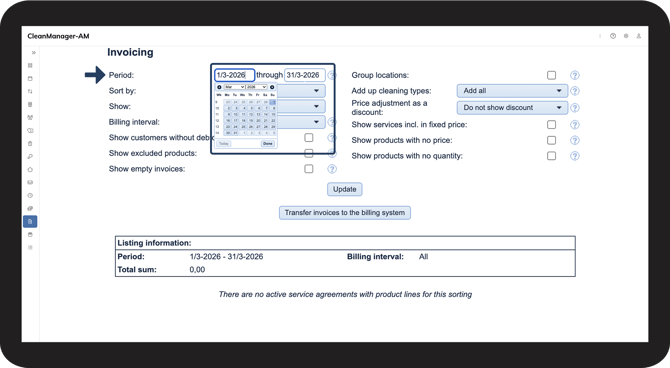
 You can narrow down or broaden the time period by entering a start and an end date
The Period field determines which dates CleanManager uses to retrieve tasks, fixed prices, and item lines when generating the invoicing.
NOTE:
The selected period includes both the start date and the end date.
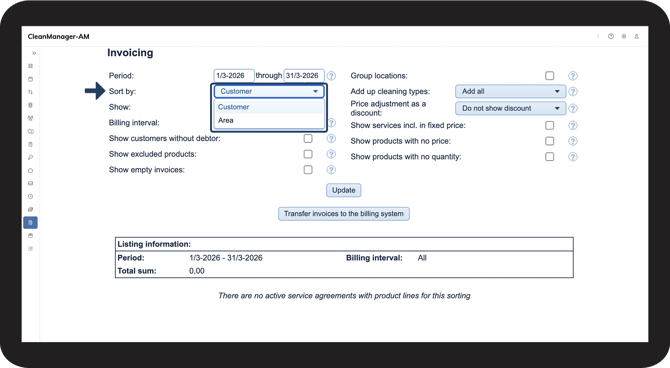
 Click on the dropdown menu next to Sort by to select your criteria
You can select between the following criteria:
- Customer
- Area
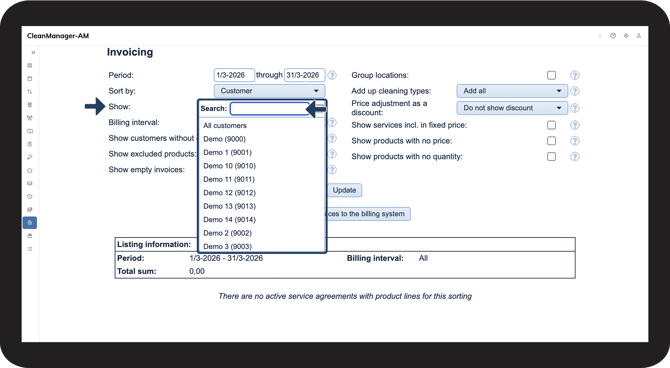
 Click on the dropdown menu next to Show and select whether you want to view all customers, all areas, a specific customer, or a specific area.
You can also use the search field to quickly find a specific customer or area.
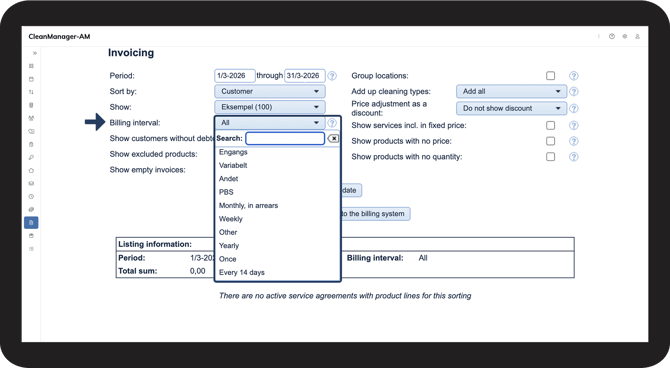
 You can filter by Billing interval to ensure that only relevant service agreements are included.
| EXAMPLE: If you invoice monthly, you can select Monthly to only see the agreements that should be invoiced in that period. |
This helps you:
- Make sure agreements are invoiced in the correct interval
- Select the correct agreements for invoicing
- Avoid invoicing the same agreement multiple times
Read more in this article about creating billing intervals:
Creating invoice intervals.
NOTE:
Make sure the billing interval filter is set correctly before exporting invoices.
Incorrect filtering may result in:
- Some service agreements being skipped during invoicing
- Incorrect invoicing
- Service agreements being deleted after transfer (if “delete after export” is enabled)
Continue to the user guide: Show customers without debtor in invoicing.
Here you can read more about how to view customers without debtor in Invoicing.