
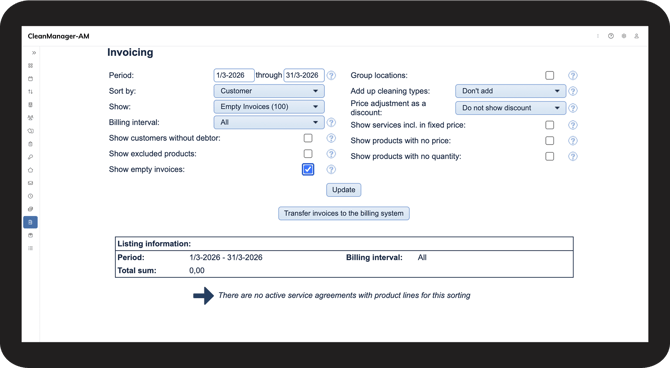
The Show empty invoices function is used to view service agreements that do not generate any item lines in the selected period. These are agreements where there is nothing to invoice, for example because there are no tasks, registered time, or fixed prices within that period.
Empty invoices are shown for review and troubleshooting purposes, but they are not exported to the billing system.
INFO:
Supervisors can only view customers, if these customers are within the supervisor's assigned customer areas. For more information regarding this, go to Company Structure.
This is how you use the filter
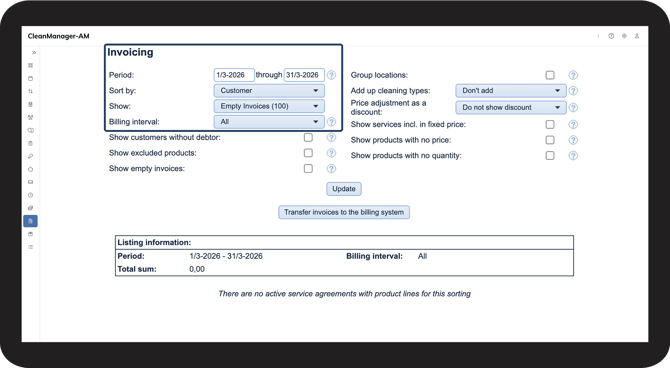
 Set up the view. For more information about this, go to Sort view in Invoicing.
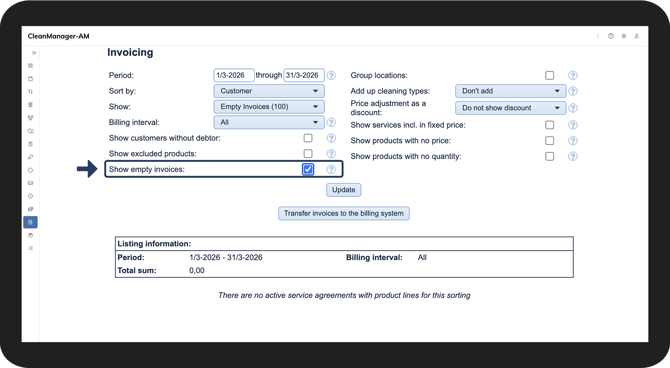
 Find the Show empty invoices setting in the filters. Tick the checkbox to enable the function.
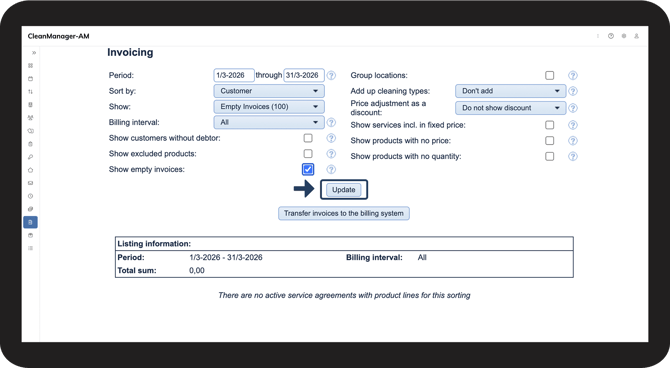
 Click Update to display Invoicing based on the selected criteria.
 When the function is active:
The system displays all service agreements, including those that do not have any item lines in the selected period. You can now view these service agreements in Invoicing, even though no invoice will be generated.
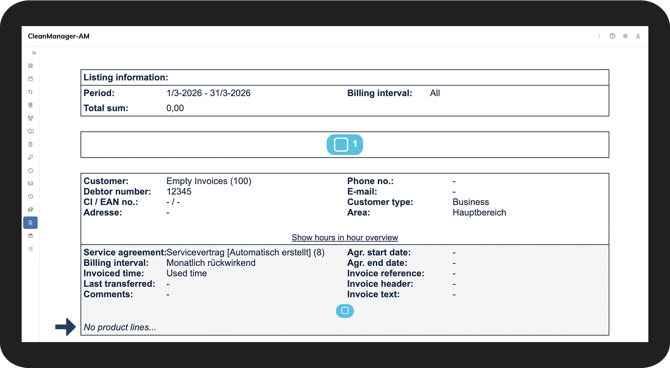
 Review the service agreements that appear without item lines and assess whether this is correct. If a service agreement should not be empty, it may be due to missing setup or registration.
Typical things to check:
- Whether tasks have been planned in the period
- Whether the view is set up correctly
- Whether the service agreement is set up correctly
 When the function is disabled, service agreements without item lines are not displayed in Invoicing. This may be relevant if you only want to view service agreements with billable content.
Continue to the user guide: Group locations in invoicing.
Here you can read more about how to group locations in invoicing .