
The Group locations function controls how cleaning tasks from multiple locations are displayed in Invoicing. This provides a more structured and clear overview, especially for customers with multiple locations where it is important to see which services belong to each address.
When the function is enabled:
- Tasks performed at the same location are grouped together
- Invoice lines are separated per location/address
INFO:
Supervisors can only view customers, if these customers are within the supervisor's assigned customer areas. For more information regarding this, go to Company Structure.
This is how you use the filter
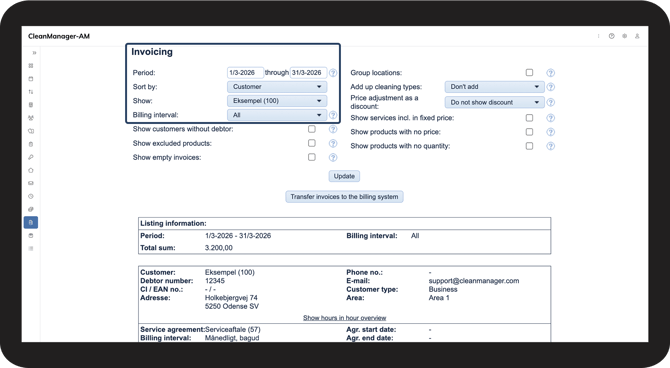
 Set up the view. For more information about this, go to Sort view in Invoicing.
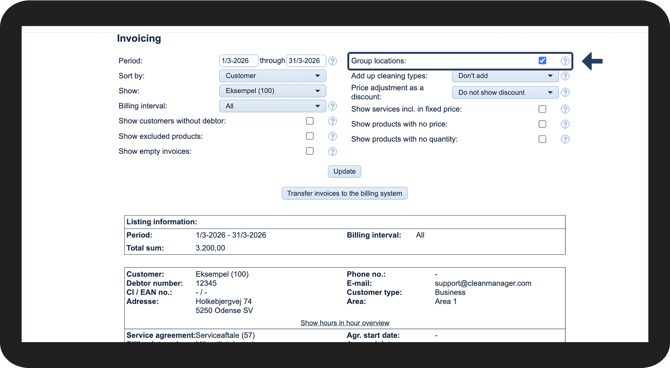
 Find the Group locations setting in the filters. Tick the checkbox to enable the function.
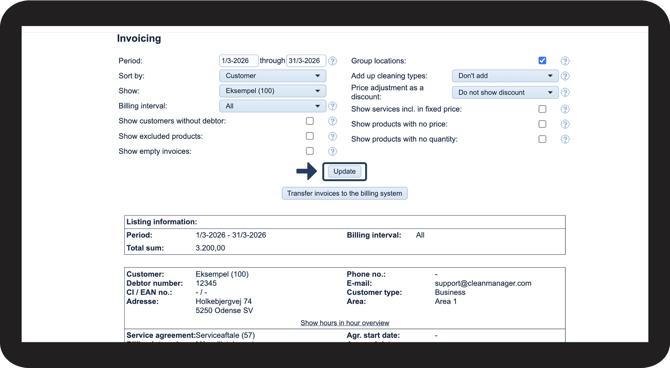
 Click Update to display Invoicing based on the selected criteria.
 When the function is active, all services are grouped by the location where the task was performed. You will see an overview where item lines are separated per location/address.
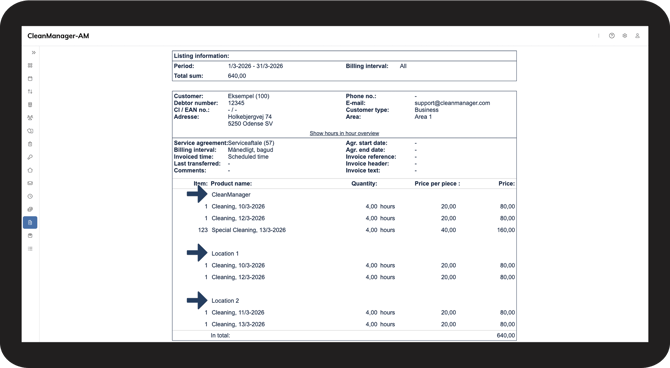
 Review the Invoicing overview and check how the lines are divided by location.
Make sure that the correct services are assigned to the correct addresses and the customer receives the desired structure split by location.
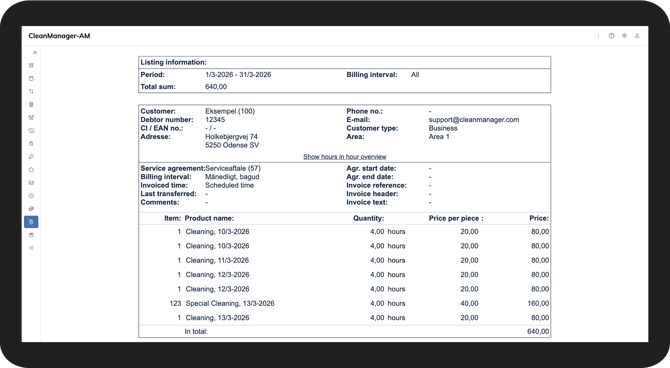
 When the function is disabled, all item lines are displayed in one combined list without separation by location. This may be relevant if the customer does not require services to be shown per address.
INFO:
The naming of the groupings depends on how the location is set up:
- If a location name is specified, this will be shown
- If only an address is specified, the address will be shown
- If Name on invoices is filled in, this name will be used
Read more in this article about setting up locations:
Create locations.
Continue to the user guide: Add up identical cleaning types in Invoicing.
Here you can read more about how identical cleaning types can be added up in Invoicing.