
We are pleased to introduce a new design for the menu – developed based on the wishes and feedback we have received from you, the users who work with the system every day.
The menu now has a modern and more streamlined appearance. At the same time, everything remains as you know it: your data, permissions, and functions are unchanged, and you can continue working in the same way as before – but now within a more intuitive design.
In this article, you will find an overview of what is new and what remains familiar. The new design is also the base for all future improvements in CleanManager.
See what the new design looks like:
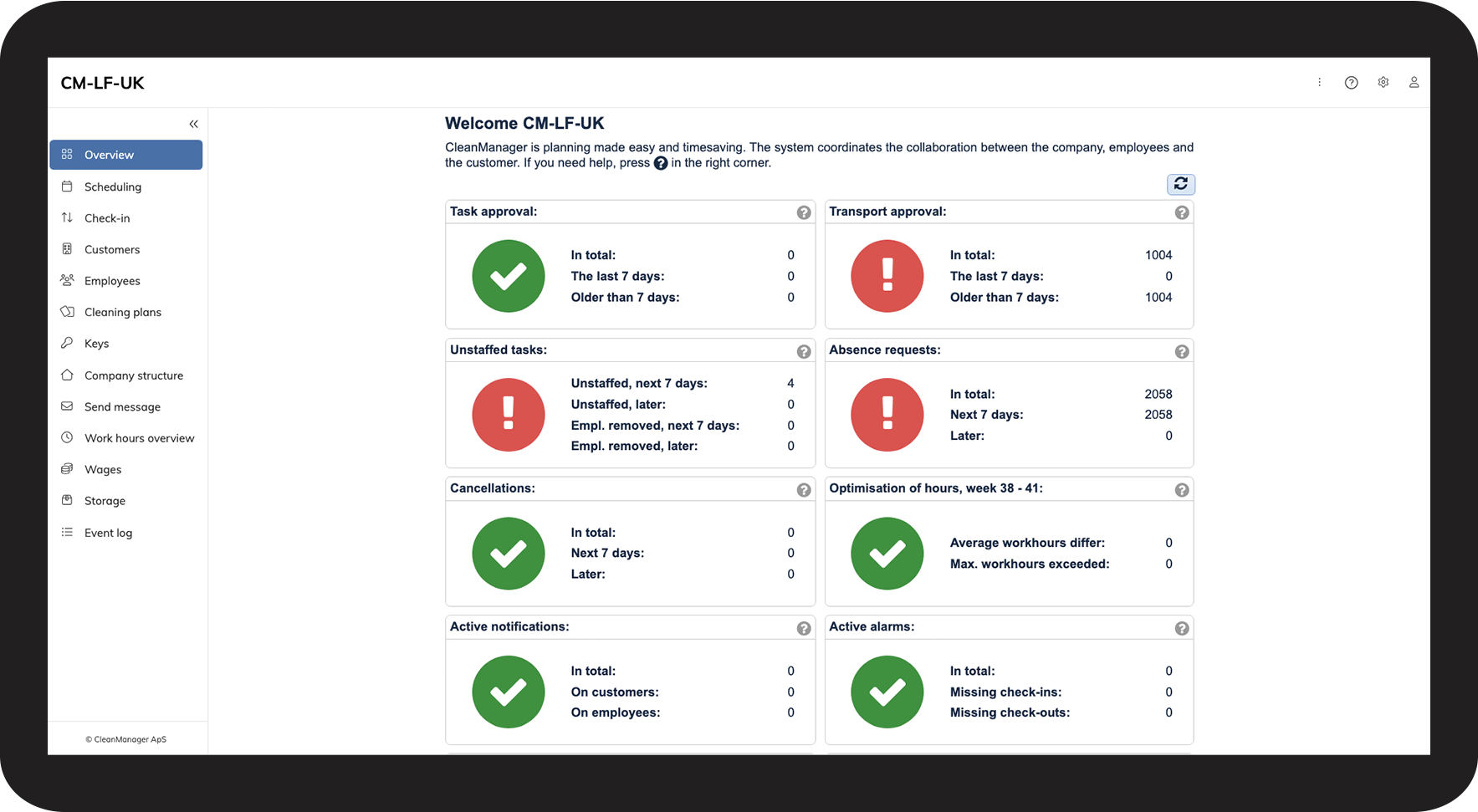
In this article, we will introduce you to the new menu and guide you to other articles that will help you understand the changes in the new design.
What is new?
Apart from the new menu, only the location of individual menu items and data extractions is different.
Settings can now be found here: How do I go to Settings?
My data can now be found here (‘Company data’ for the administrator): How do I go to My data?
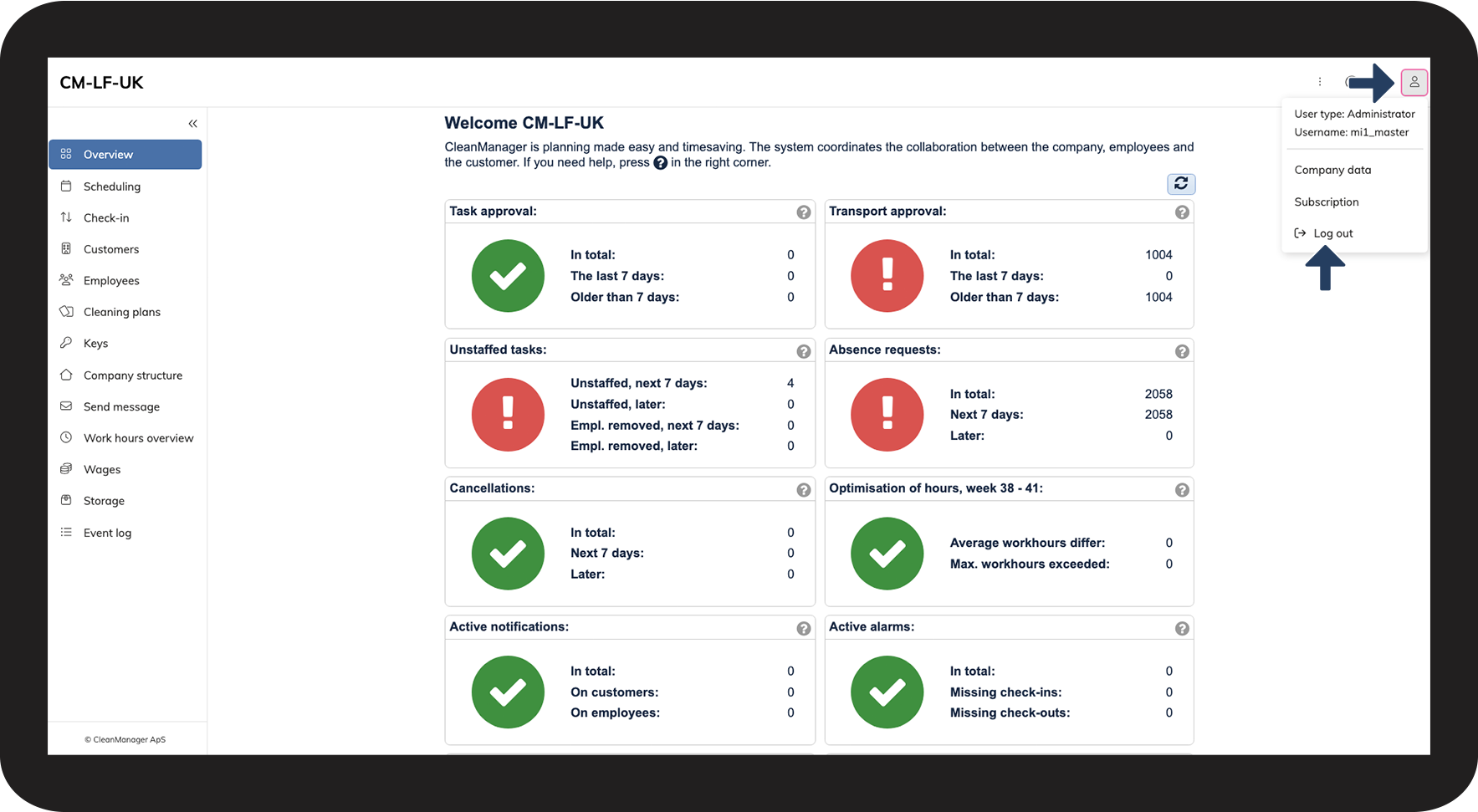
The Log out button can now be found here:
Data extractions, which include print and export data functions, can now be found here:

 in the top-right corner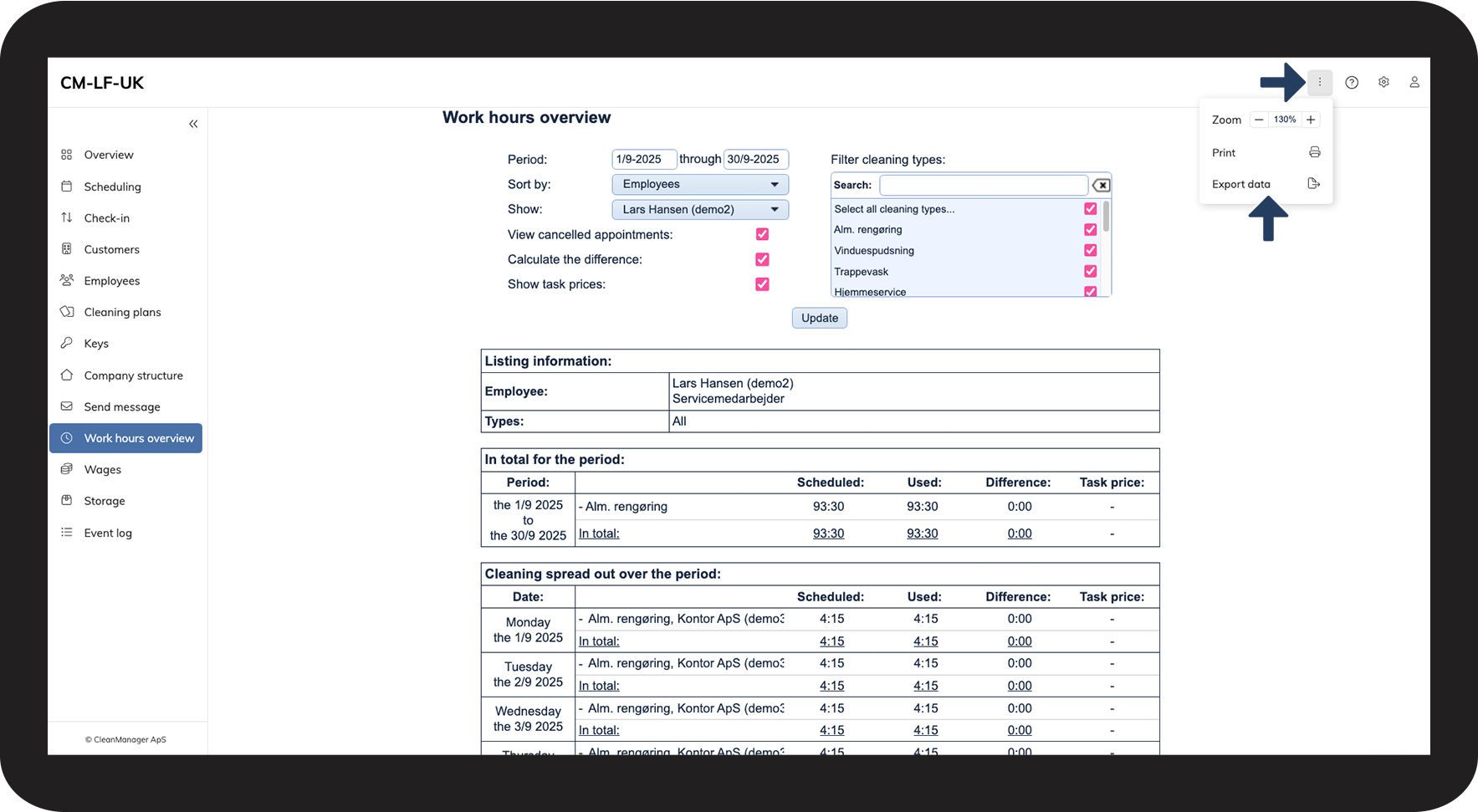
The new design adapts itself to the size of the screen. Until all pages have been updated, it will be possible to zoom in on pages that are still displayed with the previous design.
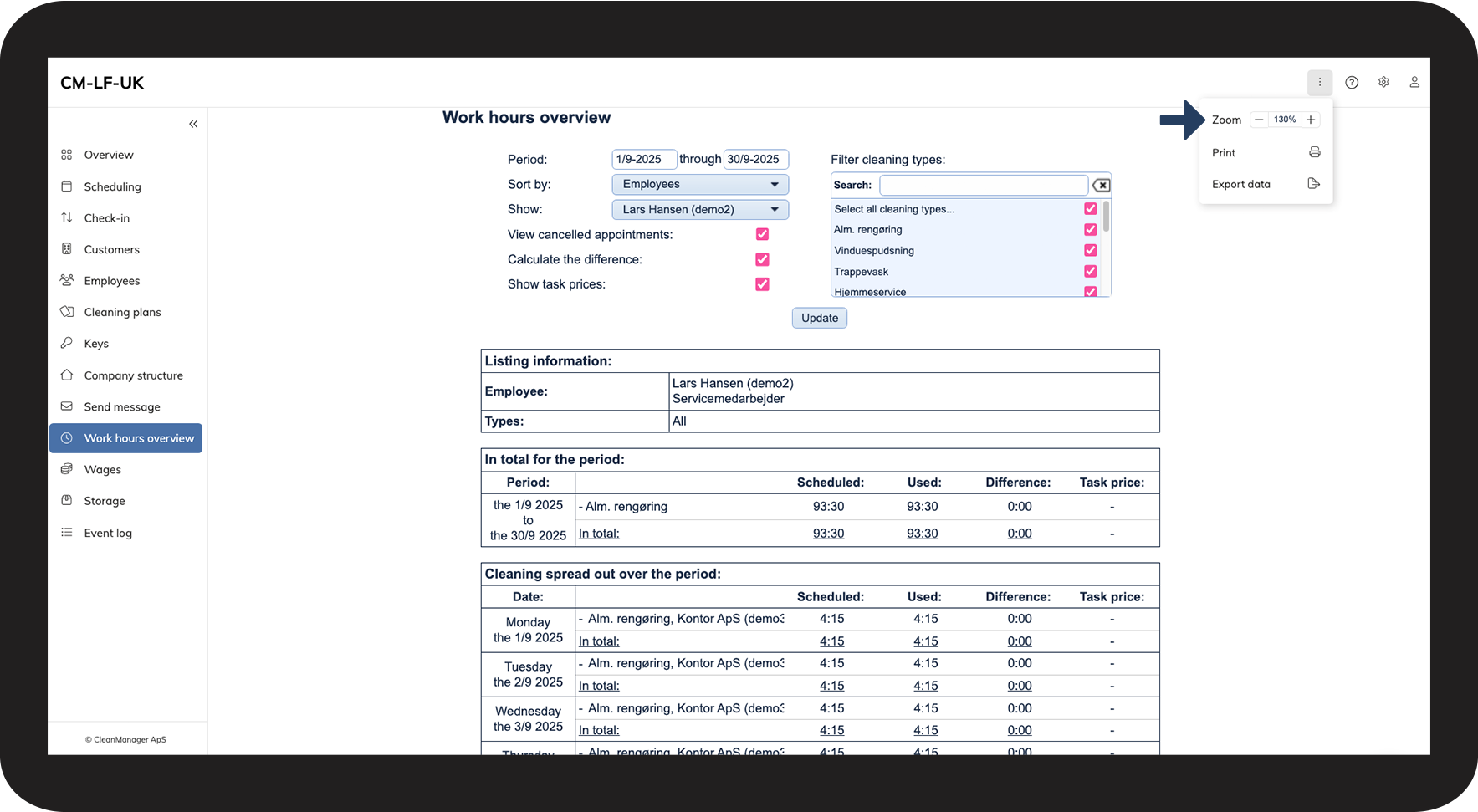
Introduction to the new menu
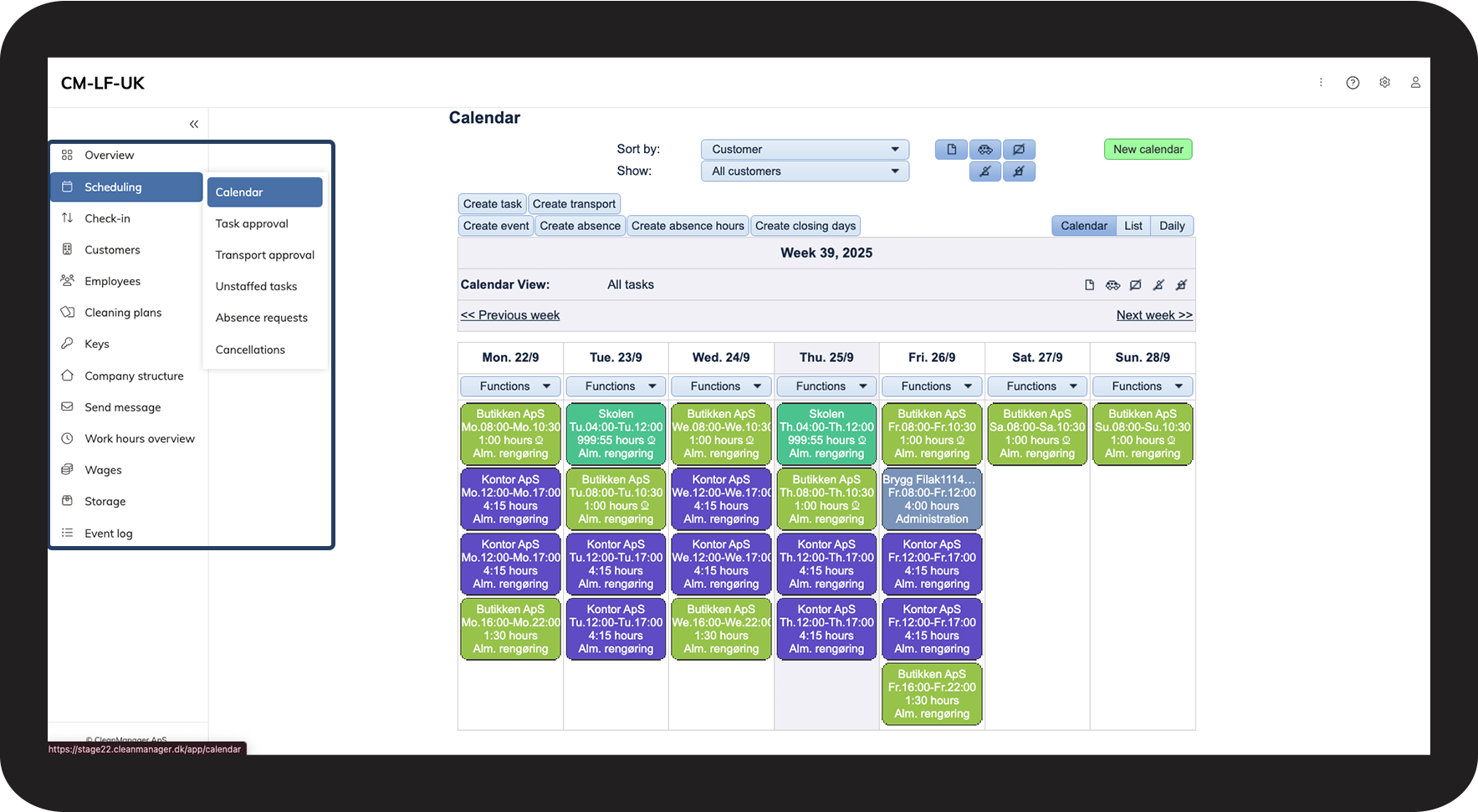
With the updated menu, you can now quickly access sub-items via a new drop-down menu.
If you cannot find a function you use frequently, look in the drop-down menu under the same category as before. The function still has the same name.
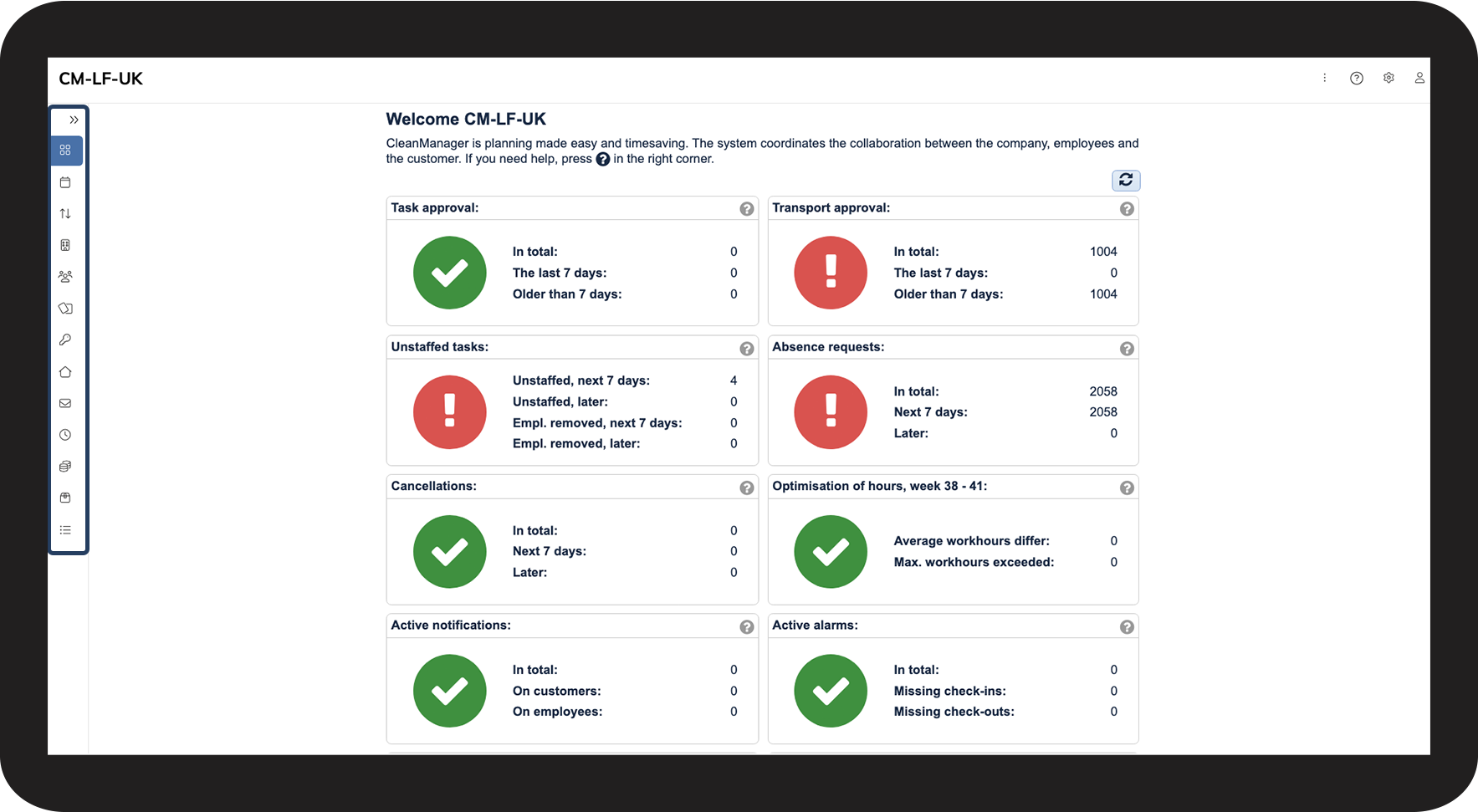
The menu structure can also be collapsed so that only the icons are displayed, allowing you to make better use of the screen.
Switch calendar view
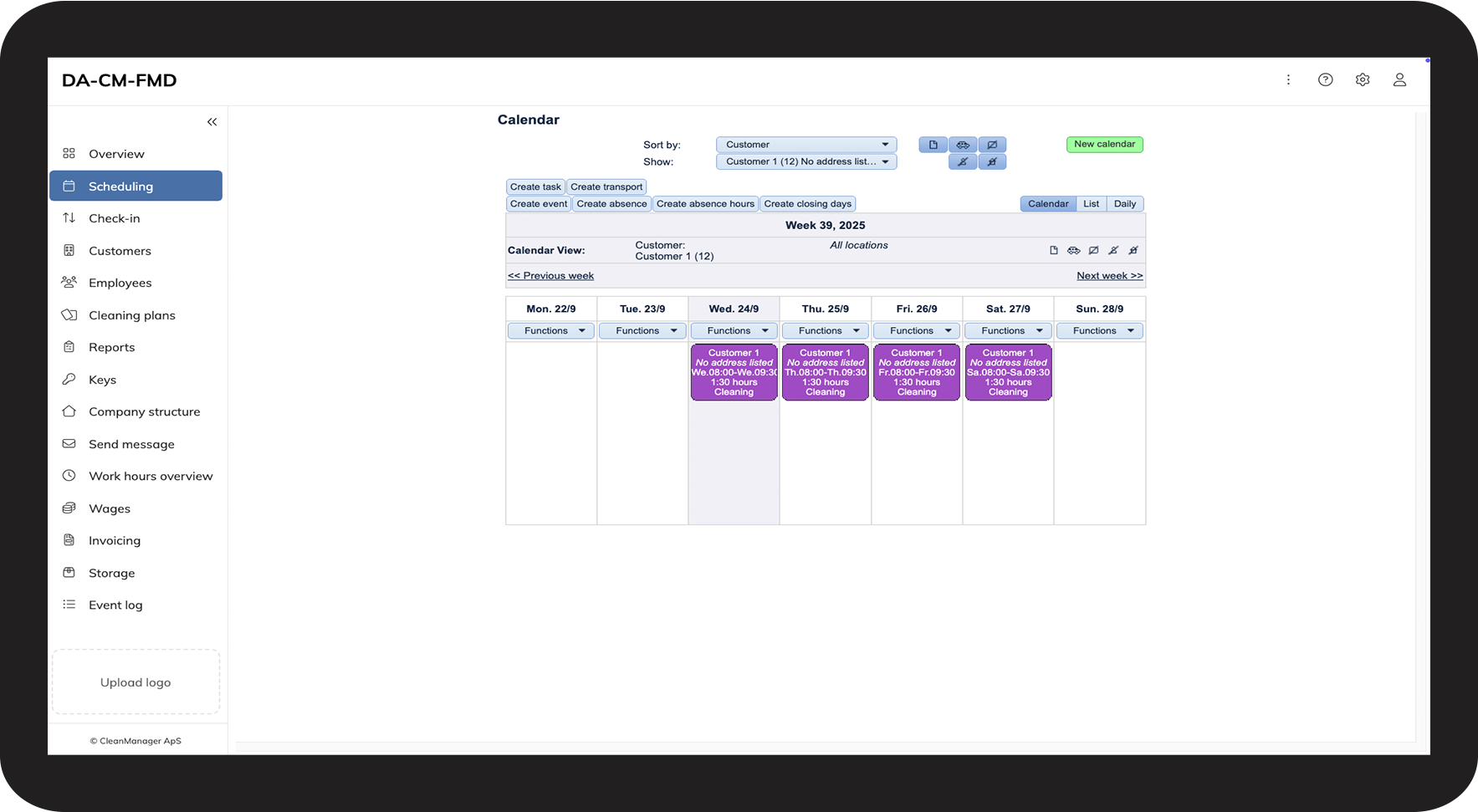
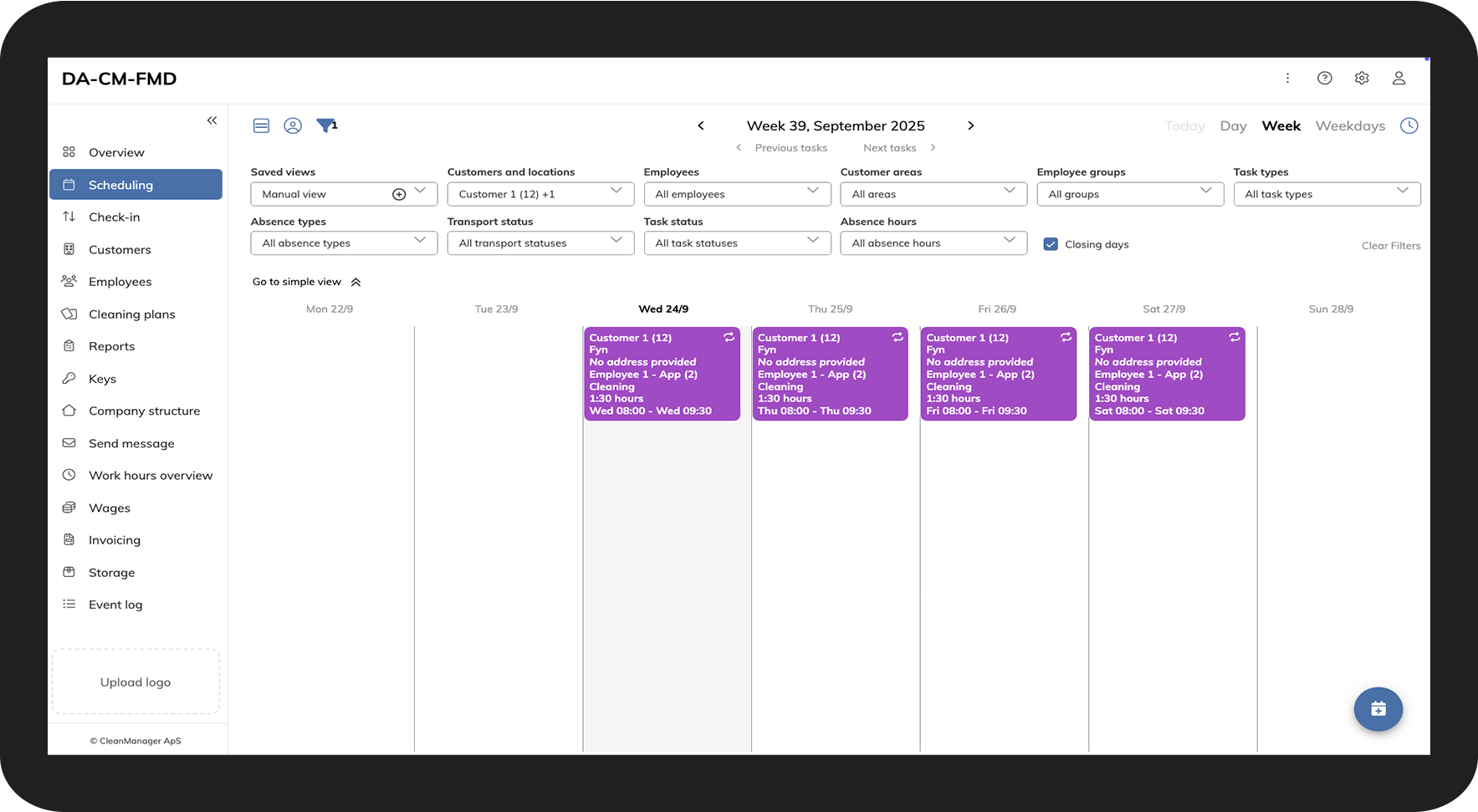
As an administrator or supervisor, you can still choose between the base calendar and the calendar, while employees and customers only have access to the base calendar. Furthermore, the calendar is now integrated into the system and can open in the same tab, ensuring that the menu and other functions remain available at all times. The administrator or supervisor can still choose to open the calendar in a new tab by clicking the green New calendar button, as before.
See how to switch the calendar view here: Switch calendar view
The system still works as you know it – now with clearer and more modern navigation.
We hope you like the new design, and if you have any questions or encounter any challenges, you are always welcome to contact our support team.