How do I set up my service agreements to invoice for scheduled or used time?
Some customers are invoiced based on a fixed task price, while others are invoiced by the hour. There are also customers who have a fixed price arrangement, typically as a subscription that covers a certain number of cleaning visits per month.
In some situations, invoicing is agreed to be based on the scheduled time — meaning the time planned in advance for the task. In other cases, it is based on the used time, which reflects the actual hours employees spent on the job.
This article explains how to set up a service agreement to bill either scheduled or used time, and where in the system you can find and apply these settings.
In this article, you will learn how you can set a service agreement to invoice either scheduled or used time:
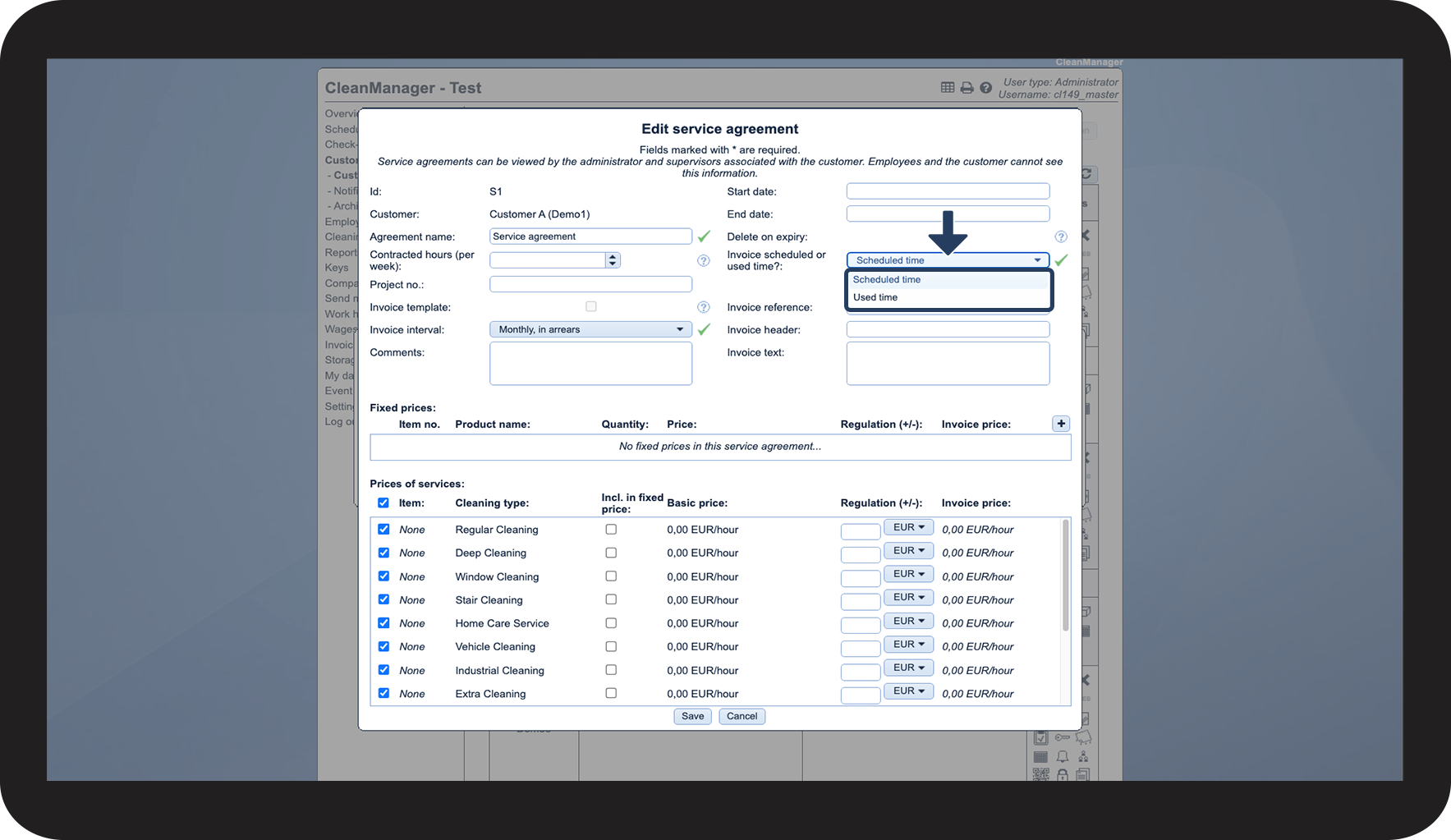
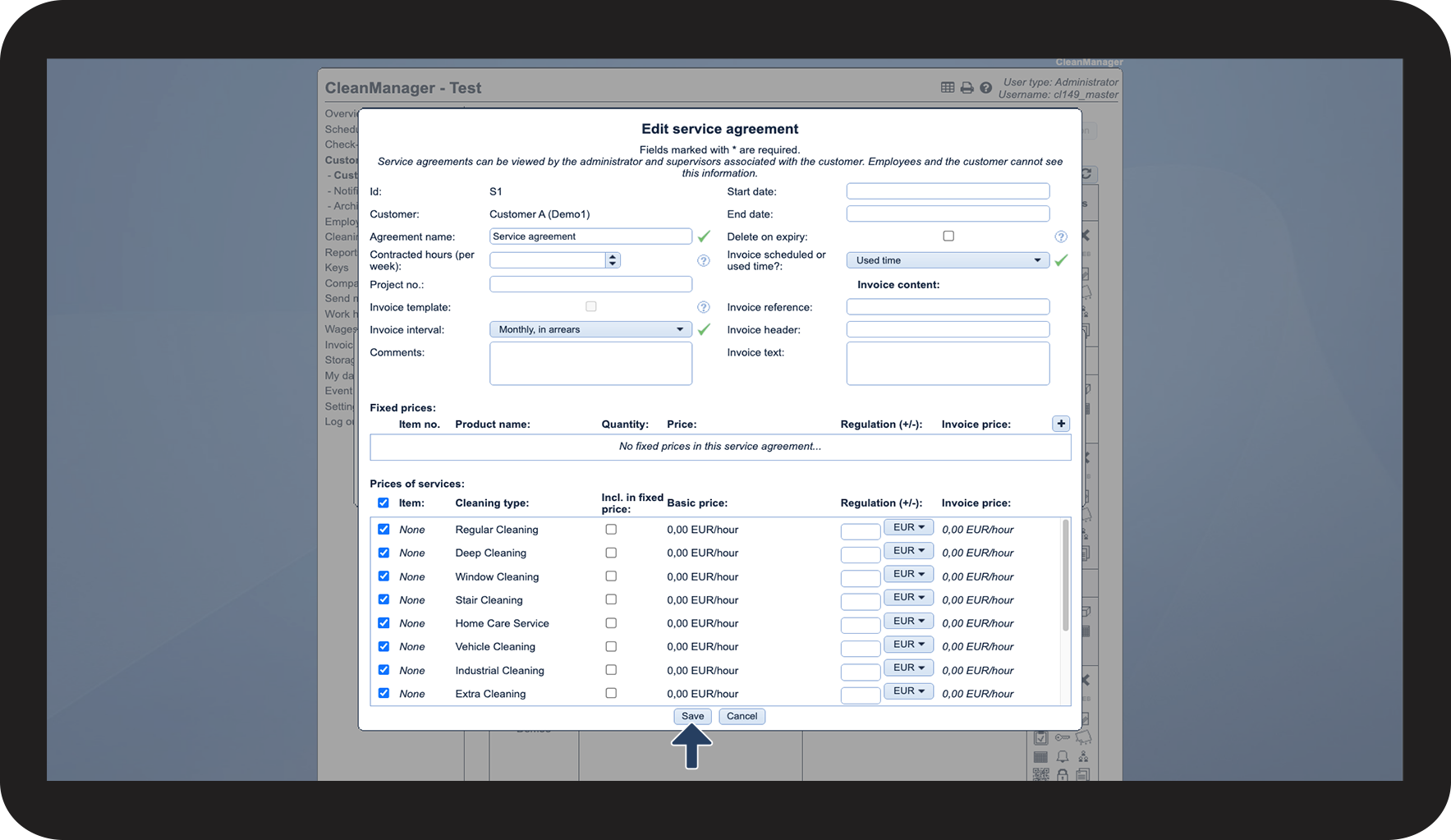
- How do I set a service agreement to use either scheduled or used time?
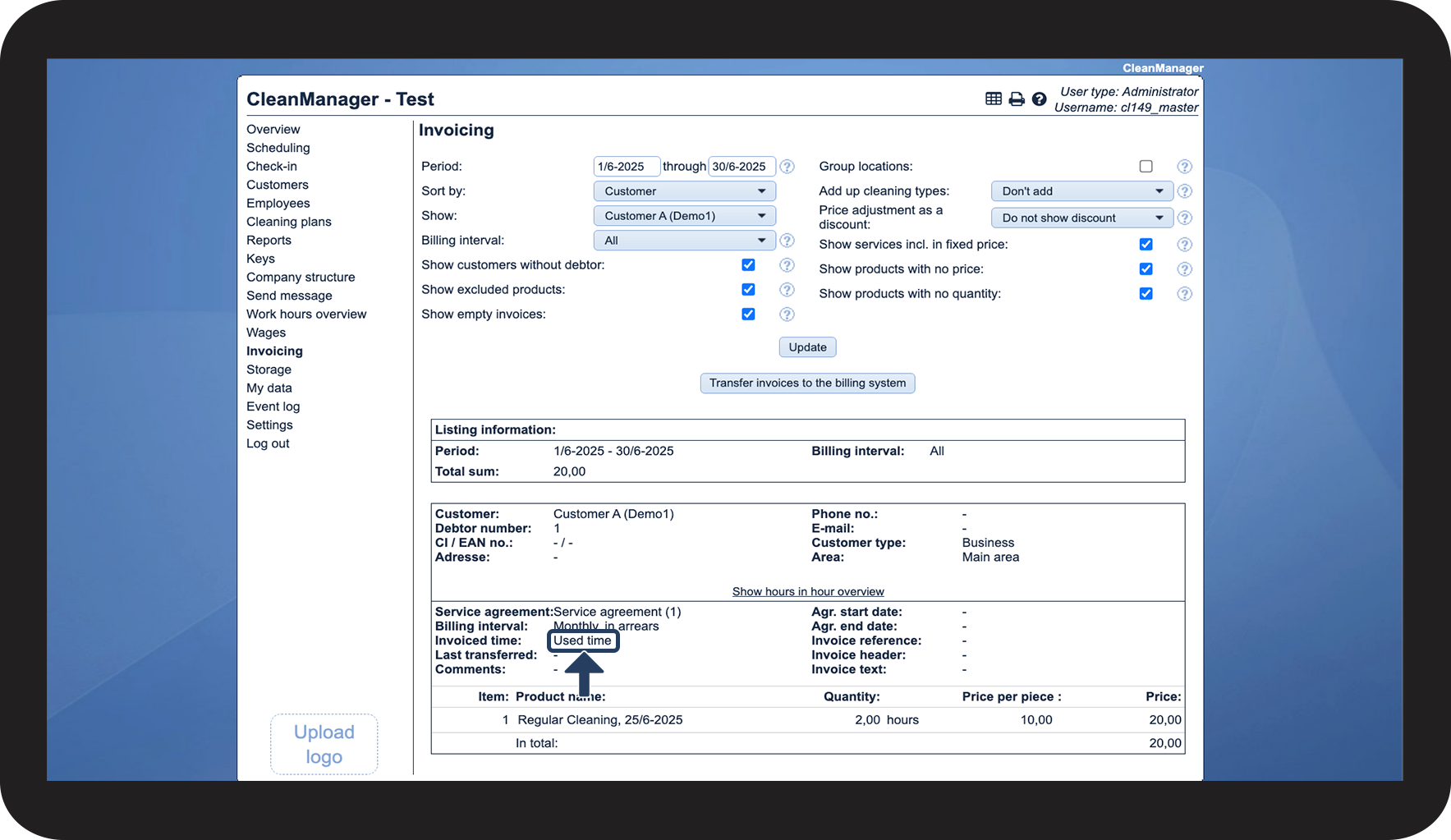
- How do I see if a service agreement uses scheduled or used time in invoicing?
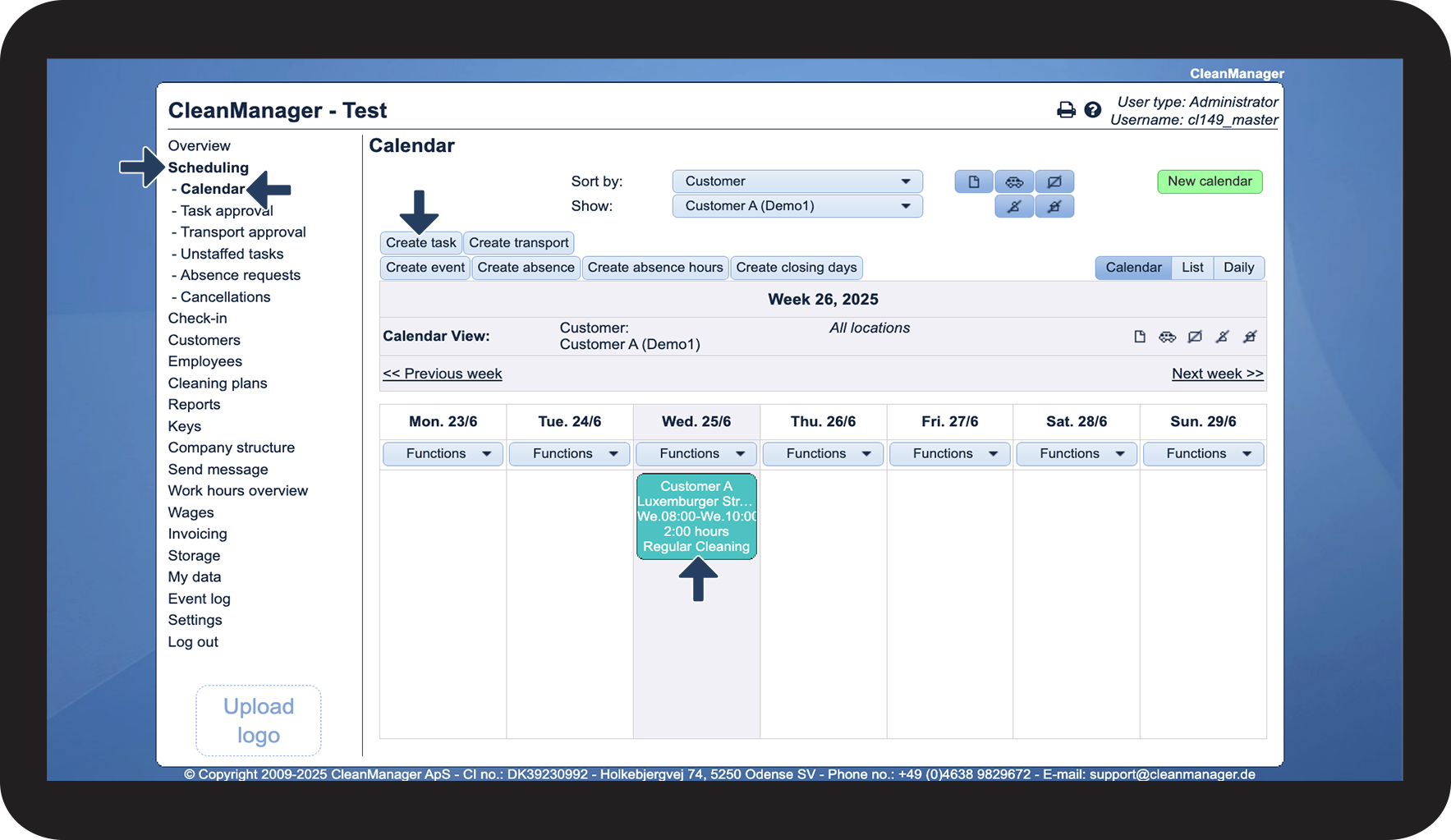
- How do I see if a service agreement uses scheduled or used time in scheduling?
- How do I see if a service agreement uses scheduled or used time in the new calendar?
- How do I edit whether a service agreement is using scheduled or used time in the new calendar?
How to set a service agreement to use either scheduled or used time


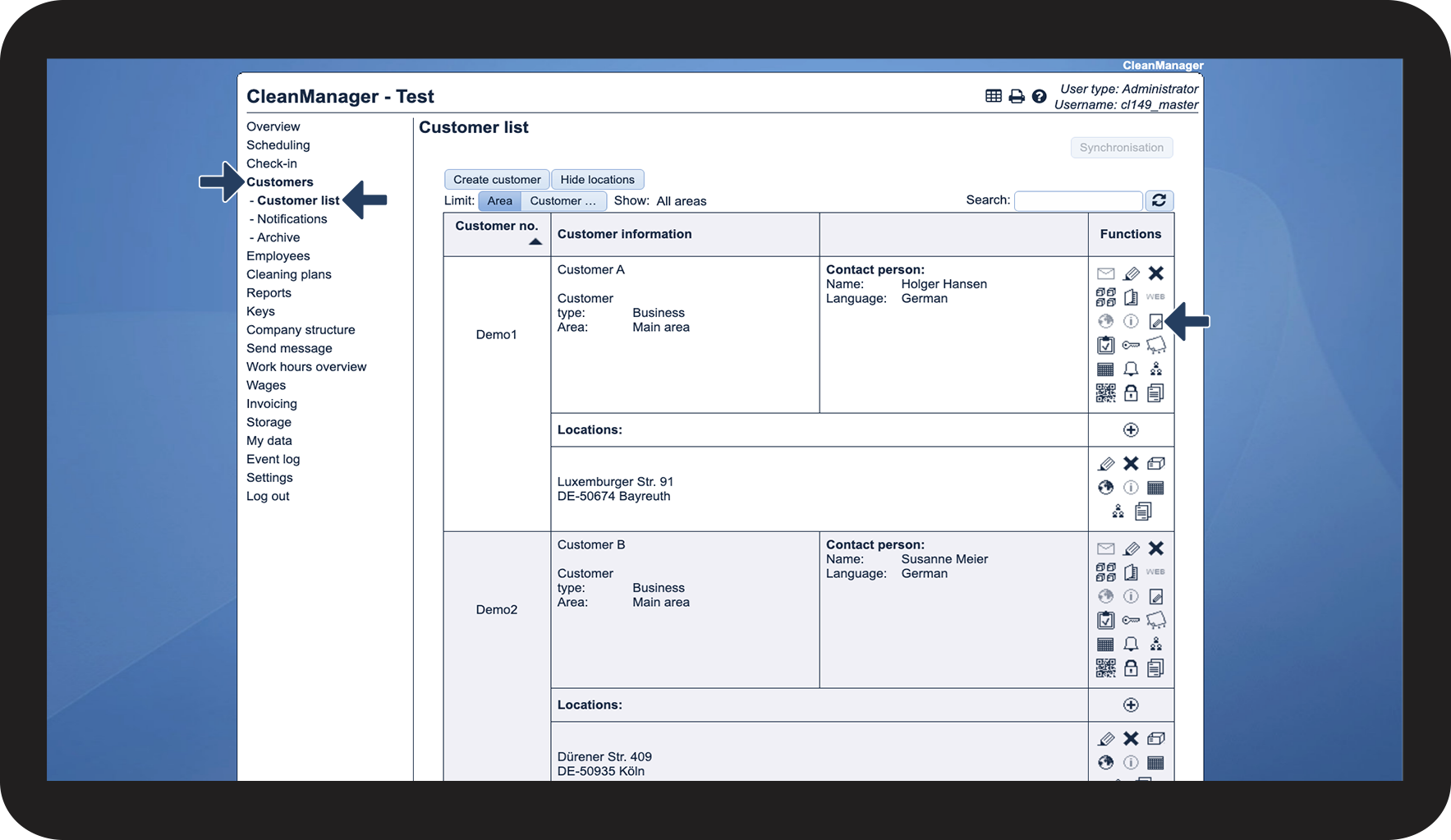

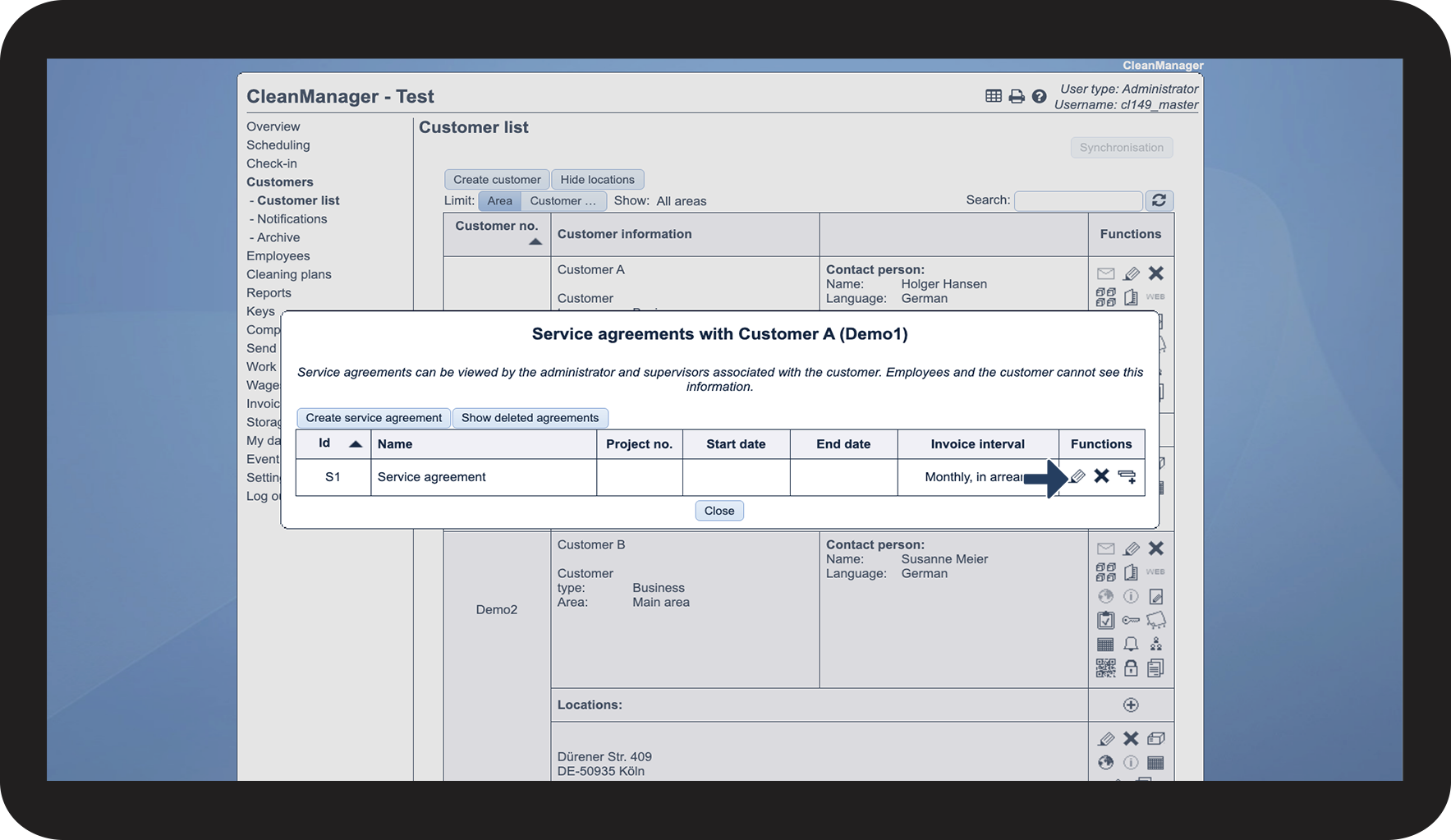

NOTE:
The general setting Invoice scheduled or used time? will only affect any new service agreements that are created.

How to see if a service agreement uses scheduled or used time in invoicing
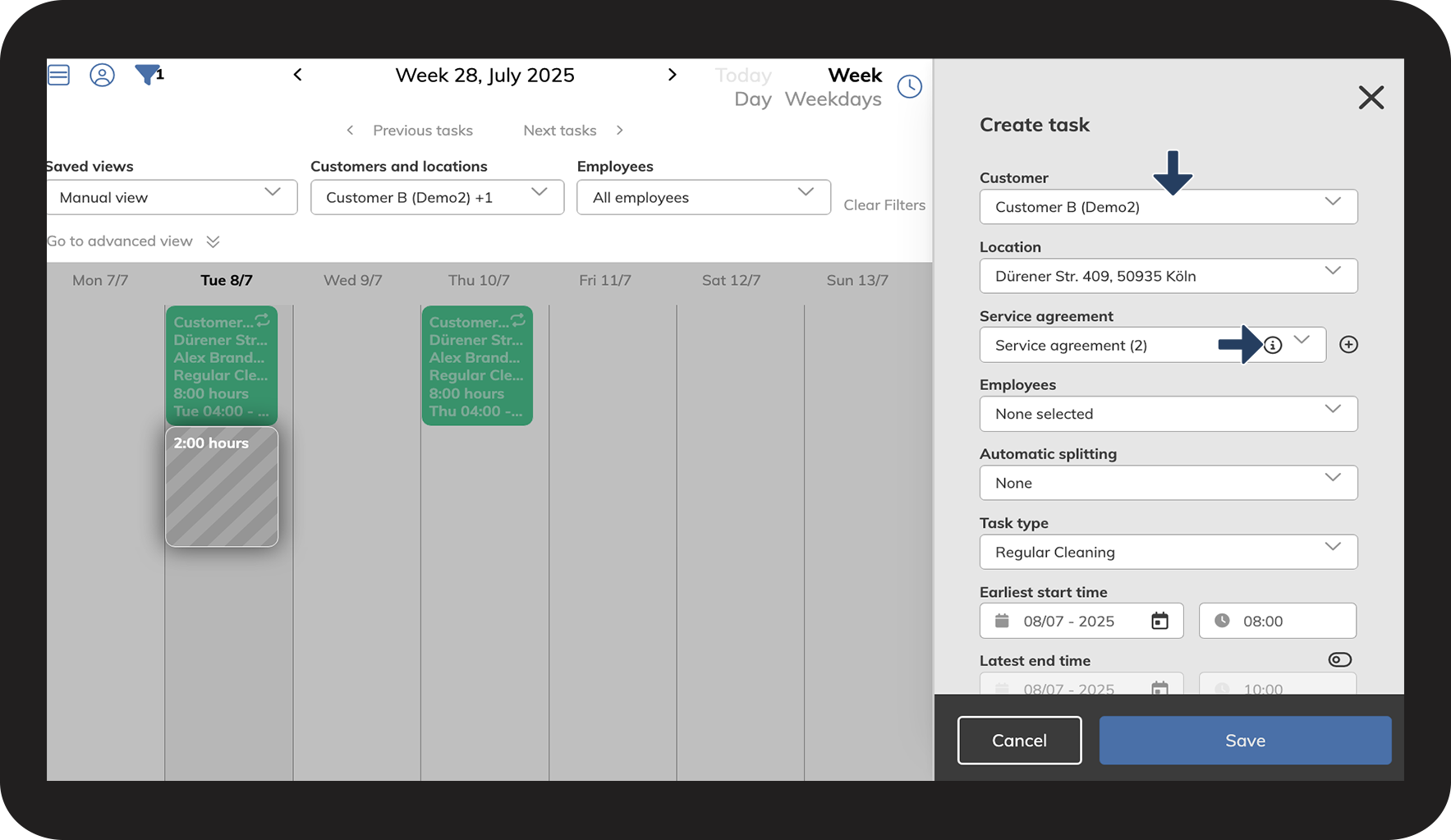
How to see if a service agreement uses scheduled or used time in scheduling
 next to service agreement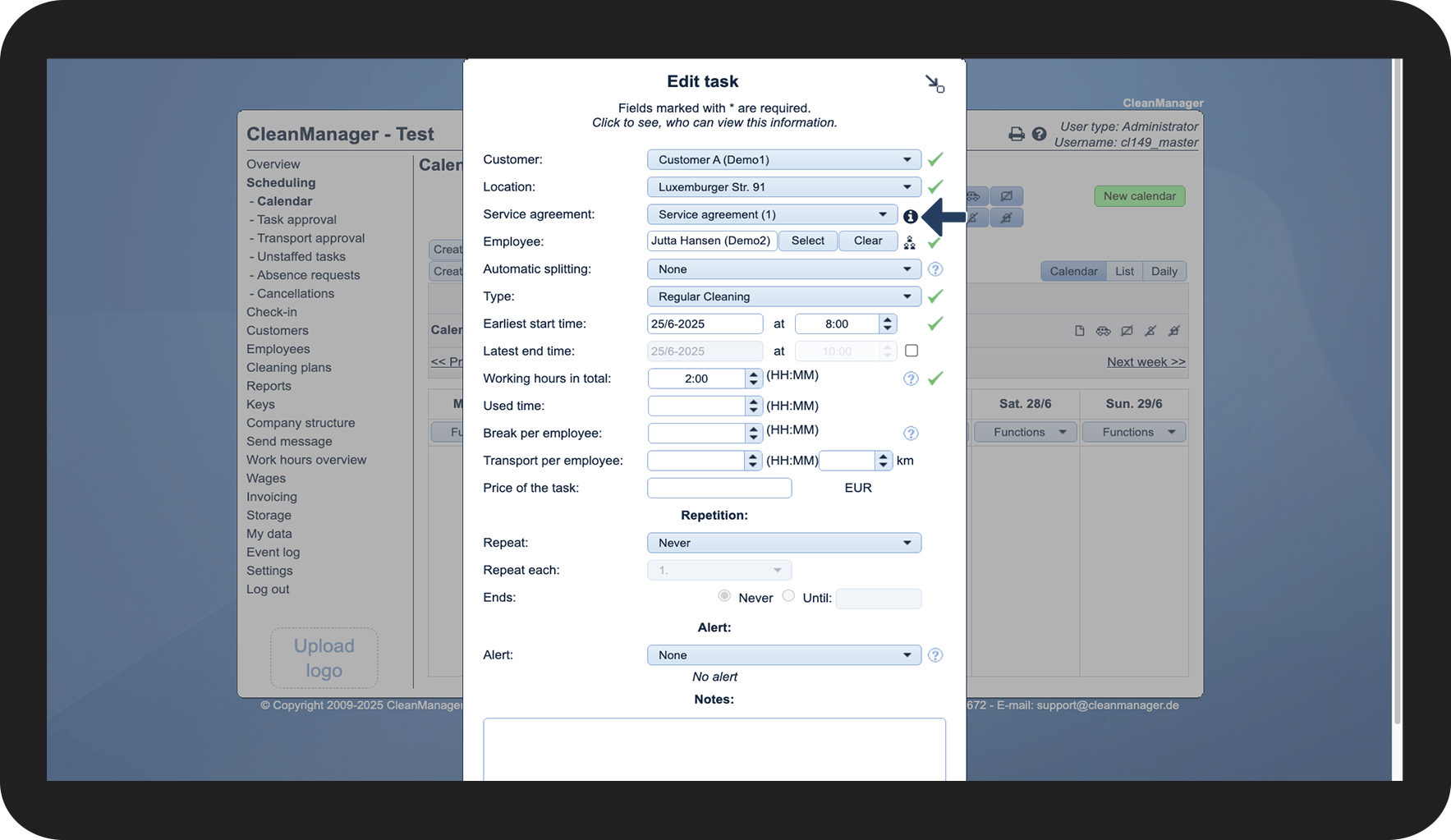
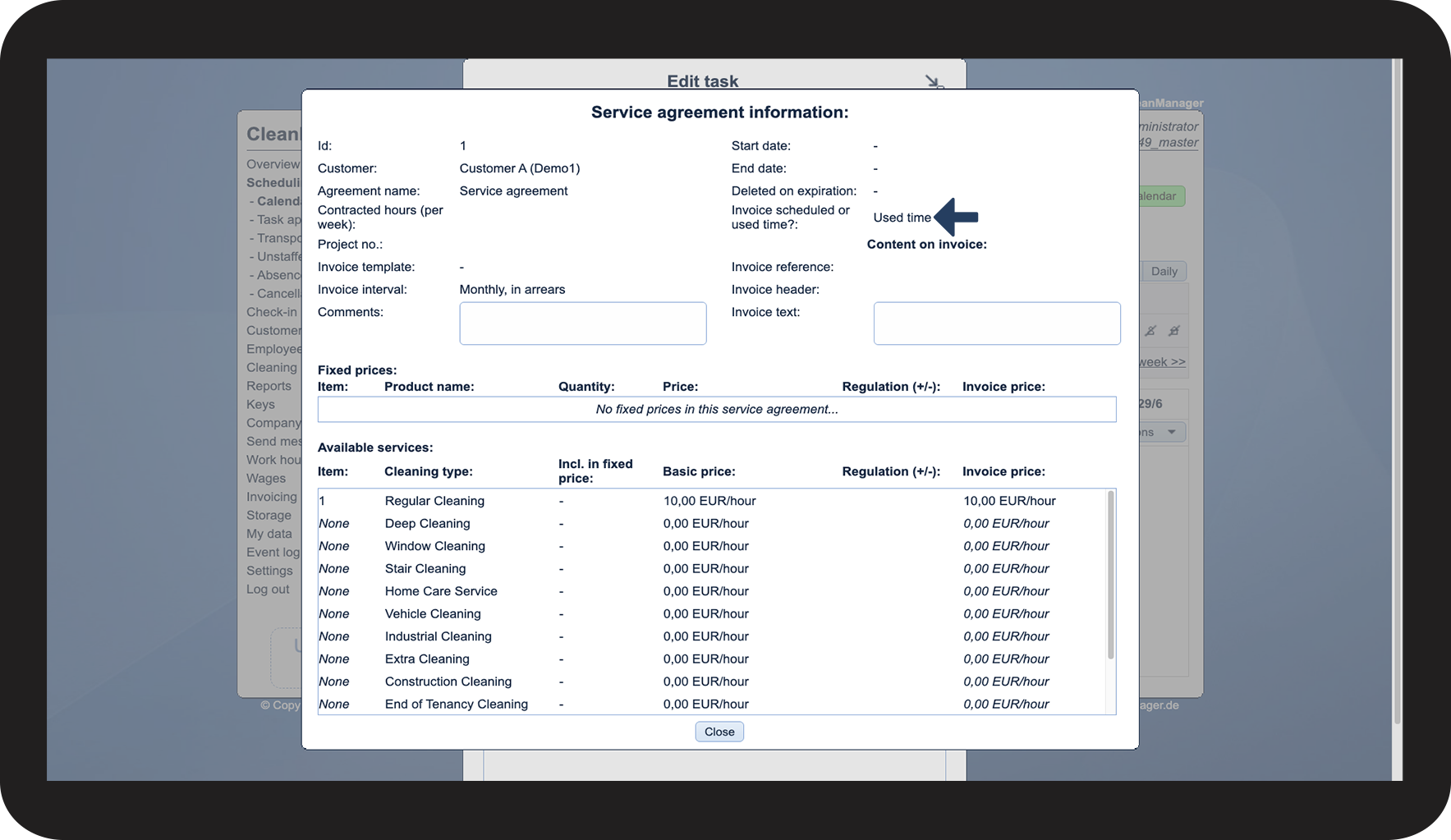
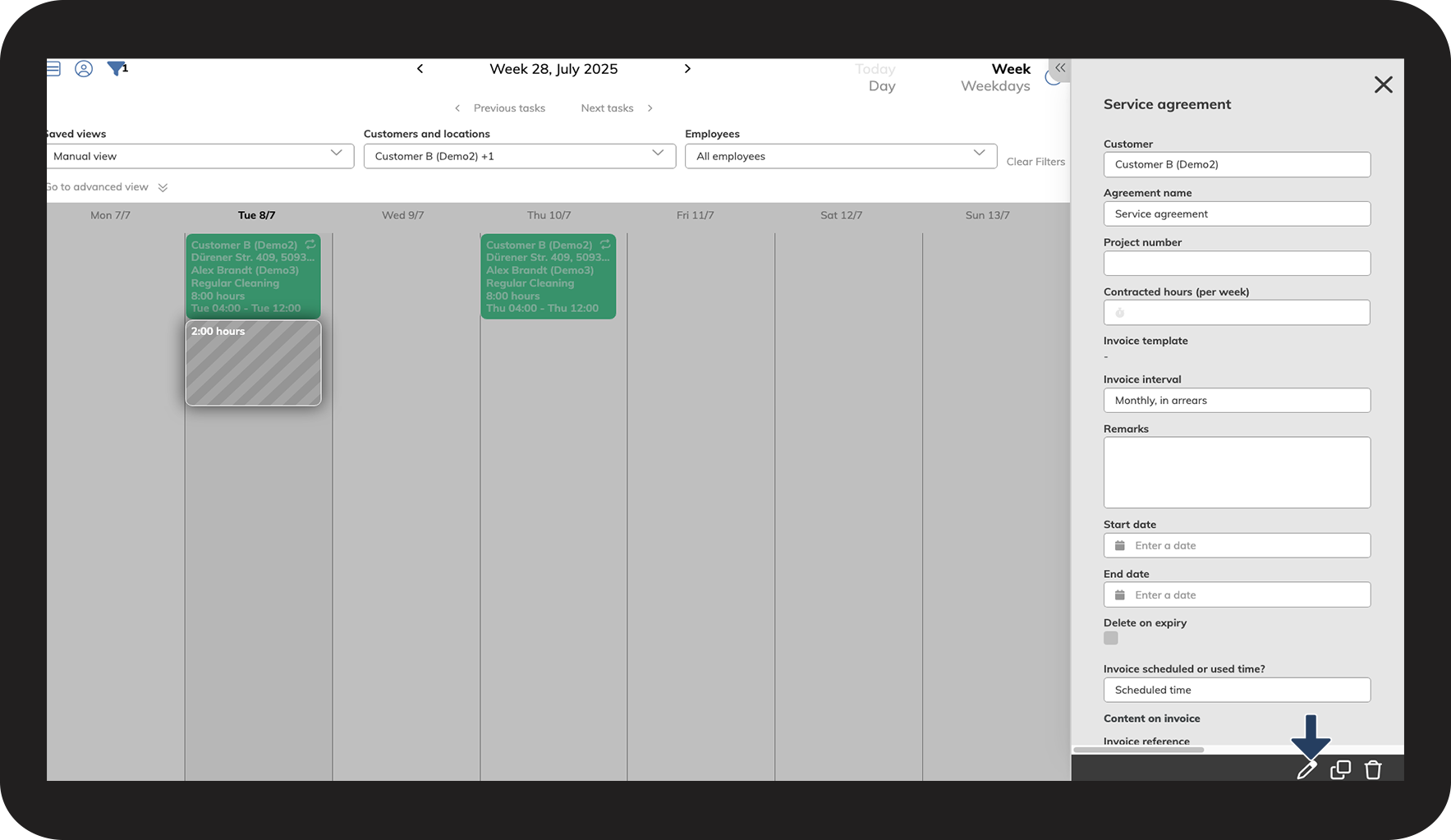
How to see if a service agreement is using scheduled or used time in the new calendar
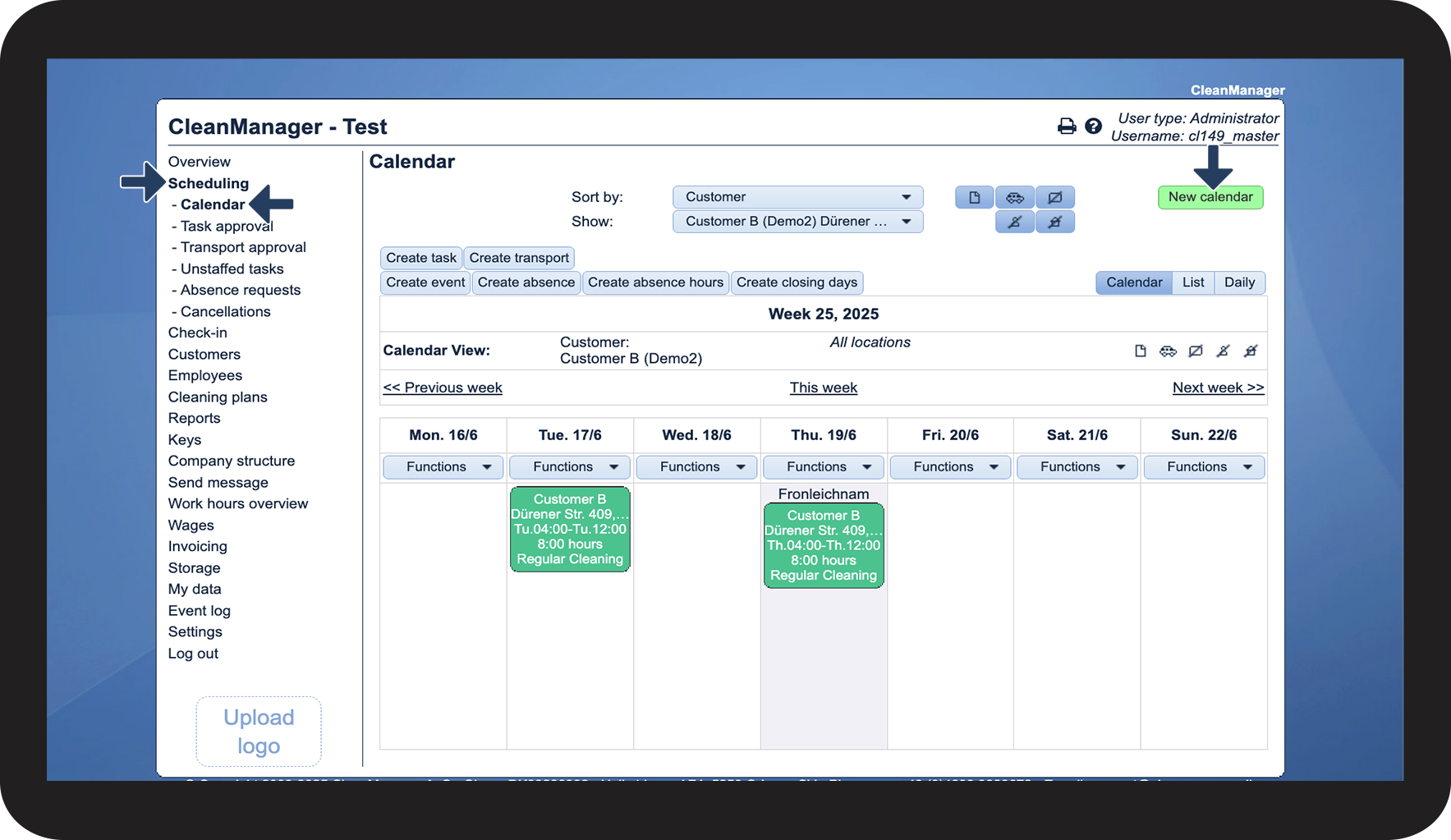
 in the bottom right corner of the calendar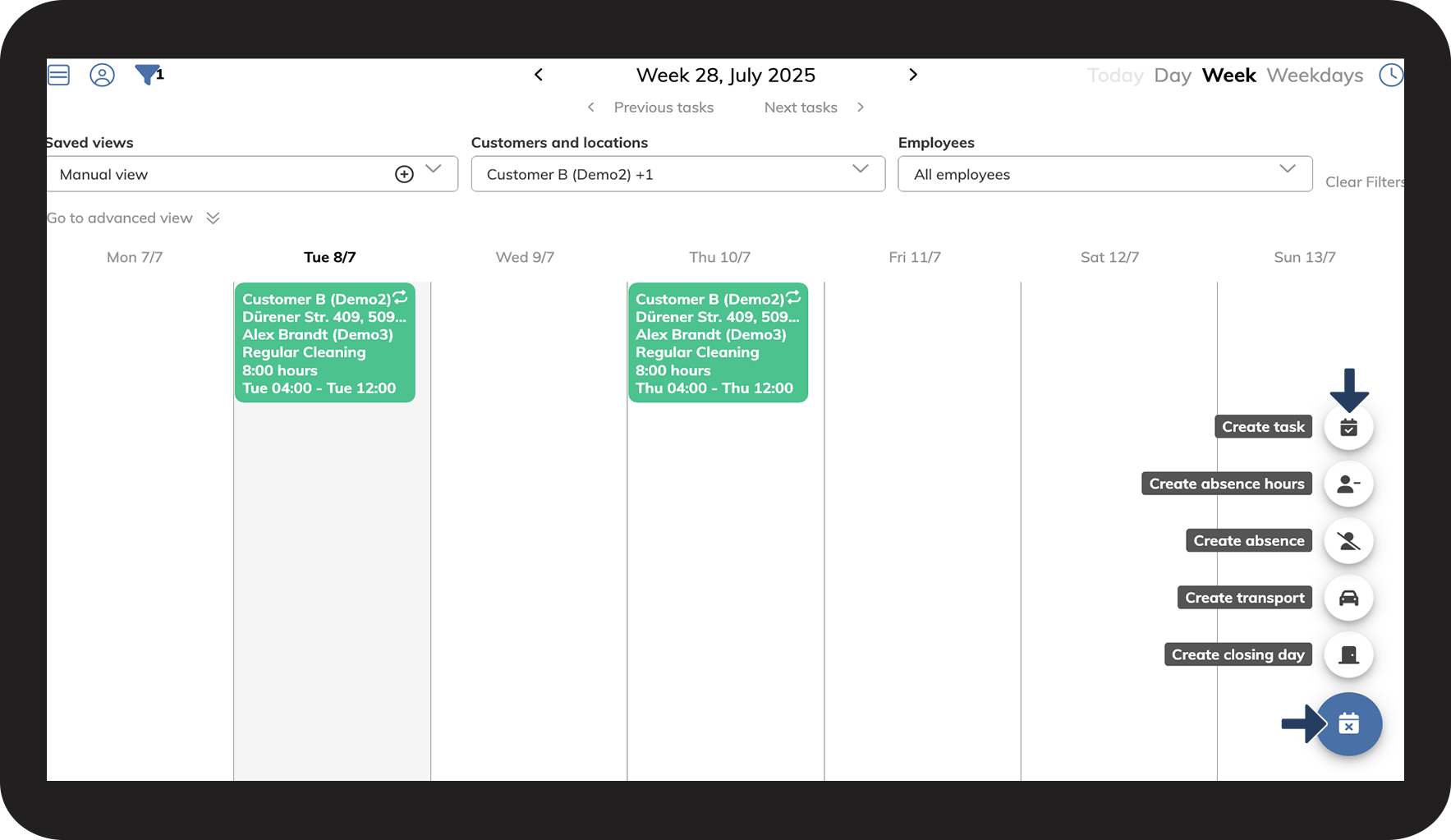
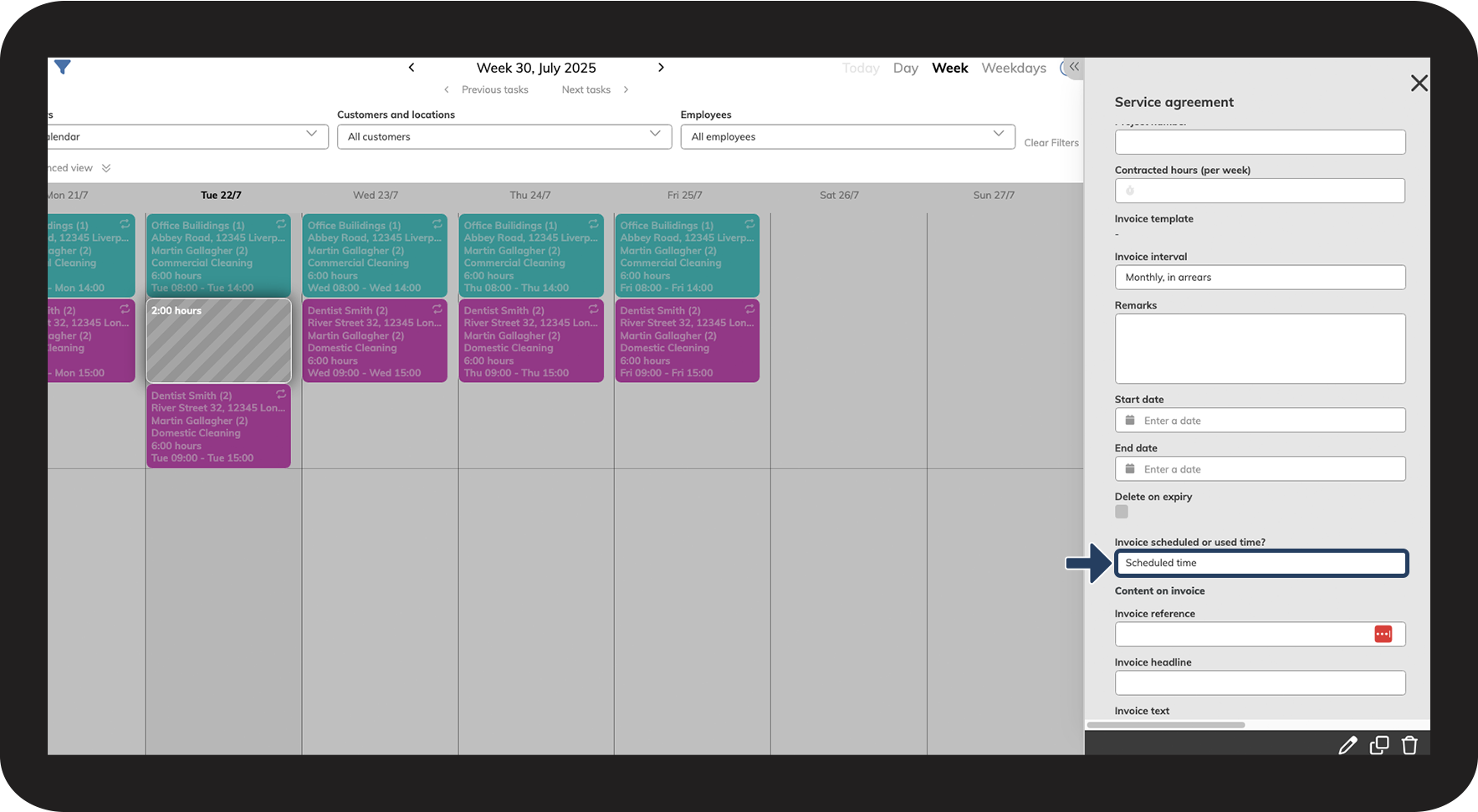
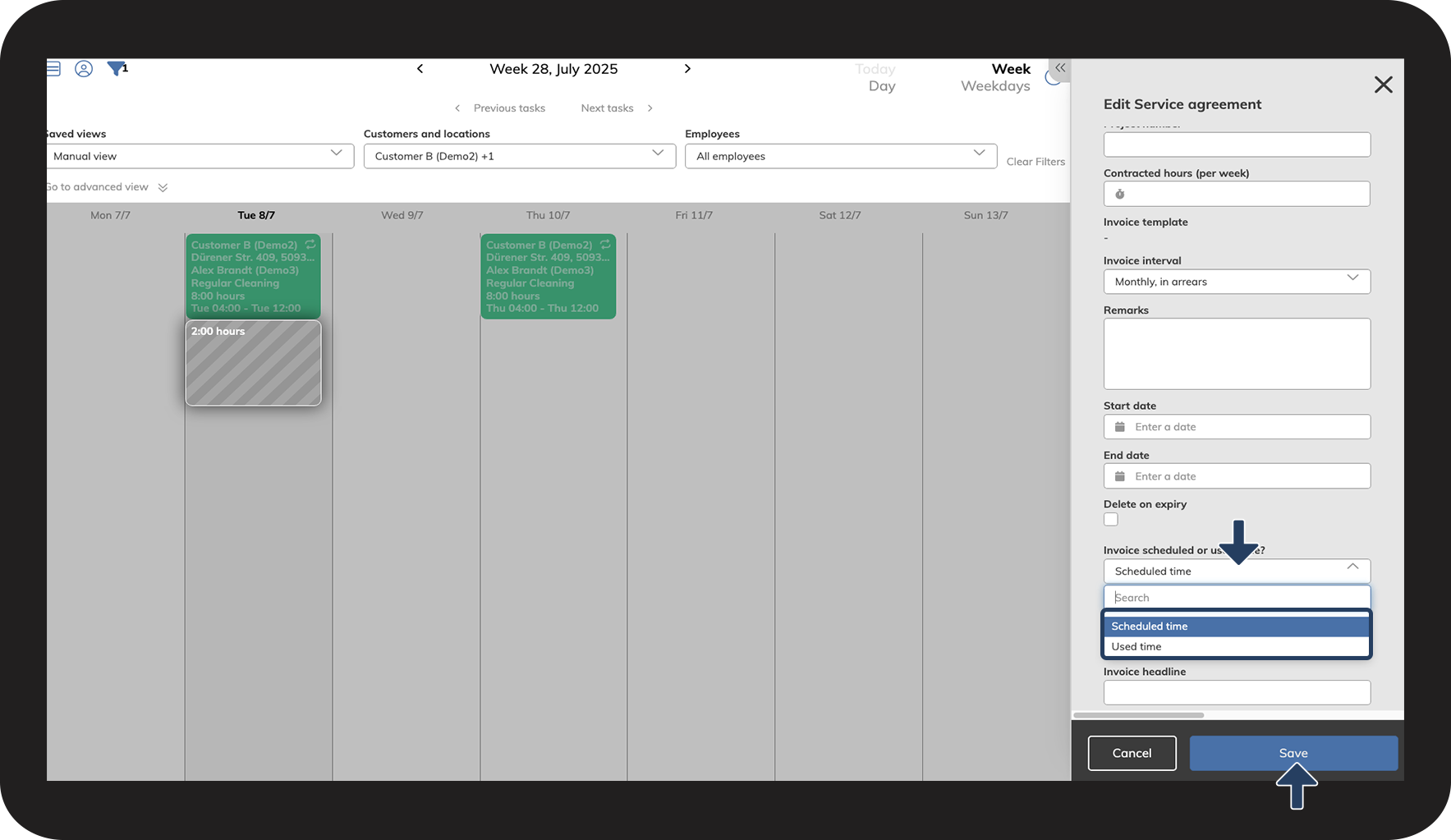
How to edit a service agreement in relation to the use of scheduled or used time in the new calendar
 to edit the service agreement