Skip to content
English
  • There are no suggestions because the search field is empty.

Integration setup for Dynamics 365 Business Central - Part 1: Azure

How do I set up an integration between CleanManager and Dynamics 365 Business Central?

Note

CleanManager only supports Single tenant Business Central with authentication through Microsoft Azure.


To be able to integrate CleanManager with Dynamics 365 Business Central, the following three accesses are required:

  • Admin access to Azure
  • Admin access to Dynamics 365 Business Central
  • Admin access to CleanManager


Should you not have admin access to one of these three software, it is vital that you contact those who have, since without, it will not be possible to achieve a successful integration.


The required information from Azure, for the integration with Cleanmanager is:

  • Client (Application) ID
  • Directory (tenant) ID
  • Secret value
  • API permissions for CleanManager

Read more about the successful integration of Dynamics 365 Business Central with CleanManager: 


Part 1:  This is how you find your Client ID and Tenant ID in Azure

This guide will explain the required steps to take in Azure, to be able to set up an integration between Dynamics 365 Business Central and CleanManager.

Things you need for this part:

  • Admin access to Azure
  • Admin access to Dynamics 365 Business Central
  • Admin access to CleanManager
number_1_copy.png

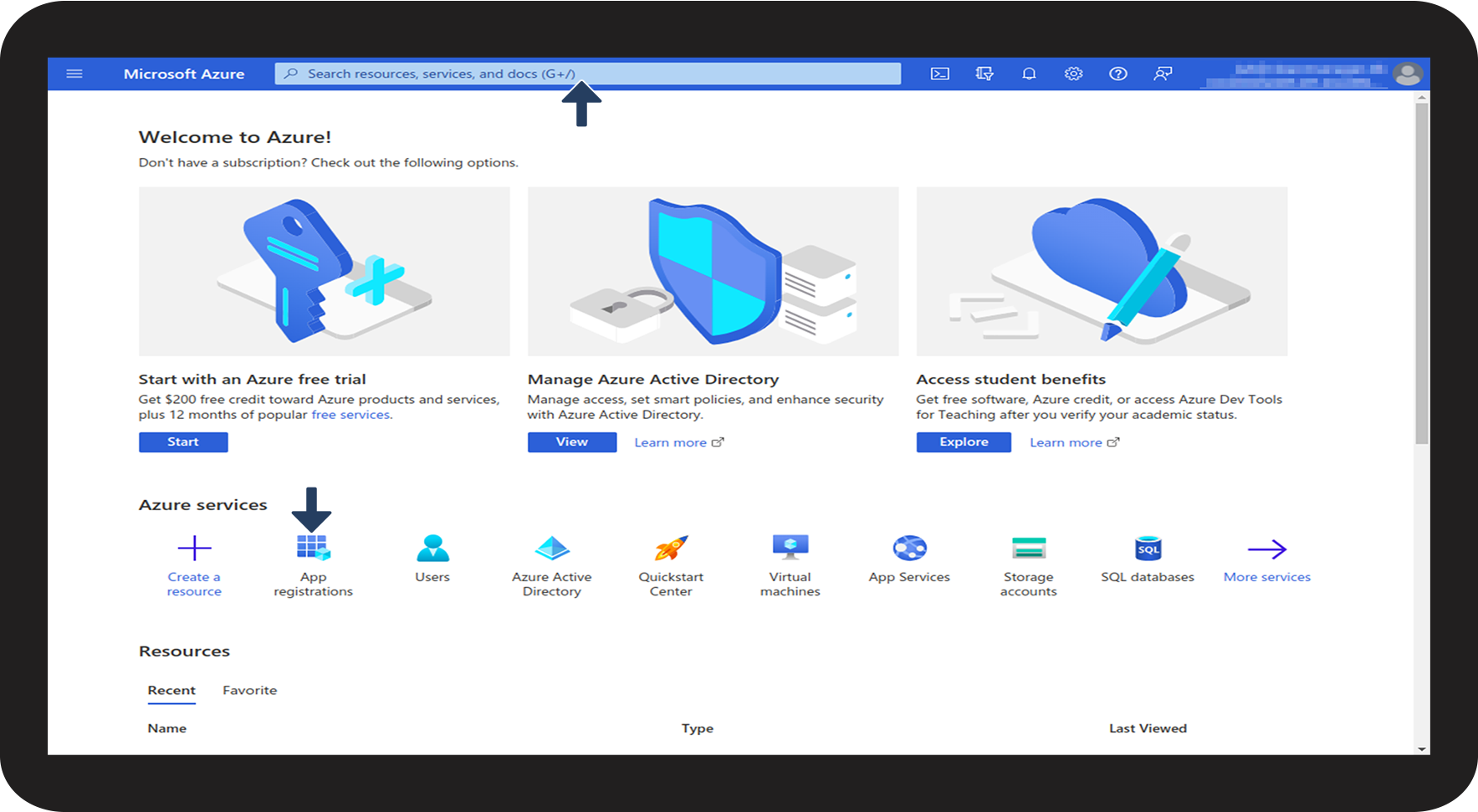
Login to Azure and click on App Registrations.

If App Registrations is not located on your front page, you can search for it in the search bar. 

1.png

number_2_copy.png
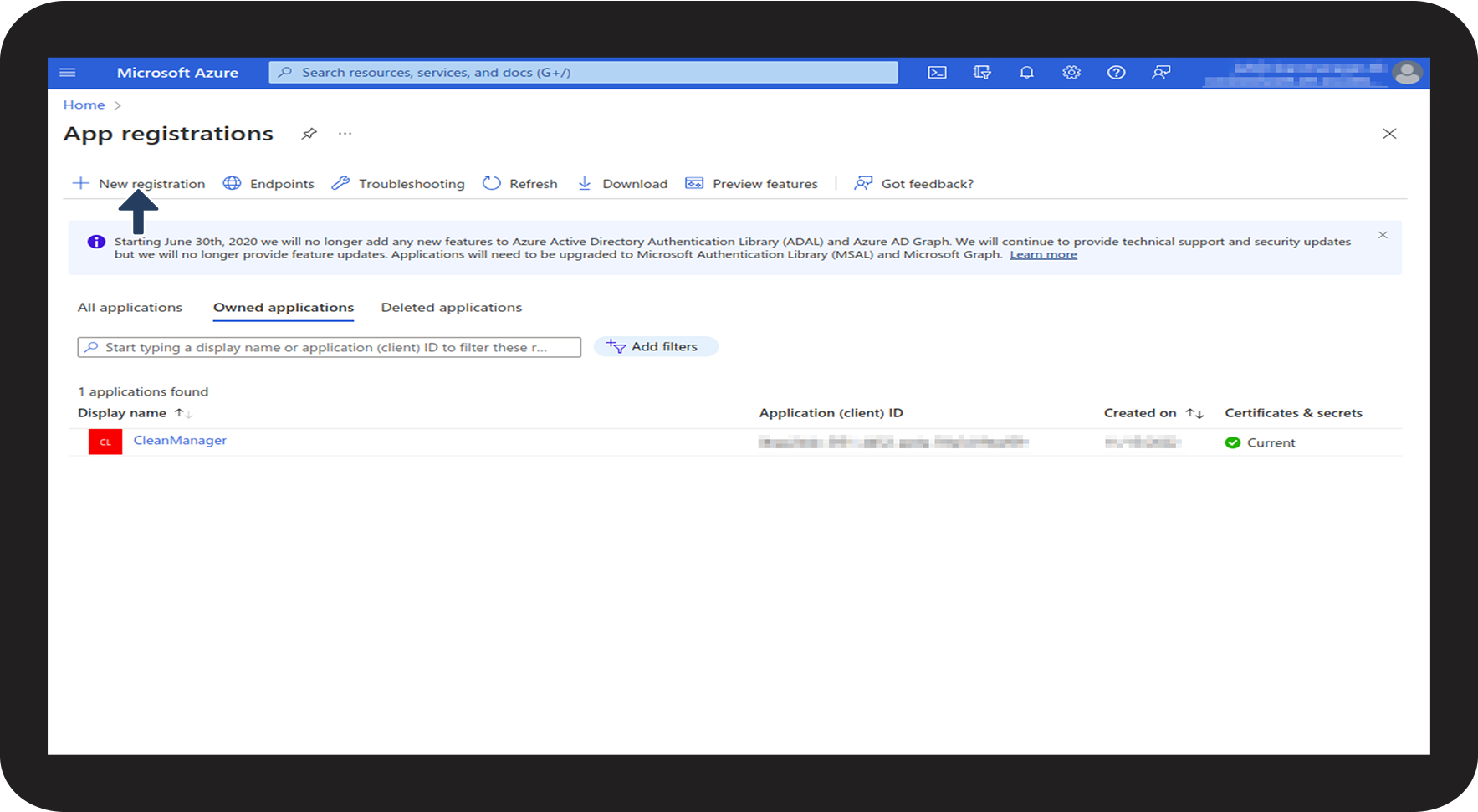
Click thereafter on + New registration

2.png

number_3_copy.png
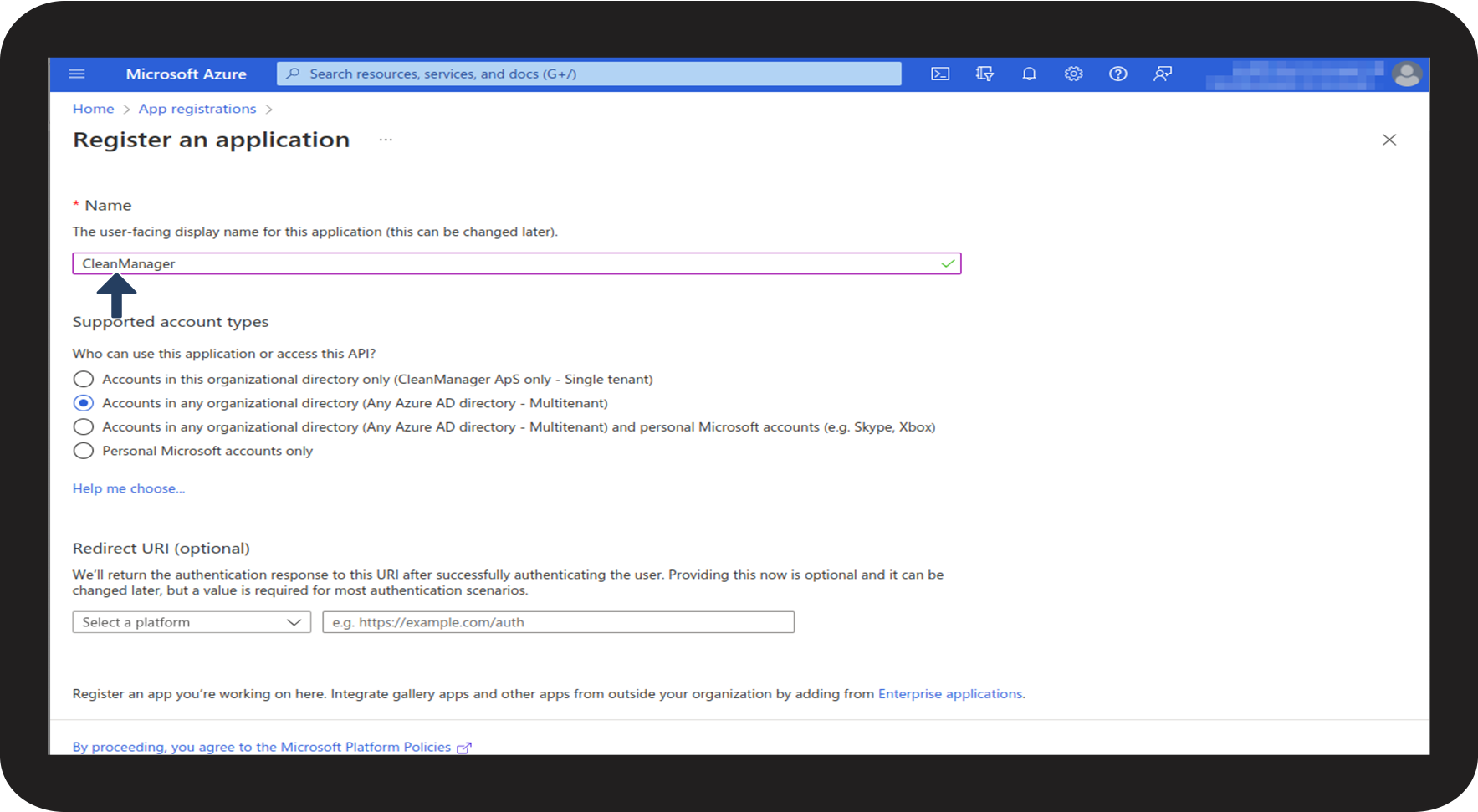
Put in CleanManager under Name

3.png

number_4_copy.png
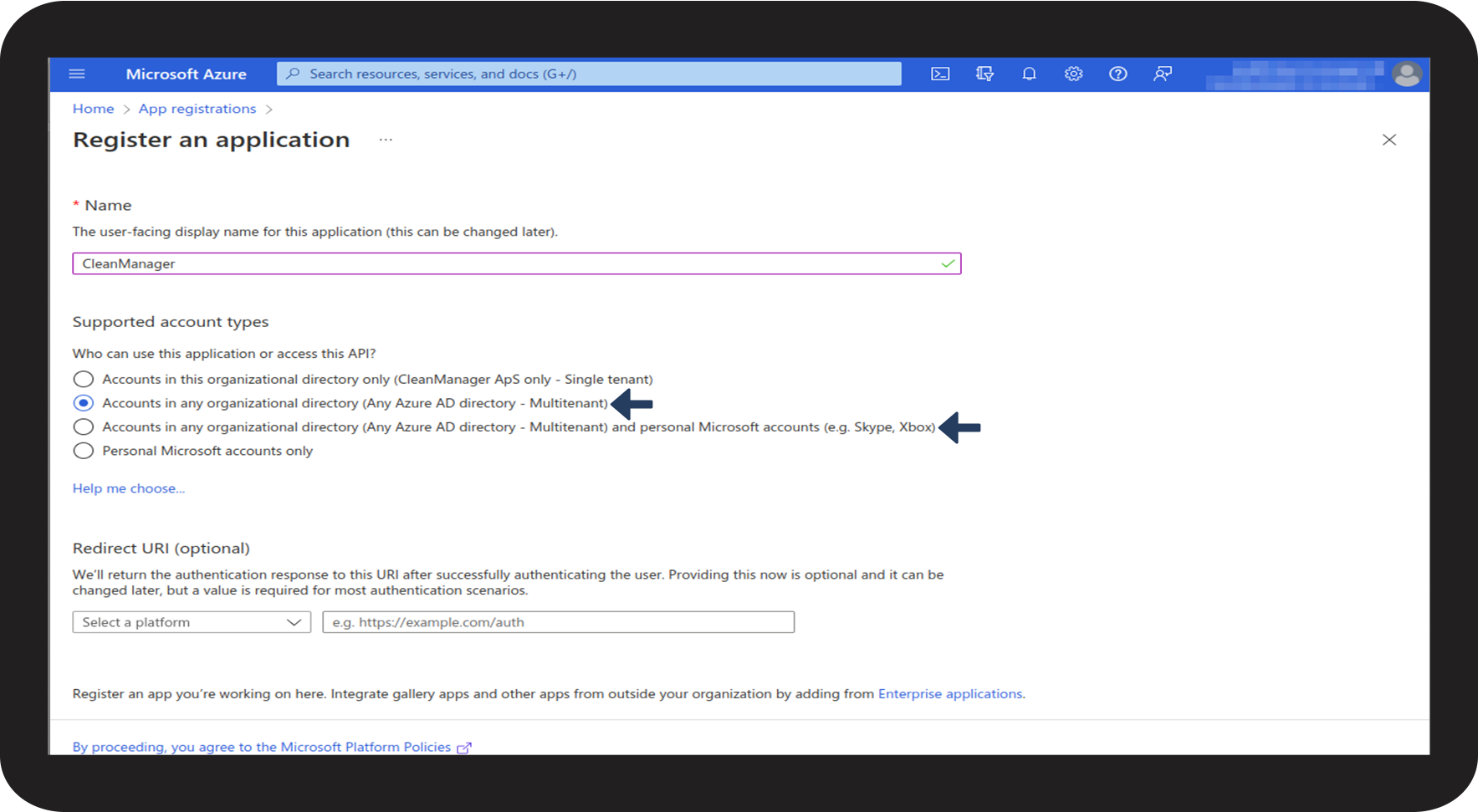
Under Supported account types, click on Accounts in any organizational directory or Accounts in any organizational directory and personal Microsoft accounts. Click thereafter on Save.
4.png
number_5_copy.png
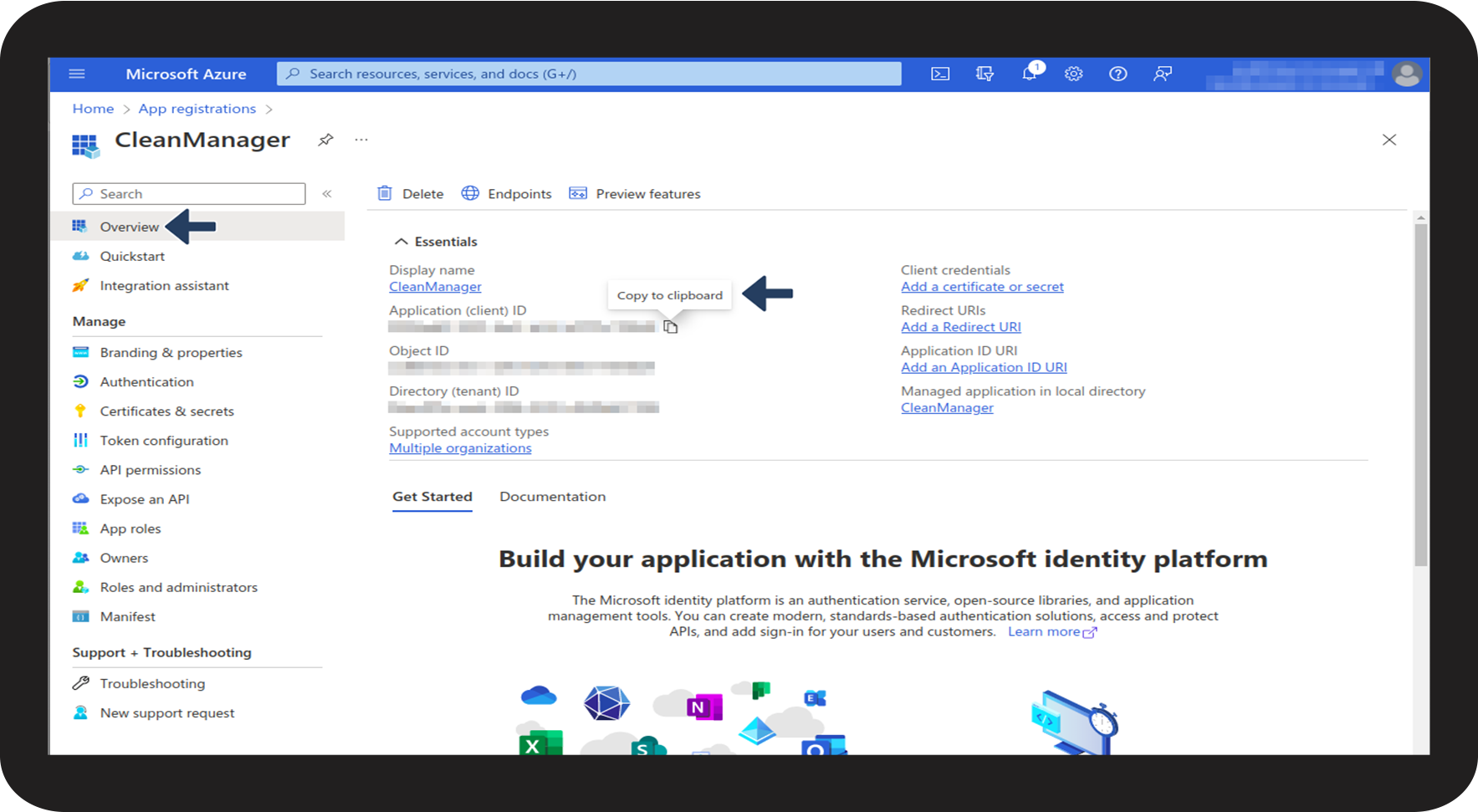
At Overview copy the Application (client) ID
5.png
number_6_copy.png

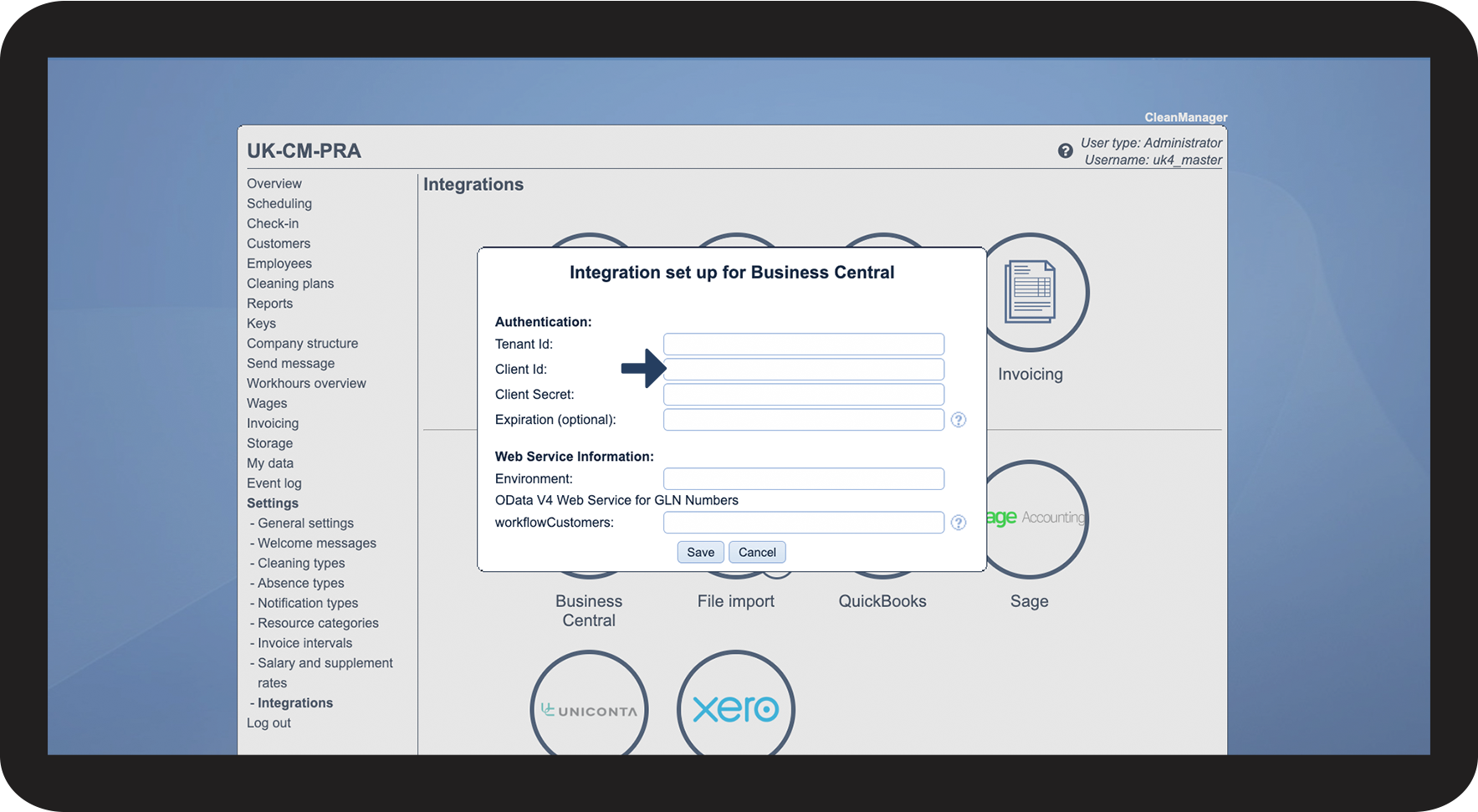
Insert the Application (client) ID into CleanManager > Settings > Integrationes > Business Central > Client-ID

The Application (client) ID will later be used in Dynamics 365 Business Central as well

Client-Id.png
number_7_copy.png

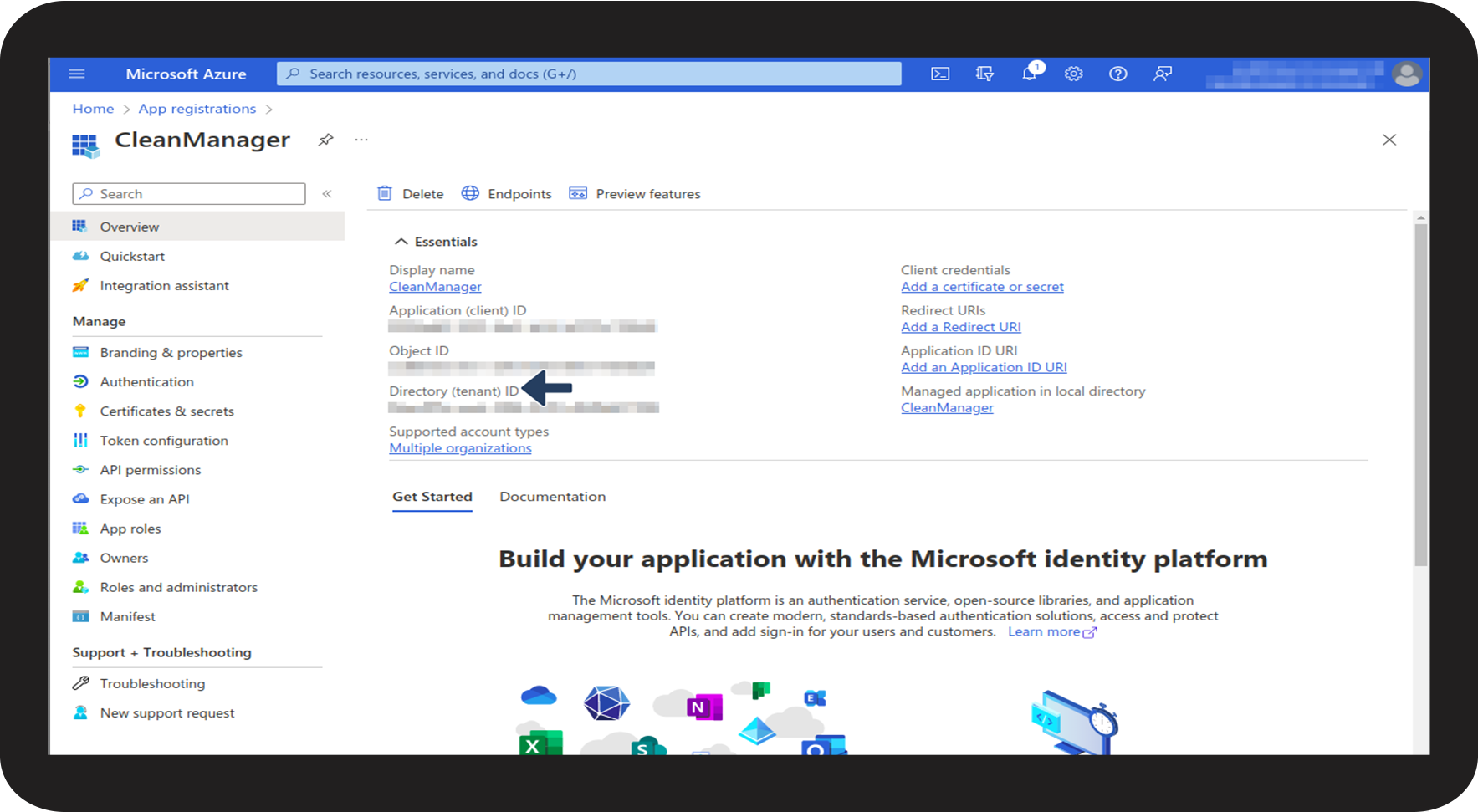
Return to the Overview and copy the Directory (tenant) ID

7.png
number_8_copy.png
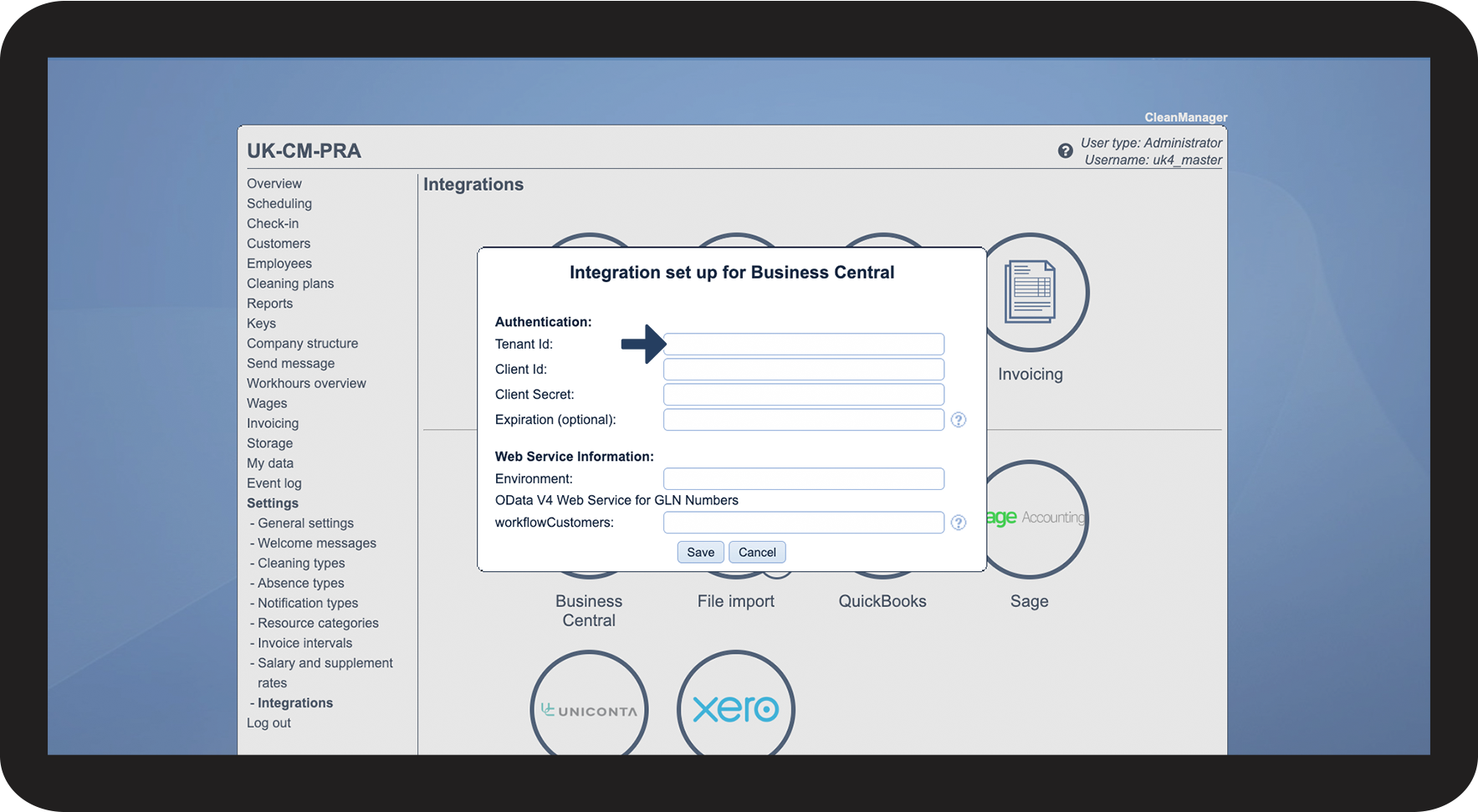
Insert the Directory (tenant) ID into CleanManager > Settings > Integrations > Business Central > Tenant Id
Tenant-Id.png


Part 1.1: This is how you find your Client Secret in Azure

Having completed the before mentioned steps in Part 1, you can now look for your Client Secret in Azure.
number_1_copy.png
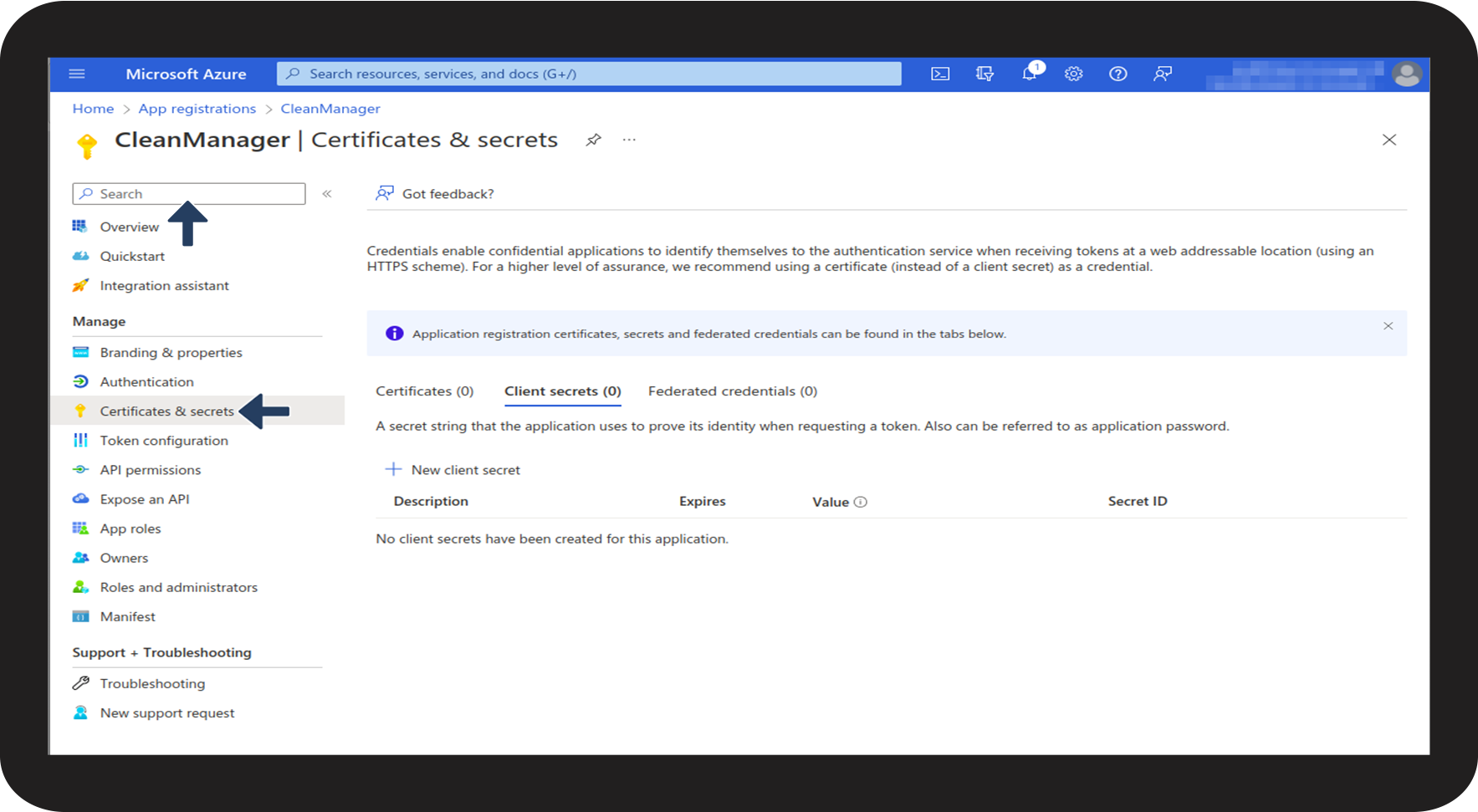
Click on Certificates & Secrets (or search for it)

8__1.1_.png

number_2_copy.png

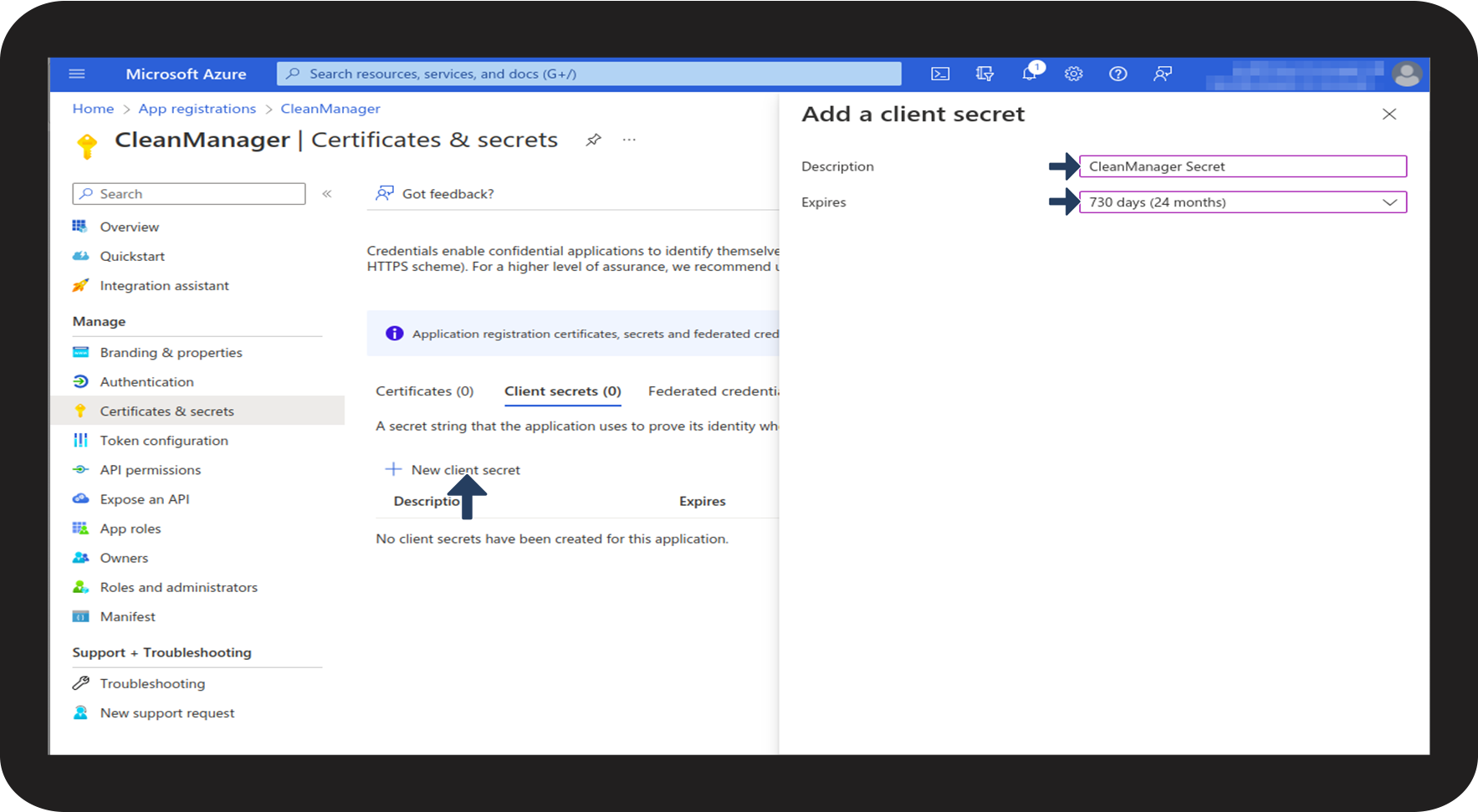
Click on + New Client Secret. At Description write CleanManager Secret

We recommend that you set Expires to 730 days (24 months) so as to assure, that the Client Secret will be valid as long as possible.

Afterwards, click on Add.

9__1.2_.png

number_3_copy.png
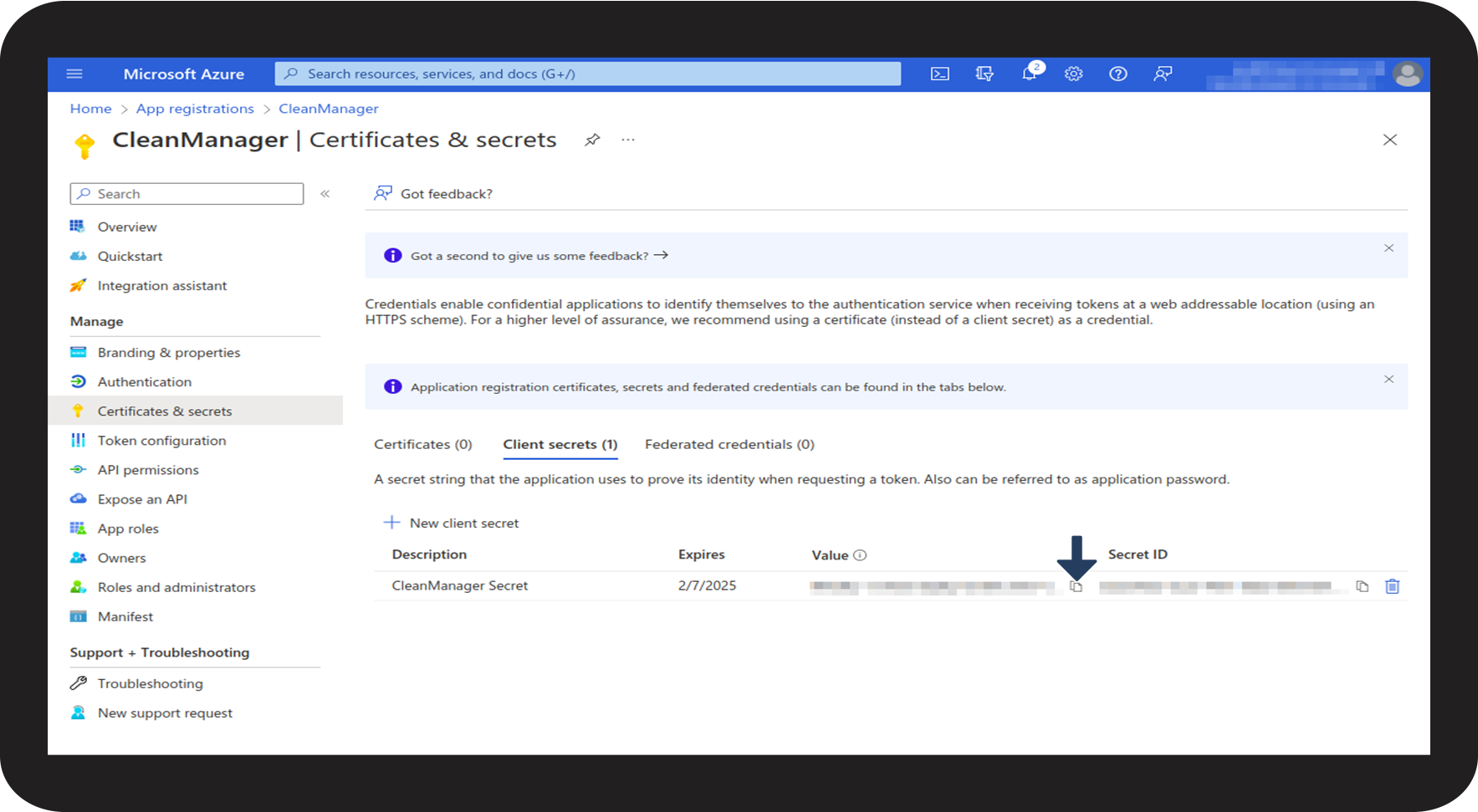
Copy the Value

10__1.3_.png

number_4_copy.png
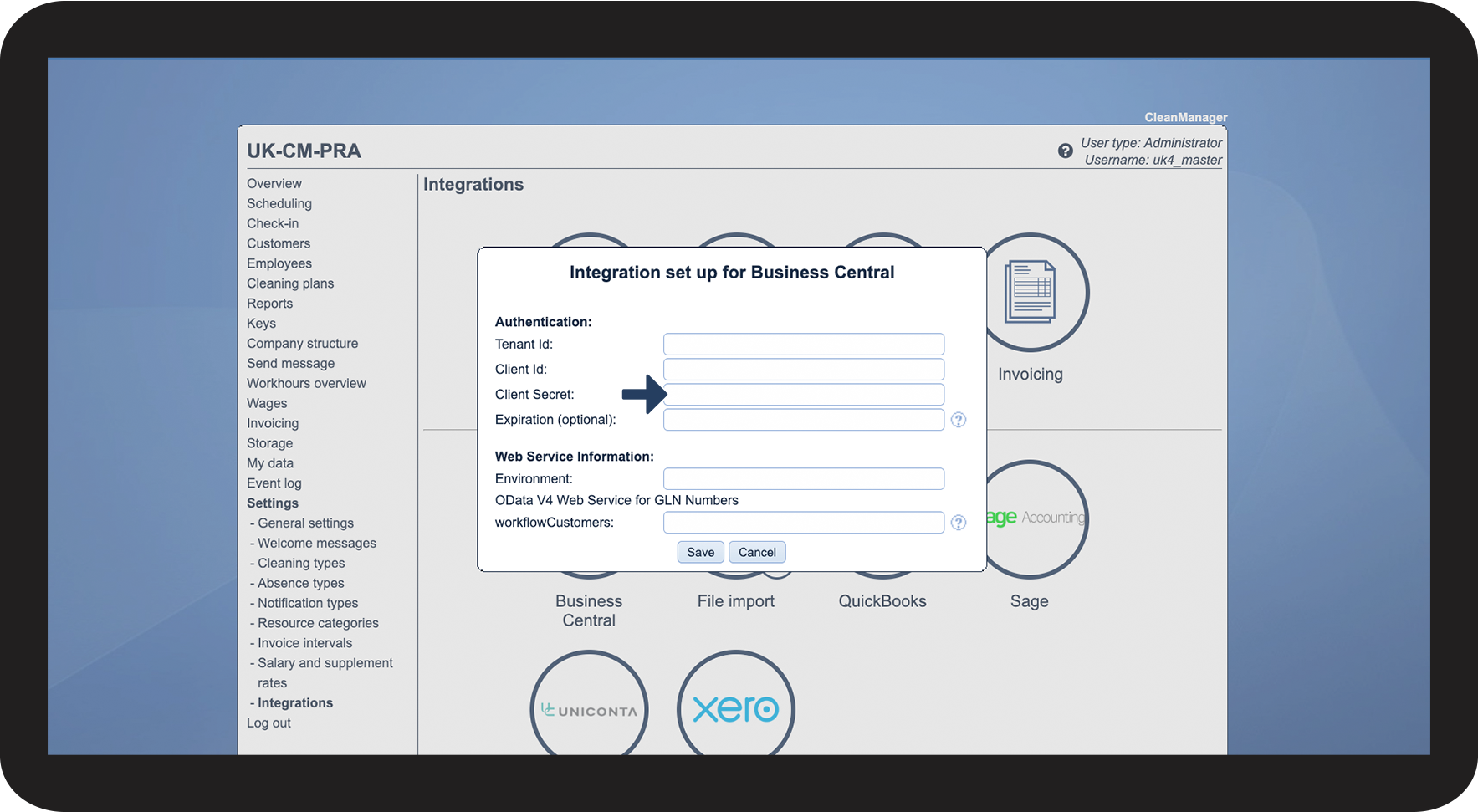
Insert the value under Client Secret

Client_Secrect.png

number_5_copy.png

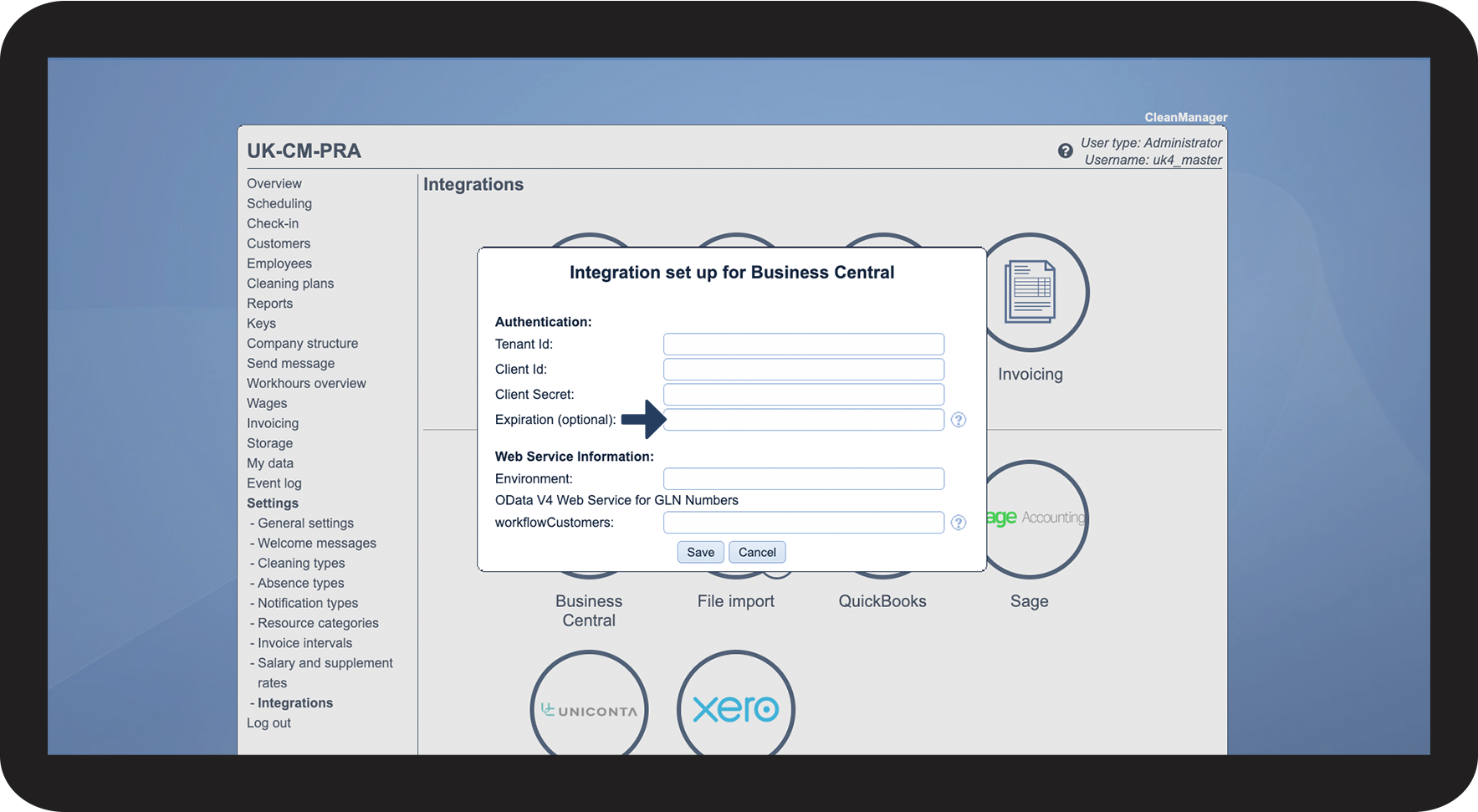
We recommend: Write down the date, for when the Client Secret expires, in the box Expiration (optional), so that you are always aware, when a new Client Secret has to be created.

When the Client Secret expires, you will have to repeat the steps from part 1.1 again.

Expiration.png


1.2 This is how you grant a permission to Dynamics 365 Business Central in Azure.

To be able to successfully set up an integration between CleanManager and Dynamics 365 Business Central, it is important to grant a permission for this in Azure. 
number_1_copy.png
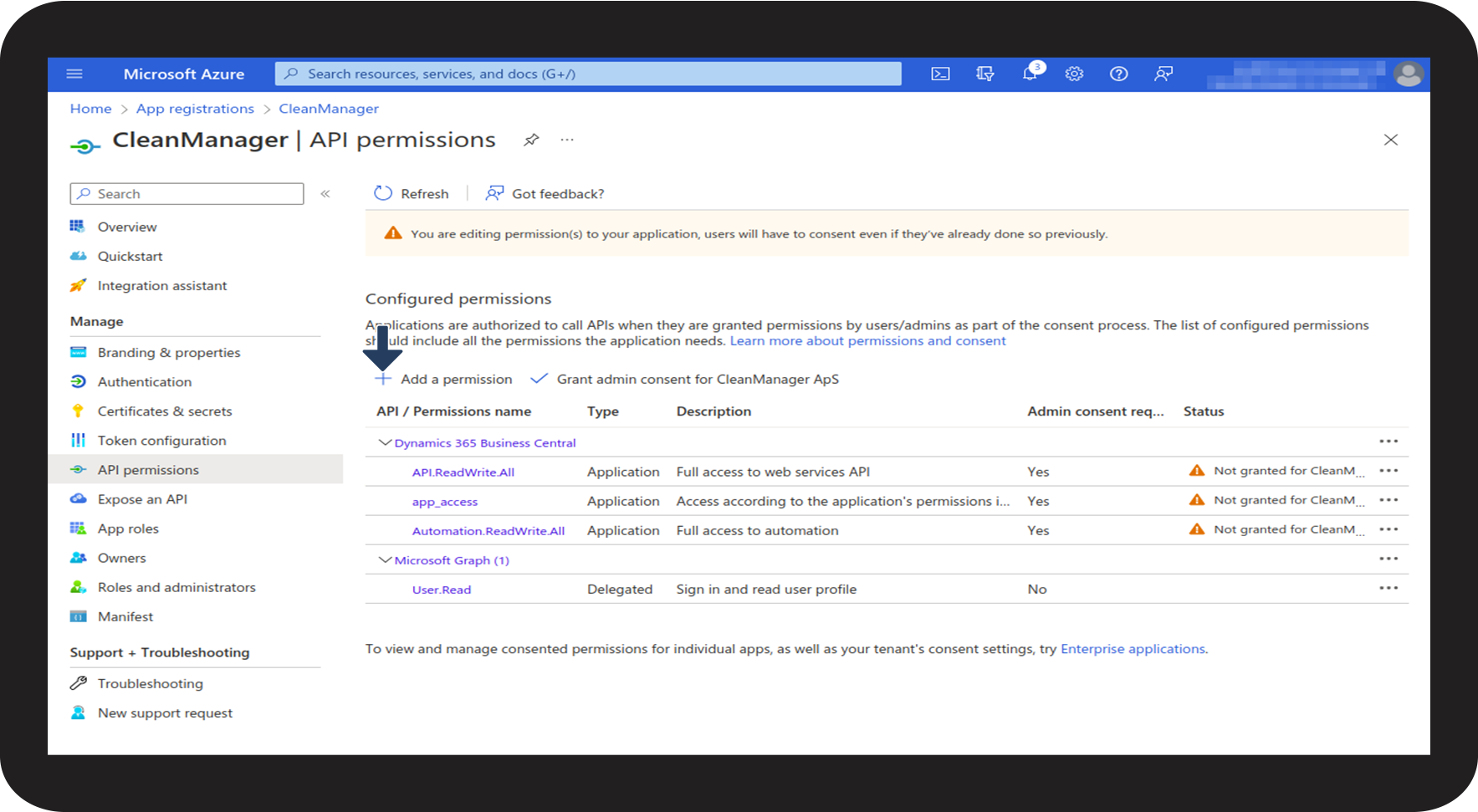
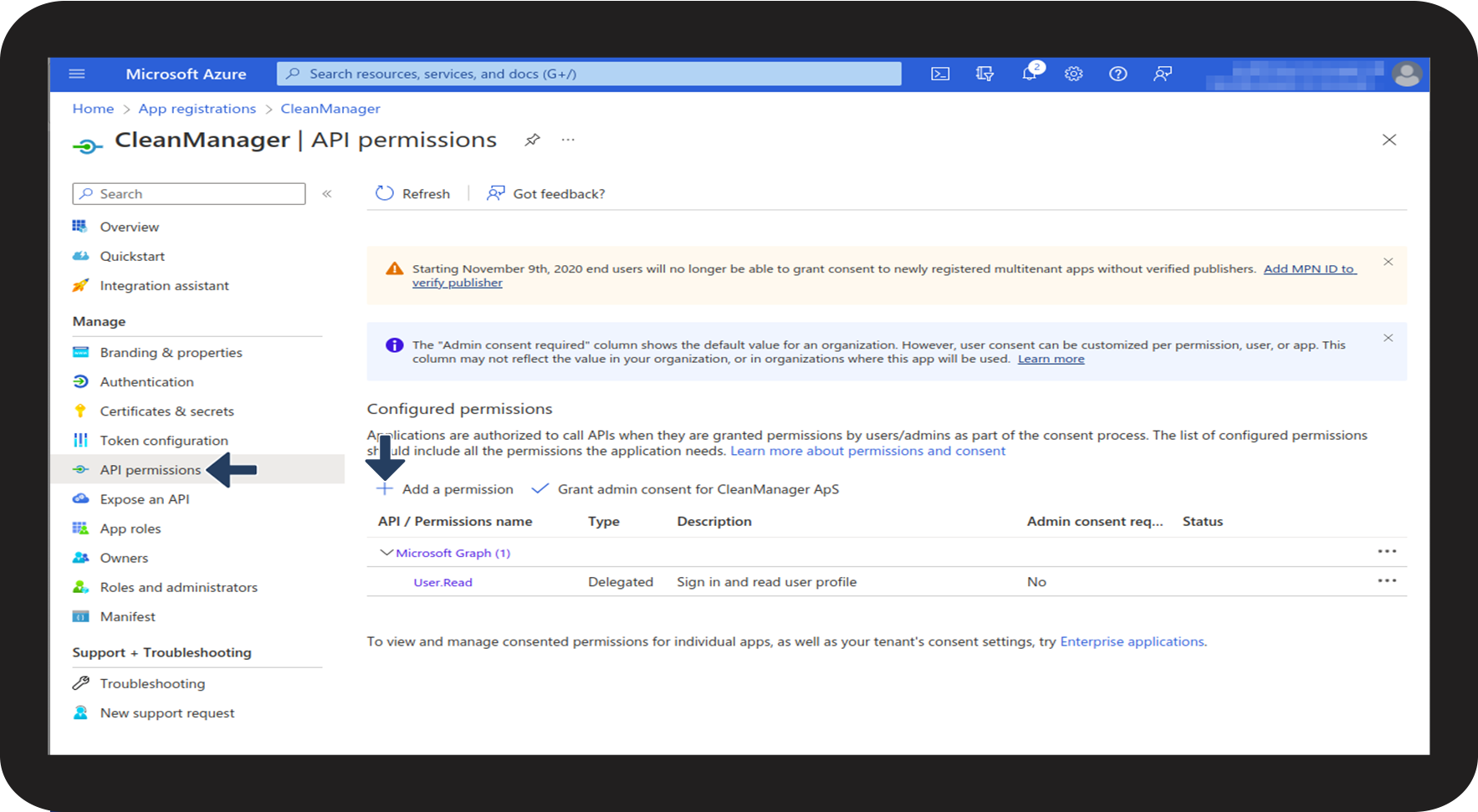
Click on API permissions and afterwards on + Add a permission

11__1.2.1_.png

number_2_copy.png
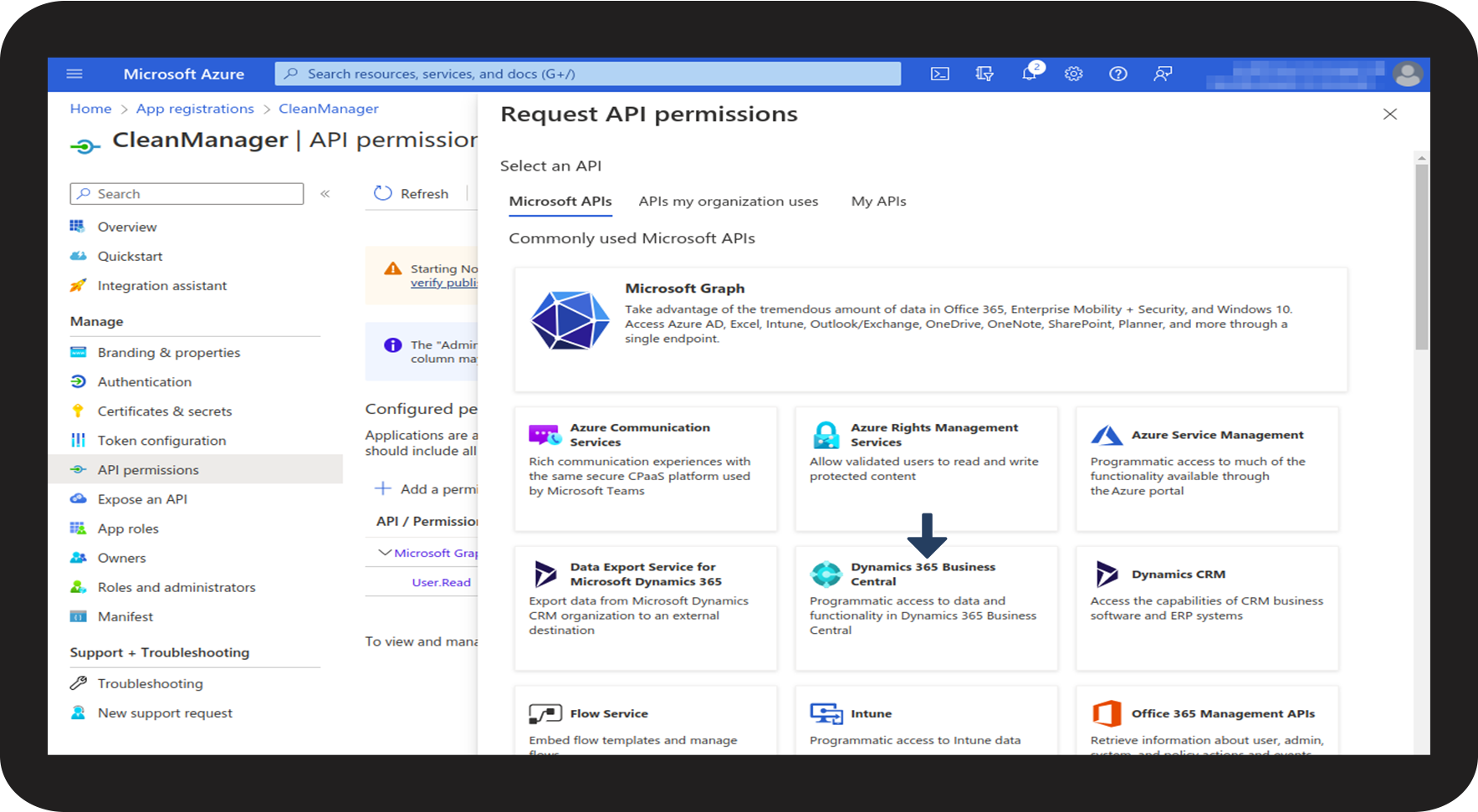
Choose Dynamics 365 Business Central

12__1.2.2_.png

number_3_copy.png
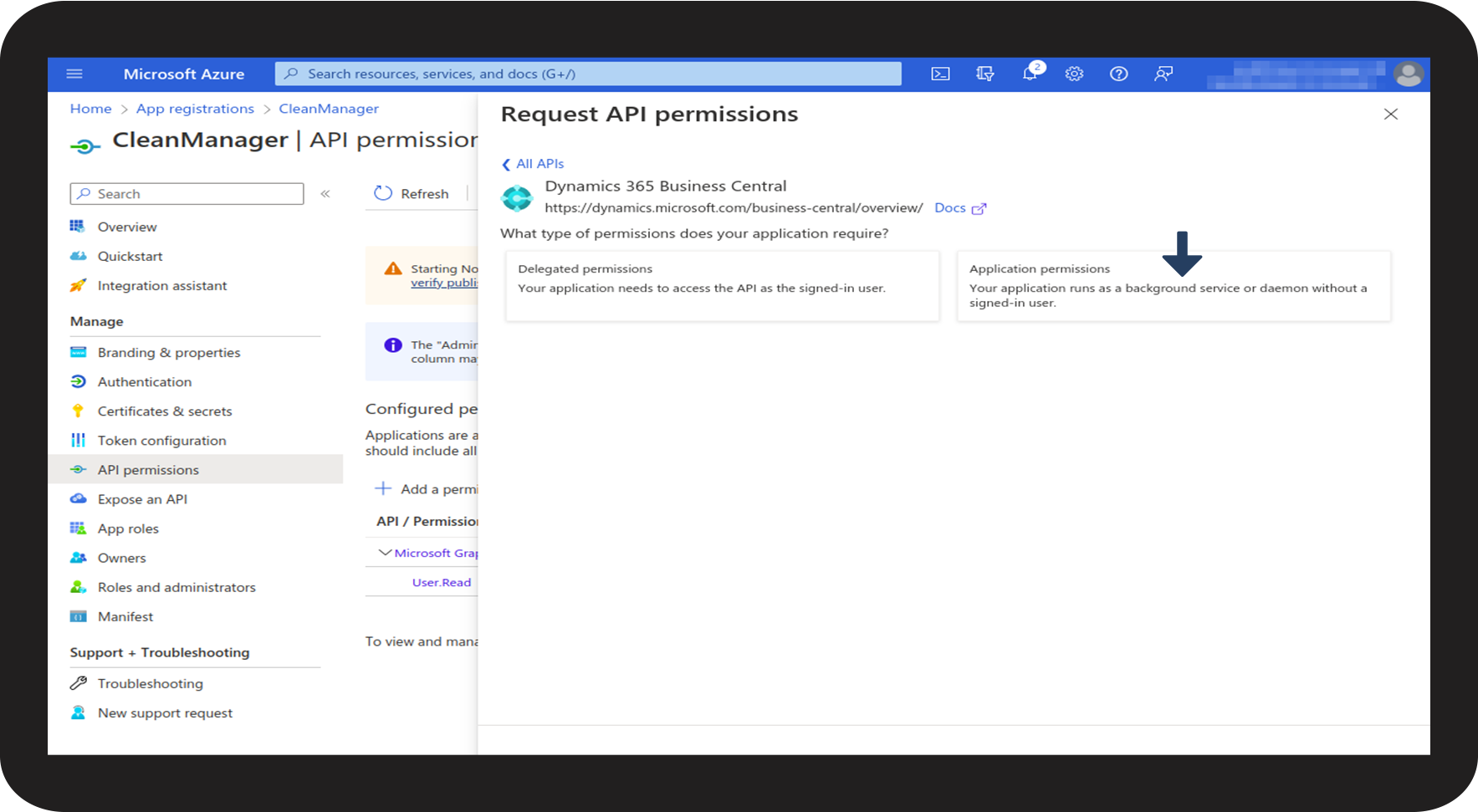
Afterwards, click on Application permissions

13.__1.2.3_.png

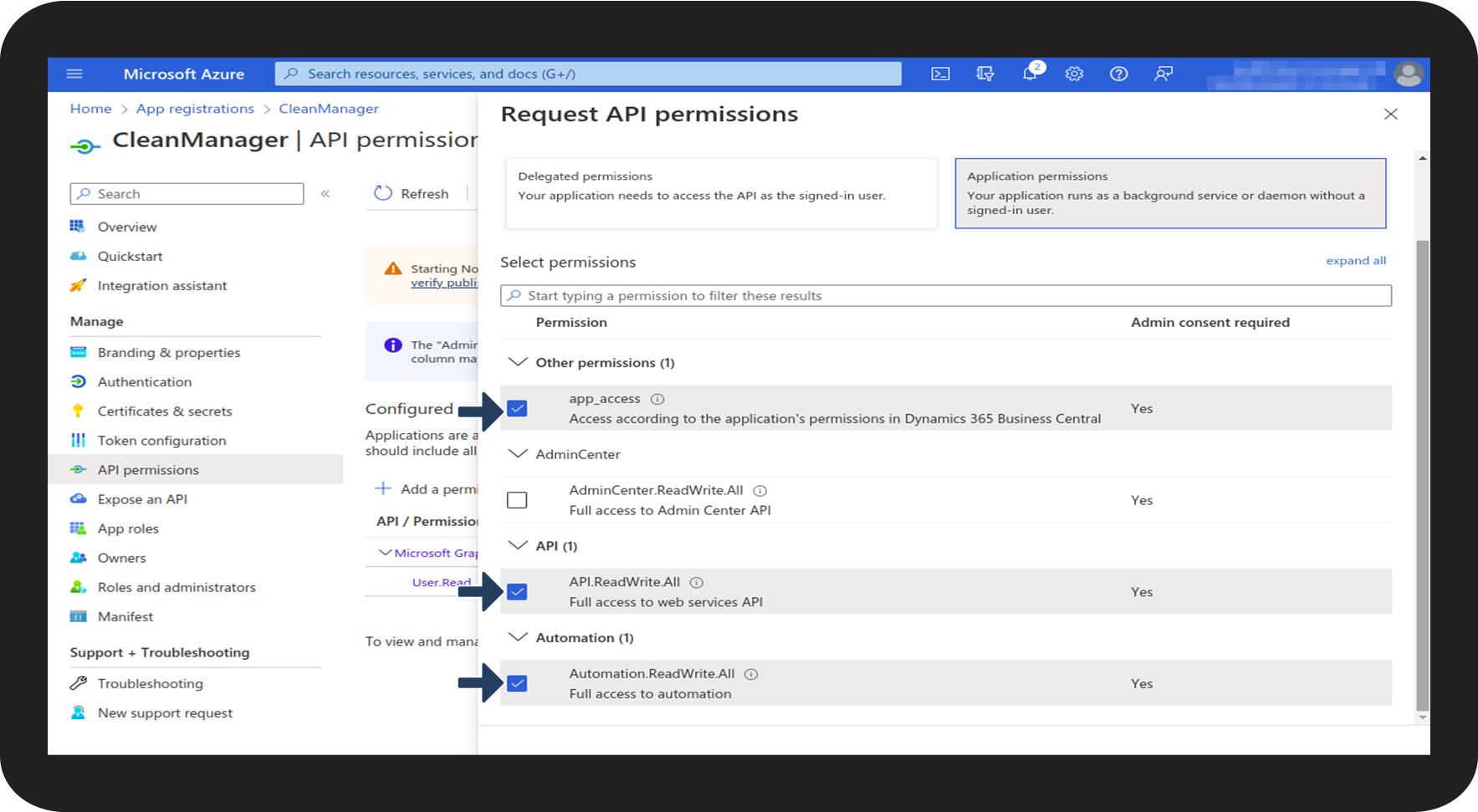
number_4_copy.png
Check off the boxes app_access, API.ReadWrite.All and Atumation.ReadWriteAll and click on  Add permissions

14__1.2.4_.png

number_5_copy.png
Click on + Add a permission once more, at API permissions
15__1.2.5._.png
number_6_copy.png
Choose Dynamics 365 Business Central
12__1.2.2_.png
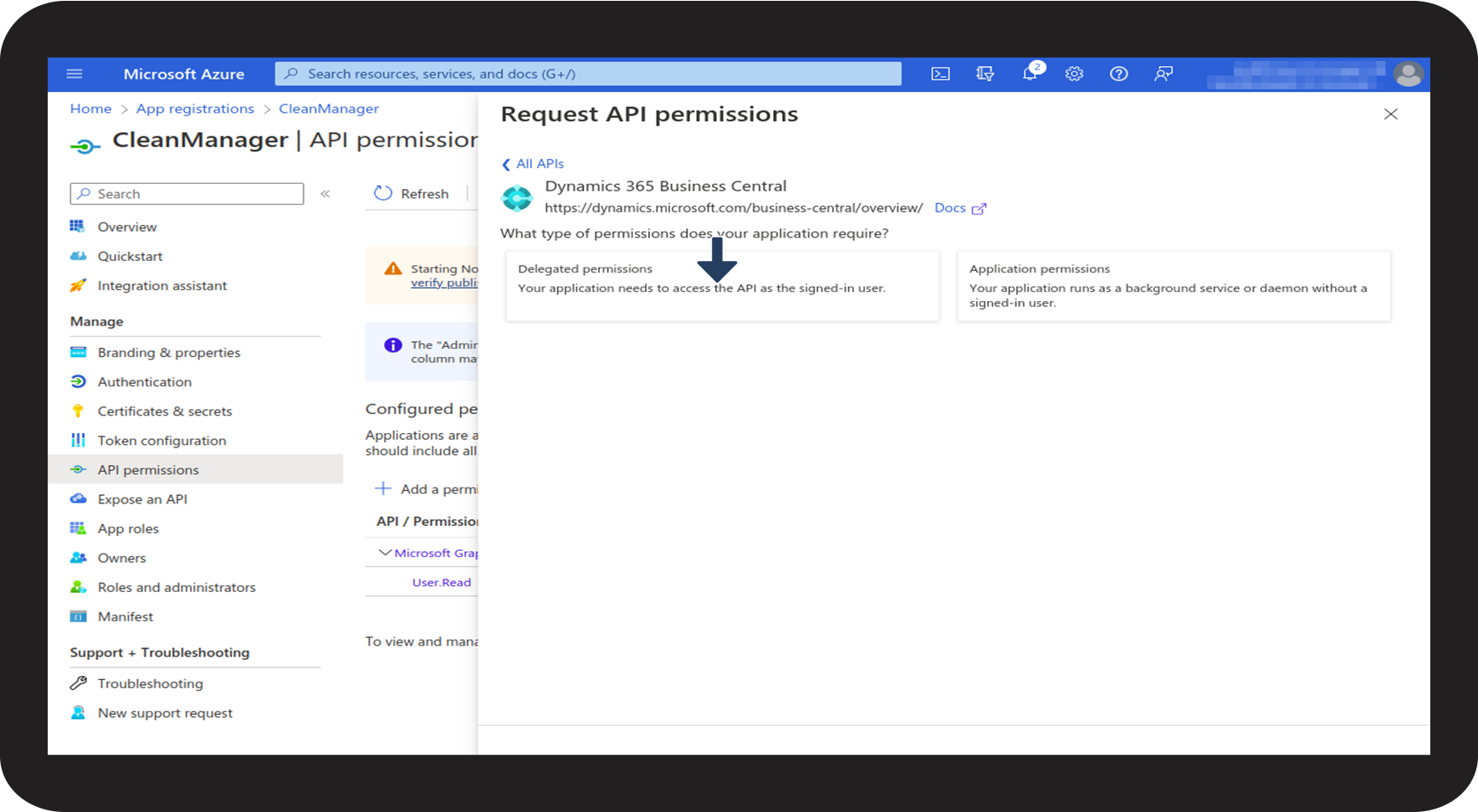
number_7_copy.png

Afterwards, click on Delegated permissions

Delegated.png
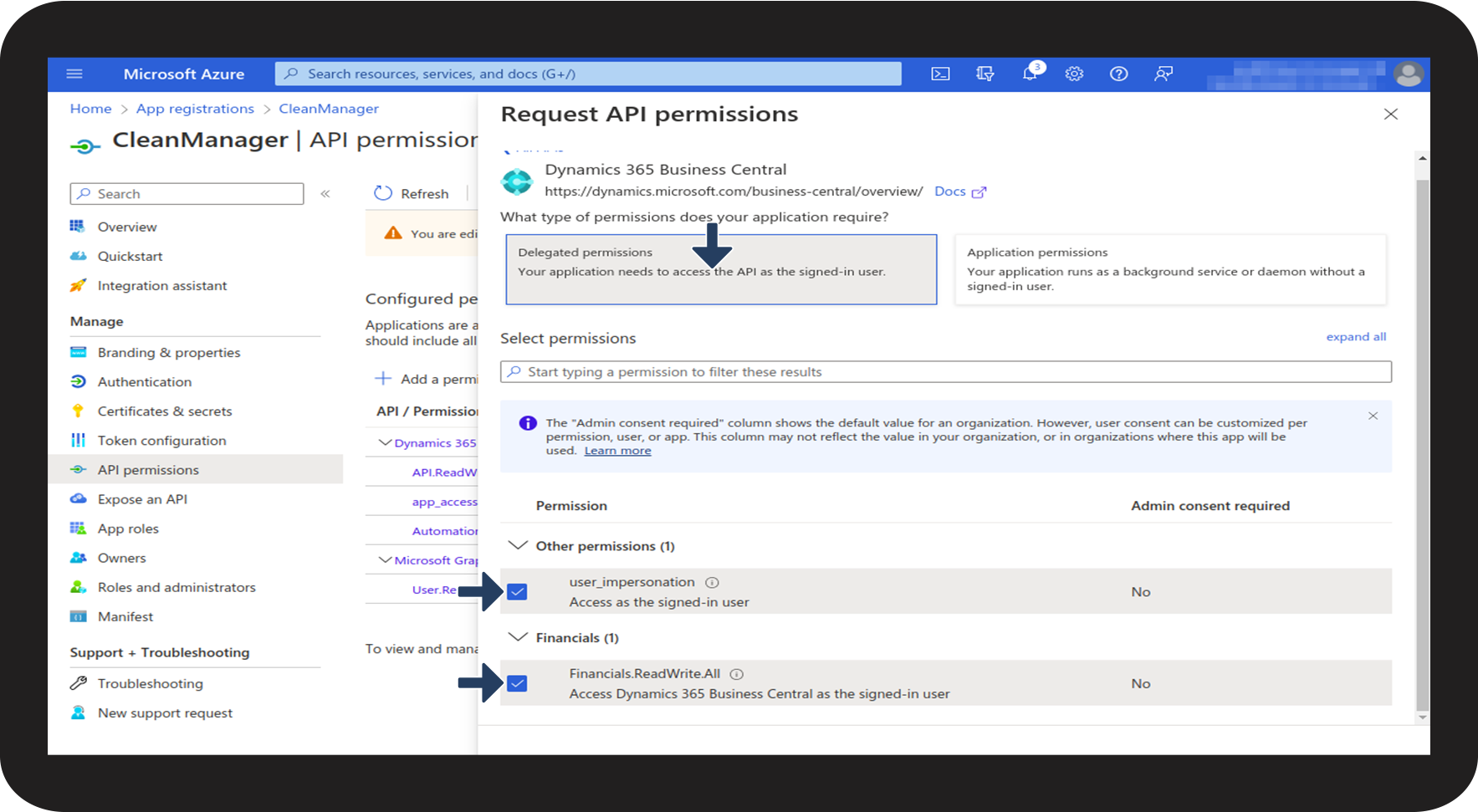
number_8_copy.png
Check of the boxes user_impersonation and Finalcials.ReadWrite.All and click on Add permissions 
16__1.2.8_.png


1.3 Part: This is how you complete the setup in Azure
 

number_1_copy.png
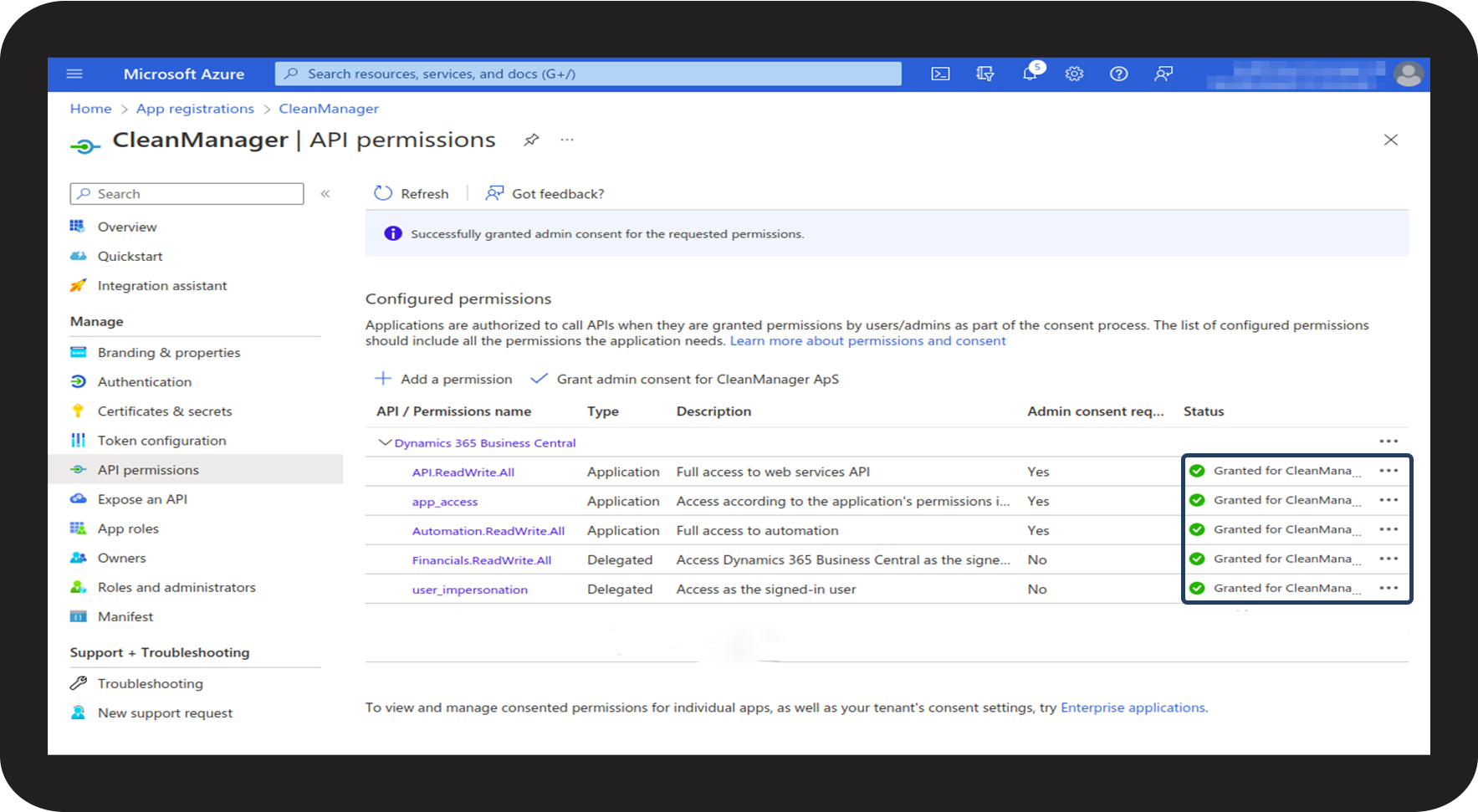
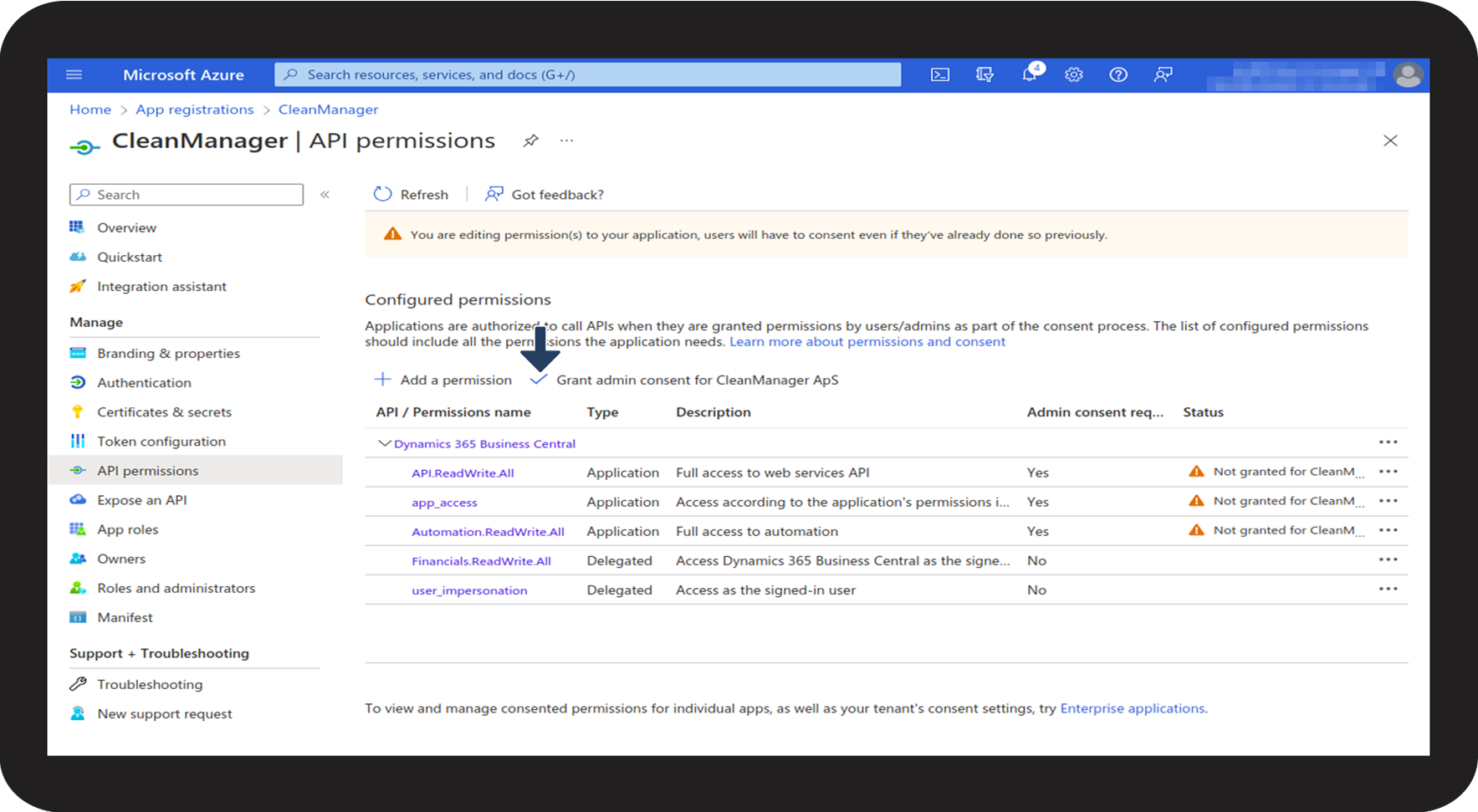
Click on Grant admin consent

17__1.3.1_.png

number_2_copy.png

Make sure to check that there is a green check mark, by all the permissions

18__1.3.2_.png


Continue to the second part of the integration for Dynamics 365 Business Central - PART 2: Business Central

Read about how to set up the integration in Business Central: Integration setup for Dynamics 365 Business Central - Part 2: 365 Dynamics Business Central