
In this article, we will show you how to activate a CleanCalculator subscription.
To start your CleanCalculator subscription, you first need to create a free trial.
How do I create a free trial for CleanCalculator?
Once your CleanCalculator subscription is activated, we will reach out to schedule an onboarding meeting to help you get started with the system.
INFO:
Want a closer look at CleanCalculator? You can request a presentation before starting your subscription. Read more about it here.
In this article, you will learn how to activate a CleanCalculator subscription.
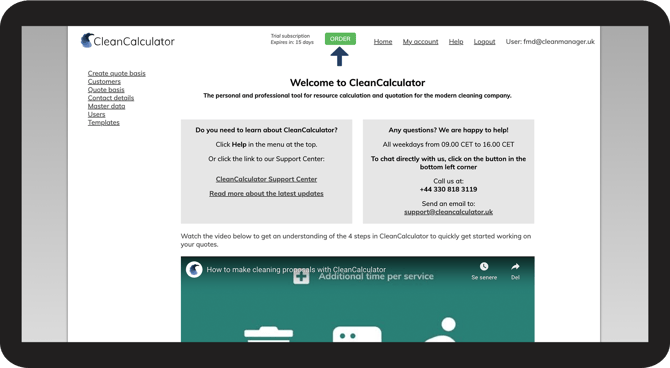
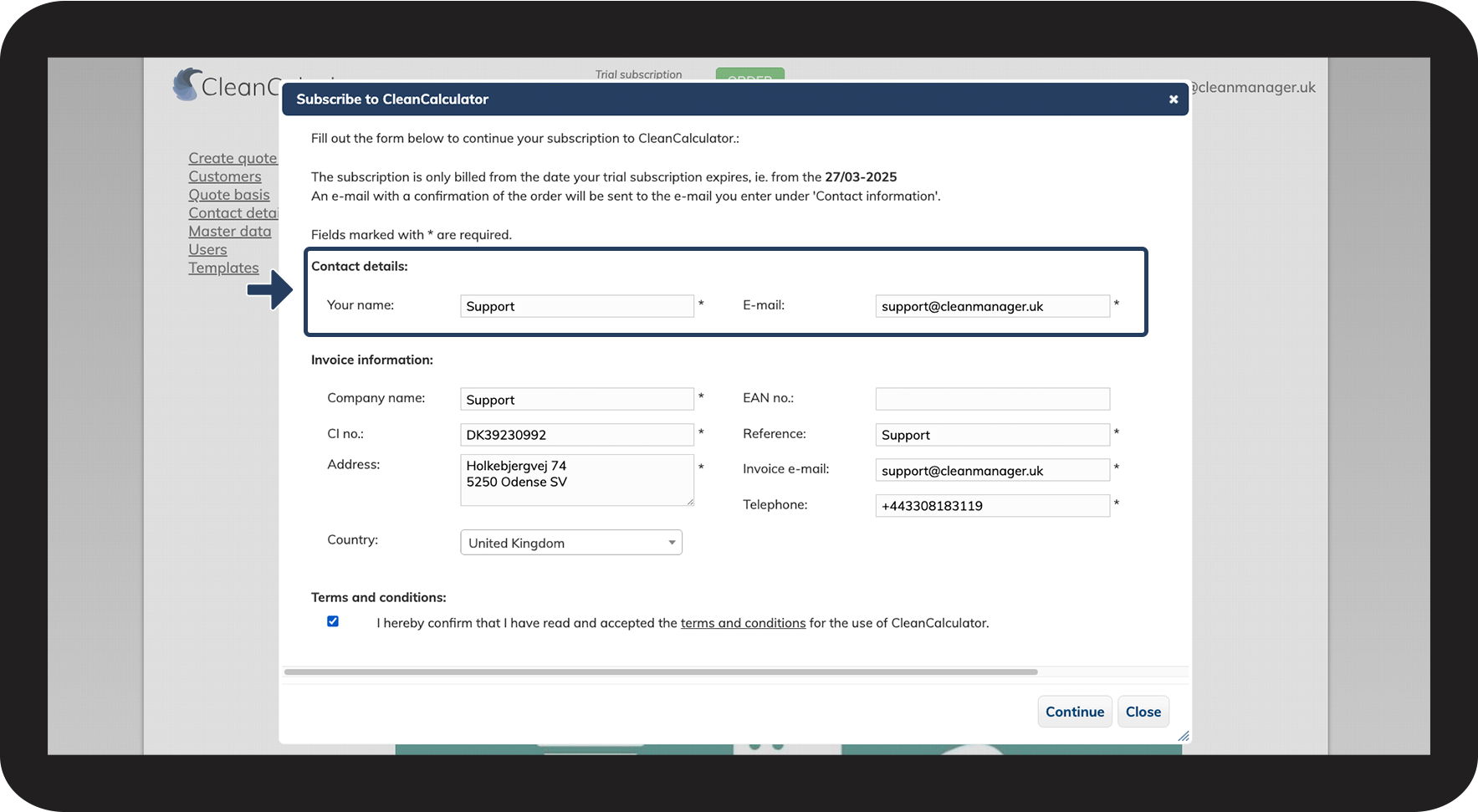
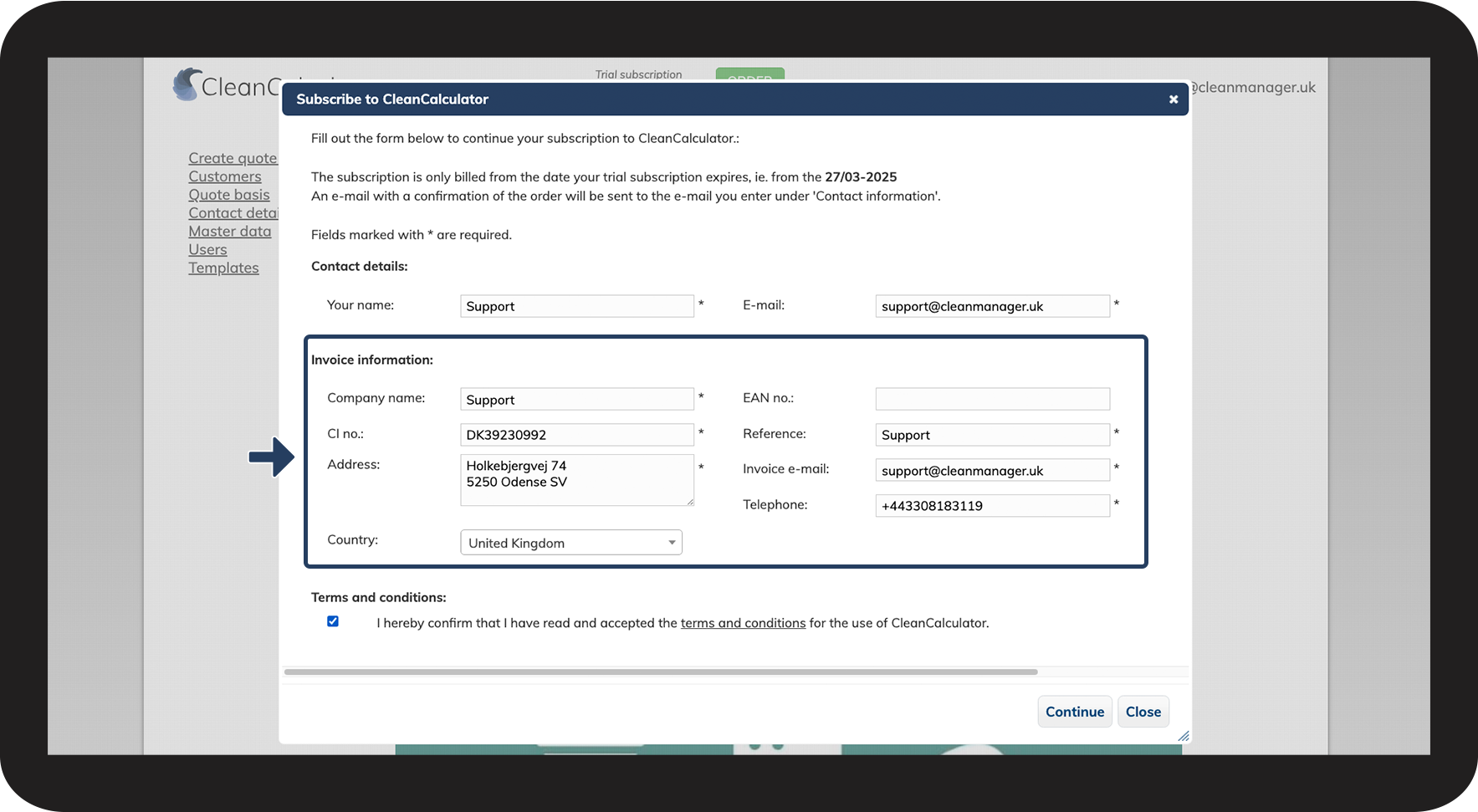
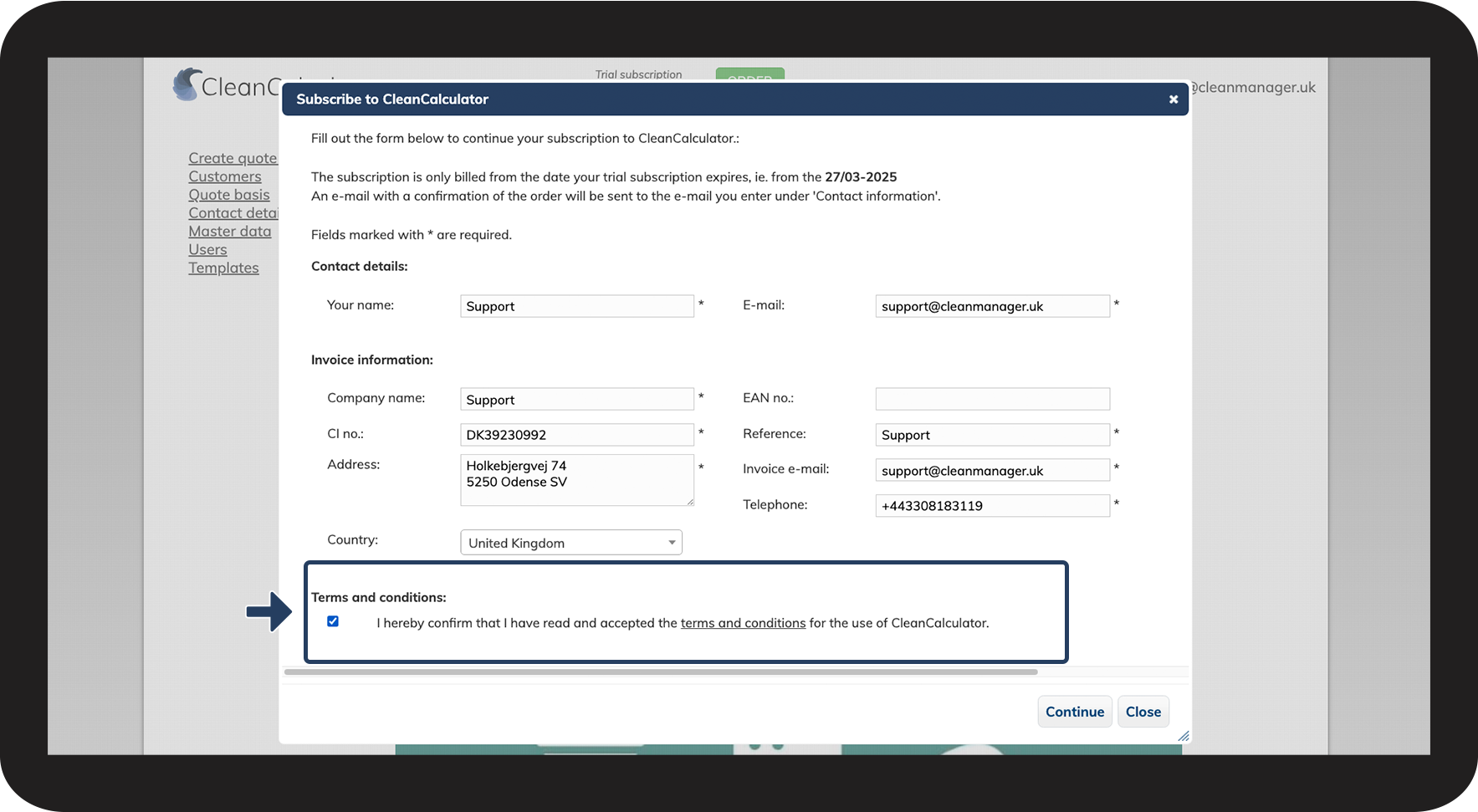
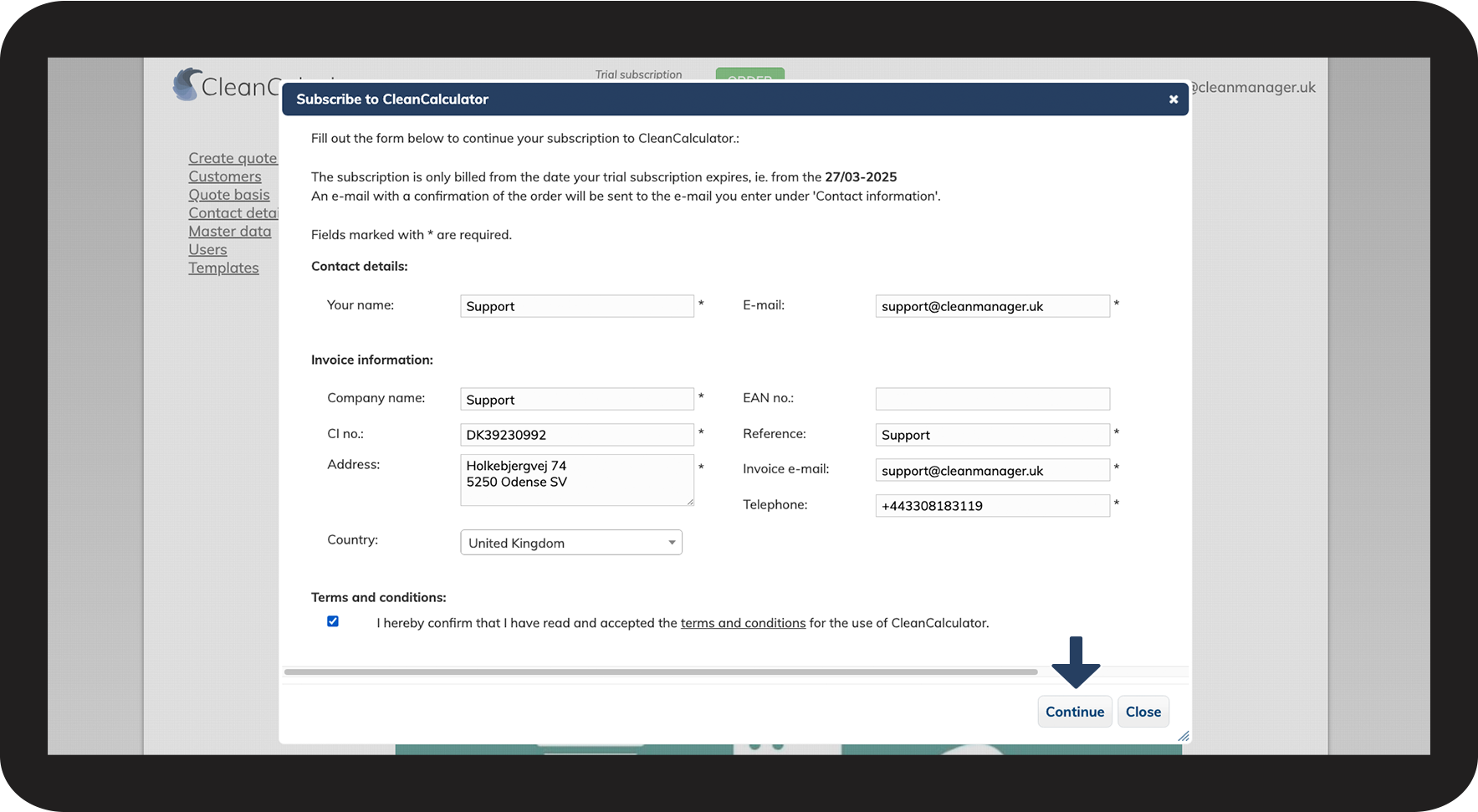
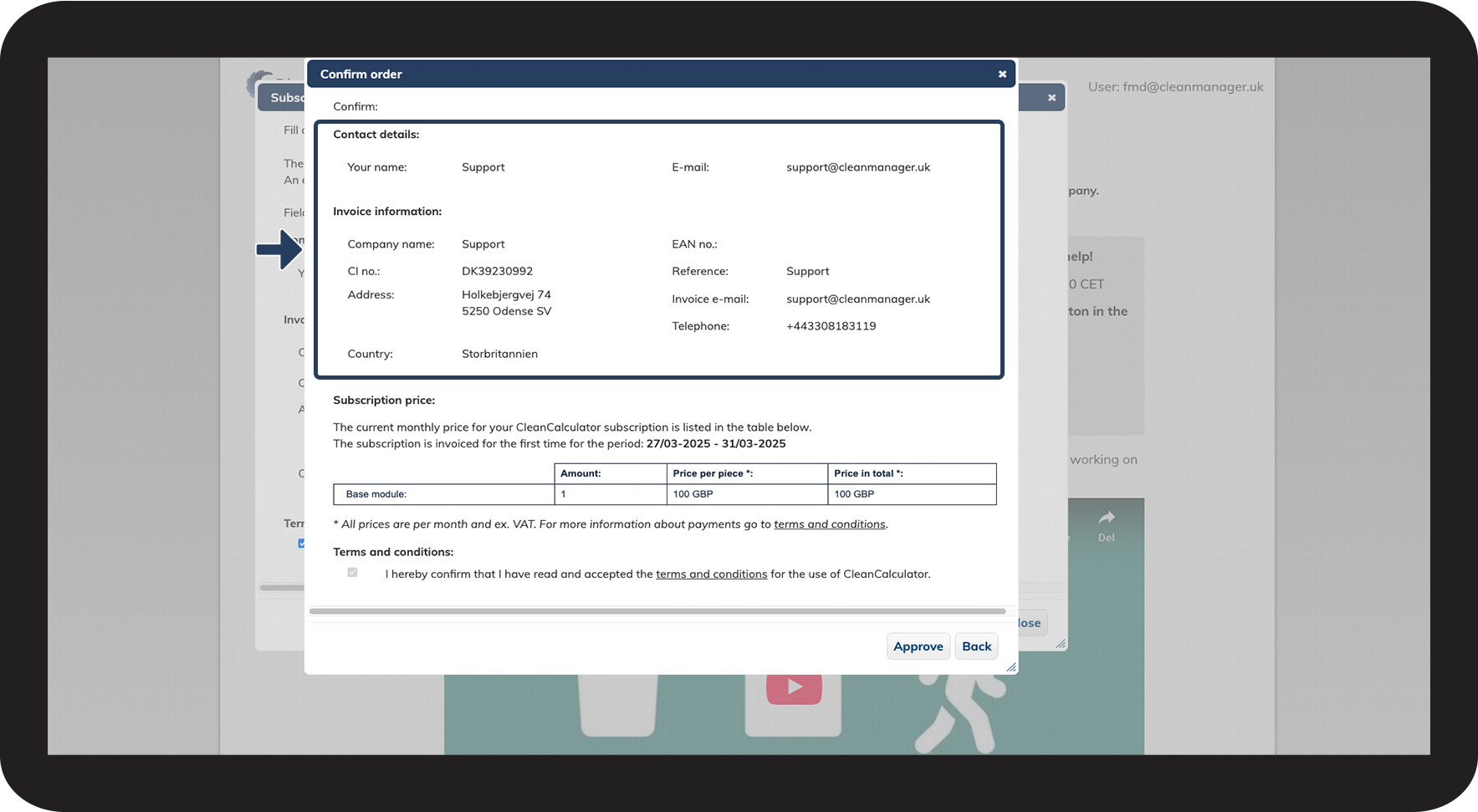
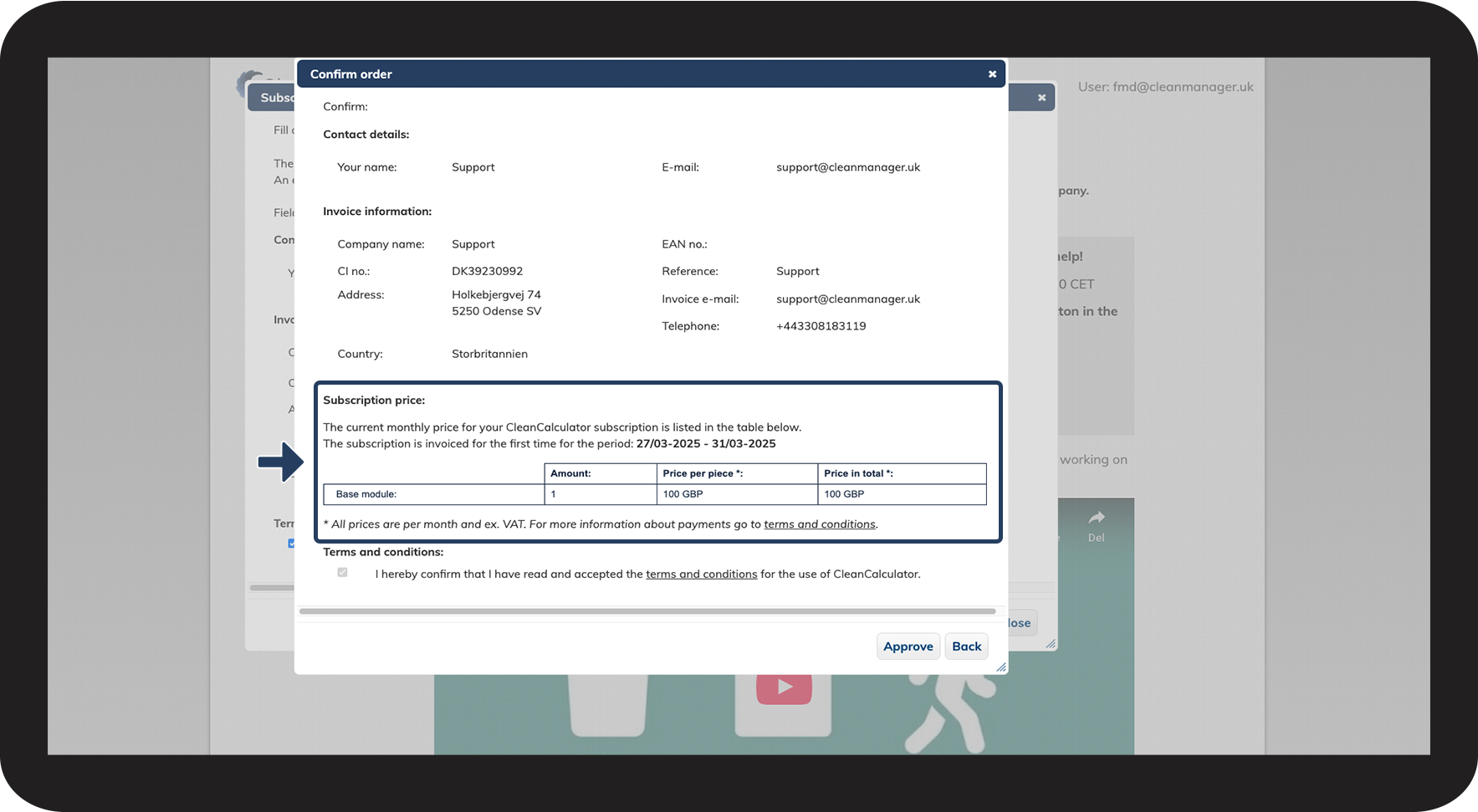
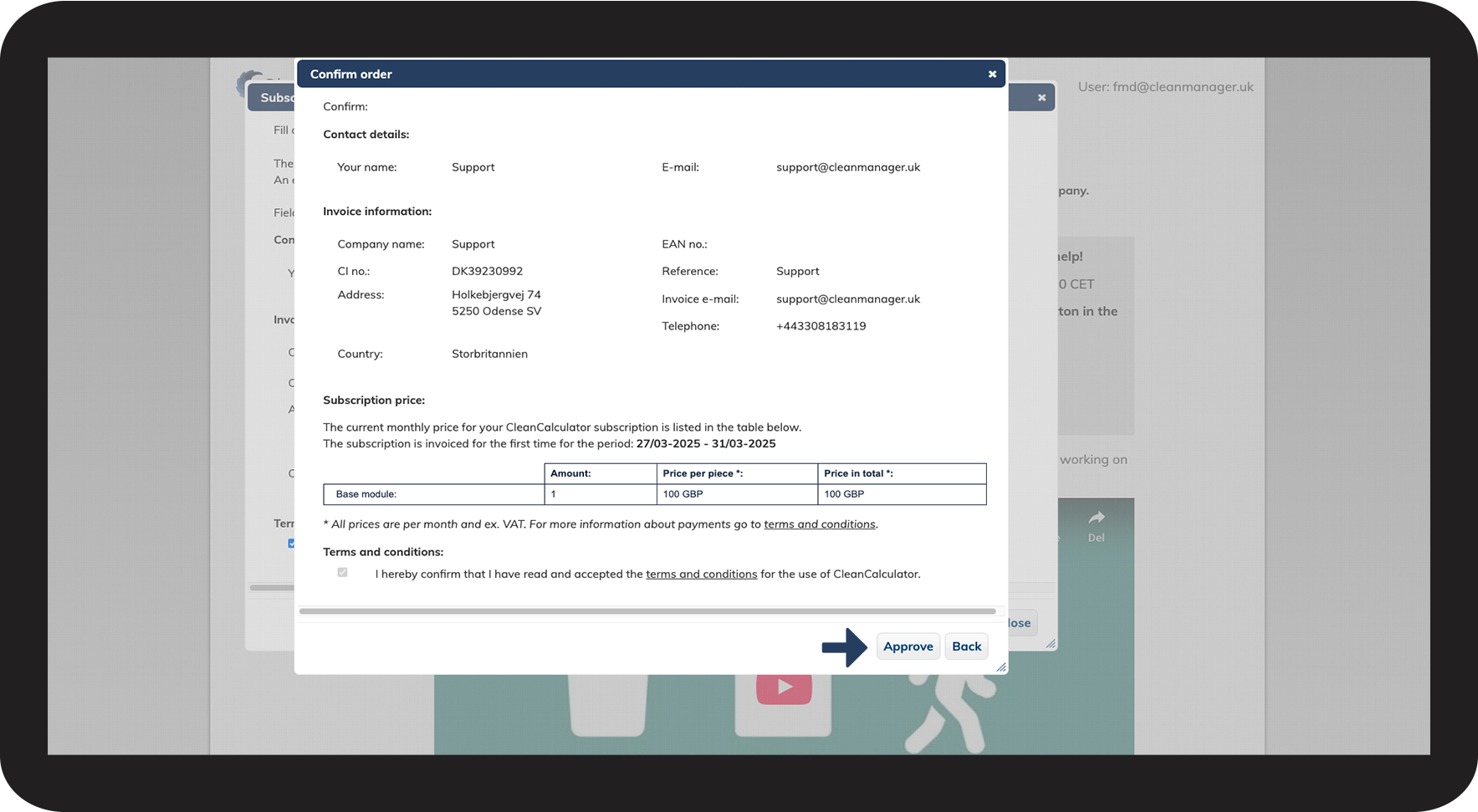
This is how you order a CleanCalculator subscription



INFO:
Fill in the Billing e-mail with the e-mail address you want us to send your invoices to. To update your billing e-mail, please contact our support team via e-mail.
The CI no. (Company number) refers to your company registration number.






Continue to our user guides
You can also read more about CleanCalculator in our user guides.