Skip to content
English
  • There are no suggestions because the search field is empty.

Displaying completed reports - Employees

Where are the completed reports displayed for the employees?

The employees can see the completed reports for customers they are associated with where they have been added as the associated employee on the report.

If you are looking for a specific report, you have different options for filtering your search results. 

As an employee, you can fill out report templates if employee permission has been granted. These reports will also be shown in Completed reports. 

You can also fill out and view completed reports in the app if the add-on module App with Time Tracking module has been activated. 

To see what a completed report looks like in the app, go to the following article: Information about workplaces.


In this article, you will learn how to navigate the submenu Completed reports as an Employee through a web browser:


How to find the completed reports

number_1.png
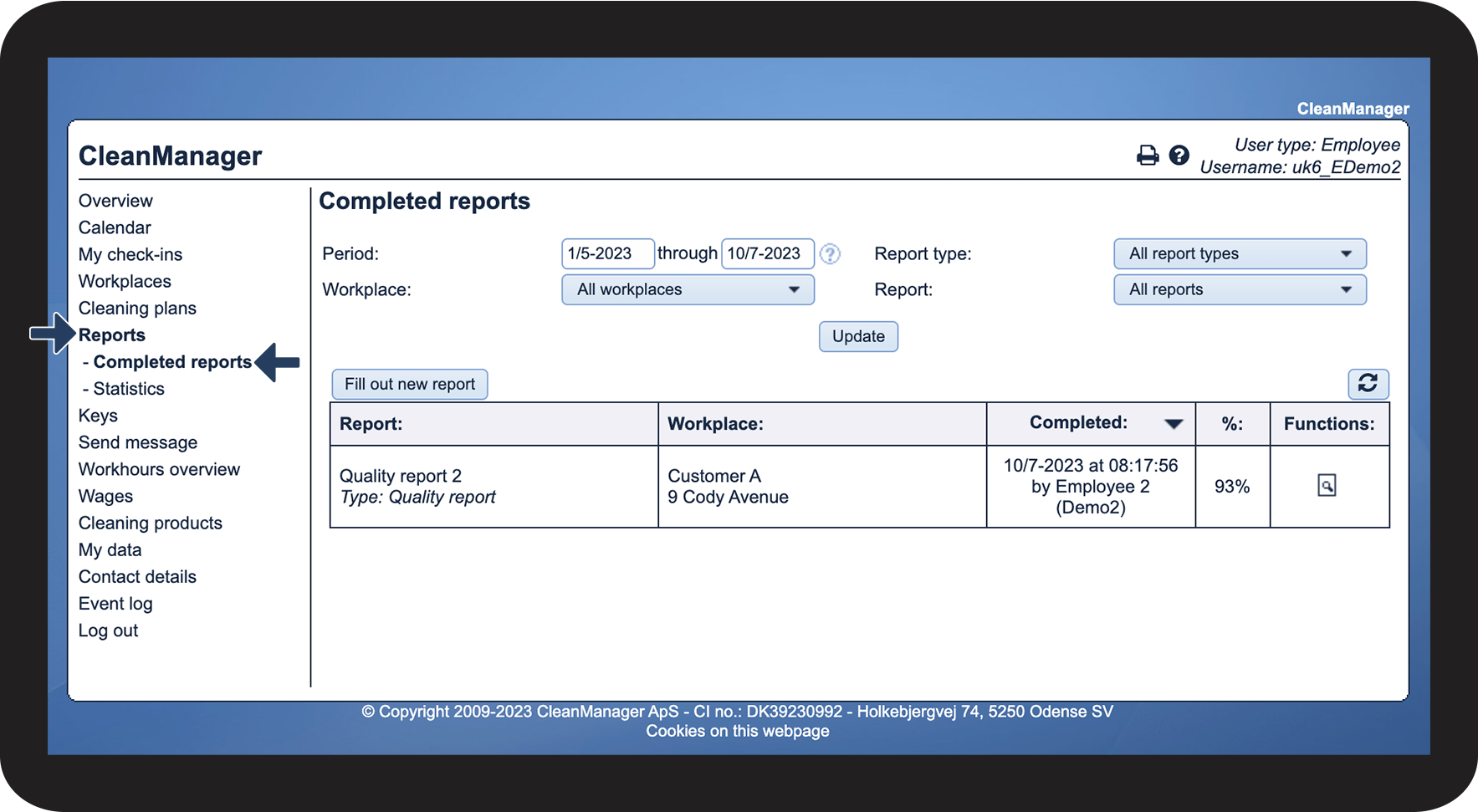
In the menu, go to Reports > Completed reports
 
You can change the order of reports by adjusting the sorting, or filter your search to make it more specific 

1.png


How to filter your search

number_1.png

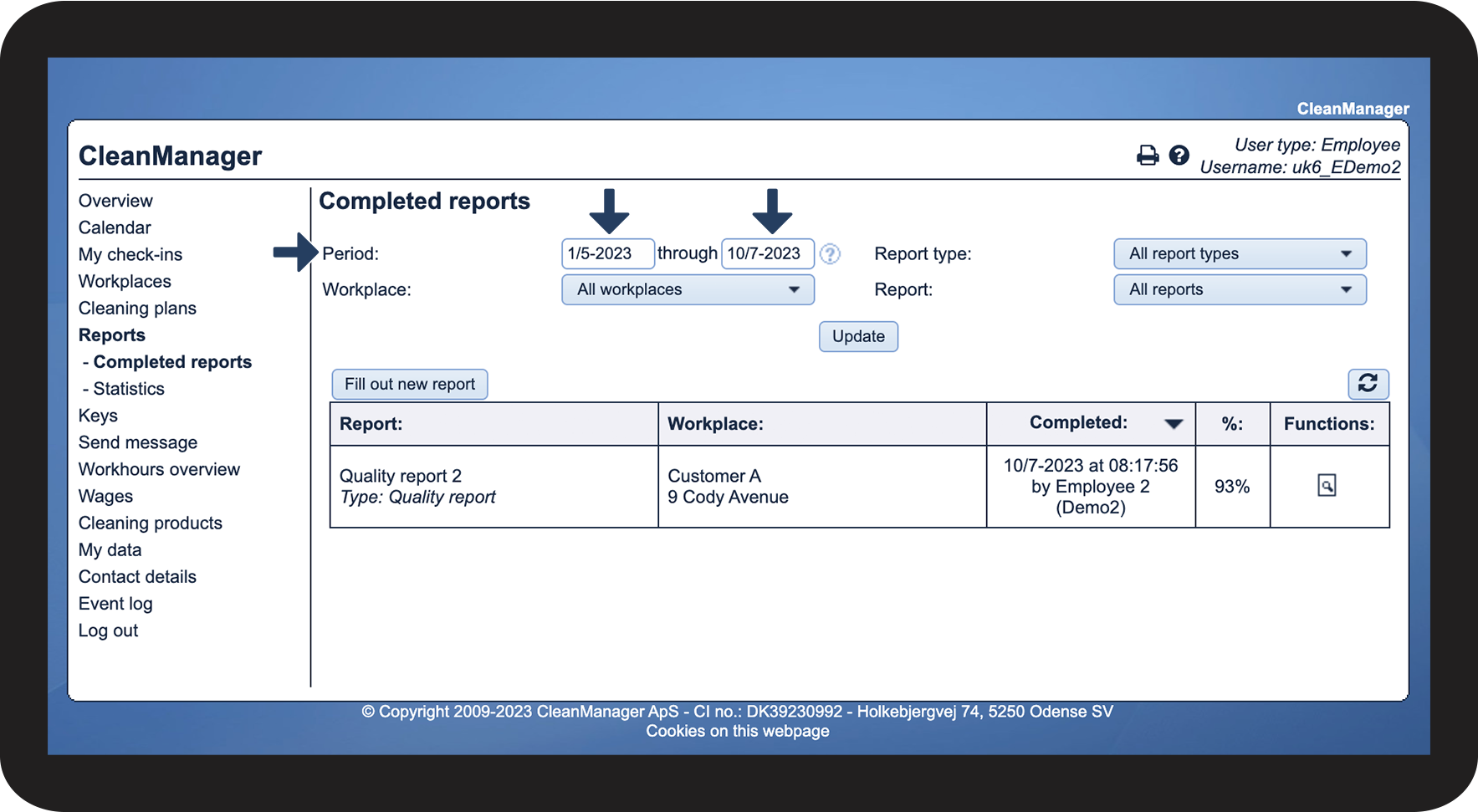
You can narrow down or broaden the time period by entering a start and end date

2.png

number_2.png
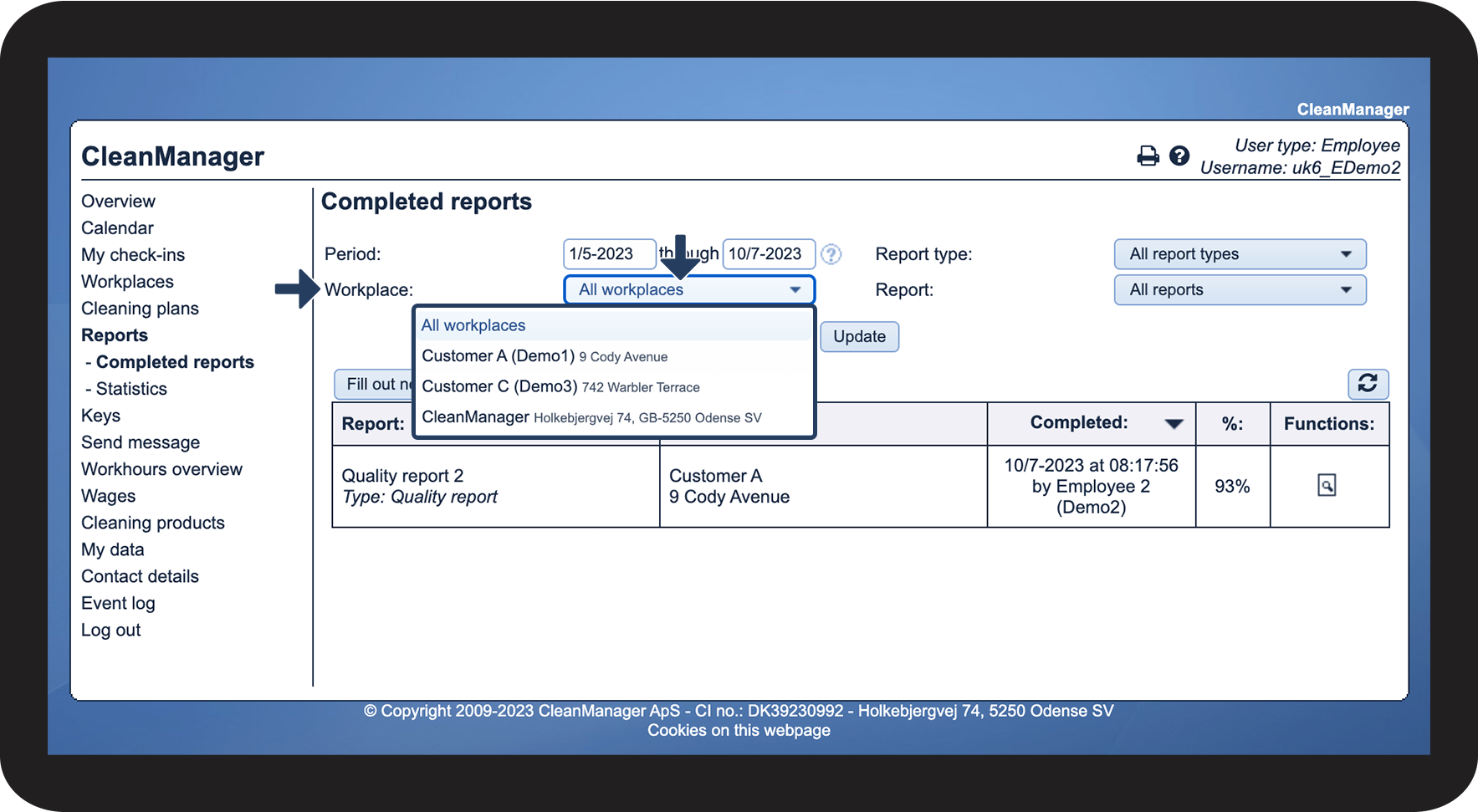
Select a Workplace
 

Click on the dropdown menu next to Workplace to pick a specific workplace

3.png

number_3.png
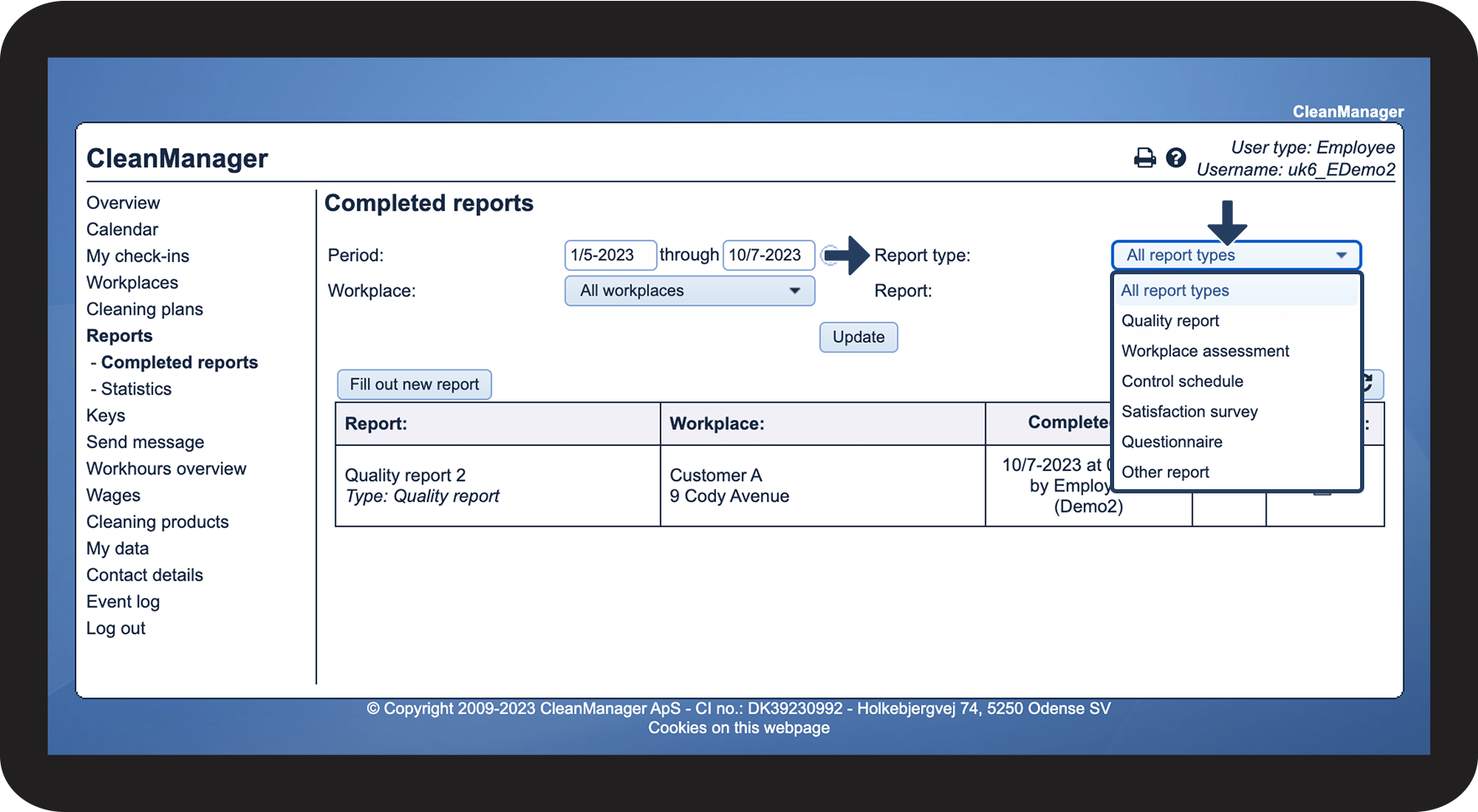
Select a Report type
 

Click on the dropdown menu next to Report type to pick the type you want to see

4.png

number_4.png
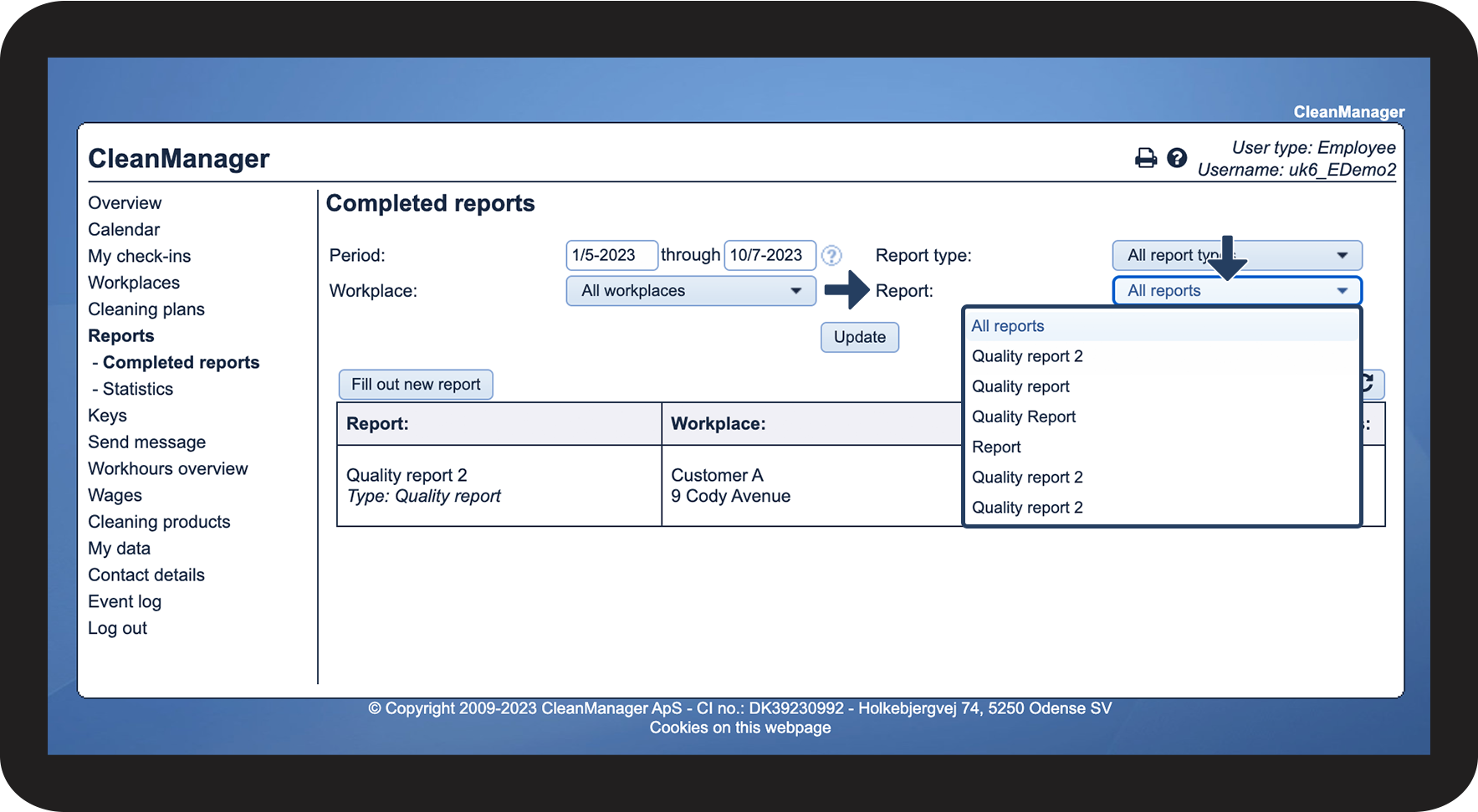
Select a specific Report
 

Click on the dropdown menu next to Report to select a specific report name

5.png

number_5.png
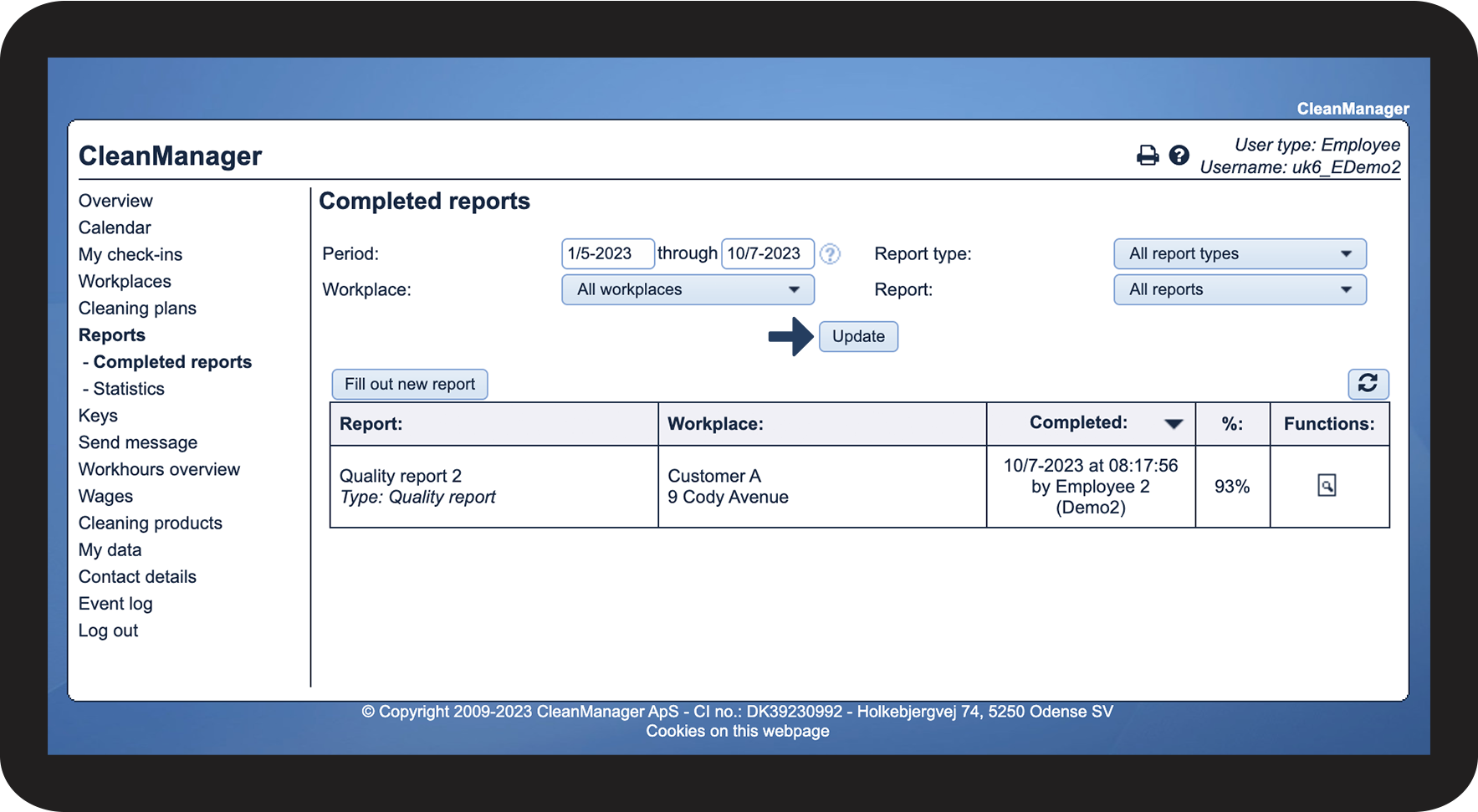
Finally, click on Update to view completed reports that match your sorting

6.png


How to show a report

number_1.png
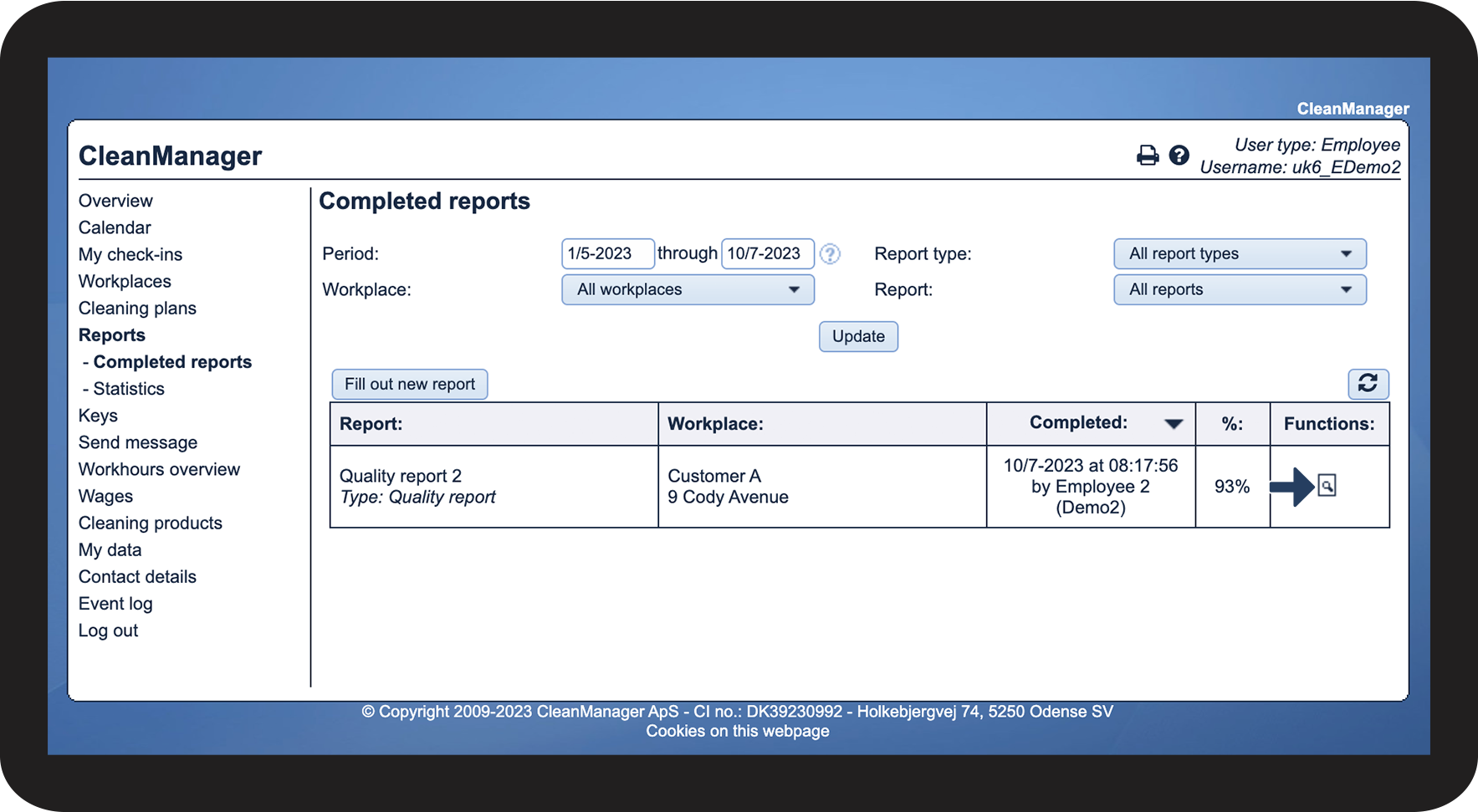
Click on hent_fil2.png next to the report that you want to view

7.png

number_2.png
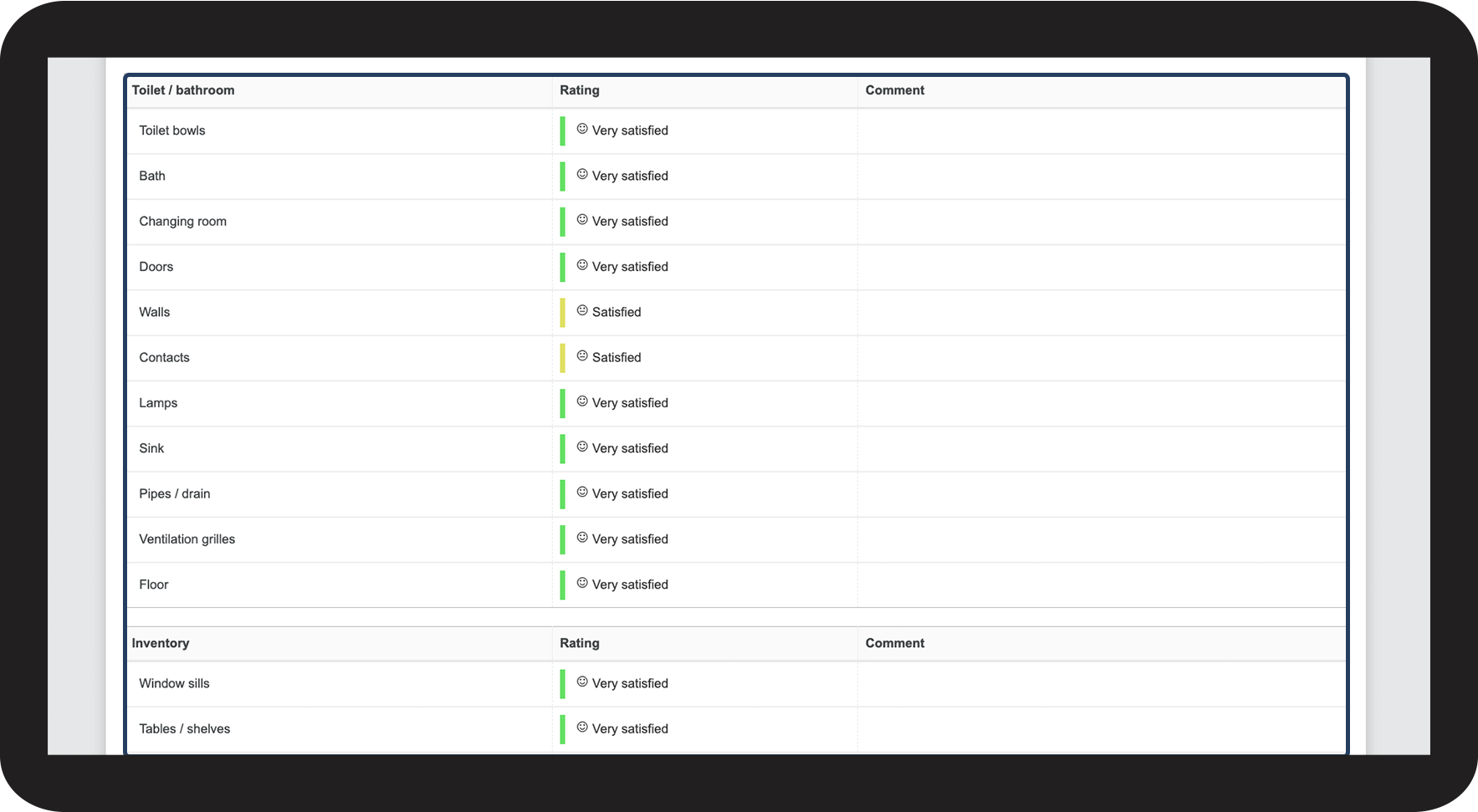
You can now see the completed report
8.png