Skip to content
English
  • There are no suggestions because the search field is empty.

Information about workplaces

How do I find information about my workplaces?

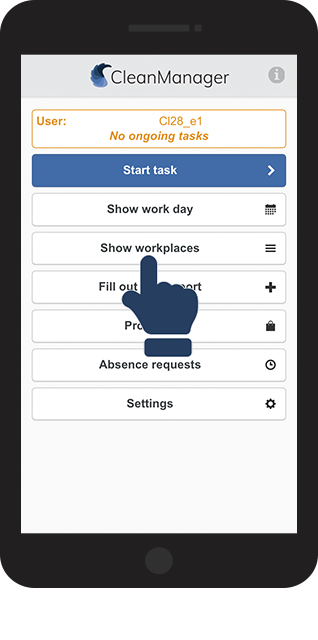
You can access information about your tasks and customers in several places within the app. The primary source for customer information however is Show workplaces.

In Show workplaces, you can find additional information regarding:
Keys and codes, locations and directions, file and hyperlink resources, cleaning plans, products, and quality reports.


Read more in this article about:


Workplaces

Access the workplaces that you as an employee are connected to.
You can also access your own company as well.

number_1.png

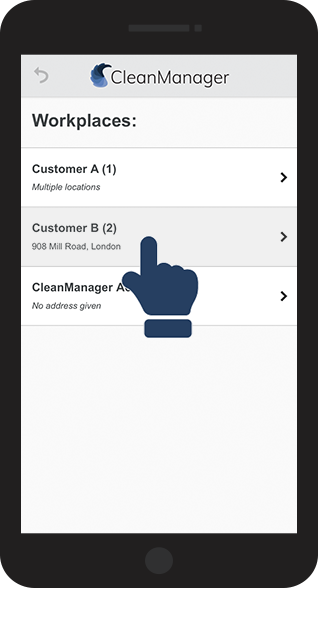
Click on Show workplaces

1.1.png

number_2.png

Click on a workplace, you want to view information about

1.2.png
number_3.png

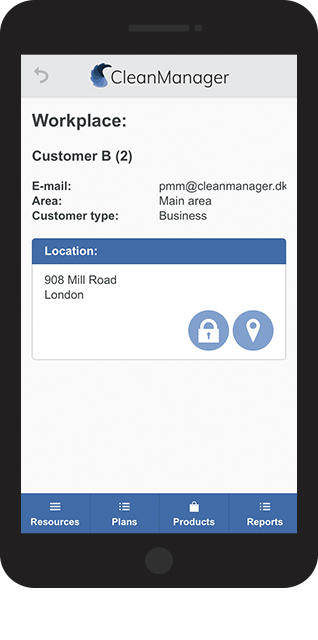
You can now view information about this specific workplace


Continue reading the article to find out which type of information you can access.


1.3.png

Note:

The buttons Resources, Plans, Products, and Reports of a workplace can be pale blue. This means that there is no available data connected to the workplace and therefore can't be clicked and viewed, compared to the dark blue buttons like in the screenshot above.


Keys and codes

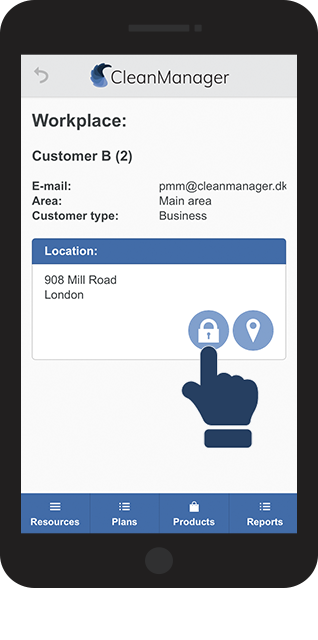
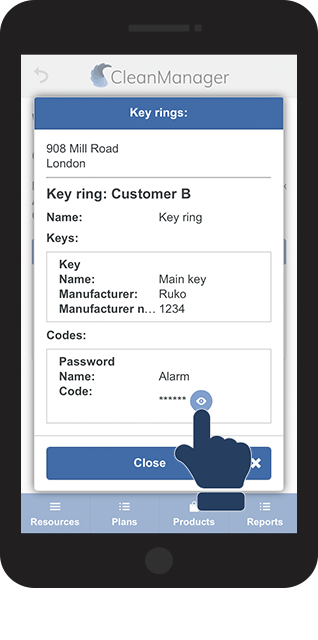
For each location, you can access the keychain to see information about keys, codes, and passwords.

number_1.png

Click on the Lock  keys.png

2.1.png

number_2.png

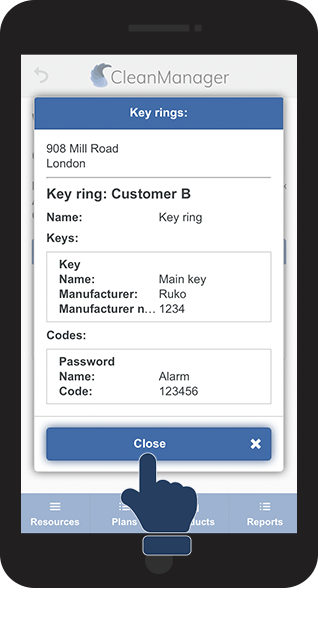
Click on the Eye eye.png next to any codes or passwords to view them
2.2.png
number_3.png

Click the Close button to go back to the information overview

2.3.png


Location and directions

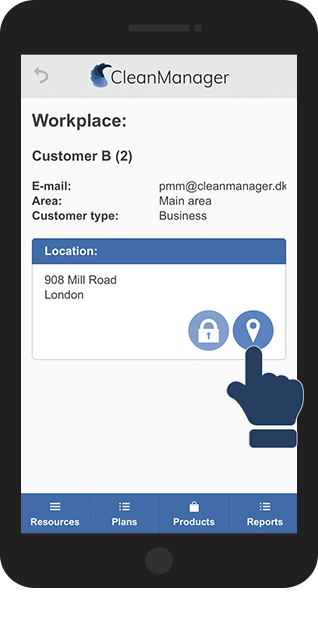
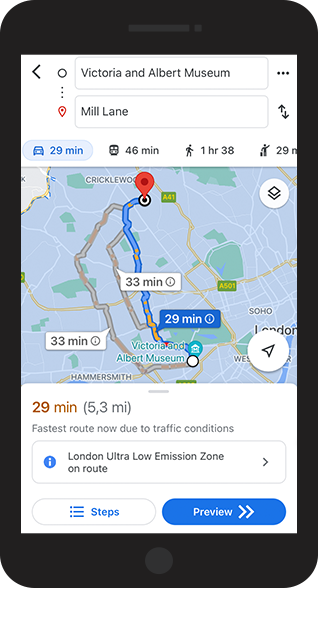
Use Google Maps to receive directions to any customer location.

number_1.png

Click on the Location icon  location_marker.png 

3.1.png
number_2.png
You can now start your guidance to the location
 

You might have to give Google Maps permission to access your GPS location.

3.2.png


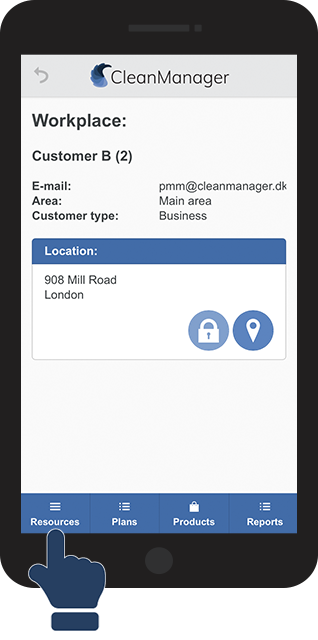
Resources

Access resources about customers or other information about the workplace.

The resources can be files or links to any materials.
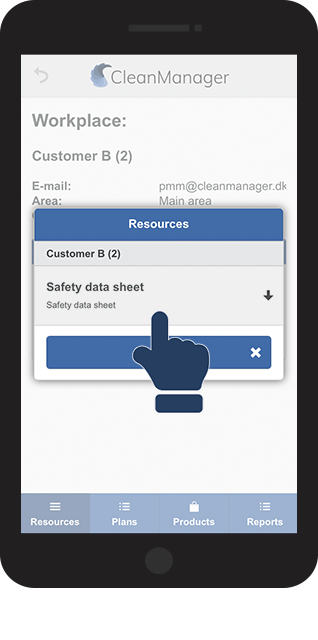
number_1.png

Access a customer, and click on the button Resources

4.1.png
number_2.png

Click on the File or Link you want to access

4.2.png
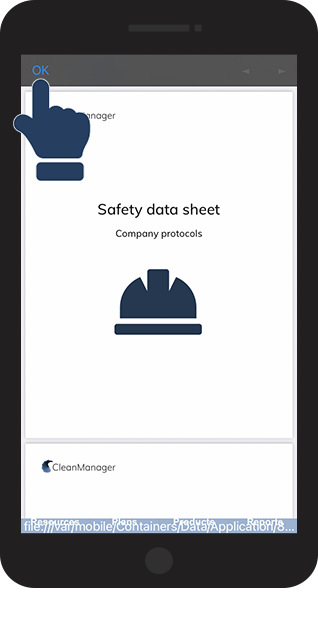
number_3.png

Click on OK to close the file

4.3.png


Cleaning plans

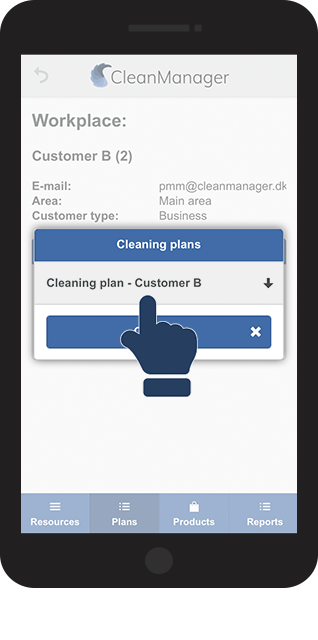
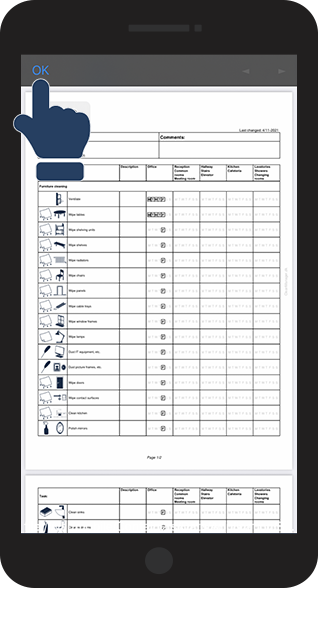
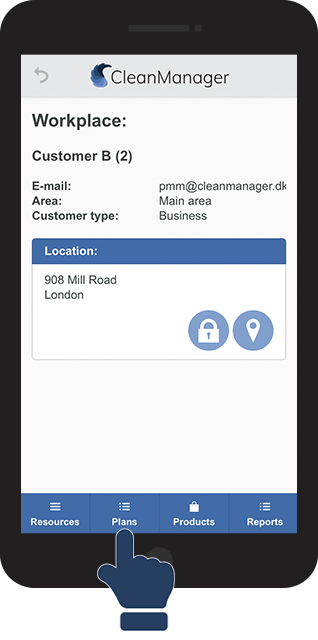
In Plans, you can find attached cleaning plans.
number_1.png
Access a customer, and click on the button Plans
5.1.png
number_2.png

Click on the Cleaning plan you want to open

5.2.png
number_3.png

Click on OK to finish

5.3.png


Products

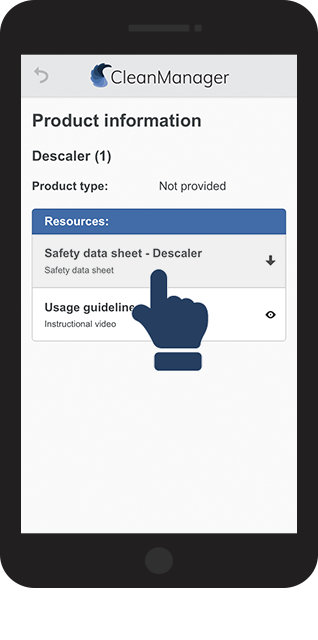
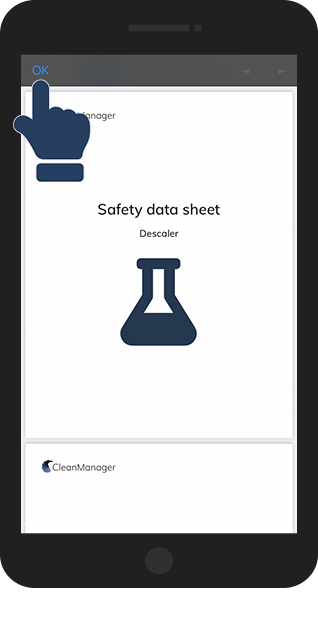
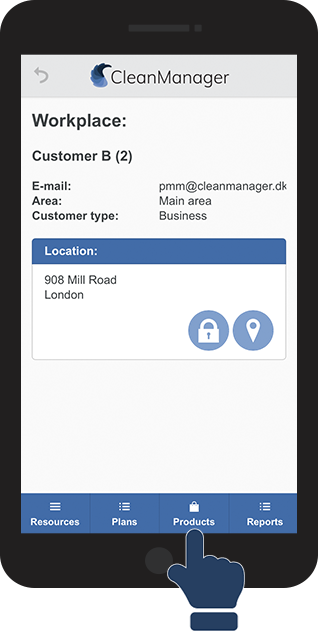
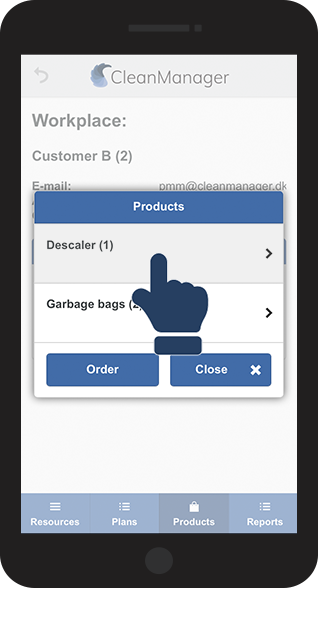
In Products, you can find any cleaning products connected to the customer. You can access any materials uploaded to the products.
number_1.png

Access a customer, and click on the button Products

6.1.png
number_2.png

Click on a product you want to view

6.2.png
number_3.png

Click on the File or Link you want to open

6.3.png
number_4.png

Click on OK to finish

6.4.png


Reports

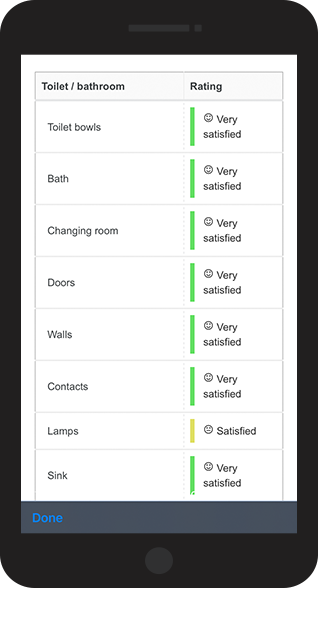
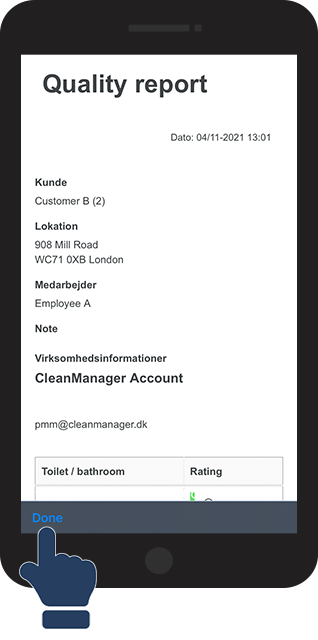
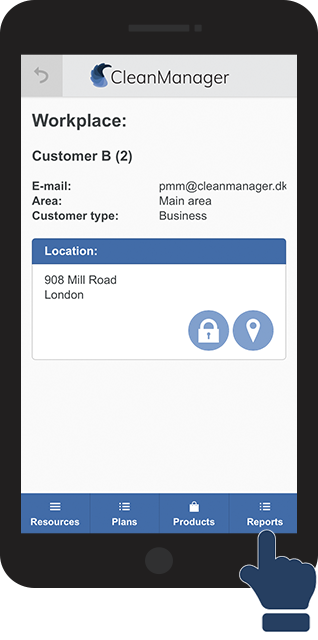
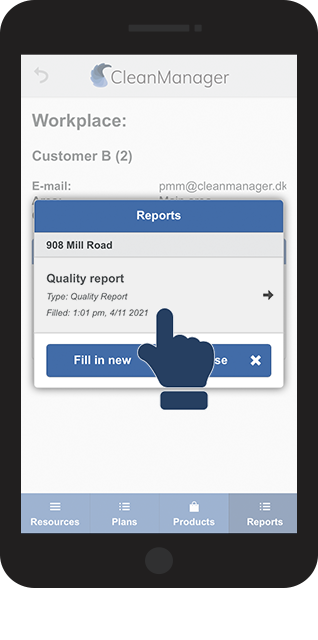
Here you can see your quality reports connected to the workplace. You can read an evaluation of your work as well as any comments from the customer and supervisors.
number_1.png

Access a customer, and click on the button Reports

7.1.png
number_2.png

Click on the Report you want to open

7.2.png
number_3.png

Read the report and possible comments

7.3.png
number_4.png

Click on Done to close the report

7.4.png