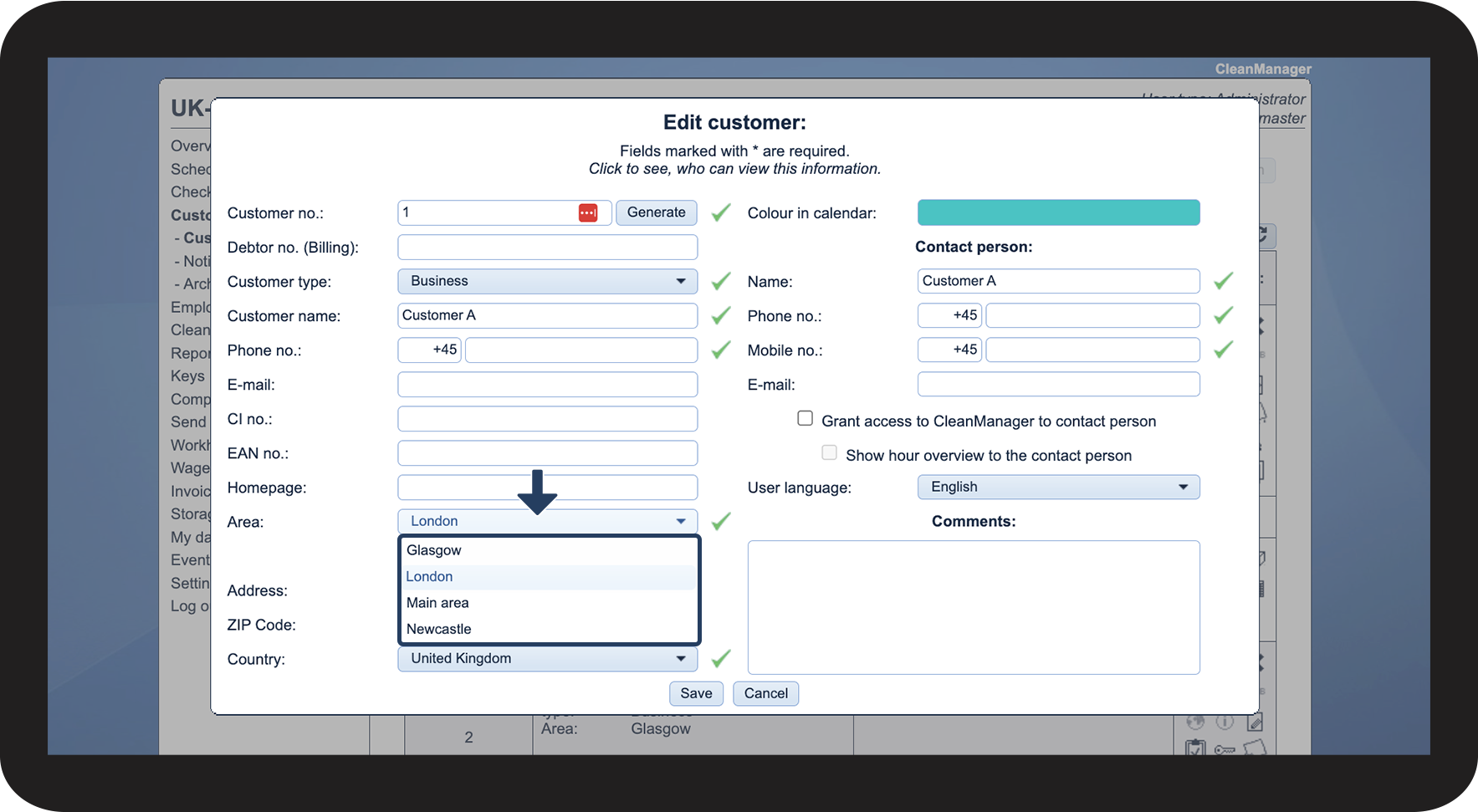
How do I assign a customer area?
Once a customer area has been created, it is possible to assign it to a supervisor and/or a customer. A supervisor can have all areas assigned to them, or only some. The important thing is that if a supervisor is created in the system, they must be assigned an area. A customer can only be associated with a single area.
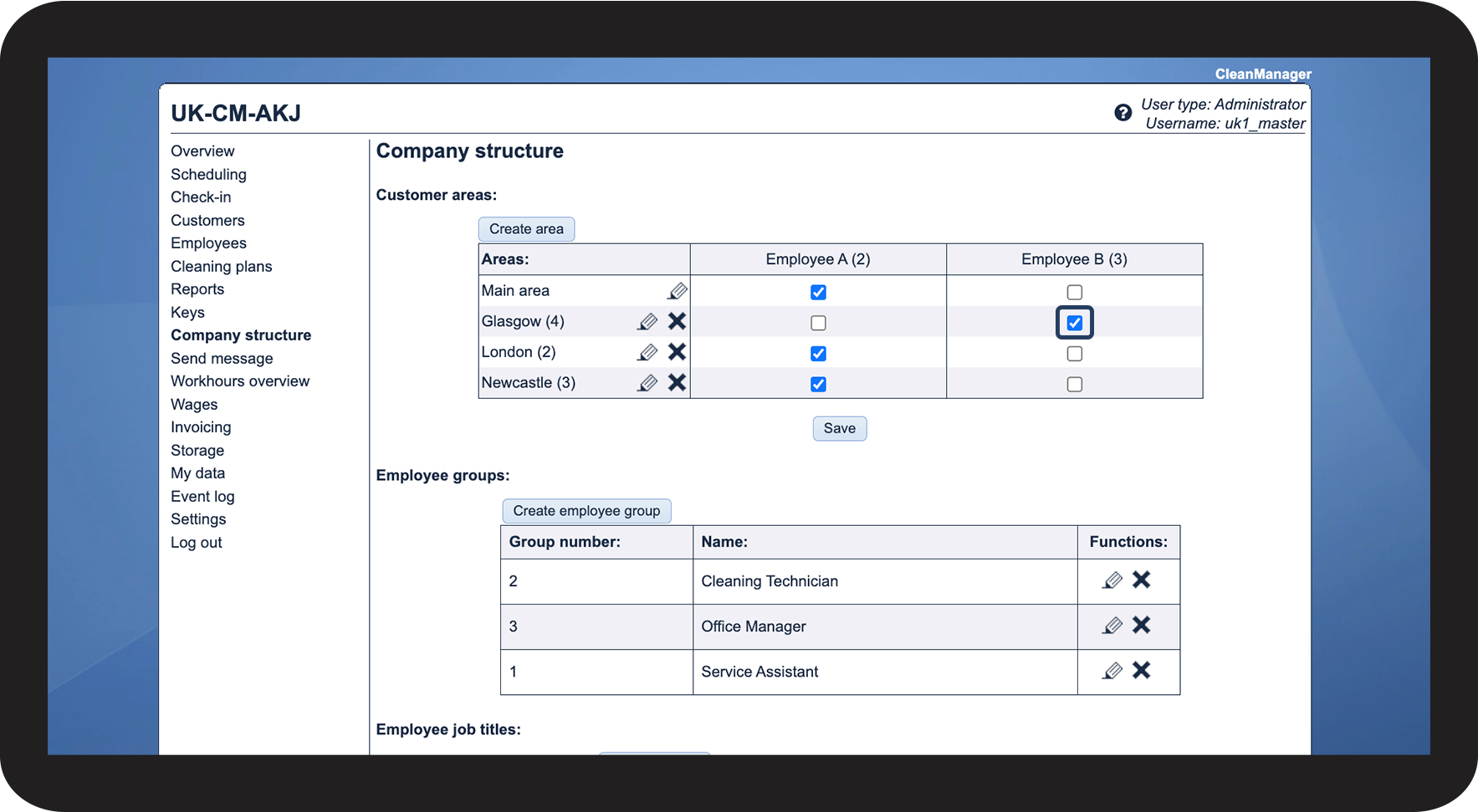
Read more in the article about how the Administrator assigns a customer area to a supervisor:
How to assign a supervisor to an area

NOTE:
Supervisors can only see customers in the areas they have been assigned. During the creation of a supervisor, the Administrator will also be directed to the company structure to assign a supervisor to the areas they will handle.
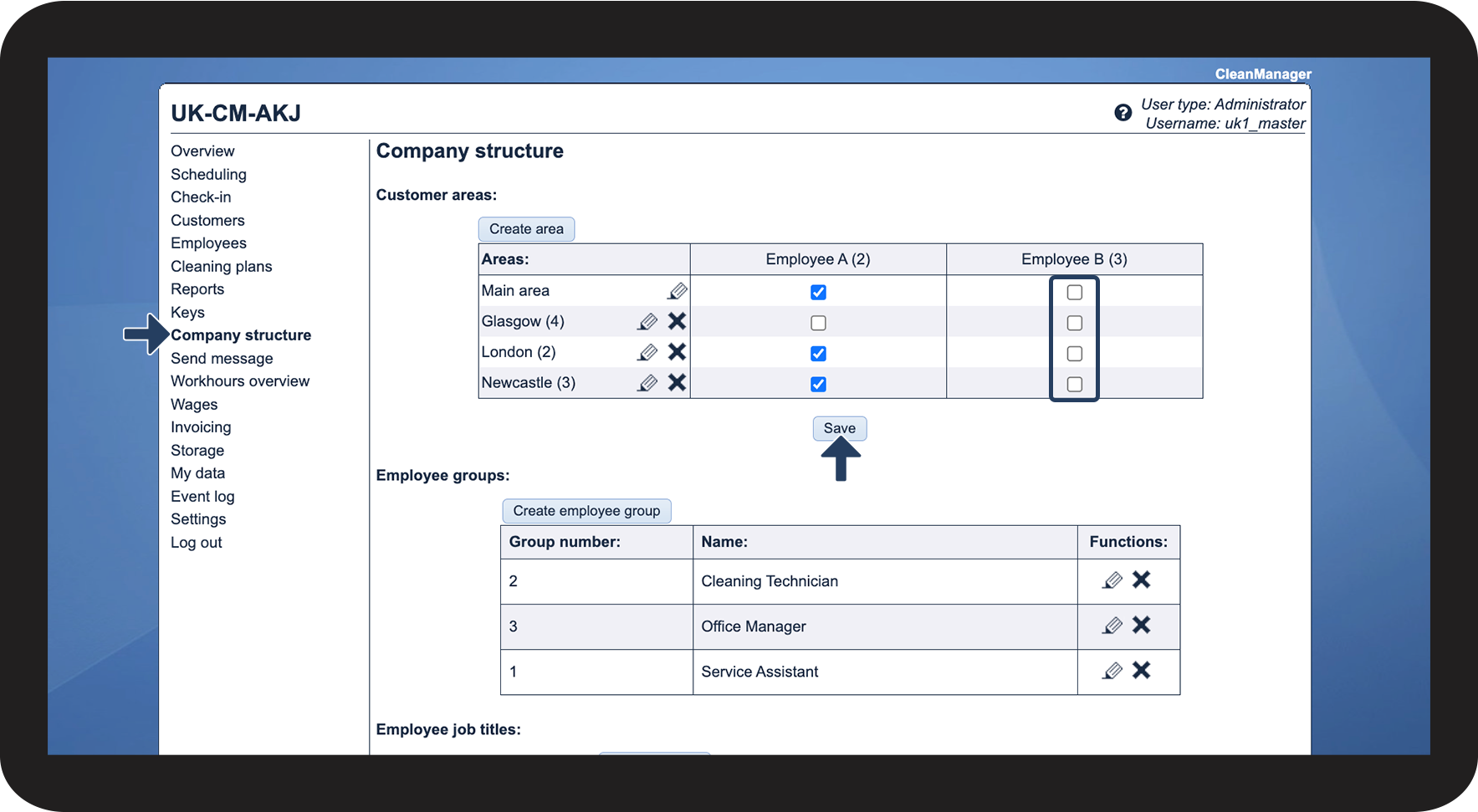

How to assign an area to a customer

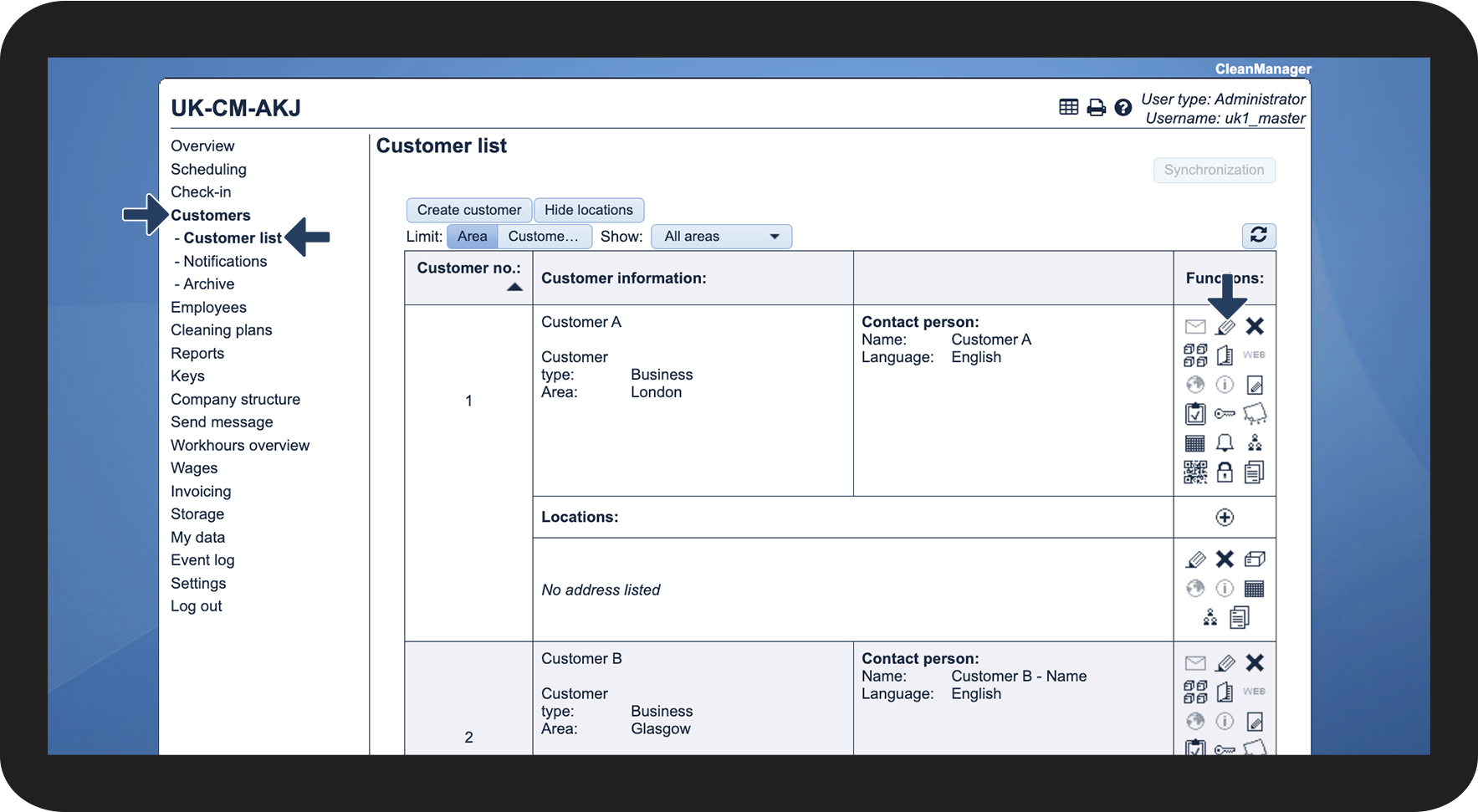

NOTE:
It will only be possible for supervisors to select areas they have been assigned themselves.