Skip to content
English
  • There are no suggestions because the search field is empty.

Where can I see my registered NFC tags?

How do I view and manage my registered NFC tags?

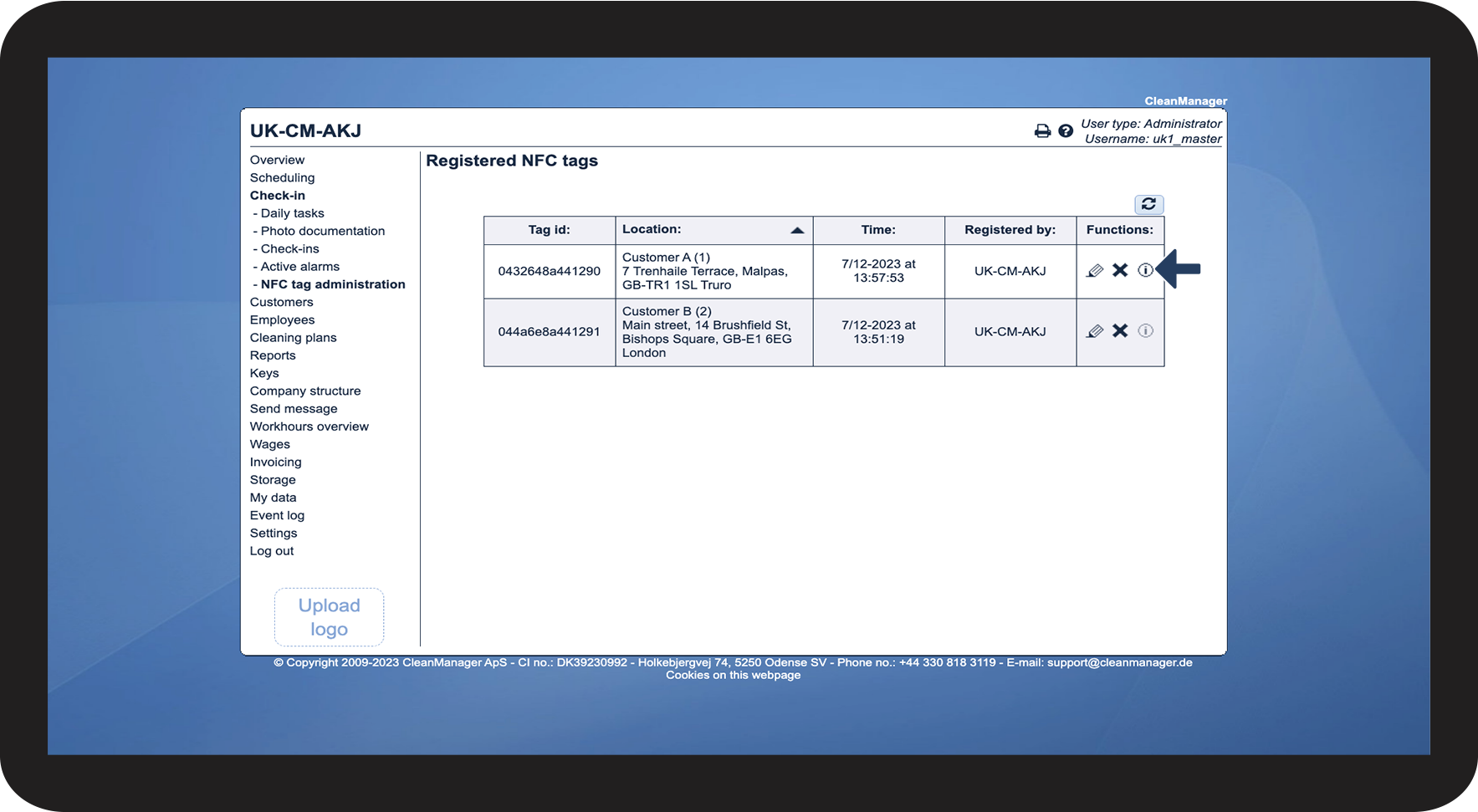
An administrator can view and manage all registered NFC tags in the system. In the web system, it will be possible to see which locations have registered NFC tags. Based on this, it will be possible to see where an NFC tag may need to be created.

A supervisor will be able to see and manage the NFC tags placed on locations that are in their customer areas. For more information regarding this, go to Company Structure.


In this article, you will learn how to find your registered NFC tags:


How to view your registered NFC Tags

number_1.png
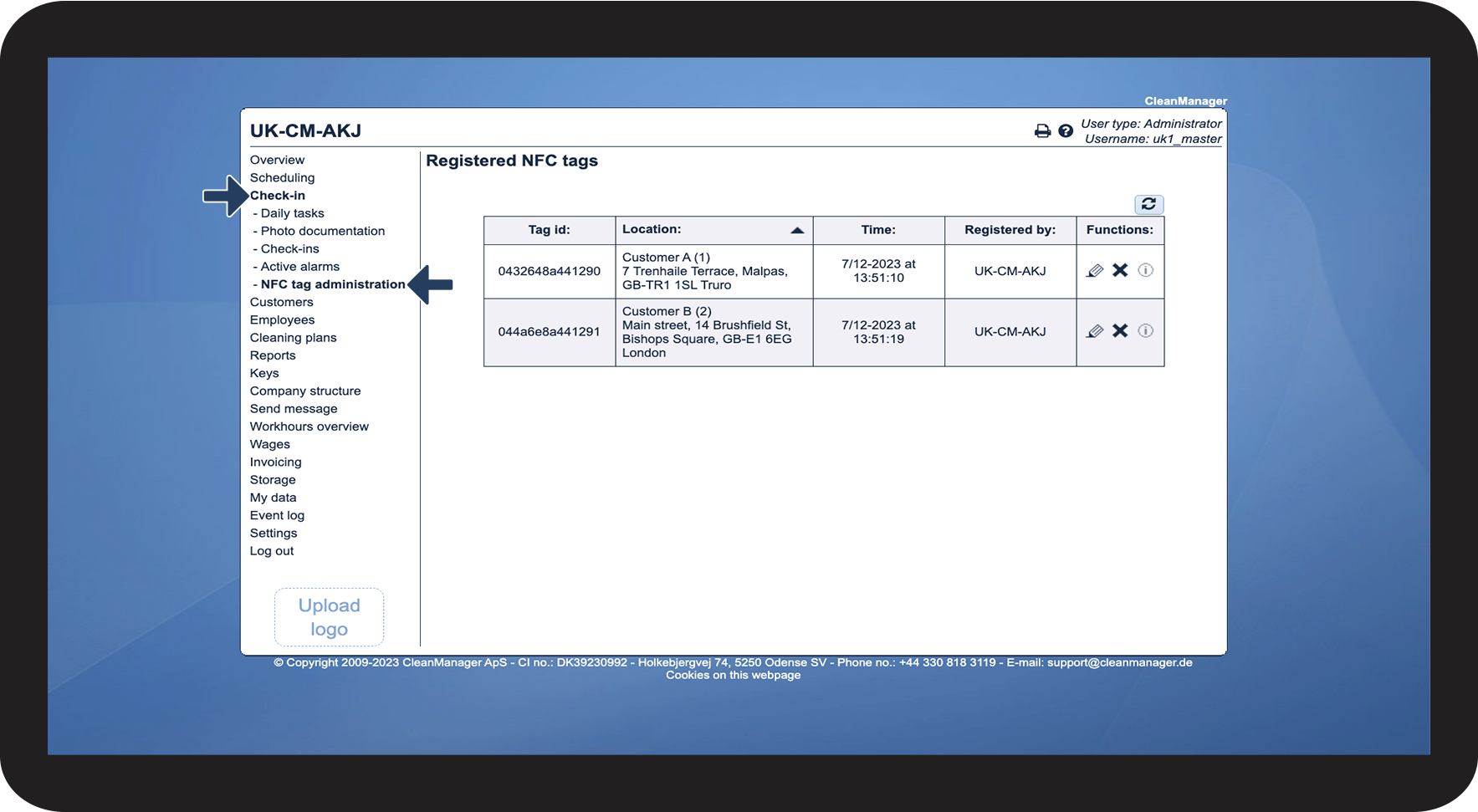
In the menu, go to Check-in > NFC tag administration

1.png


number_2.png
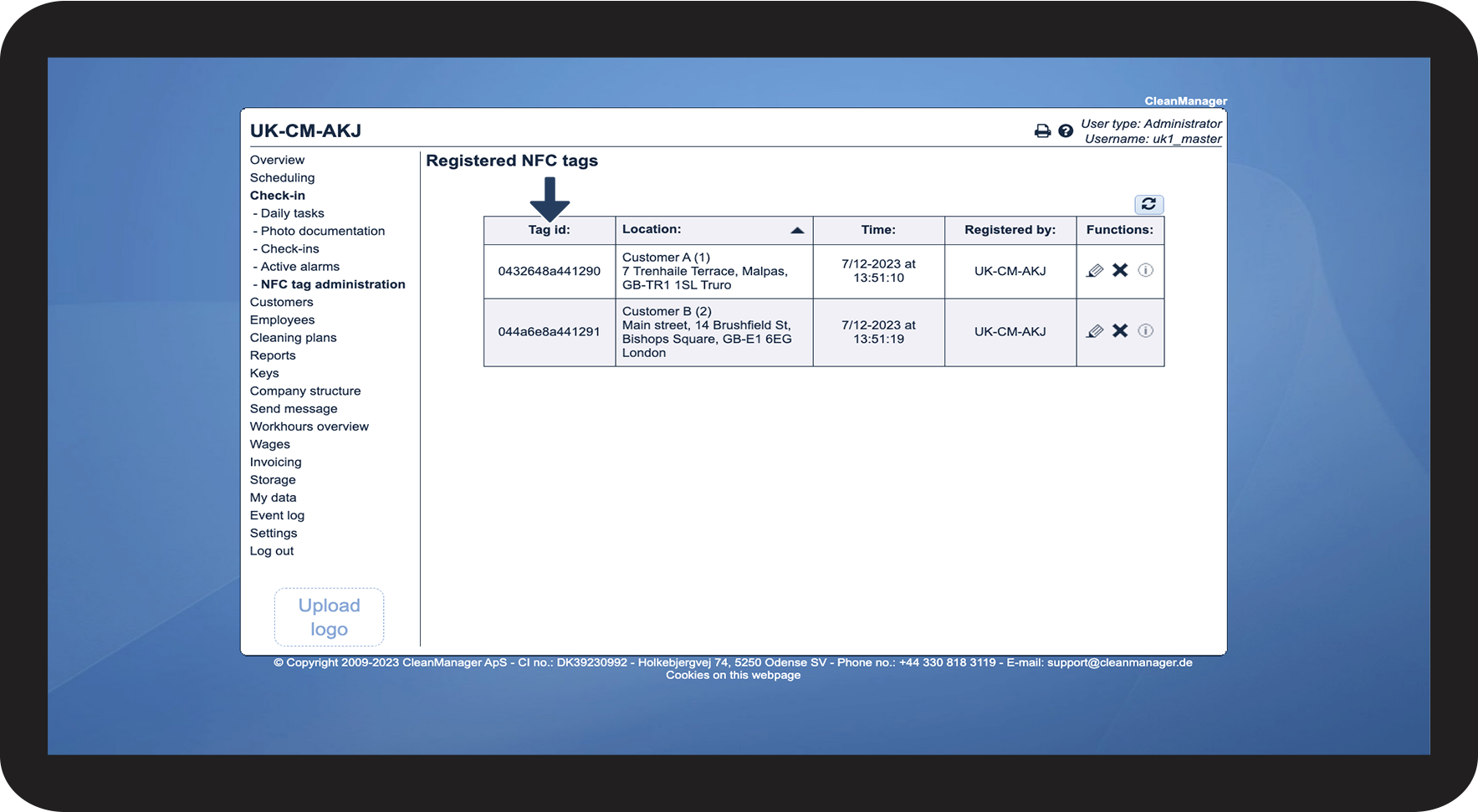
Tag id
 
The Tag id is the ID number associated with the NFC tag. It is the number that is used to identify the tag on the server

2.png


number_3.png
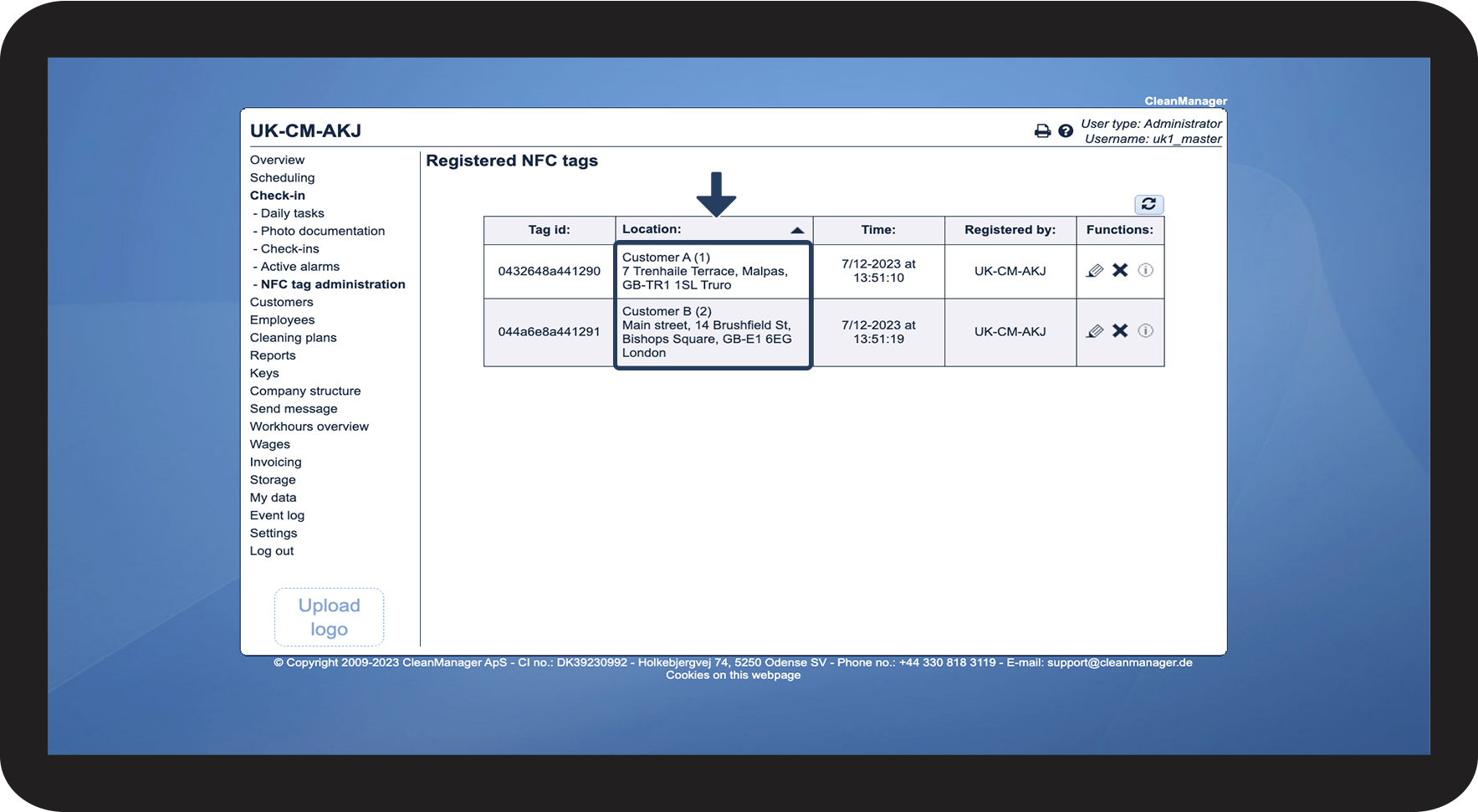
Location
 

When a tag is created, it is connected to a customer location, and in this column you will be able to see which ID number is associated with this location


NOTE:

You can have multiple tags associated with the same customer and location. The employee just needs to use the same tag when checking in and out.

Supervisors can only see NFC tags in the assigned customer areas. For more information regarding this, go to Company Structure.
3.png


number_4.png
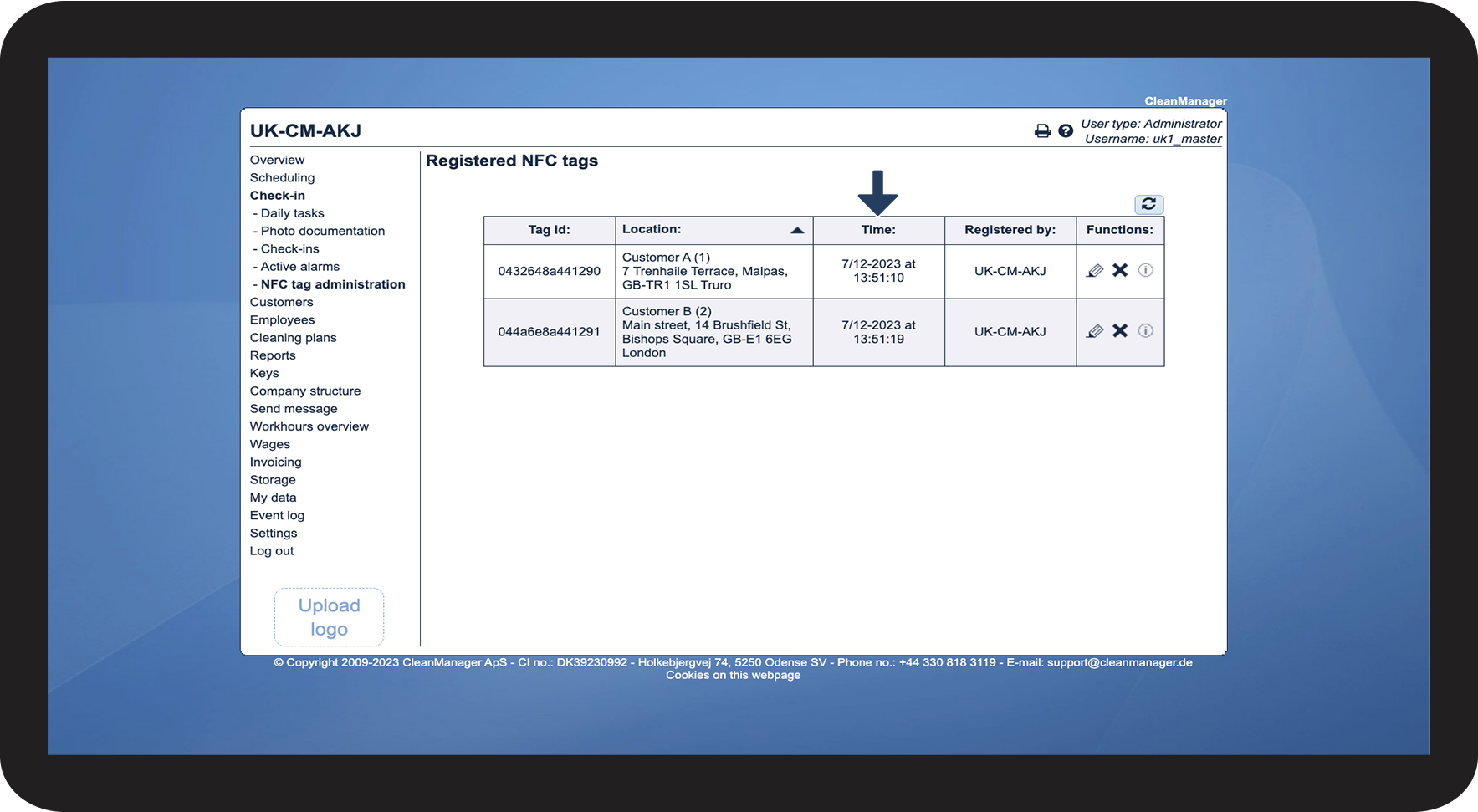
Time
 
The time shows when the tag was created in the system. This time will also be updated if something is updated on the tag. This could be, for example, if a comment was written on the tag

4.png


number_5.png
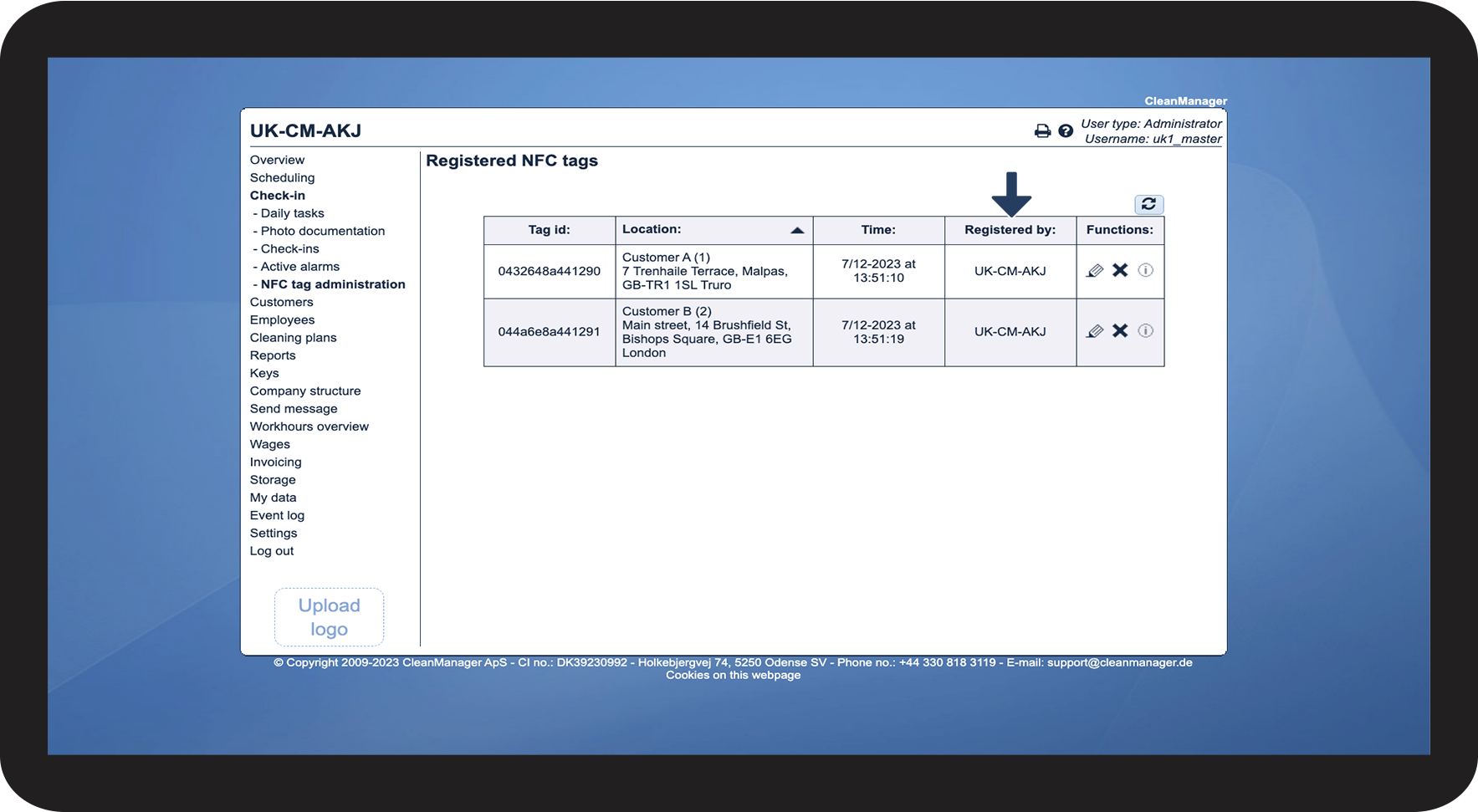
Registered by
 
This column shows who created the tag in the system
5.png


How to manage your NFC tags
number_1.png
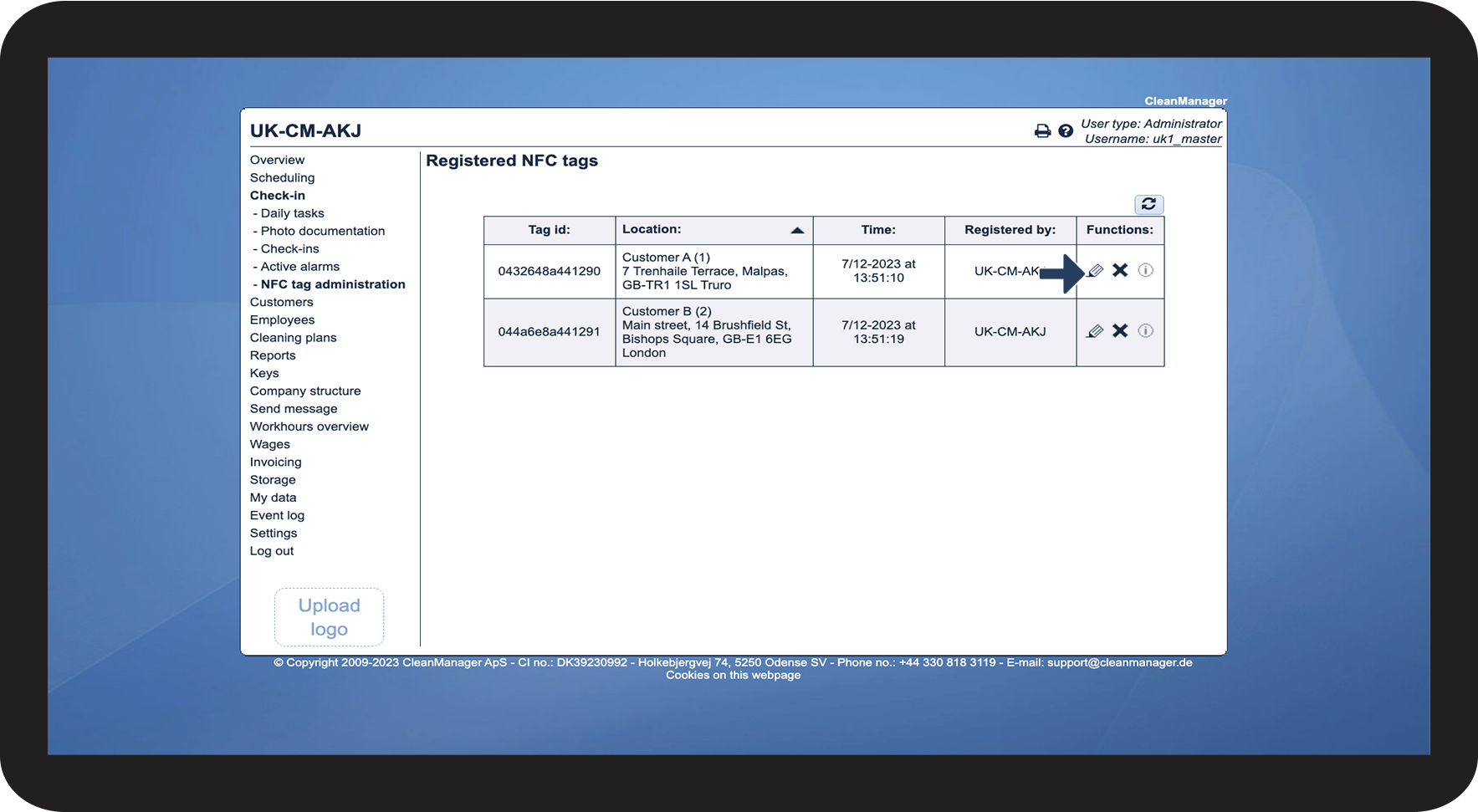
Click on Edit NFC tag rediger.png
 
It gives you the option to edit the comment on the tag

6.png


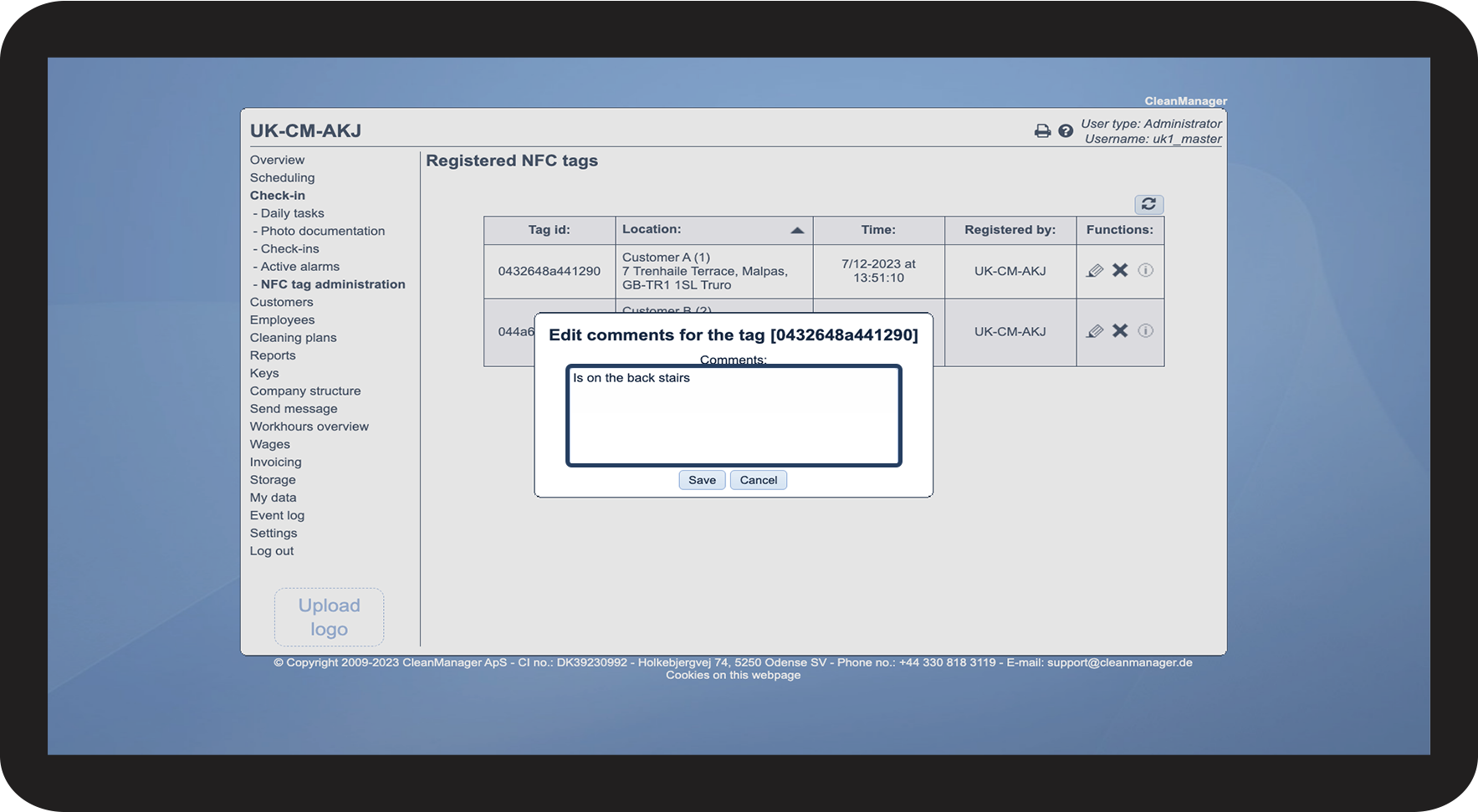
number 2.png

Edit or add a comment to the NFC tag

7.png

number 3.png
Click on View comments Info3.png
 
This gives you the option to view the comment on the tag

8.png


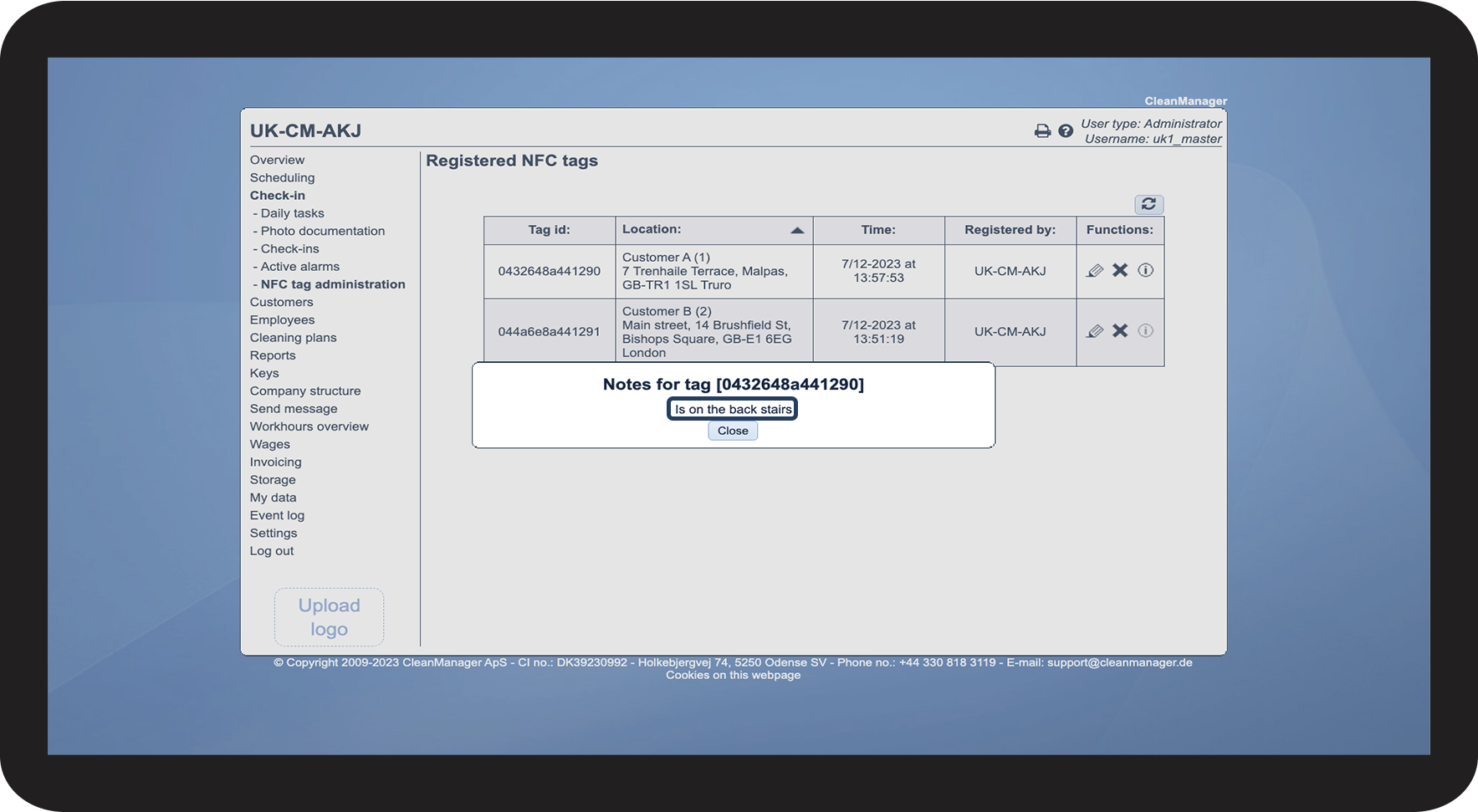
number 4.png

See what's written in the comment

9.png


Continue to the article  Configuration of NFC tags

Here you can read more about how to create your tags through the app.