Skip to content
English
  • There are no suggestions because the search field is empty.

View your workday

How do I view my workday?

Accessing the overview of your workday is one of the most used features by employees during their daily work.

Show work day offers a daily overview of all tasks for a given day.

You can use it to start tasks, get directions, access documents for customers, see the cleaning plan, have a look at products and related user guides and materials, or you can view quality reports.

In this article, you will learn how to get the most out of your workday:


View your workday

Get an overview of your workday and start your tasks.

number_1.png
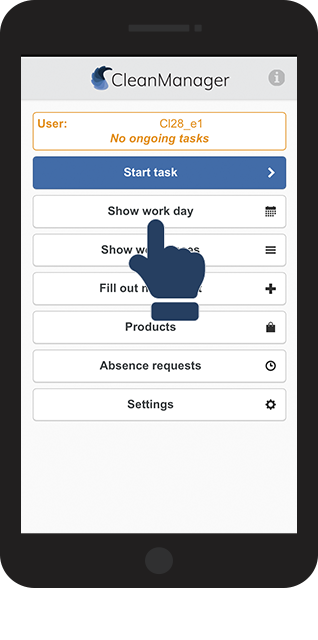
Click on Show work day
1.png  
number_2.png

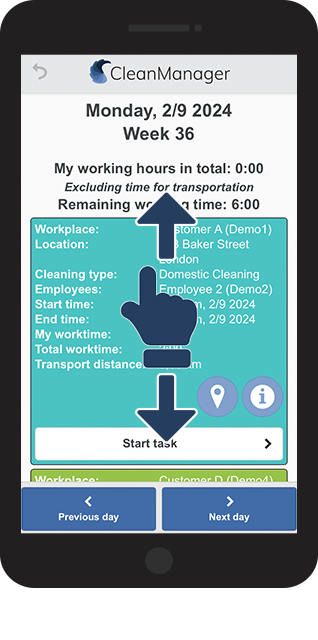
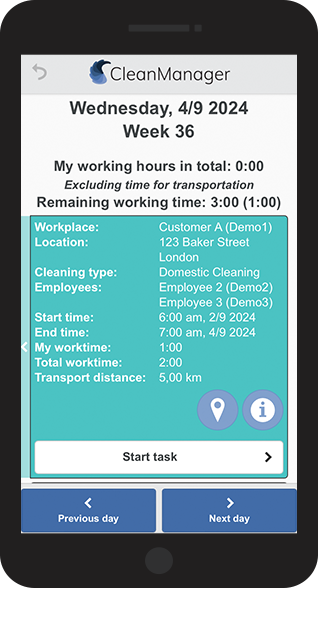
Scroll up and down to see your tasks for the day

2NY.png
number_3.png

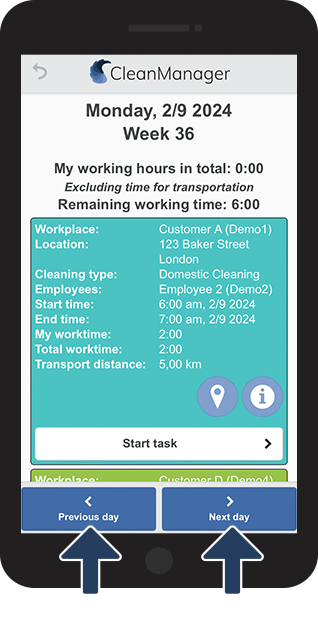
Click on the buttons Previous day and Next day to see your previous or upcoming tasks


When you first click on Show work day, it will always show the current day 

3NY.png
number_4.png
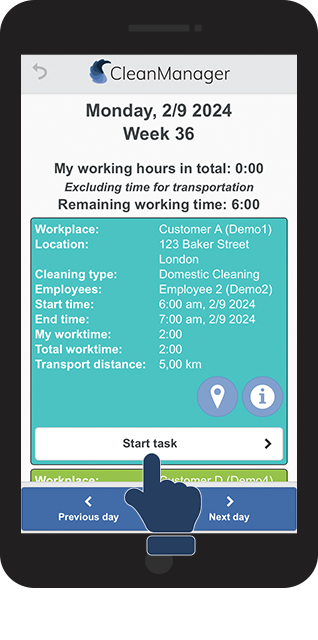
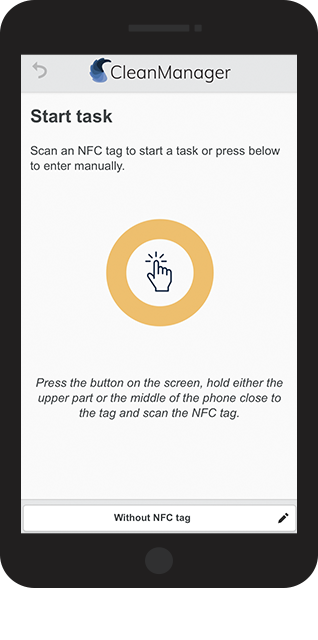
Click on Start task on the task you would like to start
4NY.png
number_5.png

You can now begin your task


For more information regarding this, see the following articles:

5NY.png


View your working hours

number_1.png

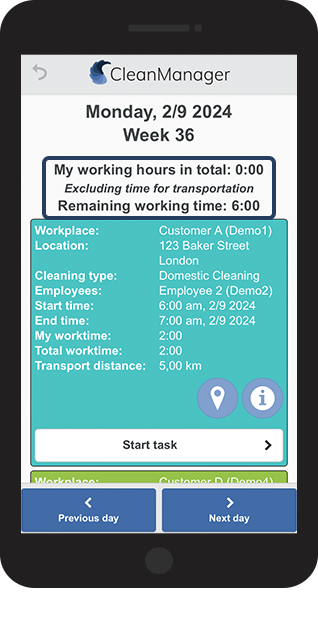
In Show work day, you can also keep yourself updated on My working hours in total and your Remaining working time


In this example, there are 3 tasks planned with a duration of 2 hours each.  

1NY.png  
number_2.png

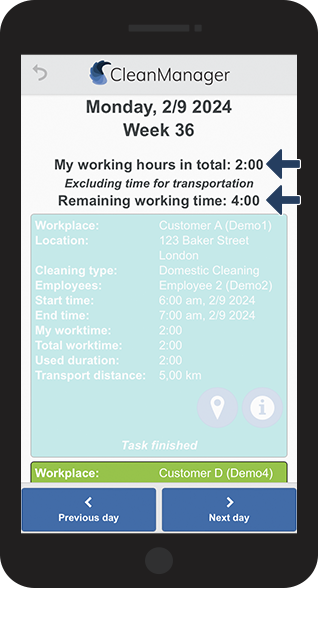
Here, the first task has been started and finished.


My working hours in total have now been updated based on the amount of time used on the first completed task, and from the Remaining working time, the used time has been subtracted.

2NY.png
number_3.png

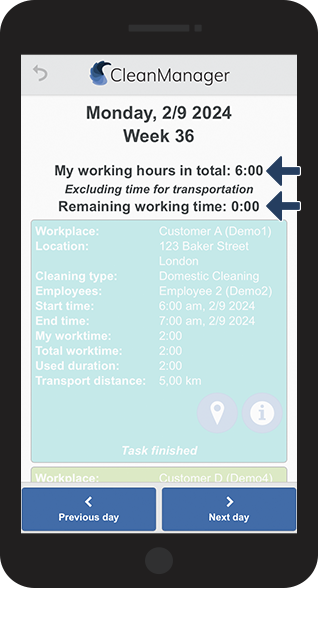
Here, all planned tasks have been finished


The total working hours have now been updated to 6:00 hours and the remaining working time has been adjusted to 0:00 because there are no more tasks for the day.

3NY.png


INFO:

If a new task is created and started from the app, this task will then be included in Show work day and the total working time will be updated accordingly. 

Transport time as either individual driving tasks or transport time to tasks will not be included in either the total or the remaining working time. 


Tasks that can be completed on different days

Most of the planned tasks are designed to be finished in one day and will therefore be shown on that specific day.

However, in some cases, a task can be executed on different days.

If the earliest start time and latest end time for a task spans multiple days, the following settings can be activated to allow your employees to see the task on all days it can be performed:

Settings > General settings 

Settings___General_settings_.png

Settings > General settings > App with Time Tracking

Settings___General_settings___App_and_log_on.png


Presentation of tasks in Show work day:

When going to Show work day, employees will notice an indicator hinting to which days it is possible to handle the task.
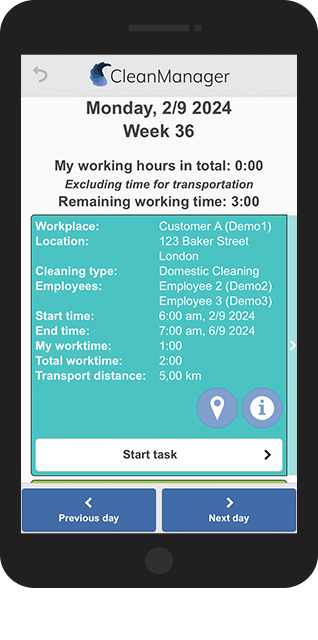
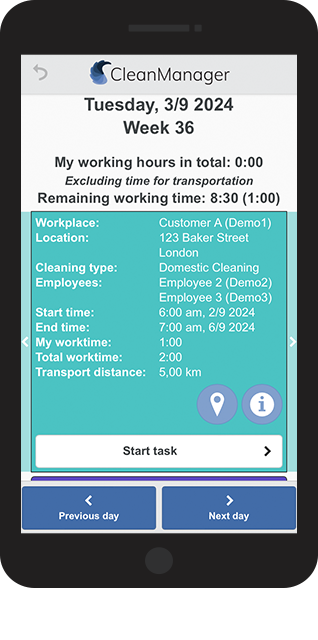
The indicators are displayed on the side of the task and show if the task can be handled on previous or upcoming days. Here, you can see 3 different examples.
number_1.png

Day 1: The task can be done on this day or in the future

1NY.png
number_2.png

Day 2: The task can be done today, or in upcoming days. It was also accessible on previous days

2NY.png
number_3.png

Day 3: This is the last day the task can be handled. It was also accessible on previous days

3NY.png


How to get to your workplaces

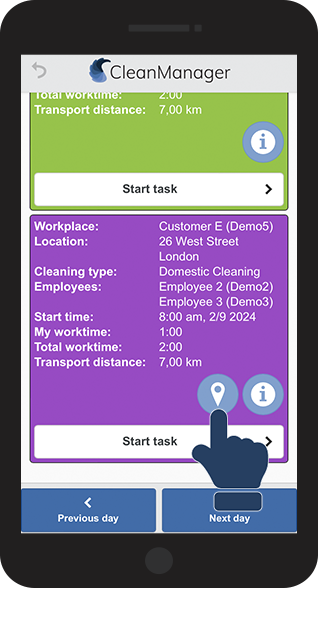
You can also use Show work day to find out where your next task is and how to get there.

number_1.png

Click on the location marker location_marker.png displayed on your task

1NY.png  
number_2.png

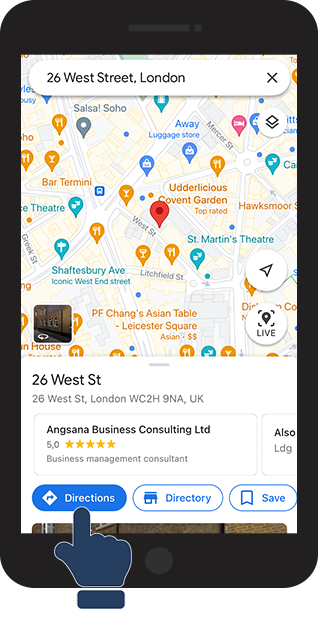
Click on Directions


It is possible that you have to give Google Maps permission to use your GPS location if you have not given your permission yet.

2.png 
number_3.png

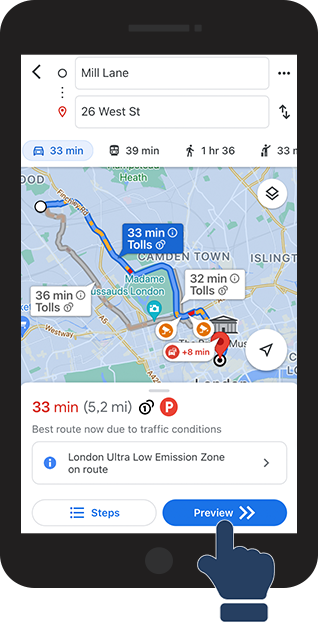
Click on Preview to begin your trip to the workplace


You need to have Google Maps installed on your phone to start the navigation

3.png 


Find information concerning your workplace

number_1.png

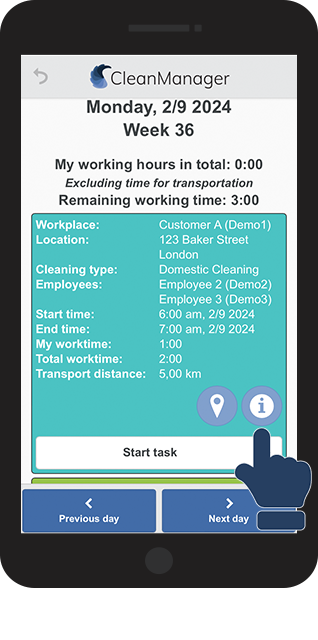
Click on the Information iconinformation.png to access data concerning your workplace
1NY.png  
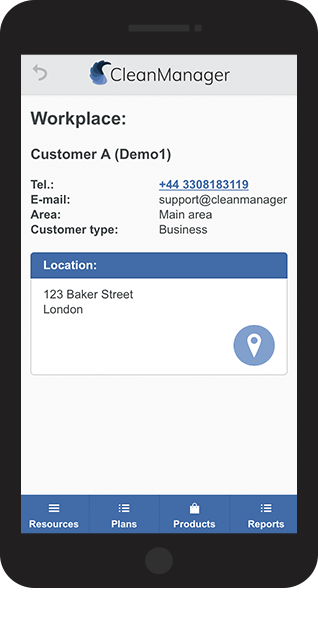
number_2.png

From here, you can access different types of information connected to the workplace

2NY.png


Here is a list of different types of information you can access:


Or you can read more in the articleInformation about workplaces

Blase.png
Access the comic bubble to see comments about customers and locations.
keys.png 

Access the lock to see information about keyscodes, and passwords at each of the customer locations.

location_marker.png

See the location of the customer and get directions.

Resources.png

If your administrator or supervisor has uploaded resources with information about the workplace, you can access it here

Plans.png

Have a look at the cleaning plans to see how the work is supposed to be carried out at the location

Products.png

Have a look at cleaning products and usage information to gain information on how to use them

Reports.png

Have a look at your own or supervisor's quality reports