Skip to content
English
  • There are no suggestions because the search field is empty.

View the work hours overview as the administrator/supervisor

What can I see in the work hours overview as the administrator/supervisor?

As the administrator, you can view all hours for all customers.

As a supervisor, you can see the hours for customers assigned to your customer areas. This means that a supervisor might not be able to view all the work hours for an employee if this employee is also assigned to a customer outside the supervisor's areas.  For more information regarding this, go to Company Structure.

In the menu Work hours overview, you will be able to view and sort work hours by customer, employee, and customer areas for a specific period of time.


In this article, you will learn how to use the work hours overview:


This is how you find the Work hours overview

number_1.png
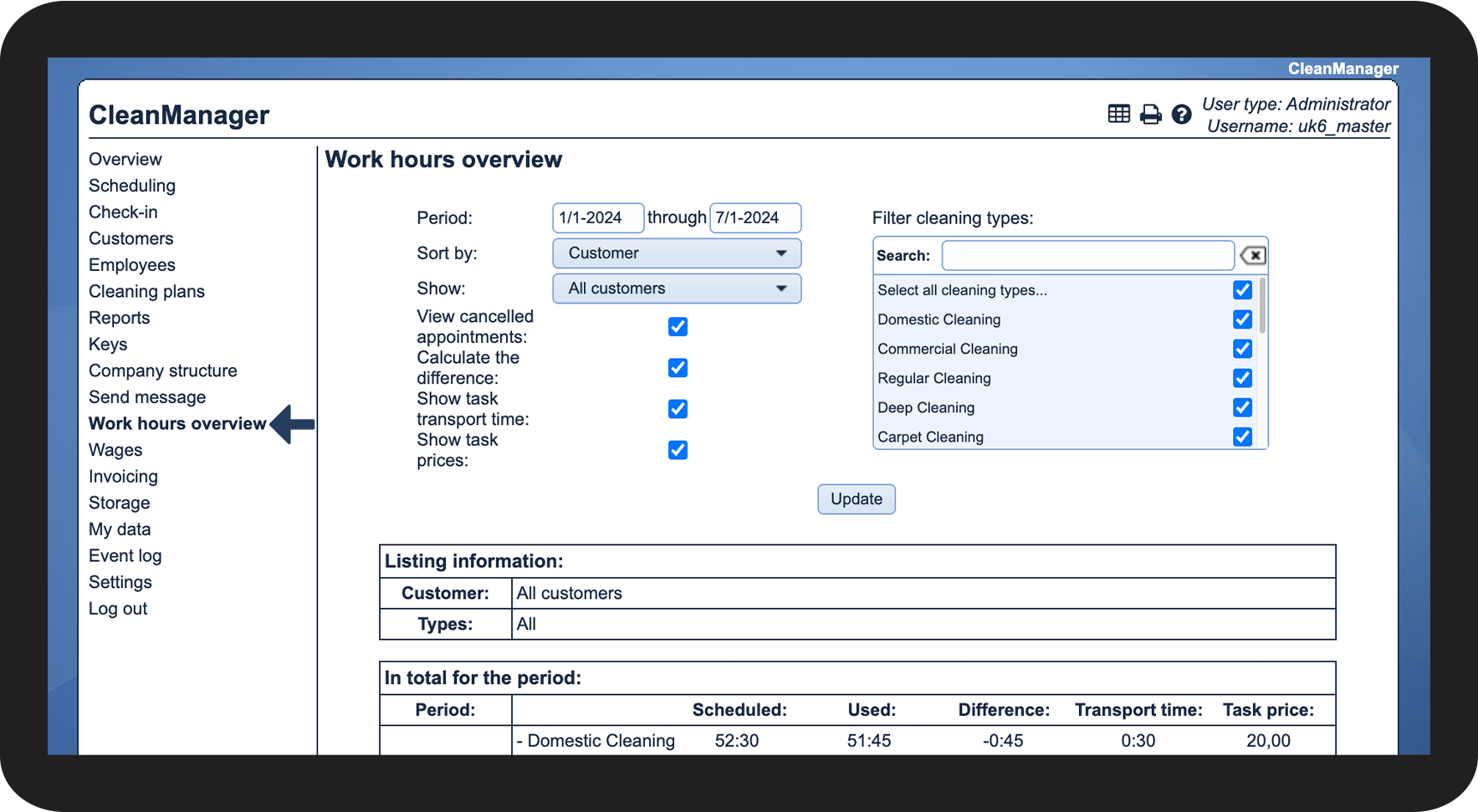
In the menu, go to Work hours overview

1.png

number_2.png
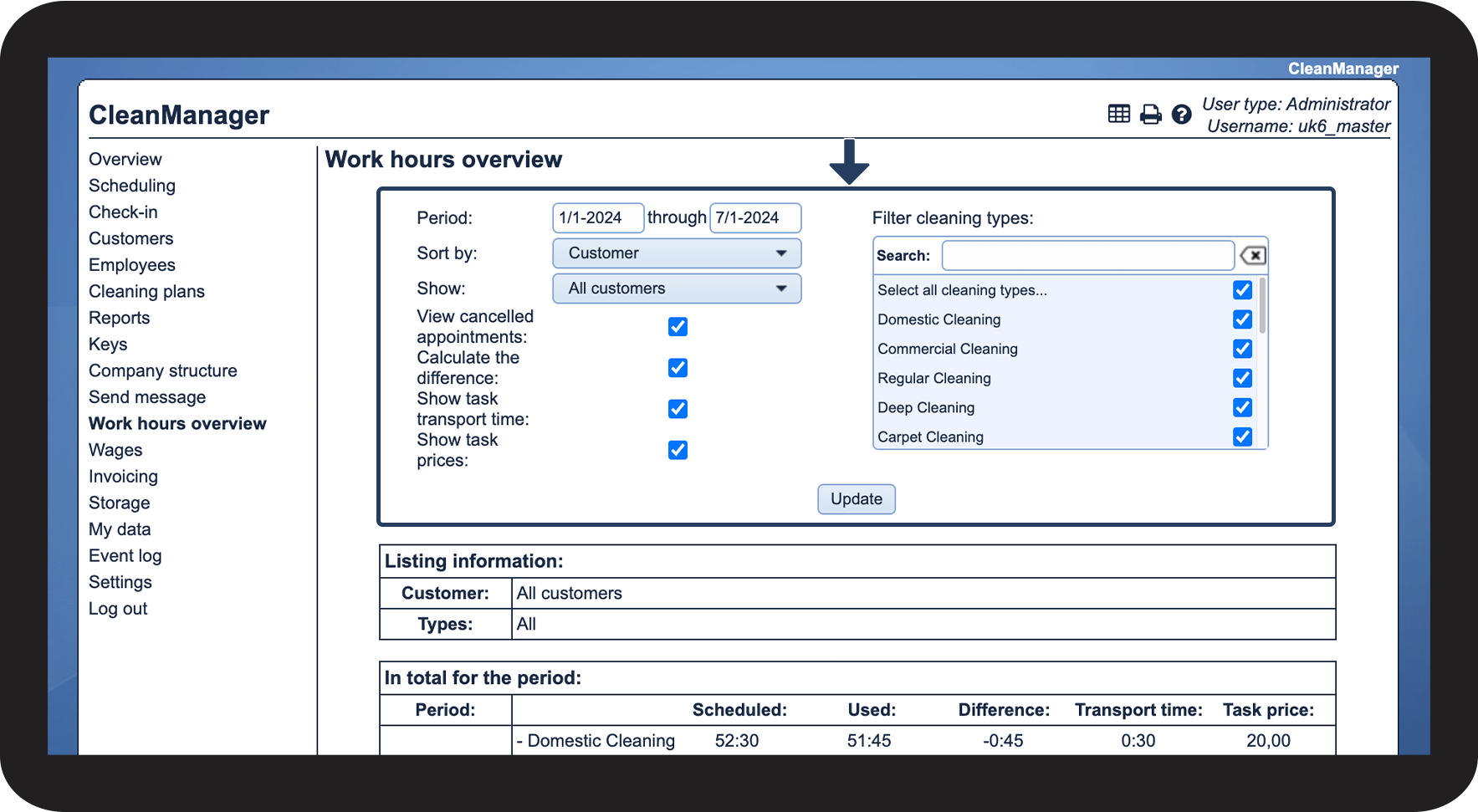
You can now sort your view
 
To learn more about what you can sort by, read the following article: How do I sort the view of the work hours overview?
2.png


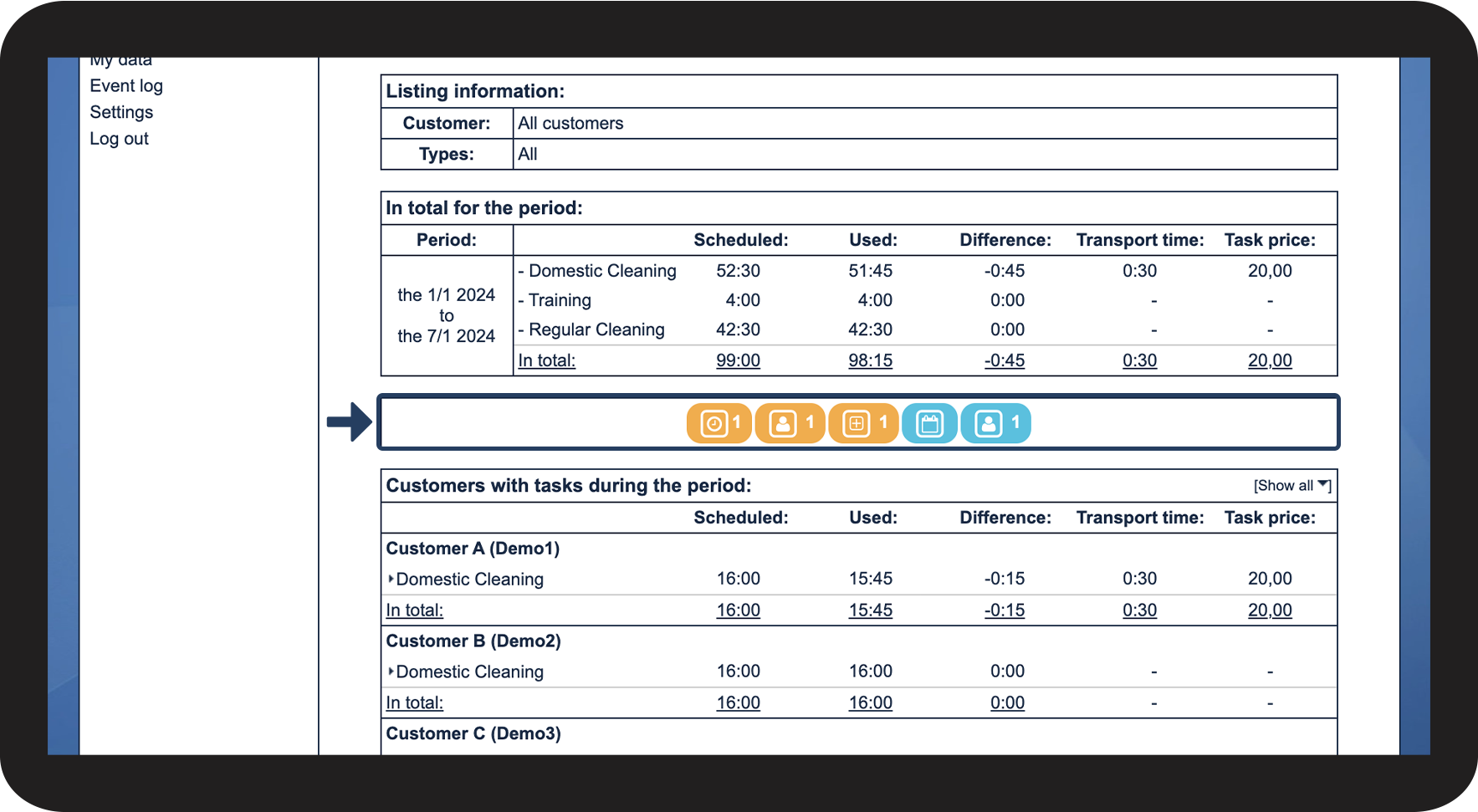
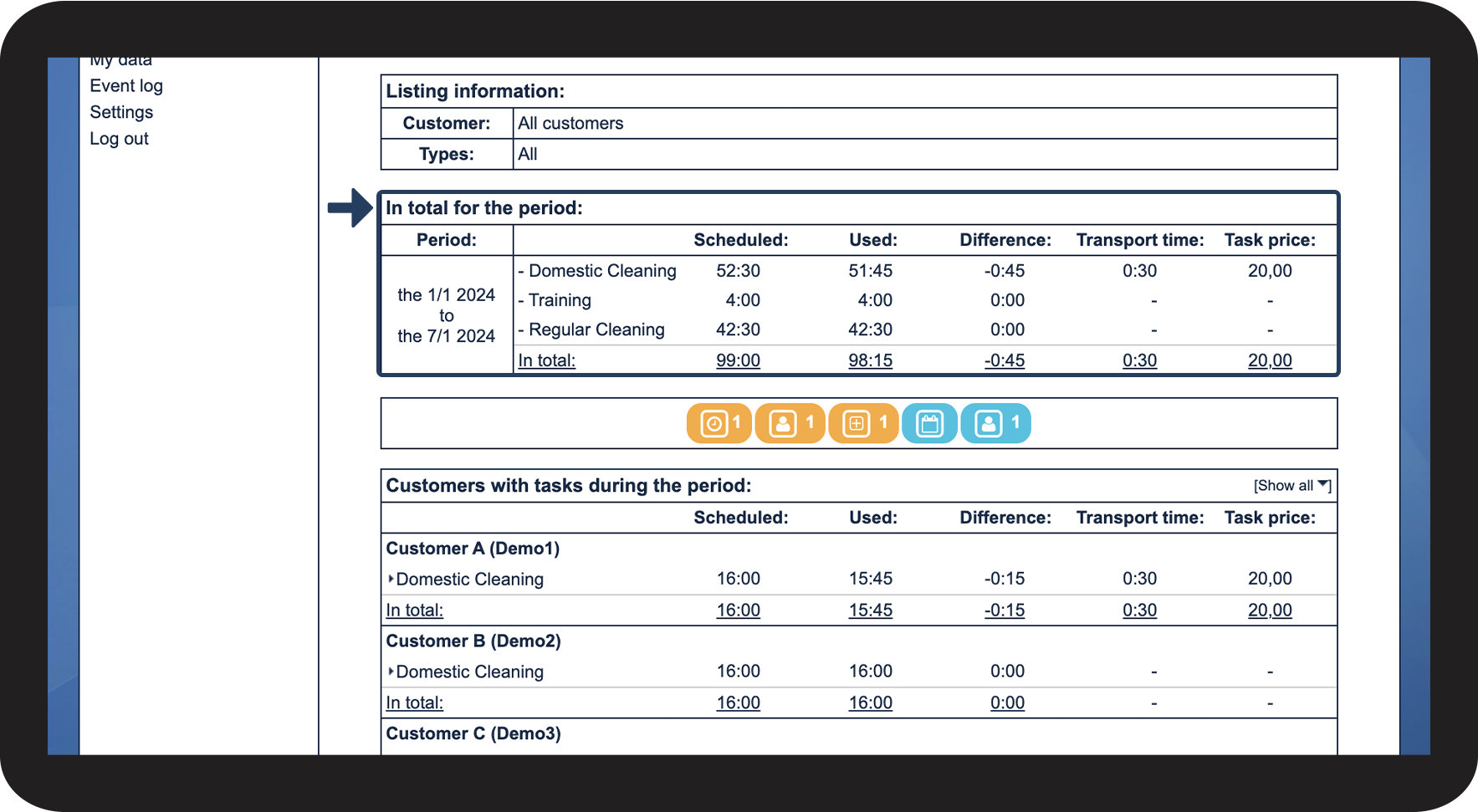
This is where you can see the total overview of work hours for the selected time period

number_1.png
Go to In total for the period
 
The work hours are sorted by the cleaning types you have in the system. You will be able to see the scheduled and used time as well as the difference, transport time, and task price if you have enabled this. Read more about this in the article: Settings for the work hours overview


INFO:

Learn more about how to create, edit, and delete cleaning types in the following section: Cleaning types
3.png


This is what the symbols mean

number_1.png
The following symbols can be triggered in the work hours overview

4.png

number_2.png
See the table below for a description of the meaning of the symbols
 
Symbol
Meaning
Screenshot 2024-01-11 at 12.51.56.png
The list contains 1 task with deleted employees
Screenshot 2024-01-11 at 12.52.19.png
The list contains 1 task which is reported and not approved
Screenshot 2024-01-11 at 12.52.50.png
The list contains 1 task where the time used is not approved
Screenshot 2024-01-11 at 12.53.05.png
There are public holidays in the selected period
Screenshot 2024-01-11 at 12.53.15.png
The list contains 1 task where no employees are associated


This is where you can see the work hours sorted by customers/employees/areas
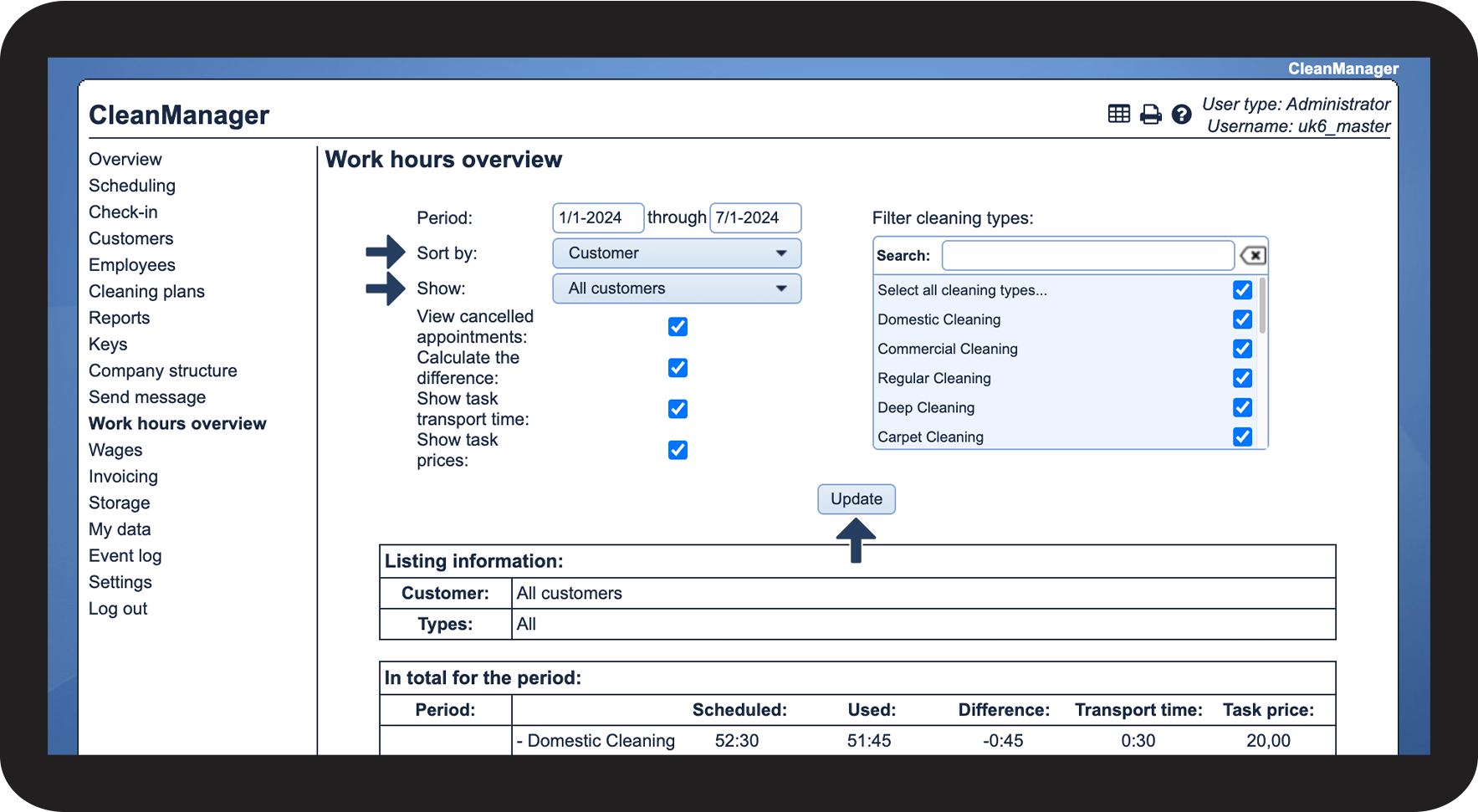
 

You can have the tasks displayed by customers, employees, or areas depending on your choices in the sorting

number_1.png

Next to Sort by, select one of the following:

 
  • Customer
  • Employees
  • Area
 

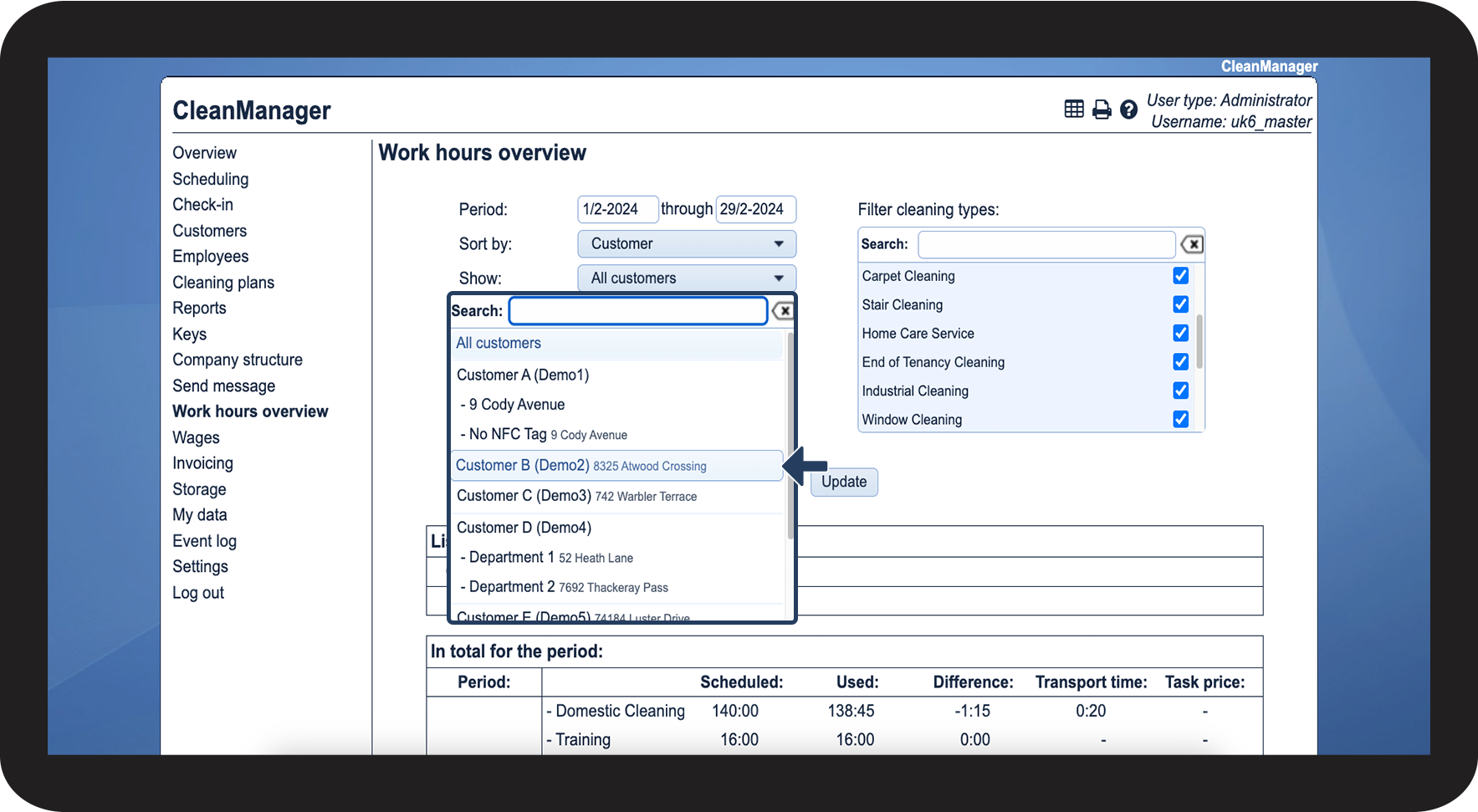
Next to Show, select either all customers/employees/areas

Thereafter, click on Update

5.png

number_2.png
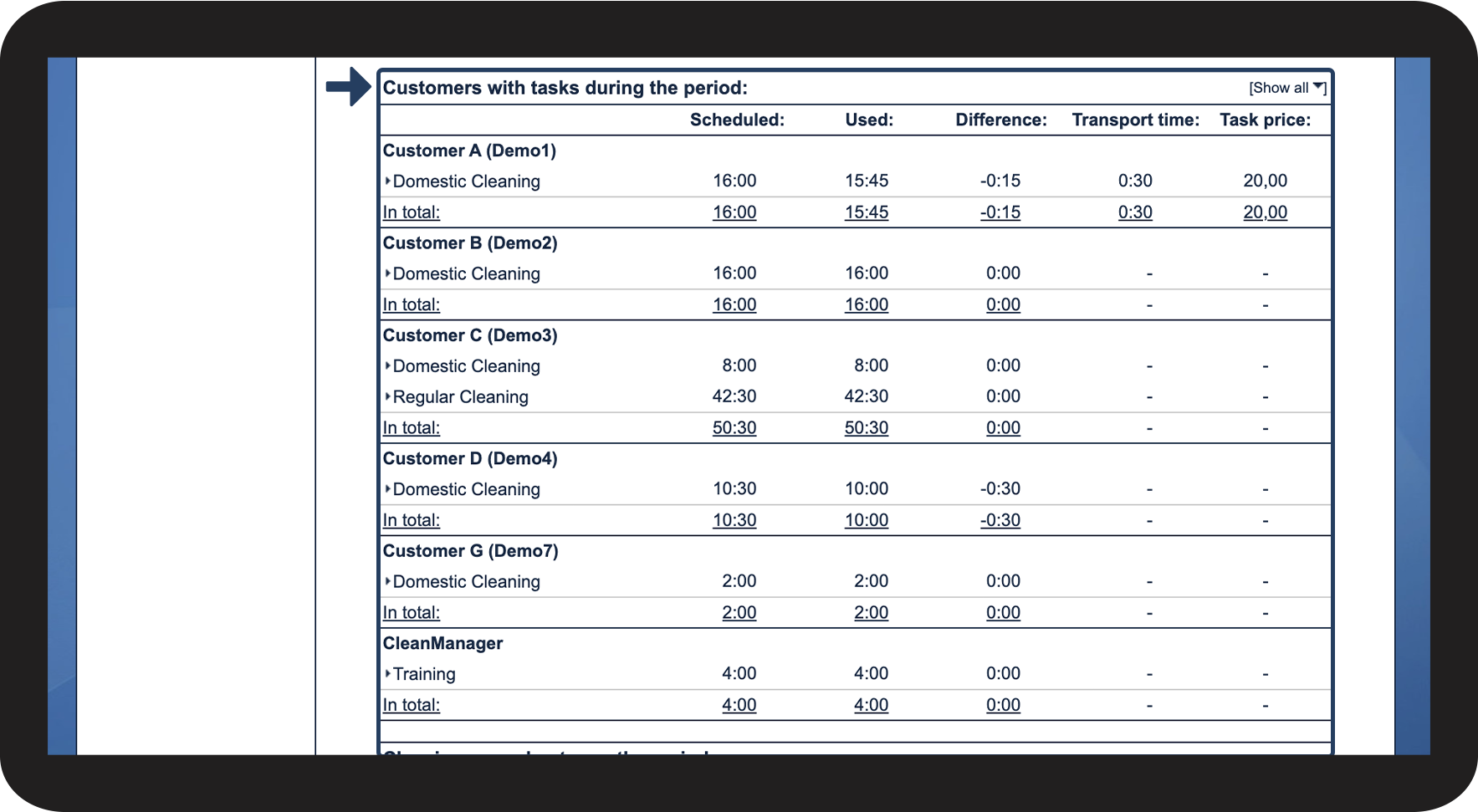
Scroll down the page until you see Customers/Employees/Areas with tasks during the period

6.png

number_3.png

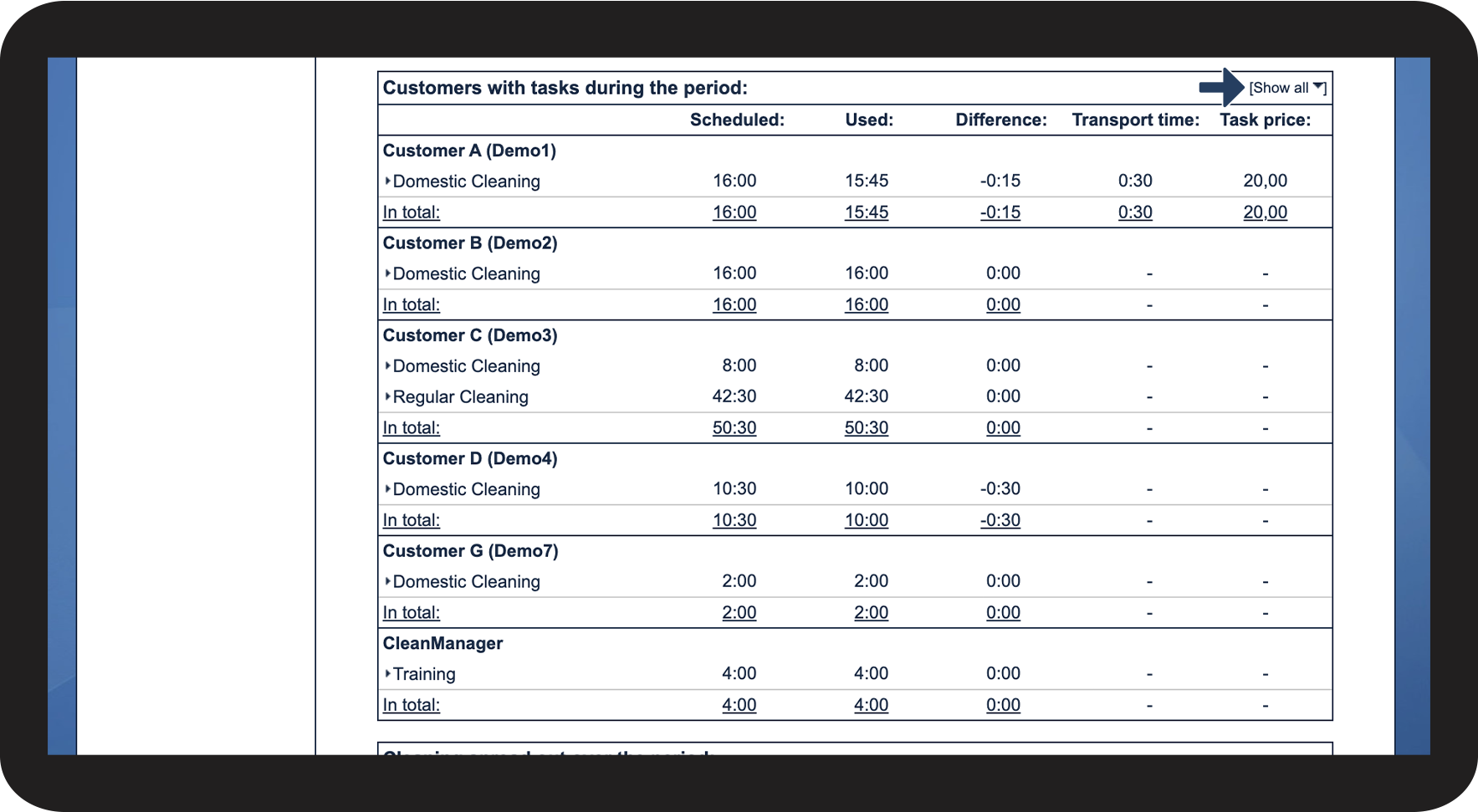
The tasks are summarised by cleaning types

Click on Show all to expand the list to view all the individual tasks

7.png

number_4.png

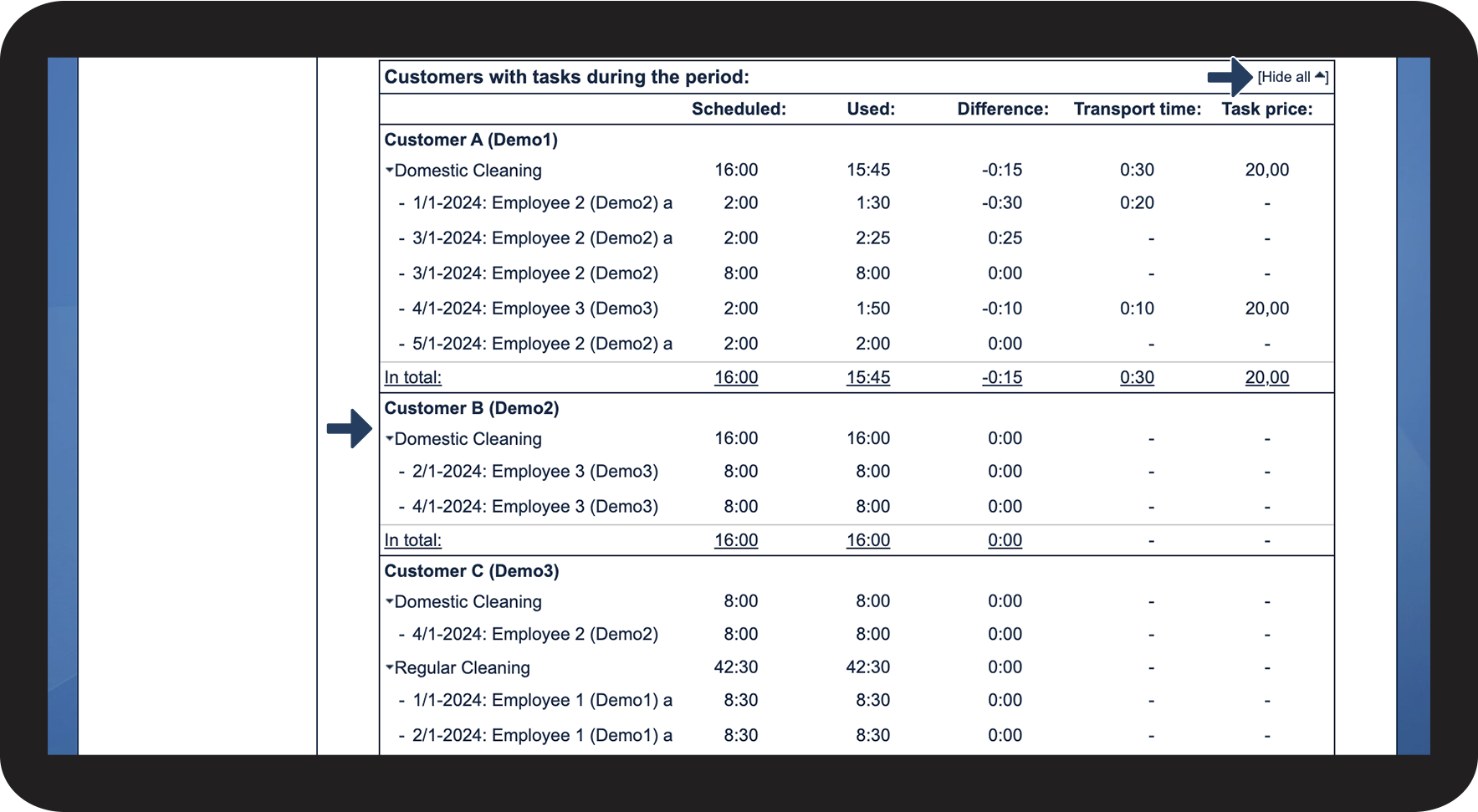
You can now see all tasks sorted by cleaning type

Click on Hide all to collapse the list again

8.png


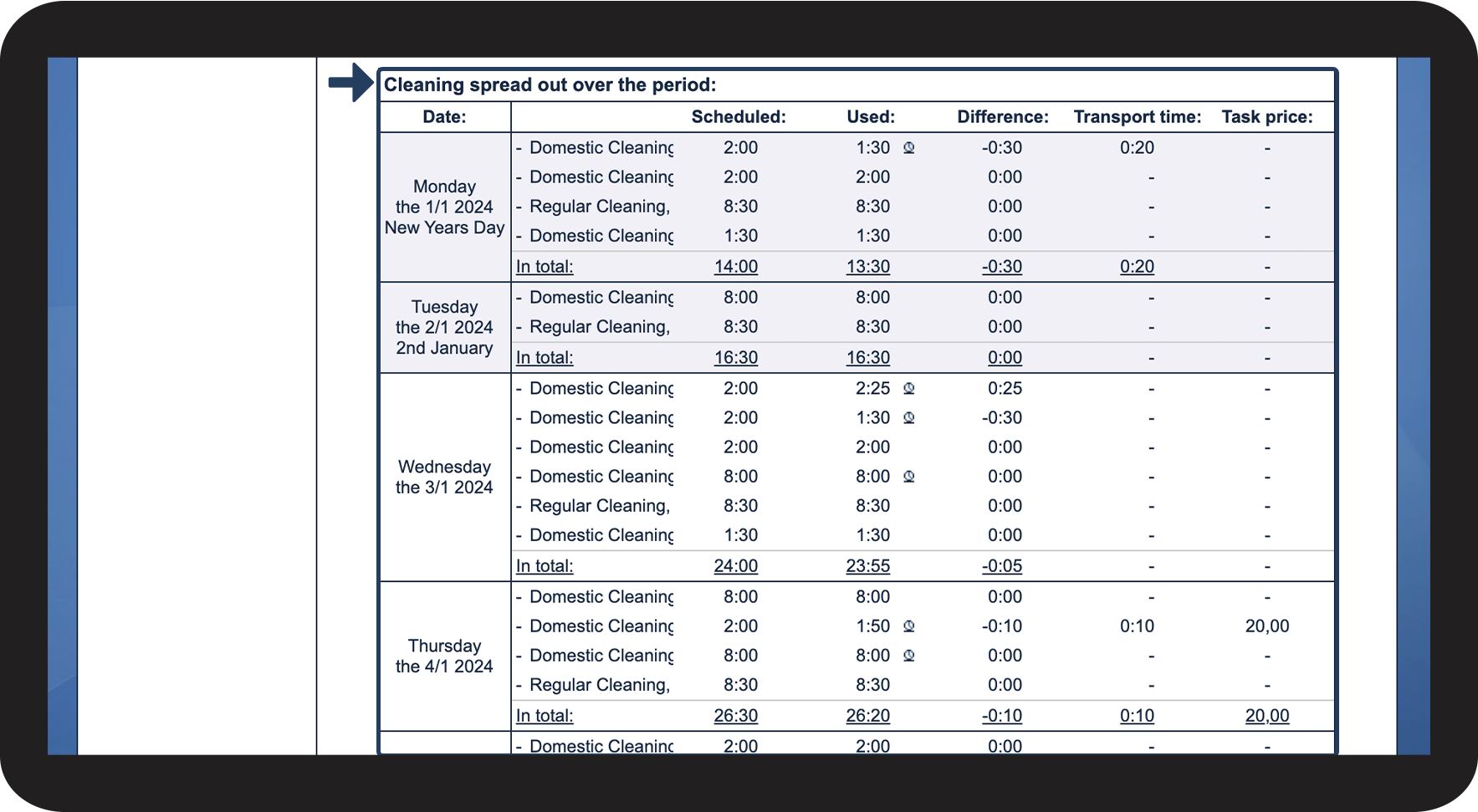
This is where you can see the tasks distributed over the selected period of time
number_1.png

Scroll down the page until you see Cleaning spread out over the period

 
In this view, you can see the tasks spread out over the selected period of time

9.png


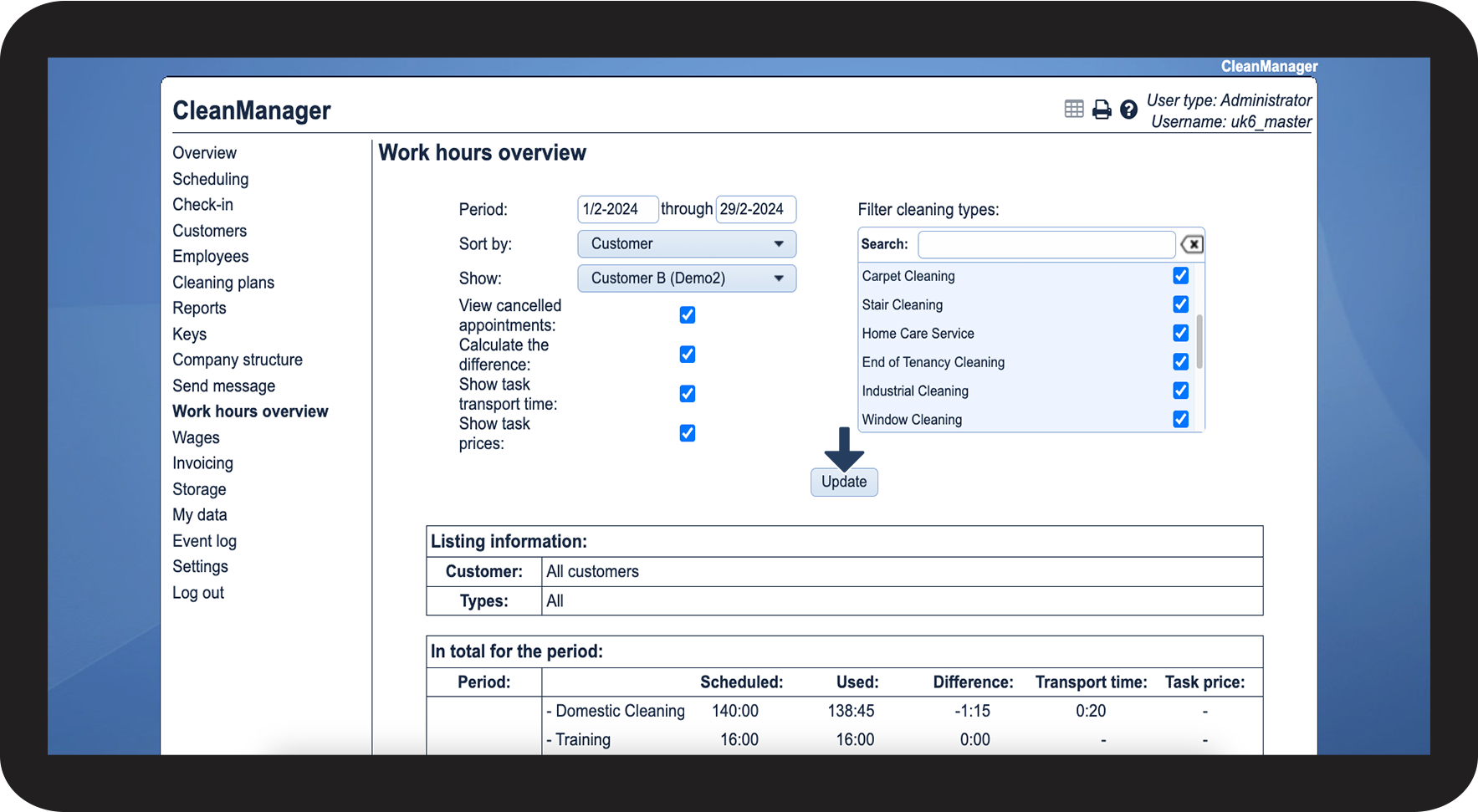
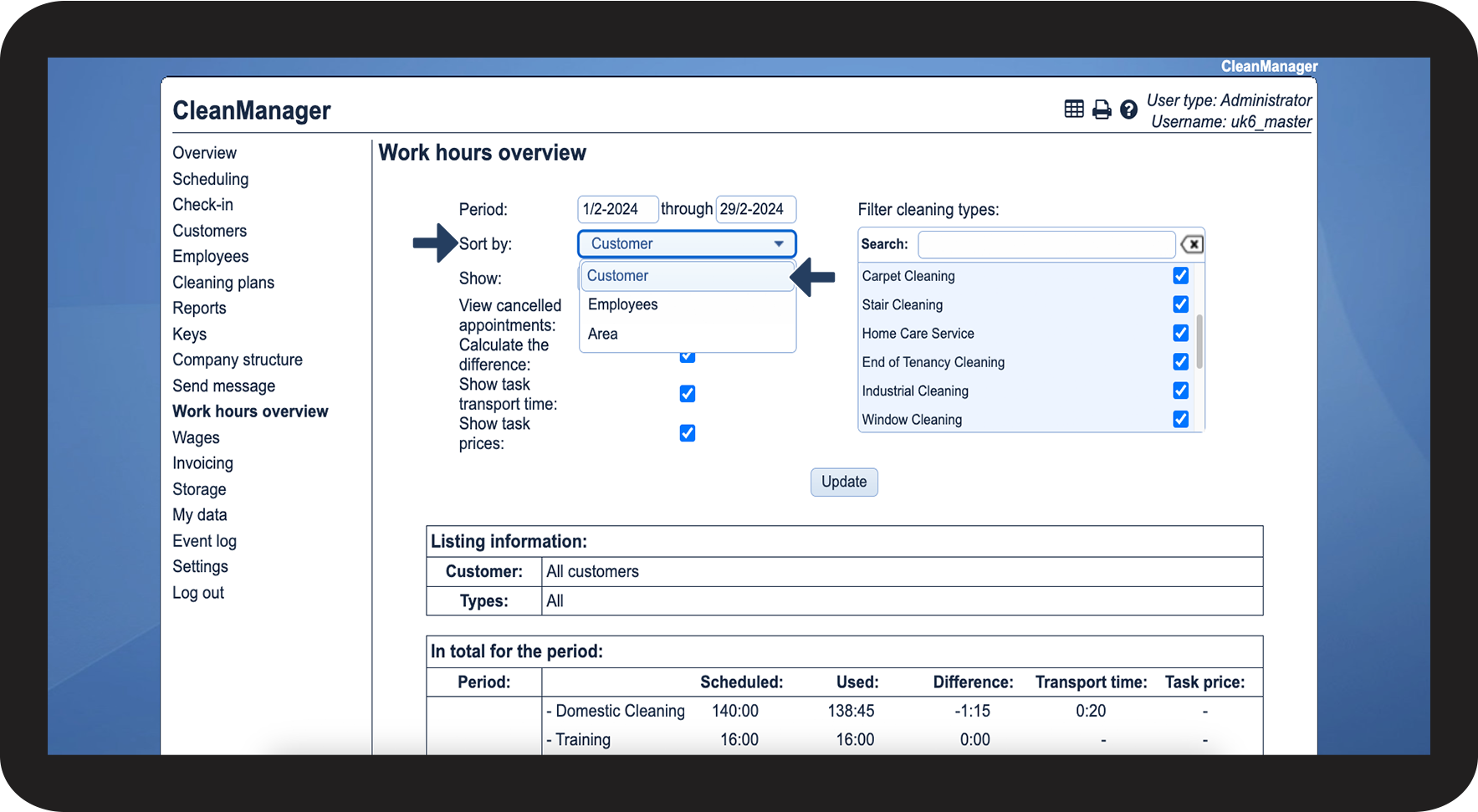
This is how you can see all closing days within a given period of time
number_1.png

Click on the dropdown menu Sort by and select Customer

10.png

number_2.png

Afterwards, select the customer whose closing days you want to see

11.png

number_3.png

Click on Update

12.png

number_4.png

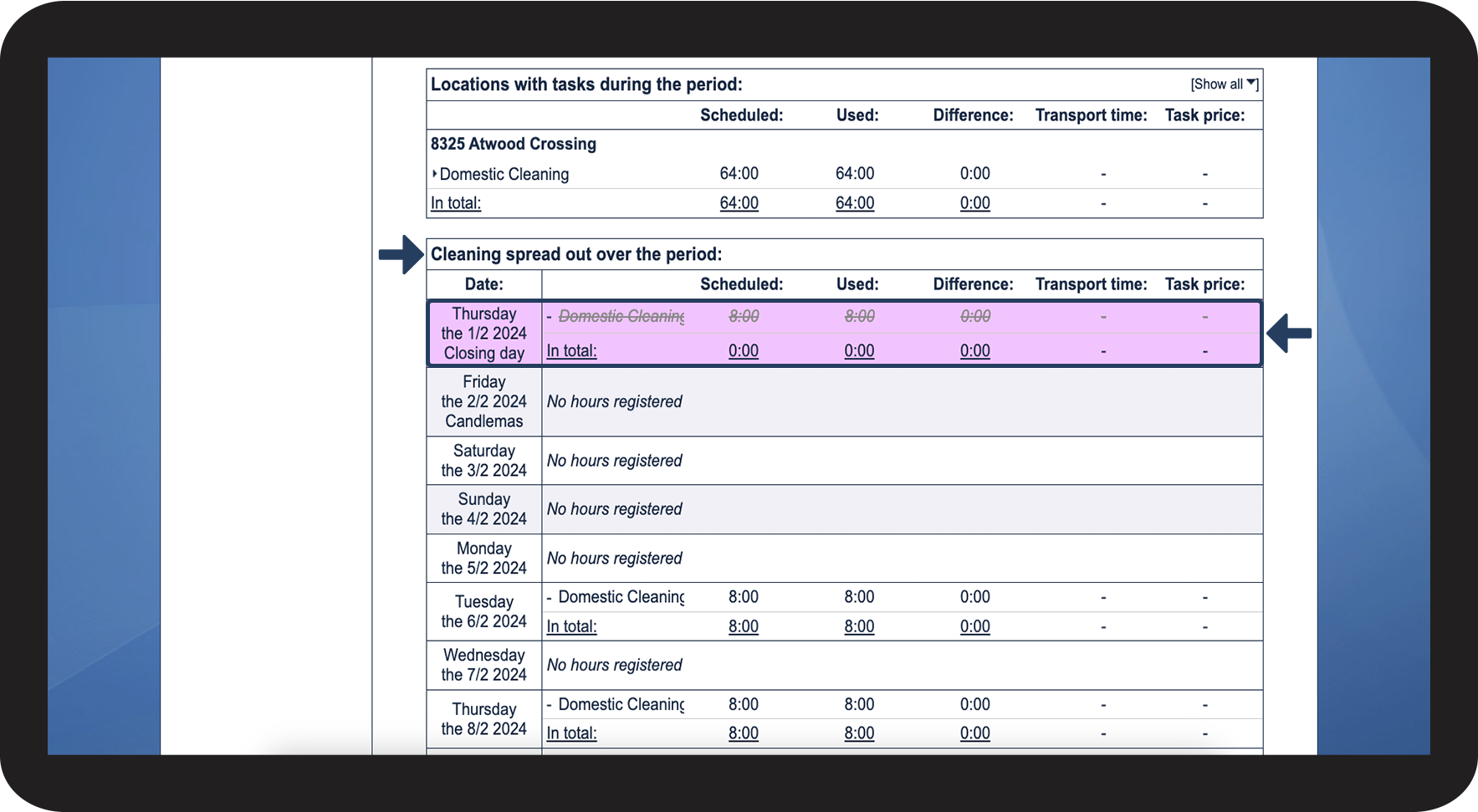
Scroll down the page until you see Cleaning spread out over the period

Here you can see all closing days over the selected time period

To learn more about what you can sort by, read the following article: How do I sort the view of the work hours overview?

13.png


Continue to the article: How do I manage tasks in the work hours overview?

Here, you can read more about your options for handling the tasks in the work hours overview.