Skip to content
English
  • There are no suggestions because the search field is empty.

View the work hours overview as an employee

How can I see my work hours as an employee?

If you have access to CleanManager as an employee, you can view all your work hours in the work hours overview in the web system. You will also be able to see if your work hours registered through the app or the calendar have been approved by your administrator or supervisor.


NOTE:

To access the work hours overview as an employee, you must have been granted access to the system. 


In this article, you will learn how to view all your work hours as an employee:


This is where you can find the work hours overview

number_1.png
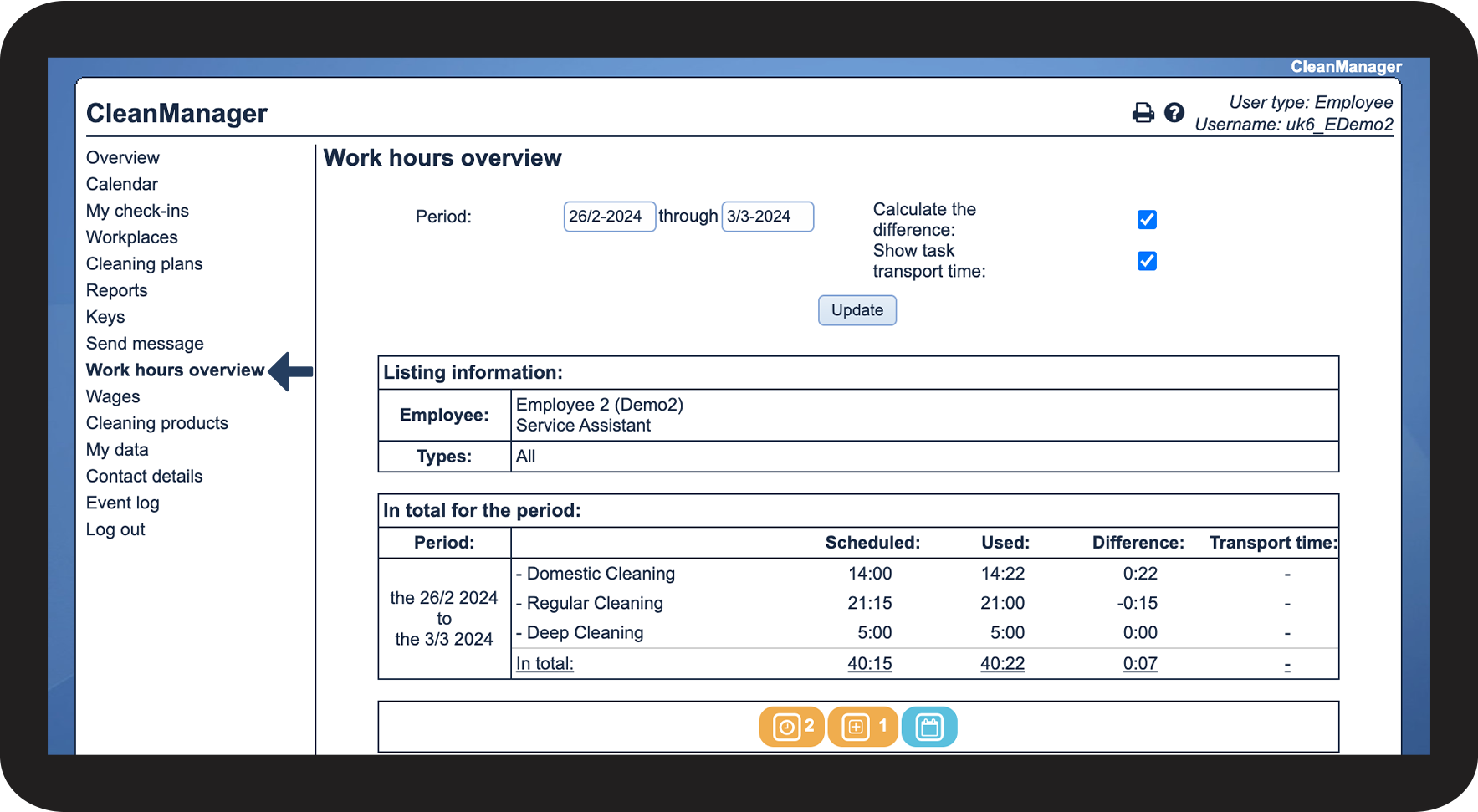
In the menu, go to Work hours overview

1.png


This is how you can sort the work hours overview
number_1.png
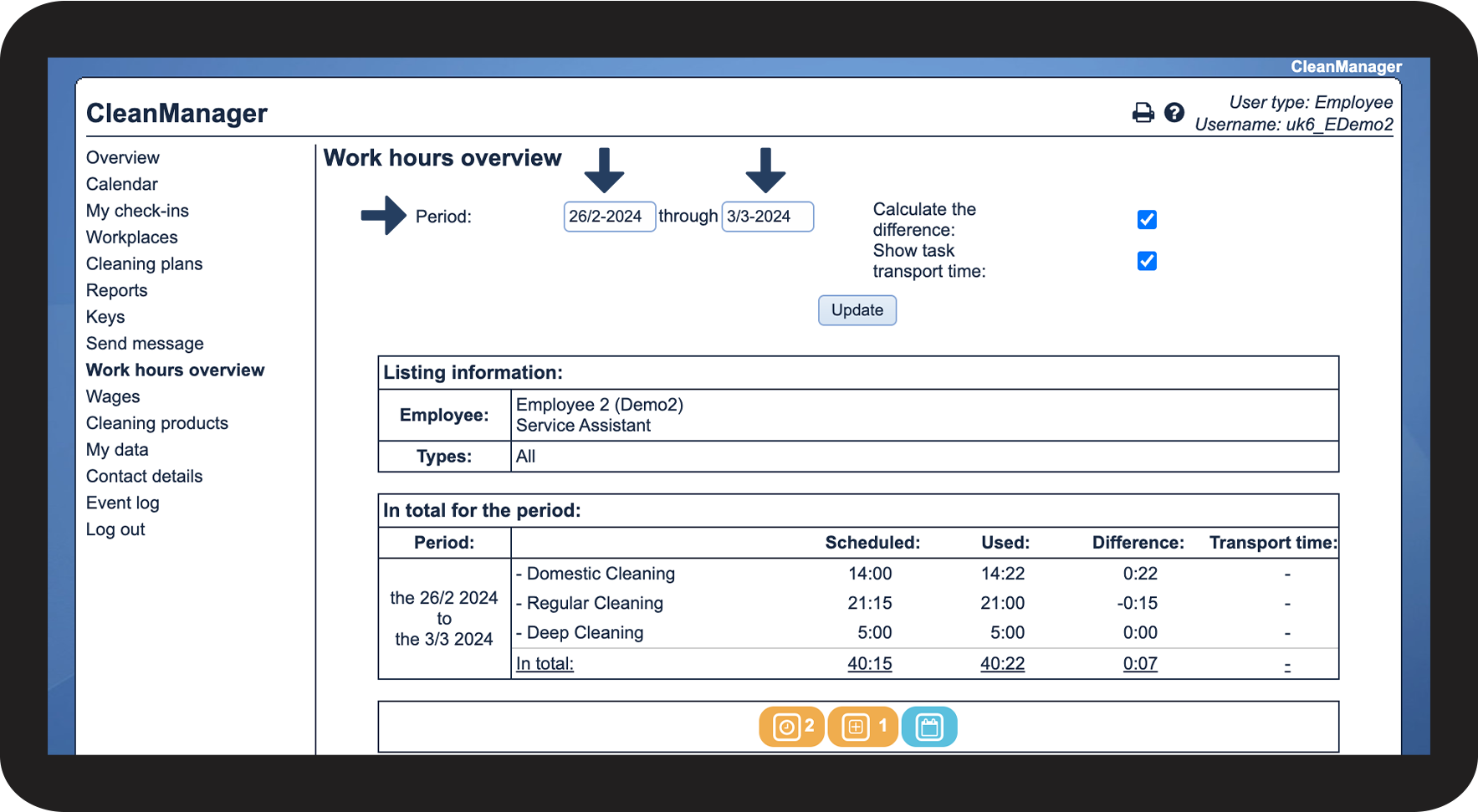
Select a start and an end date for the time period

2.png

number_2.png
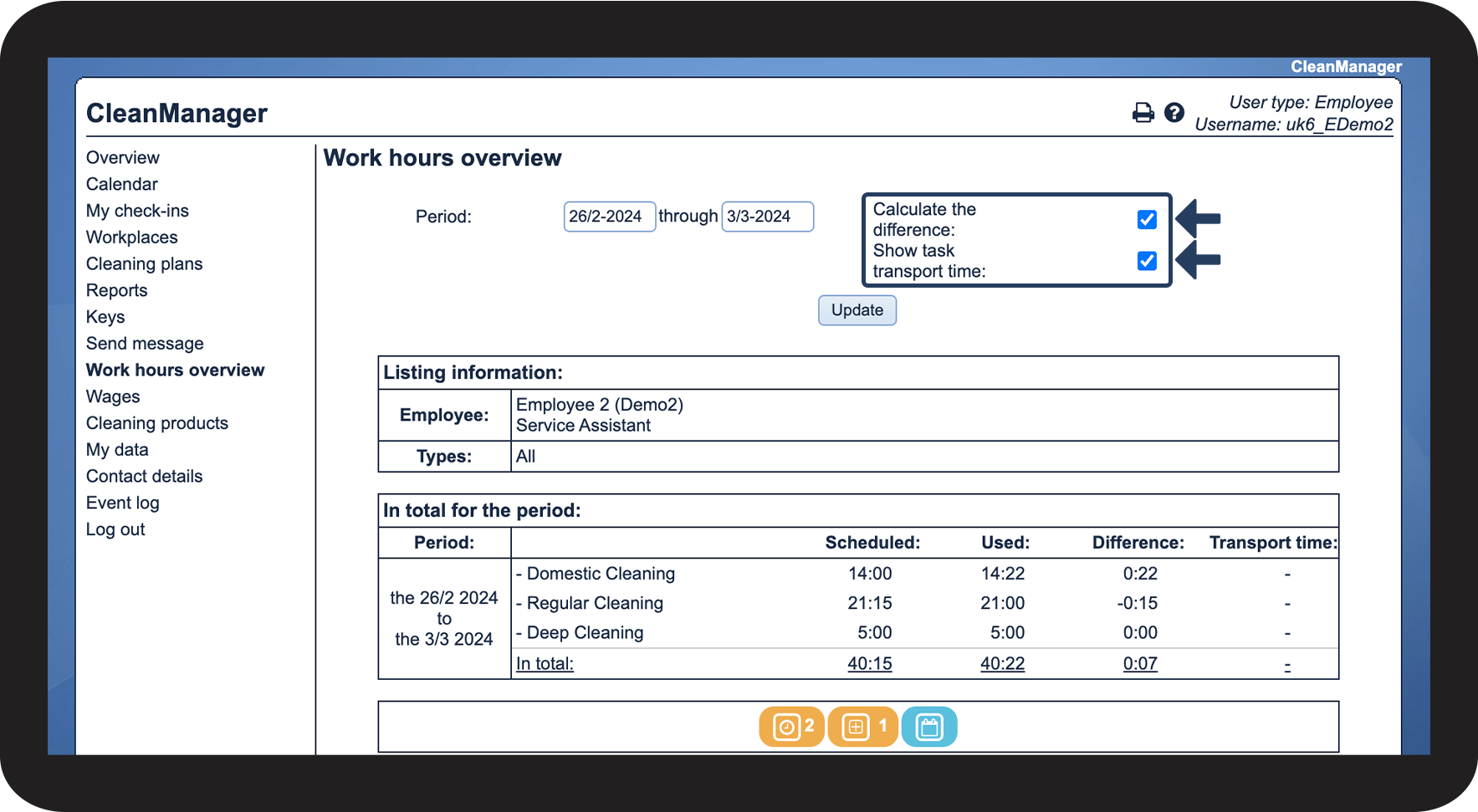
Decide if you want the following displayed:
 
  • Calculate the difference
  • Show task transport time

3.png

number_3.png
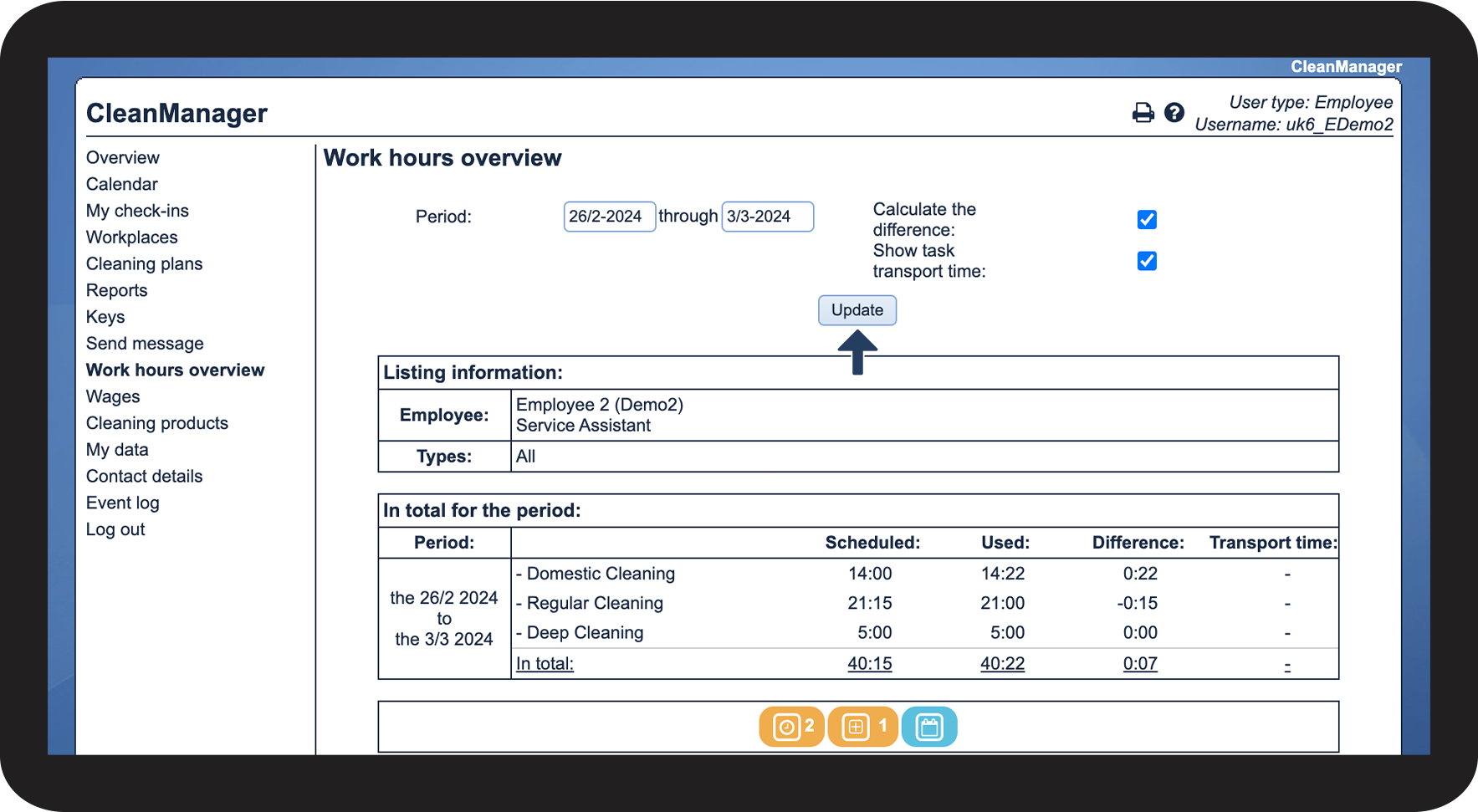
Click on Update to view the work hours that match your sorting

4.png


This is how you can see the total amount of work hours for the selected period of time
number_1.png
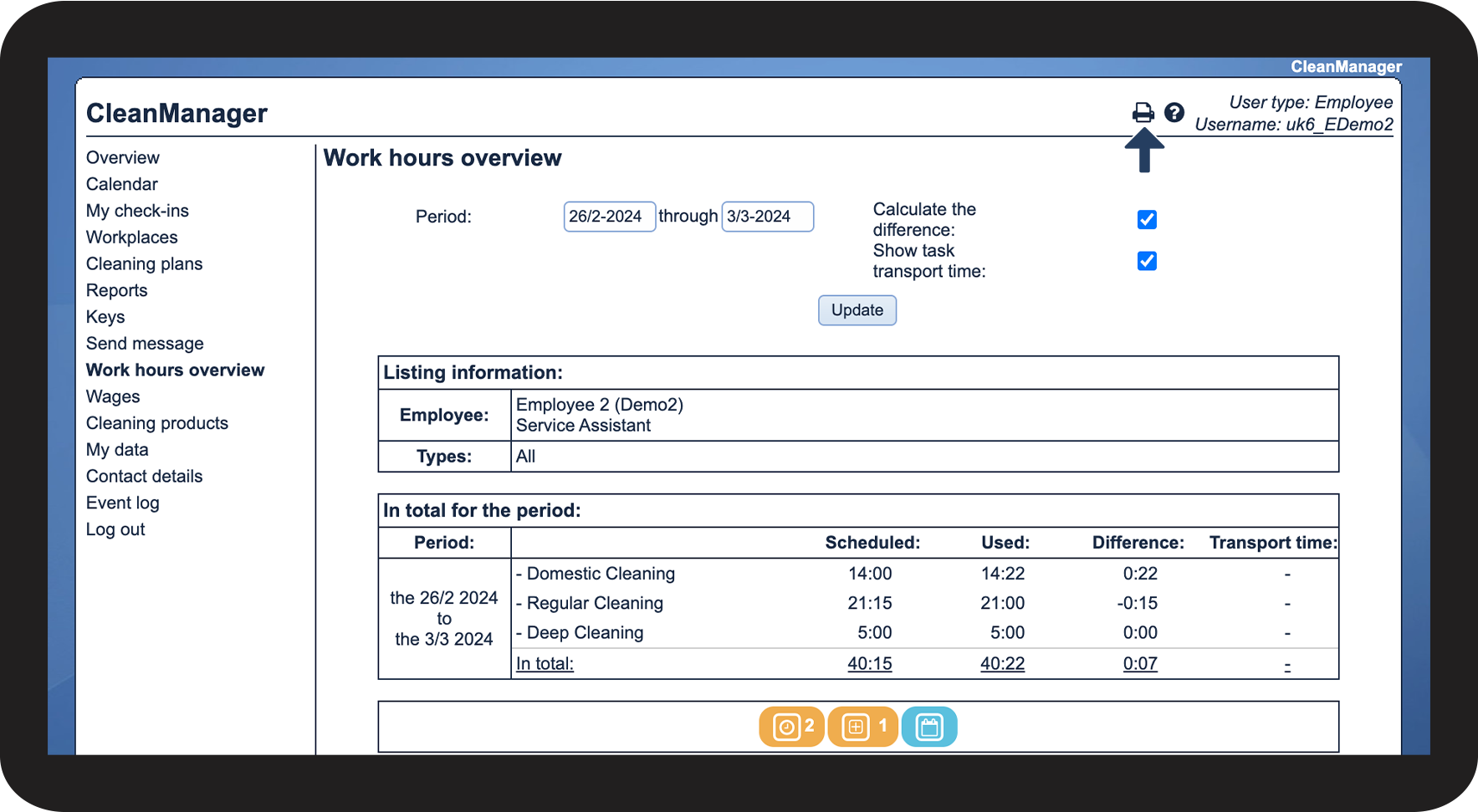
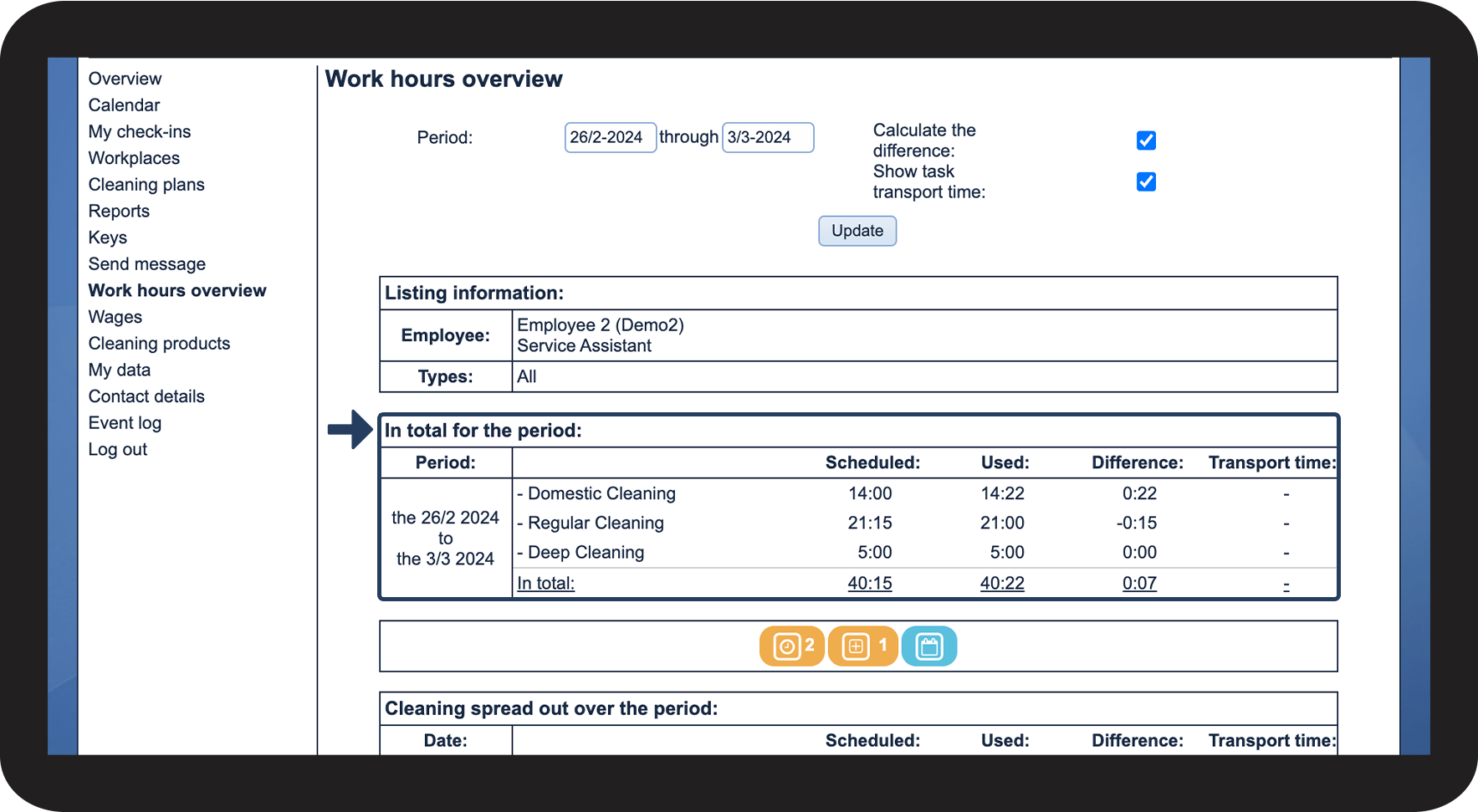
Go to In total for the period
 

The work hours are summarised by cleaning type, and you will be able to see both the scheduled and the used time. If allowed in the sorting, you can also see the difference and the transport time.

5.png


This is what the symbols mean

number_1.png
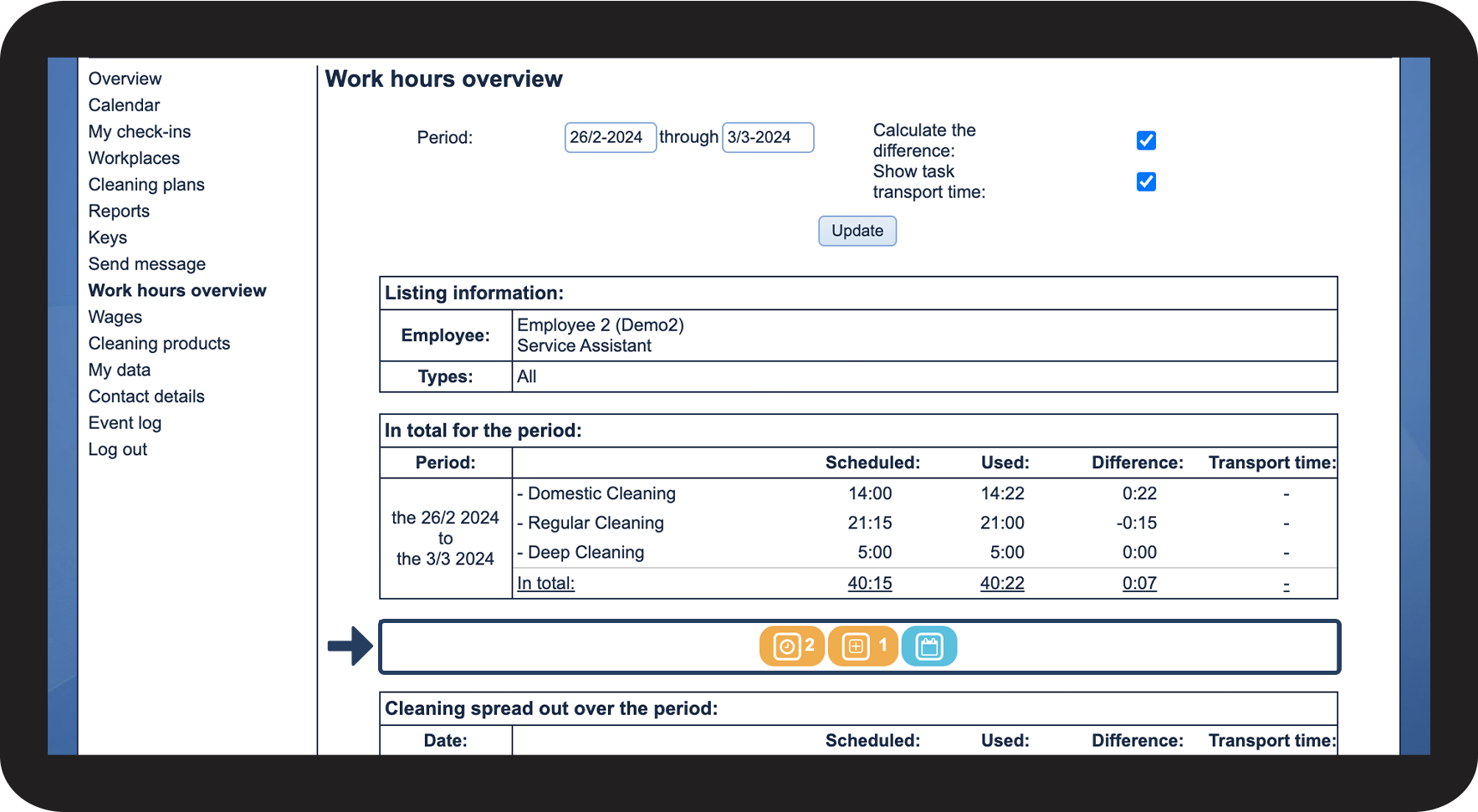
The following symbols can be triggered in the work hours overview

6.png

number_2.png
See the table below for a description of the meaning of the symbols


Symbol
Meaning
Screenshot 2024-01-11 at 12.52.19.png
The list contains 1 task that has been reported and has not yet been approved
Screenshot 2024-01-11 at 12.52.50.png
The list contains 1 task where the time used has not yet been approved
Screenshot 2024-01-11 at 12.53.05.png
There are public holidays in the selected period


This is where you can see the work hours spread out over the period of time
number_1.png
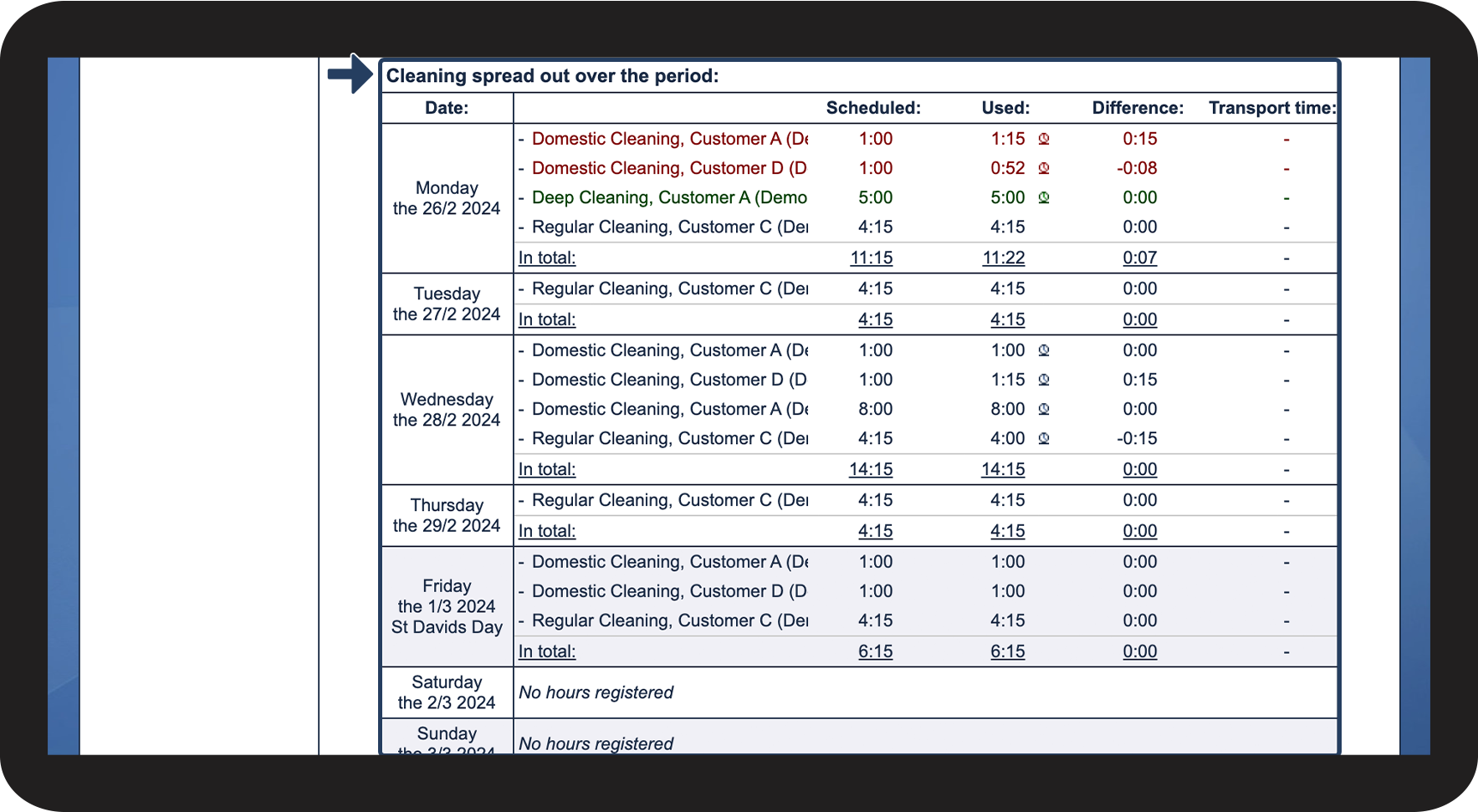
Go to Cleaning spread out over the period

7.png

number_2.png
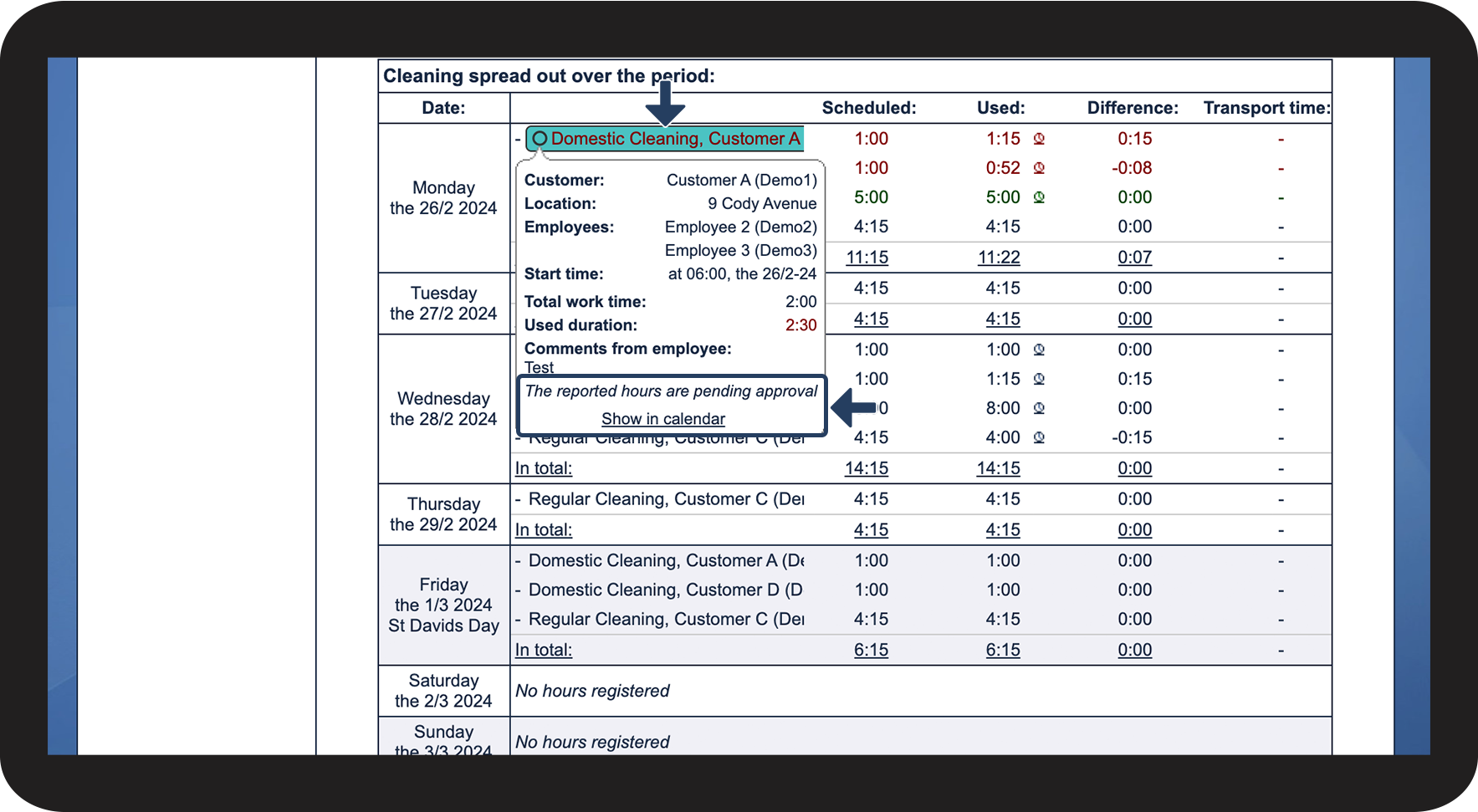
Click on a task to display its information. Here, you can also see what options you have for managing the task


INFO:

If multiple tasks are highlighted when you click on a task, it means that they are part of the same repetition pattern.
8.png

number_3.png
Depending on the task, different options for managing the task may be available. See the table below for an explanation of the options:


Option/information
Meaning
Show in calendar
This option takes you directly to the calendar section where the task is situated.
Photo documentation
By clicking on this, you can see the images that have been attached to the task through the app
Delete
If you have started a task by reporting hours through the app at a workplace, you now have the option to delete it
The reported hours are pending approval
The time you have registered for a task has not yet been approved by your administrator/supervisor
The task no longer exists in the system
The task has been removed from the system, and you can no longer see any information about it


This is how you can see if your reported work hours have/have not yet been approved

number_1.png
Go to Cleaning spread out over the period

7.png

number_2.png
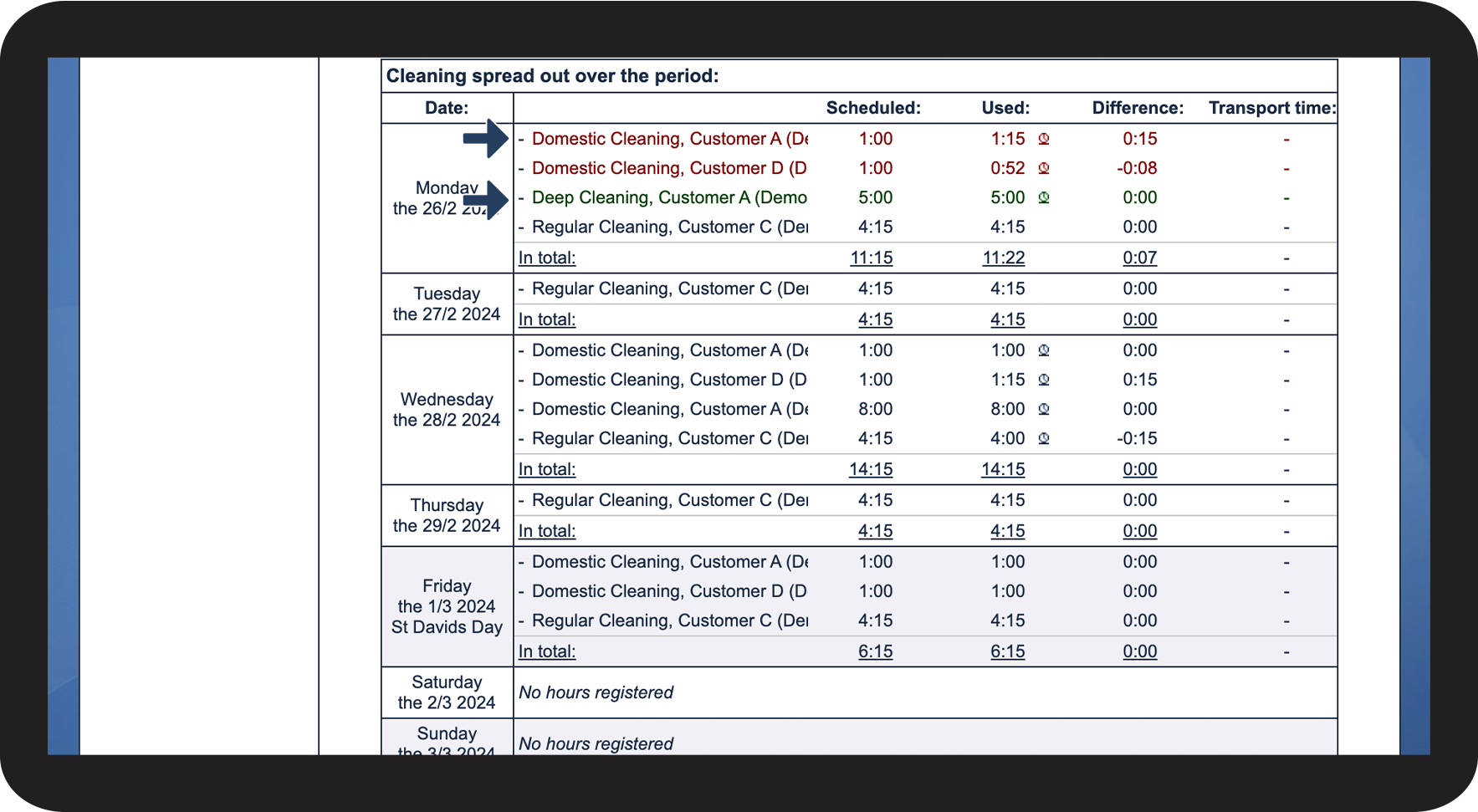
If a task appears in green or red, it means that the work hours have not yet been approved


INFO:

A green task indicates, that the employee has reported work hours as a new task.

red task indicates, that the employee has registered used time for an existing task.
9.png

number_3.png

You can see if the time has been registered through the calendar or the app by the following symbols:


tid via kalender.png
The hours are registered via the calendar
tid via app.png
The hours are logged in via the check-in app


This is how you print and/or download the work hours overview as a PDF file

number_1.png
Click on Print page Print side.png

10.png

number_2.png
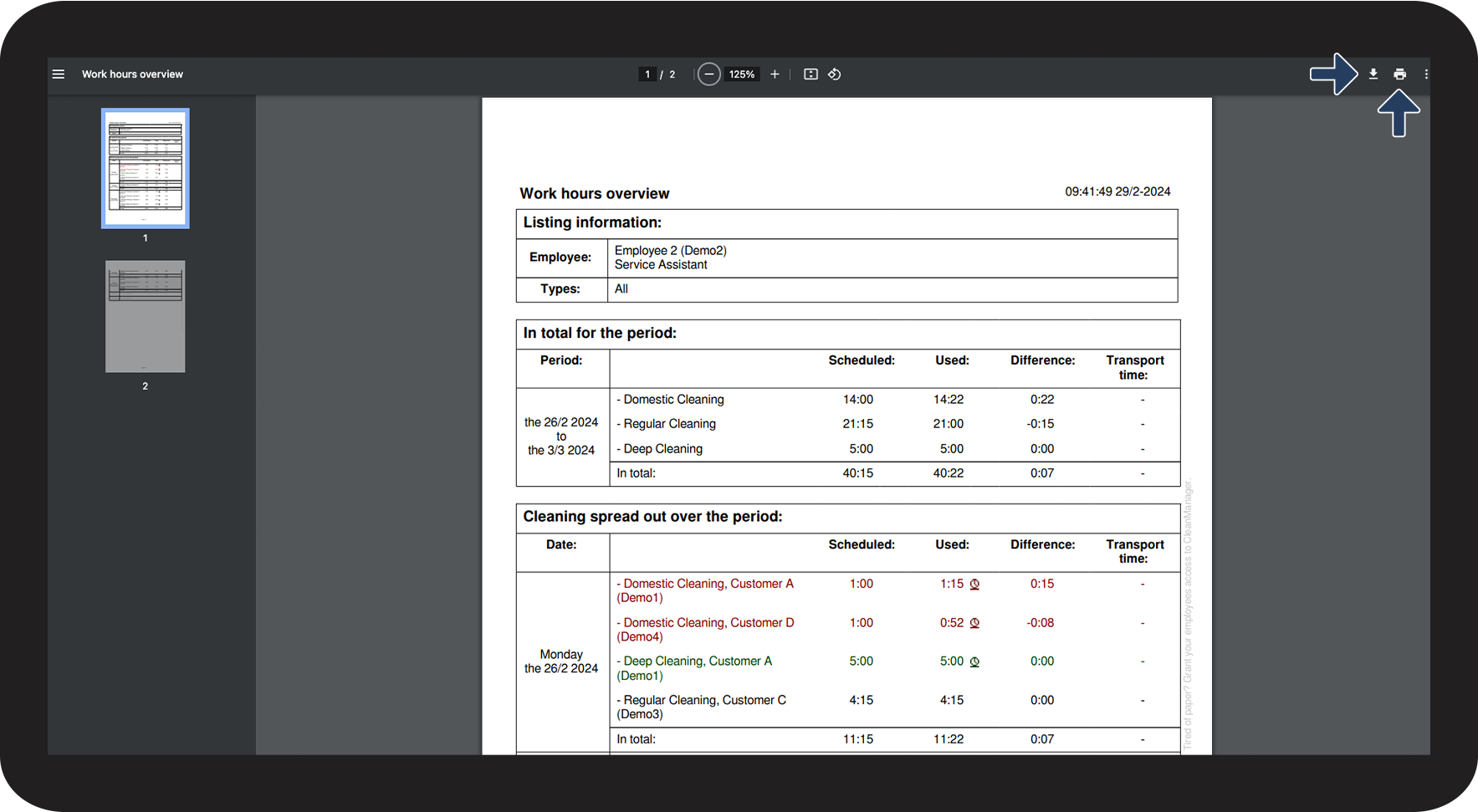
The work hours overview will open in a new tab
 
Click on Download Screenshot 2024-01-22 at 09.39.59.png to save the file as a PDF on your device
 
Click on Print Screenshot 2024-01-22 at 09.40.23.png to print out the file

11.png