Skip to content
English
  • There are no suggestions because the search field is empty.

View check-ins and check-outs as the administrator/supervisor

As the administrator or supervisor, where can I see check-ins for employees, and what do the icons mean?

As the administrator, you can see all check-ins for all employees. 

As the supervisor, you can see all check-ins for the locations in the customer areas you have been assigned to. For more information regarding this, go to Company Structure.

In the Check-ins menu, you will be able to see all registered check-ins as well as whether the employee has started the task manually or with an NFC tag.


In this article, you will learn how to see and understand the registered check-ins:


This is what you can see about the check-ins

number_1.png
Information about the task
 
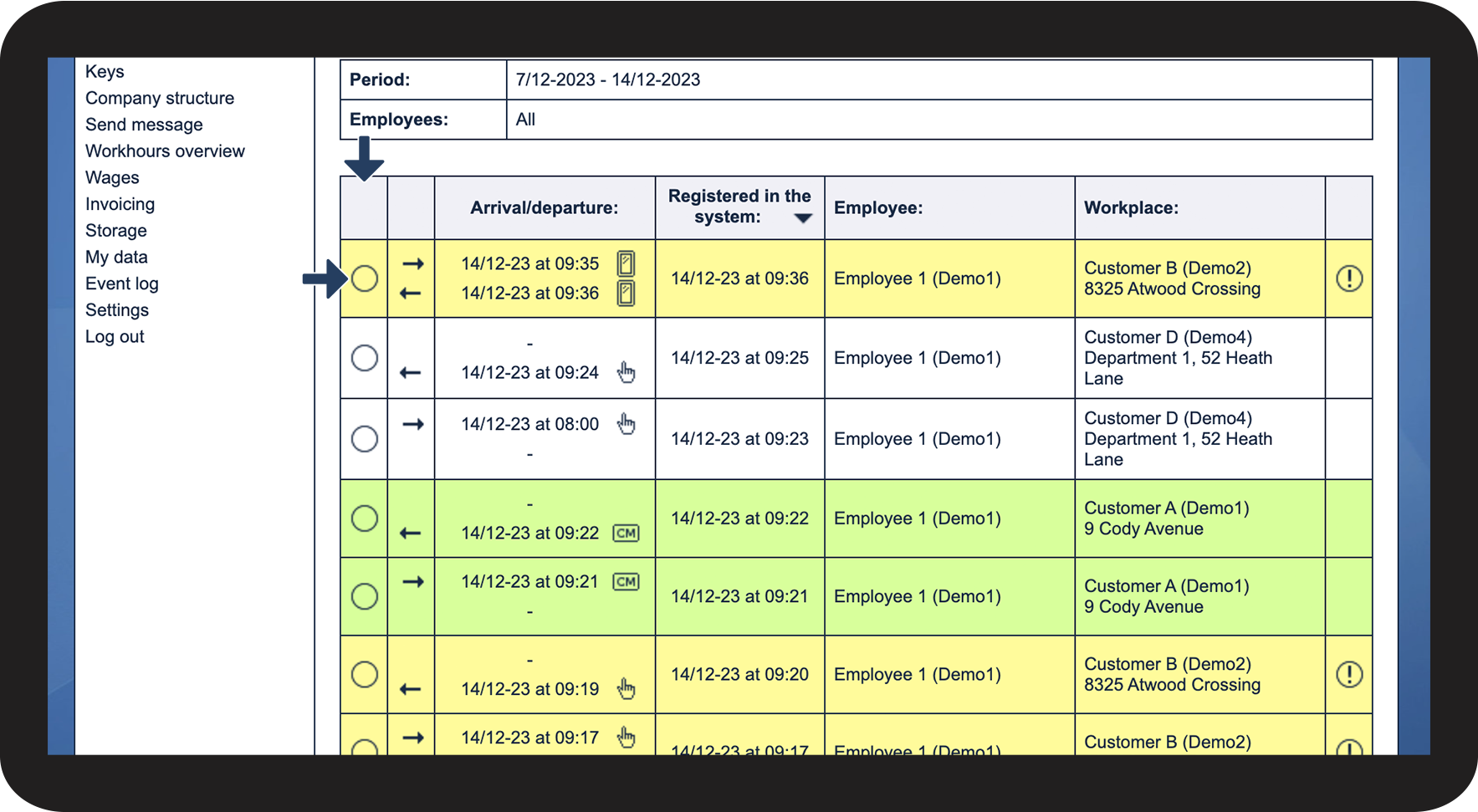
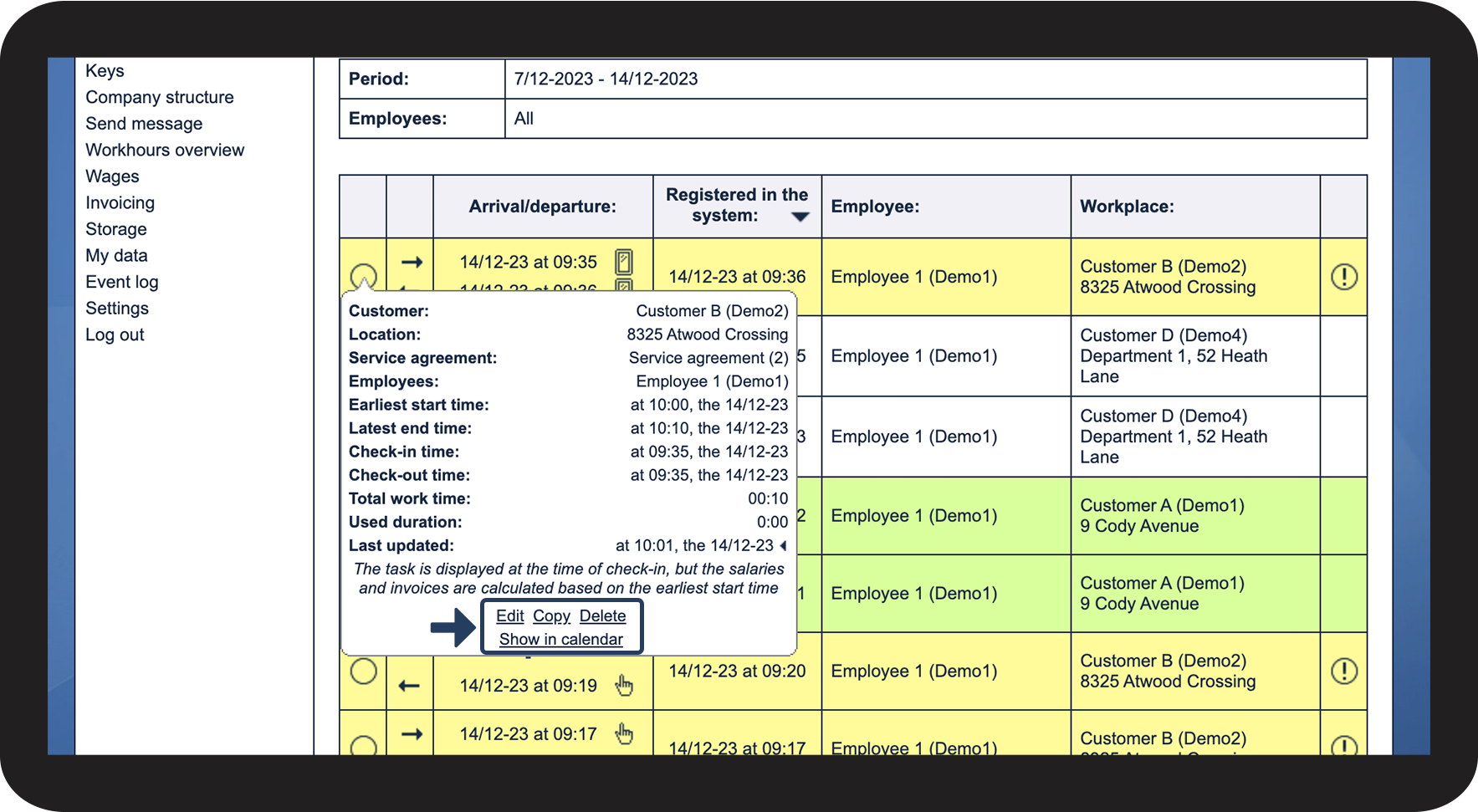
In the first column, click on Oplysninger (billeddokumentation).png to see information about the task

1.png


No-number copy.png

Depending on the status of the task, you will have different options for handling the tasks available. You can read more about the different options for handling a task in the following article: How do I view the images that have been attached to tasks via the app?

2.png

number_2.png
Check-in/Check-out
 
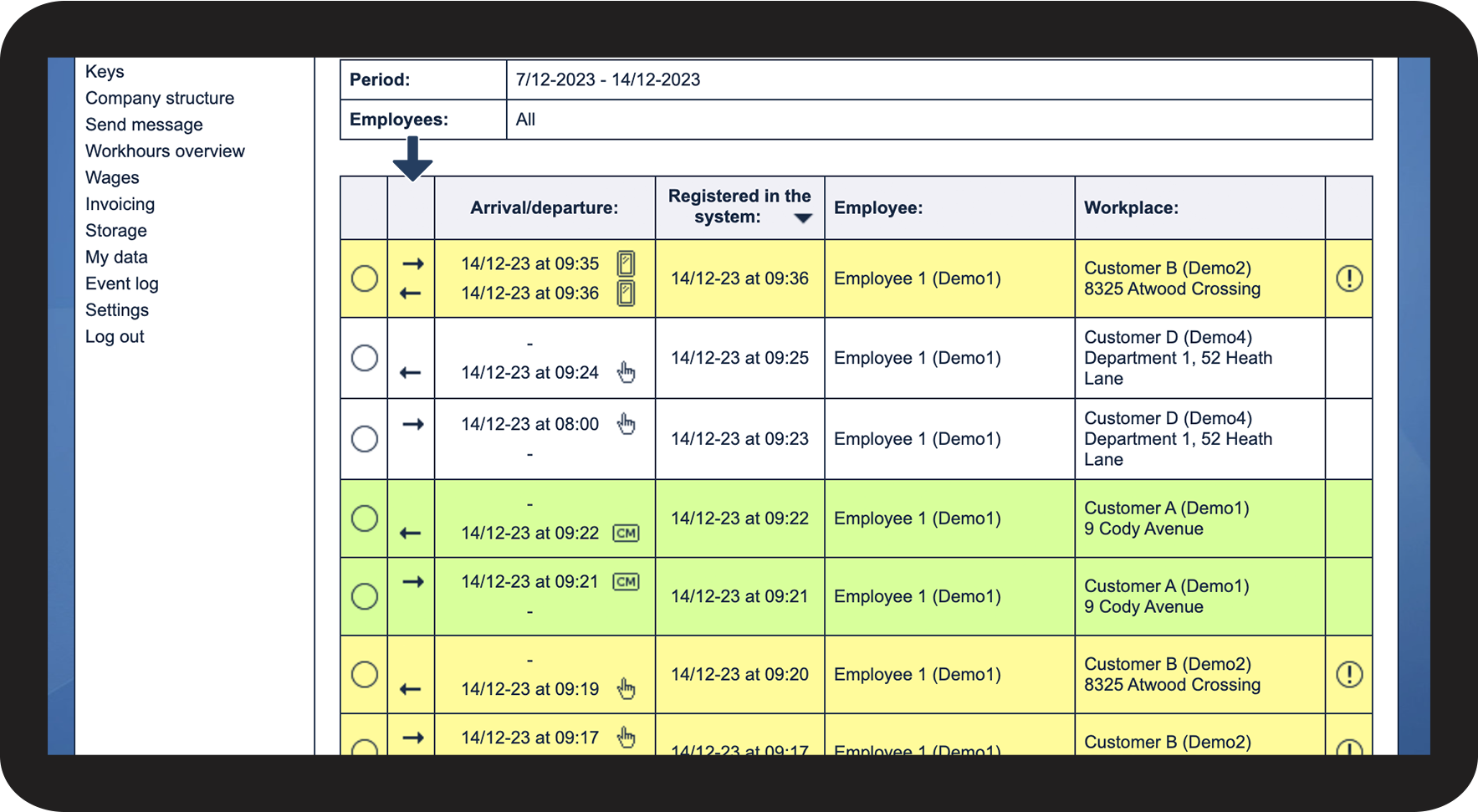
The icon indicates whether the action is a check-in or a check-out
 
Icon
Meaning
Pil højre.png
Indicates a check-in
Indicates a check-out

3.png


number_3.png
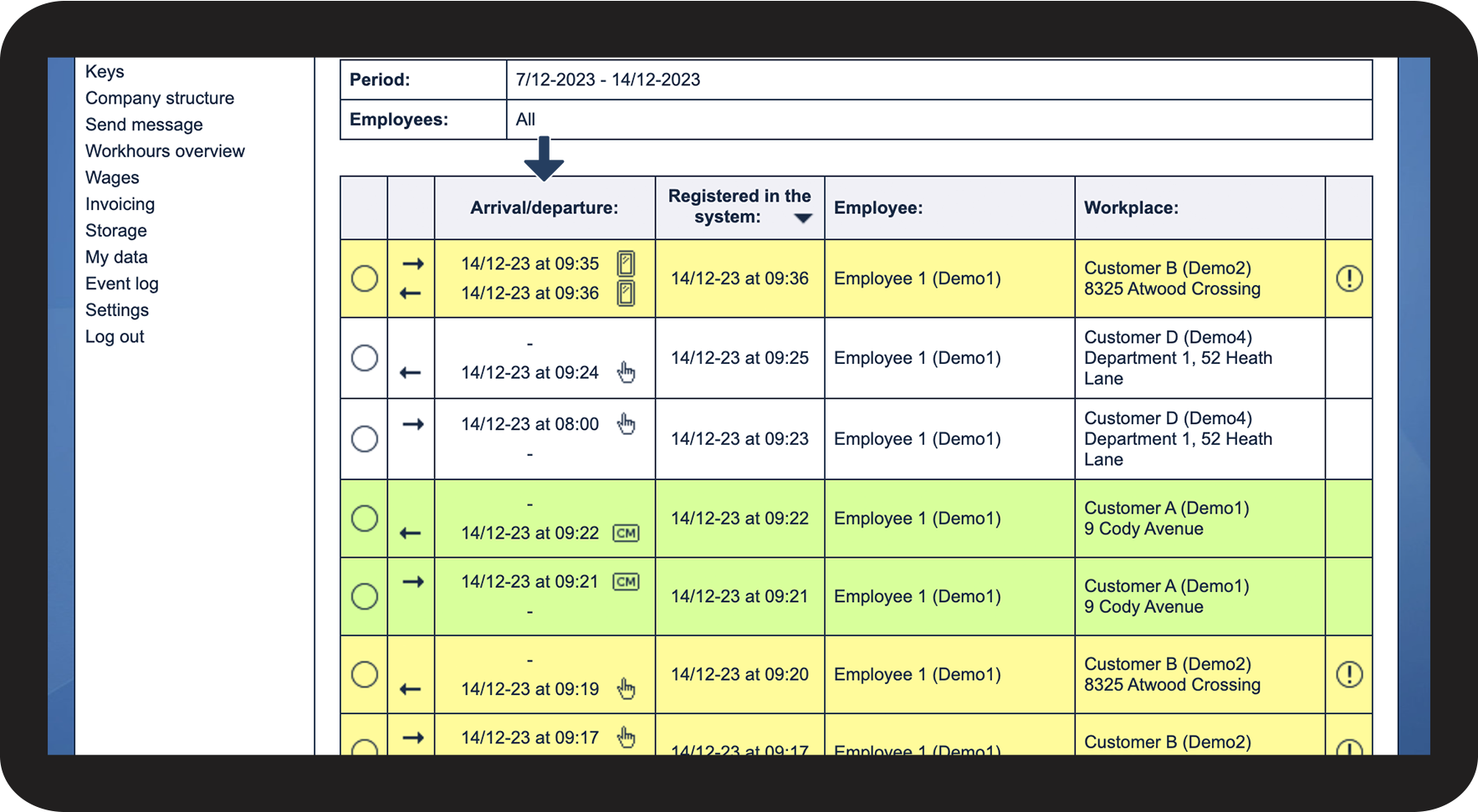
Arrival/departure
 

In this column, you can see the arrival and/or departure time that the employee has registered through the app. You will also be able to see whether the time registration has been done manually or with the use of NFC tags.

See the table below for an explanation of the icons that may appear in this column


Icon
Meaning
Manuel indtjekning.png
The time is entered manually by the employee - without NFC tag
Tjekket ind via NFC tag.png
The time is registered on the server - with NFC tag
Indtjekning, problemer med server.png
The time is registered on the employee's phone and synchronized later - the phone had no service at the time when the task was started and/or ended


INFO:

You can adjust the setting for which customers you want to allow manual check-in in the following article: For which customer should it be possible for employees to check in manually without an NFC-tag and register arrival and/or departure time


You can also read more about how the employees can start a task with the NFC tag despite having no service on their phone: Handling of "no connection to the server"
4.png


number_4.png
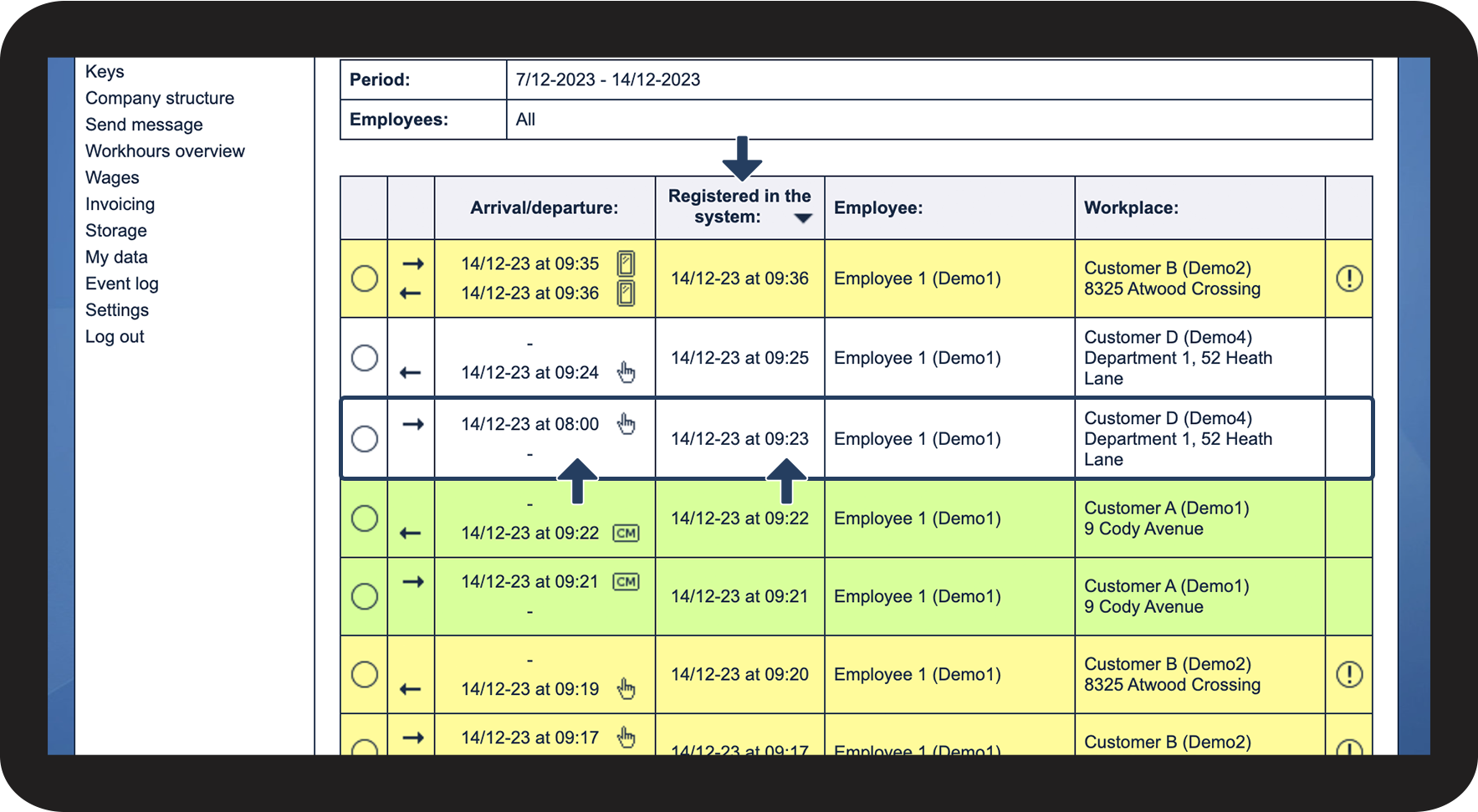
Registered in the system
 
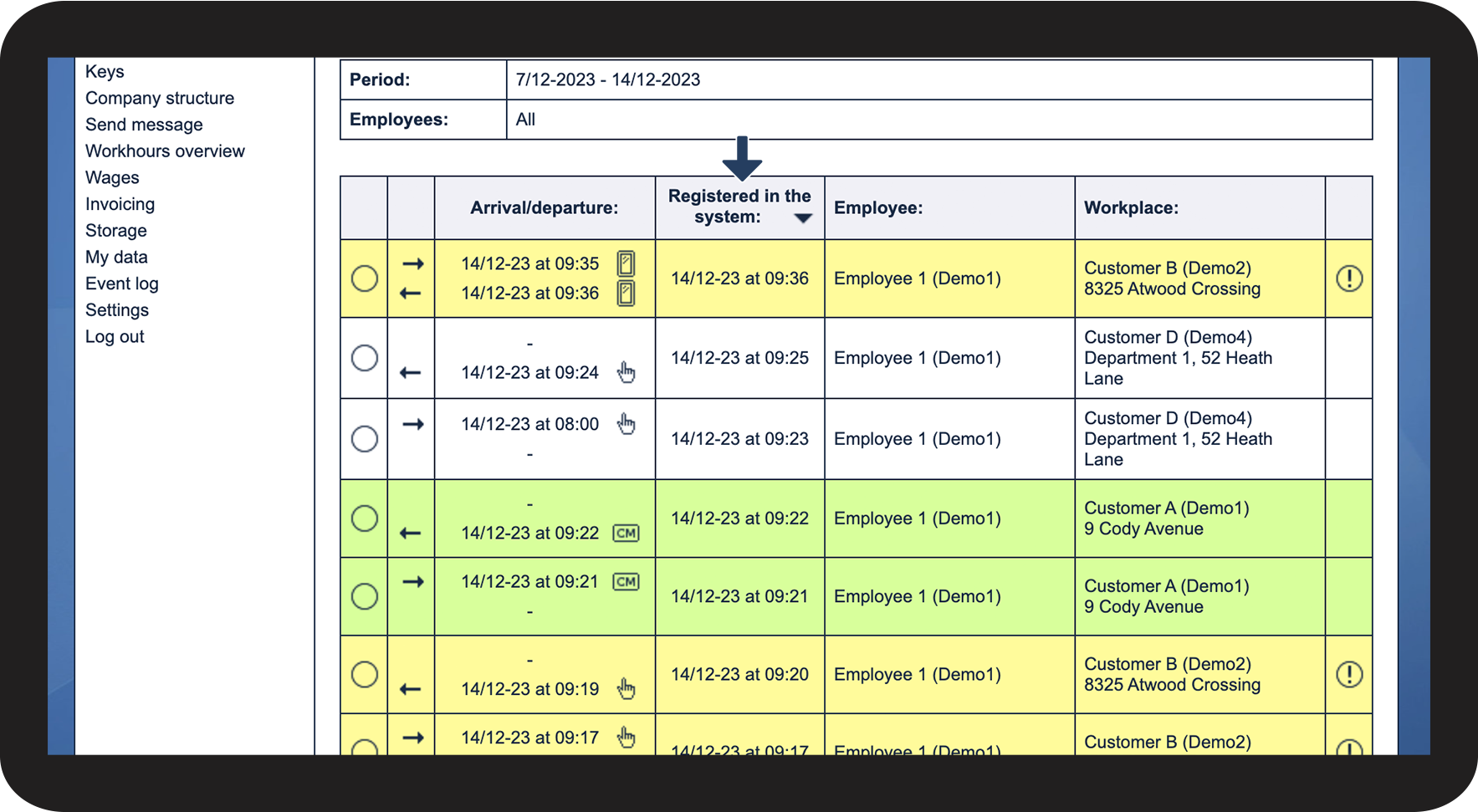
The timestamp that has been registered in the system

5.png


No-number copy.png

If the task has been started without using an NFC tag, you might see a variation in the arrival/departure time and the time that has been registered in the system


NOTE:

If the arrival or departure time does not match the time registered in the system, it may be because the employee has adjusted the time via the app during manual check-in or check-out without using an NFC tag. For more information on how to start and end a task without an NFC tag, see the following articles: Start task - without NFC tag and End task - without NFC tag
6.png

number_5.png
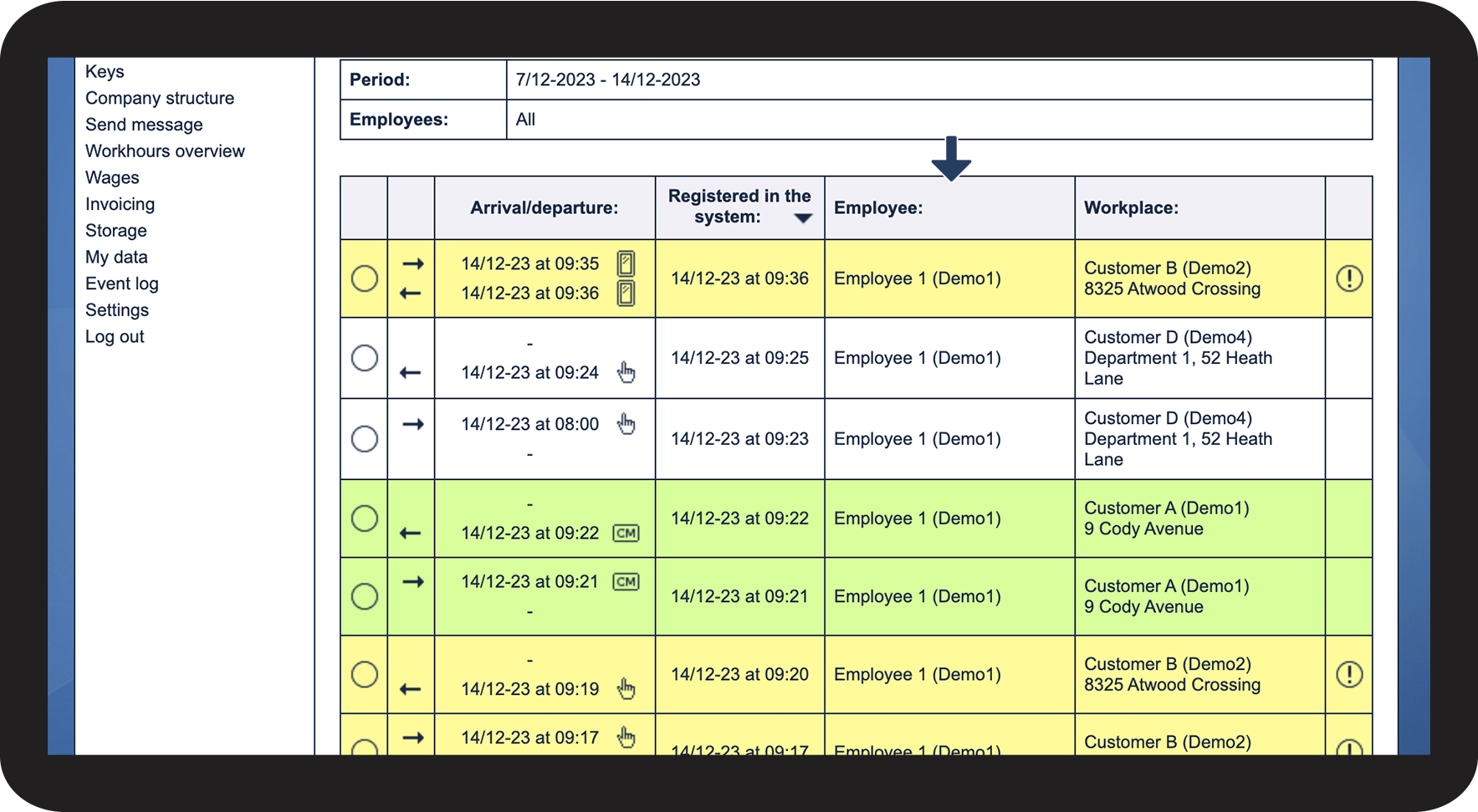
Employee
 
Here, you can see which employee started and ended the task
7.png

number_6.png
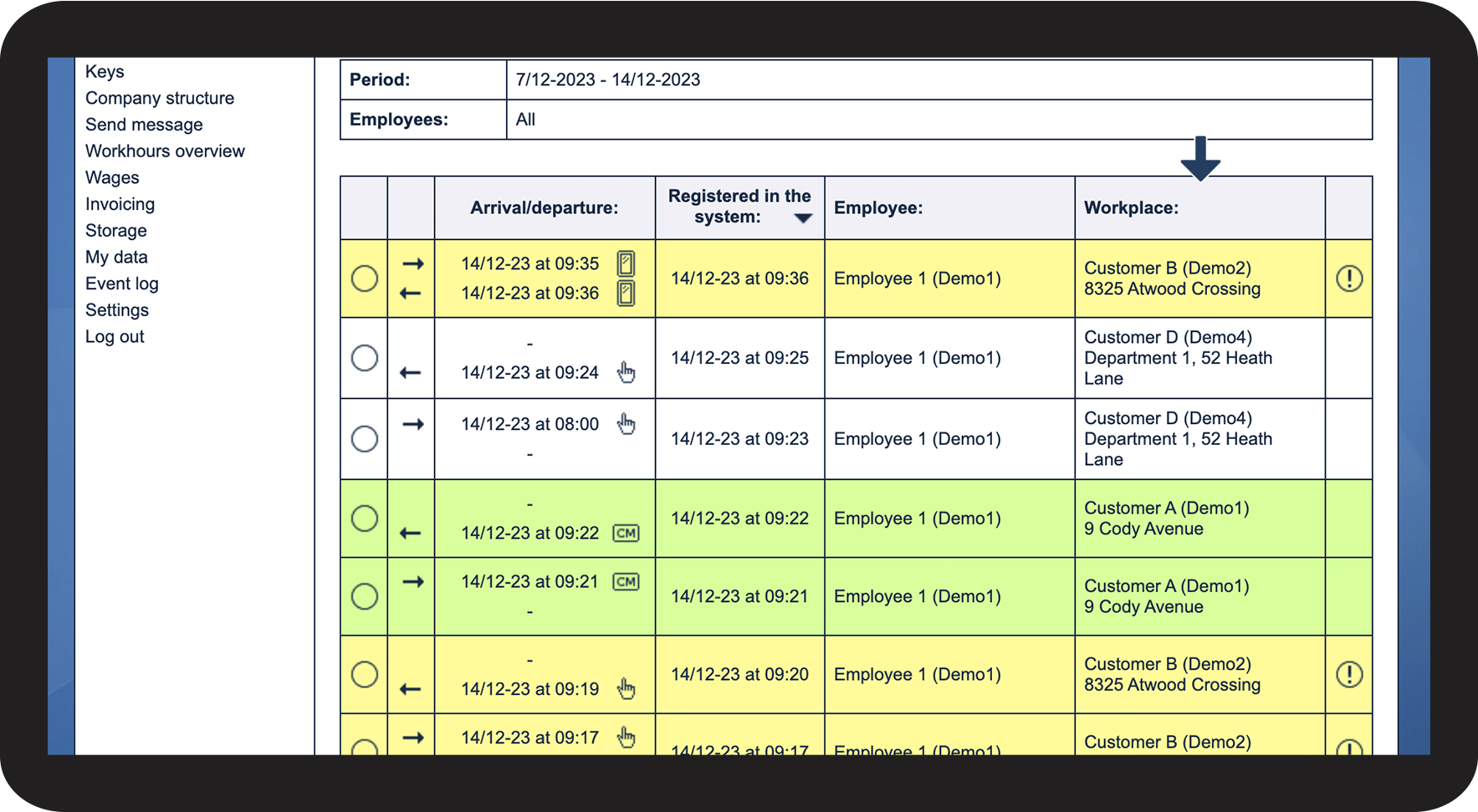
Workplace
 
The location where the task was started and ended
8.png

number_7.png
Attention
 

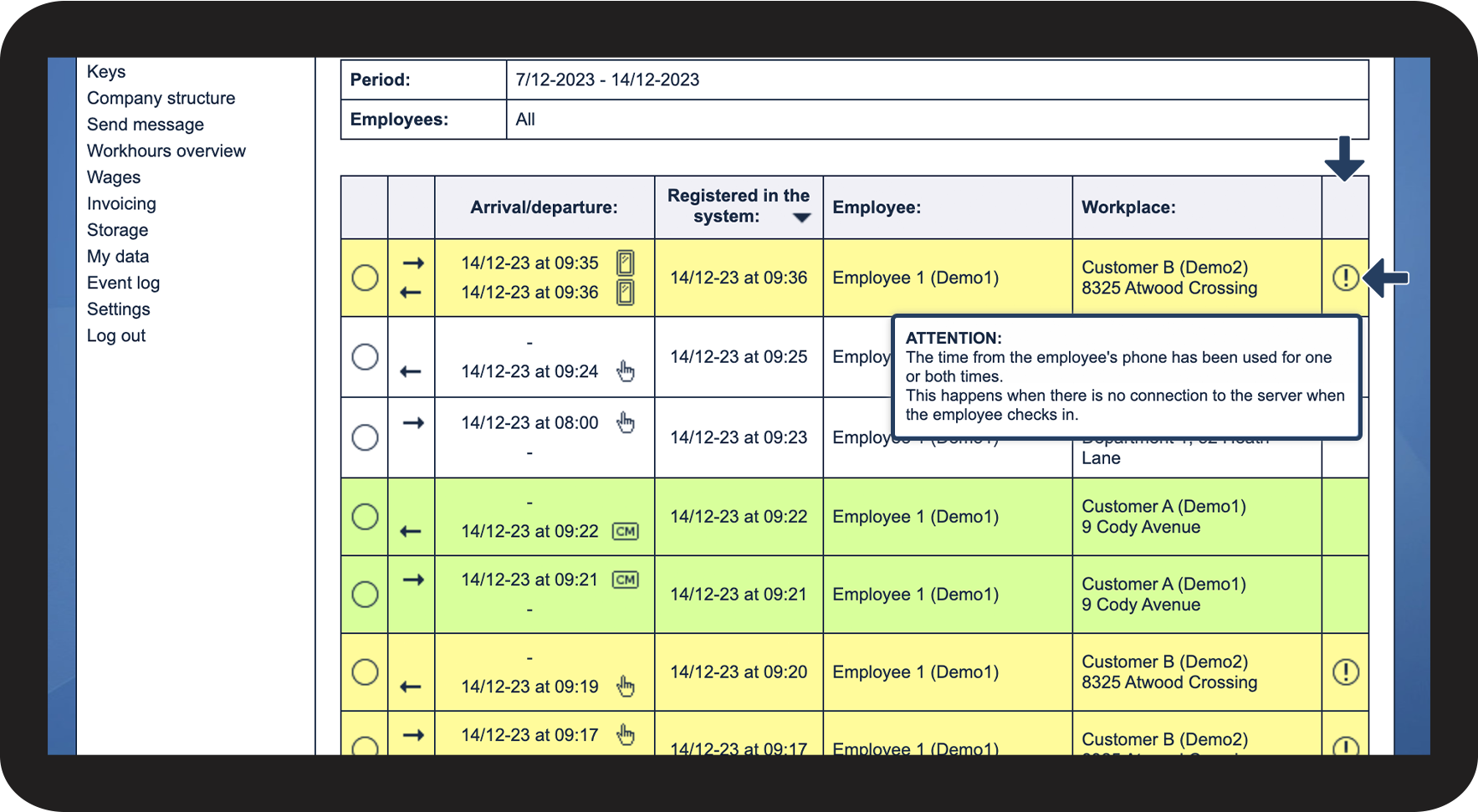
Hover the mouse cursor over warning.png to see if there is something to be aware of regarding the registered check-in


warning.png
The time from the employee's phone has been used for one or both times. This happens when there is no connection to the server when the employee checks in
warning.png
An NFC tag has been registered on this customer, but it was not used during check-in
warning.png
The NFC tag is assigned to a different location than the one specified in the task. This can either be because the customer/location on the task has been edited or the tag has been moved to another location
warning.png

The time on the employee's phone differs significantly from the time on the server:

Time from phone: HH:MM:SS DD/MM-YYYY

Time from server: HH:MM:SS DD/MM-YYYY

9.png