Skip to content
English
  • There are no suggestions because the search field is empty.

Transport rates

How do I set up transport rates and mileage allowance?

In CleanManager, you can adjust your employee's salary to include a wage for transport time as well as mileage allowance. This can be done for all employees, or you can adjust it only for specific employees.

If you set up the same transportation rate for all employees, you can also activate personal supplements to the transport time. These personal supplements will only come in effect, if they are activated for the employees as well.

In this article, you will learn how to manage wages for transportation time as well as mileage allowance:


This is how you set up the same hourly rate for transportation for all employees

number_1.png

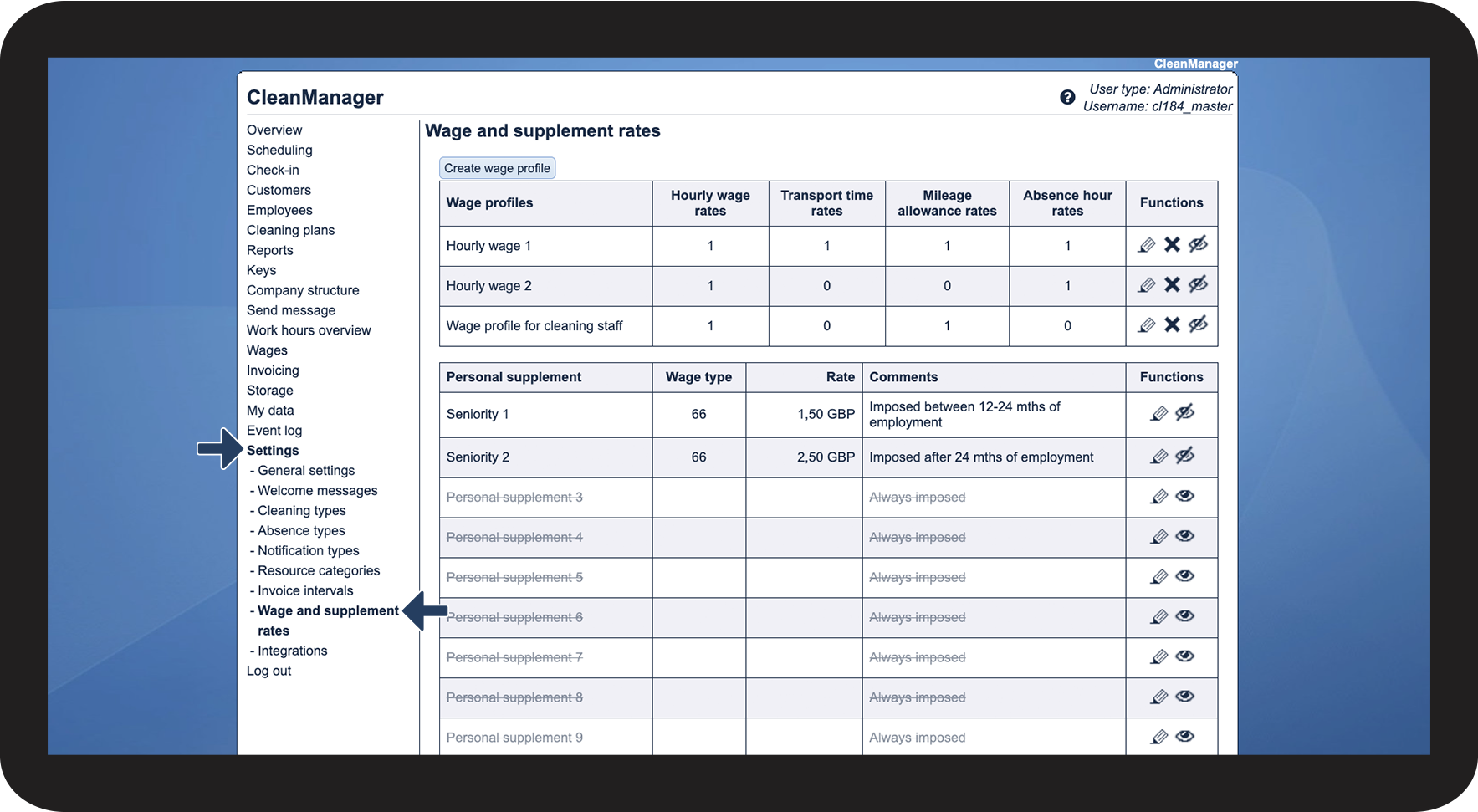
In the menu, go to Settings > Wage and supplement rates

1.1.png

number_2.png

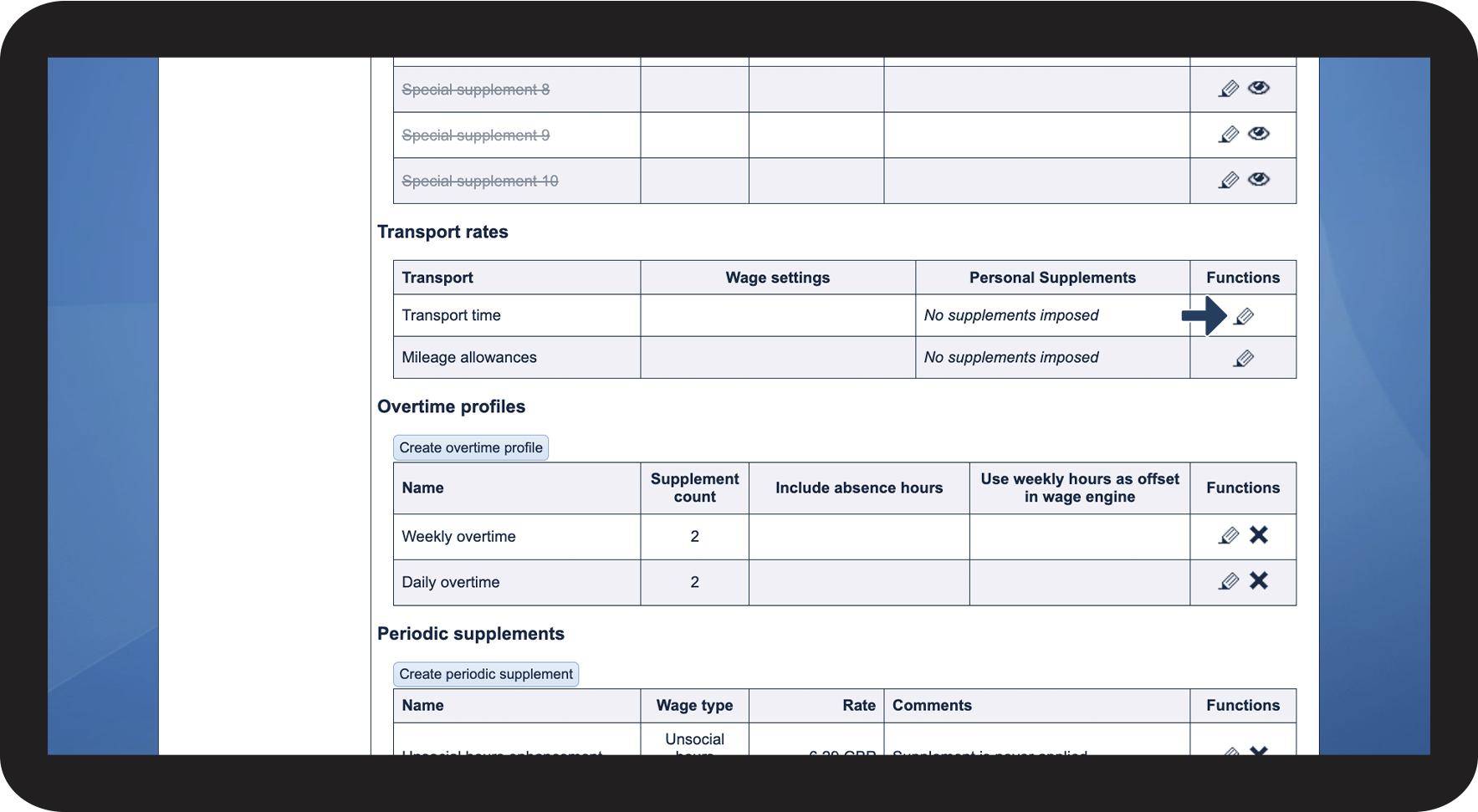
Scroll down to the section Transport rates


Click on Edit hourly transport wage  

2.png

number_3.png

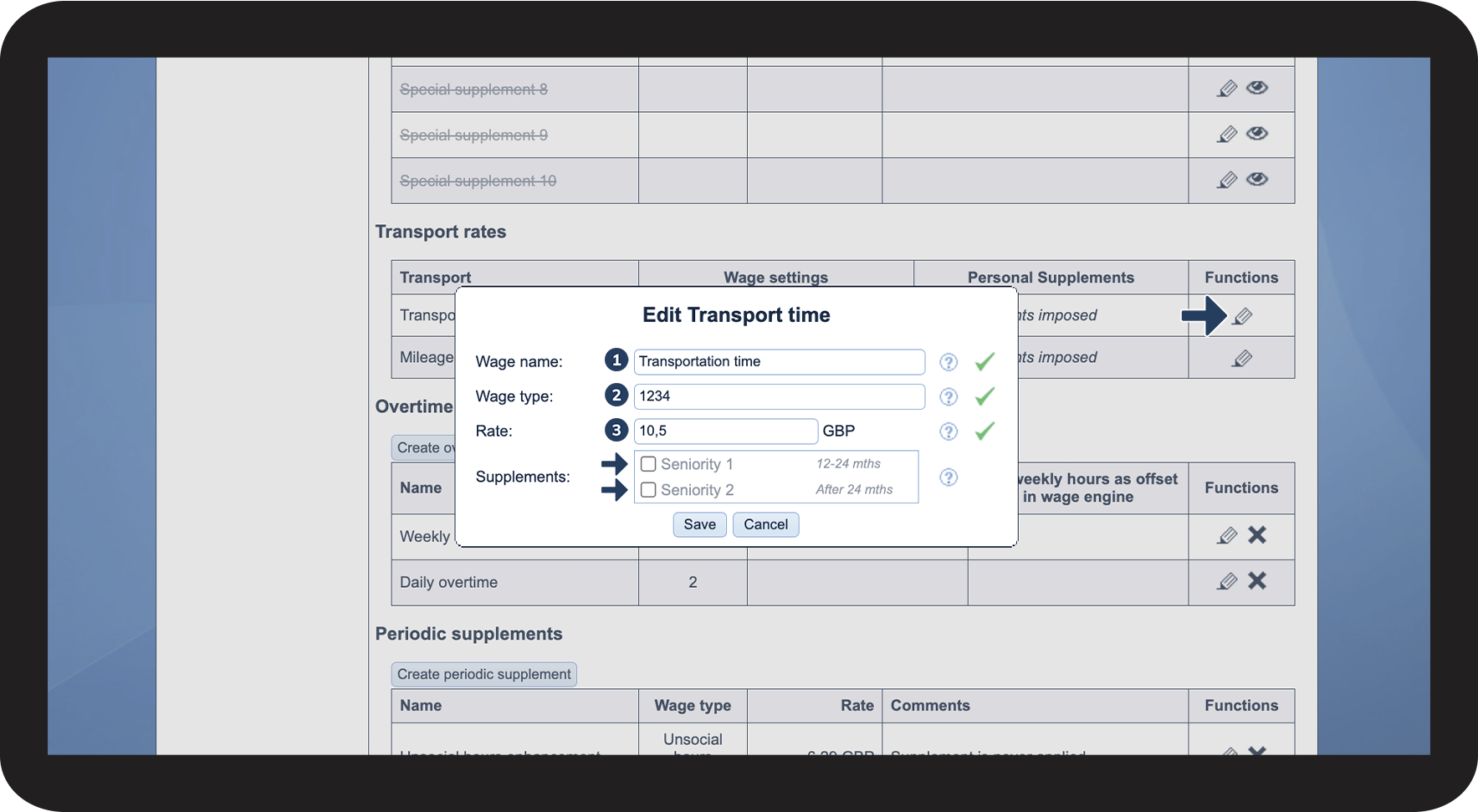
Enter the Wage type as well as the rate that fits your payroll system best (the following numbers are just an example). You can also enter a wage name.


Tick off which personal supplements should be applied to the transport.

For a personal supplement to be triggered, it needs to be ticked off at the relevant employees as well.

For more information regarding this, go to the article: Personal supplements. 

3.png

number_4.png

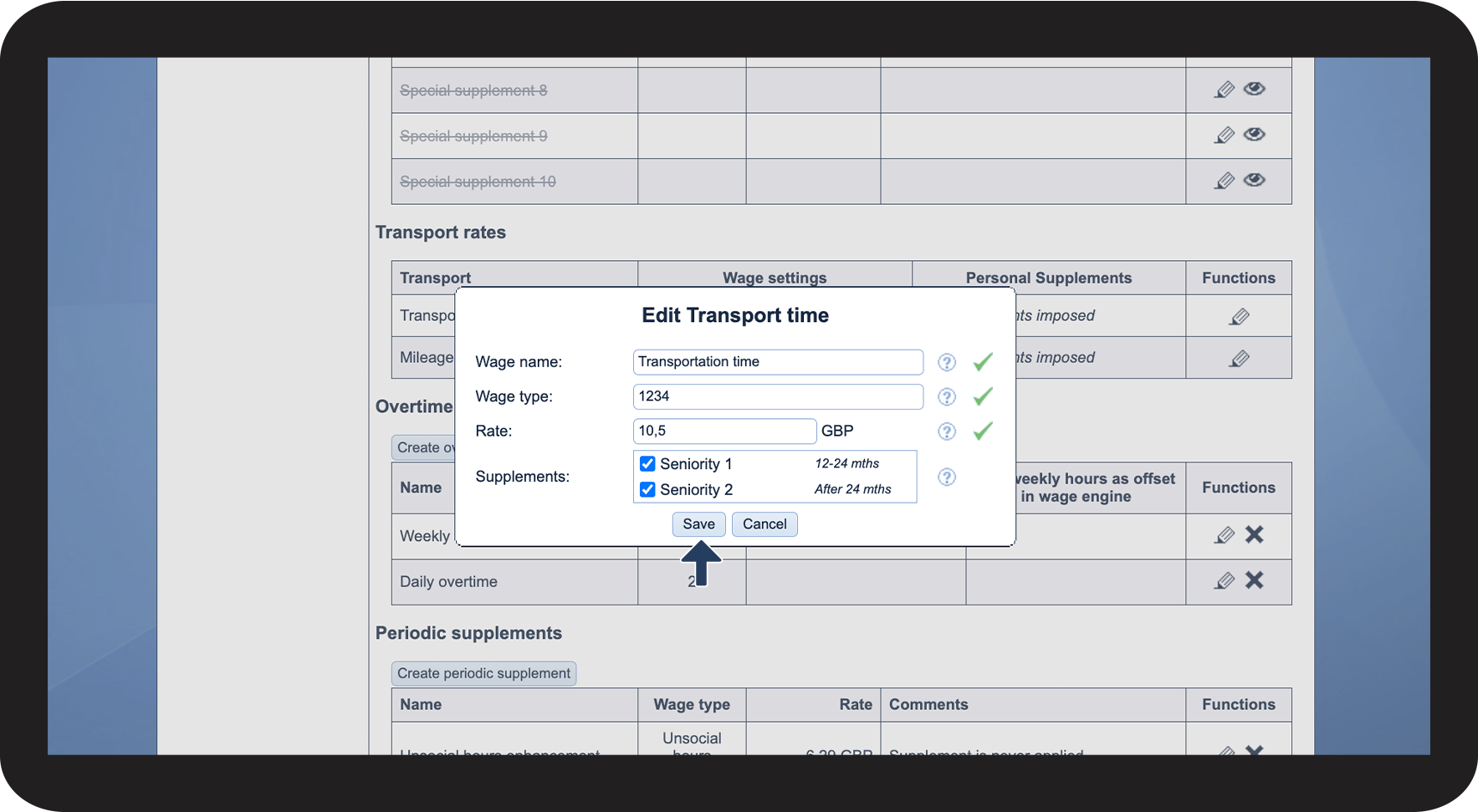
Click on Save to finish the process

4.png

number_5.png

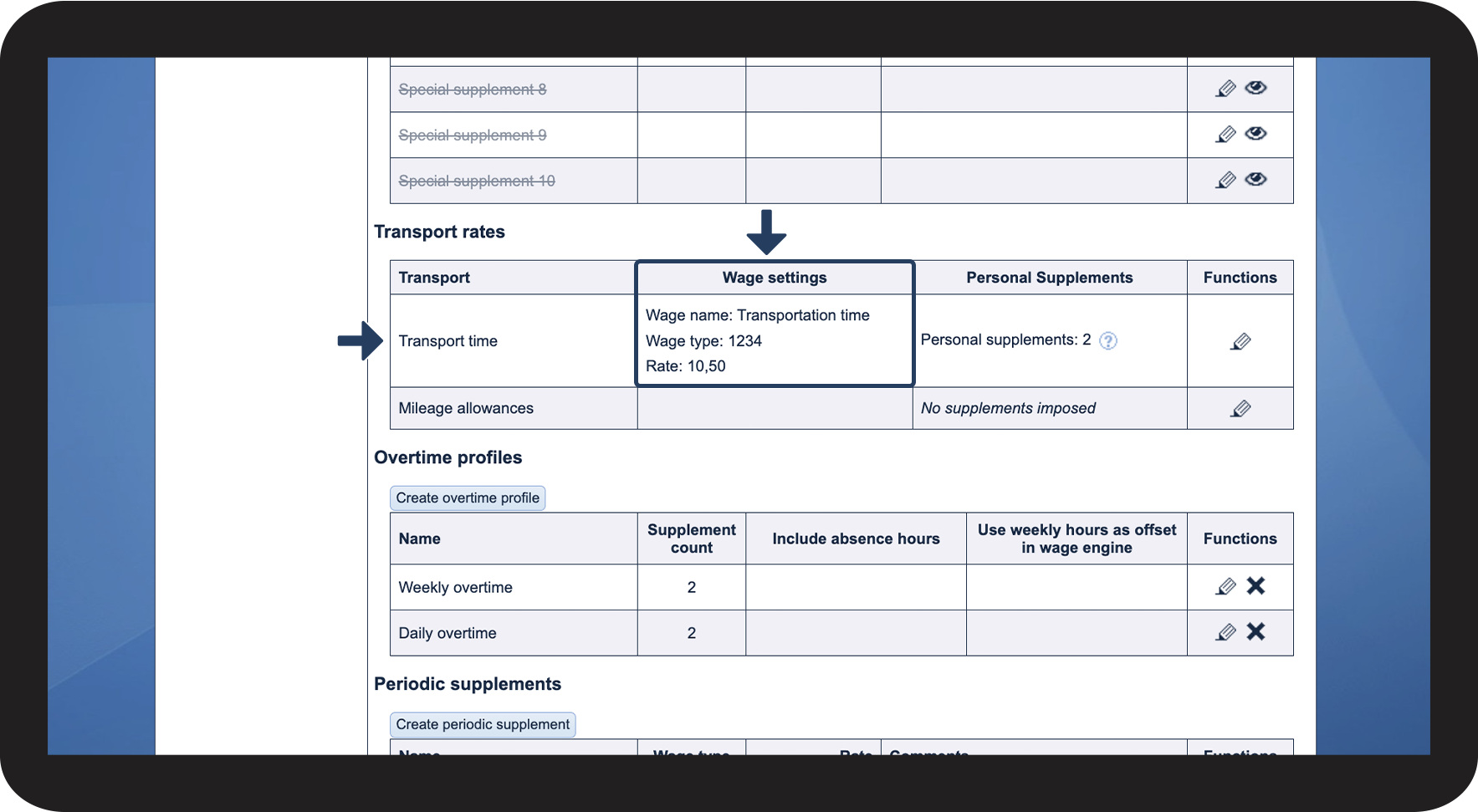
The transport time has now been set up with the same rate for all employees.

In the column Wage settings, you can see the Wage name, Wage type and Rate.

5.png

number 6 copy.png

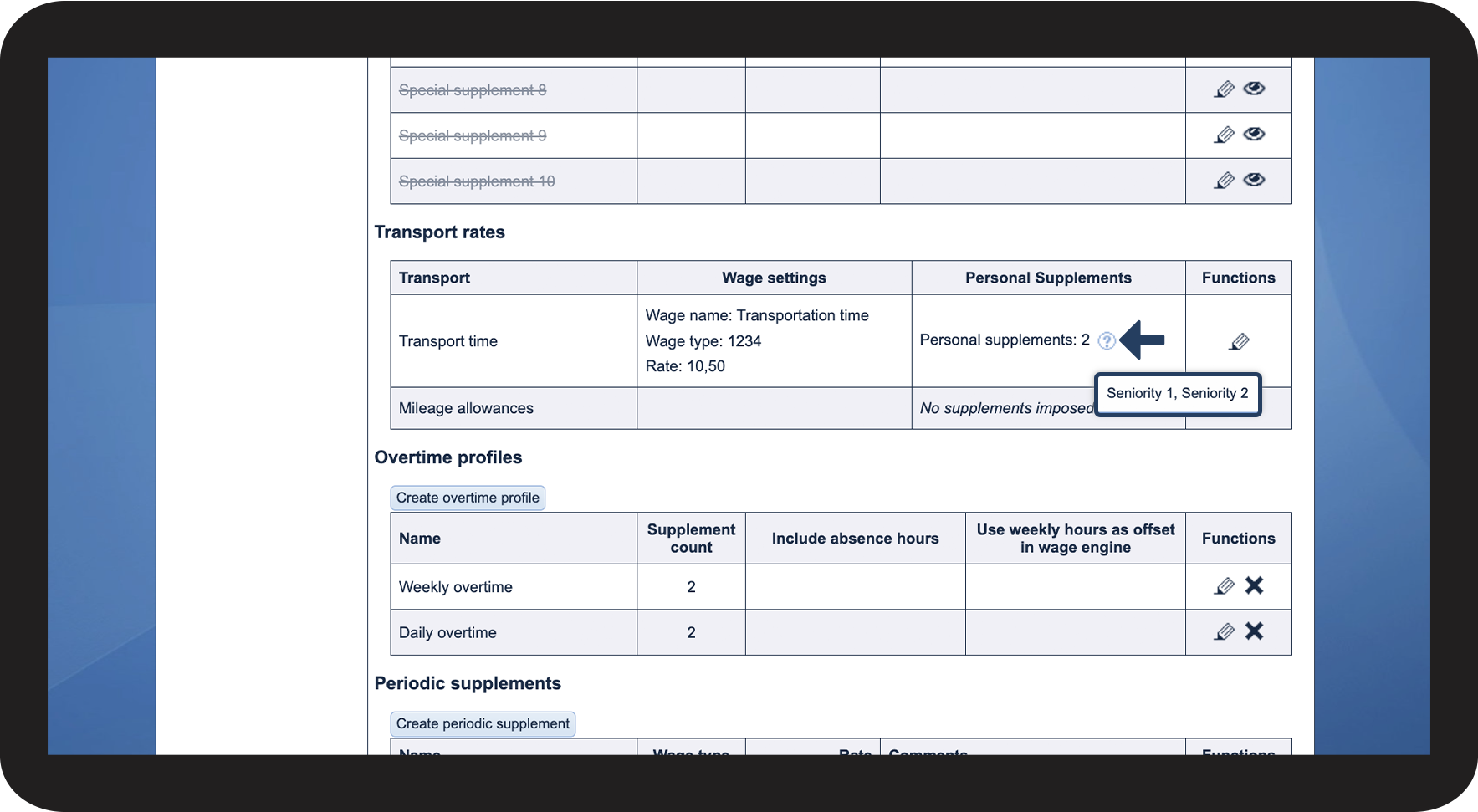
In the column Personal Supplements, you can see which personal supplements have been applied by clicking on by clicking on the question mark Screenshot 2023-07-31 at 11.00.50.png

6.png

INFO:

The rates for transport will be used when registering transportation in the calendar or through the app. 

The hourly rate for transportation is used for the entire time set aside for transport, either planned for a task or created as a singular transport unit.

Likewise, mileage allowance is paid based on the recorded distance in kilometres or miles of tasks or transport units.


This is how you set up the mileage allowance for all employees
number_1.png

In the menu, go to Settings > Wage and supplement rates

2.1.png

number_2.png

Scroll down to the section Transport rates


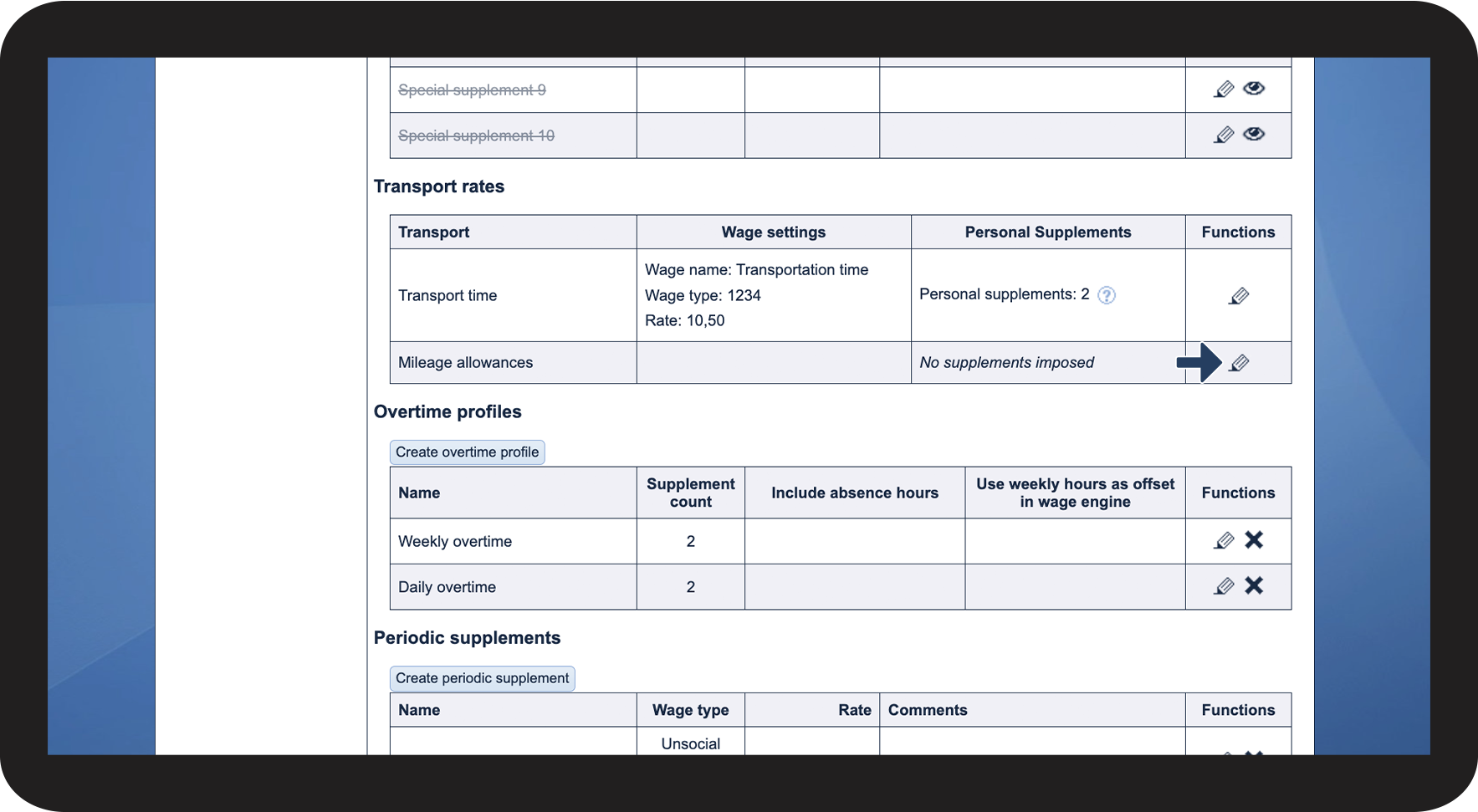
Click on Edit mileage allowance  

8.png

number_3.png

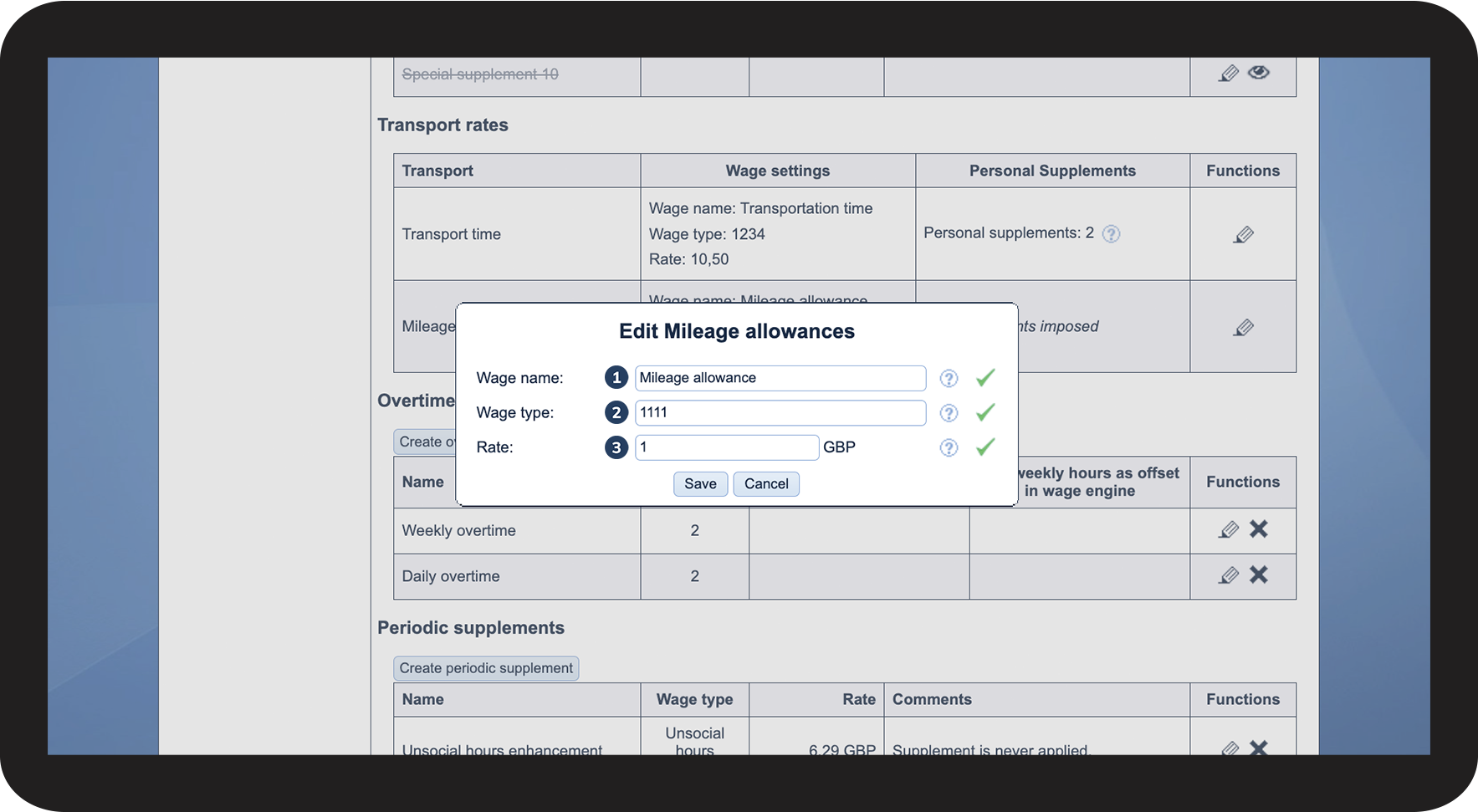
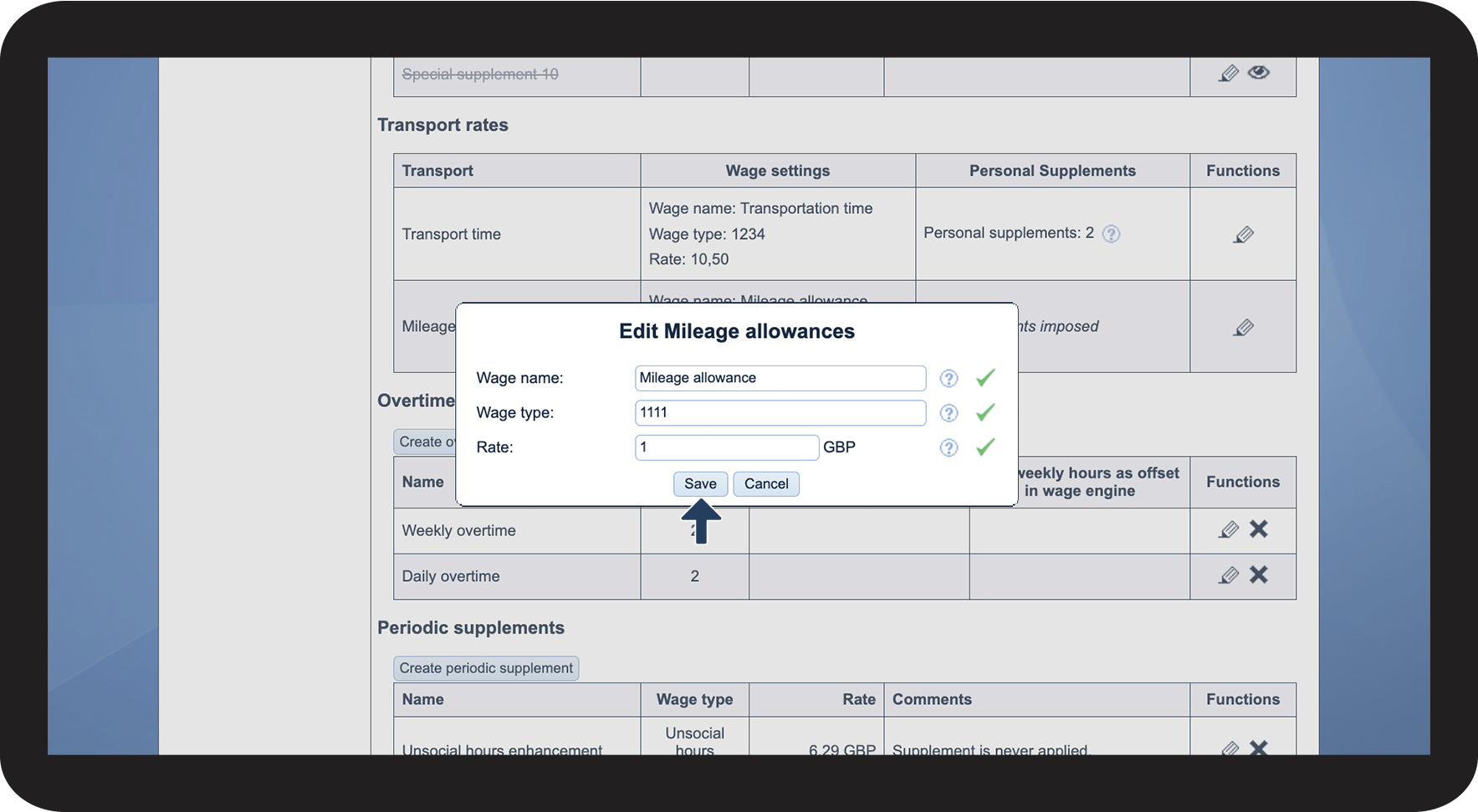
Enter the Wage type from your payroll system, as well as the Rate for distance driven.

You can also enter a wage name.

9.png

number_4.png

Click on Save

10.png

number_5.png

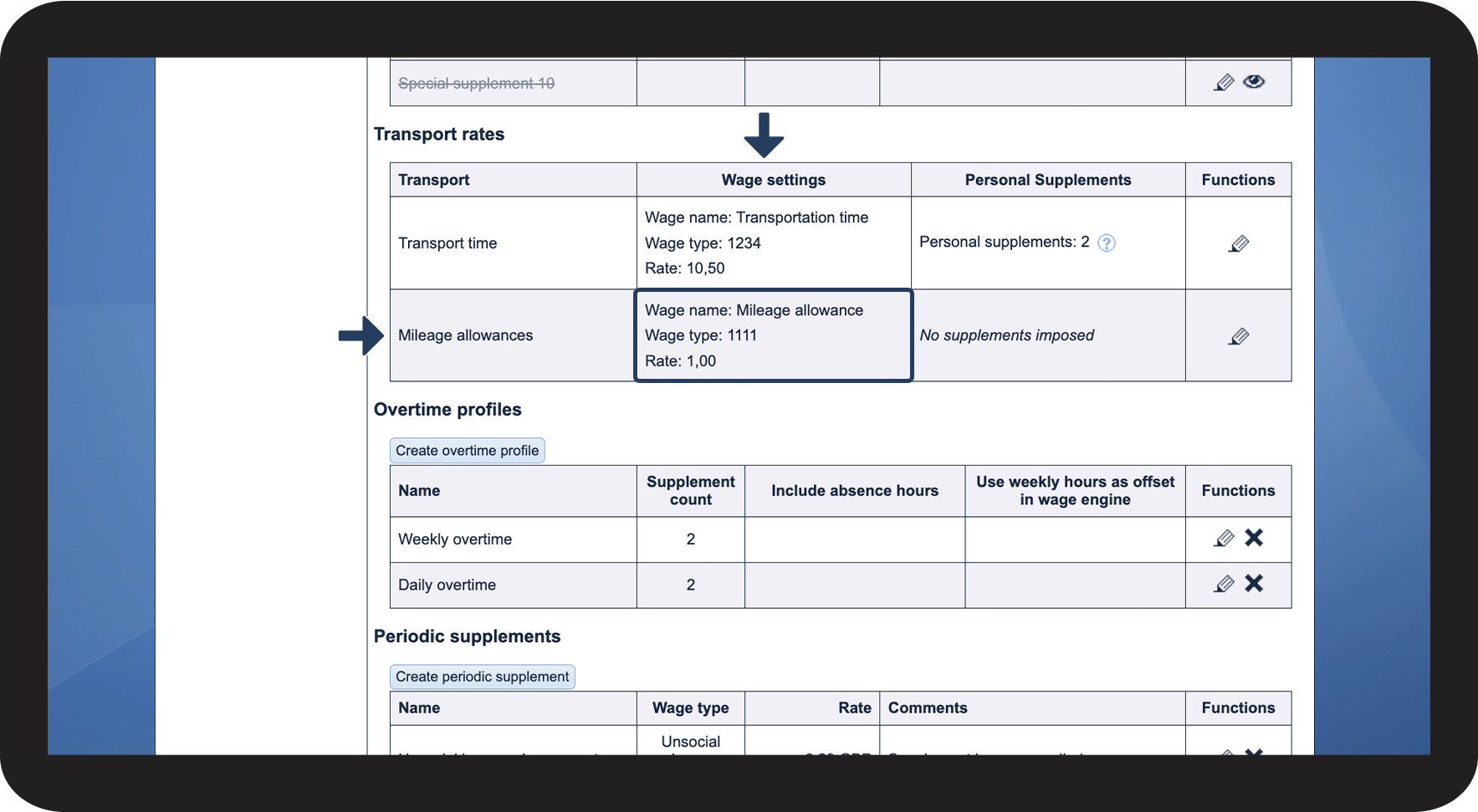
The mileage allowance has now been set up with the same rate for all employees.

In the column Wage settings, you can see the Wage name, Wage type and Rate.

11.png

INFO:

The rates for transport will be used when registering transportation in the calendar or through the app. 

The hourly rate for transportation is used for the entire time set aside for transport, either planned for a task or created as a singular transport unit.

Likewise, mileage allowance is paid based on the recorded distance in kilometres or miles of tasks or transport units.


This is how you set up an hourly wage for transportation time for a specific wage profile

NOTE:

If you want to set up individual hourly wages for transportation time for the wage profiles, you cannot also use the overall transport rate as described in This is how you set up the same hourly rate for transportation for all employees. In order for the transport rate and/or mileage allowance from the wage profile to be effective, all information must be removed from the overall transport rate and/or mileage allowance.
 

number_1.png

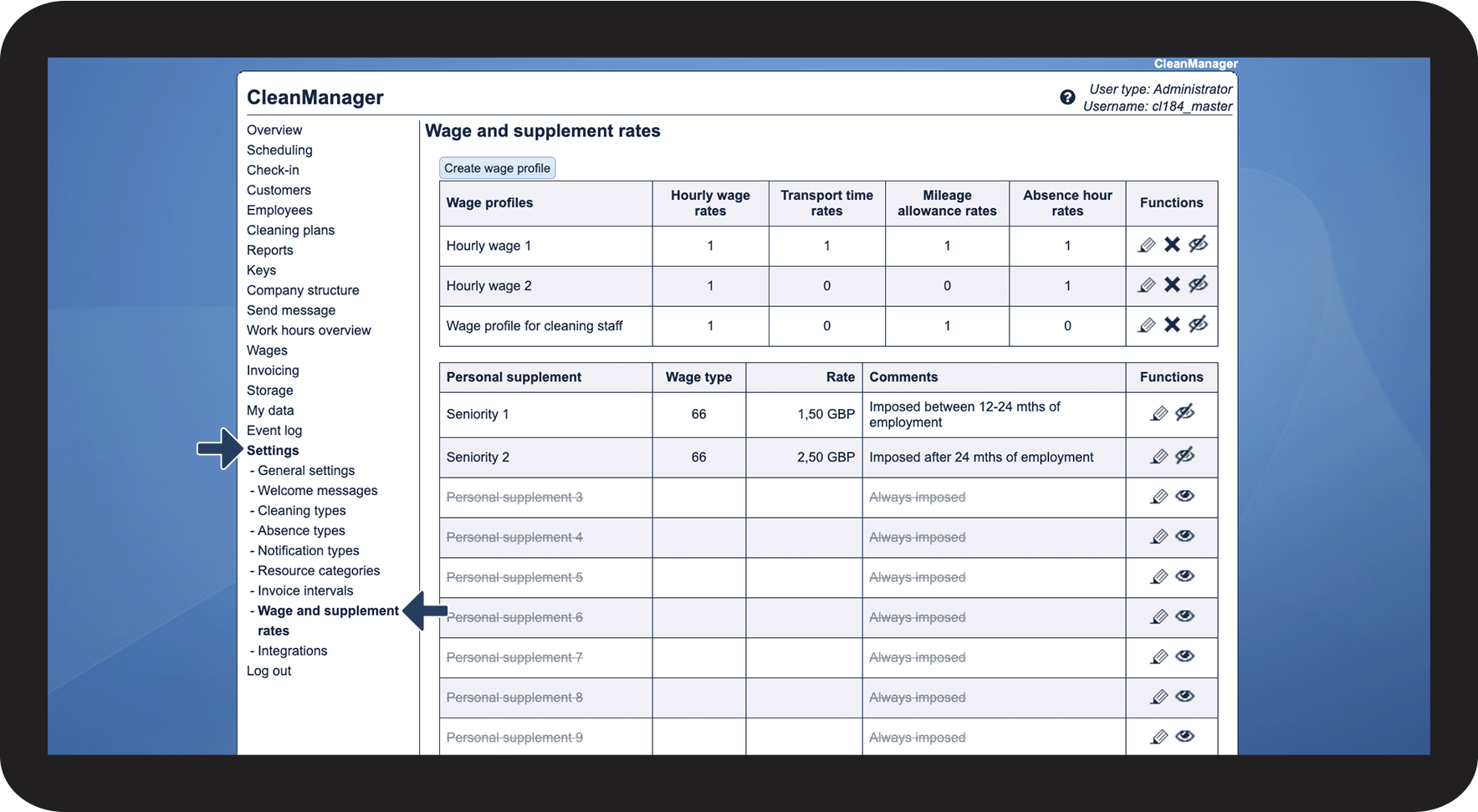
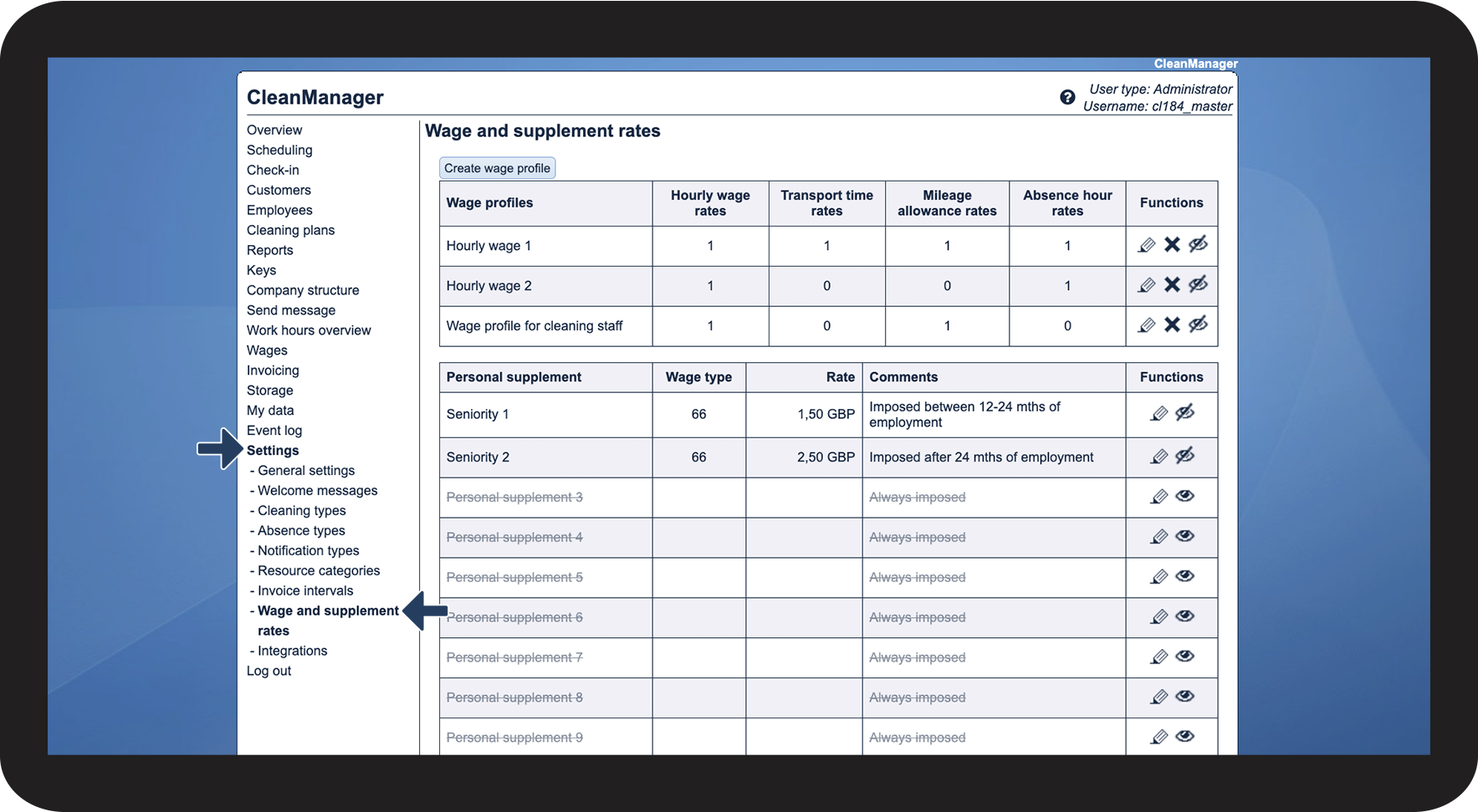
In the menu, go to Settings > Wage and supplement rates

3.1.png

number_2.png

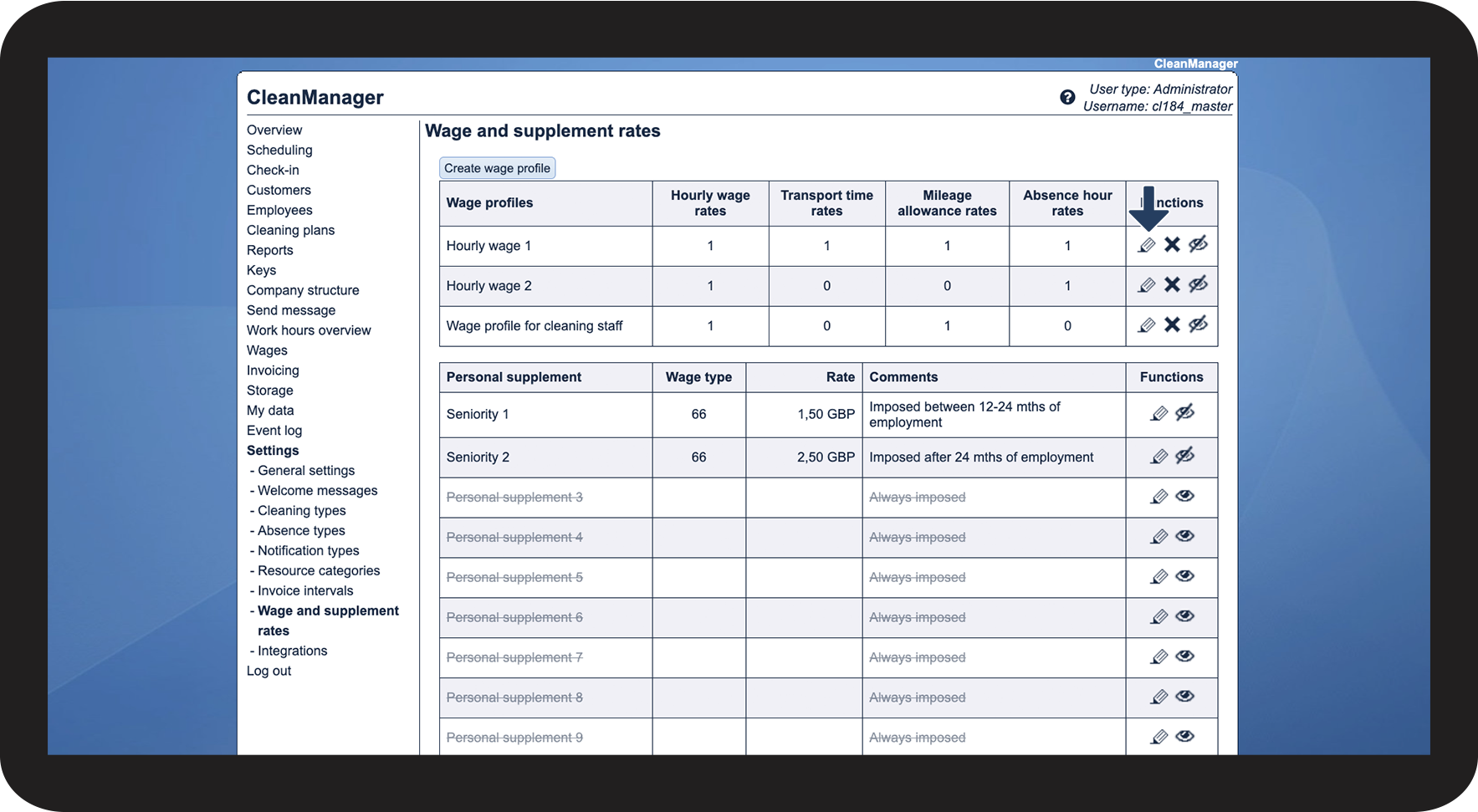
Click on Edit wage profile  for the wage profile you wish to edit

3.2.png

number_3.png

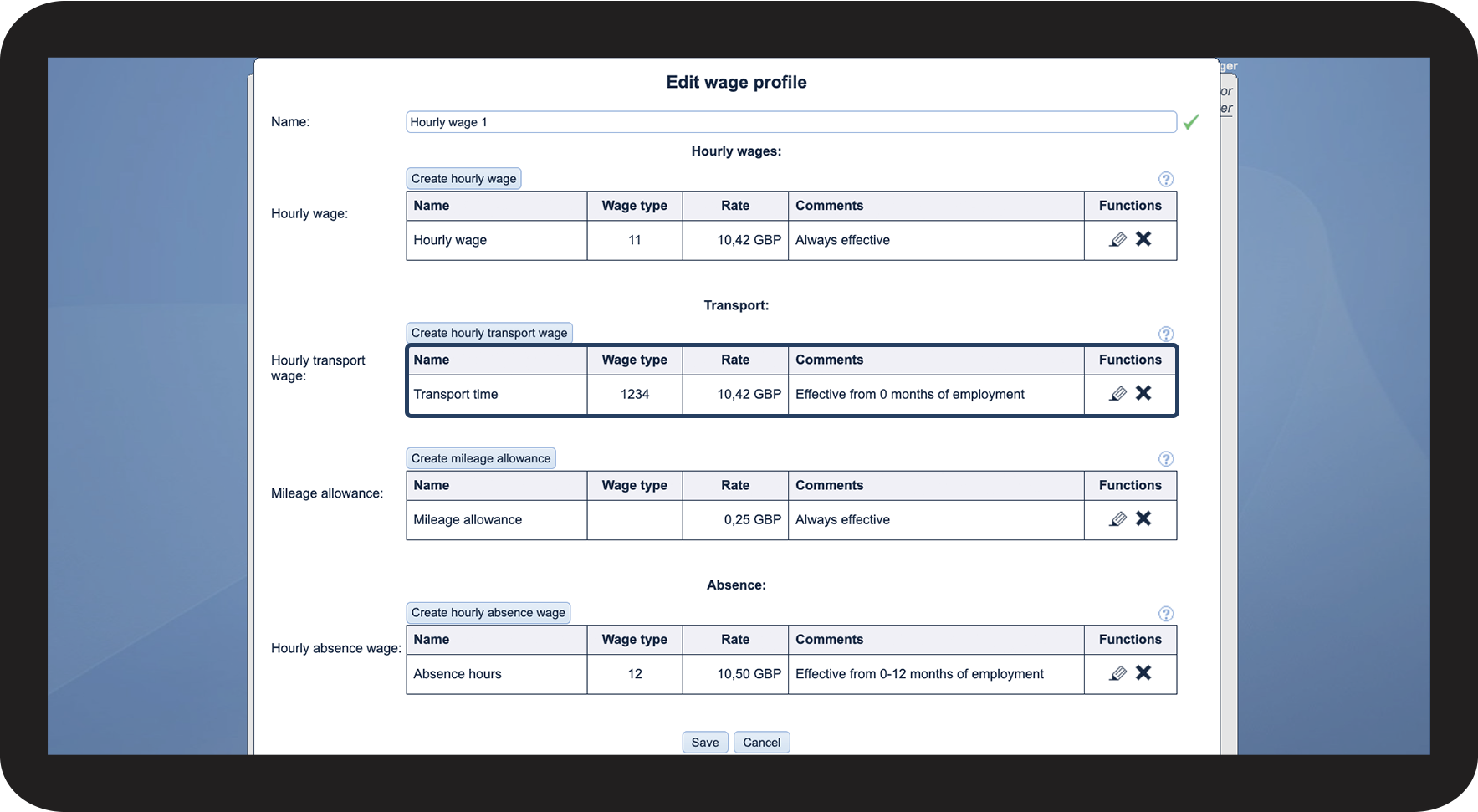
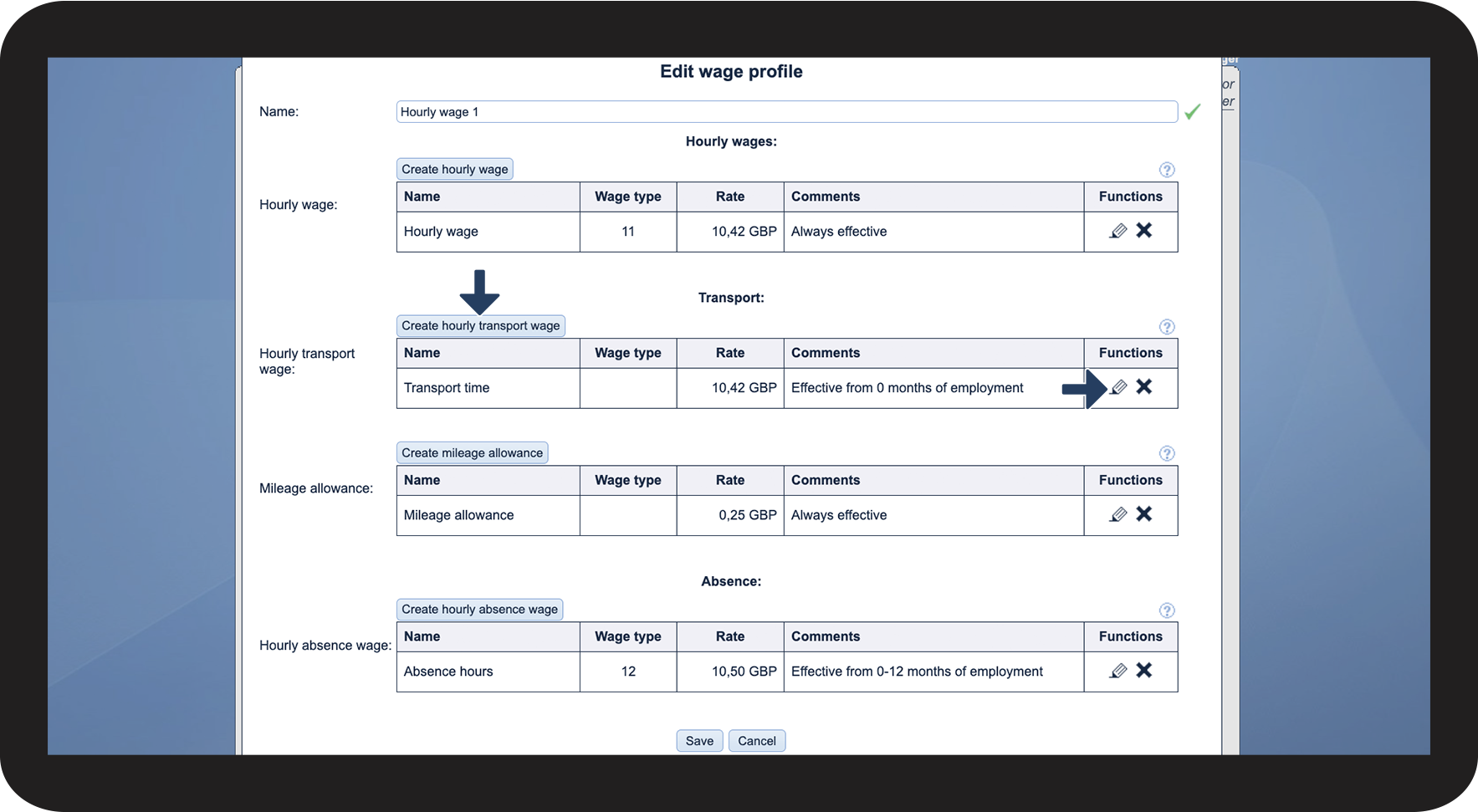
If you want to create a new hourly rate for transport, click on Create hourly transport wage. If you want to edit an existing rate, click on Edit hourly transport wage

3.3.png

number_4.png

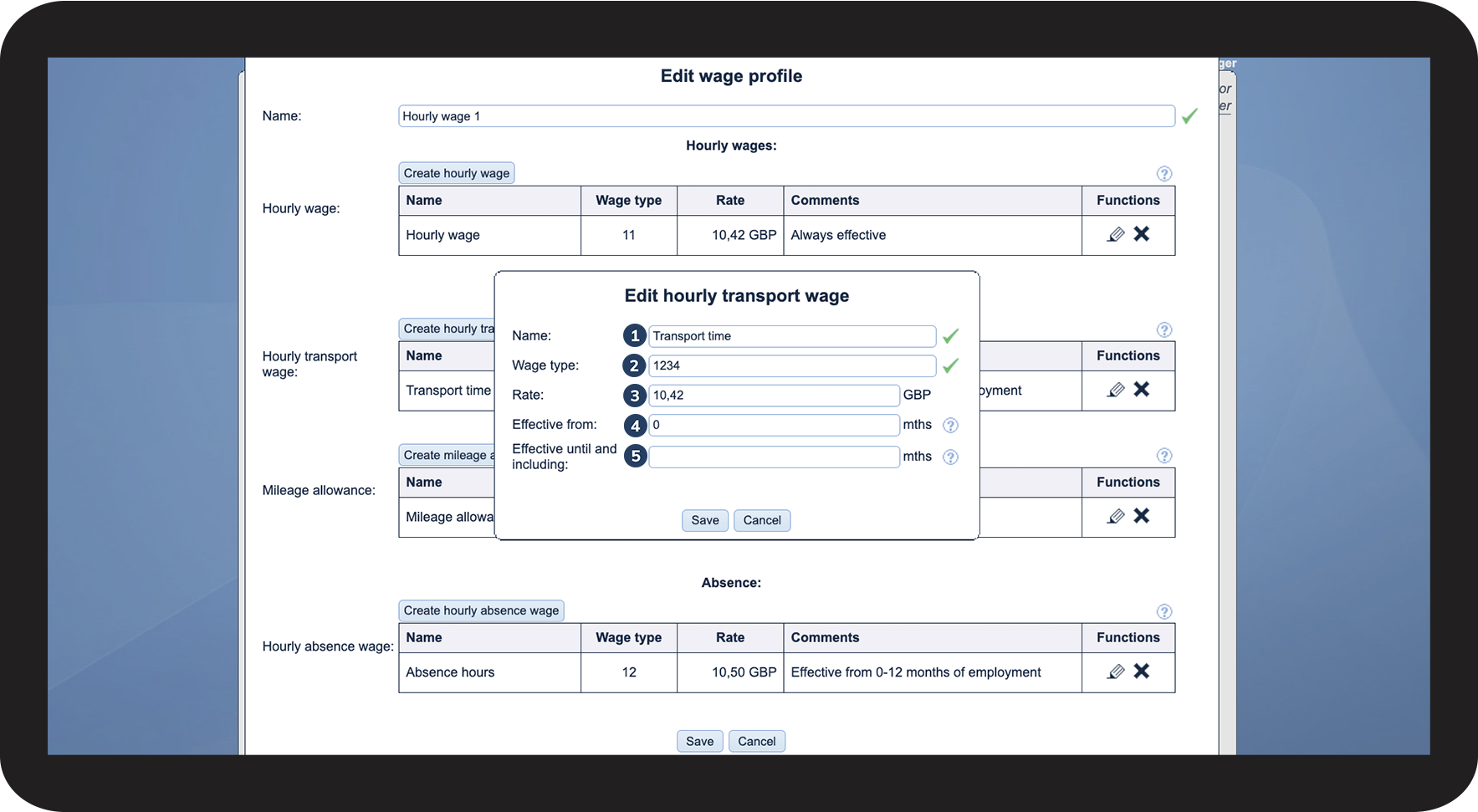
Enter the following:

 
  1. Name: The name you want for the hourly transport wage
  2. Wage type: The wage type that matches your payroll system (in this example, 1234)
  3. Rate: The rate employees should be paid for transportation time (driving to/from clients)
  4. Effective from: The length of service, in months, needed for this hourly rate to become effective to transport time. If you want the rate to be effective immediately, you can enter 0
  5. Effective until and including: The length of service, in month, before this hourly rate ceases to be effective to transport time. This function can be used, if you have different rates depending on the length of employment. Leave the field empty, if this rate should always be applied

NOTE:

Concurrent differing hourly transport wages are not allowed.

3.4.png

number_5.png
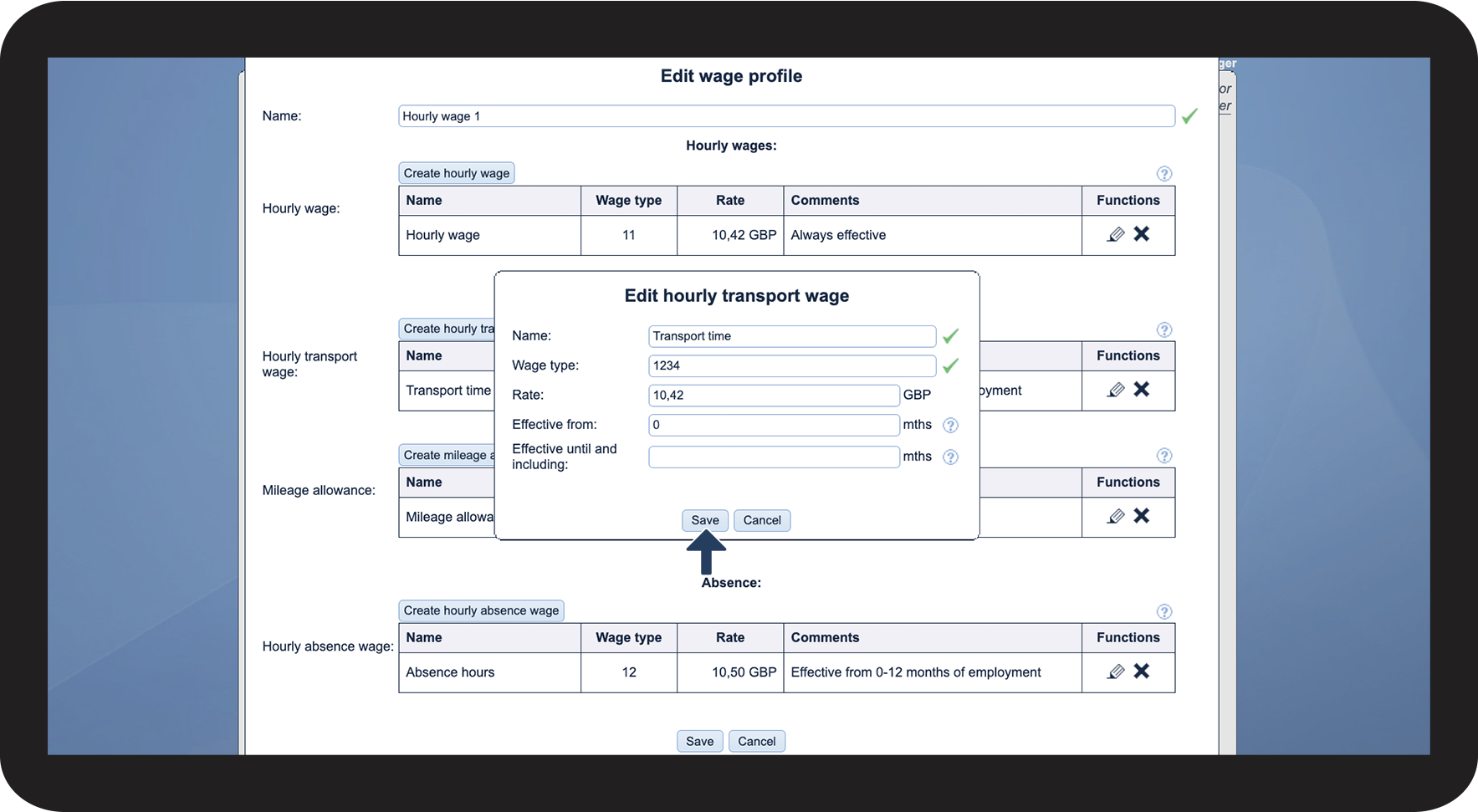
Click on Save

3.5.png

number 6 copy.png

 The hourly transport wage has now been set up for a specific wage profile

3.6.png

number 7 copy.png

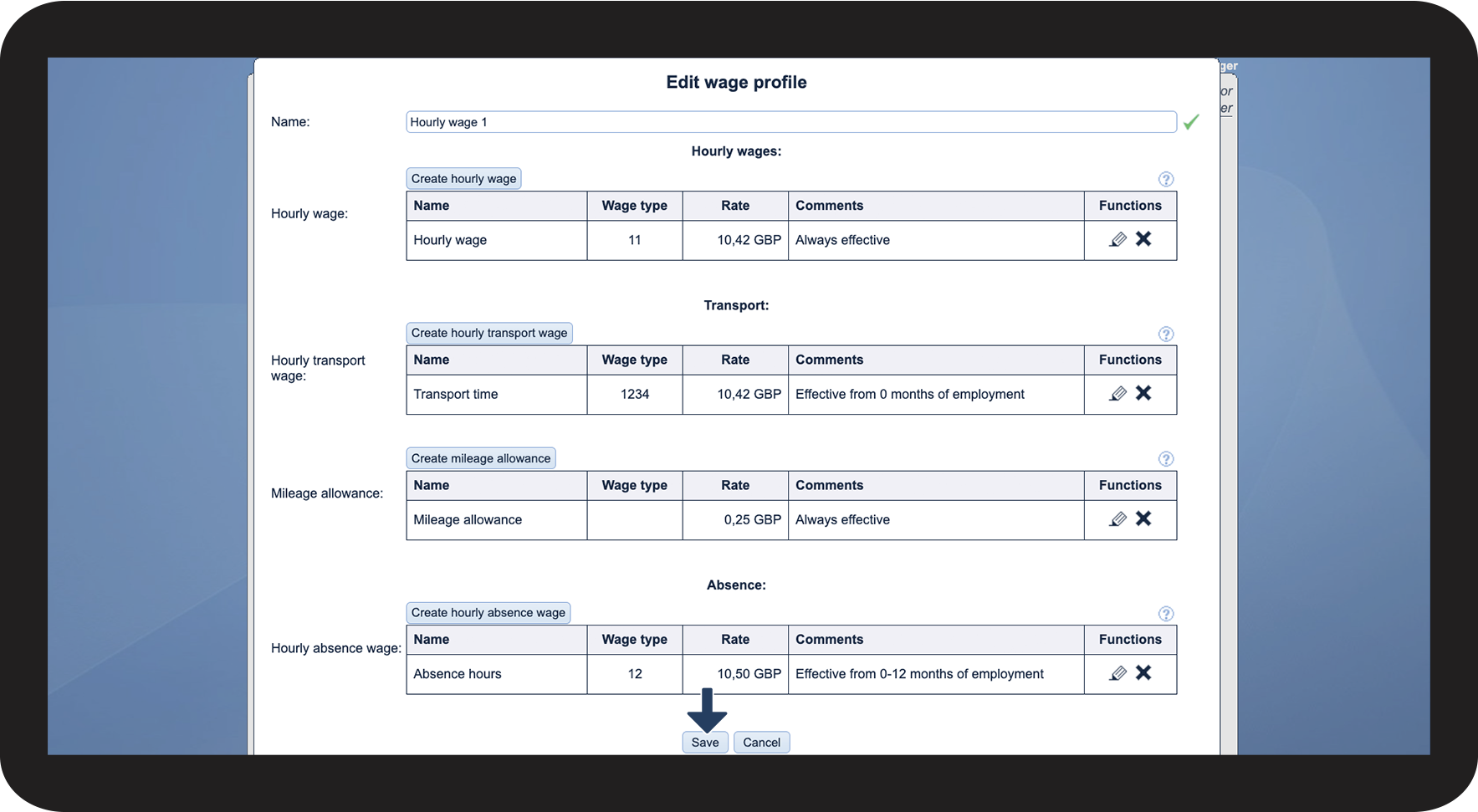
Finally, click on Save to accept changes made to the wage profile

3.7.png

INFO:

The rates for transport will be used when registering transportation in the calendar or through the app. 

The hourly rate for transportation is used for the entire time set aside for transport, either planned for a task or created as a singular transport unit.

Likewise, mileage allowance is paid based on the recorded distance in kilometres or miles of tasks or transport units.


This is how you set up mileage allowance for a specific wage profile

NOTE:

If you want to set up individual mileage allowance for the wage profiles, you cannot also use the overall mileage allowance as described in This is how you set up the mileage allowance for all employees. In order for the transport rate and/or mileage allowance from the wage profile to be effective, all information must be removed from the overall transport rate and/or mileage allowance.
 

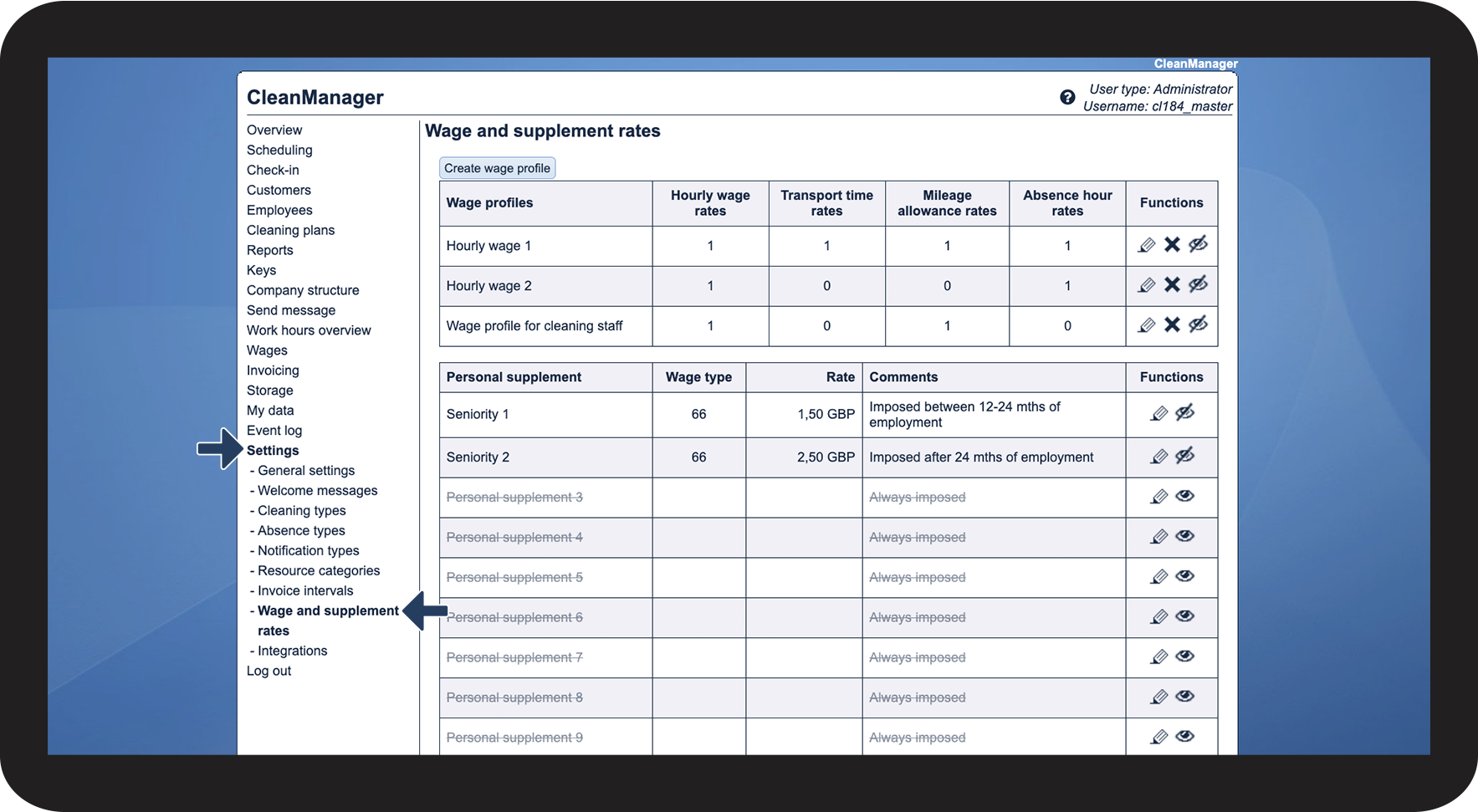
number_1.png

In the menu, go to Settings > Wage and supplement rates

4.1.png

number_2.png

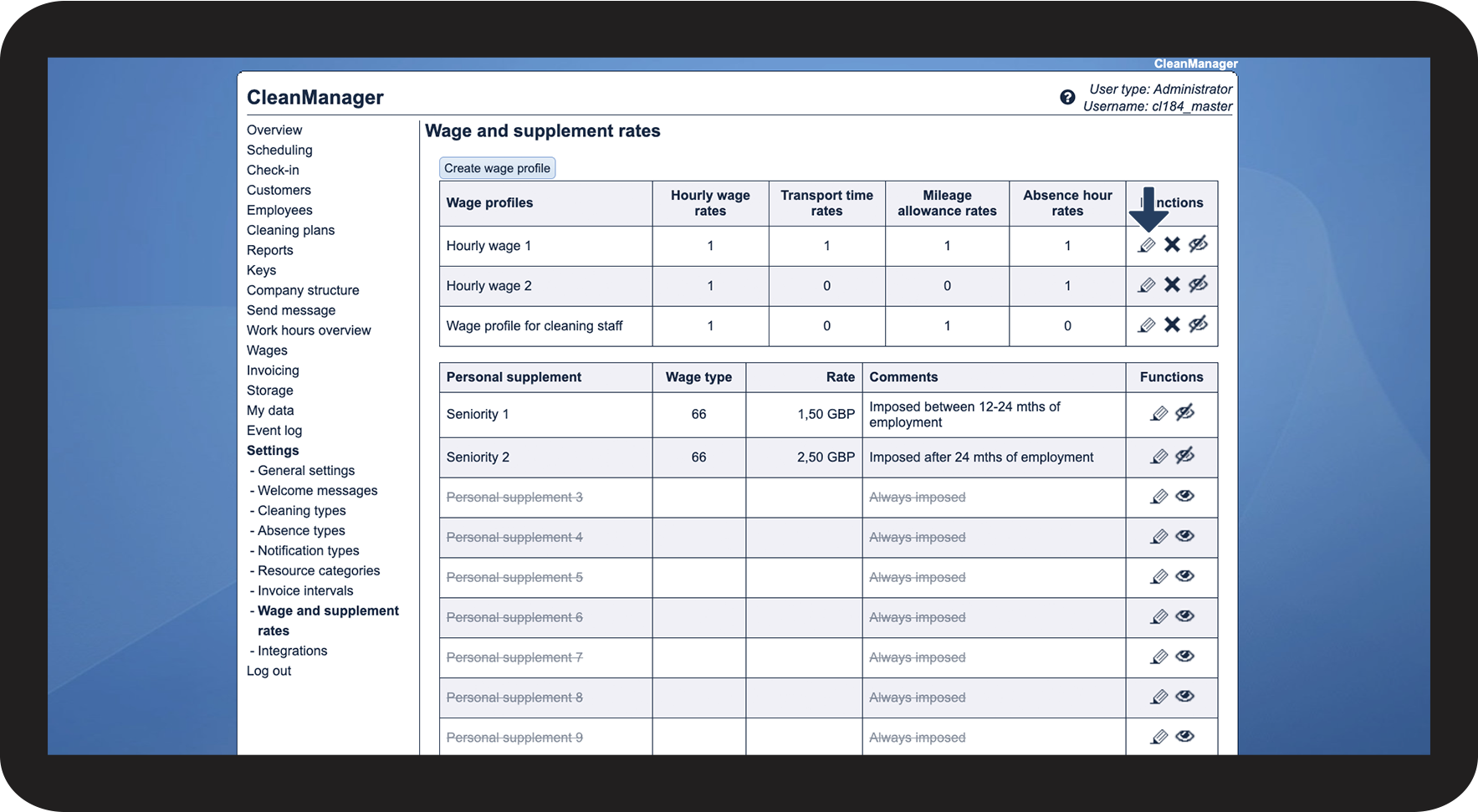
Click on Edit wage profile  for the wage profile you wish to edit

4.2.png

number_3.png

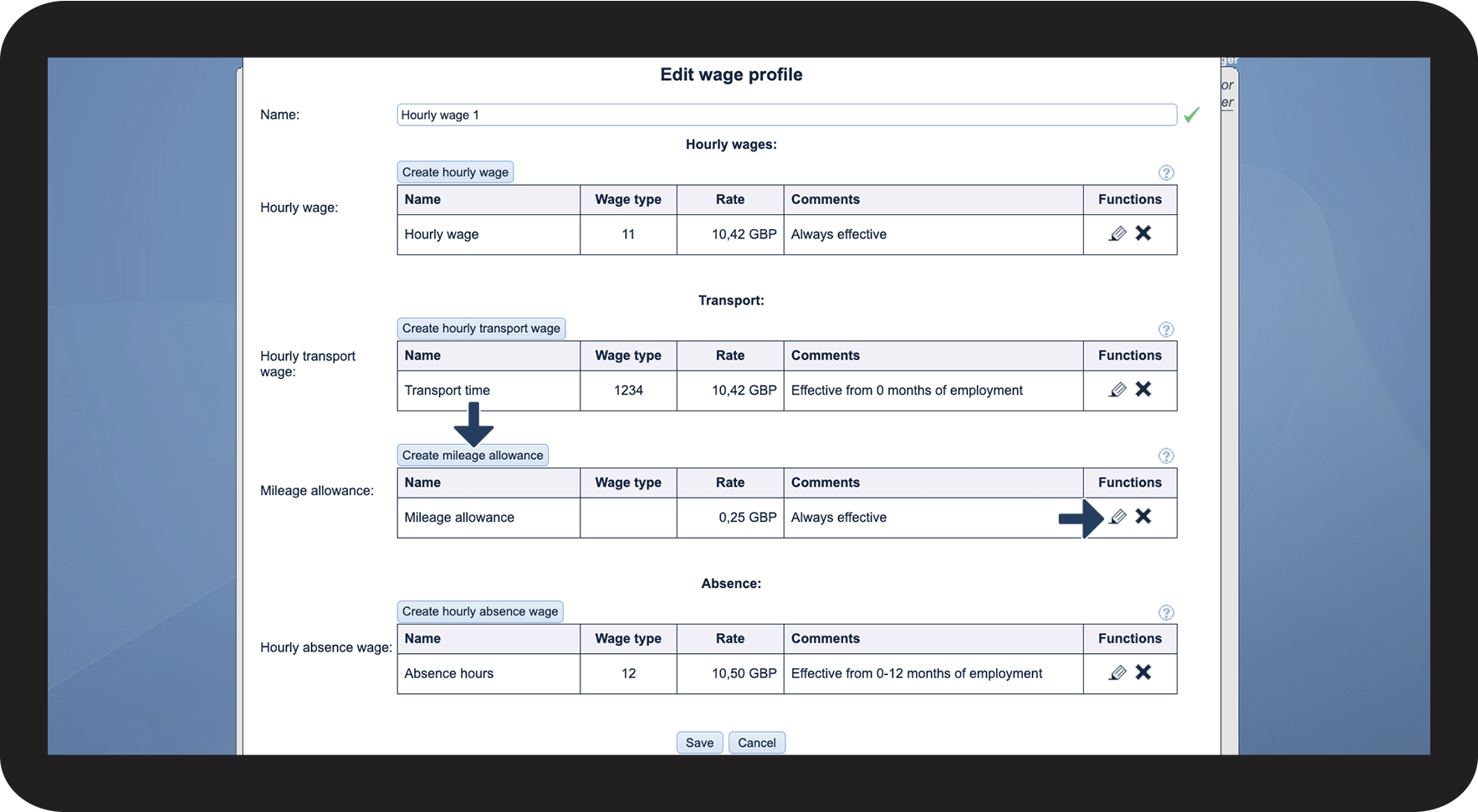
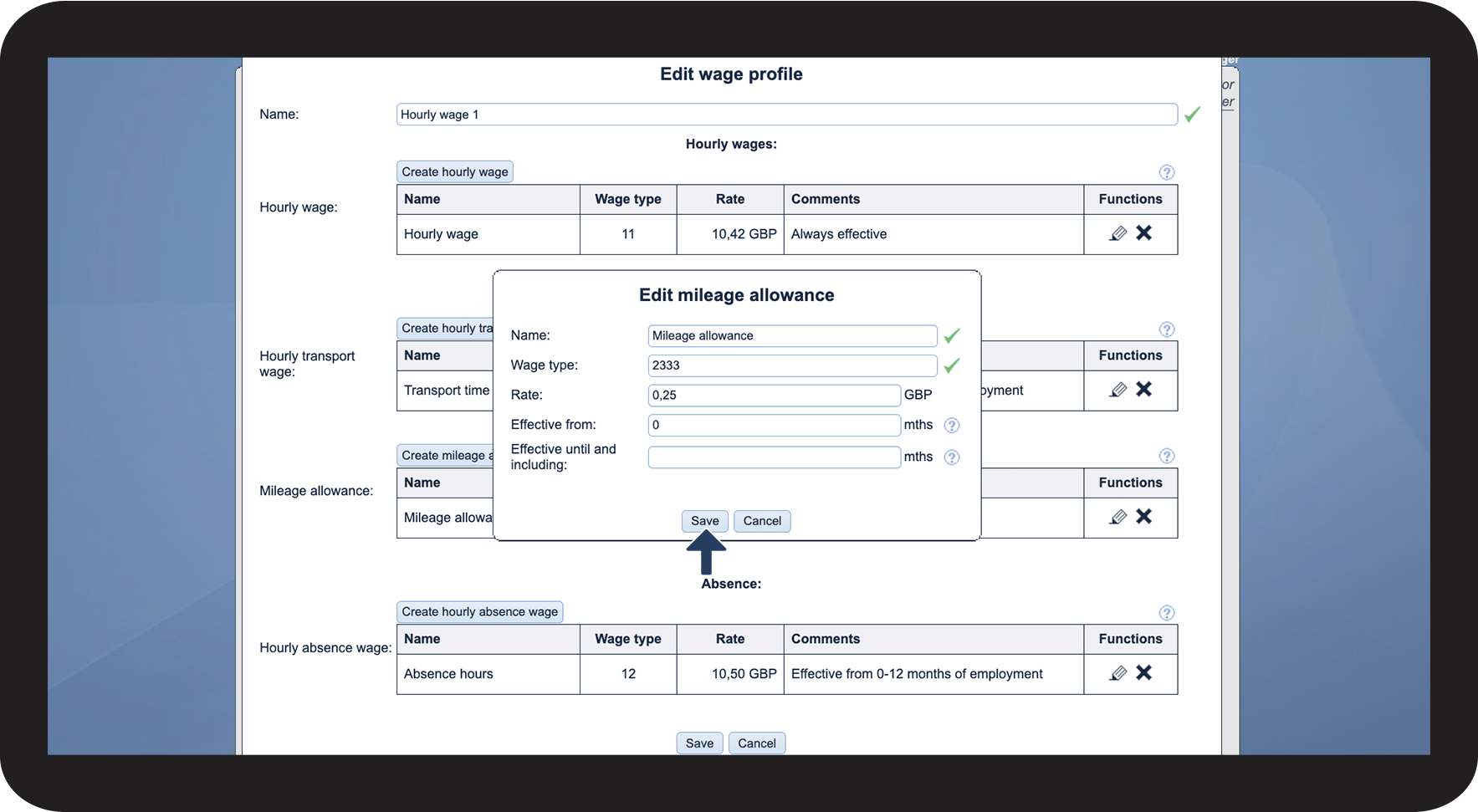
If you want to create a new hourly rate for transport, click on Create mileage allowance. If you want to edit an existing rate, click on Edit mileage allowance

4.3.png

number_4.png

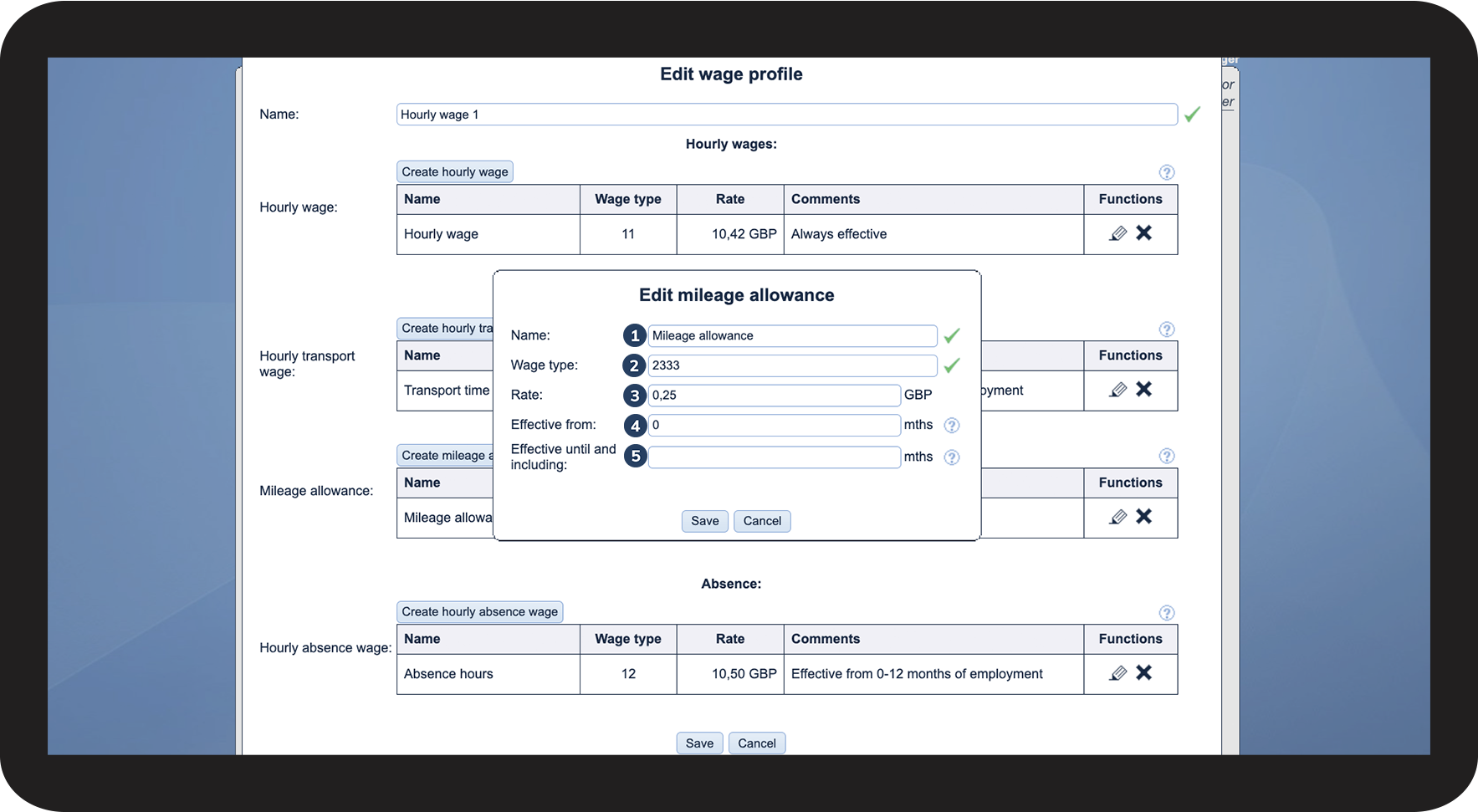
Enter the following:

 
  1. Name: The name you want for the mileage allowance
  2. Wage type: The wage type that matches your payroll system (in this example, 2333)
  3. Rate: The rate employees should be paid for driven distance
  4. Effective from: The length of service, in months, needed for this mileage allowance to become effective to driven distance. If you want the rate to be effective immediately, you can enter 0
  5. Effective until and including: The length of service, in month, before this mileage allowance ceases to be effective to driven distance. This function can be used, if you have different rates depending on the length of employment. Leave the field empty, if this rate should always be applied


NOTE:

Concurrent differing mileage allowance rates are not allowed.
4.4.png

number_5.png

Click on Save

4.5.png

number 6 copy.png

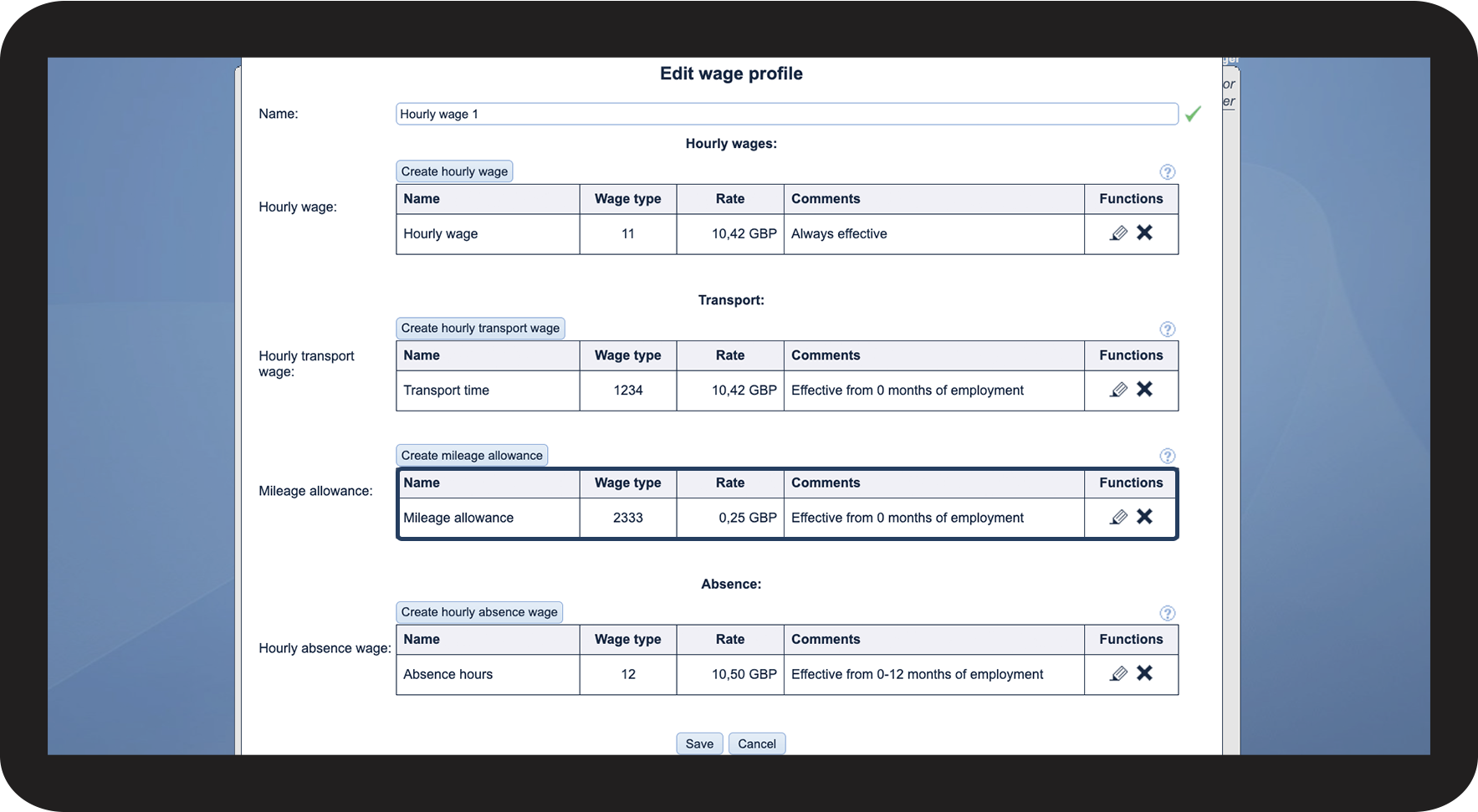
 The rate for mileage allowance has now been set up for a specific wage profile

4.6.png

number 7 copy.png

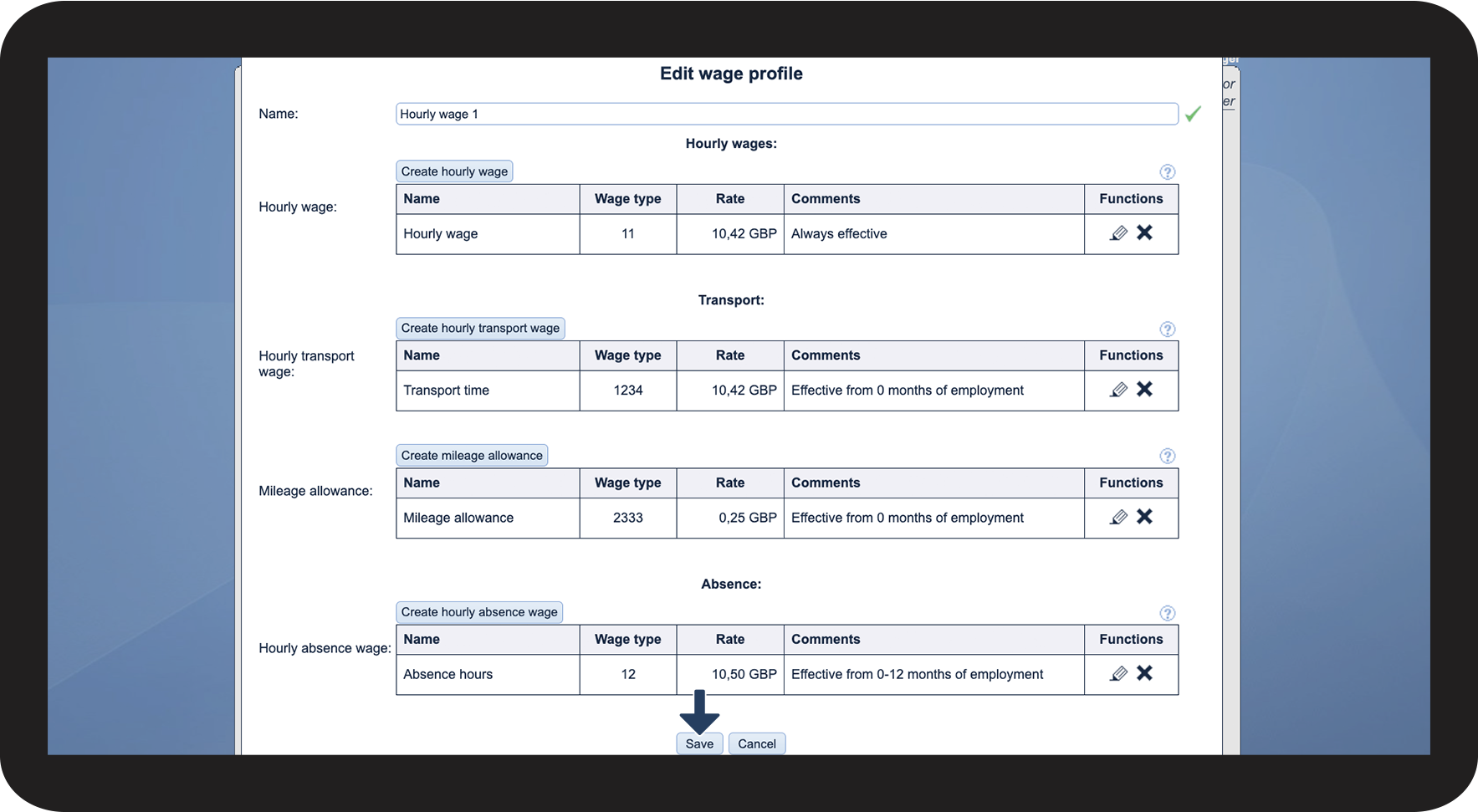
Finally, click on Save to accept changes made to the wage profile

4.7.png

INFO:

The rates for transport will be used when registering transportation in the calendar or through the app. 

The hourly rate for transportation is used for the entire time set aside for transport, either planned for a task or created as a singular transport unit.

Likewise, mileage allowance is paid based on the recorded distance in kilometres or miles of tasks or transport units.


Do you need to register your employees' absence?

You can set up different forms of absence, which can be activated depending on the circumstances of the absence: