
How do I set up my account so that my employees can create their own tasks or report the used time to completed tasks and transport?

Make it possible for your employees and supervisors to report the time used for tasks and transport in case of changes regarding the planned tasks.
Read more about it in this section:
Make it possible for your employees and supervisors to create new tasks based on the pre-defined types of cleaning.
Read more in this section:
Employees and supervisors can specify the time for a task in the calendar

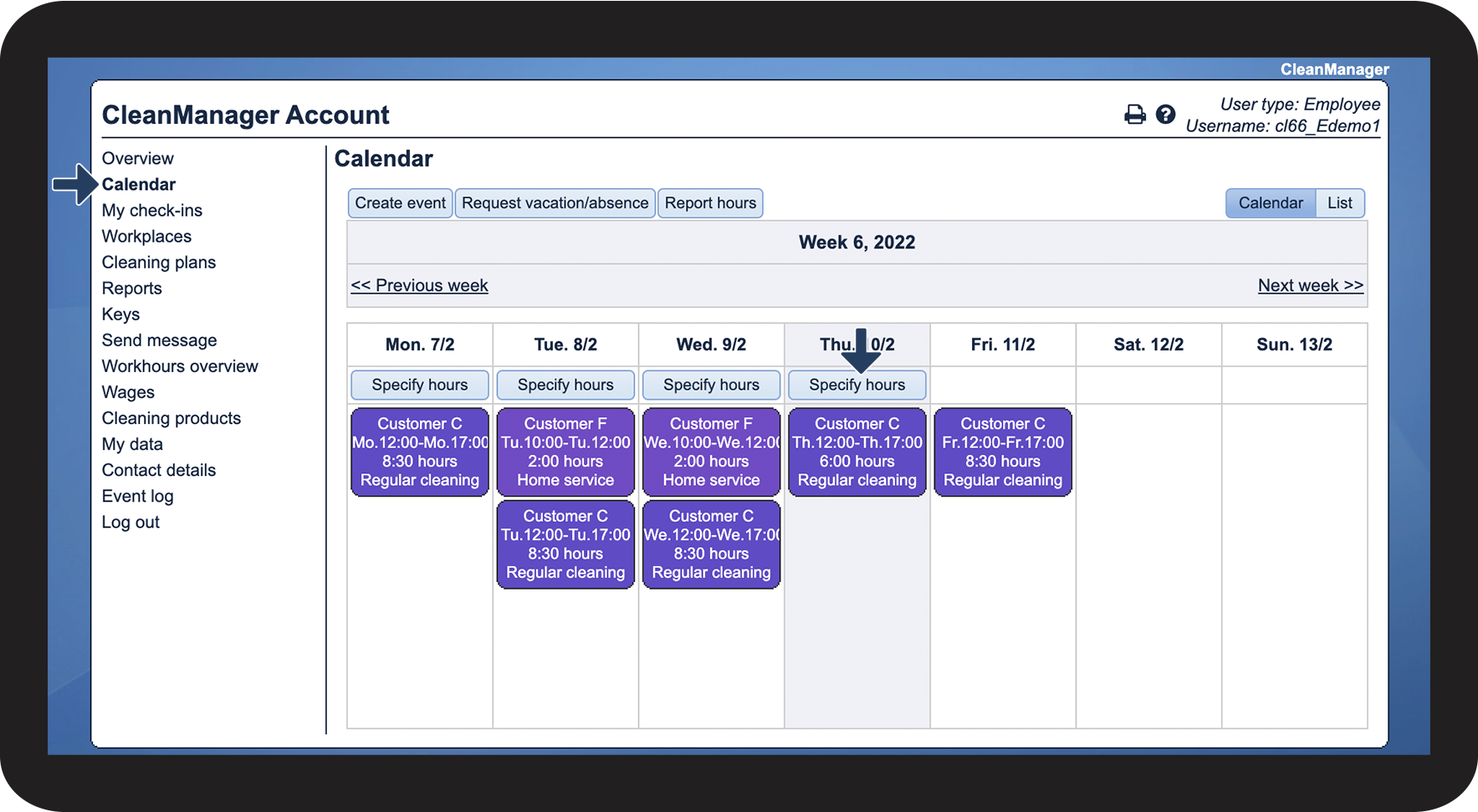
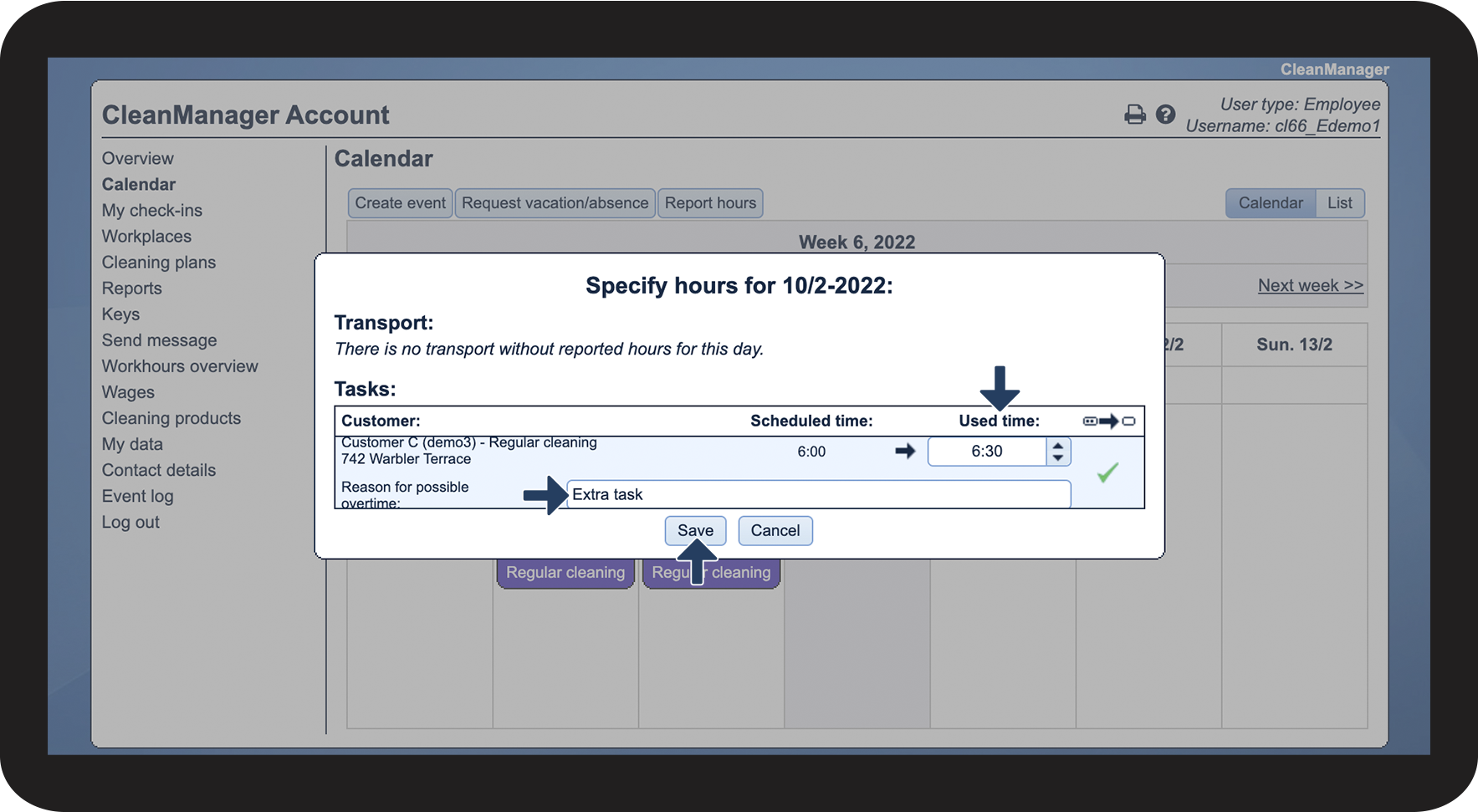
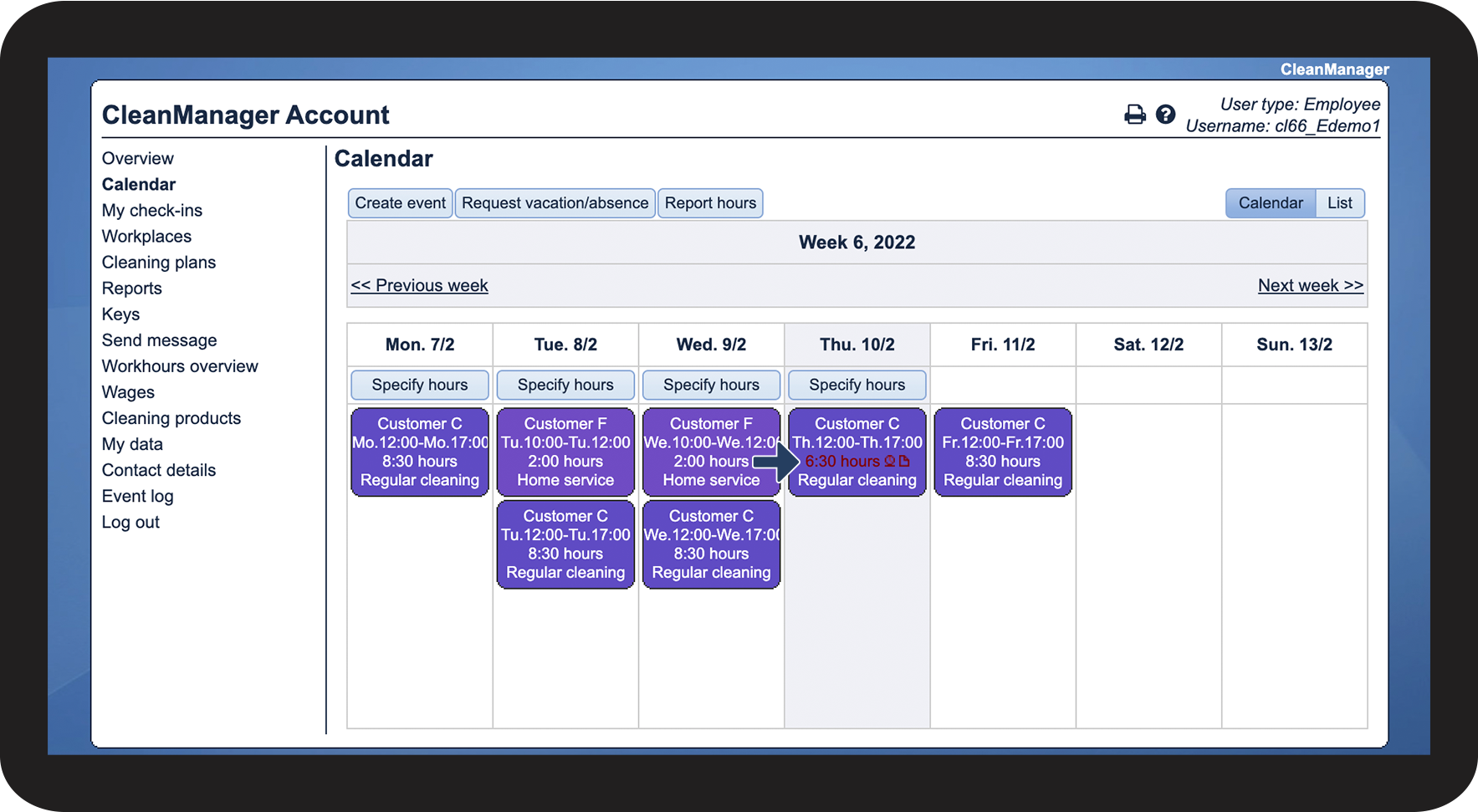
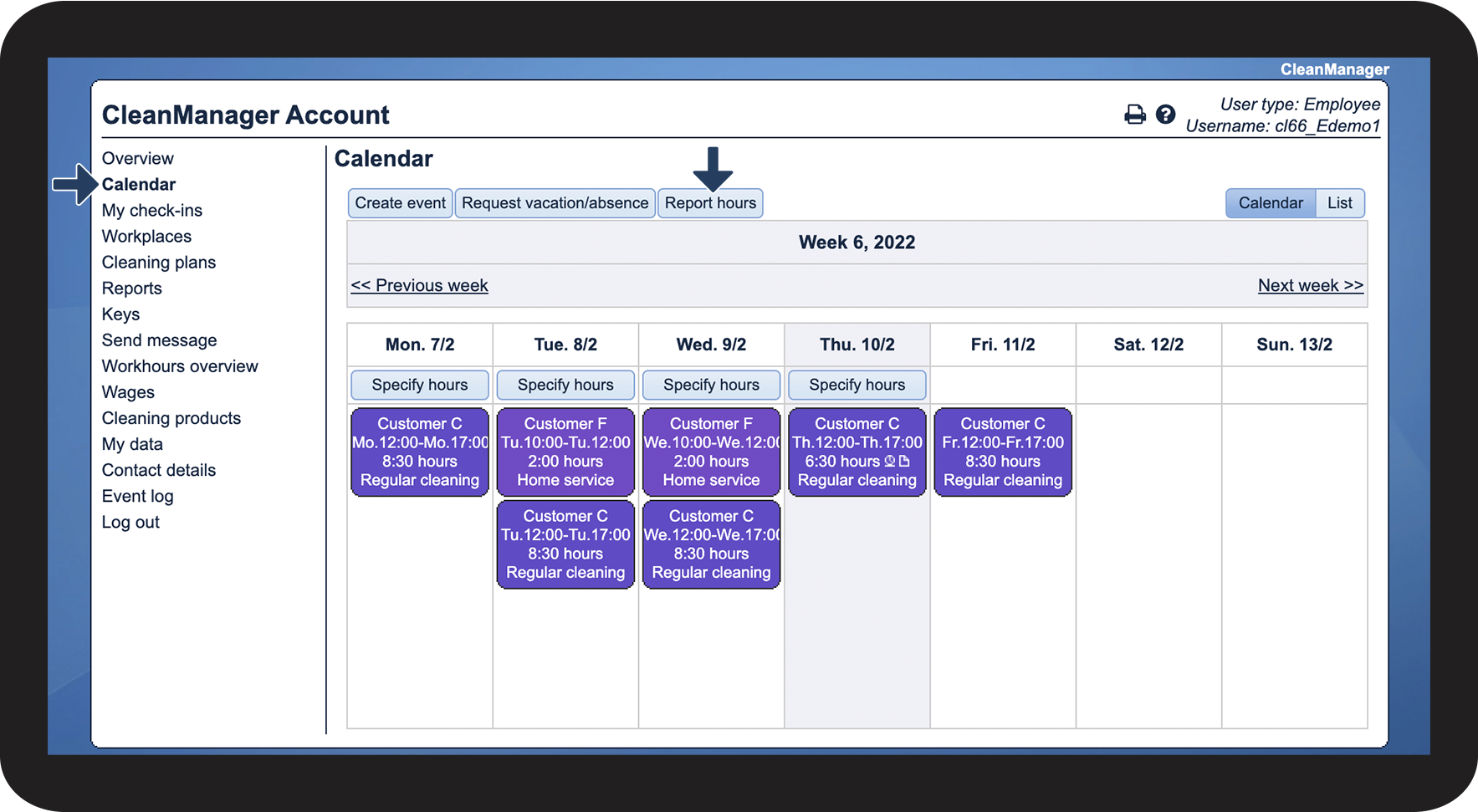
Activating this setting makes it possible for your employees and supervisors to report changes in planned and executed tasks in their calendars in the webbrowser.
It will be possible for employees to access their calendar (if they have access) and report changes to their present and earlier tasks. They can add comments to their changes as well.
NOTE:
All changes will be sent to the administration for approval, which can be found here: Scheduling > Task approval



Employees can report hours at the workplaces they are associated with

Activating this setting enables the employees to report hours at the workplaces they are associated with. This enables employees to set up their own tasks either through the browser or through the app.
In the settings you can choose, which work types should be able to be reported. Hereafter, the employee can choose to start one of these tasks and register their work hours.
This setting is often used when employees should be able to register transport, execute ad-hoc tasks, or administrative tasks, which need to be registered, by themselves.
All tasks, which are being set up, are sent for approval to the administration. Read here how employees can register their hours:
Registration of hours in the employee's account in the browser
Registration of hours in the employee's app
It is possible for employees to report hours and to set up their own tasks in the app if the setting has been activated.
Read more on how to set up a task here: Create an extra task
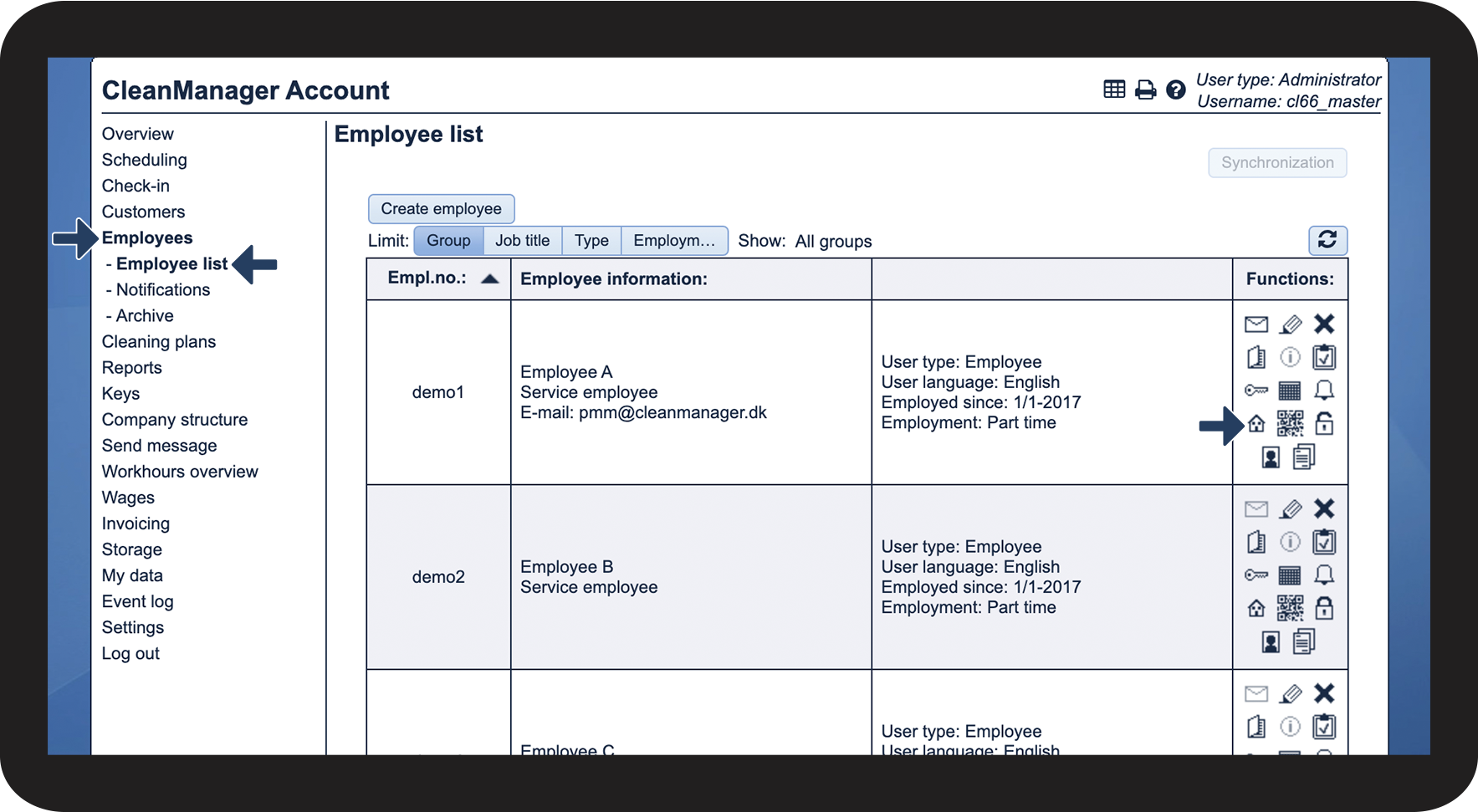
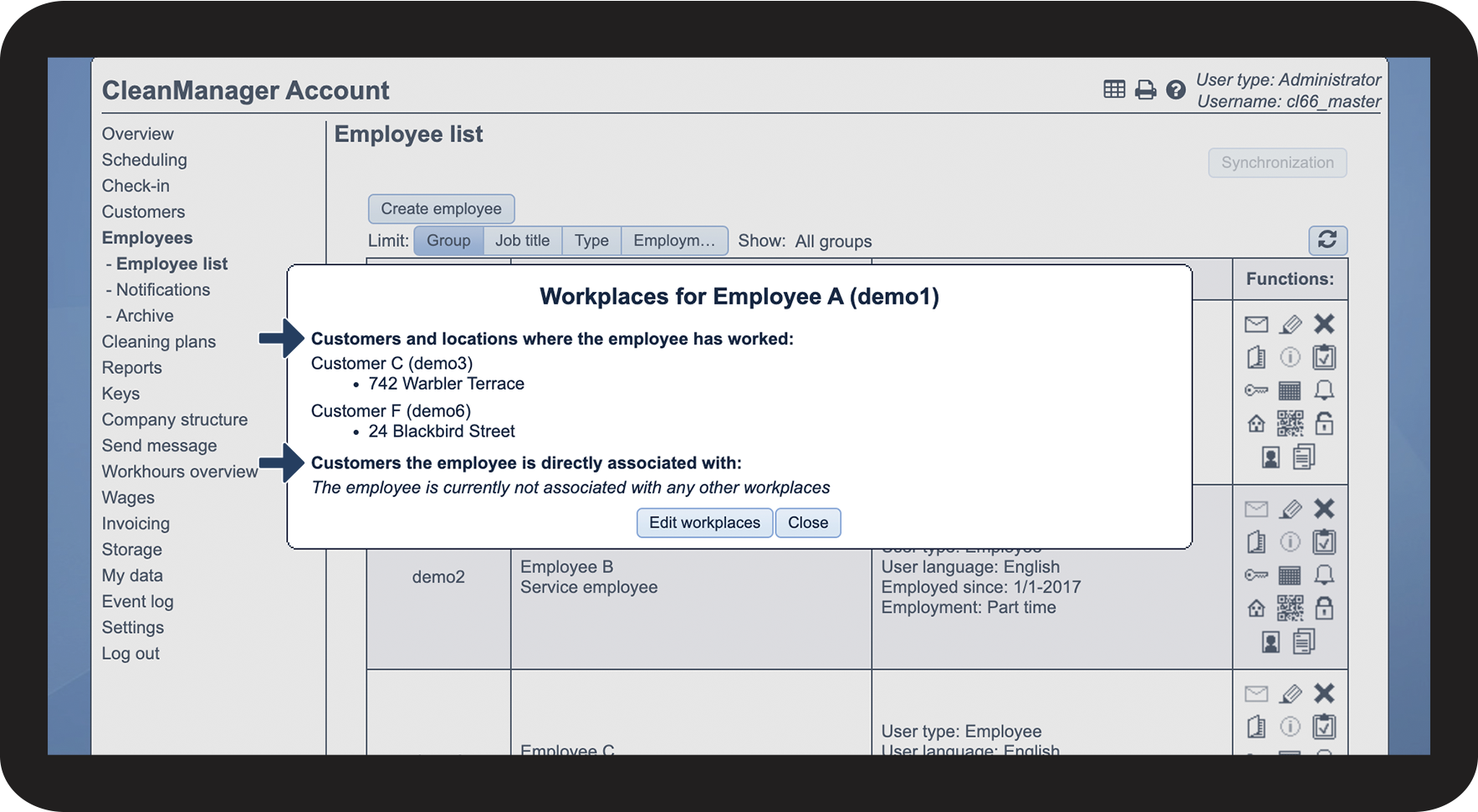
Employee's workplaces
For an employee to be able to report hours at a customer, the employee needs to be connected to the customer either directly or through having worked there previously.

Maybe have a look at how you can set up periods of time for how long employees have Access to workplaces