How do I set up, which information is being shown with the task in the calendar for employees and customers?
It is possible to set up settings, that define, which type of information is being added to the calendar task in the browser and the app.
-
Show the latest end time of the task in the calendar to employees and customers
-
Display notes on tasks in the calendar for customers with login
-
Show locations under customer name on the tasks in the calendar
Show the latest end time of the task in the calendar to employees and customers

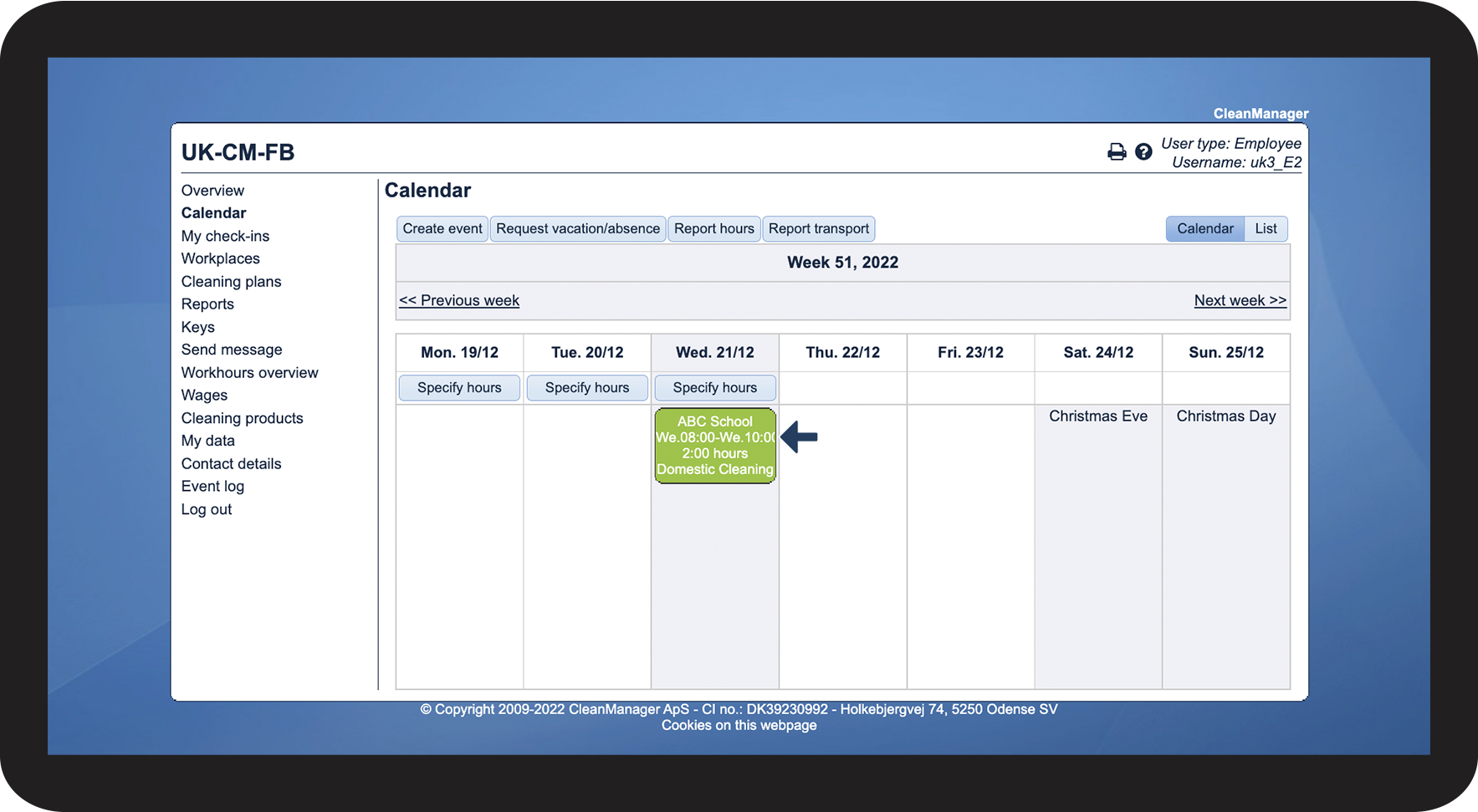
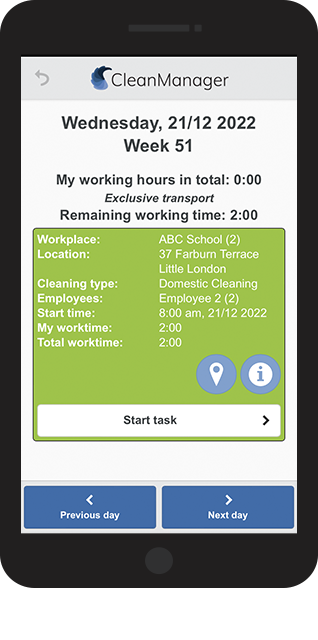
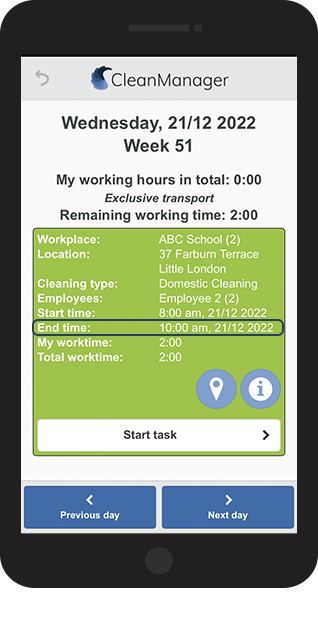
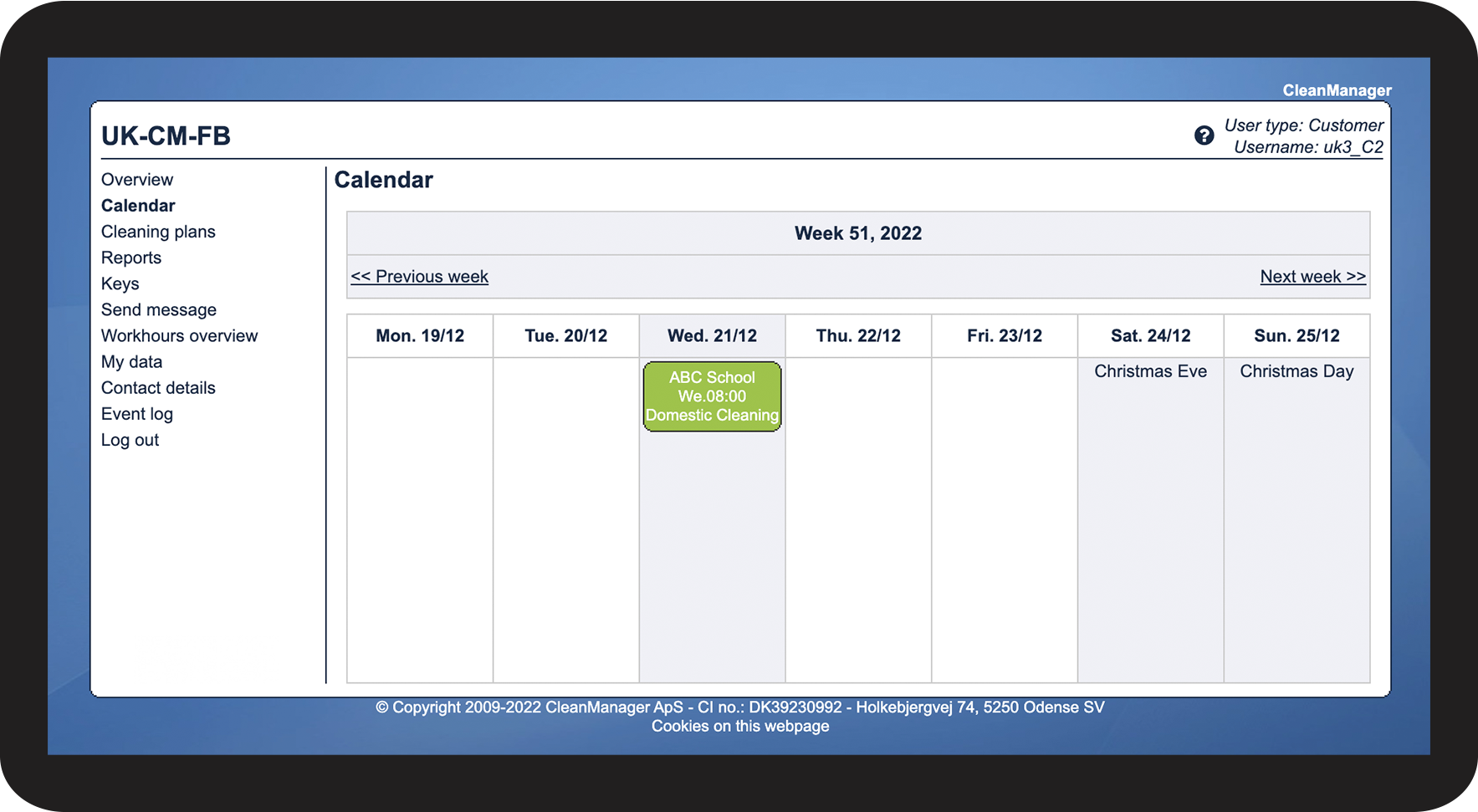
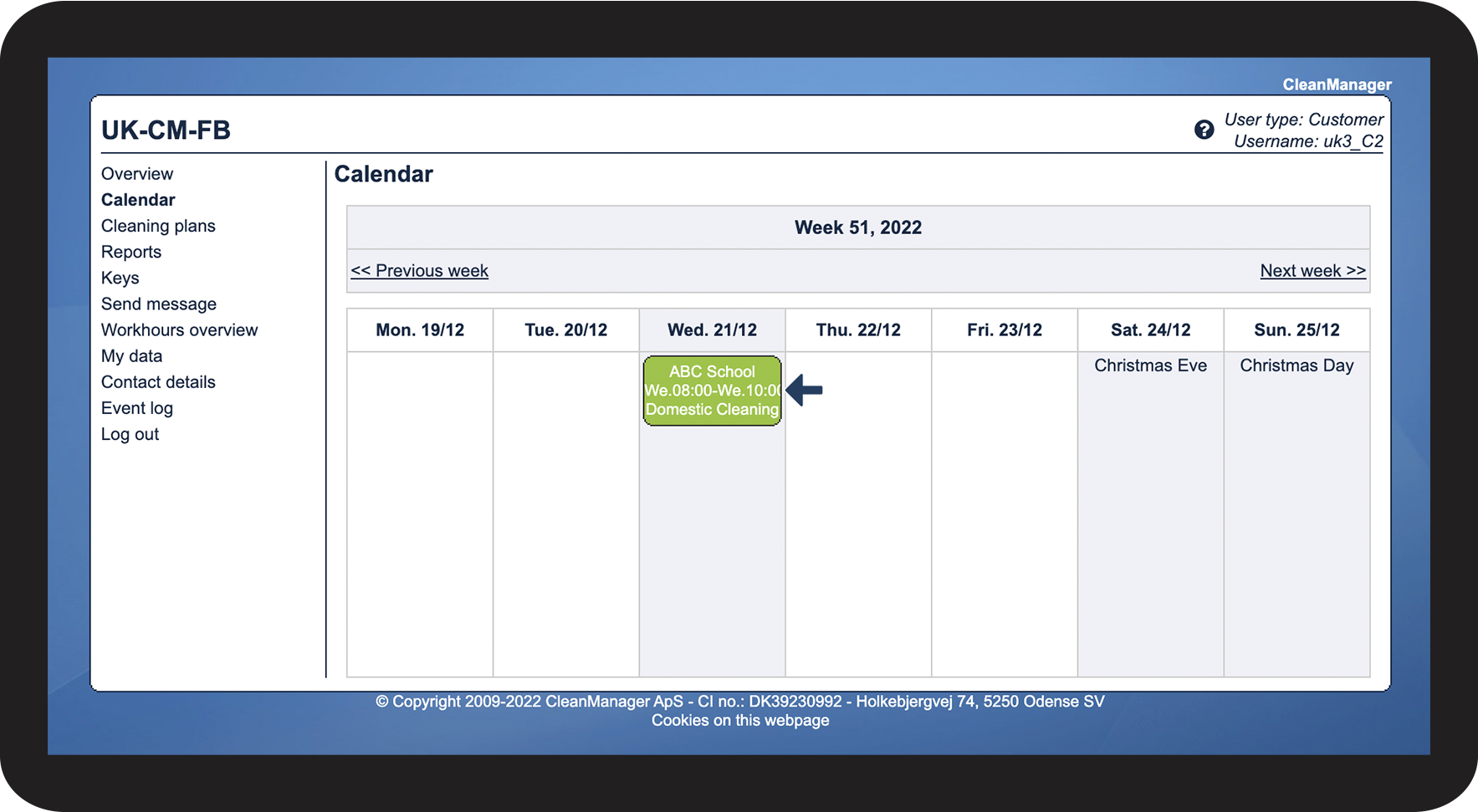
This setting enables you to show the latest end time of the task. The end time will be shown to both, employees and customers on their accounts in the browser and for employees in the app.
INFO:
If a task is planned with open time intervals, this setting is a good tool to have.
An open interval could be e.g. 08:00 am to 04:00 pm, but the time for the task is set to be two hours.
If this setting is activated, customers, as well as employees, are able to see that the task is planned for the given day during the opening hours of the company. This makes it easier for employees to conduct a task within the given timeframe.
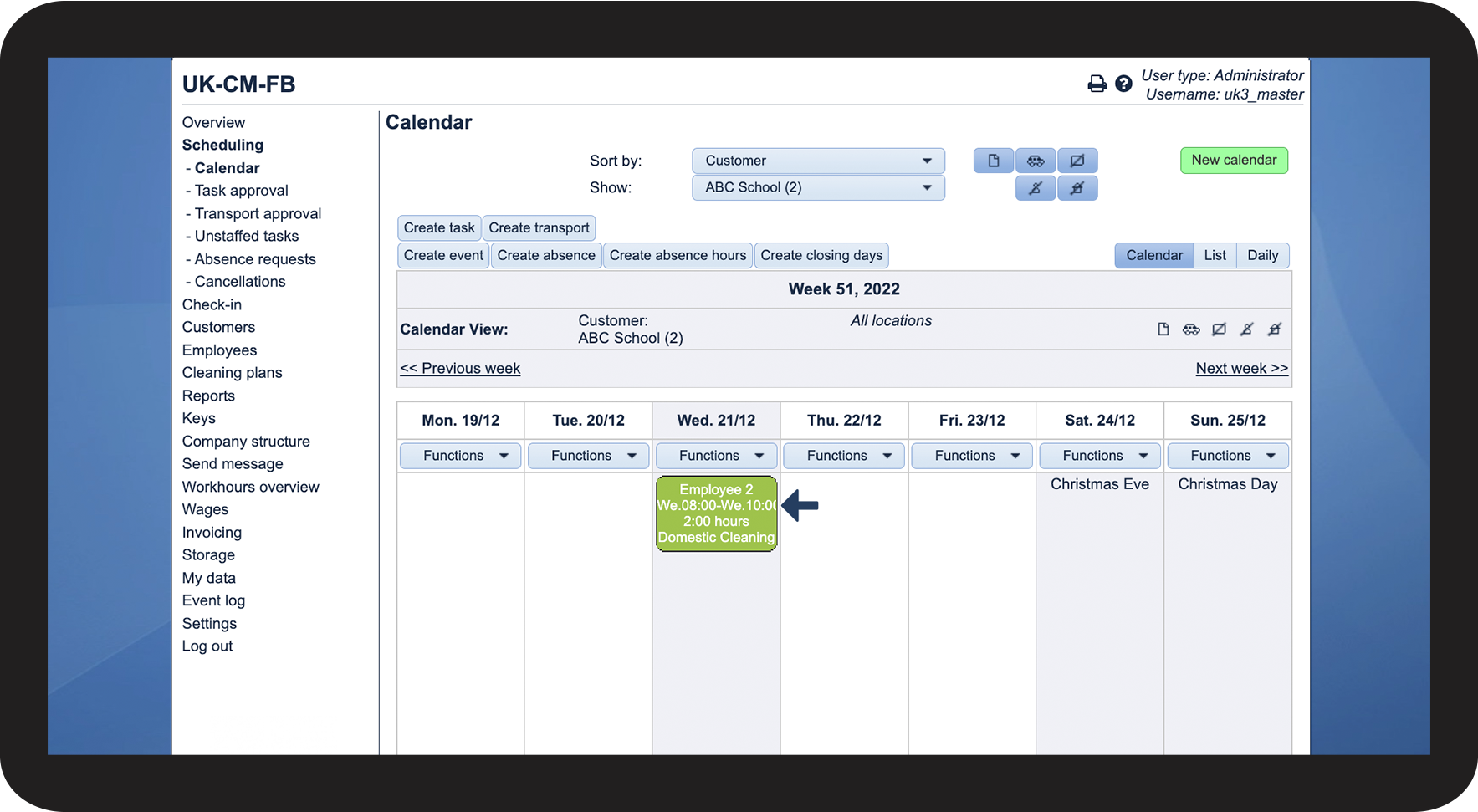
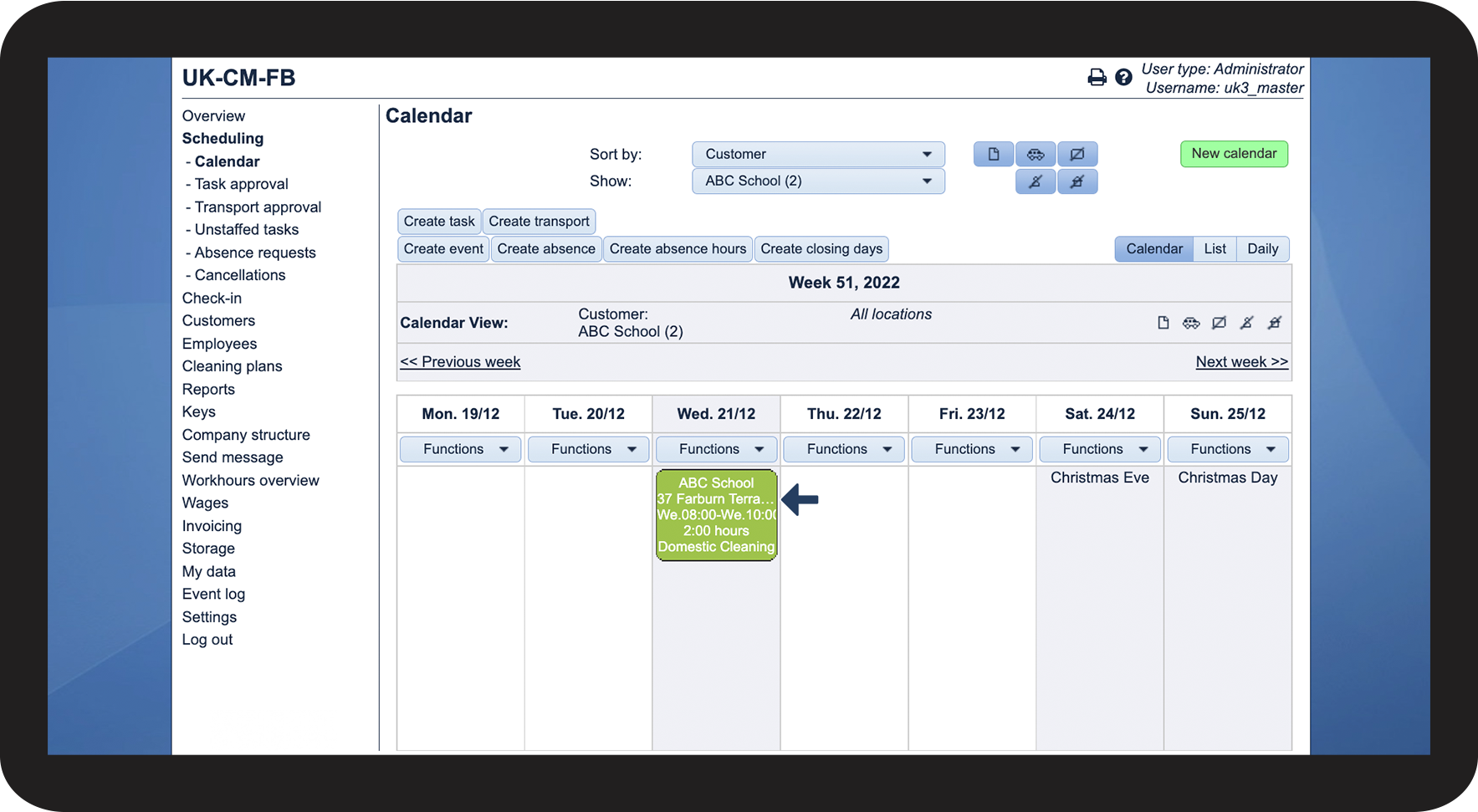
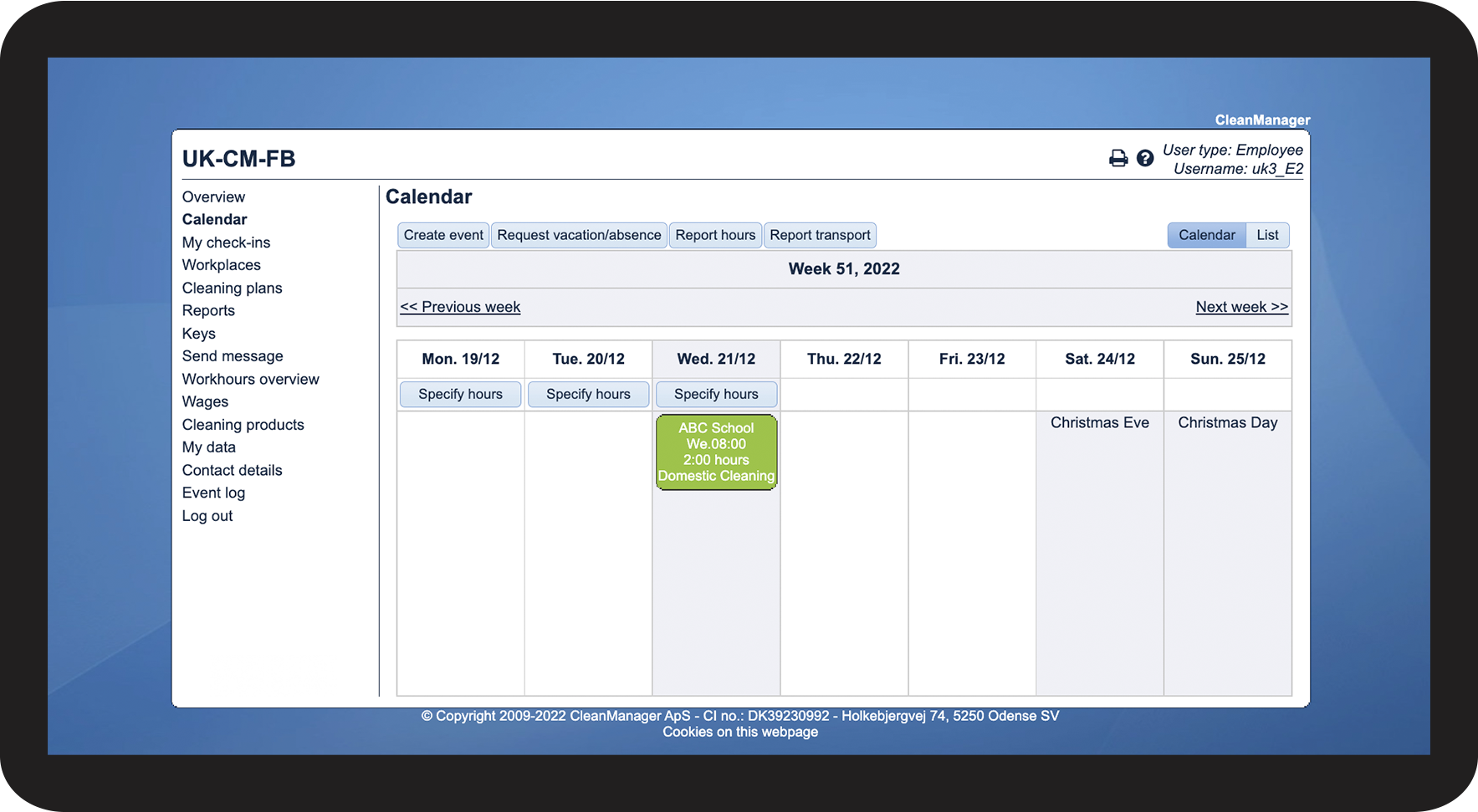
Here you can see a few examples of how the task information is being shown in the calendar and the app for various type of access types for employees and customers:
Employees: Task end time through access to the account in the browser


Employee: Task end time through access in the app
Customers: Task end time with access to the account in the browser
Display notes on tasks in the calendar for customers with login

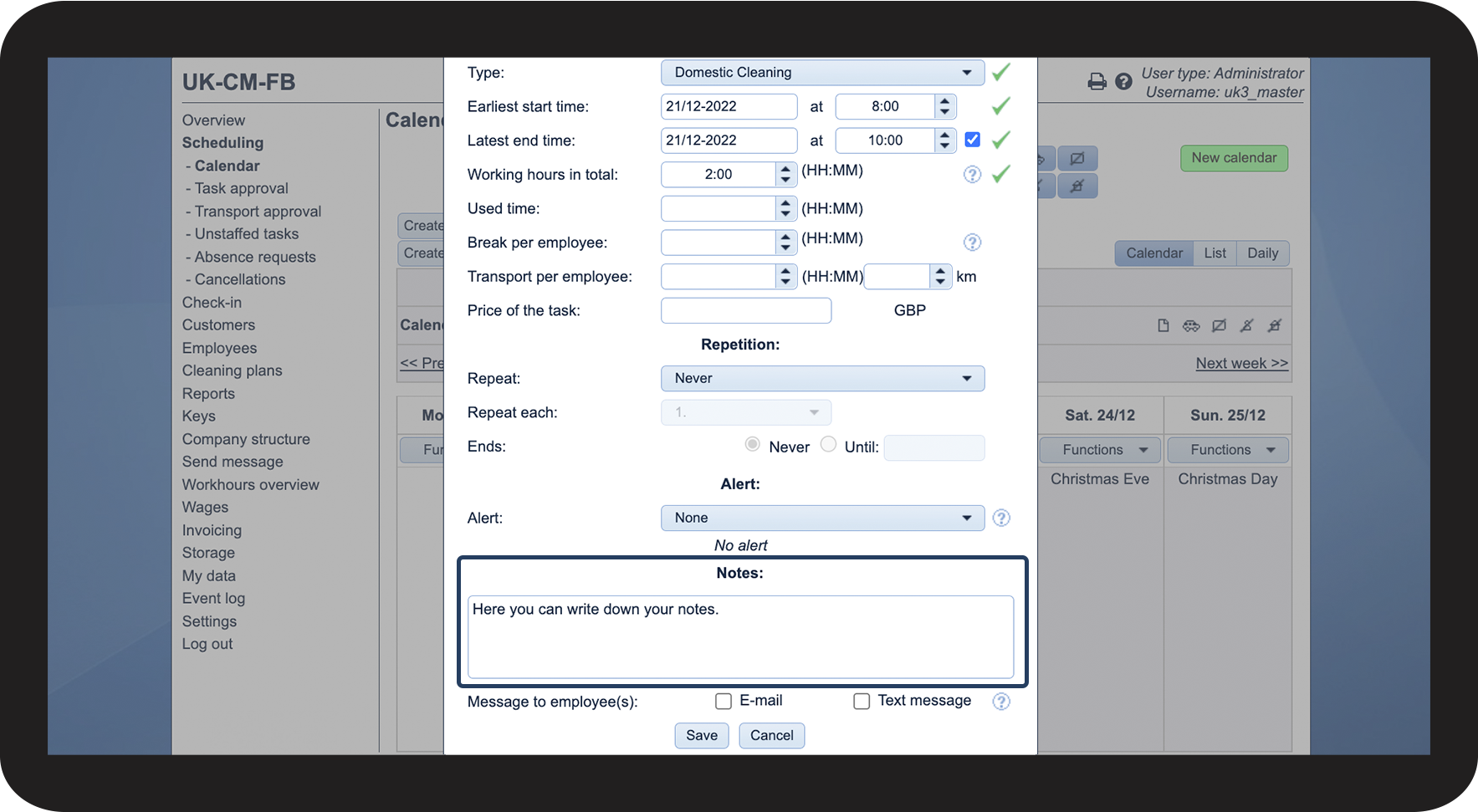
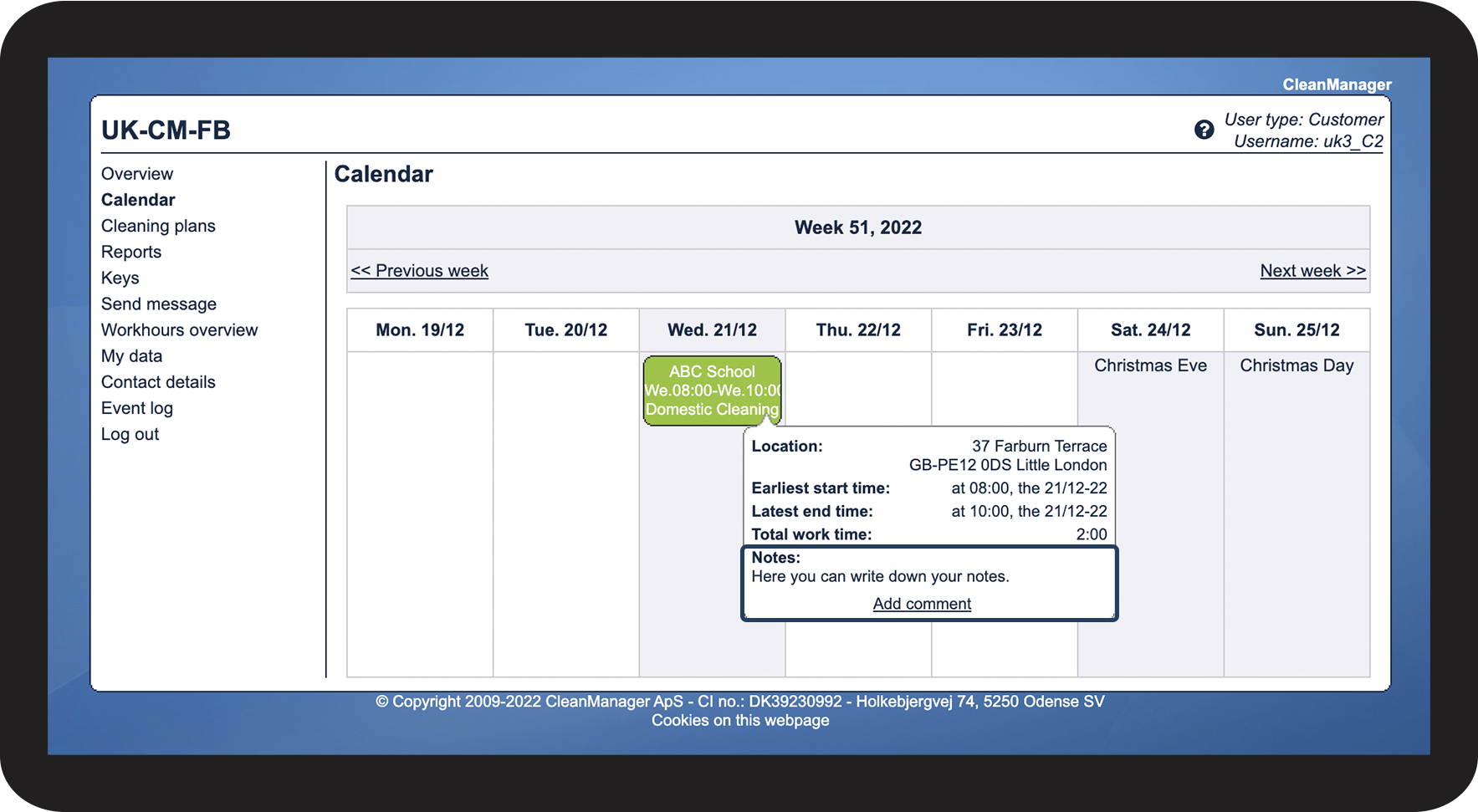
This setting enables you to display notes on tasks to customers.
Added notes will also become visible for customers if you chose to share this type of information for the task with the customer.
Here are some examples of how you can share notes with customers:
Show locations under customer name on the tasks in the calendar

This setting is used to control the display of the basic information of the task in the calendar for the administrator and the supervisor.
The employee, who is connected to the task, will be shown at the task as a standard.
When activating this function, the customer location will be shown as the primary information on the task when you look at the tasks planned for your customer.