How do I switch the calendar view?
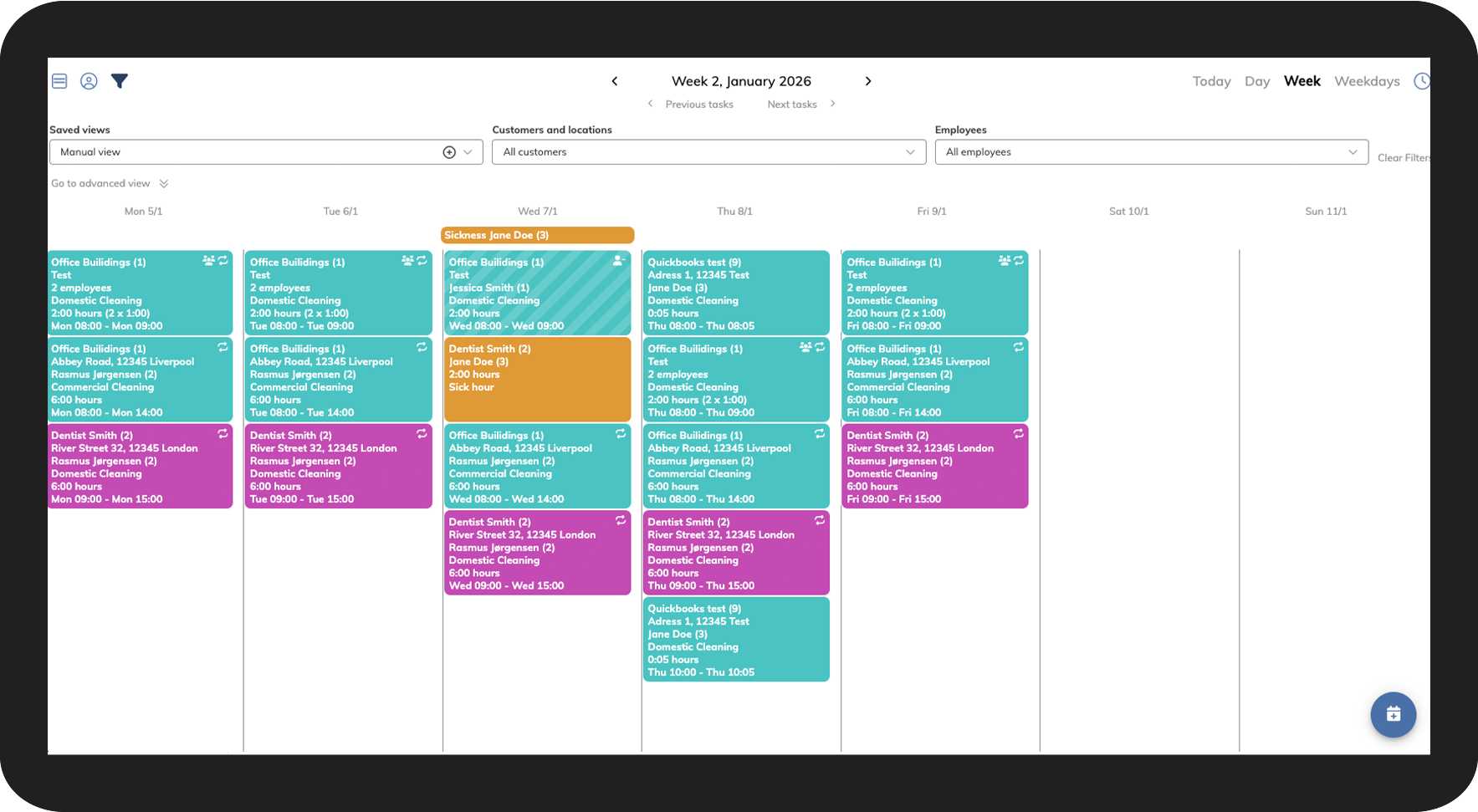
In CleanManager, you have the option as an administrator or supervisor to work with both the base calendar and the calendar.
This means that you can still schedule tasks in the calendar you feel most comfortable with – whether you prefer the simple overview of the base calendar or the more detailed filtering options of the calendar. You can continue to choose the view that best suits your needs and preferences.
In this article, we will show you how to switch between the base calendar and the calendar, so you can quickly find the view that makes your scheduling as clear and efficient as possible.
In this article, you will learn how to switch between the two calendar views:
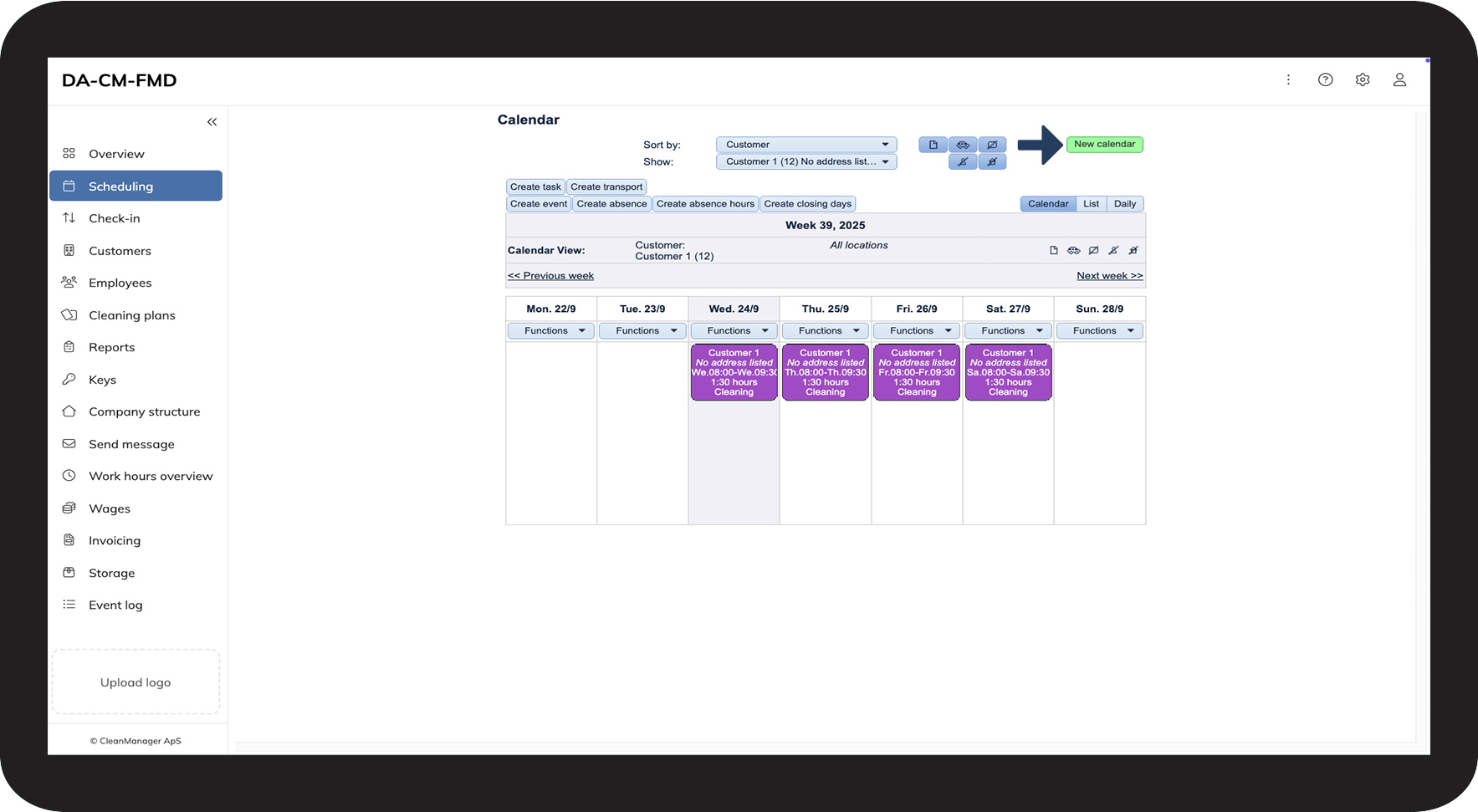
- How do I switch the calendar view to the “base calendar”?
- How do I switch the calendar view from the “base calendar” to the “calendar”?
- How do I open the calendar in a new tab?
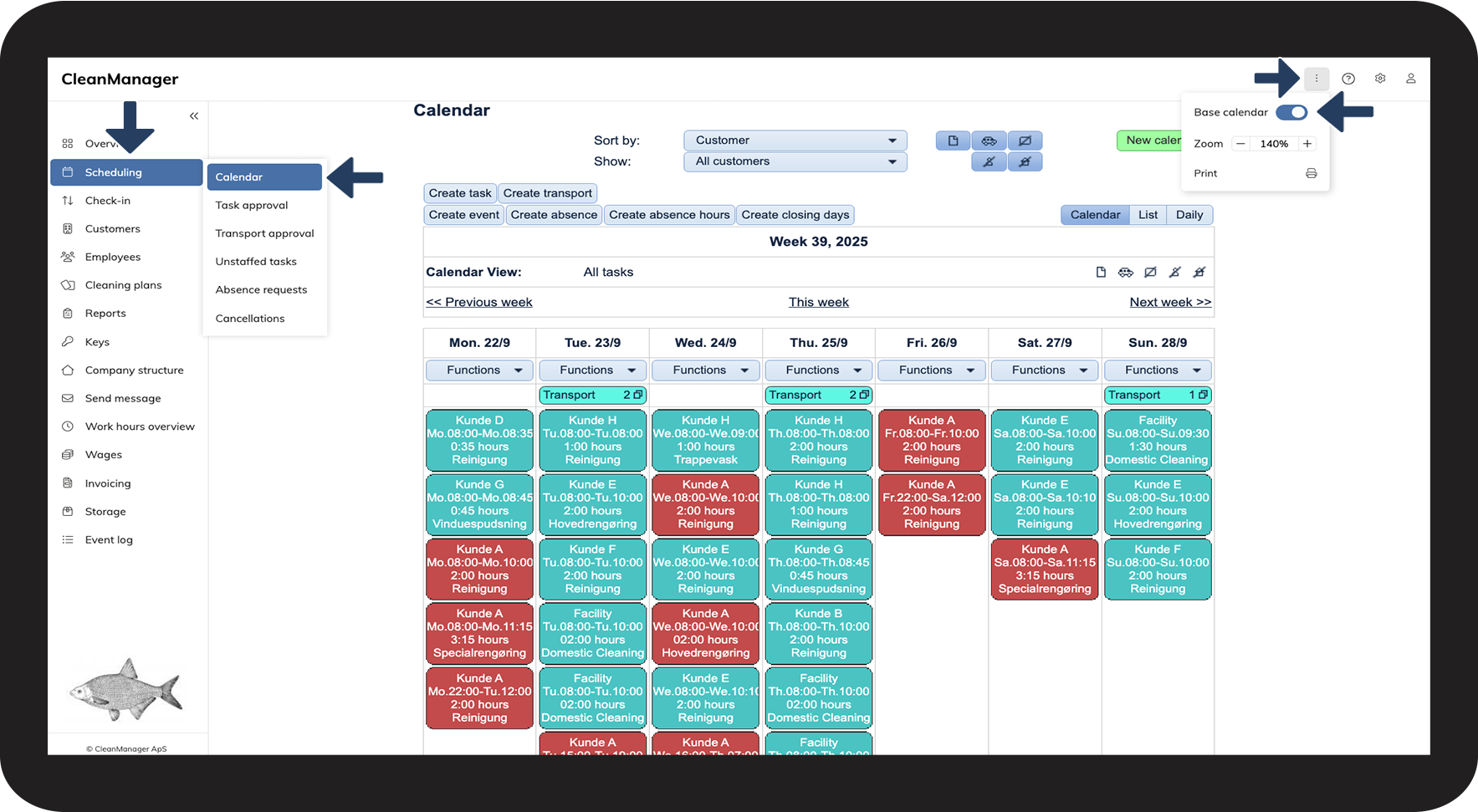
How to enable the base calendar

 in the top-right corner
NOTE:
The print and zoom functions are only available in the base calendar view.
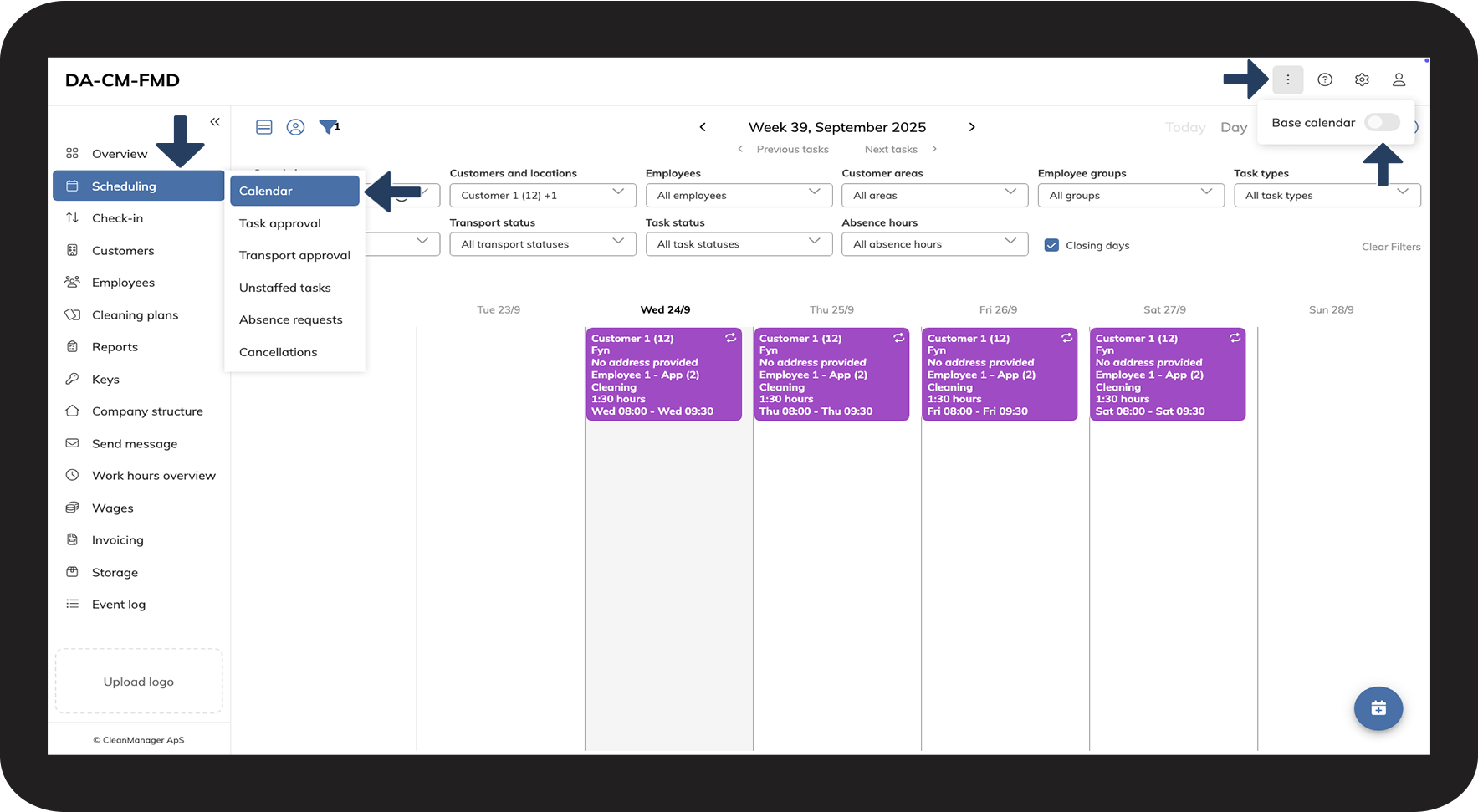

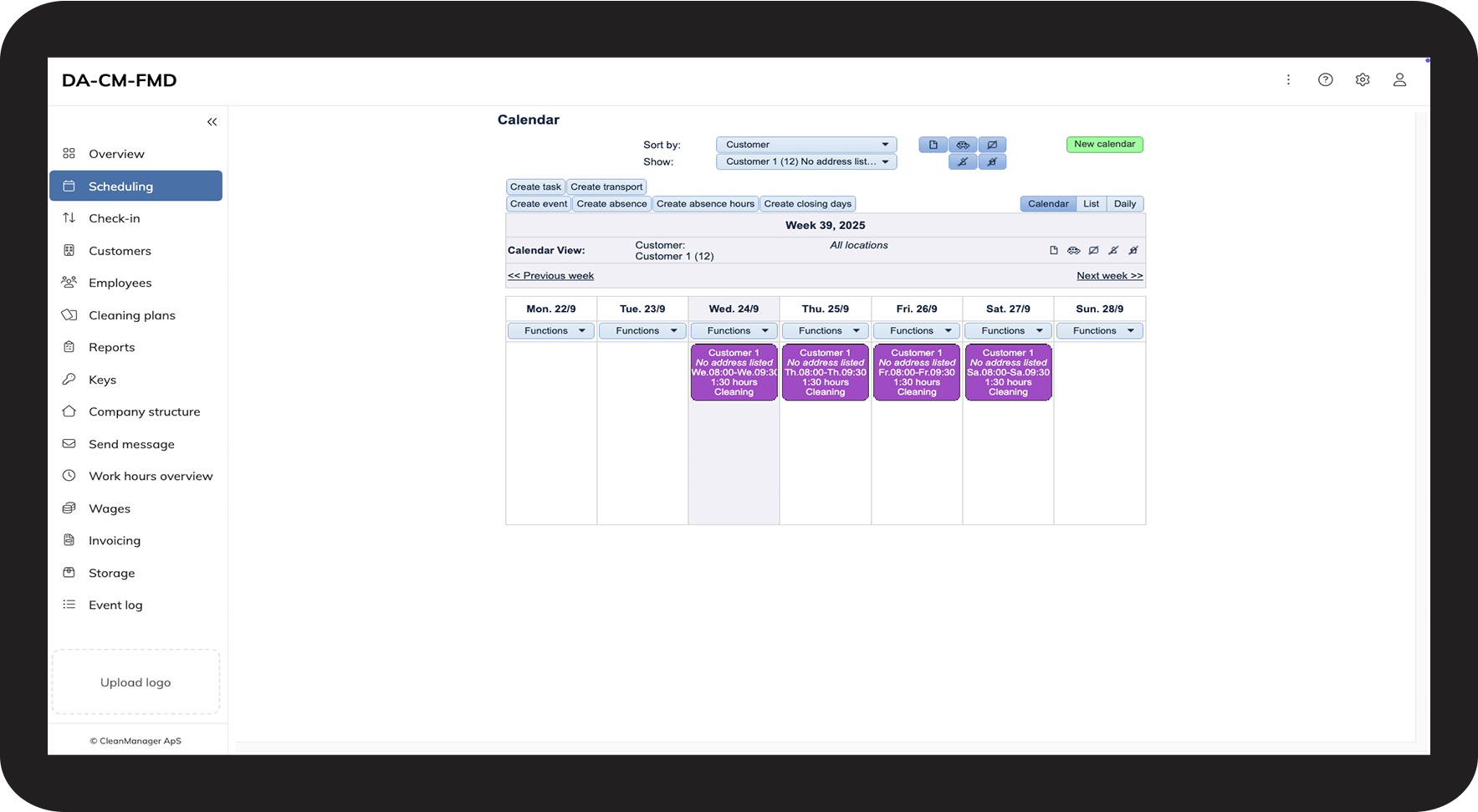
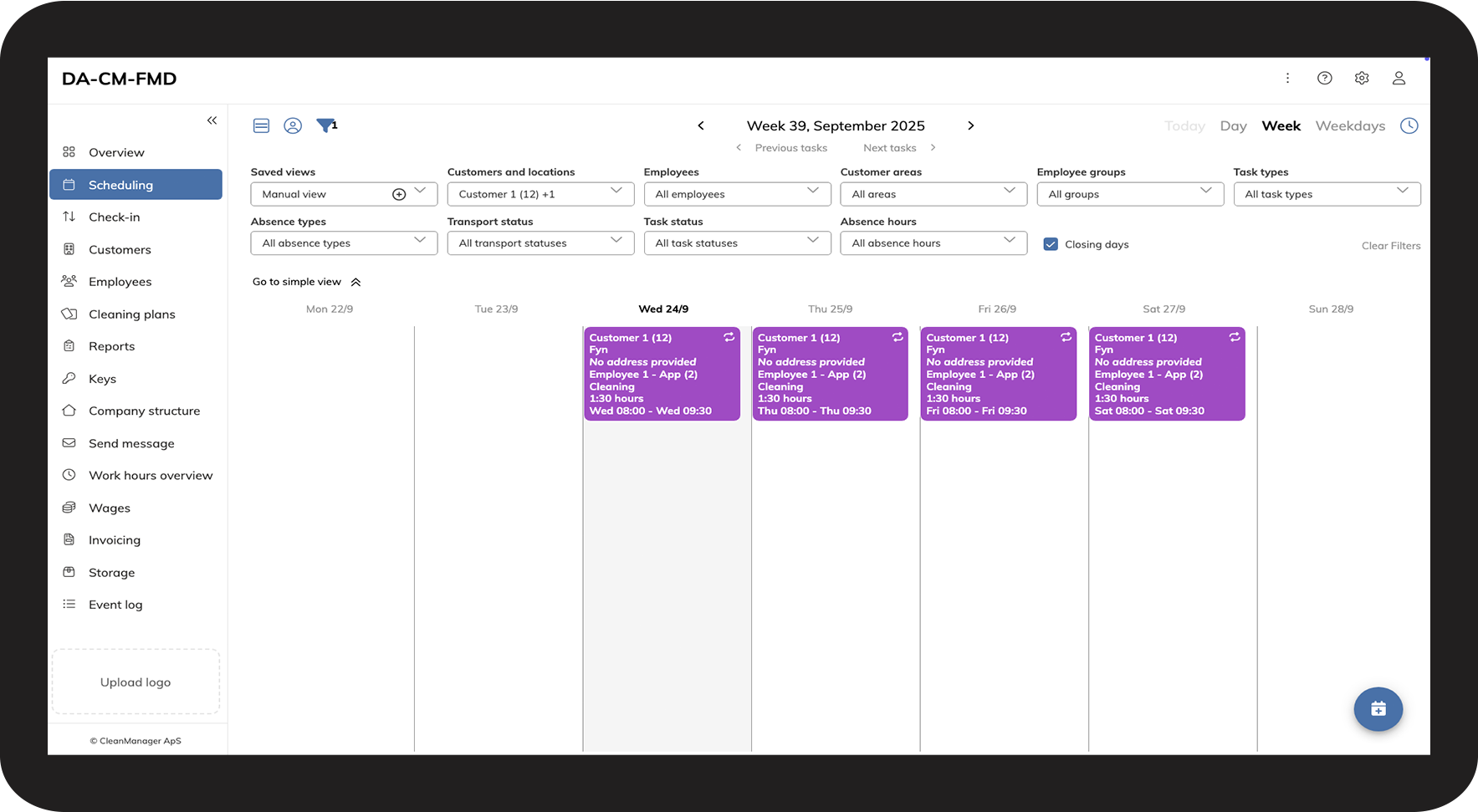
How to disable the base calendar
NOTE:
The print and zoom functions are only available in the base calendar view.
How to open the calendar in a new tab
NOTE:
The print and zoom functions are only available in the base calendar view.