How do I generate documents for my quote in CleanCalculator?
Once step 3 is completed, it is time to generate your documents, for example, sales letters, contracts, as well as other documents needed for your quote.
Have you not created a quote basis yet?
Follow each step of the process in the user guides below:

Create quote basis

Room registration

Completion of quote basis
NOTE:
The trial version of CleanCalculator only includes a limited amount of templates. The full list will become accessible when subscribing to the system. You can read more about the templates in the following user guide: Templates
In this article, you will learn how to generate documents for your quote:

Document generation
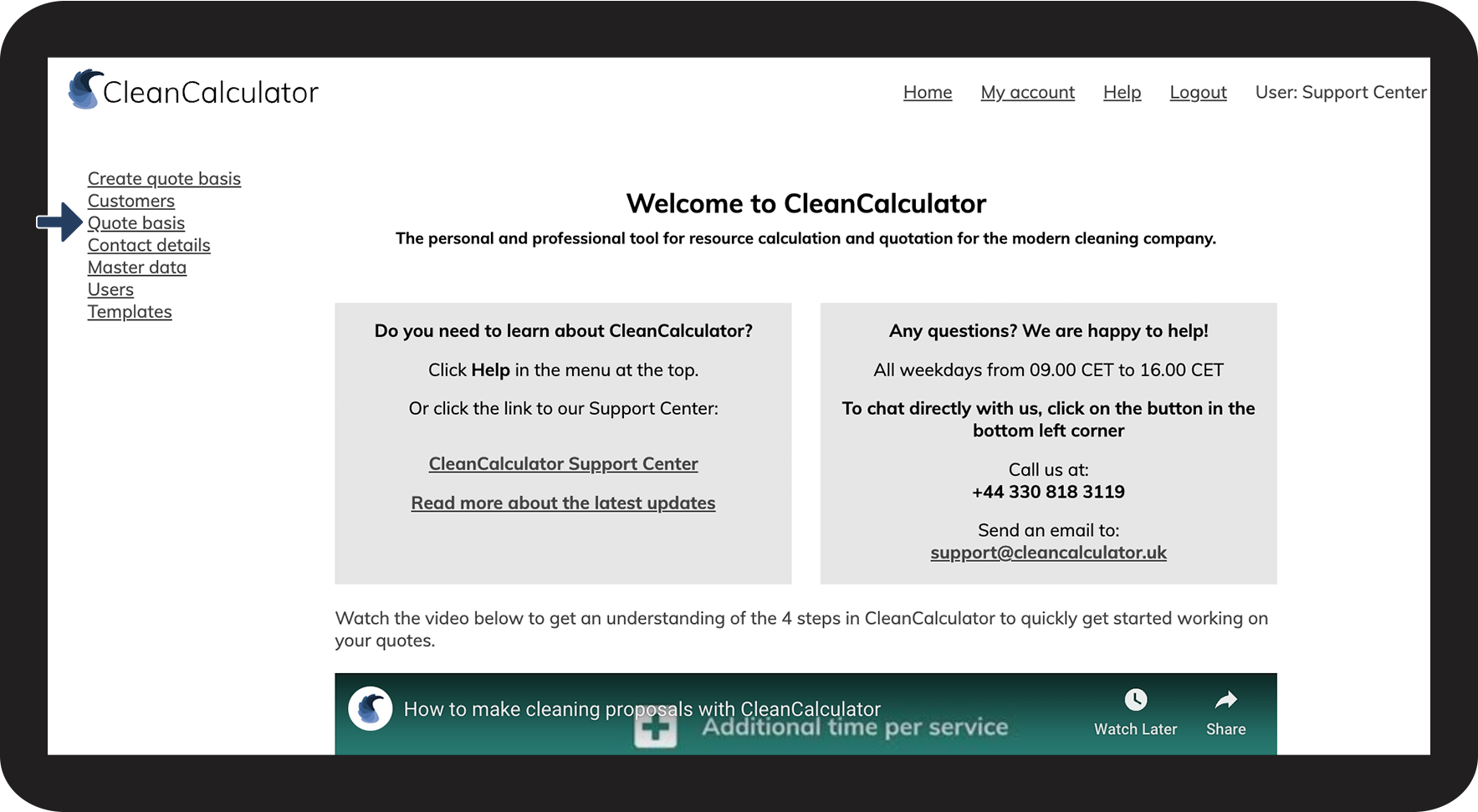
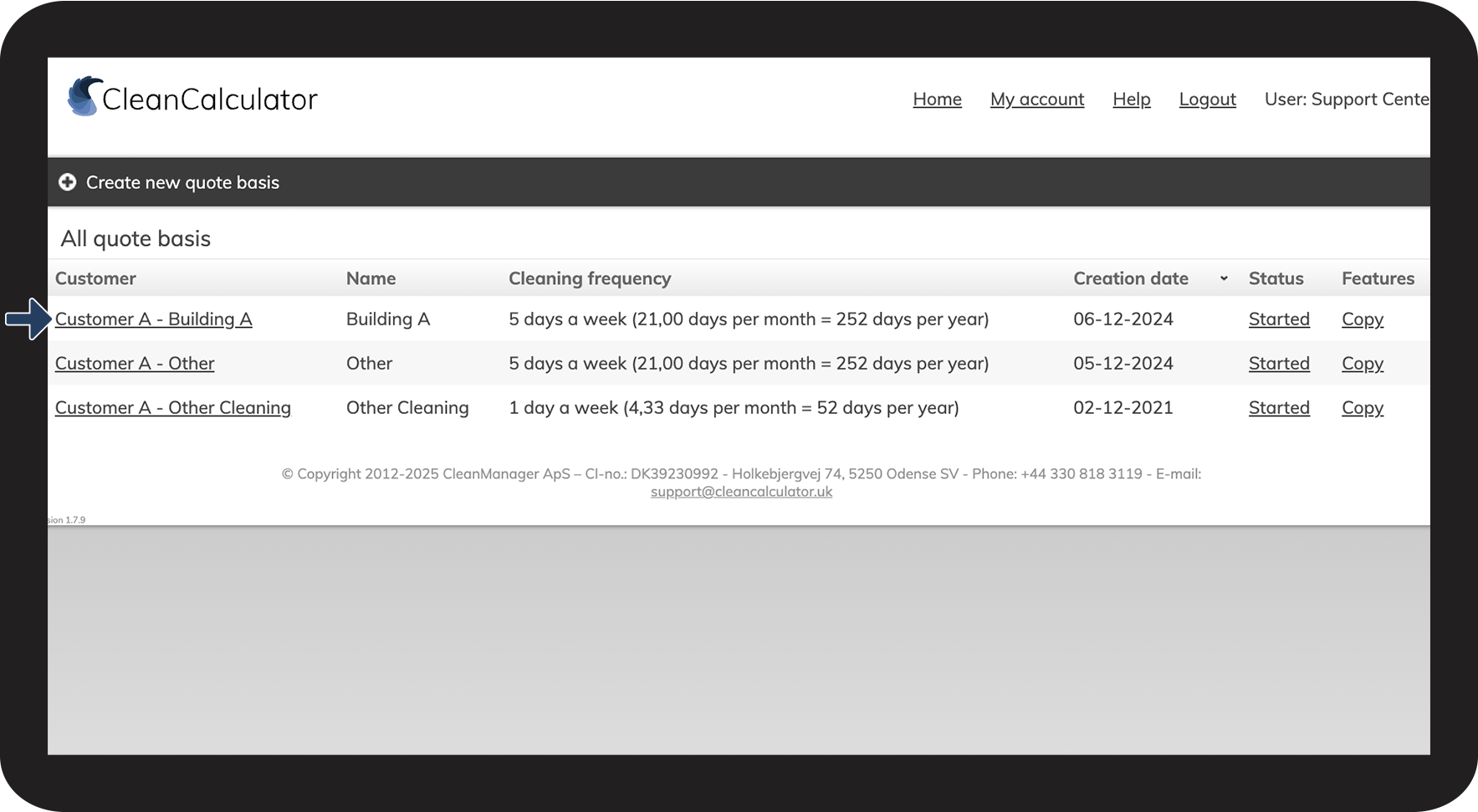
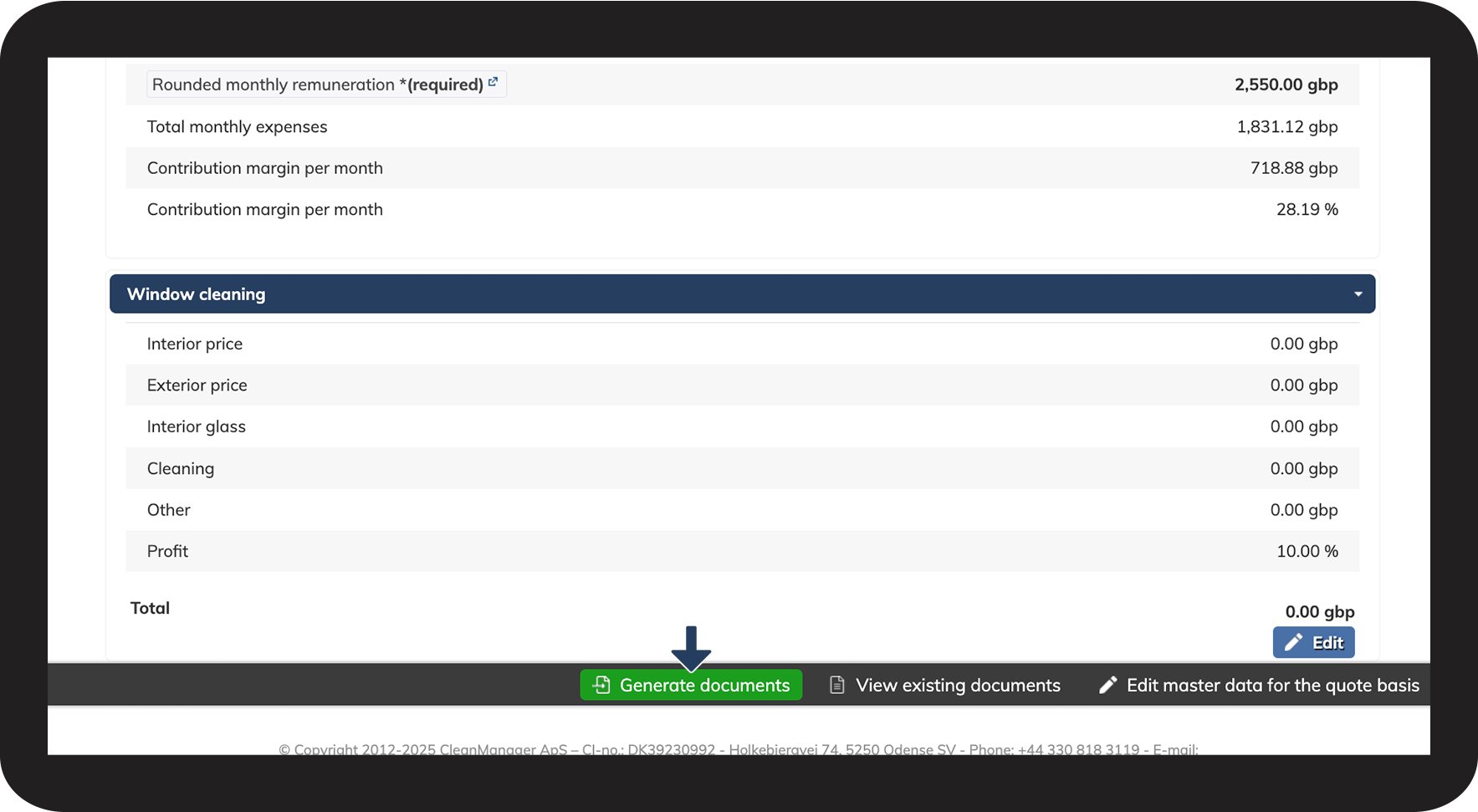
How to generate documents for a quote in CleanCalculator



NOTE:
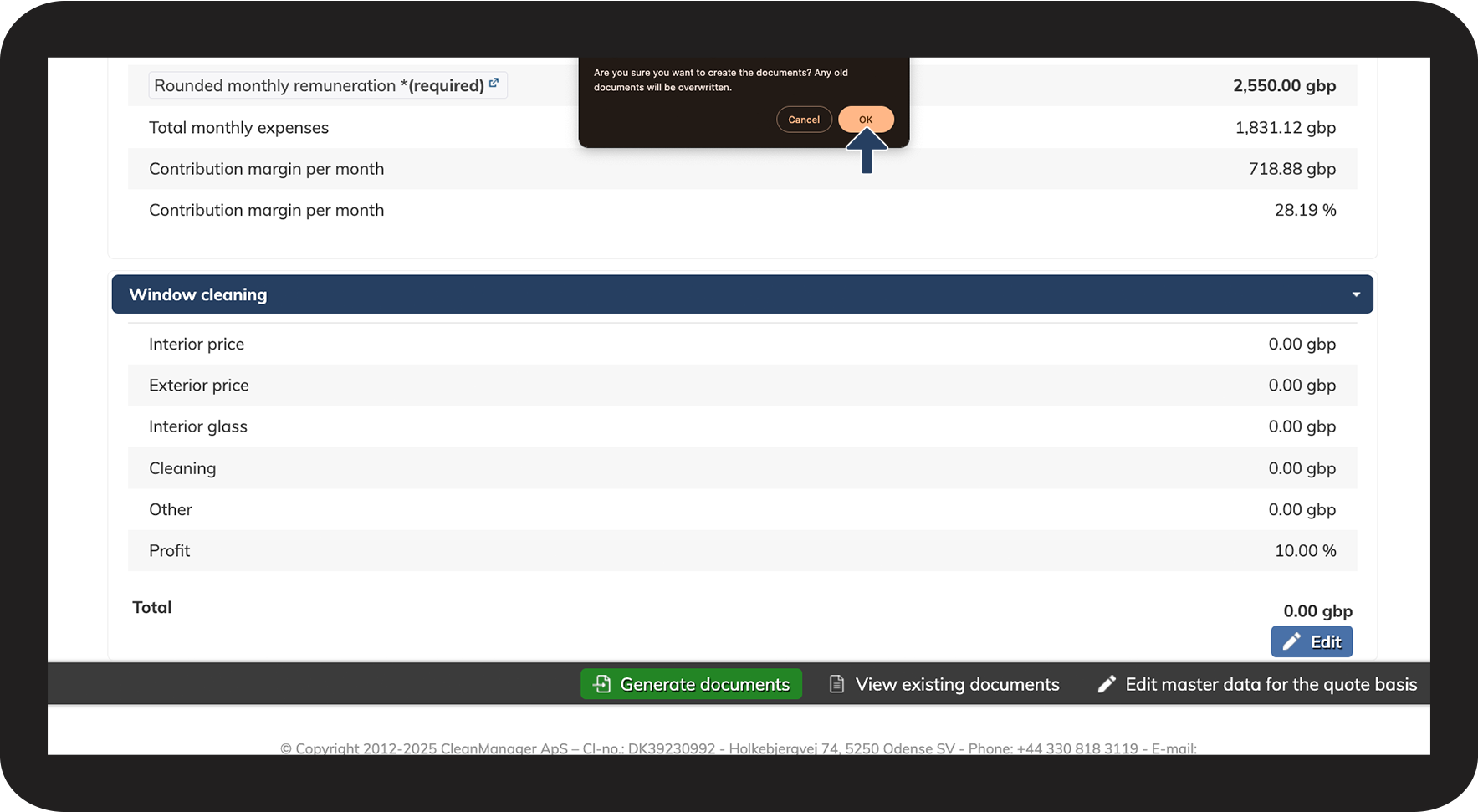
Previously generated documents will be overwritten when generating new documents.
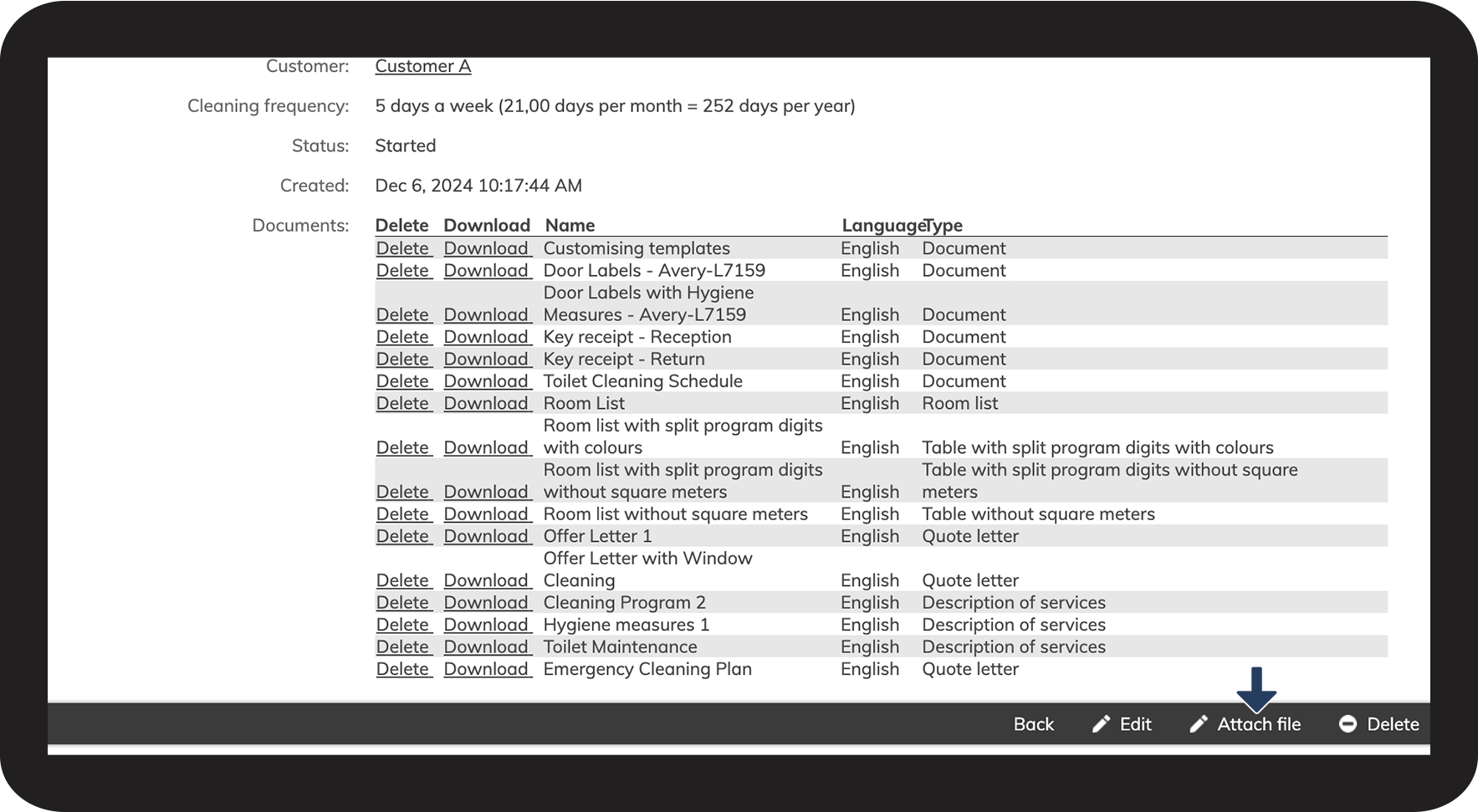
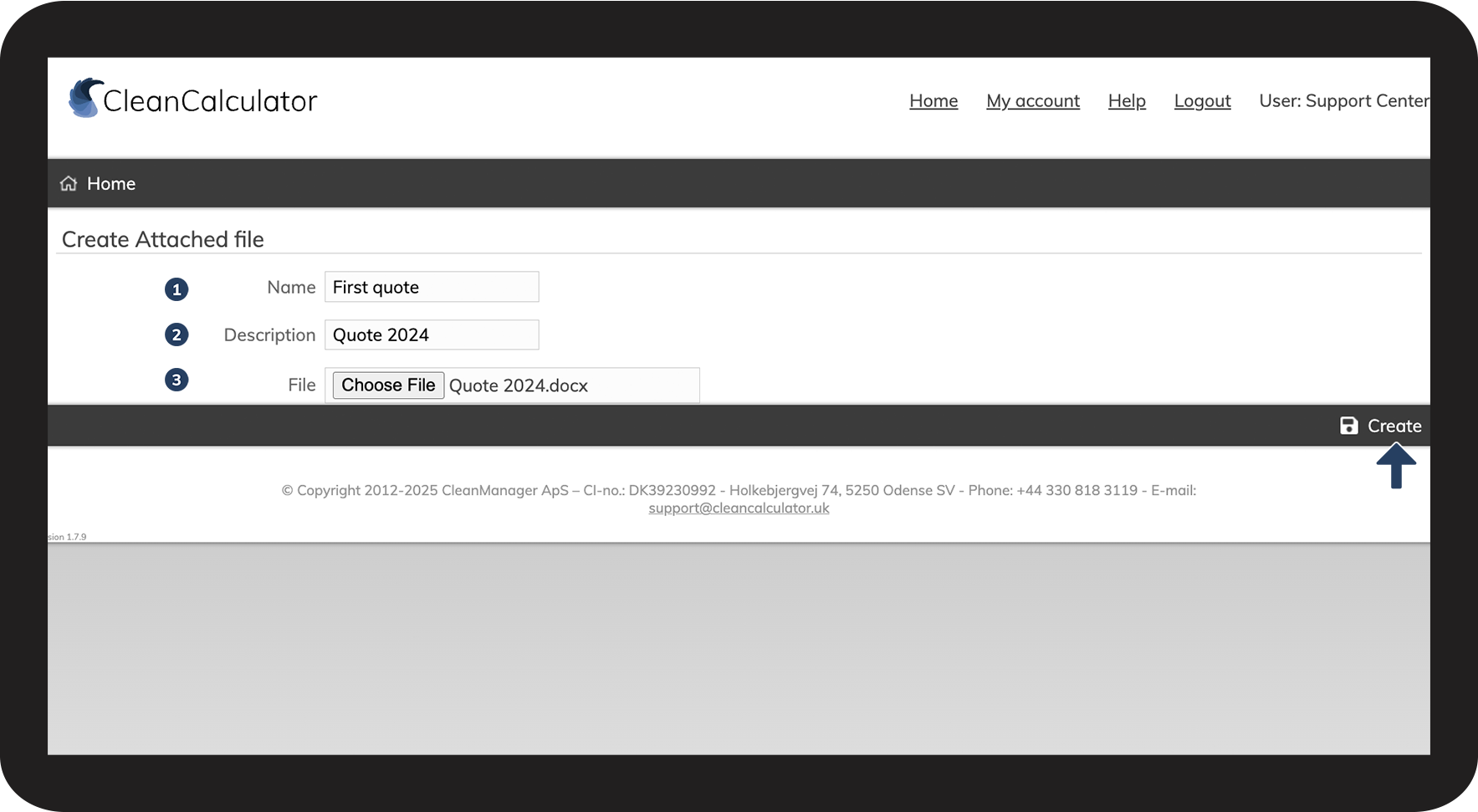
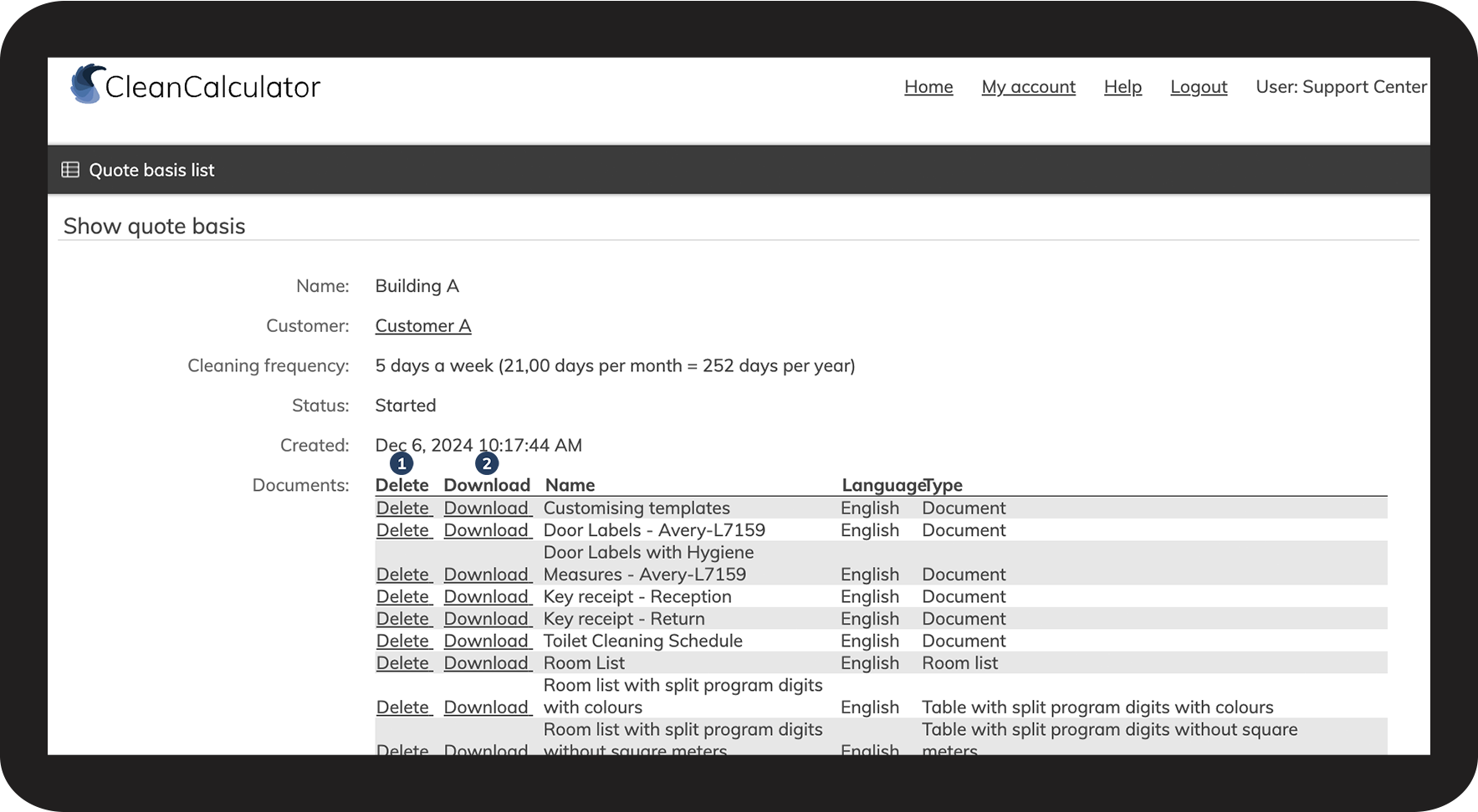
You can download and save the existing documents before generating new ones. If you still wish to keep some old documents attached to the quote, see more in the section: How to attach files.
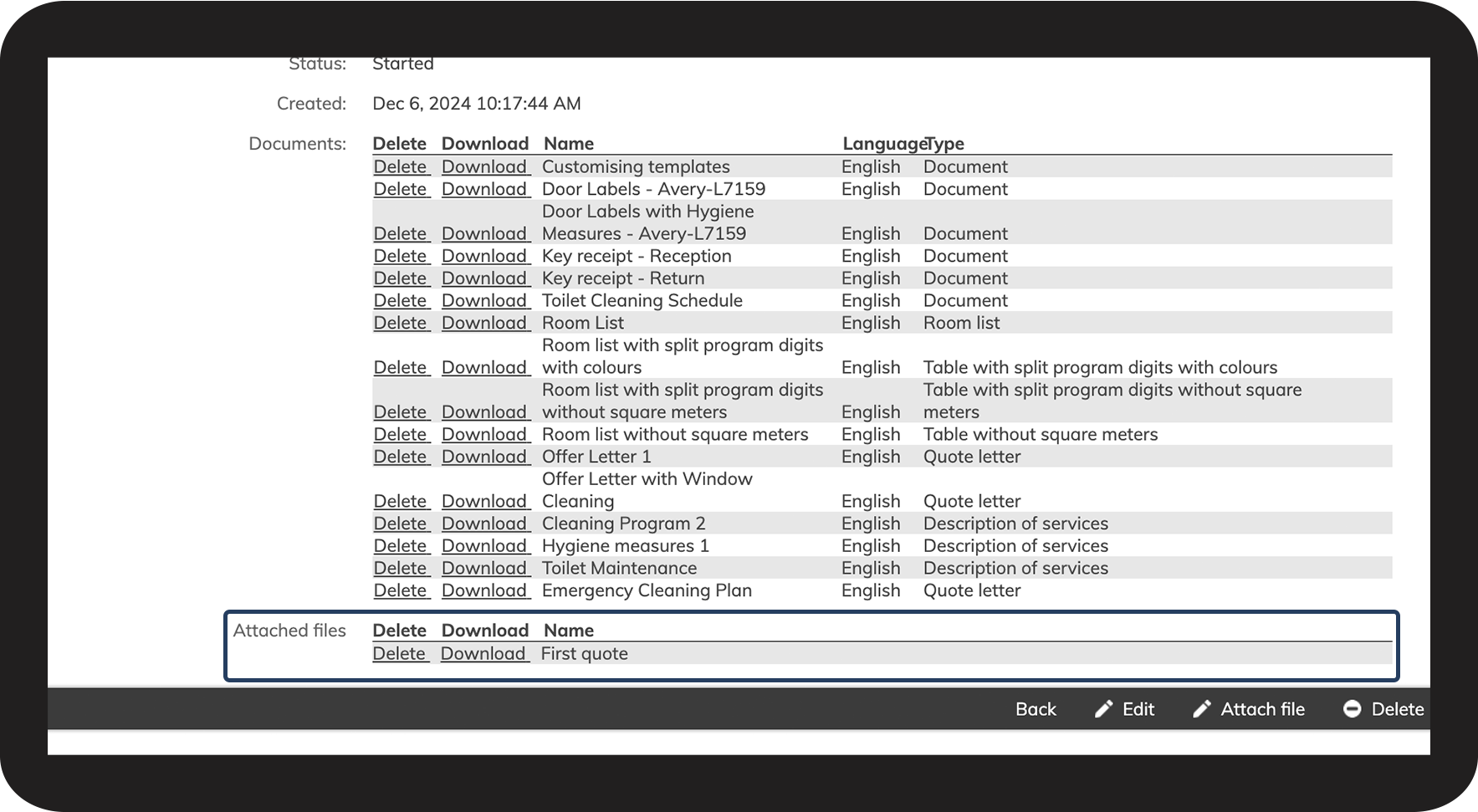
Attached files will remain even when generating new documents.


INFO:
Downloaded files are compatible with word processing programs such as Microsoft Word and WPS. CleanCalculator's layout is not supported in OpenOffice.
Once downloaded, you can also manually adjust the documents if necessary.
How to attach files
Download the files from the overview of generated documents.
Then attach them, or other documents (e.g. plan drawings that you used for your room registration).