Skip to content
English
  • There are no suggestions because the search field is empty.

Step 3 - Completion of quote basis

How do I complete my quote basis in CleanCalculator?

When you have created a quote basis and registered the rooms as explained in Steps 1 and 2, you are finally ready to make the last adjustments to your quote.

If you have not created a quote basis or registered any rooms yet, you can learn more about the process in the following user guides:

 

Step_1.png

Create quote basis

Step_2.png

Room registration


When you continue from the room registration, you will reach an overview of your quote basis.
Here, you have the option to add additional information regarding, for example, extra tasks, window cleaning, extra time (such as transport), supplements, or extra expenses (such as equipment rental).

You can also view and adjust the monthly remuneration and contribution margin.


In this article, you will learn how to make additional adjustments to your quote:


NOTE:

Whoops! Have you noticed a mistake in your room registration?

No need to panic — you can edit, add, or delete rooms from your room registration at any time.

Read more here: Edit quote basis



Step_3.png

Completion of quote basis


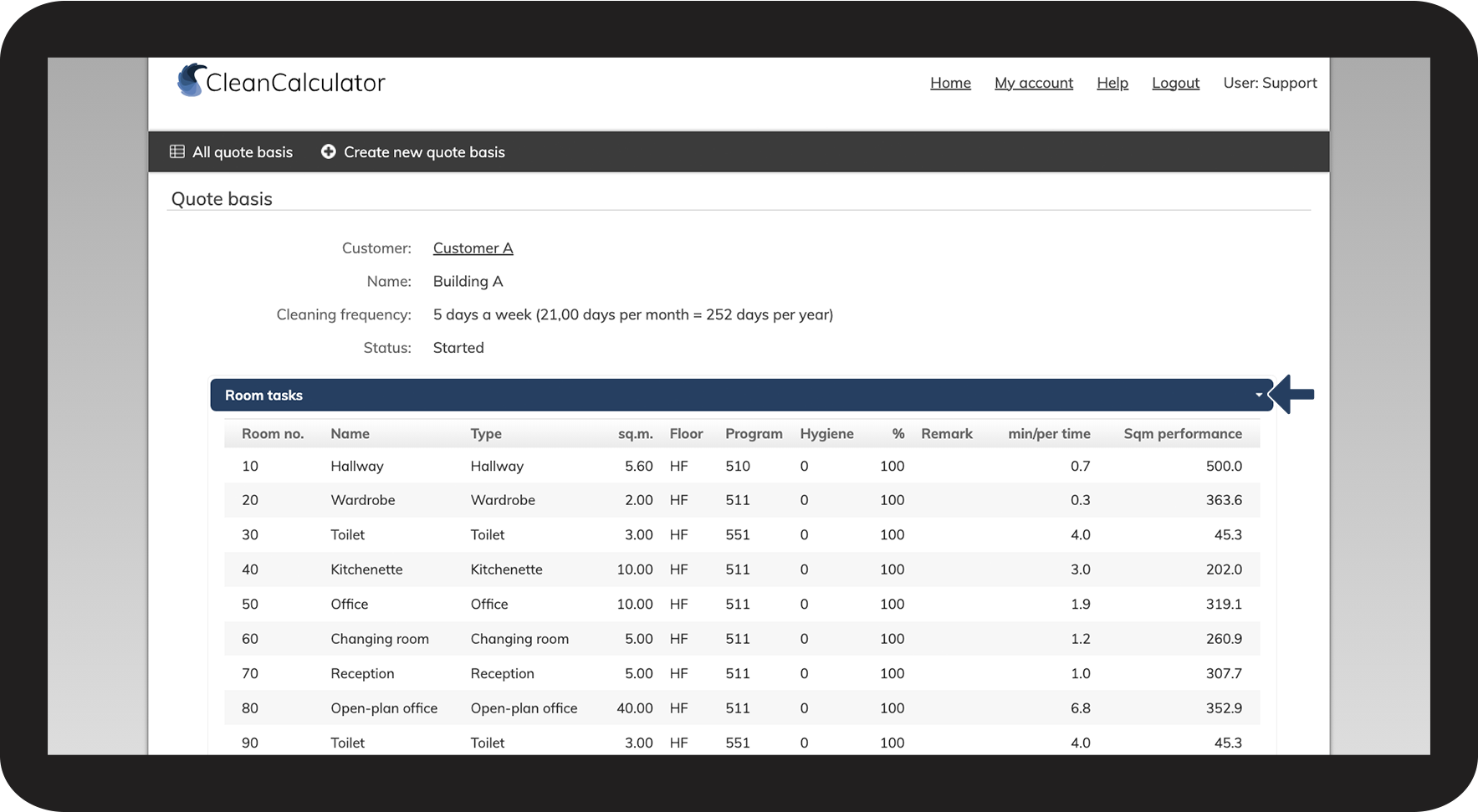
Room tasks

In this section, you will get an overview of all the registered rooms.

number_1.png

Click on the drop-down icon on the right-hand side to open or close the list of registered rooms

1NY.png
number_2.png

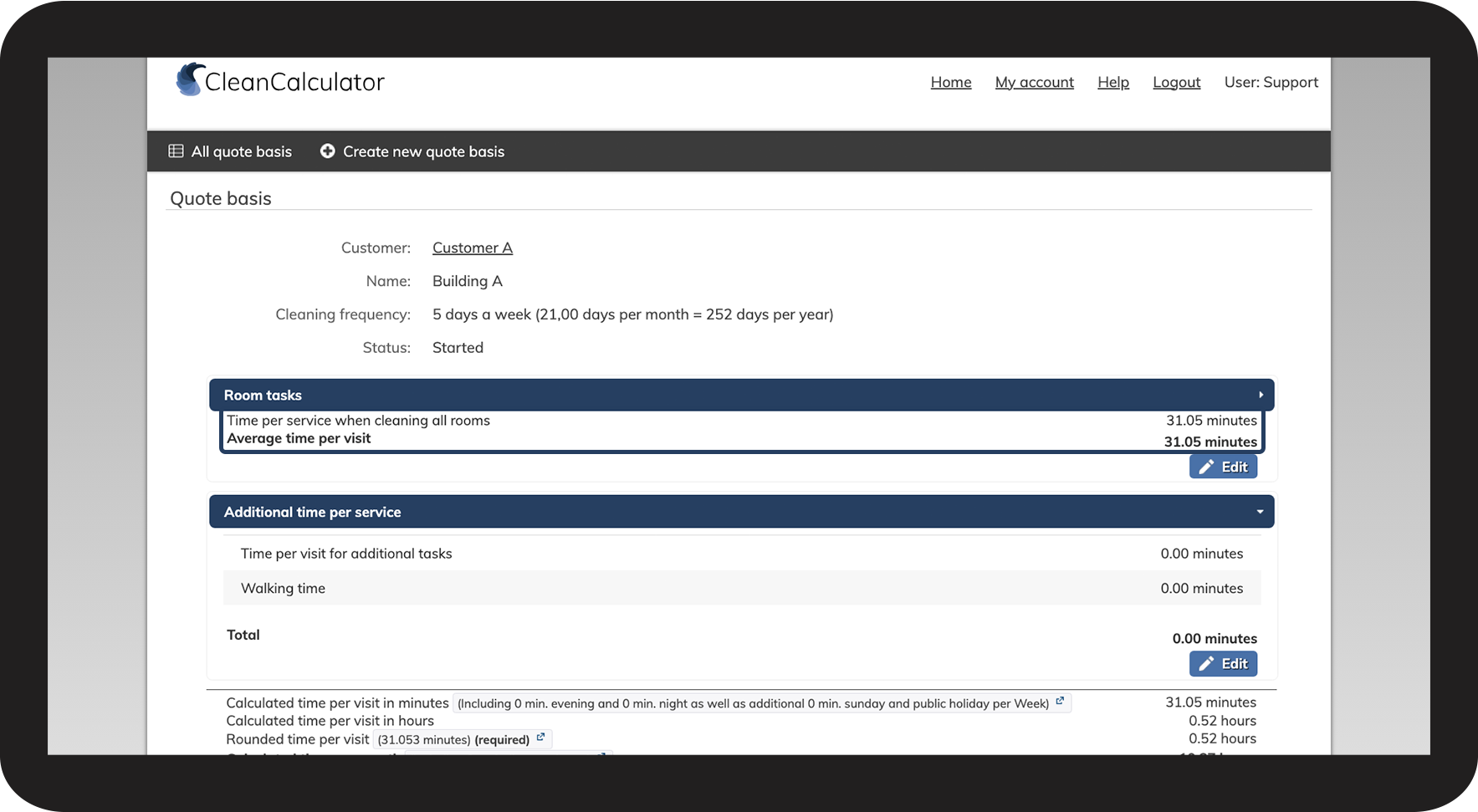
At the bottom of the list of Room tasks, you can view a summary of the expected average time per visit for cleaning all the rooms

2NY.png


Additional time per service


How to add additional tasks and walking time
number_1.png

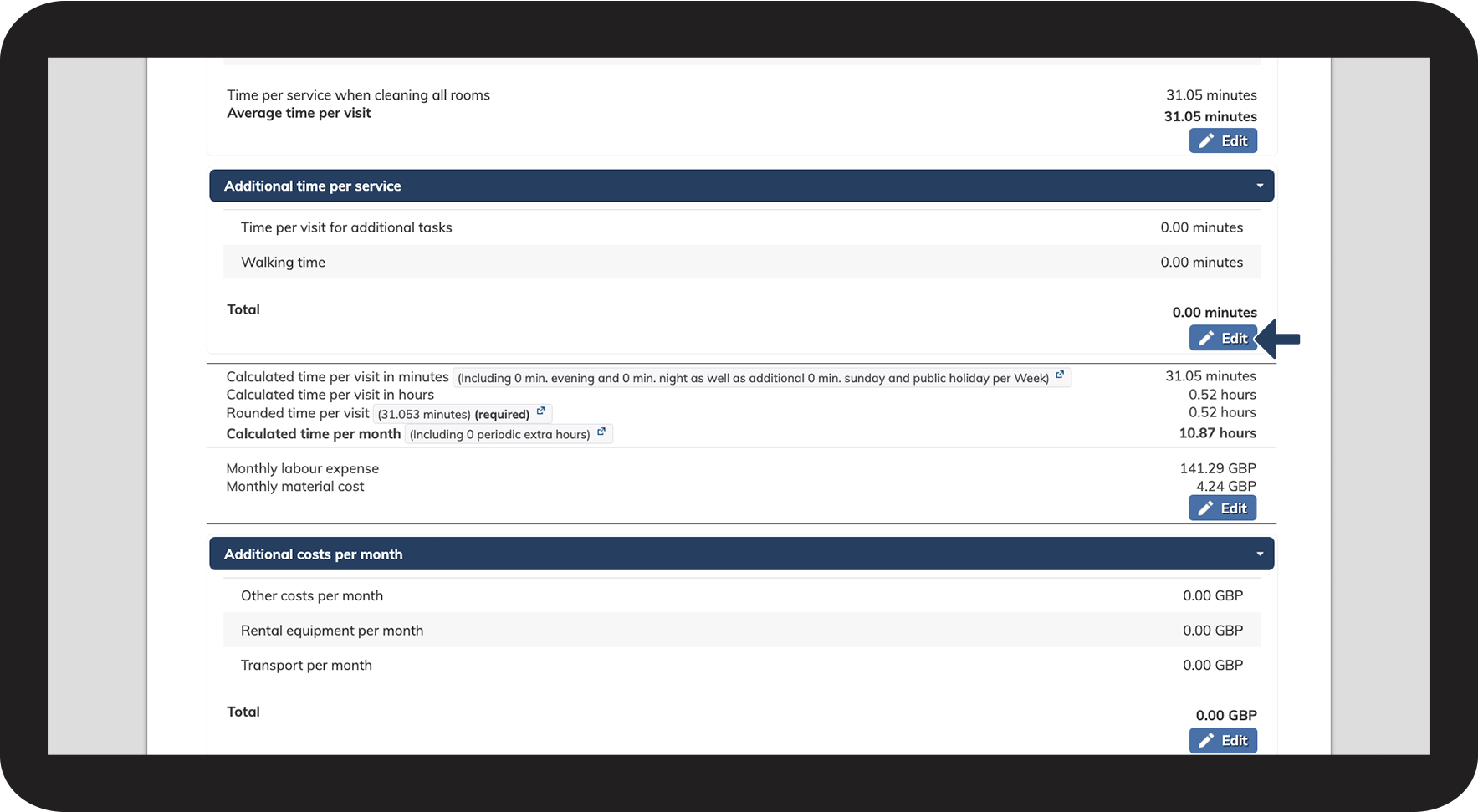
Click the button Edit to assign extra work tasks or walking time

3 Additional tasks.png
number_2.png

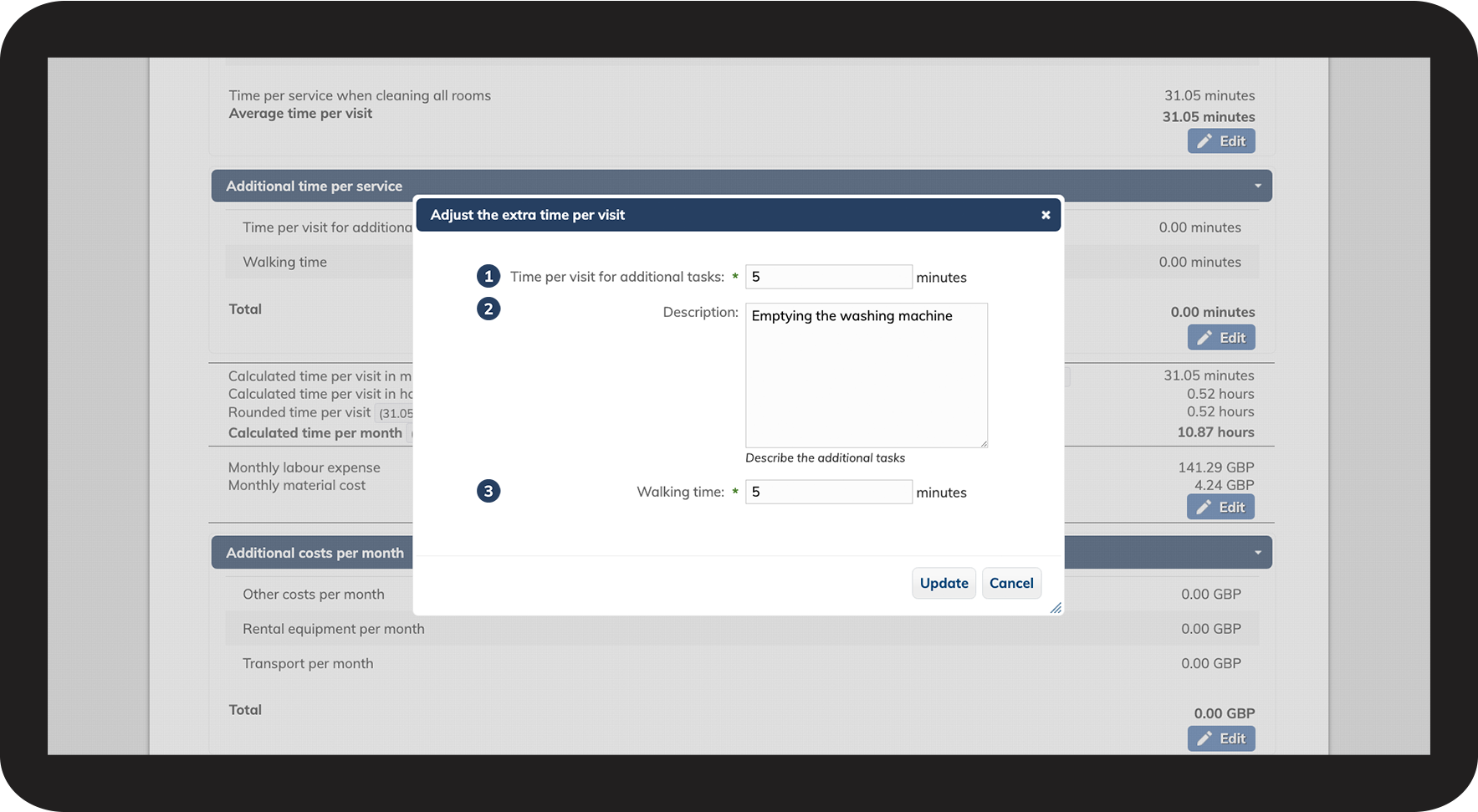
Adjust the extra time per visit

 
  1. Edit Time per visit for additional tasks. Insert the total time in minutes for the extra tasks.
     
  2. Edit Description to document and describe the agreed-upon extra work tasks. They will be included in the generated quote documents.

  3. In the section Walking time, you can add the expected time it will take to move between work tasks, such as walking between buildings or taking rubbish to a container.

4 Additional tasks.png

number_3.png
Click on Update to save the changes


How to adjust supplements

number_1.png

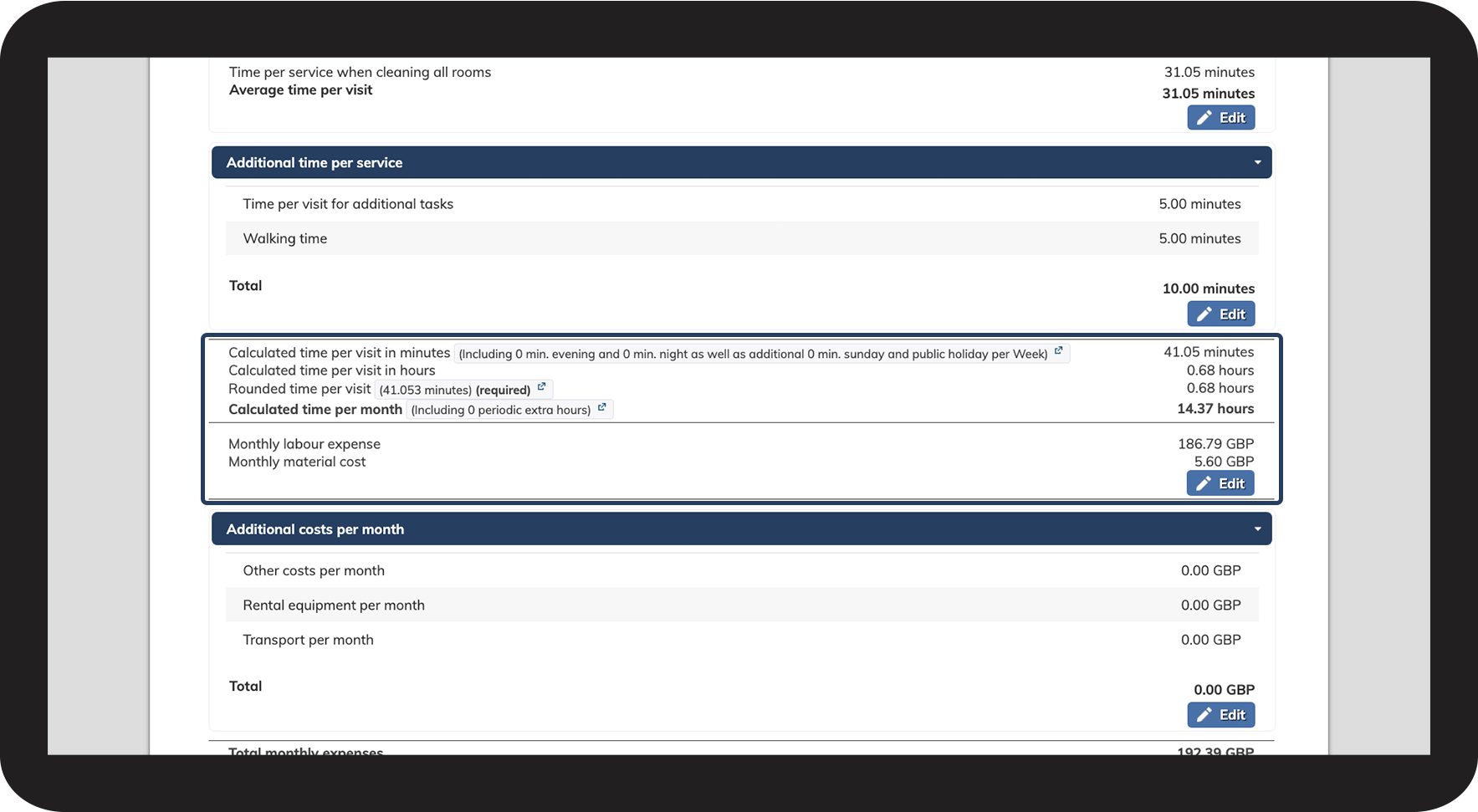
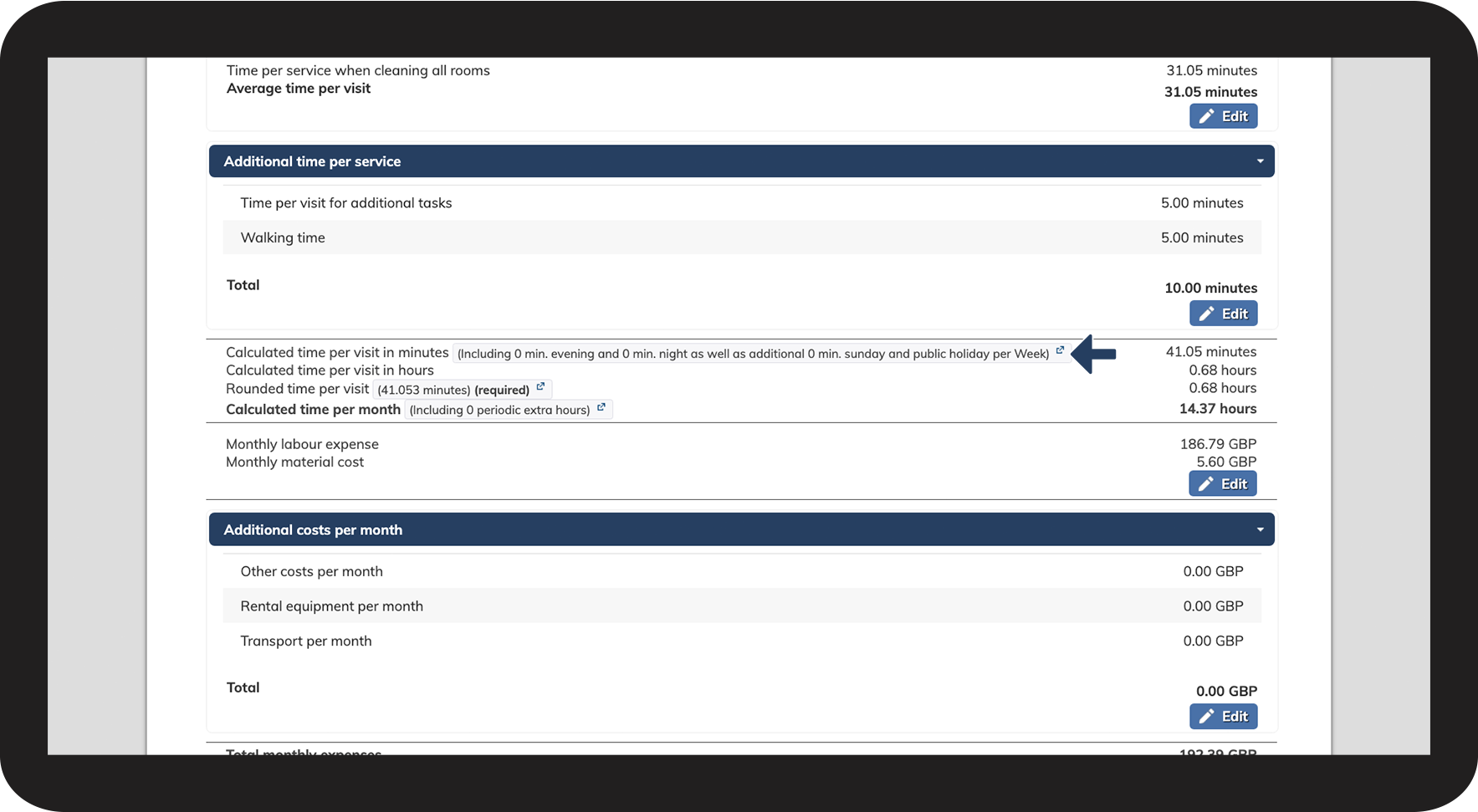
View your collective data concerning the calculated working time, employee expenses and material costs

5 Adjust supplements.png


number_2.png
Click on the calculated time per visit

6 Adjust supplements.png


number_3.png
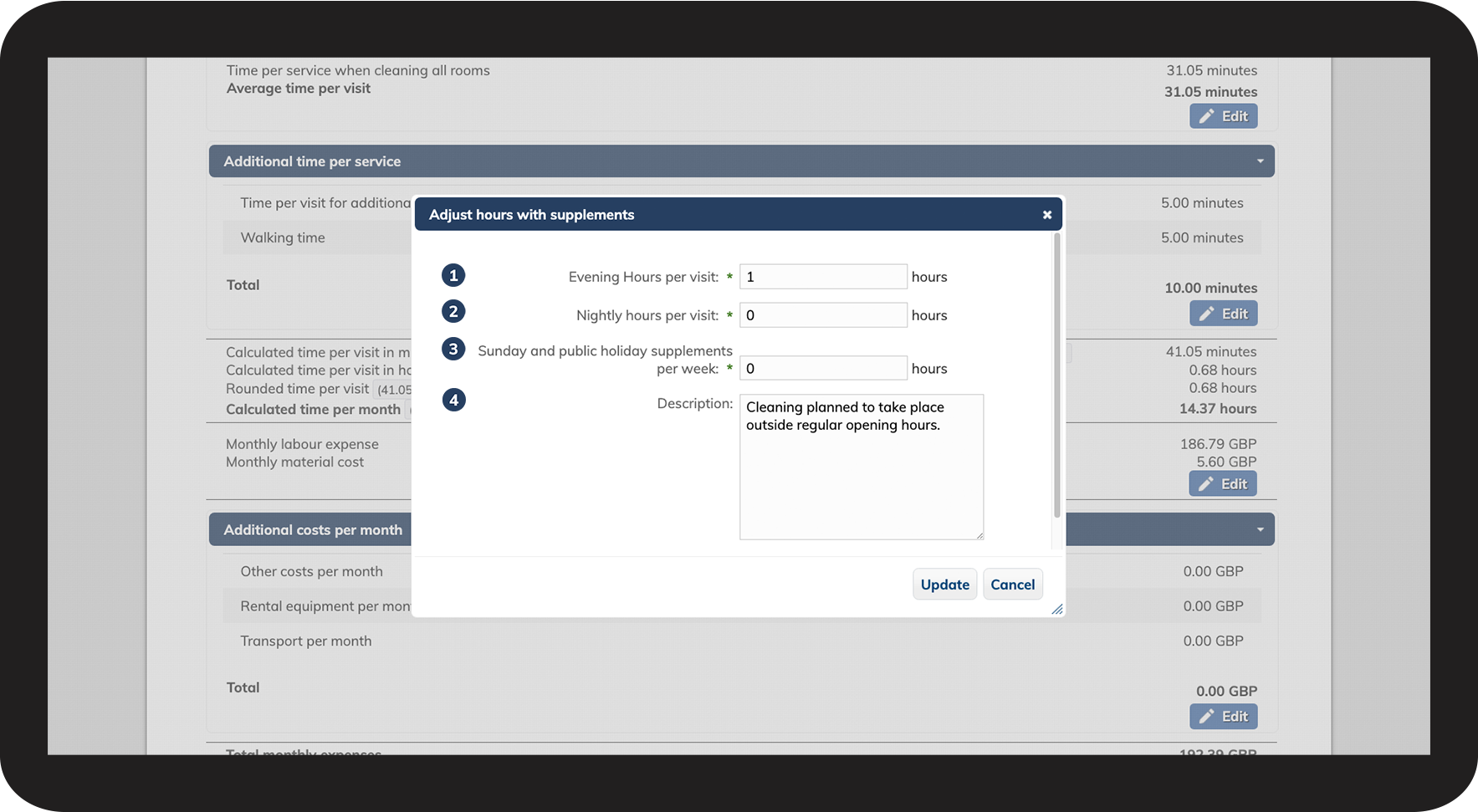
Include agreed-upon work hours that fall outside regular working hours:
 
  1. Evening hours: For example, between 18:00 and 22:00

  2. Nightly hours: For example, between 22:00 and 05:00

  3. Sunday and public holiday supplements: If work is expected on these days

  4. Attach a Description of the included work hours that require supplements

7 Adjust supplements.png

number_4.png
Click on Update to save your changes


How to adjust the Rounded time per visit


NOTE:

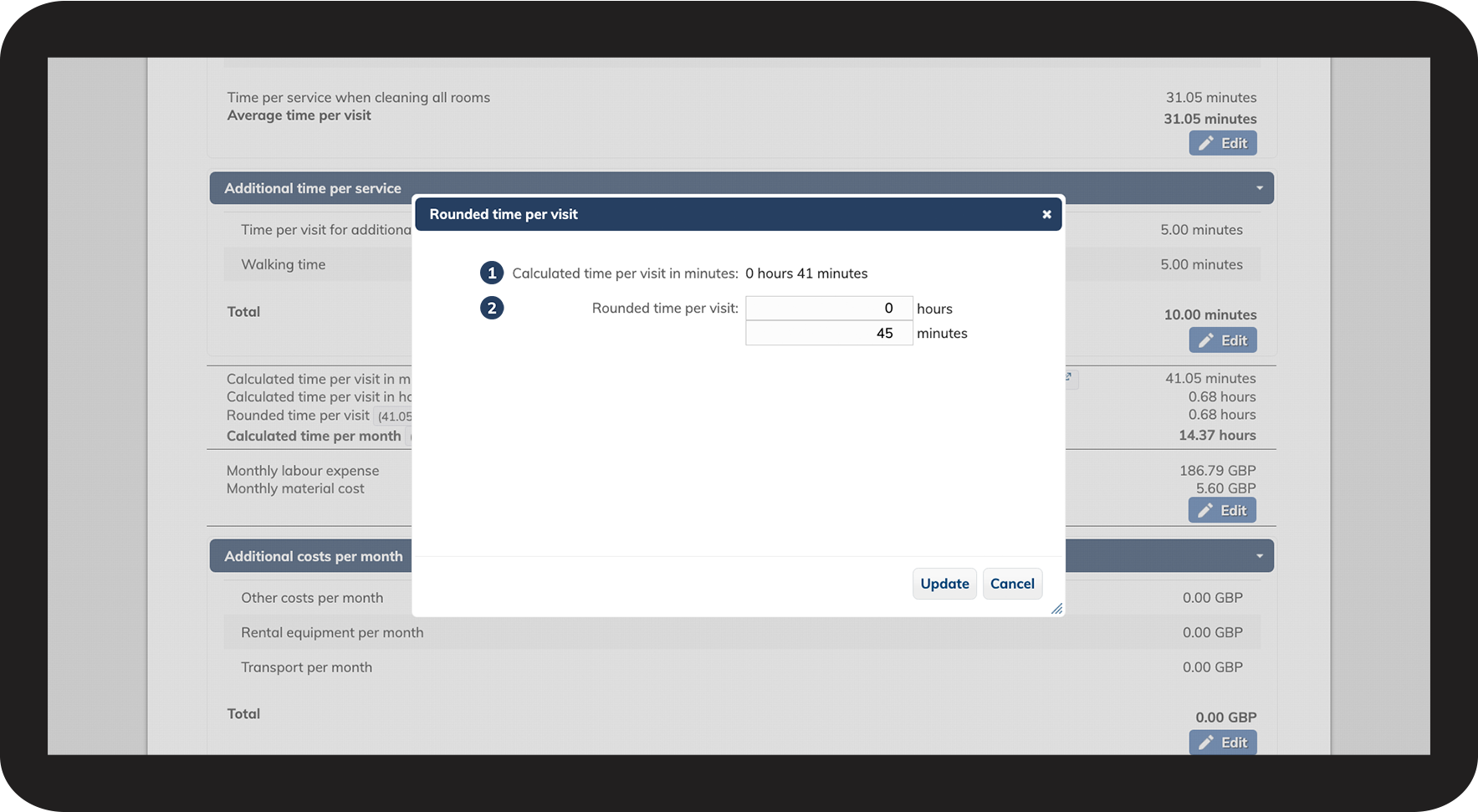
The Rounded time per visit must be adjusted manually.

It is important to allocate sufficient time for employees to complete the work. Therefore, always round up the time manually.
 

number_1.png
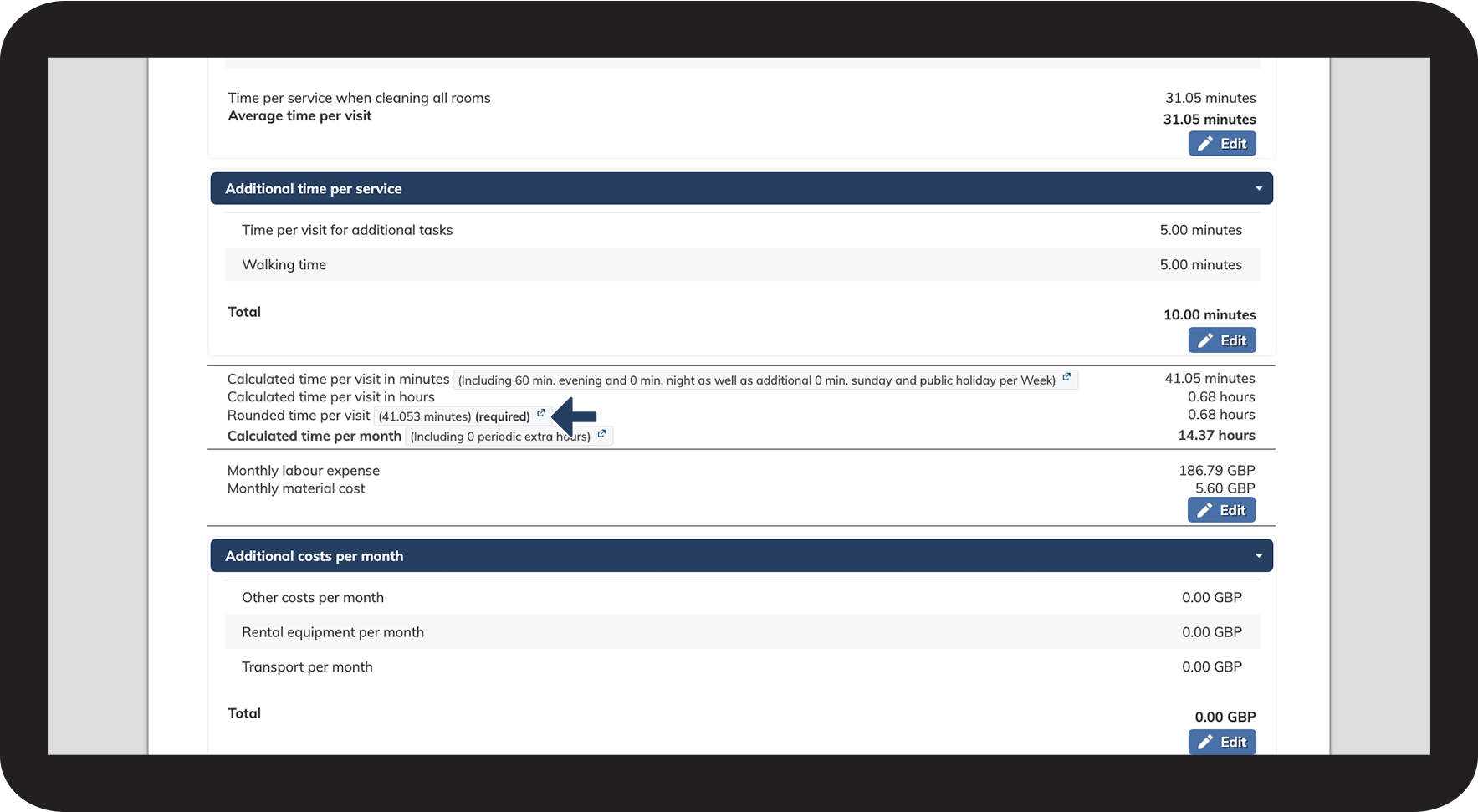
Click on Rounded time per visit
8 Rounded time.png
number_2.png
Round up the time per visit
 
  1. Here you can see the current calculated time per visit

  2. Insert the Rounded time per visit 
9 Rounded supplements.png
number_3.png
Click on Update to save your changes


NOTE:

If you enter data in the rounded time per visit field and later adjust the room registration, the data in this field will not update automatically. You must revisit this section to adjust the rounded time per visit after making changes to the room registration.


How to add periodic extra hours

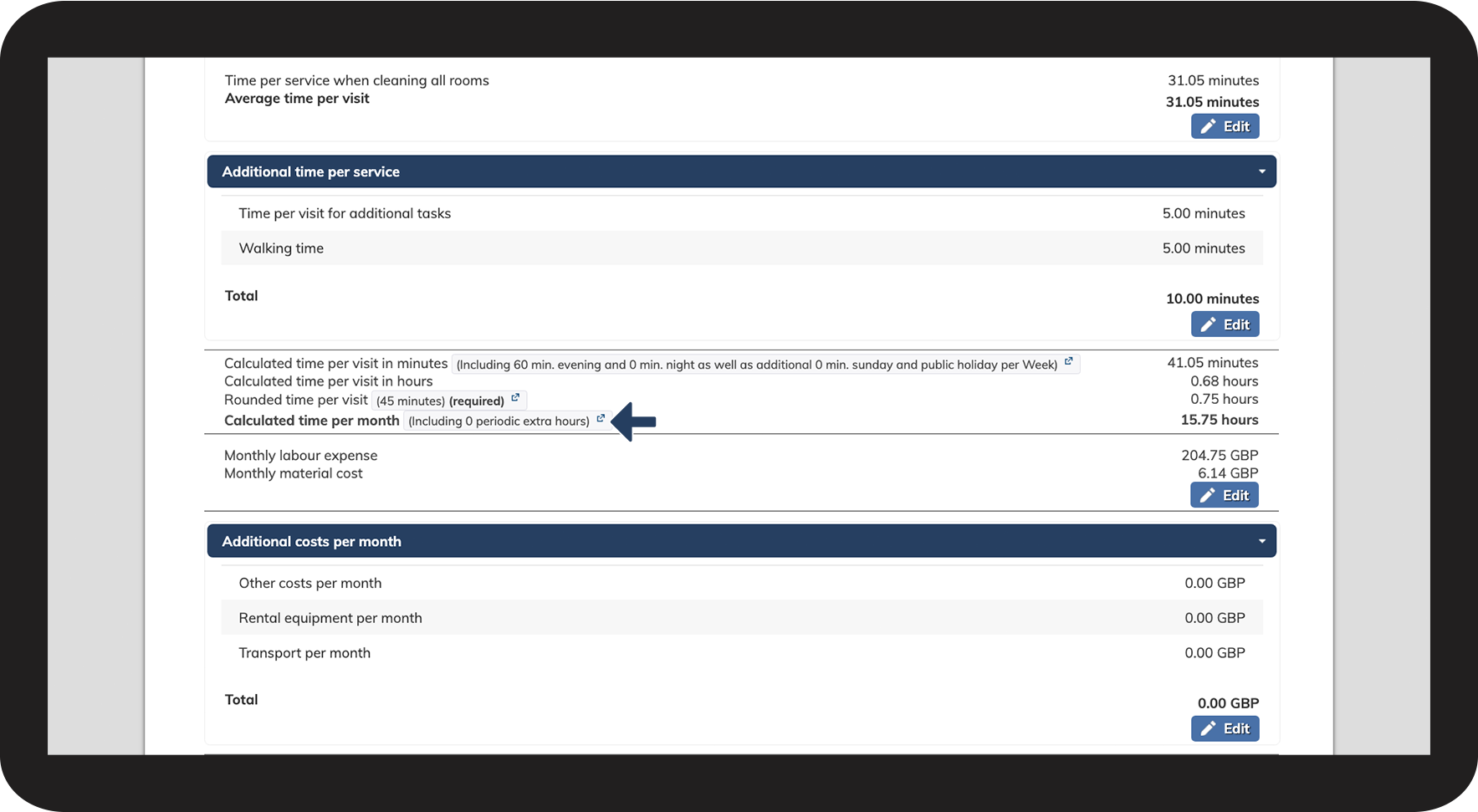
If your quote includes periodic tasks, such as a yearly thorough cleaning, you can add additional periodic extra hours.
number_1.png
Click on Calculated time per month

10 Extra hours.png

number_2.png
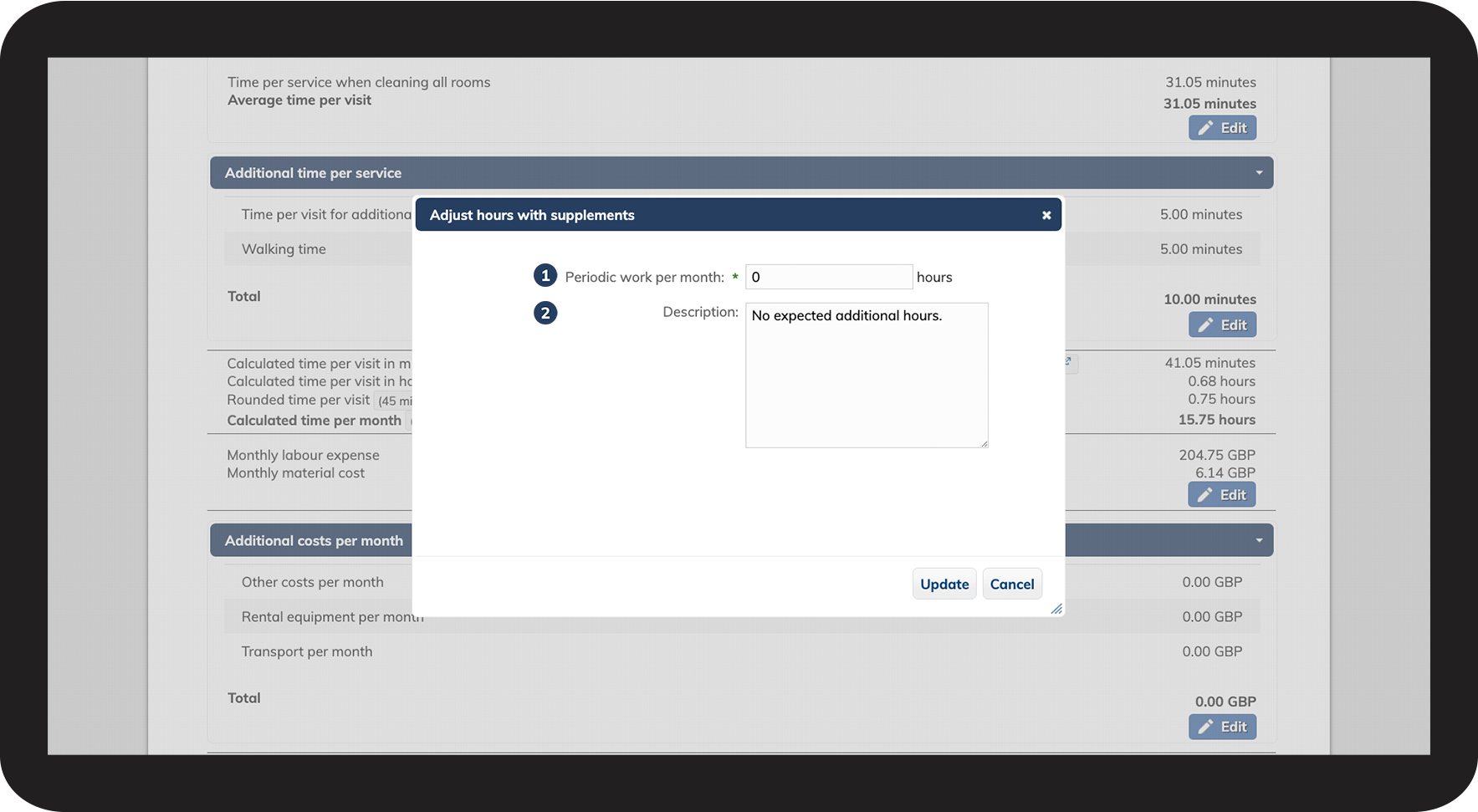
Adjust Periodic work hours per month 
 
  1. Insert Periodic work per month for any expected extra tasks

  2. Attach a Description of the extra work tasks

11 Extra hours.png

number_3.png
Click on Update to save the changes


How to adjust the monthly material costs
number_1.png
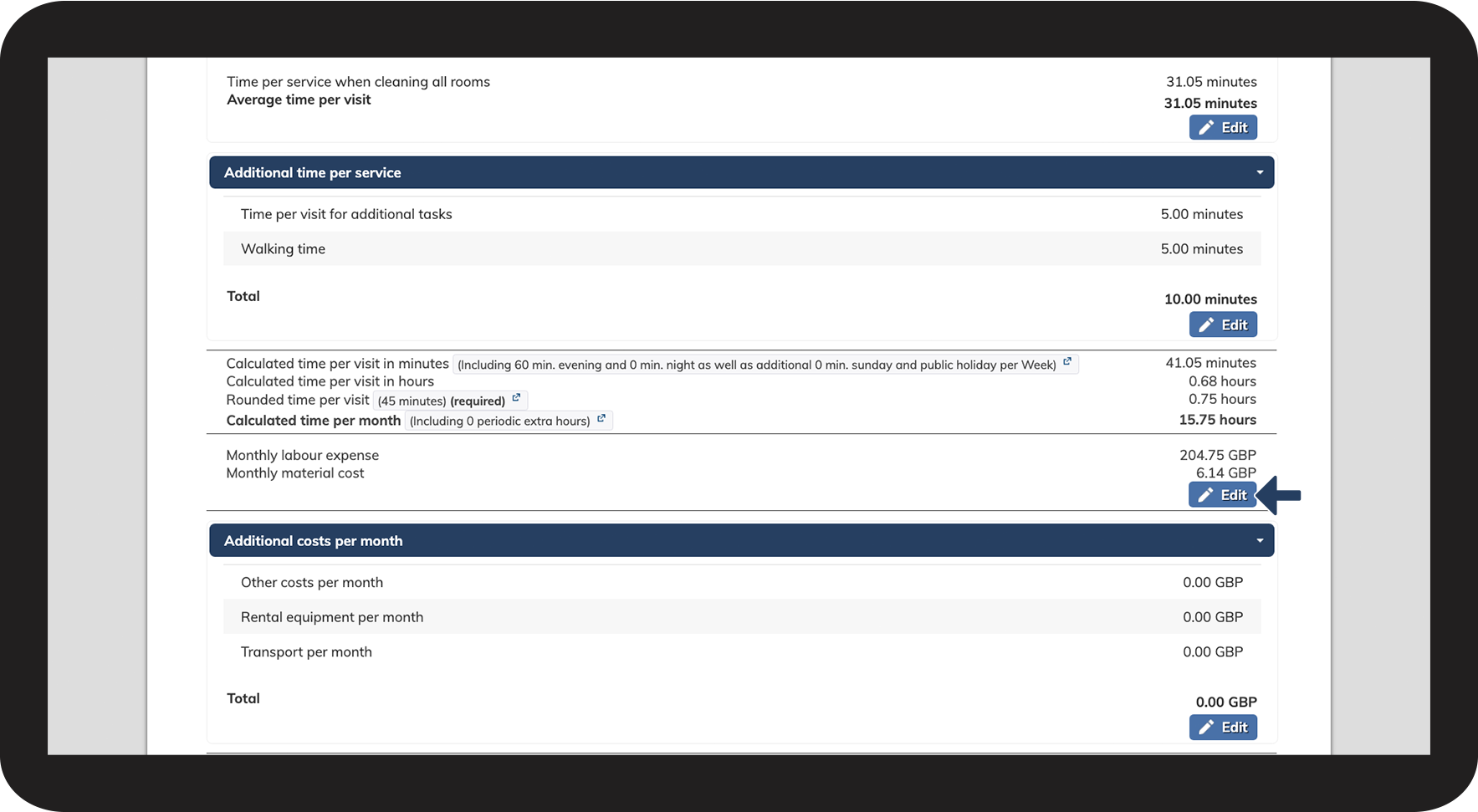
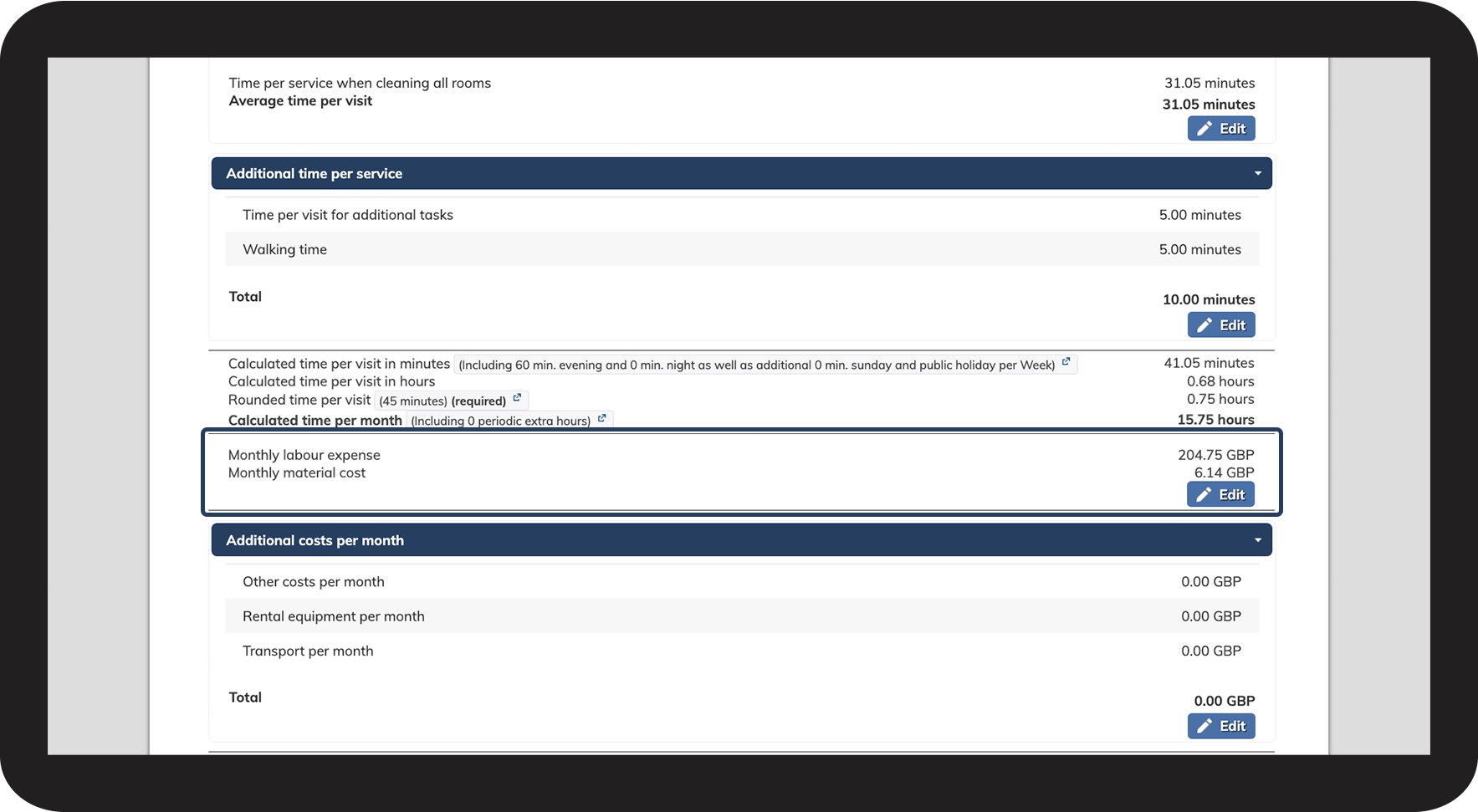
View your monthly expenses, broken down into labour and material costs

12 Monthly material.png

number_2.png

Click on Edit to change your monthly material costs

13 Monthly materials.png

number_3.png
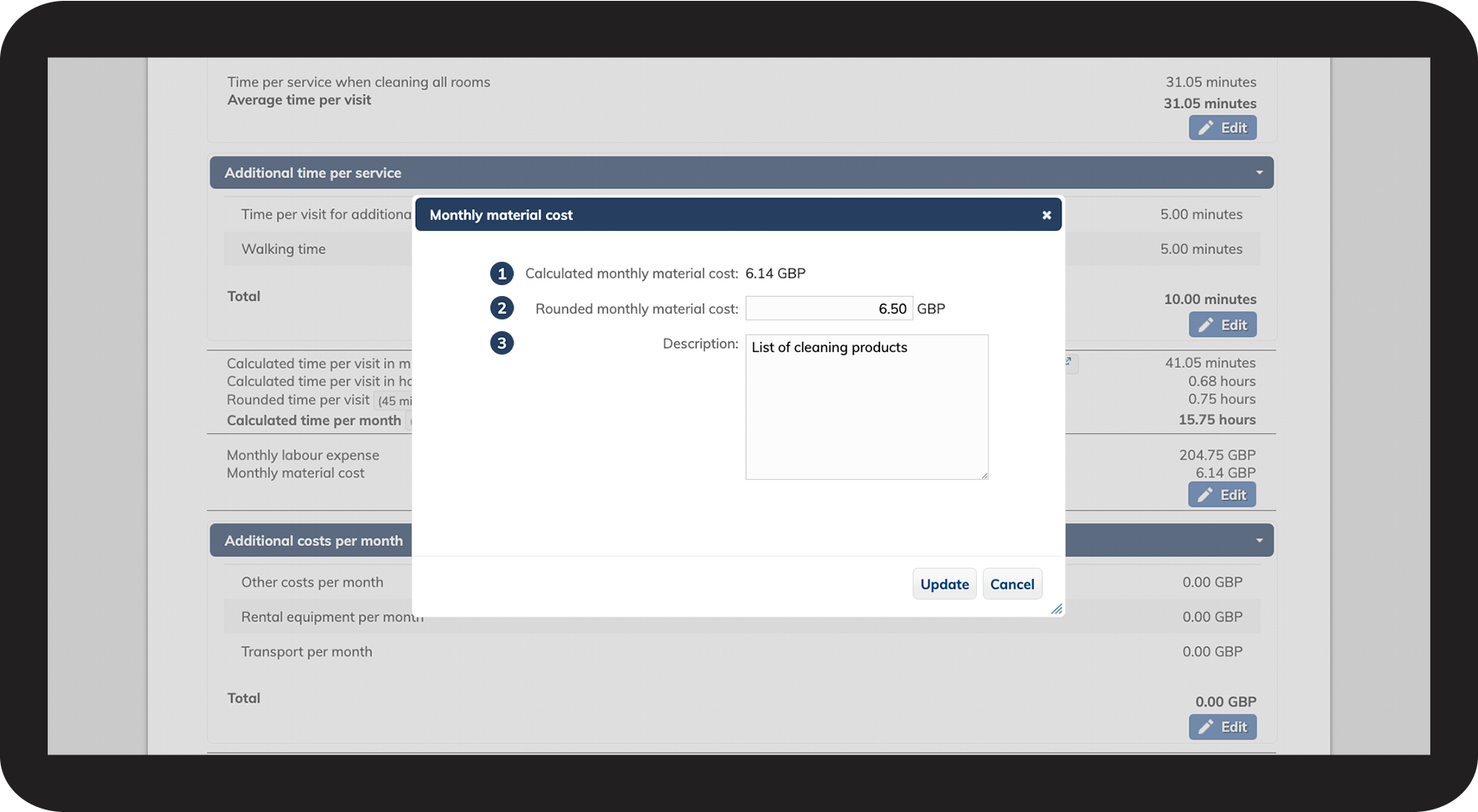
Adjust the Monthly material cost
 
  1. See the Calculated monthly material cost

  2. Insert the Rounded monthly material cost to ensure an optimal contribution margin

  3. Add, if necessary, a Description of the materials needed for the tasks

14 Monthly material.png

number_4.png
Click on Update to save the changes


Additional costs per month

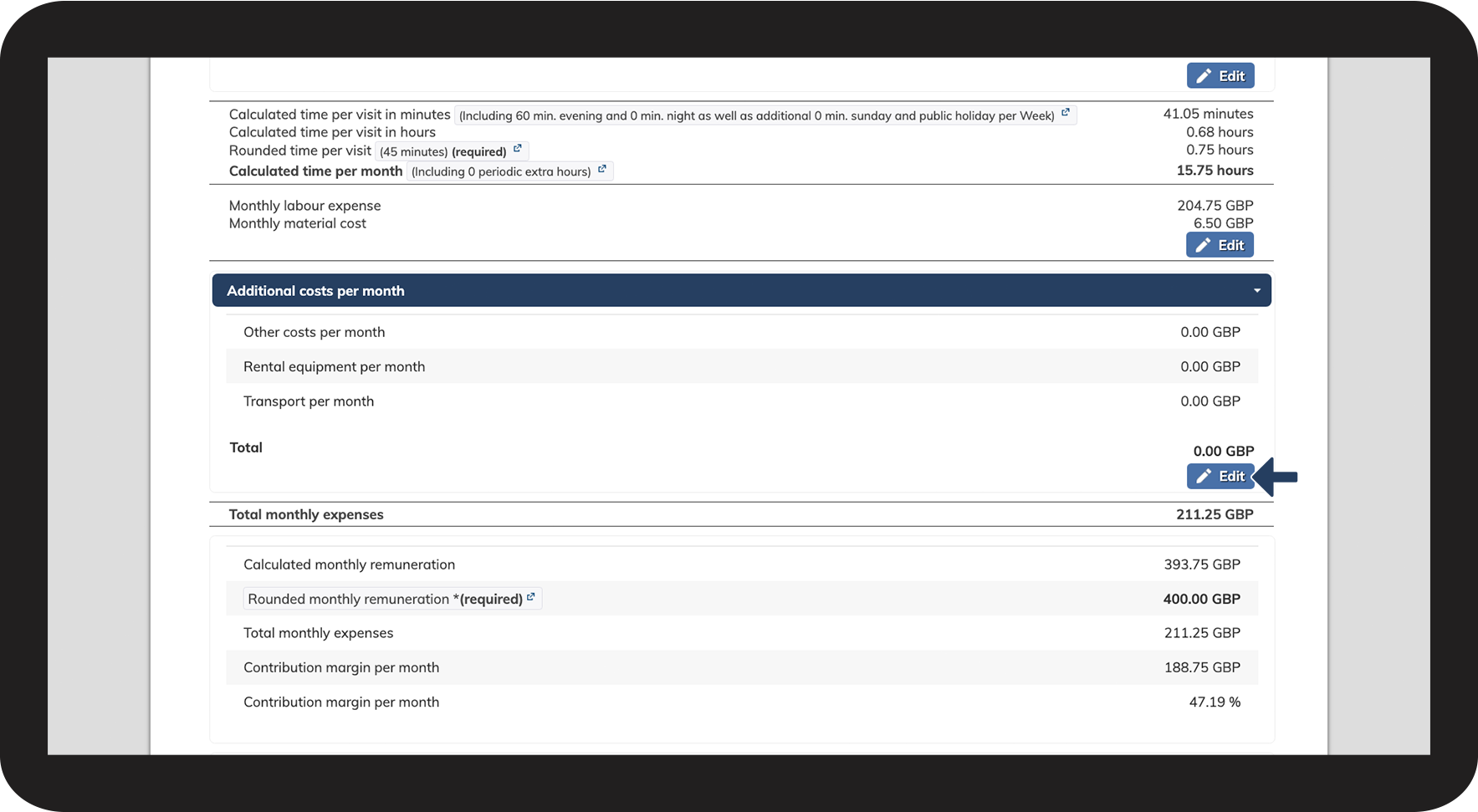
You can add extra expenses to your quote, such as transport costs or equipment rental
number_1.png
Click on Edit to modify the additional costs per month

15 Additional costs.png

number_2.png
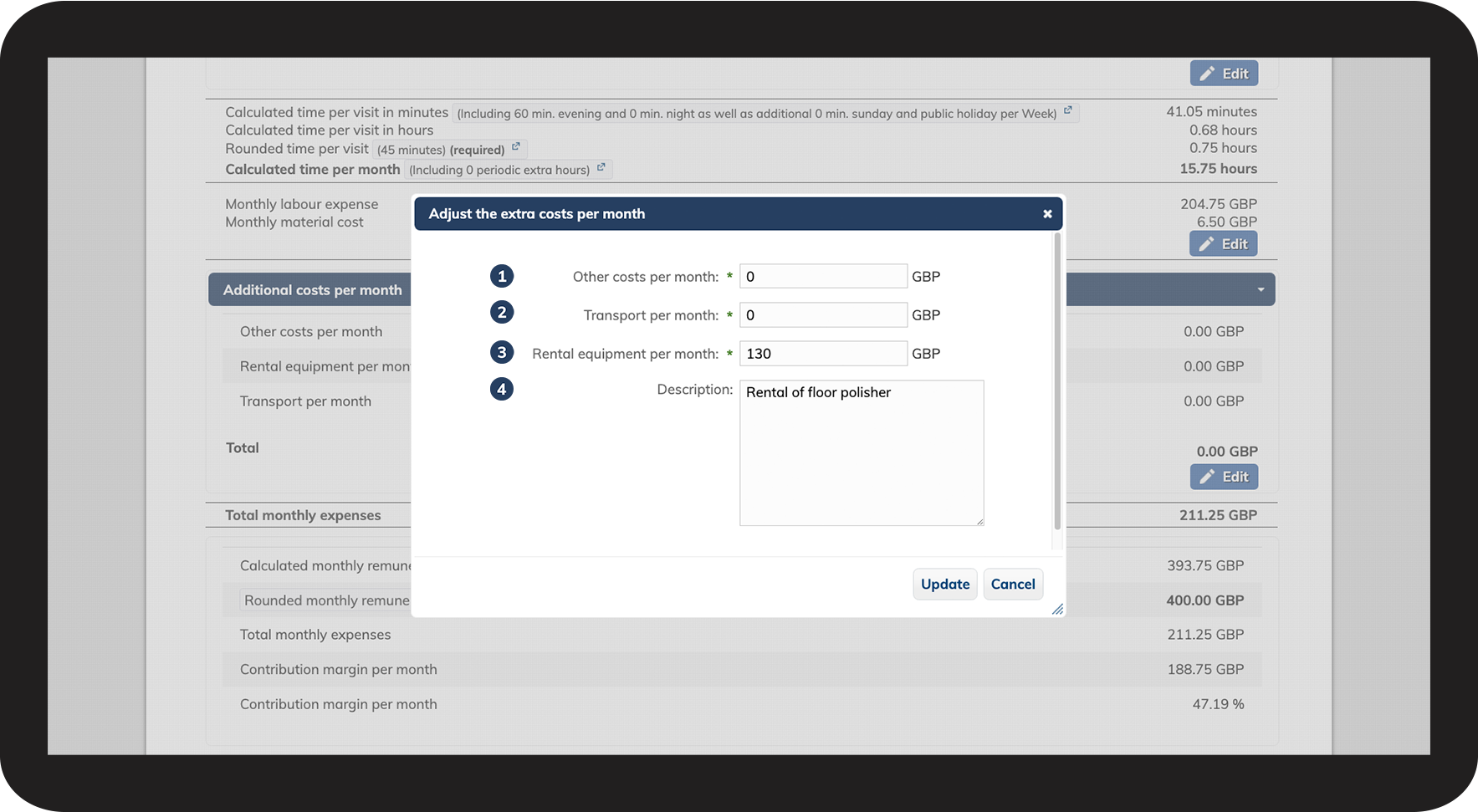
Adjust the additional costs per month
 
  1. Add Other costs per month that impact work-related expenses

  2. Add Transport per month to cover employee transport expenses

  3. Add Rental equipment per month, for example, if machines are rented or equipment is rented out to the customer

  4. Add a Description of all the additional expenses for your quote

16 Additional costs.png

number_3.png
Click on Update to save your changes


Total monthly expenses

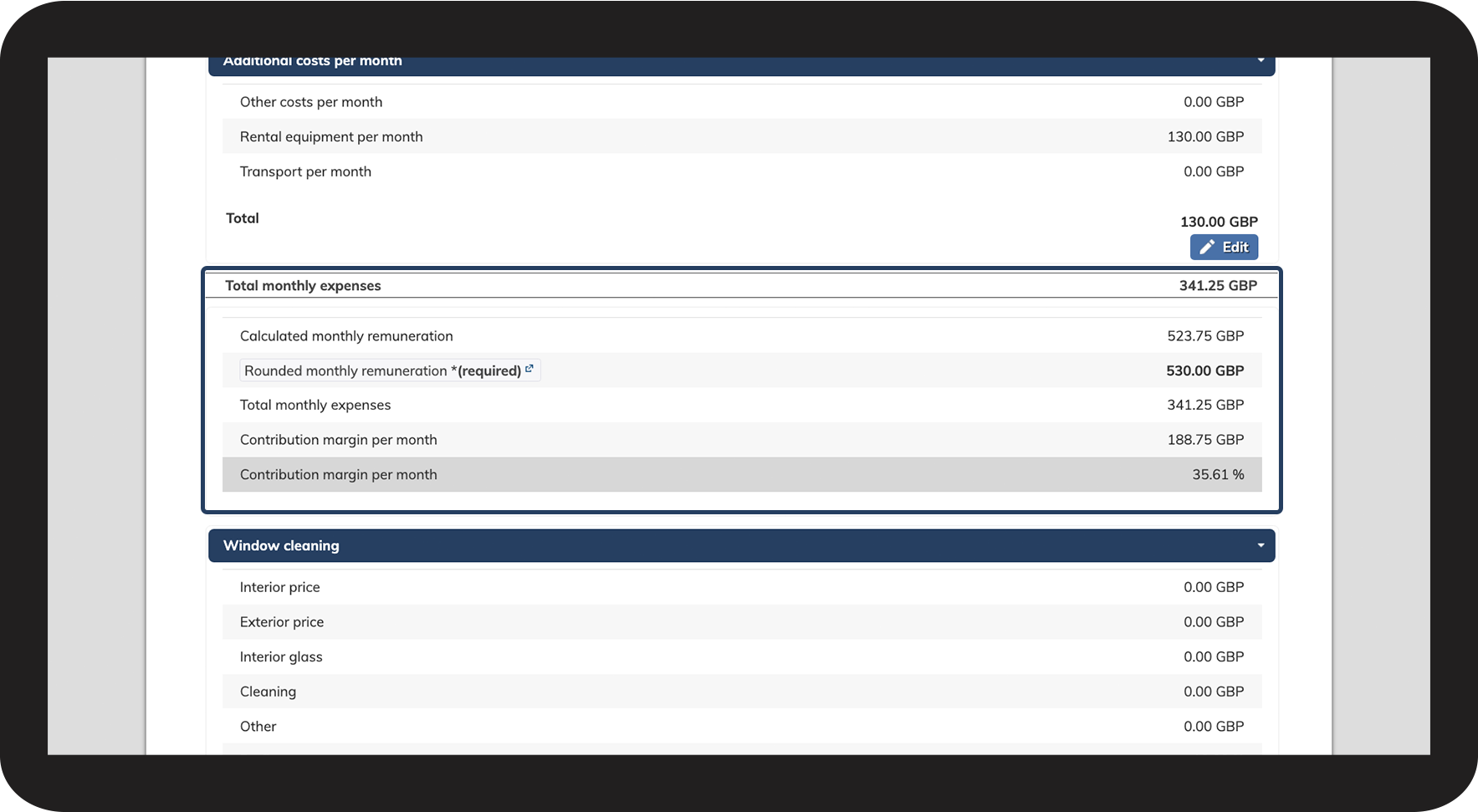
In this section, you can review your total monthly expenses, monthly remuneration, and contribution margin.

NOTE:

The rounded monthly remuneration must be adjusted manually.

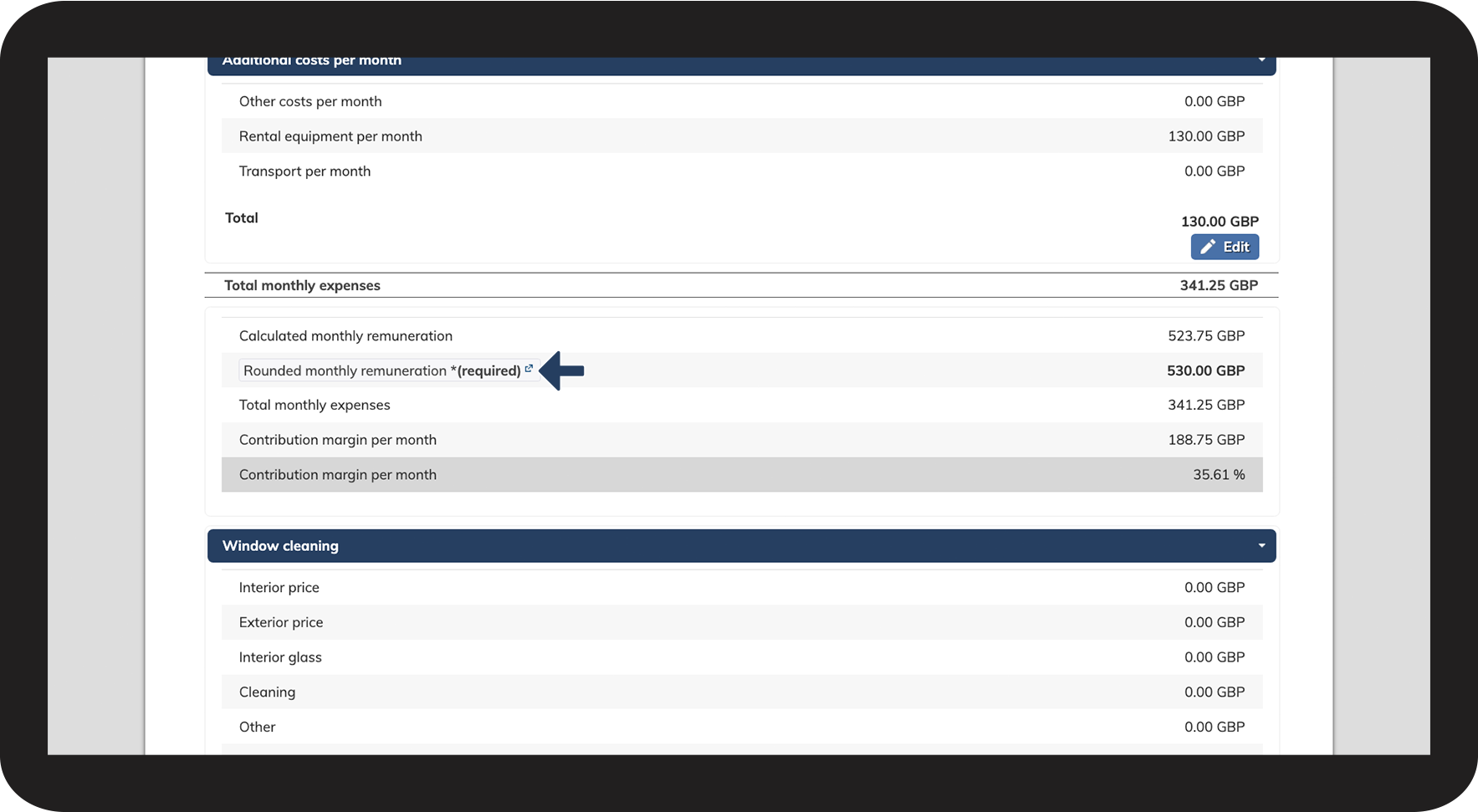
The rounded monthly remuneration represents the price of your quote. It is essential to round up this figure to ensure an optimal contribution margin.
  

number_1.png

View the total monthly expenses, remuneration, and contribution margin

17 Rounded monthly.png

number_2.png

Click on Rounded monthly remuneration to adjust the price, and most importantly, an optimal contribution margin.

18 Rounded monthly.png

number_3.png
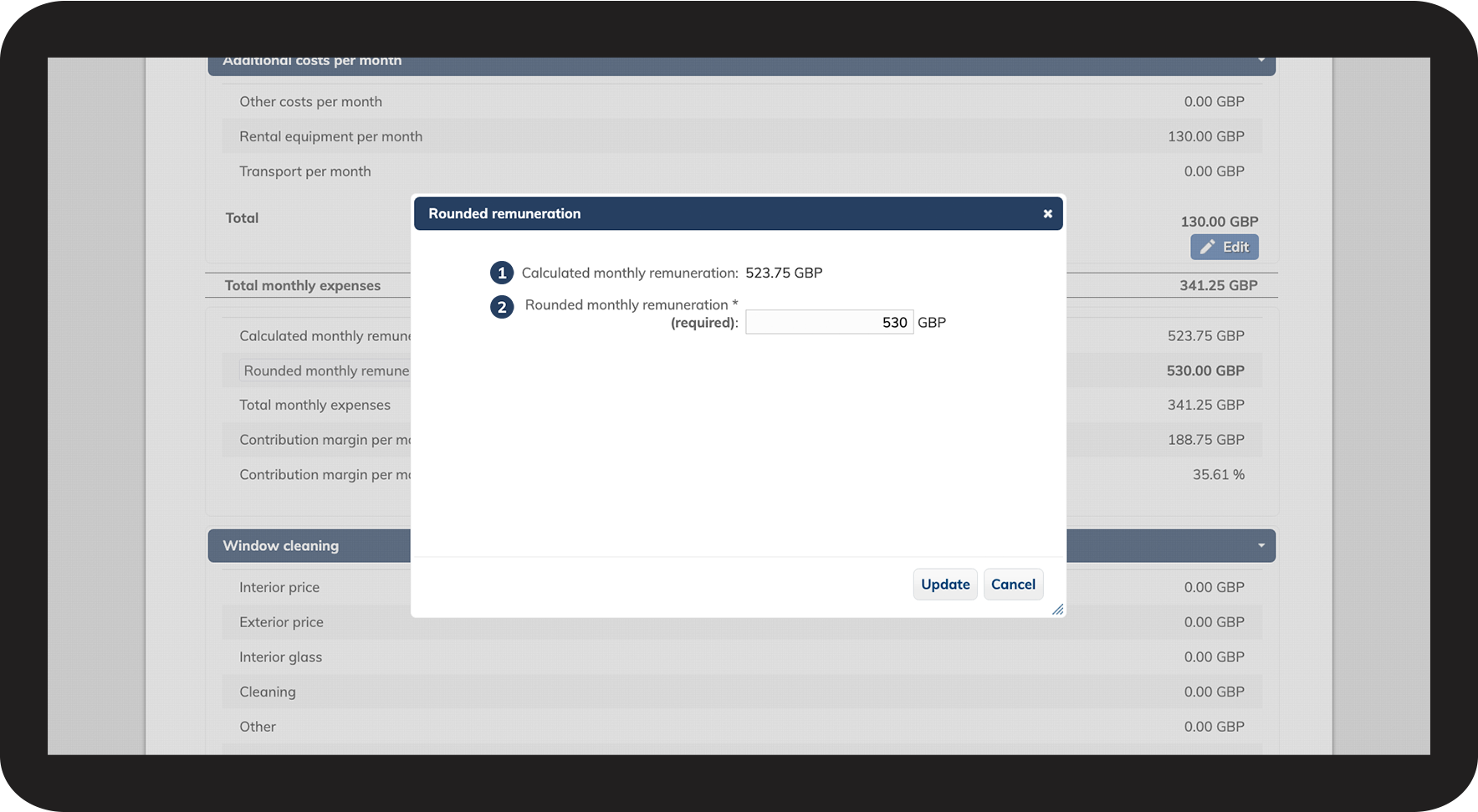
Rounded remuneration
 
  1. See the calculated monthly remuneration
  2. Insert the Rounded monthly remuneration

20 Rounded monthly.png

number_4.png
Click on Update to save your changes


NOTE:

If you enter a figure in the rounded monthly remuneration field, it will remain fixed. If you change the room registration or other details, you must revisit this section to adjust the rounded monthly remuneration.


Window cleaning

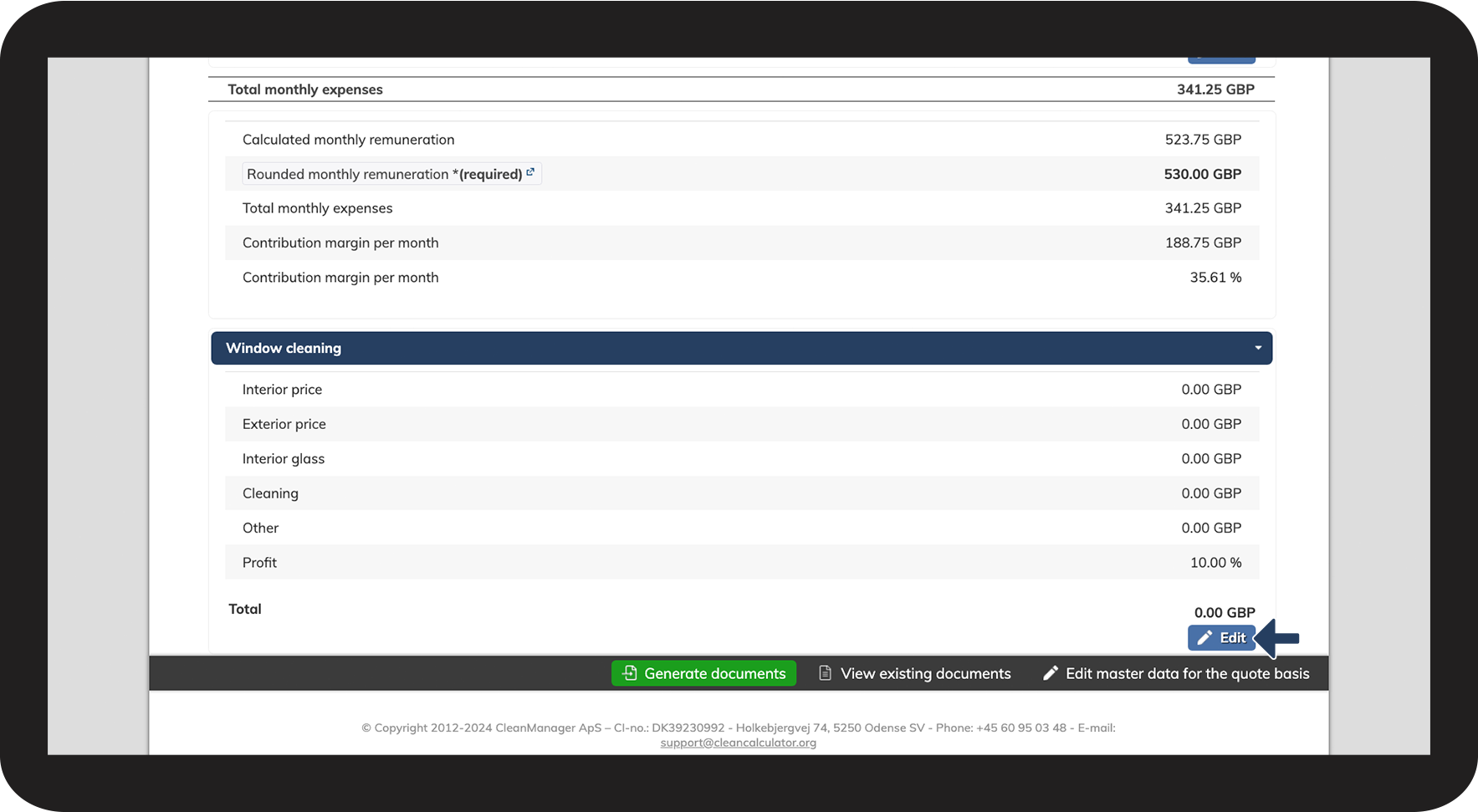
Window cleaning is often handled by a subcontractor hired by or suggested to the customer. Although secondary to the main quote, it can be included upon customer request.
number_1.png
Click on Edit to include window cleaning

21 Window cleaning.png

number_2.png

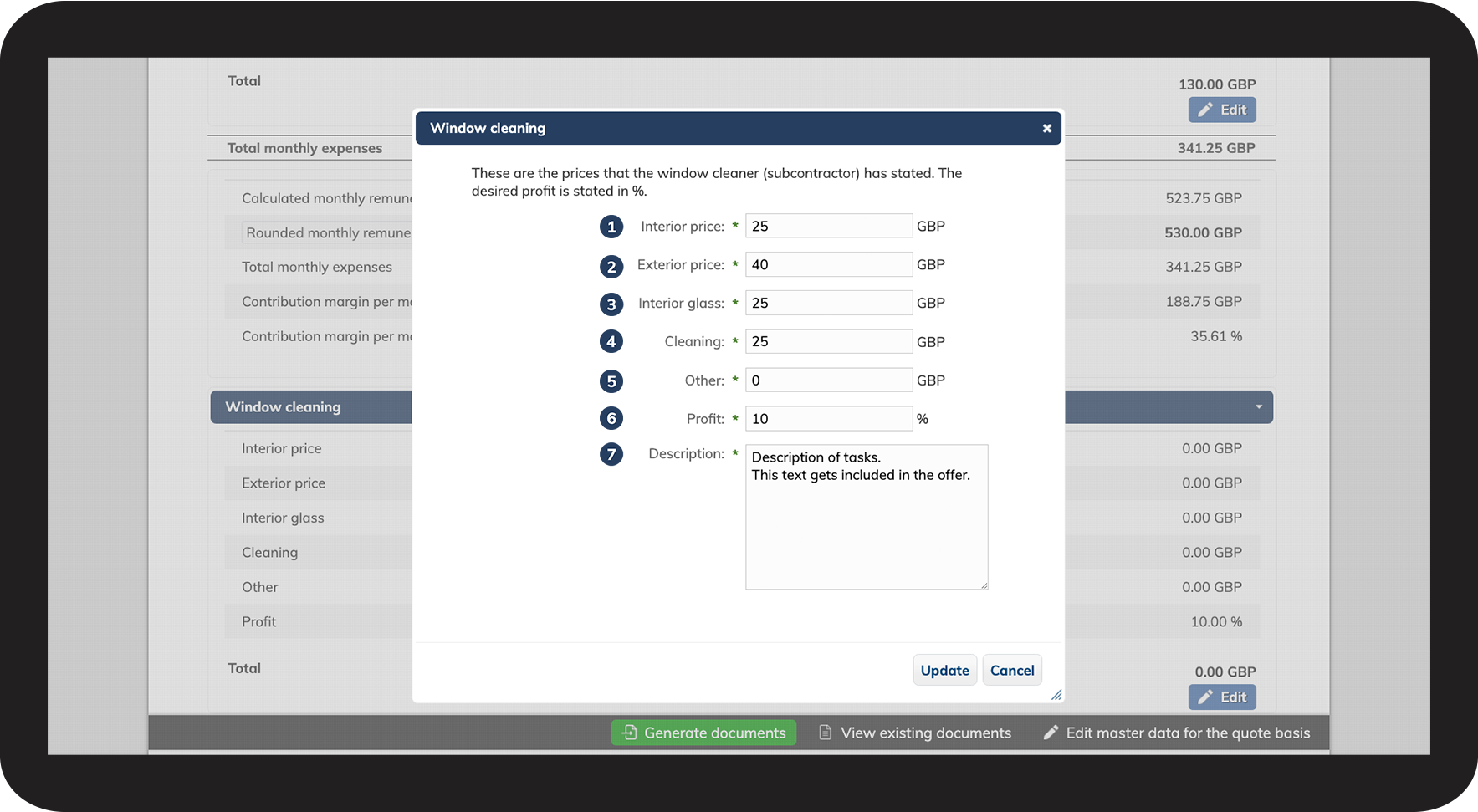
Communicate with your window cleaner and add their prices for window cleaning as per the customer’s wishes:

 
  1. Interior price for cleaning windows on the inside.

  2. Exterior price for cleaning windows on the outside.

  3. Interior glass for polishing internal glass and glass surfaces.

  4. Cleaning or cleansing of cover surfaces and windows

  5. Other expenses that occur for the window cleaning's contribution margin.

  6. Profit is your commission rate for referring a subcontractor.

  7. Description of the tasks (which will be included on the generated documents)

22 Window cleaning.png

number_3.png
Click on Update to save your changes


INFO:

Change your master data for the individual quote basis.

Do you want to change the master data for an individual quote basis?

Read more about it here in this article: Edit quote basis



Step_4.png

Continue to Document generation

Once your data is complete and correct, you can generate documents for your quote. See the user guide: Document generation