Skip to content
English
  • There are no suggestions because the search field is empty.

Step 2 - Room registration

How do I register rooms for my quote basis in CleanCalculator?

In Step 1, you were shown how to start a quote basis.

In Step 2, you will learn how to add rooms to your quote. 

If you have not created a quote basis yet, go back to:

Step_1_box.png

Create quote basis


In this article, you will learn how to use room registration:


Step_2_box.png

Room registration

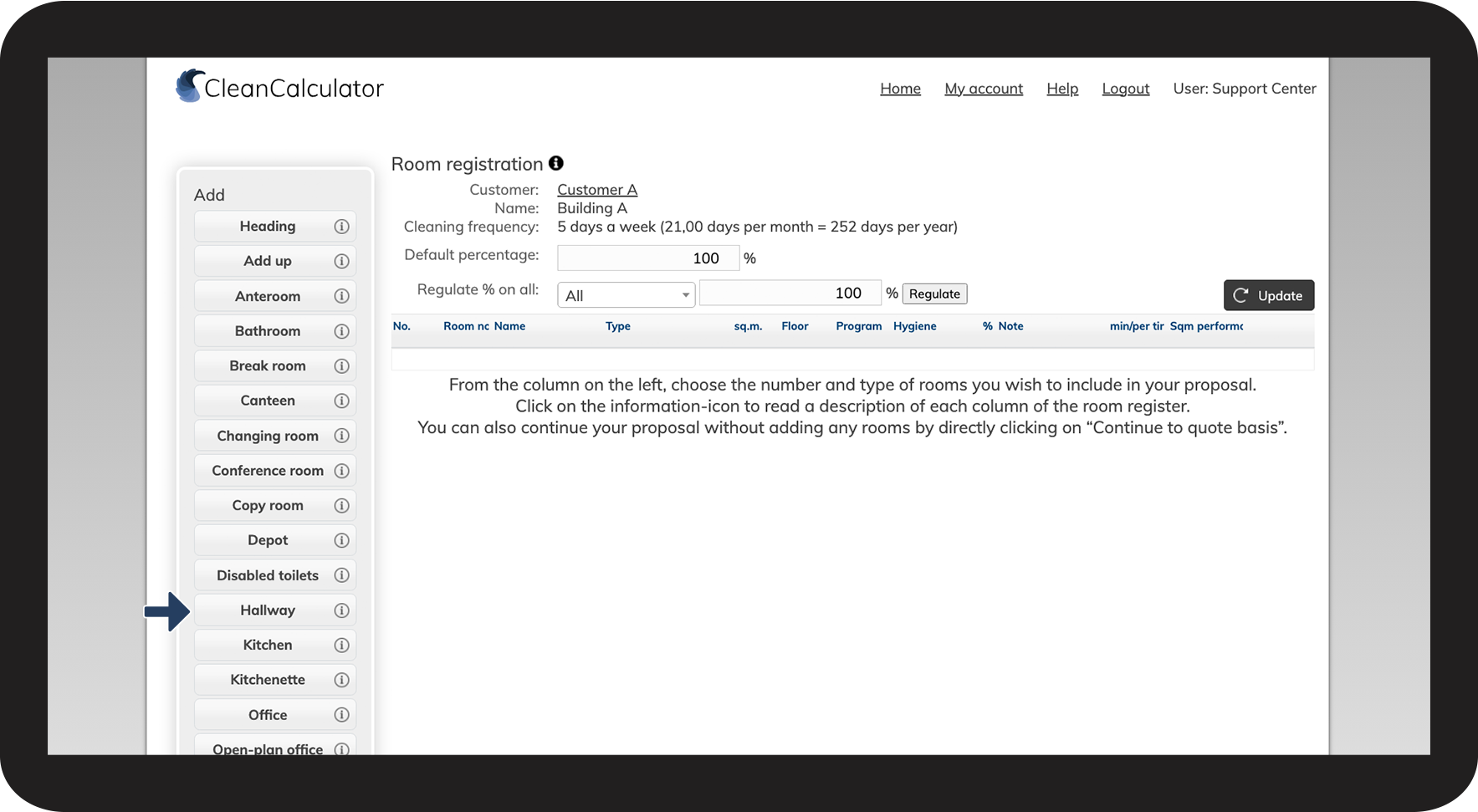
On the left-hand side, you add the rooms you need by clicking on them.
On the right-hand side, the added rooms will be displayed and included in your calculations.
It is also here that you can change the settings of the room, e.g. the size, and cleaning frequency.


How to add rooms in CleanCalculator

number_1.png
Start by selecting a room. In this example, we will use Hallway
1NY.png
number_2.png
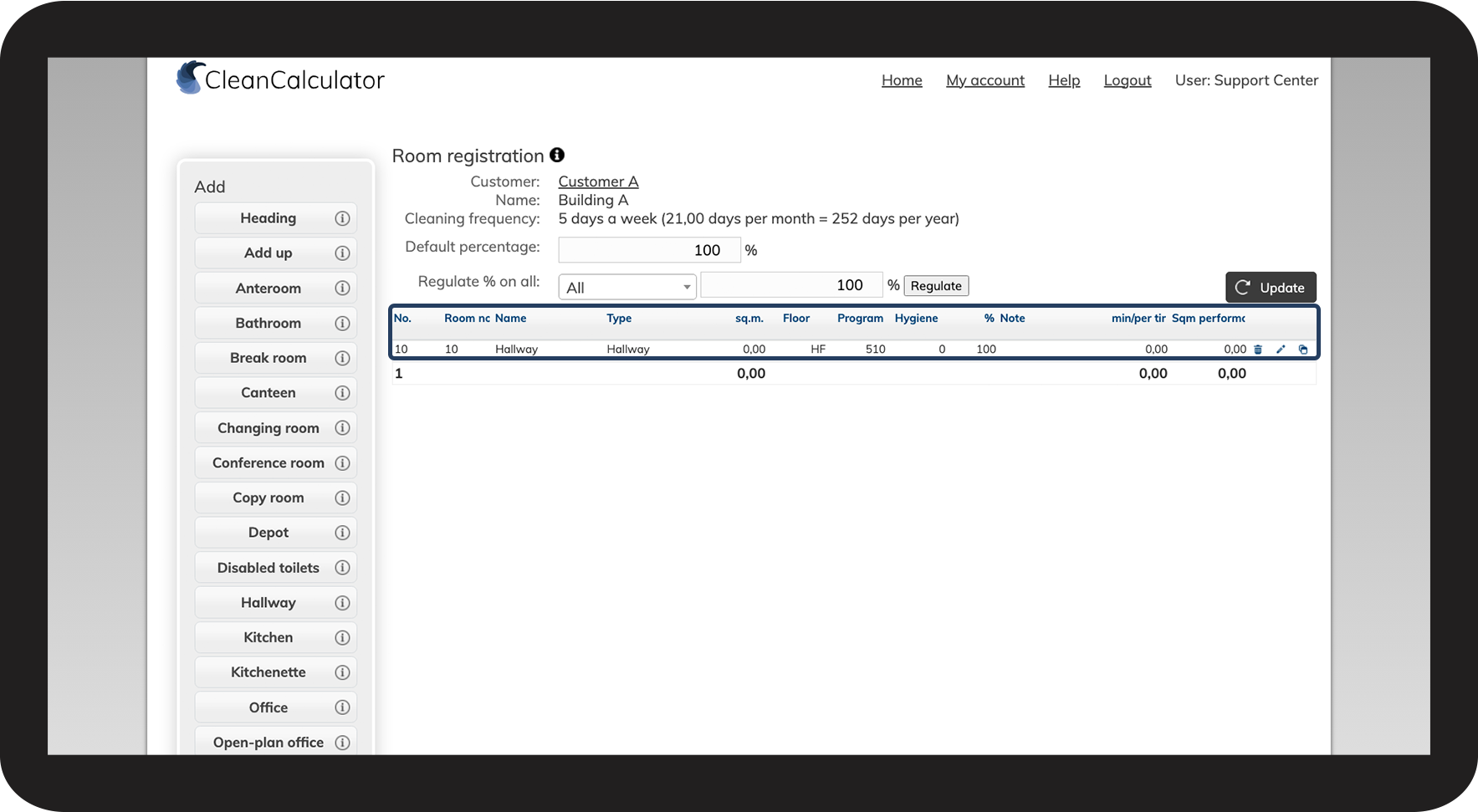
The room is now added to the table overview in the room registration
2NY.png
number_3.png
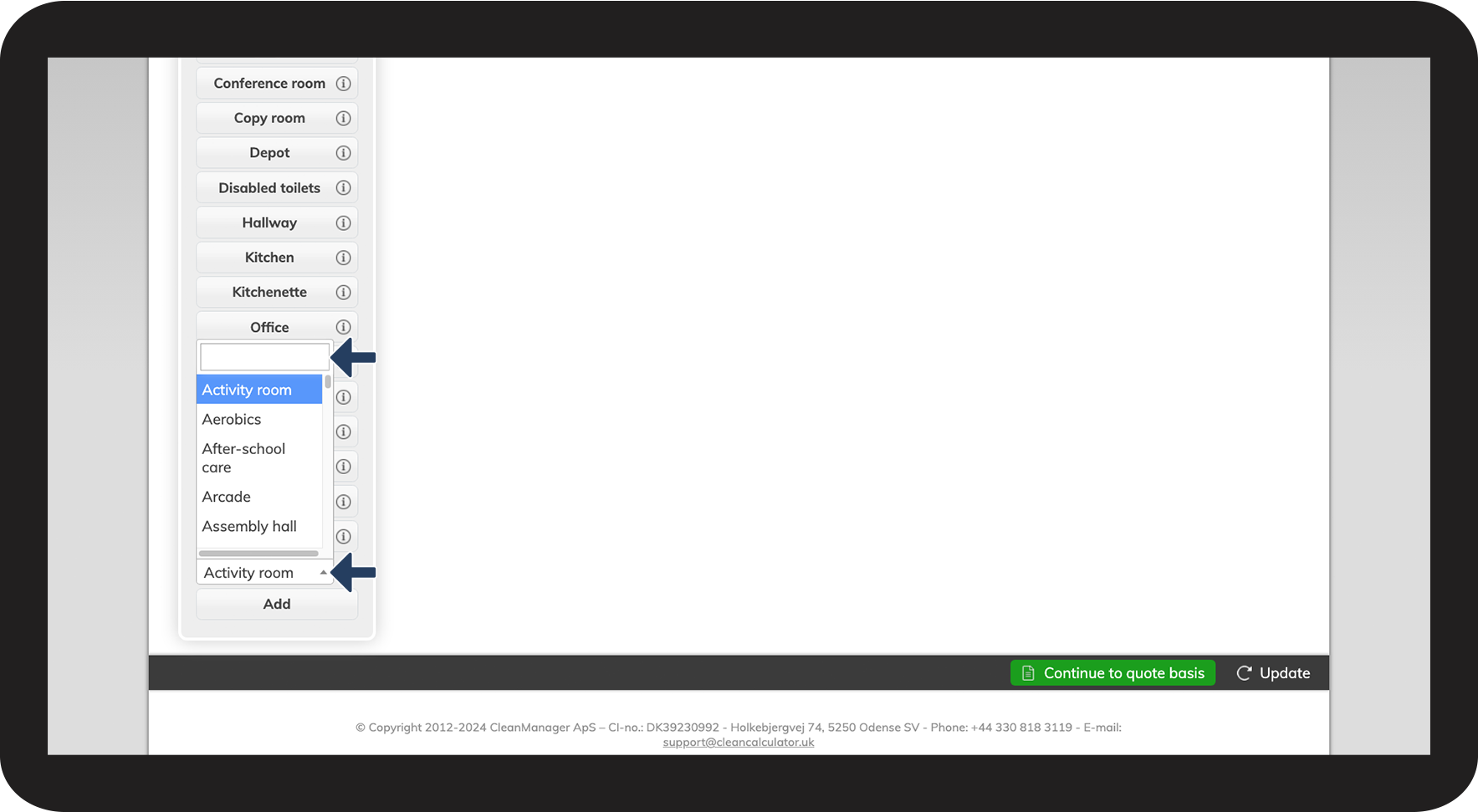
Are you unable to find a specific type of room based on your chosen quote type?
 

Scroll to the bottom of the page, and click on the dropdown menu, which contains a complete list of the available rooms in the system.
You can also use the search field to search for a specific room.

3NY.png

number_4.png
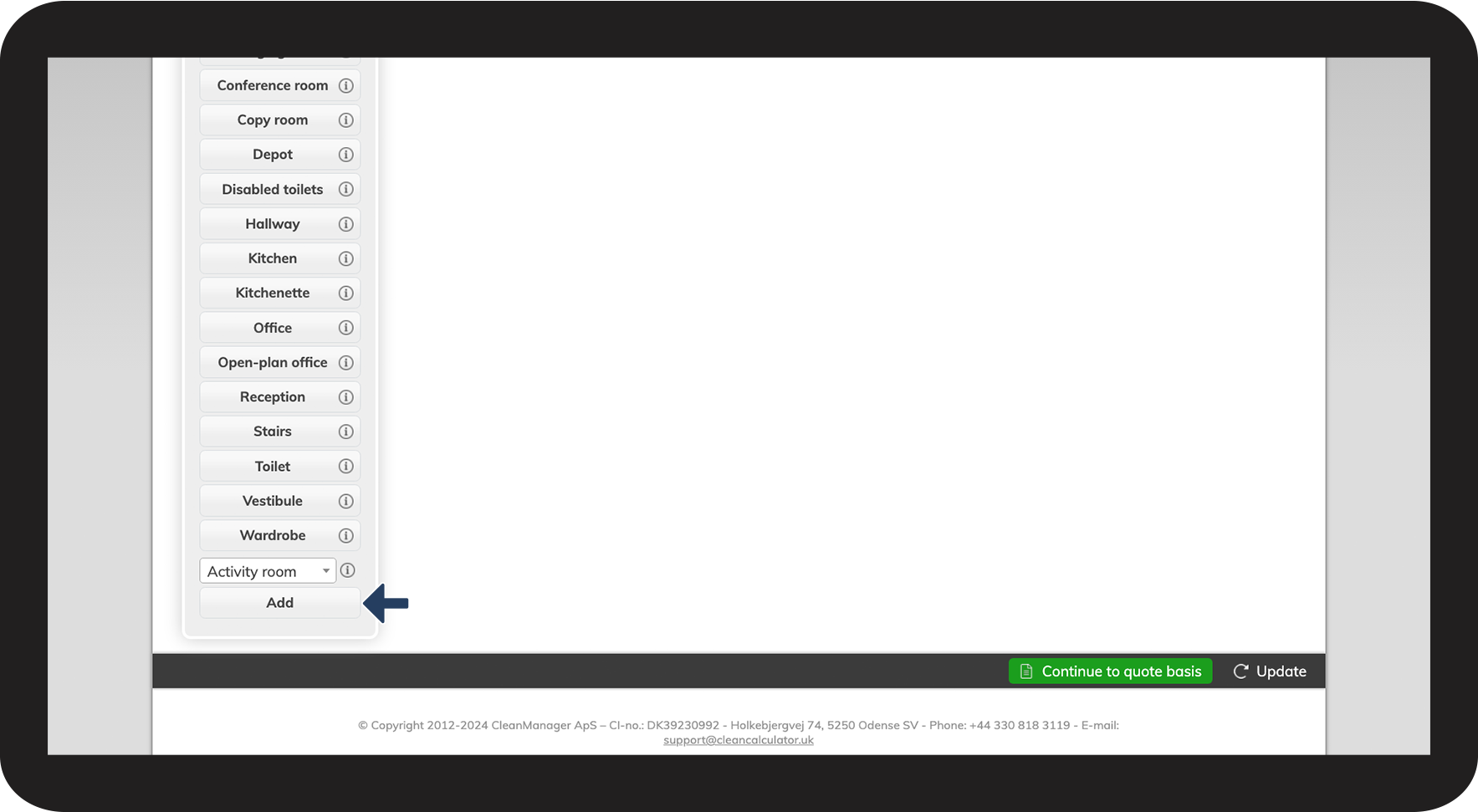
Click on Add to include the room in the table overview
4NY.png


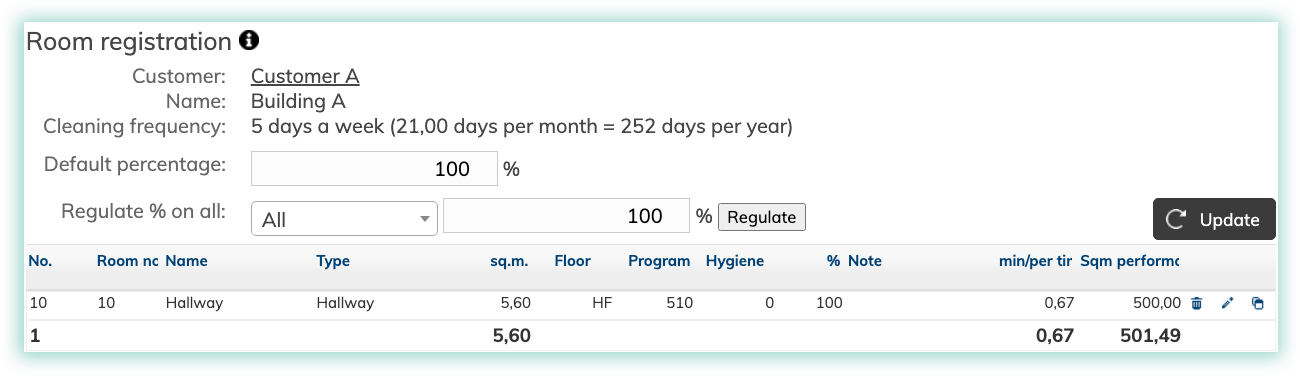
What do the different columns mean for the rooms?


NOTE:

It is very important to understand the meaning of each column to be able to ensure a correct room registration. The room registration creates the foundation of a valid quote.

If you have any questions, you are welcome to reach out to our free support at: support@cleanmanager.org


5NY.png


Default percentage
Above the table, you can see the Default percentage %.
Any rooms added will automatically be assigned this value.
The % value in the table for each room describes the workload, i.e. how hard or easy the room is to clean.
An expected standardised workload is at 100%.
No.

No. (number) is used to control the placement of the individual room in the table.

By changing the number of a room, you can change its ranking in the table and as such change the order of the rooms in the table. This is effective if you are adding rooms from multiple buildings that you would like to organise together.

When you change the numerical values, the system will not automatically update. Click Update to apply the changes.

Room no.

Room no. is the actual number for the room, e.g. from a floor plan 

You will usually find the room number inside the door frame or on the floor plan, but you can also choose your own number system that fits your purpose best. 

Name
Name is the assigned name of the room. It is given a name based on the room type that is added, but can always be changed individually. 
Type

The Type is the room type which consists of key figures that calculate the time and square meter performance for a room.

A key figure is a figure of experience, which contains the average time used to cleaning the individual types of rooms.

sq.m. (Square meters)
The size of the room in square meters. 
Floor

Floor lets you select the cover surface of a room.

You can pick between a hard floor (HF) or a carpeted floor (CF).

Program

Program is used to define the cleaning process and frequency. The program code consists of three digits:

  • The first number represents the number of times per week that light cleaning is performed.

  • The second number represents the number of times per week that thorough floor cleaning is performed.

  • The third number represents the number of times per week that thorough inventory cleaning is performed.


"½½½" is the code for cleaning every 14th day.
"mmm" is monthly cleaning.

Hygiene 

You can select if and how high an extra effort you wish to place on hygiene efforts in correspondence to the cleaning:

0 = No additional hygiene.

1 = Risk points are cleaned once every 14 days.

2 = Risk points are cleaned once a week.

3 = Risk points are cleaned on days a thorough inventory cleaning is performed (3rd-cipher of the programming code).

4 = Risk points are cleaned every second time a light cleaning is performed (1st-cipher of the programming code /2).

5 = Risk points are cleaned every time a light cleaning is performed (1st-cipher of the programming code).

% (Workload)

% - Workload is used to adjust how difficult or easy it is to clean a room.
The workload adjustment depends on the room's condition and interior design that affects the time needed to clean the room.

An effort of 100% (the median) is equal to a normal workload.

If the % is adjusted down to 90%, it is estimated that the room is easier to clean. For instance, if no movement of furniture is needed, or all cover surfaces are kept clear of items. 

If the % is adjusted up to 110%, it is estimated that the room demands more effort to clean. For instance, if it is necessary to move furniture to be able to vacuum, or areas are hard to reach. 

When you change the percentage, you can see the additional changes on Min/per time and Sqm performance.

Note 

Here, you can apply notes regarding the room or the cleaning.

Min/per time

Min/per room is the median time it takes to clean the room in minutes each time the room is cleaned.

sqm performance

Square meter performance is the number of square meters that can be cleaned per hour. It is calculated based on the room's square meter, program code, and %-workload.

The performance of a room changes accordingly to changes made in the other columns of the row.

If you increase the %-workload of a room, the sqm performance will lower accordingly, since the employee will need more time to clean and therefore be able to clean less within an hour.

Hence, you can use sqm performance to compare different rooms in your quote, and you can analyse how it changes the time estimates based on your assigned values to the other data fields. By doing so, you can analyse the estimated time that needs to be used to complete the tasks.


INFO:

The room type "Heading":

In the list of room types, you can select a room called Heading.

This room type does not contain any square meters. You can give it its own description, and you can use it as often as you like to organise your rooms.

It is mainly used to organise specific floors or buildings.

The room type "Add up":

In the list of room types, you will also find Add up.

This room type does not contain any square meters, but it summarises the square meters from the rooms listed above the Add up in the table.
You can change the name of Add up, and use as many of them as needed.

It is useful to implement it in correlation with Headings. If you add a heading for a building/floor, you can insert an Add up at the bottom of this building/floor section. The Add up will calculate the square meters for all the rooms added to the building/floor.


How to edit rooms in CleanCalculator

number_1.png
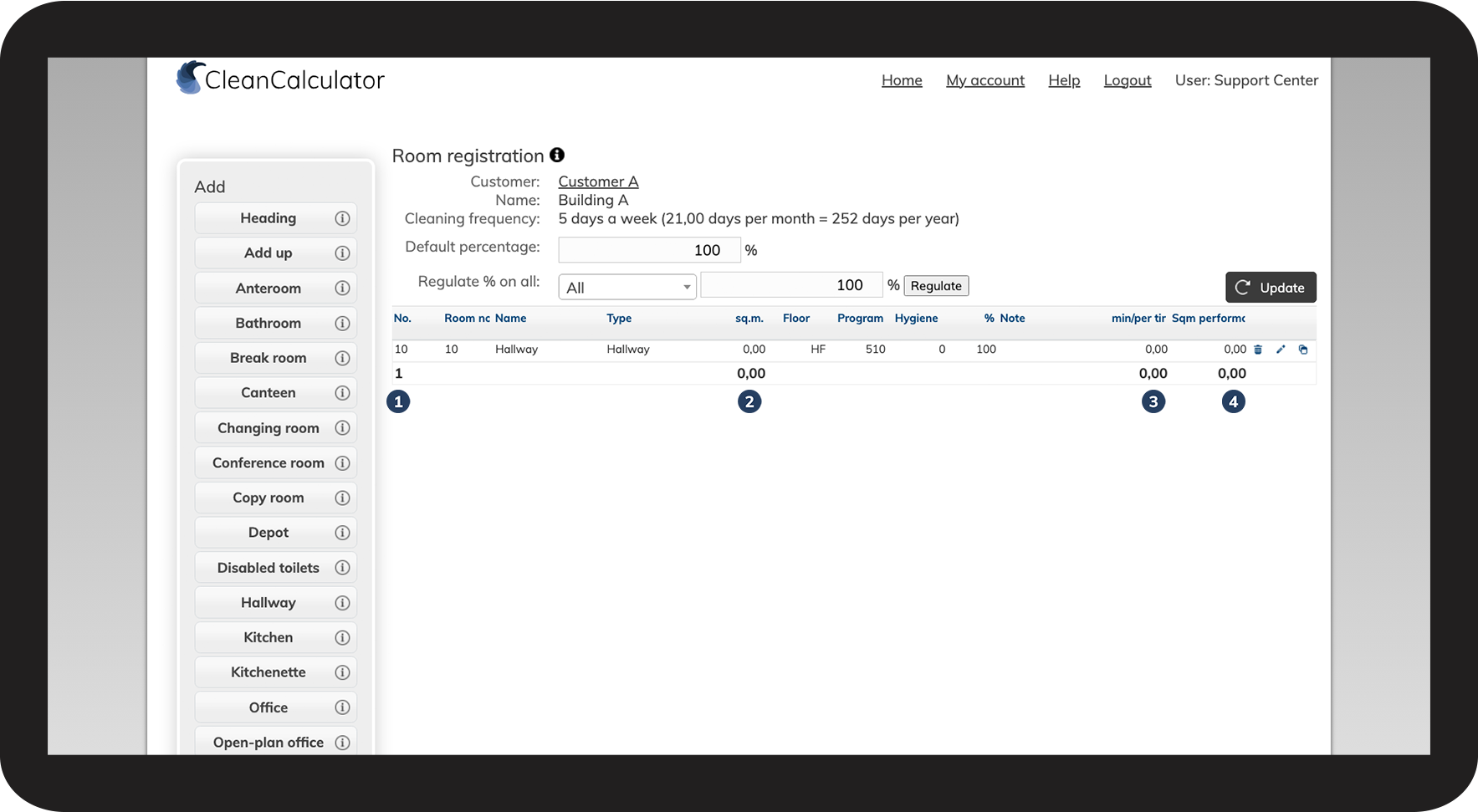
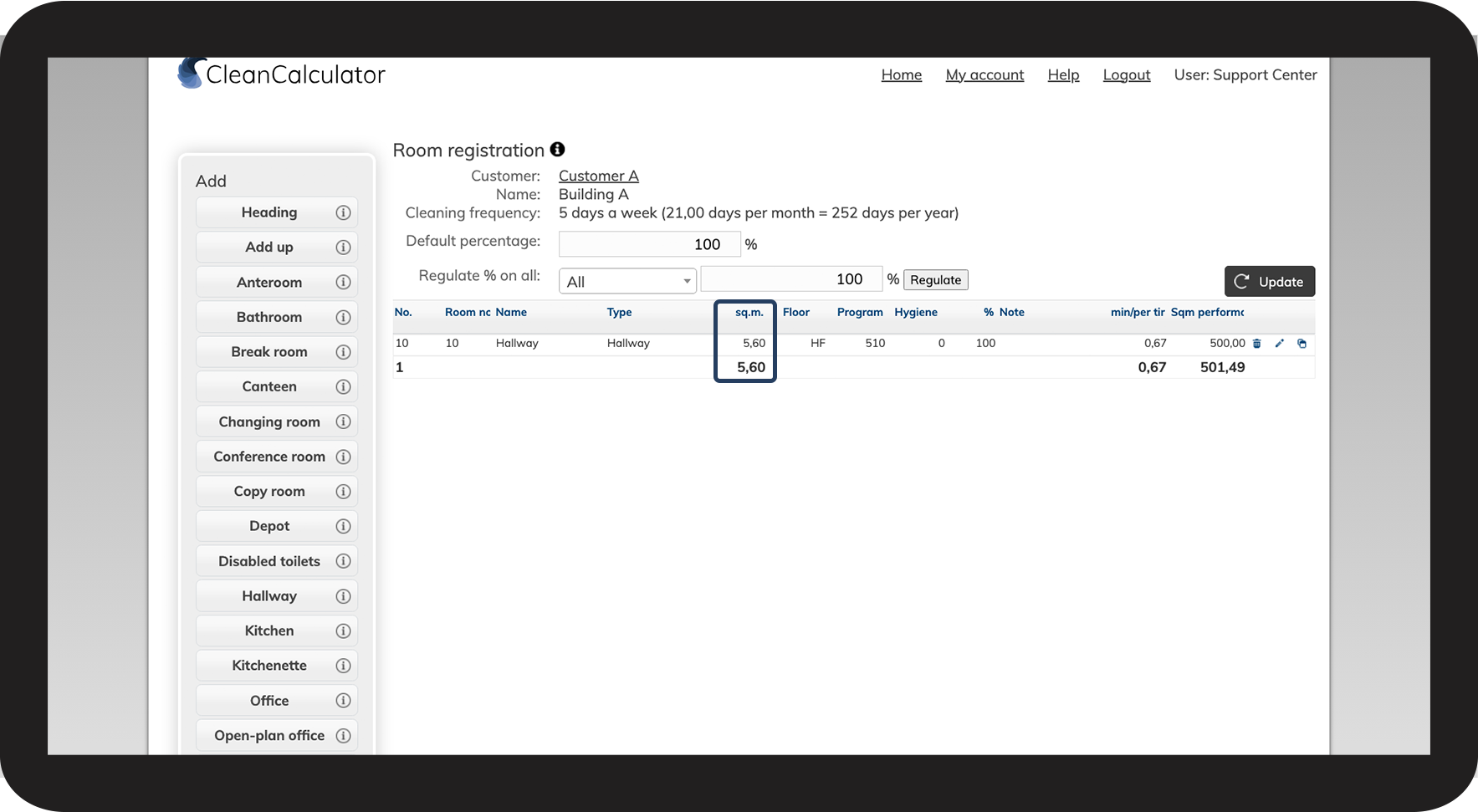
When you add rooms to the room register, you can see the collective data of all rooms 
 
  1. See the collective amount of added rooms.
  2. See the collective square meters of all added rooms.
  3. See the average cleaning time per visit.
  4. See the collective square meter performance which can be cleaned per hour.

6NY.png

number_2.png
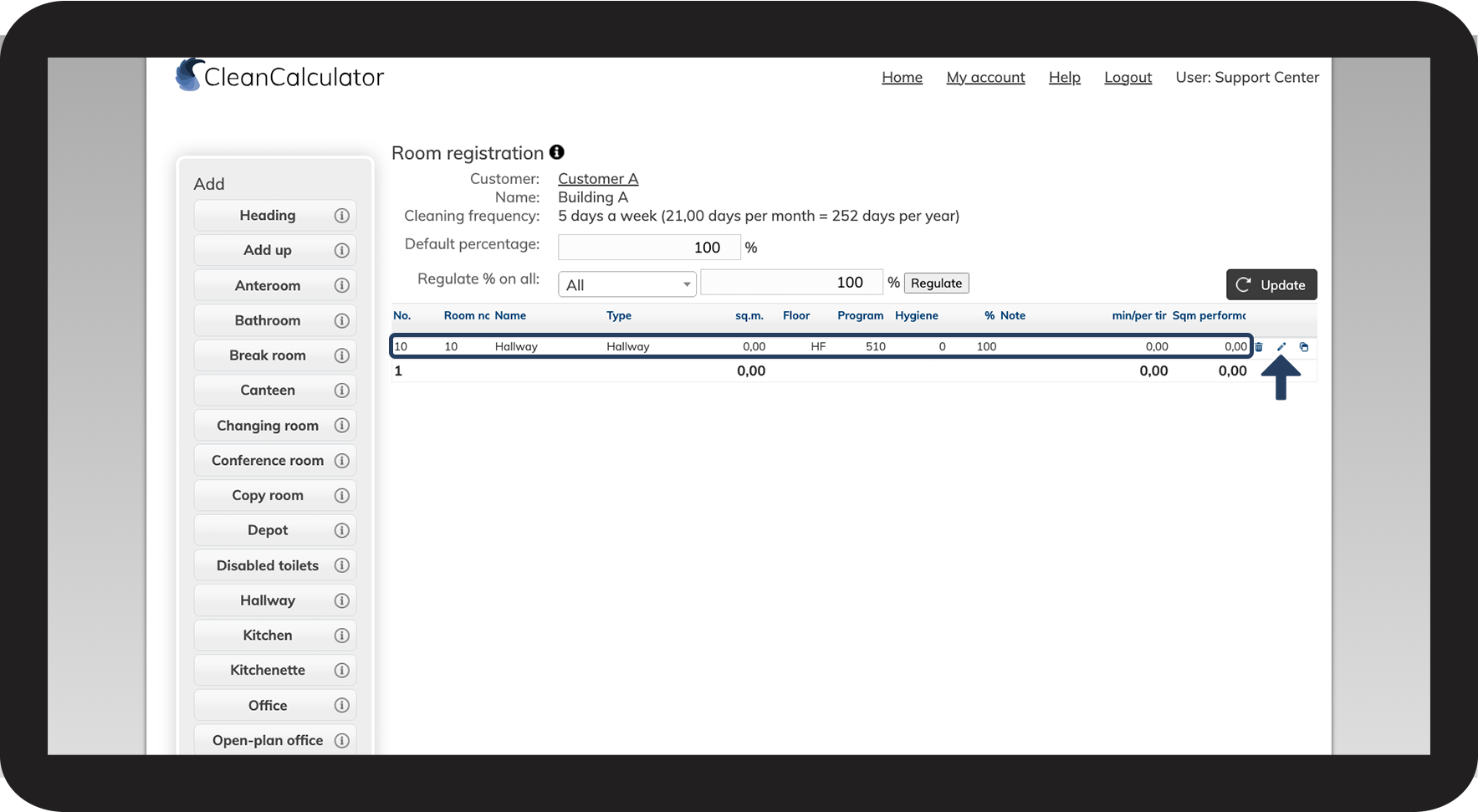
Click on the fields in the row, or click on Edit Screenshot_2021-07-16_at_14.38.02.pngon the right-hand side to adjust the information

7NY.png

number_3.png
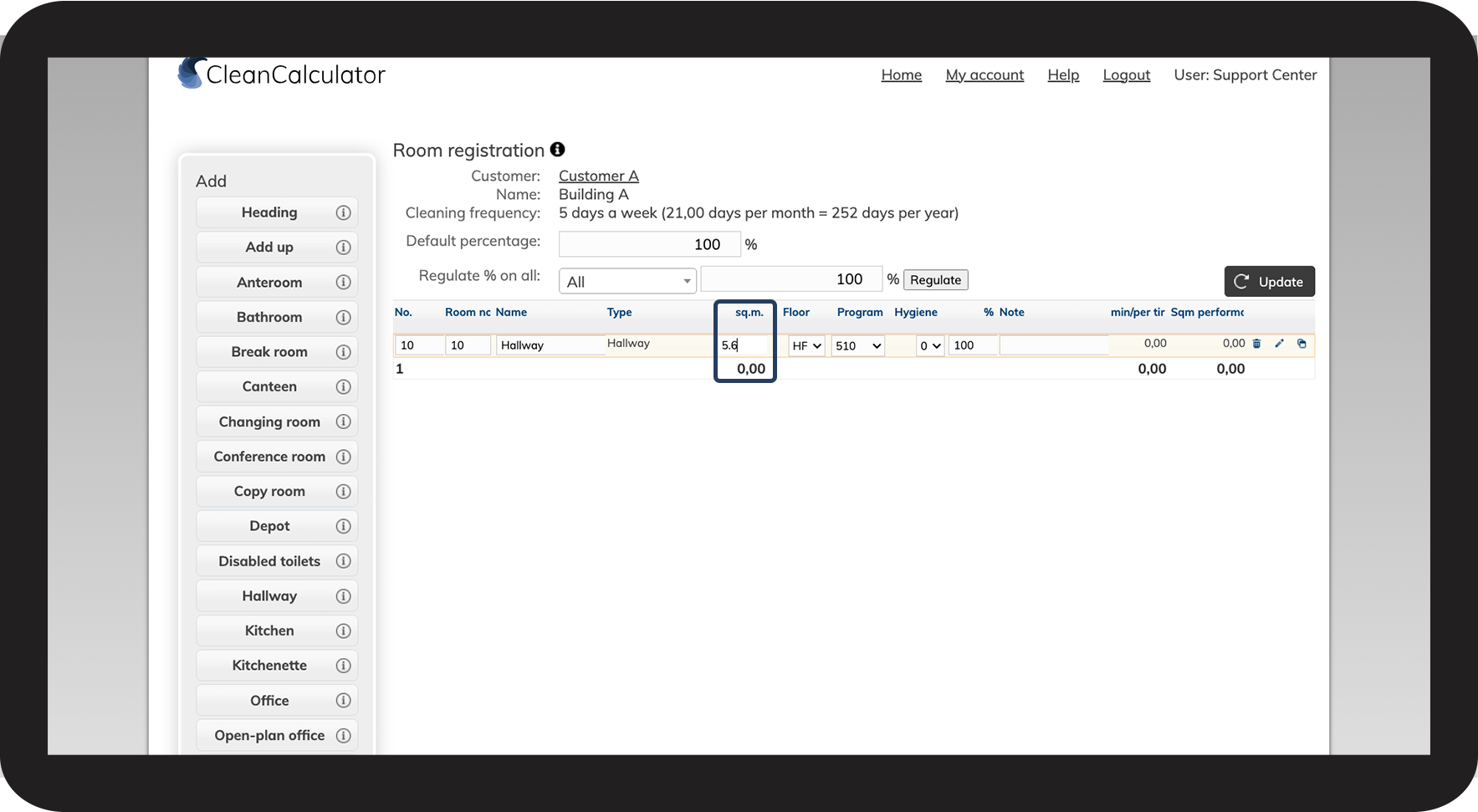
The row is now highlighted, and you can adjust all the column data of the room
 
In this example, we will edit the square meters of the room

8NY.png

number_4.png
Hit enter on the keyboard, or simply click outside the row to update the information

9NY.png

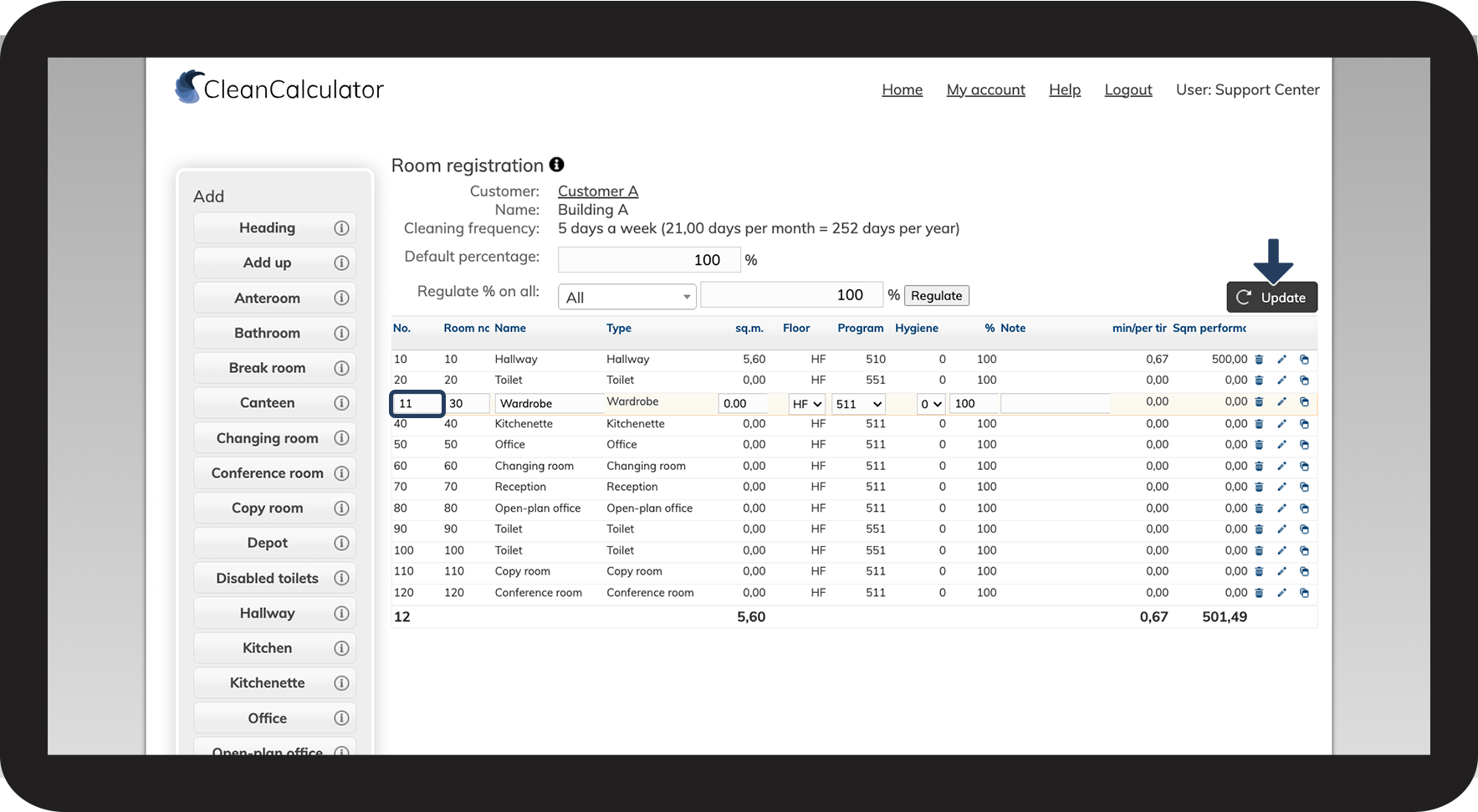
number_5.png
After changing a room number (No.), you have to click Update
 
The system will now apply the visual order of the rooms based on the numerical values
10NY.png

NOTE:

To better understand what the different columns mean in the room registration, click on the information icon Informations_icon.png.

See also the following section:

What do the different columns mean for the rooms?


How to bulk-edit the degree of workload on rooms

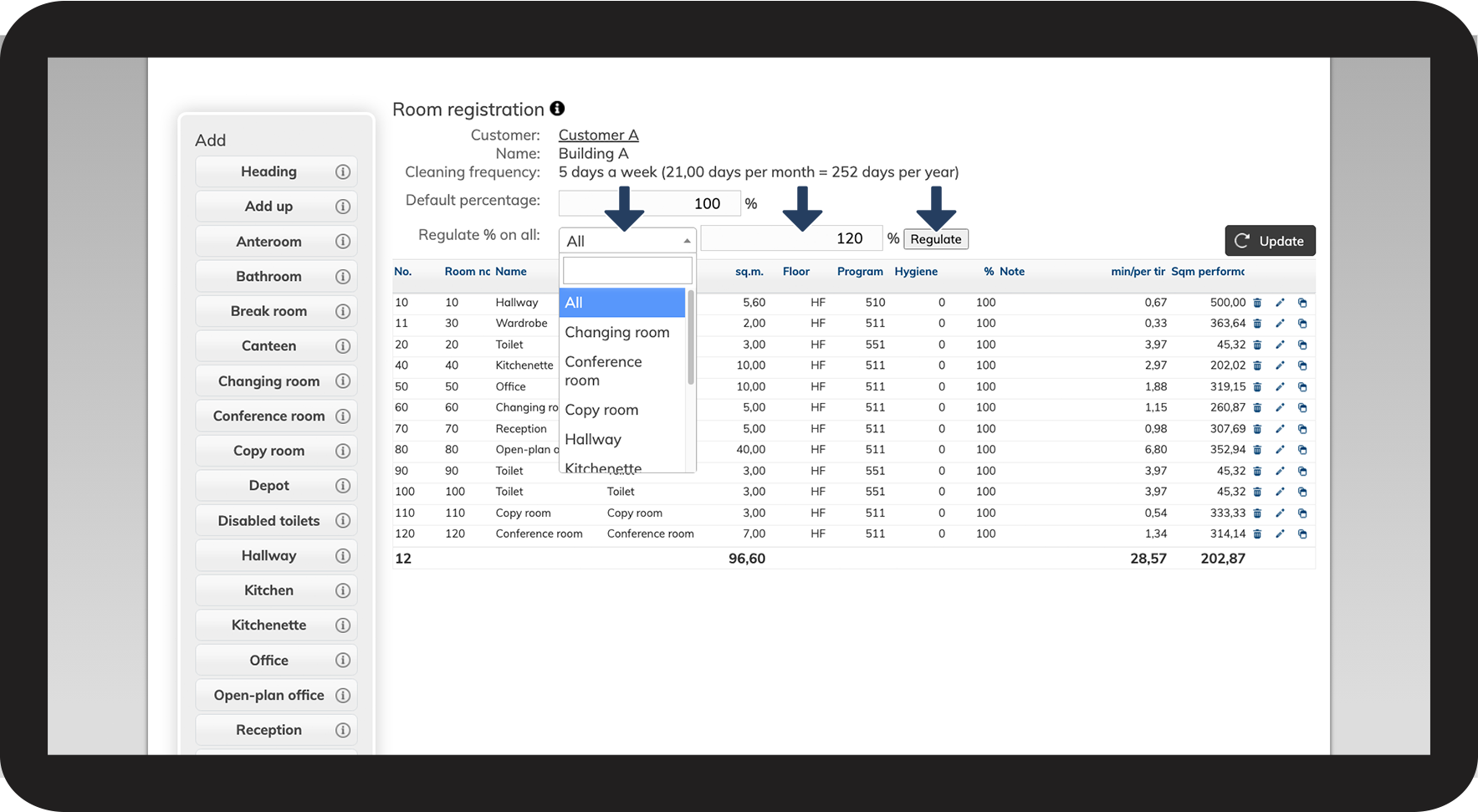
You can use Regulate % on all to adjust the degree of the workload on multiple rooms at the same time

number_1.png

Click on the dropdown menu next to Regulate % on all

 
Select whether you wish to edit all rooms or a specific room type
 
Enter the desired percentage
 
Complete the changes by clicking Regulate
11NY.png


How to complete room registration in CleanCalculator

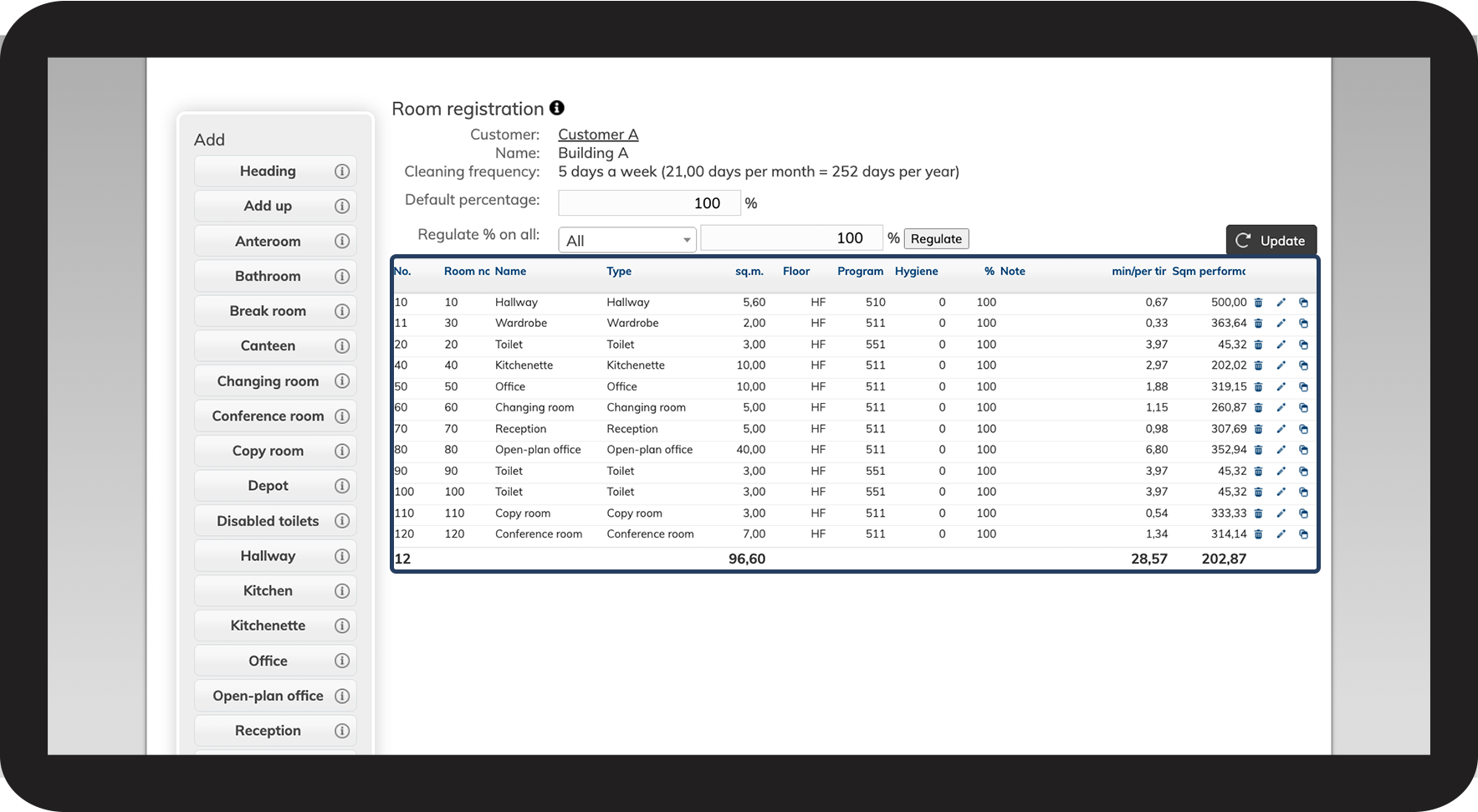
number_1.png

Add all rooms to the quote and adjust their information

12NY.png
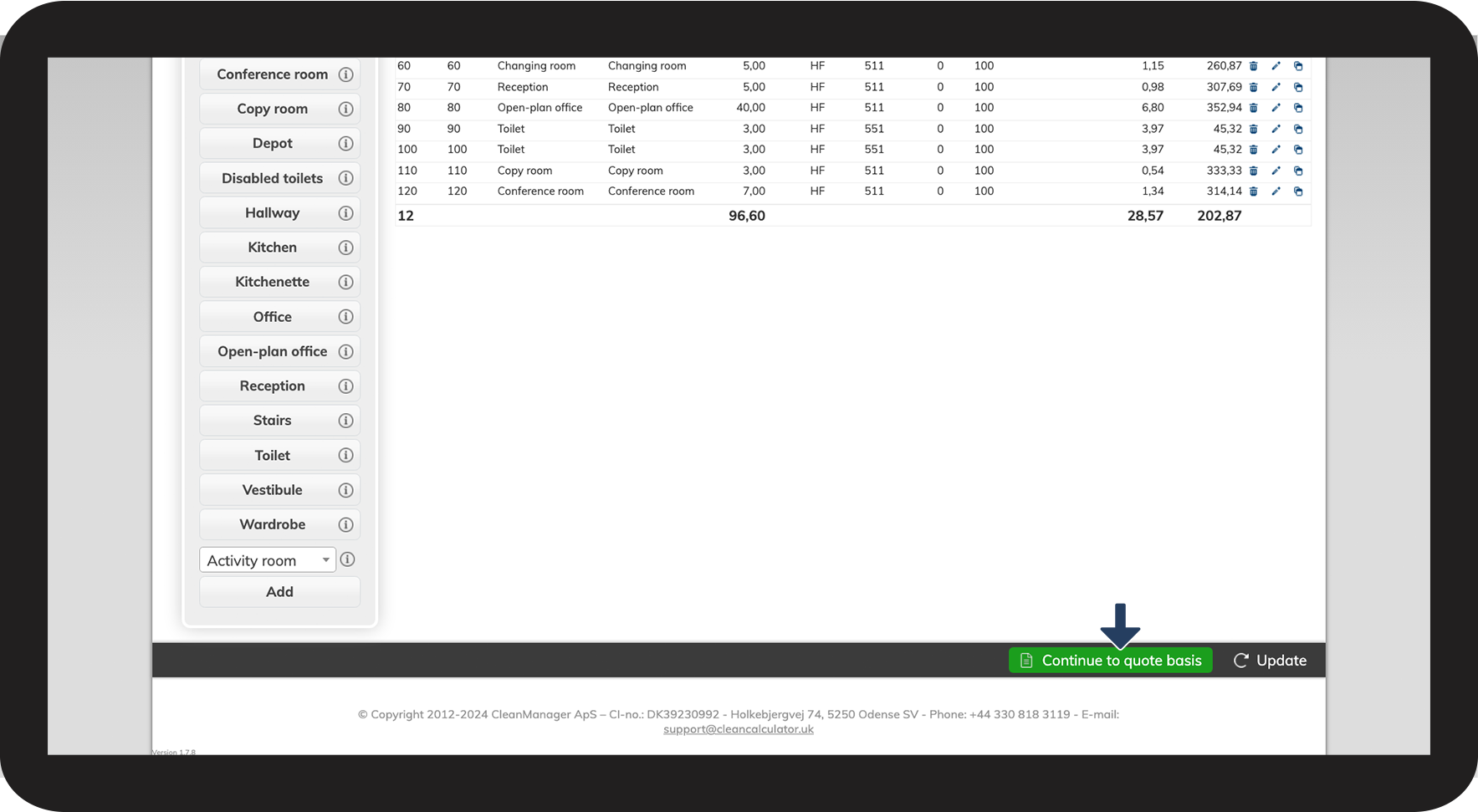
number_2.png

Scroll down to the bottom of the page and click on Continue to quote basis to proceed to the completion of the quote

13NY.png


Step_3.png

Continue to the article Completion of quote basis

When you click on Continue to quote basis, the room registration is finalised, and you will be forwarded to the overview of your quote. (You can always return to the room registration to make additional changes).