Skip to content
English
  • There are no suggestions because the search field is empty.

Start a task - with NFC tag

How do I start a task with a NFC tag?

Tasks can be started in two ways through the app. Either manually, or by using NFC tags. In the following user guide, we will take you through the process of starting a task using an NFC tag as an employee.


Start a task 

This is how you start a task by scanning an NFC tag

number_1.png

Start the CleanManager app and log in


NOTE:

If you have not installed the app yet, you can find help in these articles:

Installation of the app and Log in


number_2.png

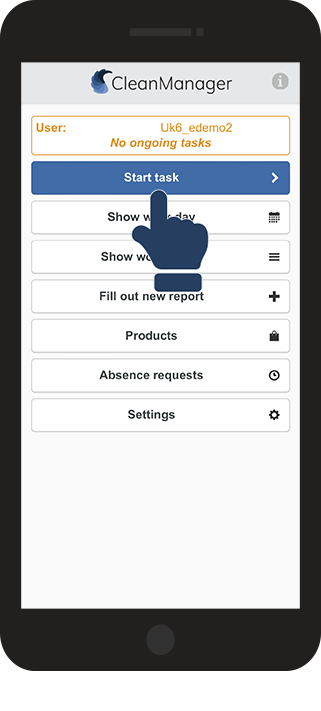
Click on Start task to begin 


1.png

number_3.png

Do you have an iPhone?


Do you have an Android?


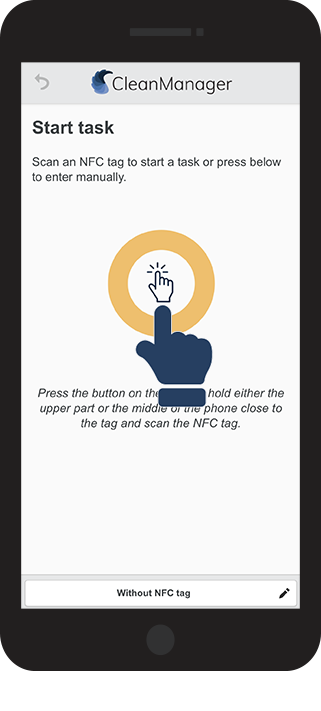
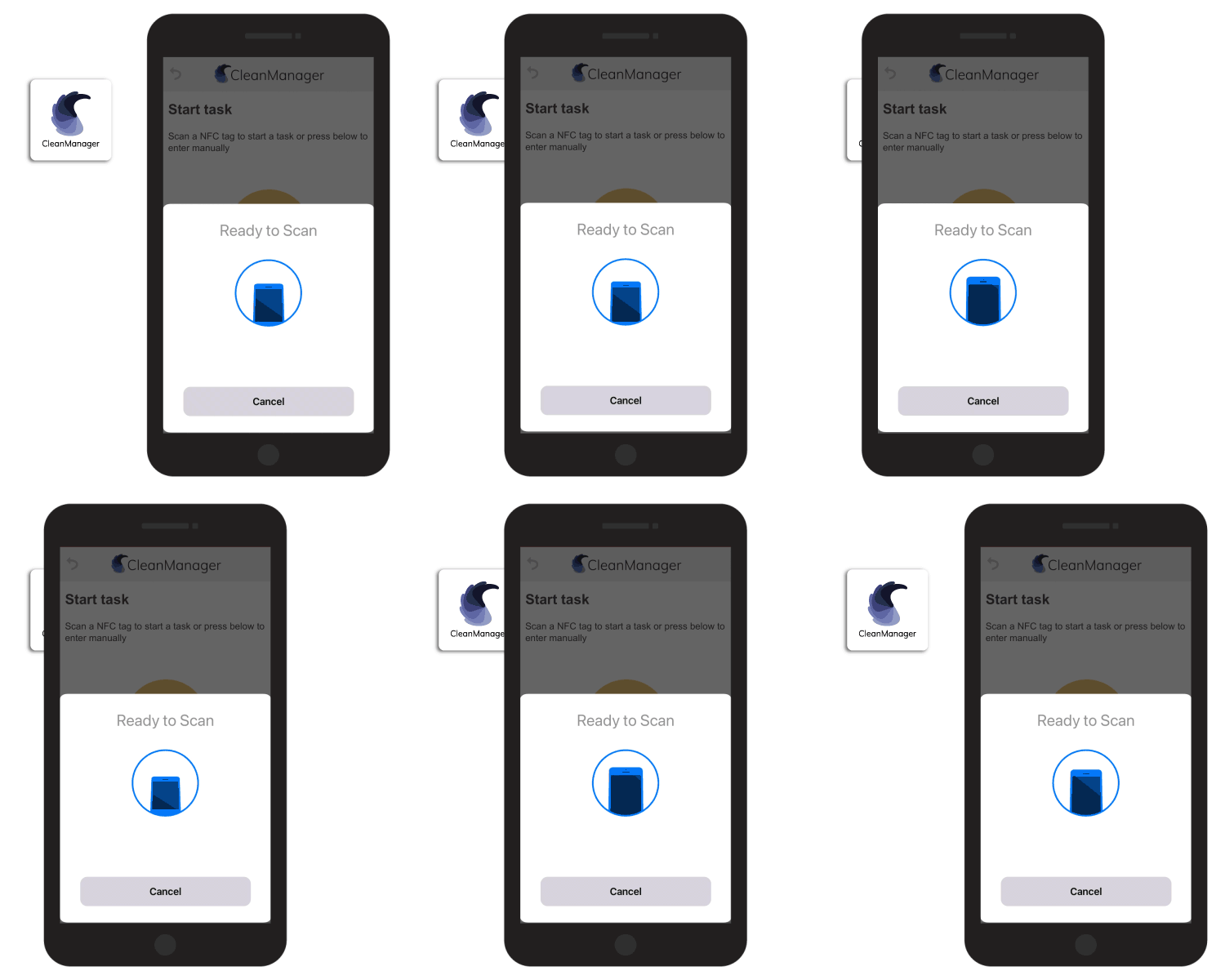
Click in the middle of the screen to activate the NFC scanner


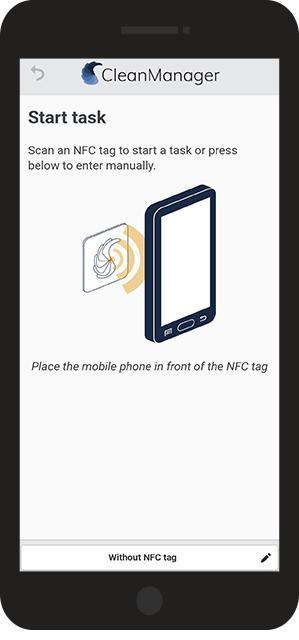
The NFC scanner is already active, and you are ready to scan


2.png


android.png


NOTE:

If the above step does not appear in the app, your device does not have an NFC scanner. Instead, you can check in manually, depending on the system settings.

The administrator can learn more about the setting in the following article: For which customer should it be possible for employees to check in manually without an NFC tag and register arrival and/or departure time?

 

number_4.png

Do you have an iPhone?


Do you have an Android?

 
iPhones have their NFC scanner build in at the top of the smartphone, right behind the speaker. Move the top of the iPhone slow and close across the NFC tag for optimal results


It varies where the scanner is placed in Android devices. Usually, it will be one of these locations:

  • the top
  • the middle
  • together with the camera

Move your phone slow and close across the NFC tag to get the best result and to find out exactly where your phone scans the best


3-Iphone.gif


Android.gif


NOTE:

For more information about how to scan NFC tags, see the following article: How do I scan NFC tags?


number_5.png

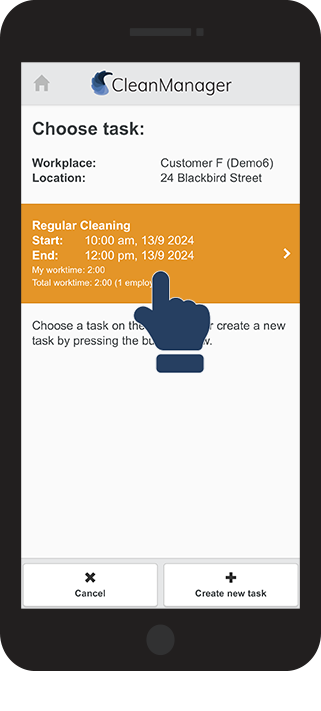
Click on the task that is available to start it


4.png

number_6.png

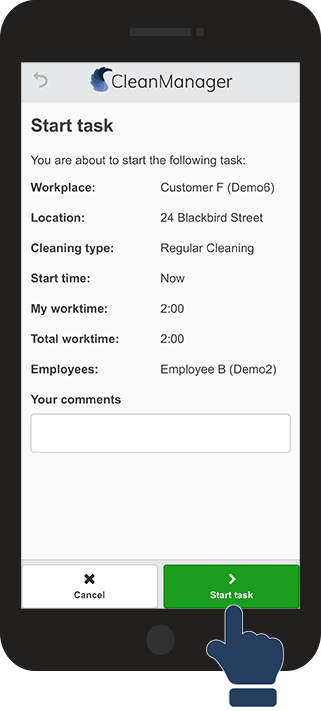
Click on Start task


You can also see information about the task here, as well as add a comment to the task


5.png   

number_7.png

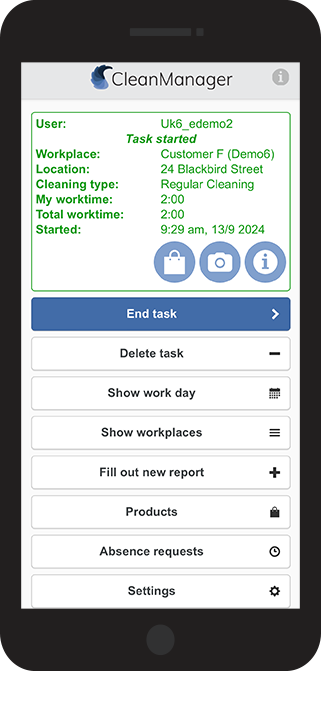
You have now started your task


This task will be active in your app until you end the task

See the article End a task - with NFC tag to learn how to complete the task.


7.png


NOTE:

You can only have one active task at a time. End a task before starting another.