
How do I enable customers to view report statistics?
You can give customers access to the report statistics, where they can e.g. get an overview of the number of reports in certain time periods, employees, report types, and more.
This gives customers the possibility to gain an overview of their filled-out reports.
Read the article to find out how customers can view the report statistics:
-
How to activate the setting?
-
What can customers see after activating the setting?
-
How to set up a template so customers can see statistics?
This is how you activate the setting
Customers can get access to the report statistics if the setting Show report statistics to customers is activated in the General settings.
Note:
This setting only works in the web version of CleanManager and not in the app.
Remember that you have to give the contact person access to CleanManager in the customer list.

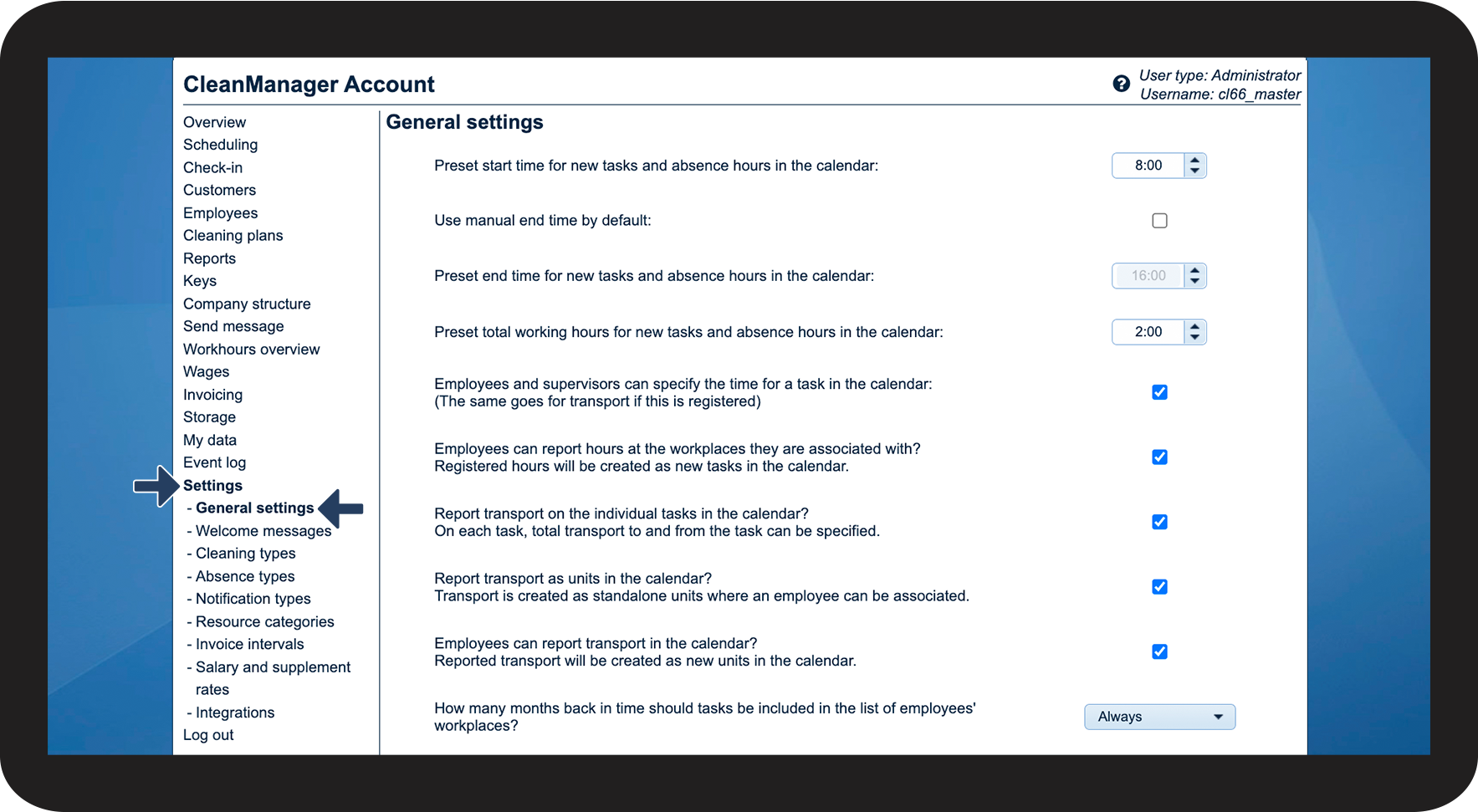

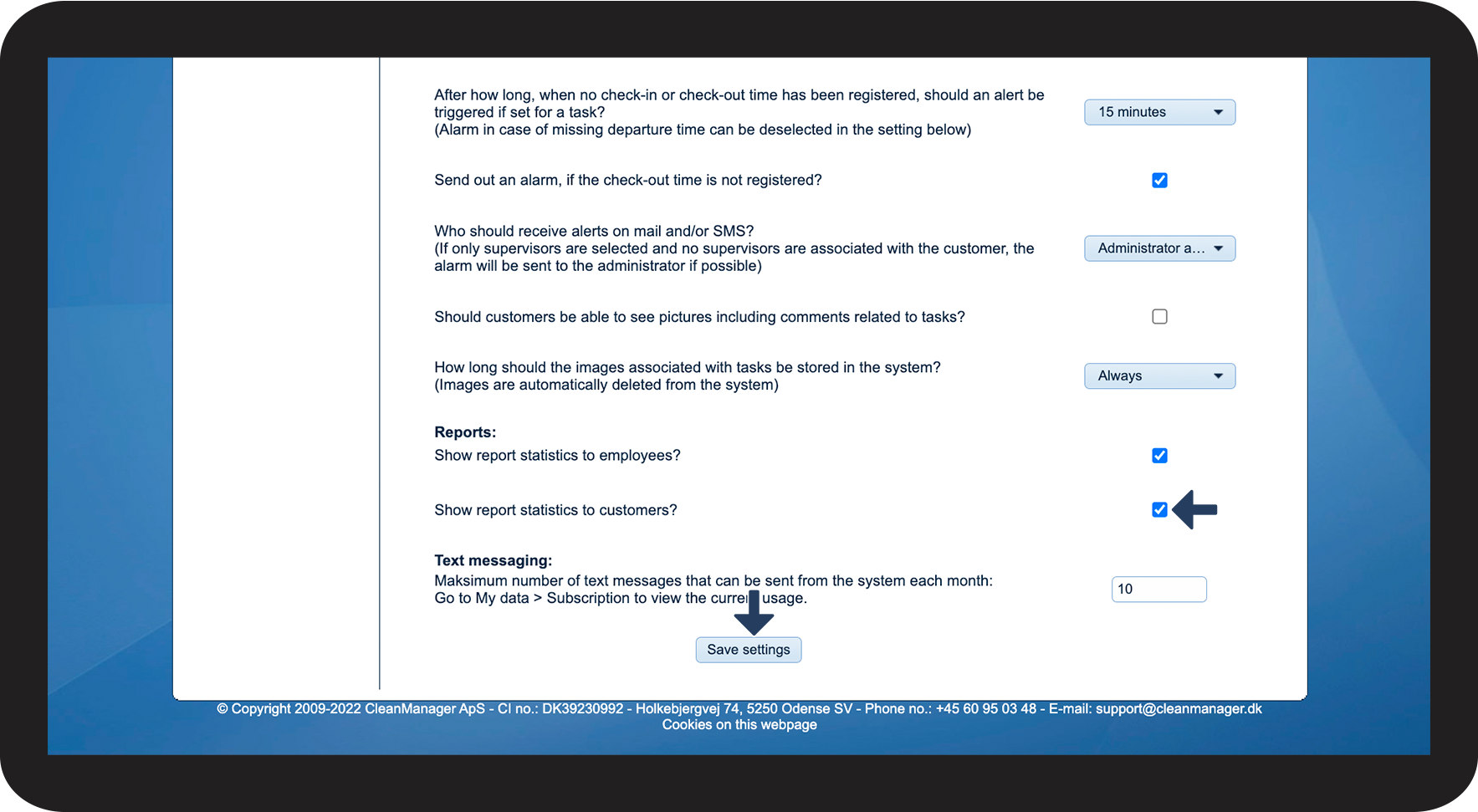
INFO:
Ønsker du at medarbejderne også skal have mulighed for at se rapportstatistik, så kan du ligeledes give dem adgang ved at sætte kryds ved Vis rapportstatistik til medarbejderne?
This is what customers can see after the setting has been activated
Note:
For the report to be included in the statistics, it is necessary to activate the setting "Can view" or "Can fill in" when the report is created. For more information, read here.
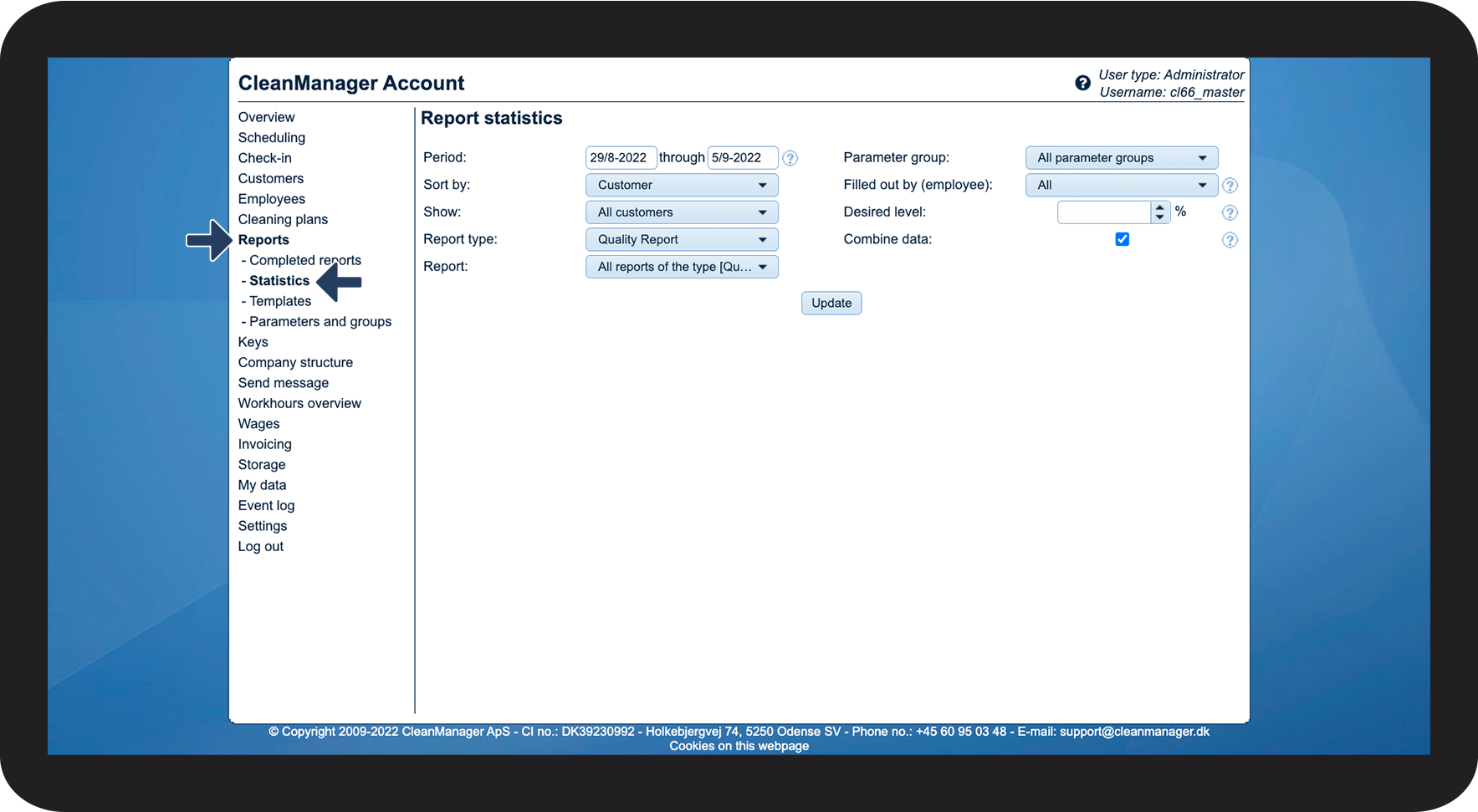
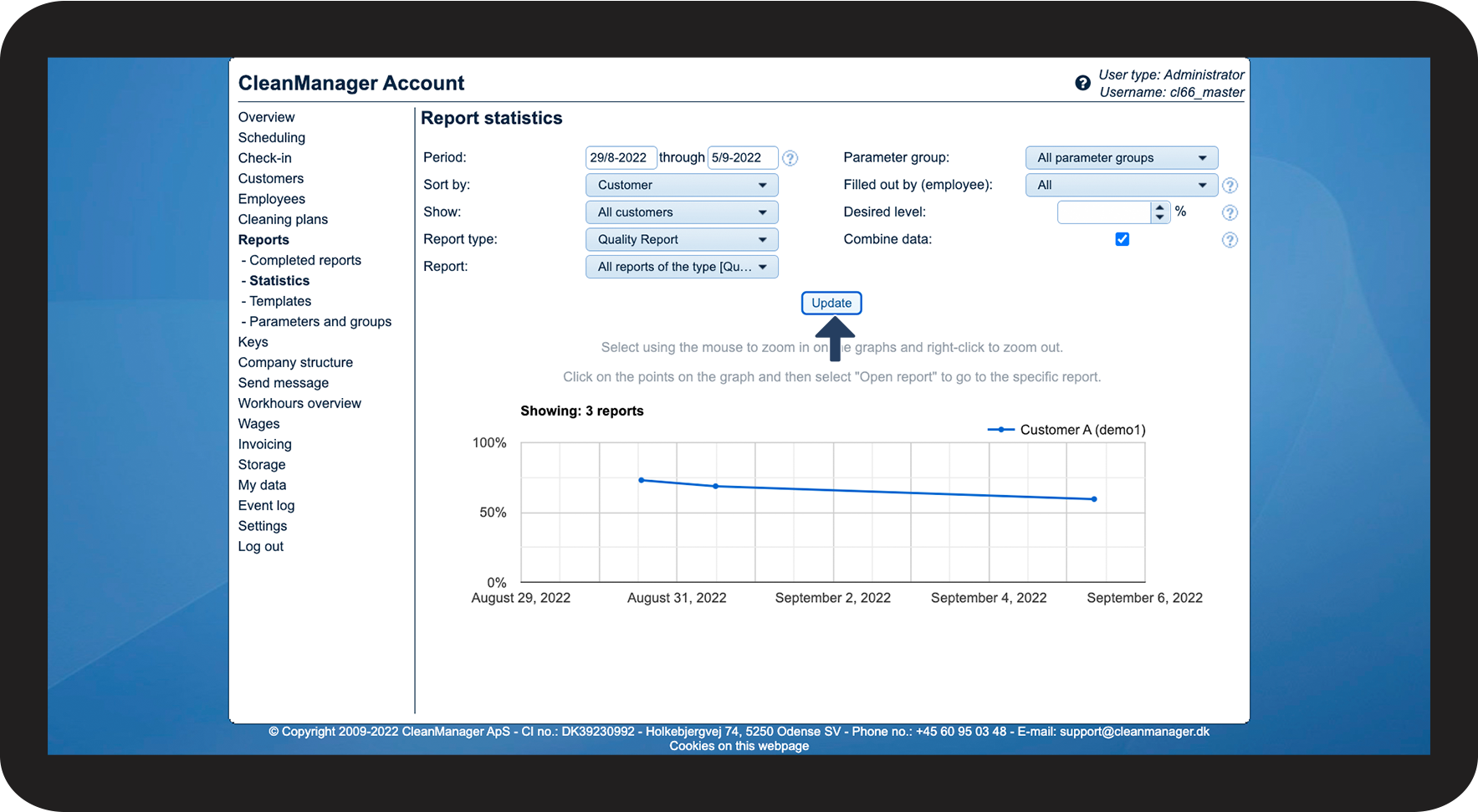
After the setting Show report statistics to customers? has been activated, the menu point Statistics will appear below the point Completed reports in the category Reports.
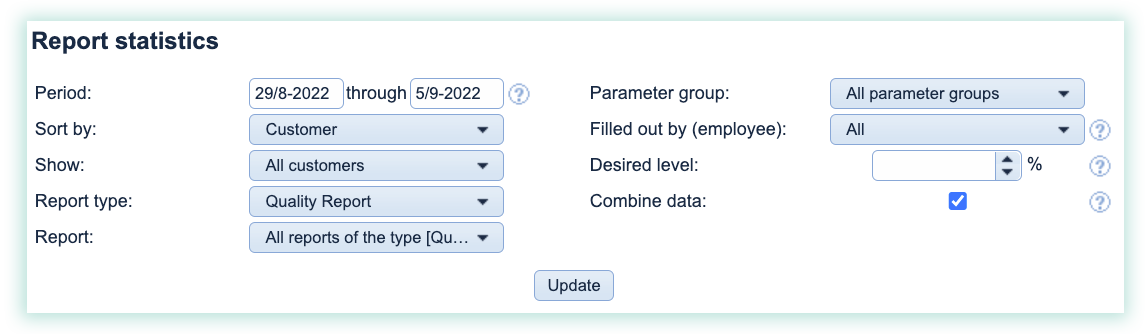
In Statistics you will have a graphical overview of all filled-out reports.
You have different options on how to choose which reports are shown in the graphic, by sorting the reports by e.g. time periods, report types, and other parameters.

This is how you set up a report template, so customers are able to see its statistics
When you create a report template, which the customer should see in the report statistics, it is a requirement to enable your employee to either can view or can fill in the report. Here is how you can do it:
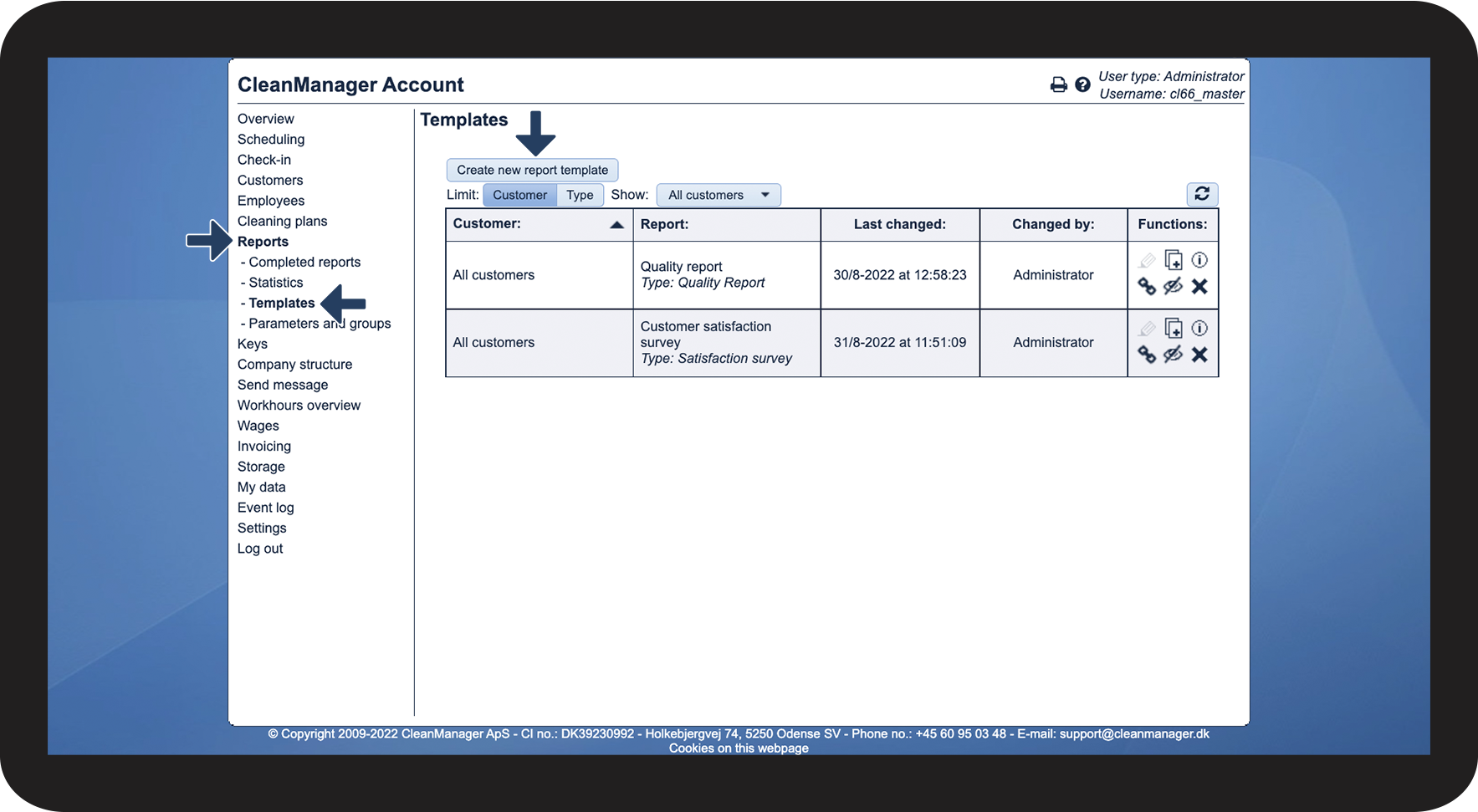
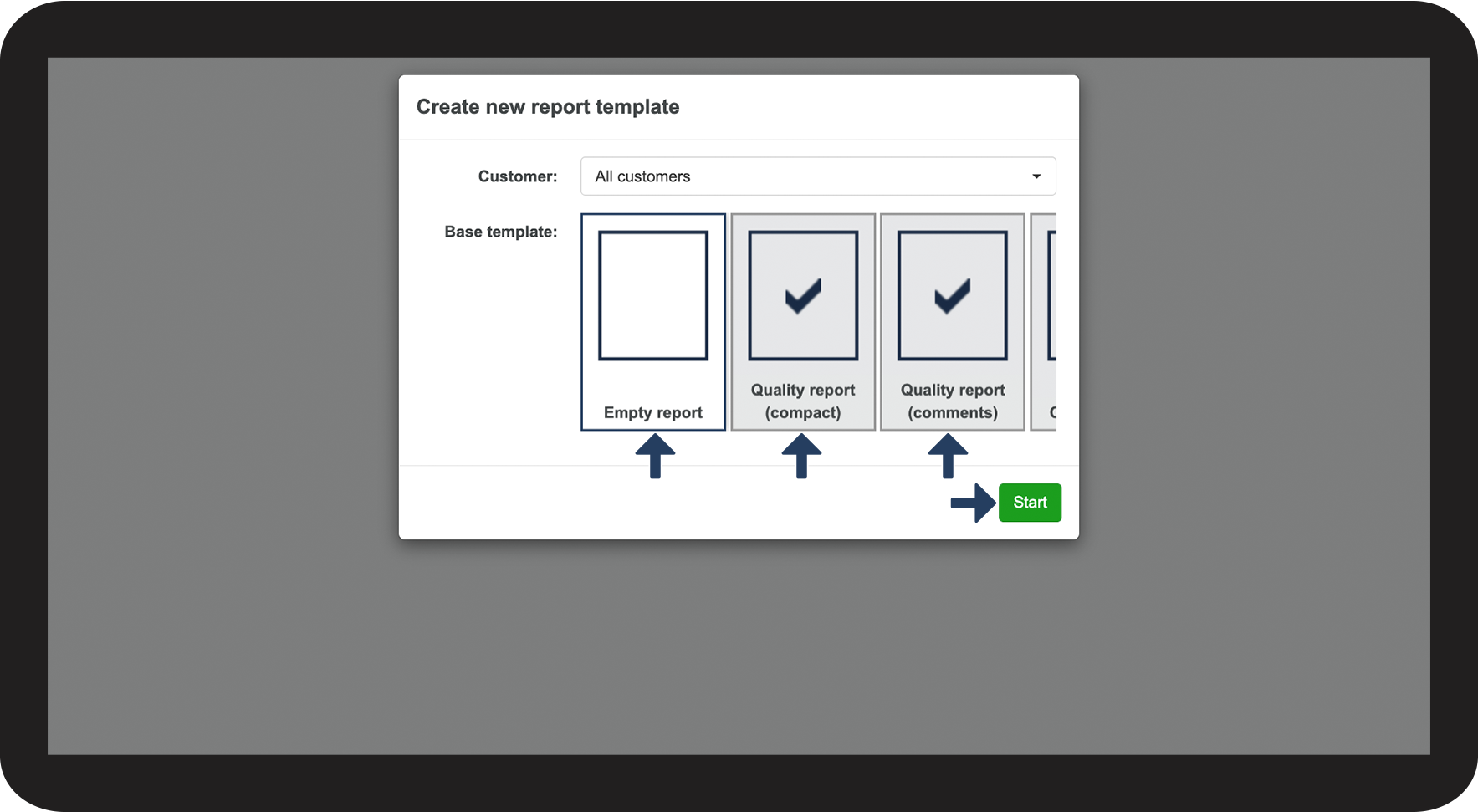

To set up this setting, go to: