Skip to content
English
  • There are no suggestions because the search field is empty.

Setup features for cleaning plans

What setup functions does the Administrator / Supervisor have when setting up a cleaning plan?

There are various setup functions that the Administrator / Supervisor can use when creating a cleaning plan.

The functions make it possible to describe which rooms are to be cleaned with headings, followed by associated tasks in the rooms with descriptions.

The functions also provide the option to specify when the tasks must be solved with frequencies and checkboxes.


NOTE

A cleaning plan cannot contain more than 100 rows of tasks and headings.


In this article, you will learn how to set up a cleaning plan:


How to add and set up a task

number_1_copy.png
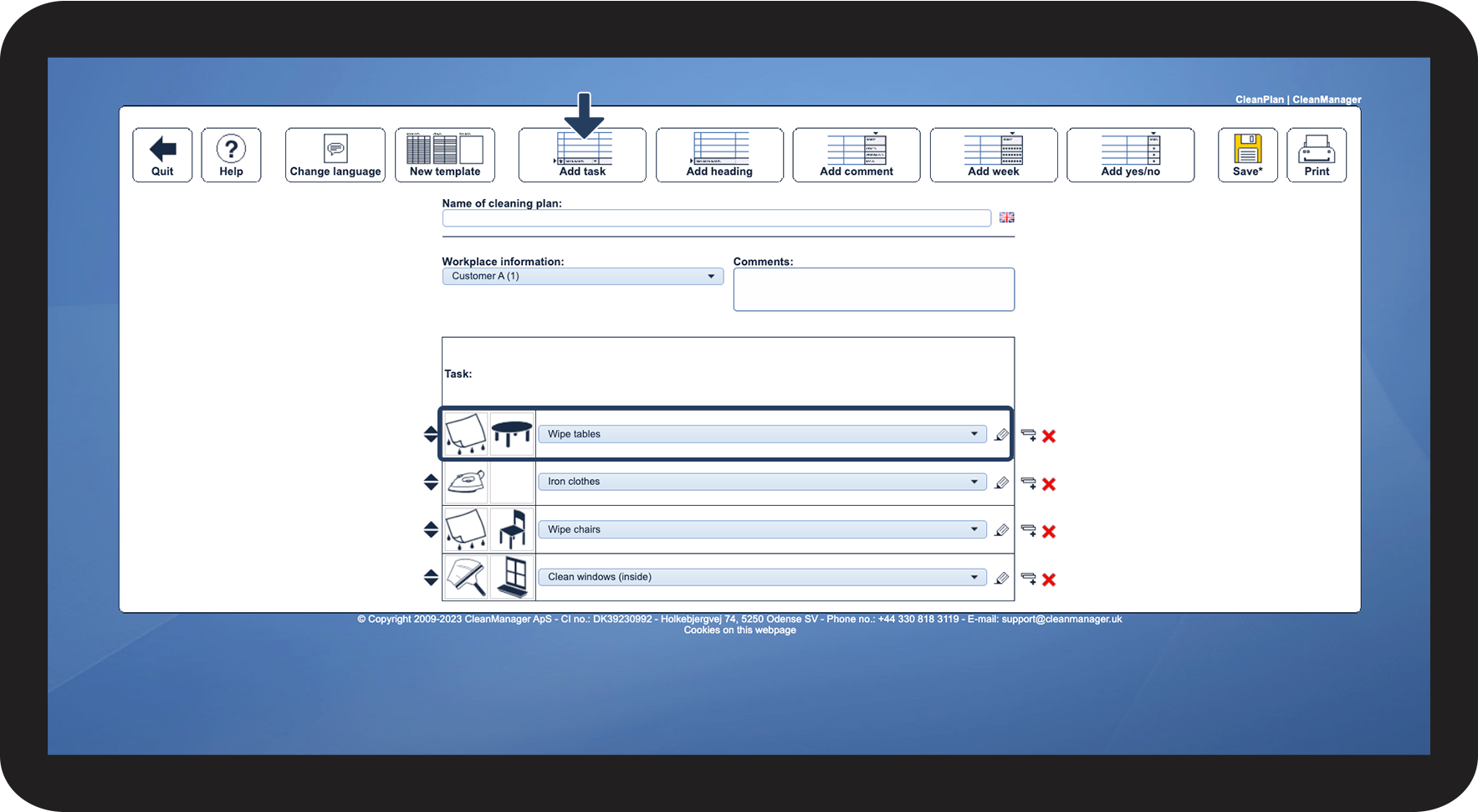
In the top menu, click on Add task

1.png

number_2_copy.png

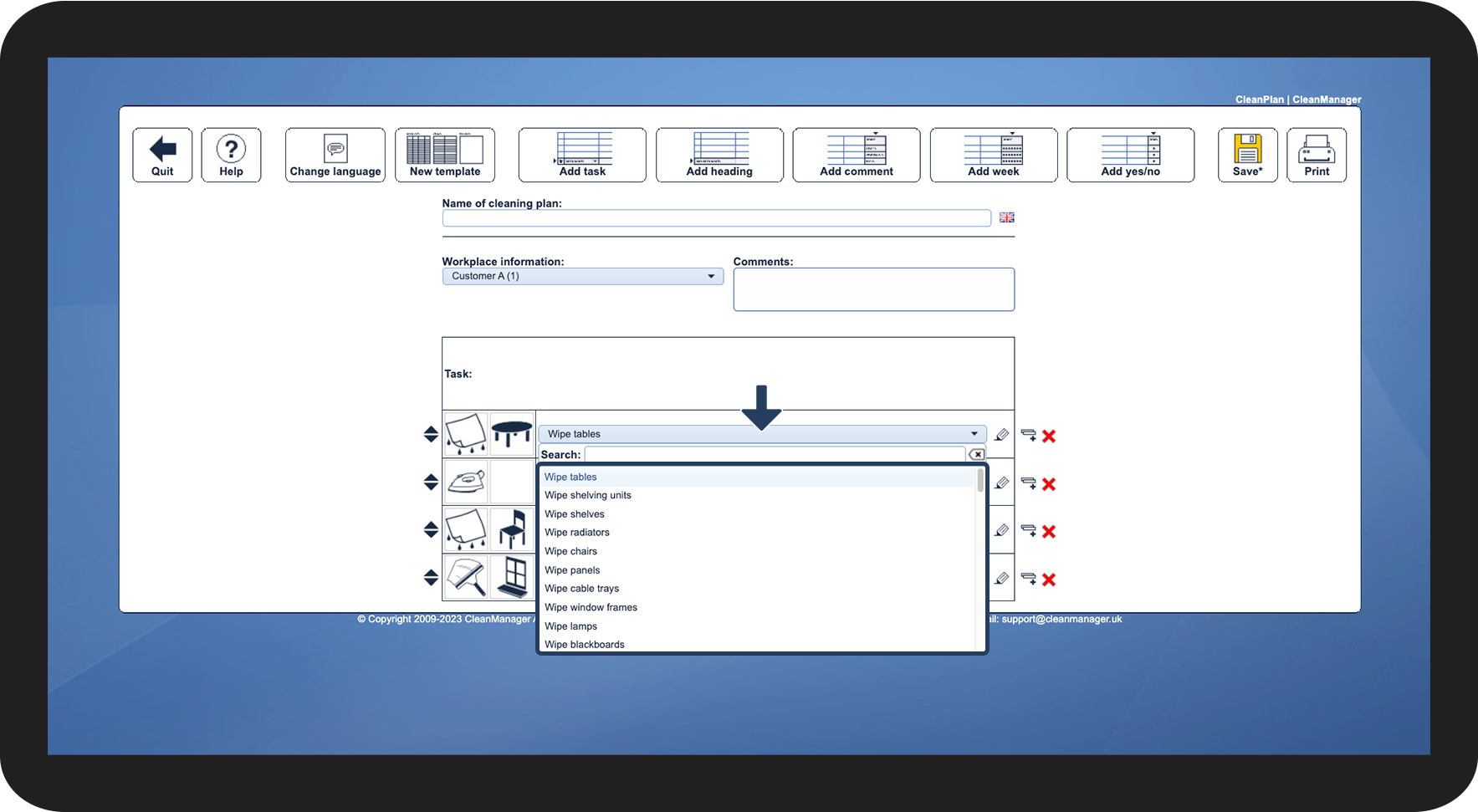
At an added task, tap the dropdown to select one of the possible task descriptions

2.png

number_3_copy.png

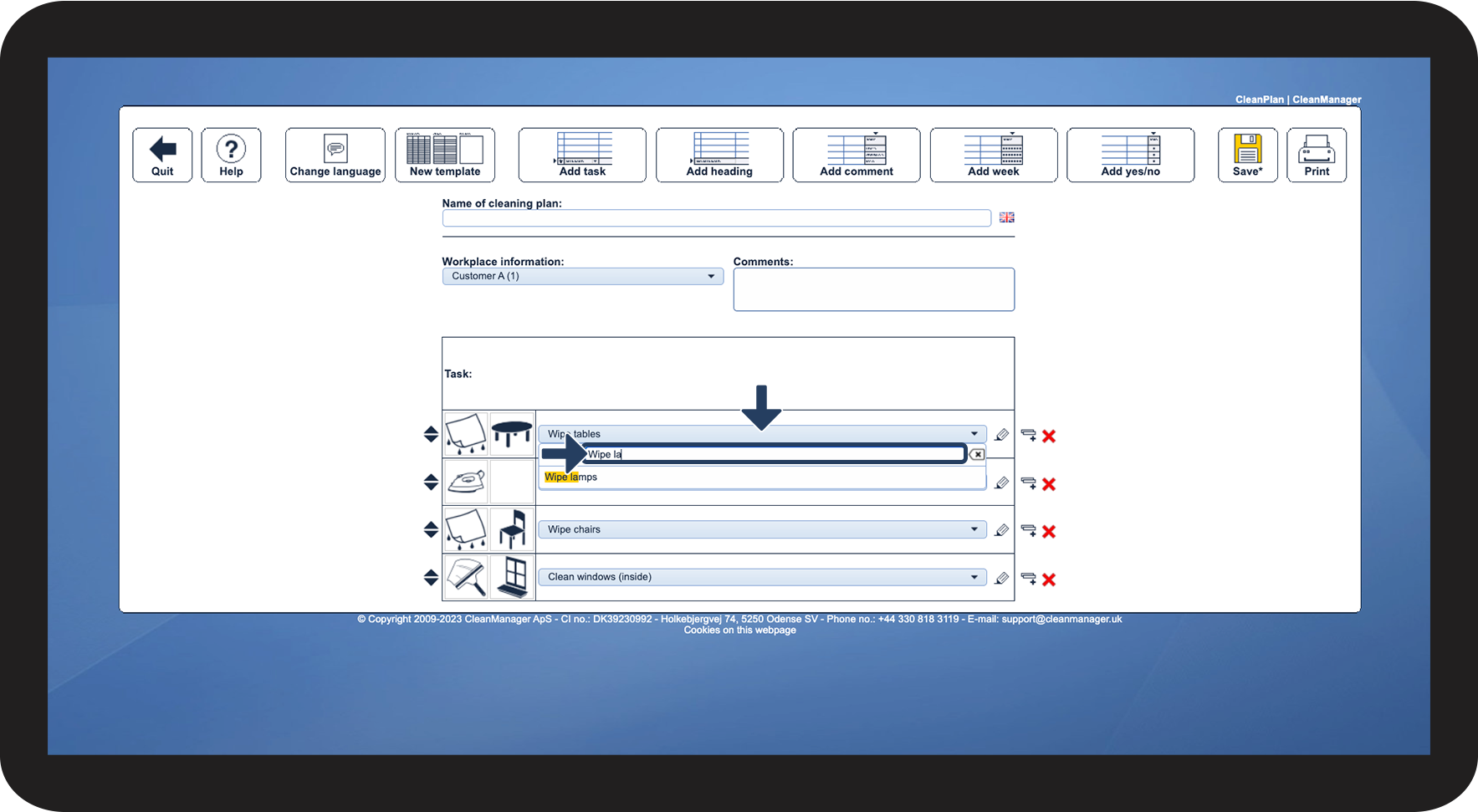
Or search via the Search field for a specific task

3.png

number_4_copy.png
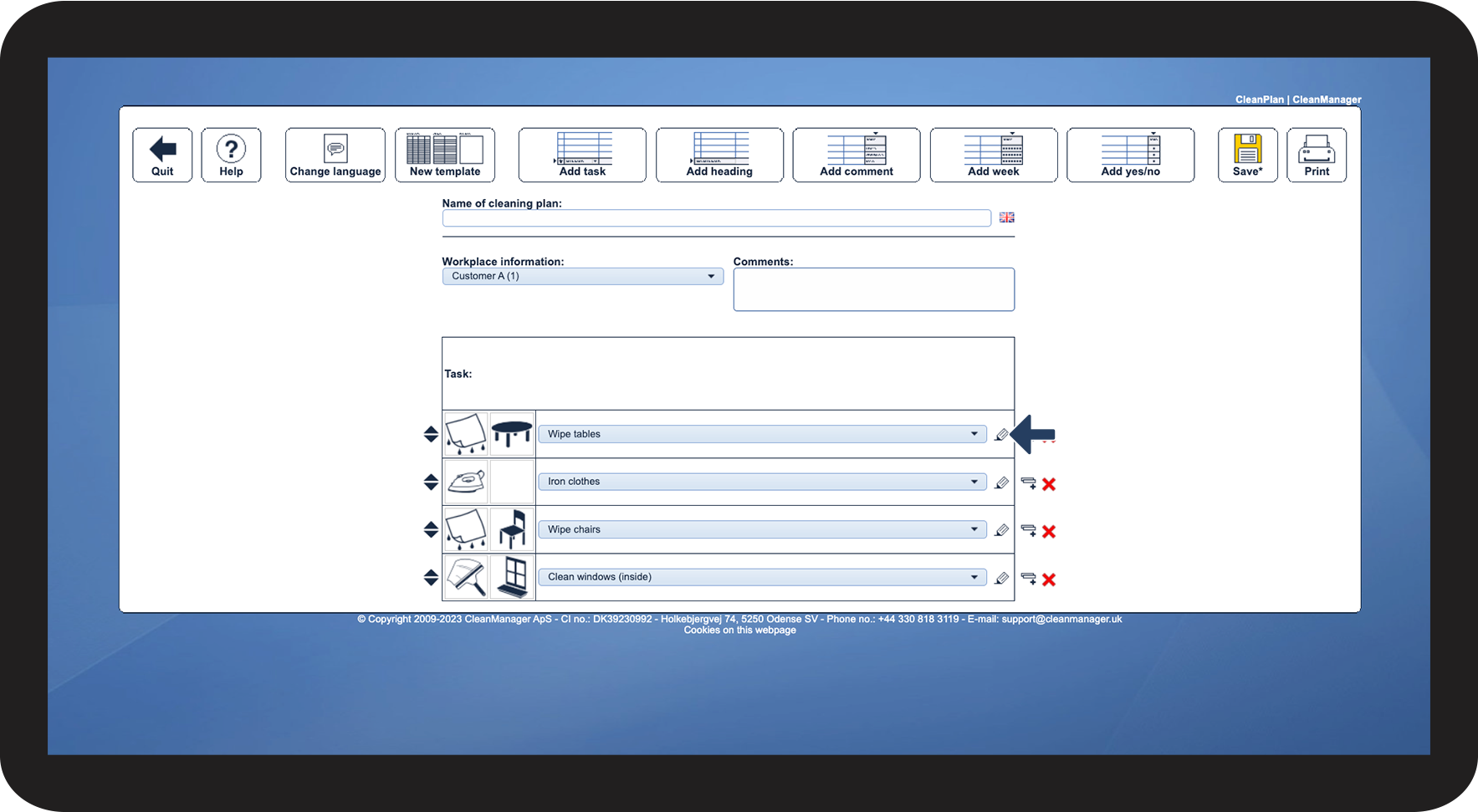
Click on Manual entry rediger.png next to a task to rename the task

4.png


NOTE

Renaming an individual task's name prevents it from automatically being translated when switching languages.

It is important that the task text is not longer than the dropdown itself, as it otherwise will not be included on the printout.

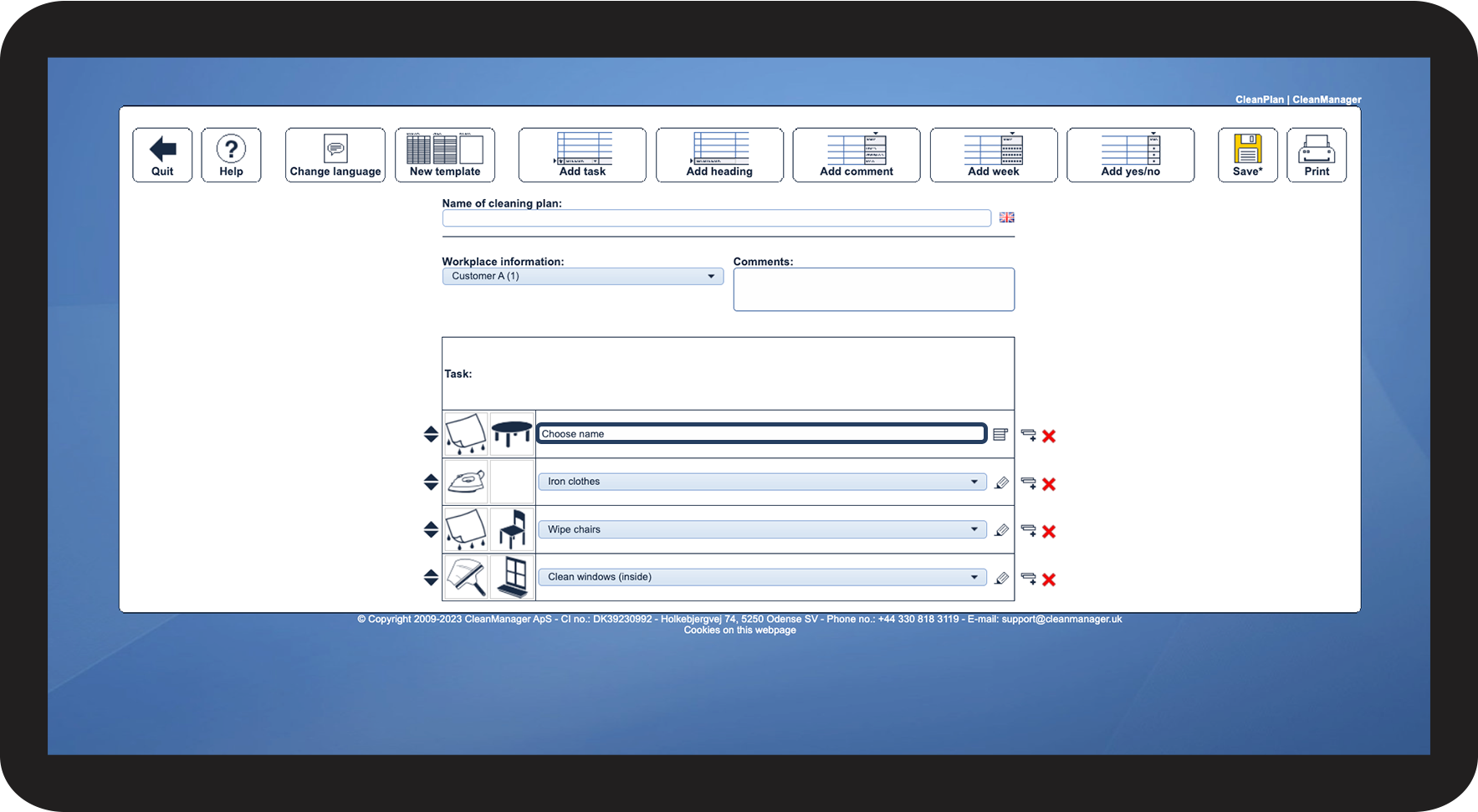
number_5_copy.png

In the task field, describe the desired task


NOTE

When editing a task description, it is essential not to click on Select from the list because this will reset what has been written.
5.png

number_6_copy.png

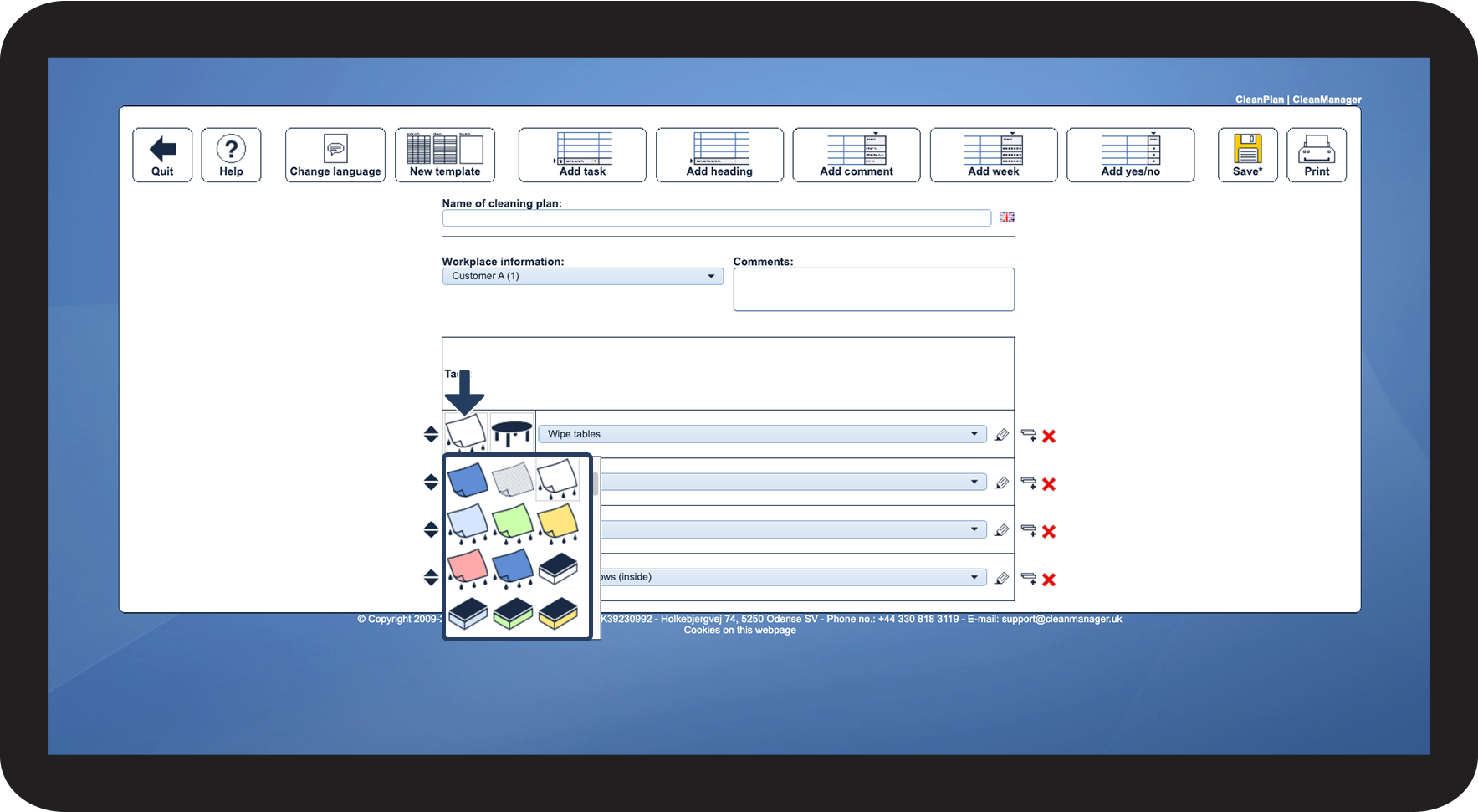
Click on Image 1 to select the equipment, the employee must use for the task.

6.png

number_7_copy.png

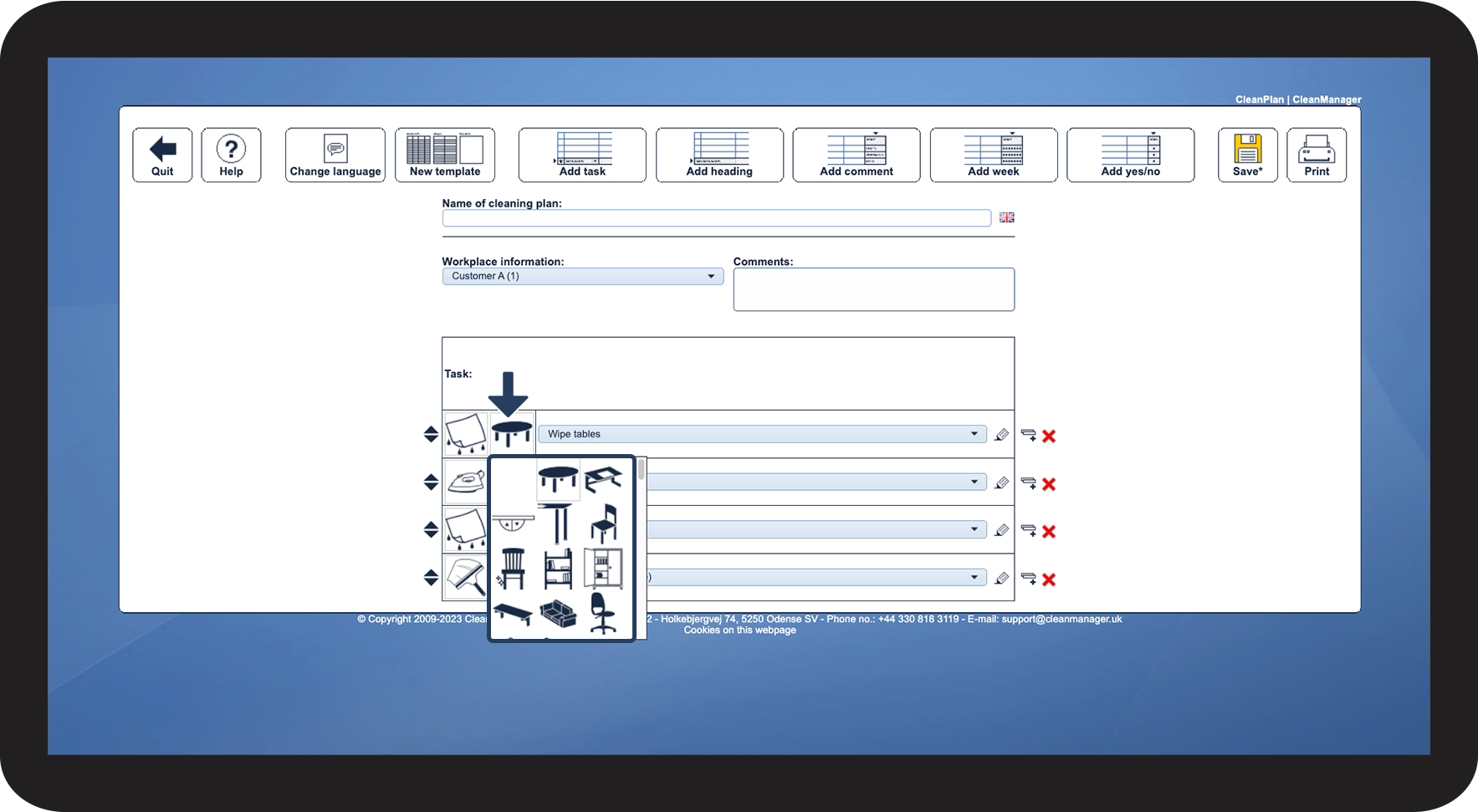
Click on Image 2 to select the fixture the employee needs to clean.

7.png


How to add and set up a header

number_1_copy.png
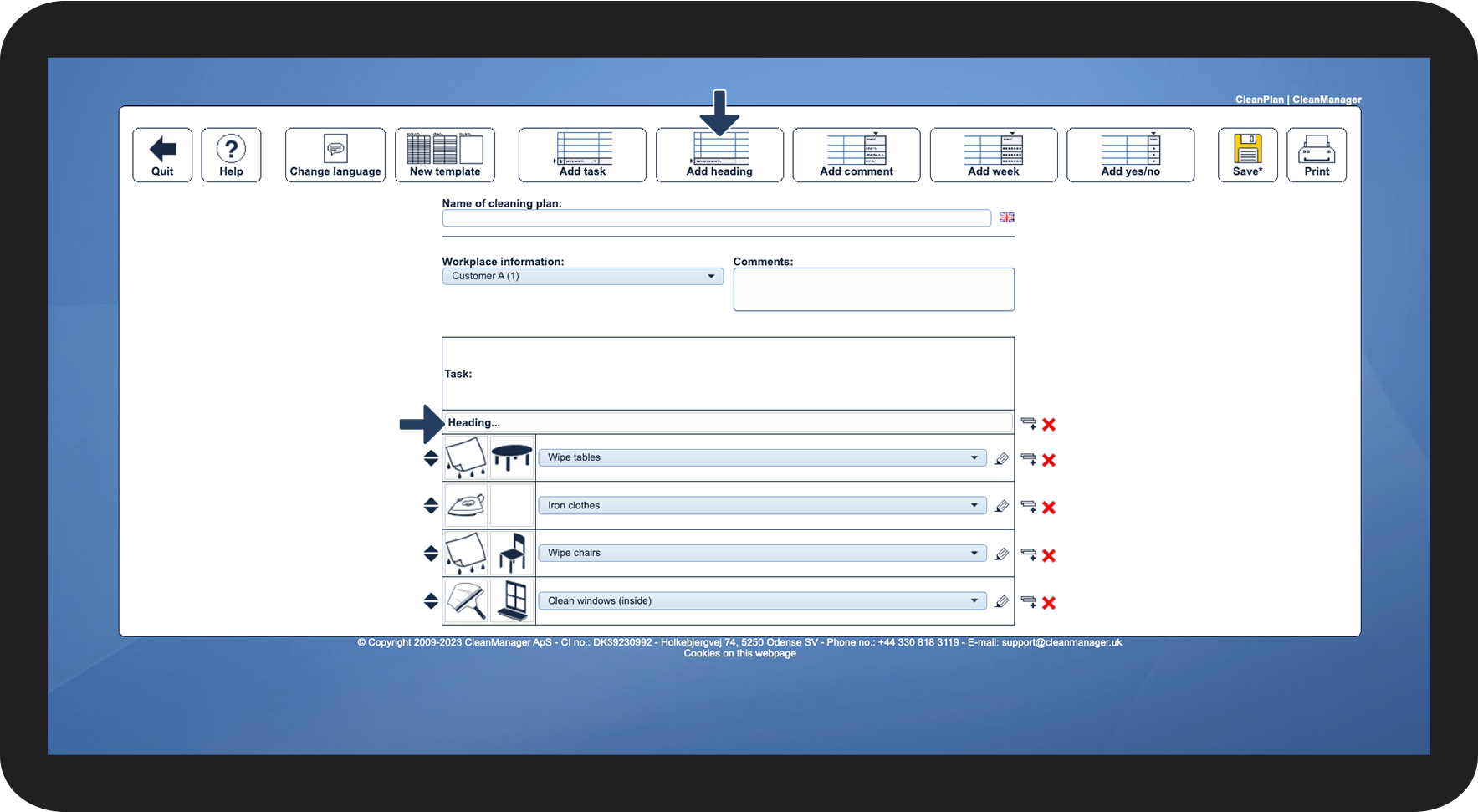
In the top menu, click on Add Header
 

Create a heading that describes a room or what the following tasks are about.

8.png

number_2_copy.png
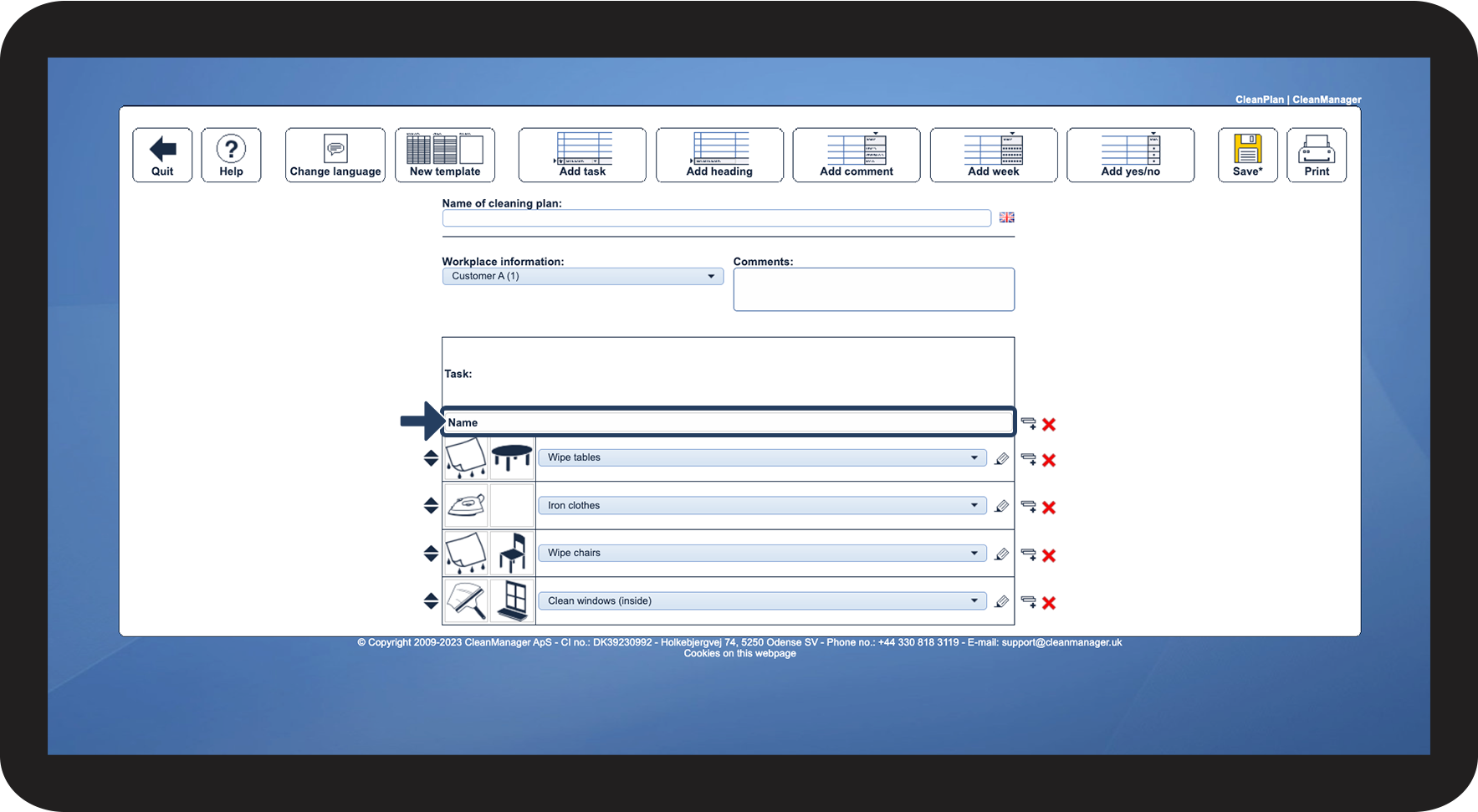
Click on the field to Name the header

9.png


How to add and set up a comment

number_1_copy.png
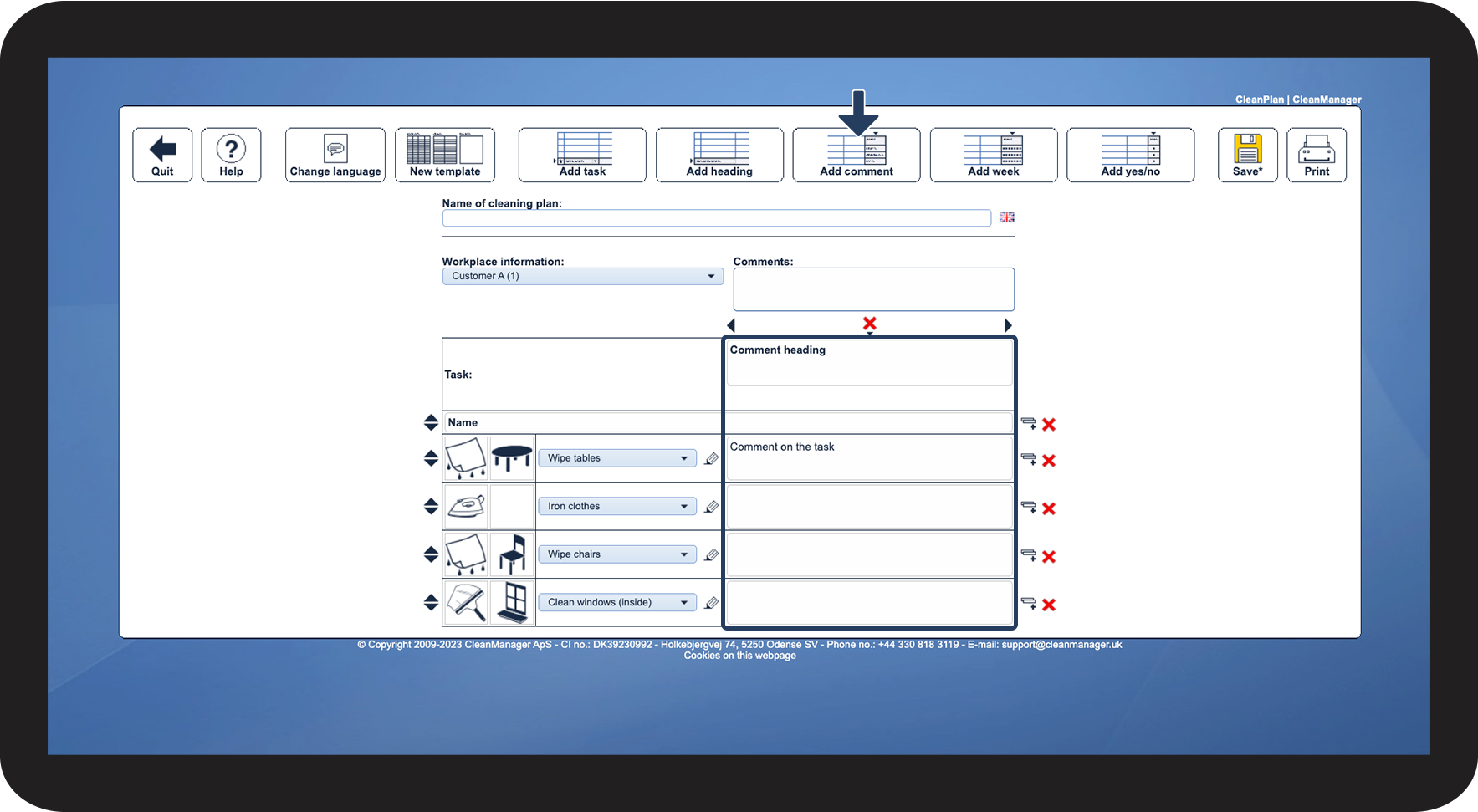
In the top menu, click on Add Comment
 
This function adds a column that allows you to write a comment for each task.

10.png

number_2_copy.png
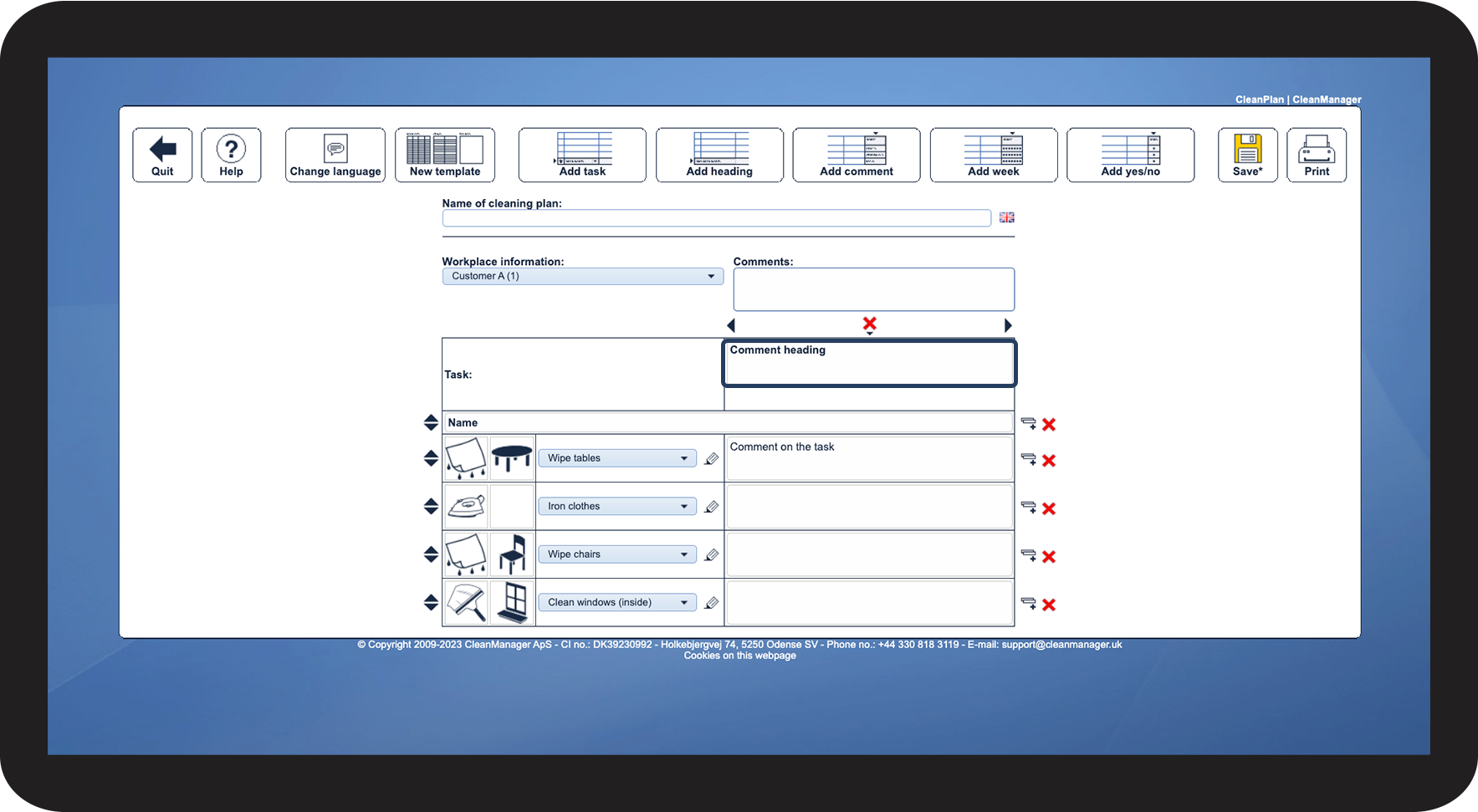
Tap on the Comment of the task field to name the heading for the comment column

11.png

number_3_copy.png
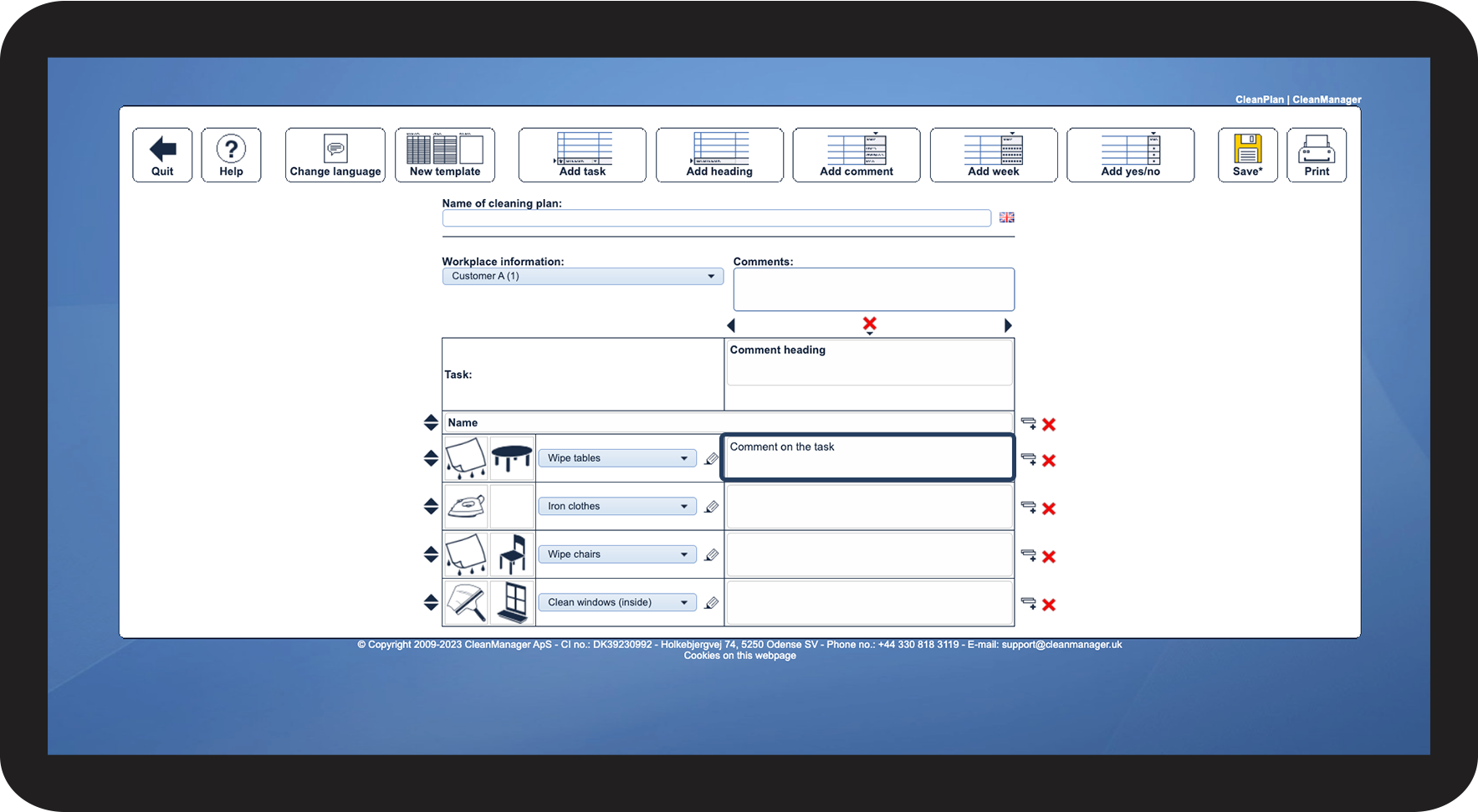
Click on the field next to each task to add a comment to the task

12.png


How to add and set up a week

number_1_copy.png
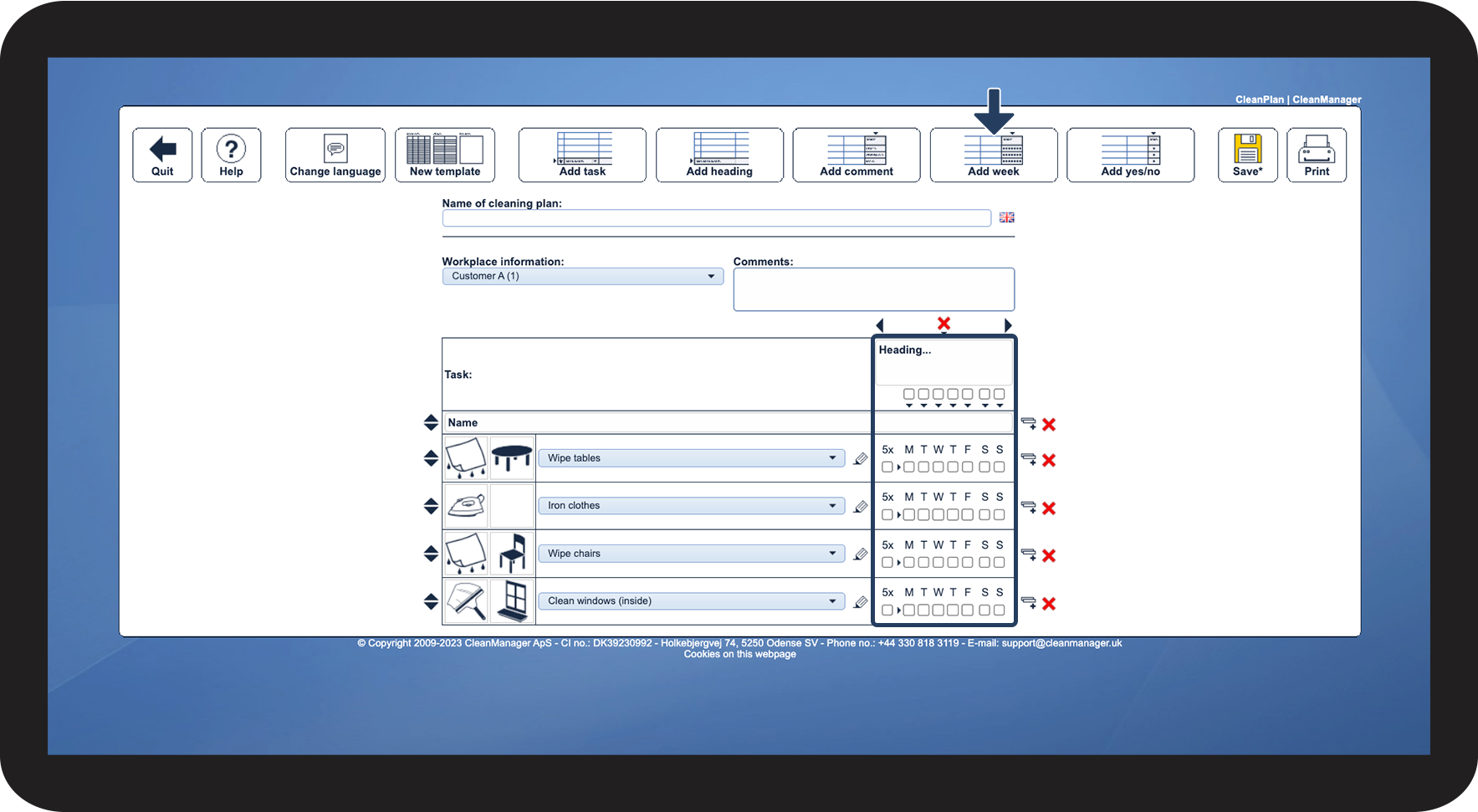
In the top menu, click on Add Week
 
This makes it possible to choose a frequency for when during the week a certain task must be carried out.

13.png

number_2_copy.png

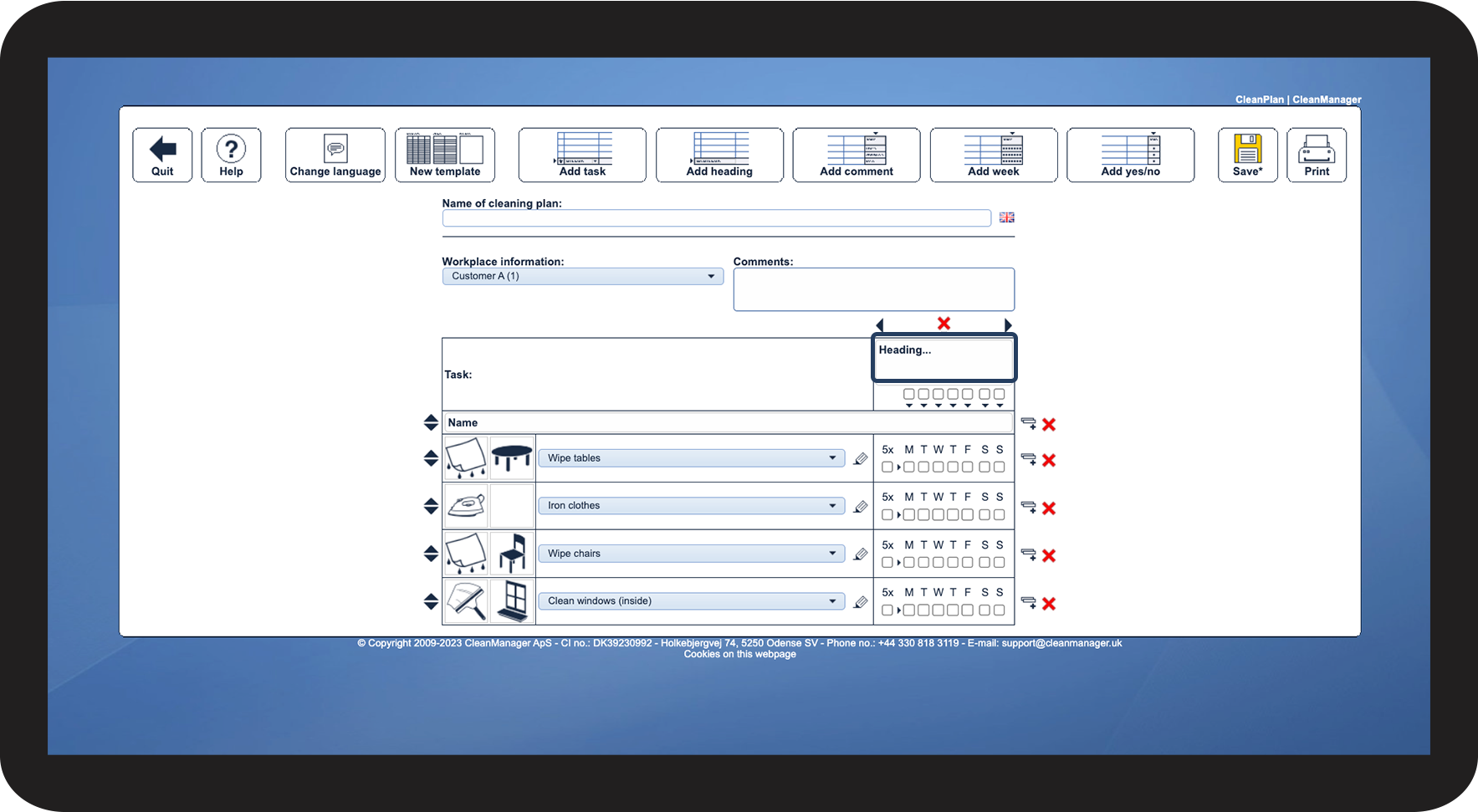
Click on the Heading field to name the heading for the week's column

14.png

number_3_copy.png
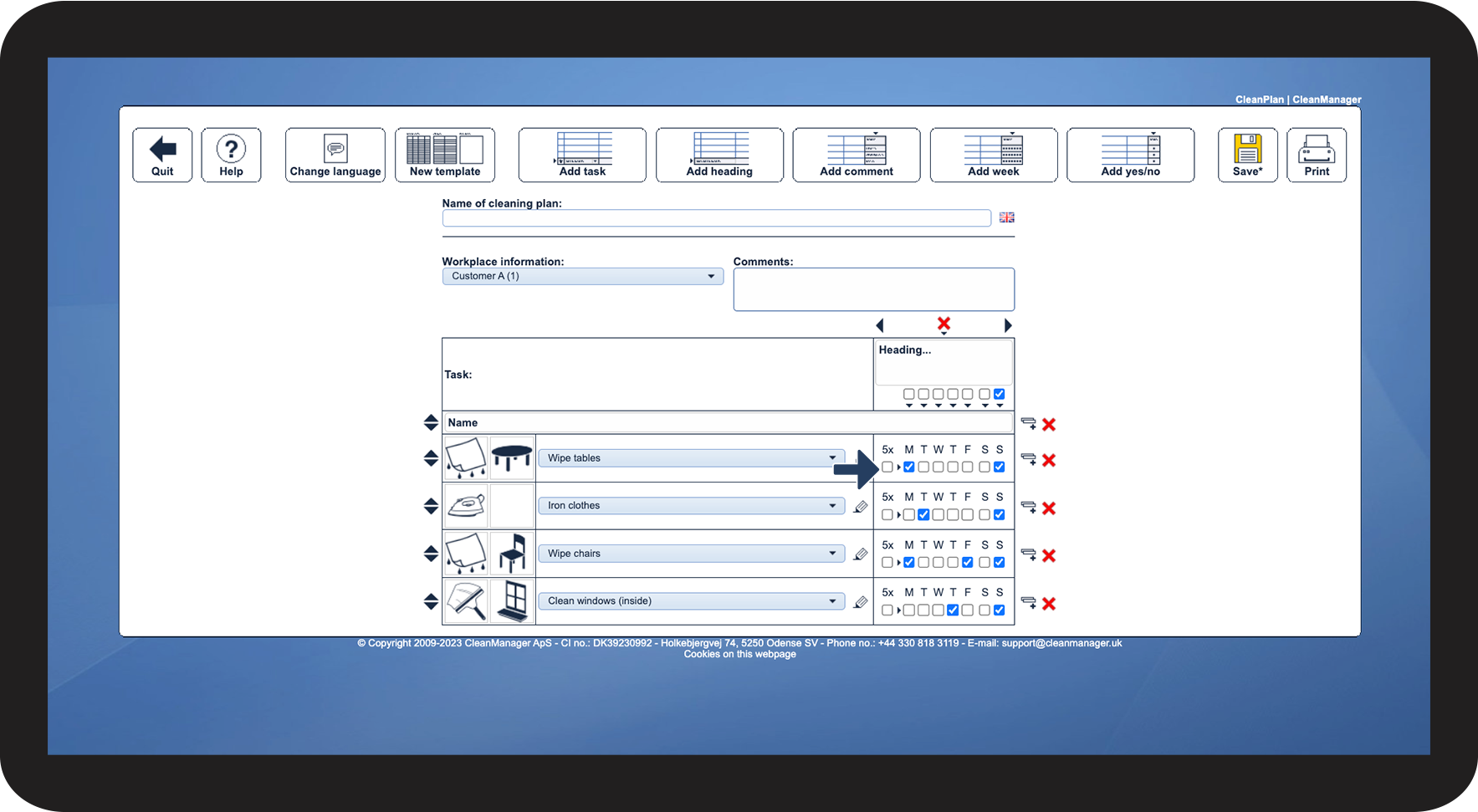
Check off which days of the week the task must be carried out

15.png

number_4_copy.png
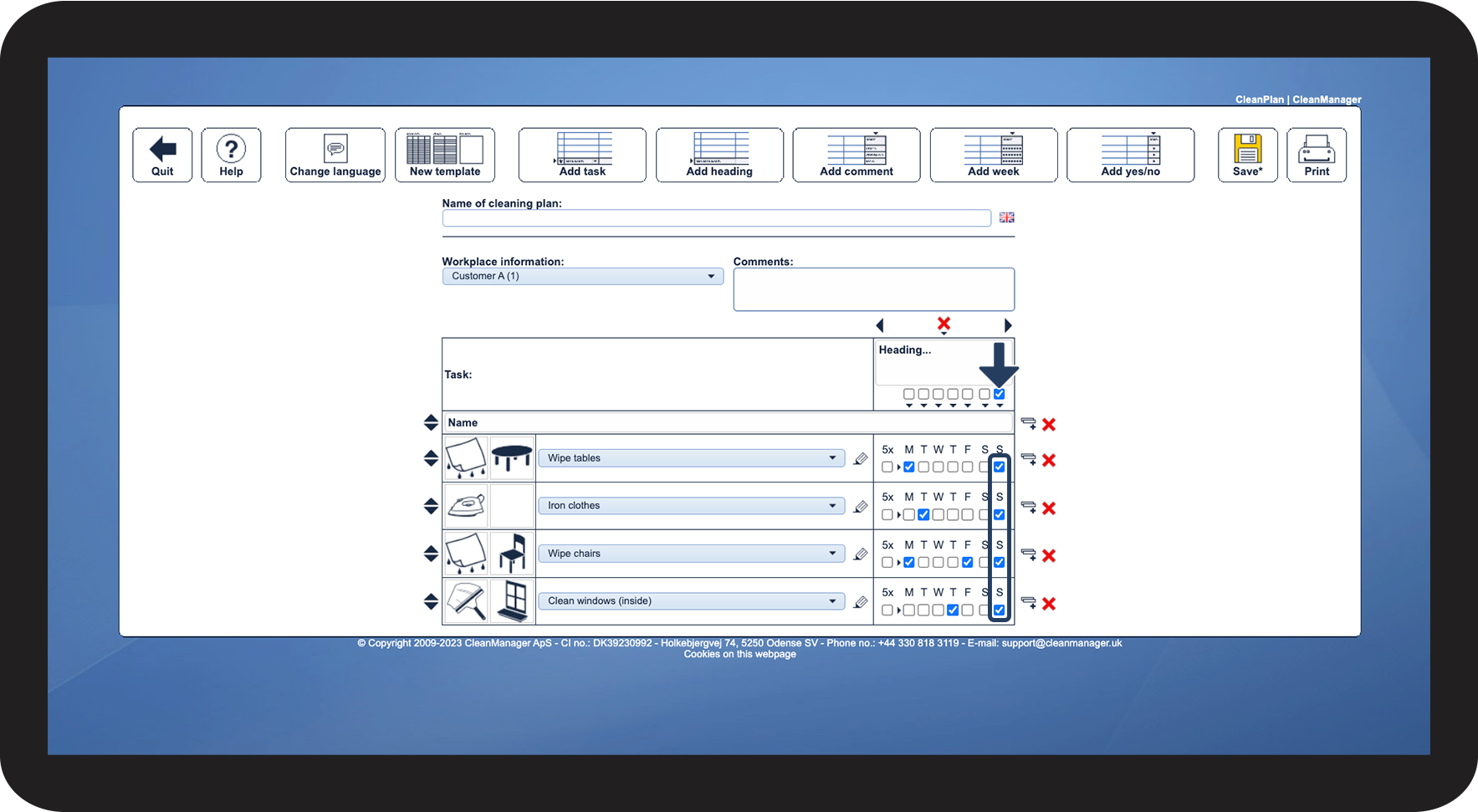
If necessary, select a Task frequency for all tasks at once by checking the heading of the relevant weekday
16.png


How to add and set up a yes/no field
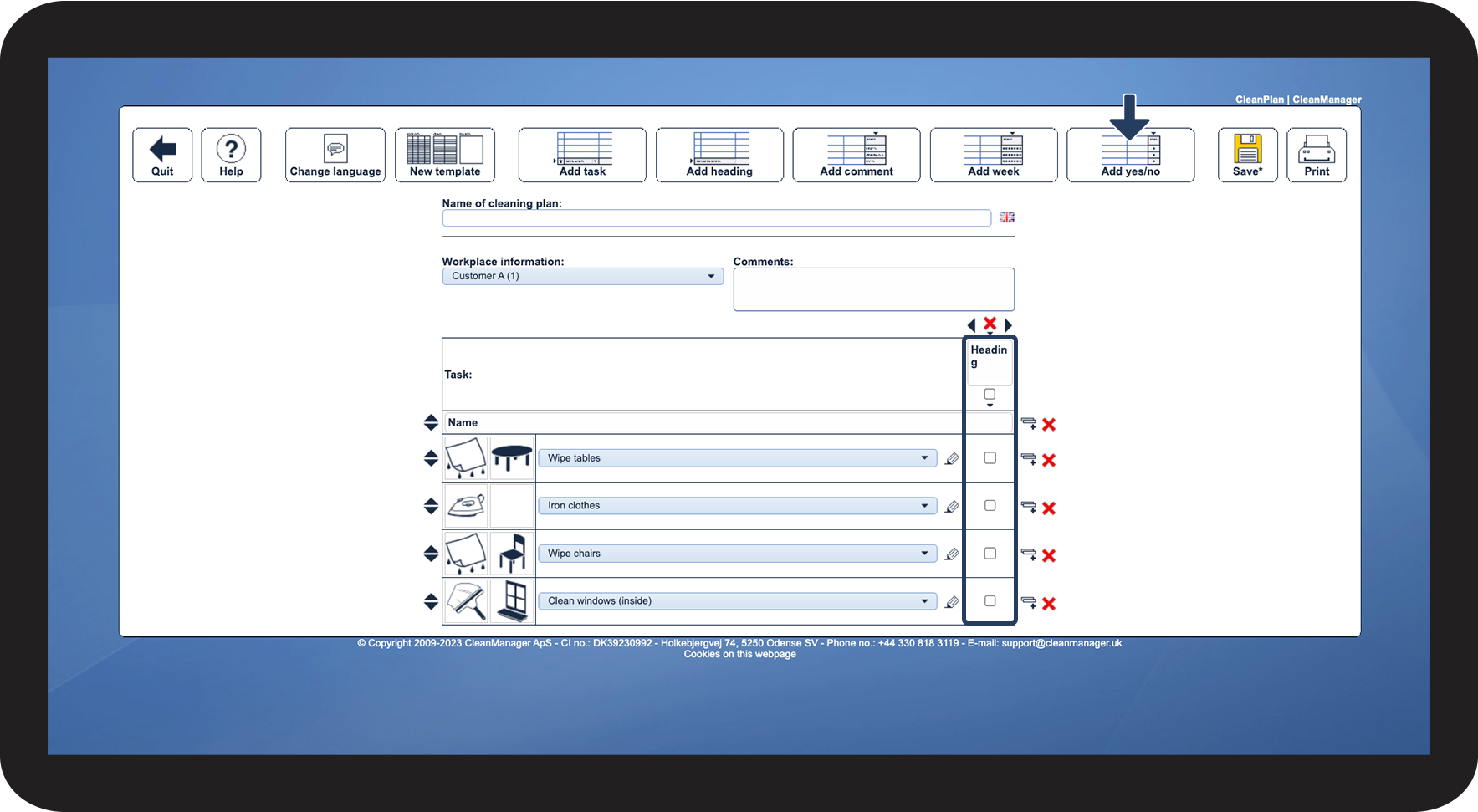
number_1_copy.png
In the top menu, click on Add yes/no
 

The function can be used for tasks that must be carried out periodically, for example once a month.

17.png

number_2_copy.png

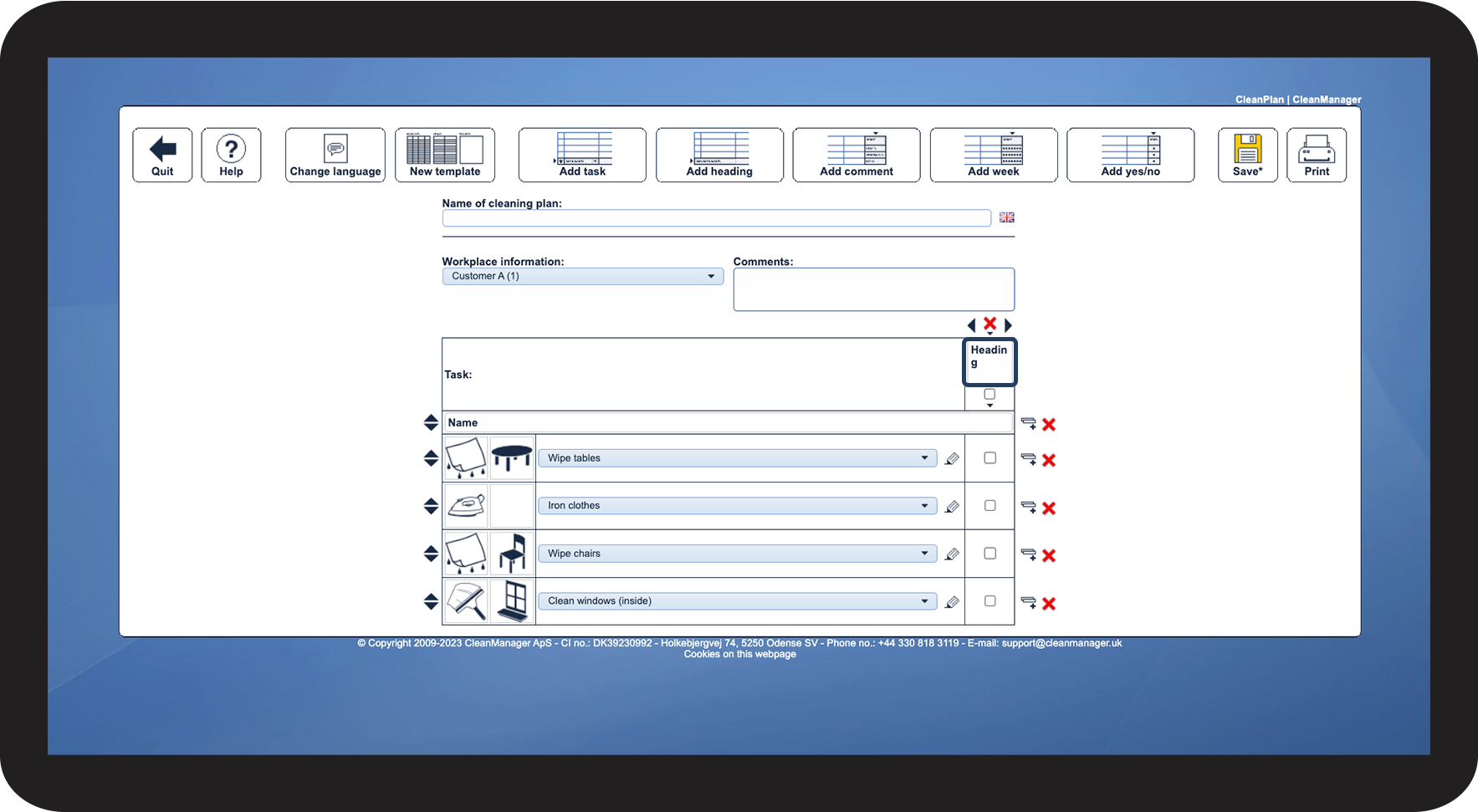
Click on the field to name the heading of the yes/no column

18.png


Continue to the article: Features for moving and copying elements in cleaning plans

Here you can continue setting up your cleaning plan.