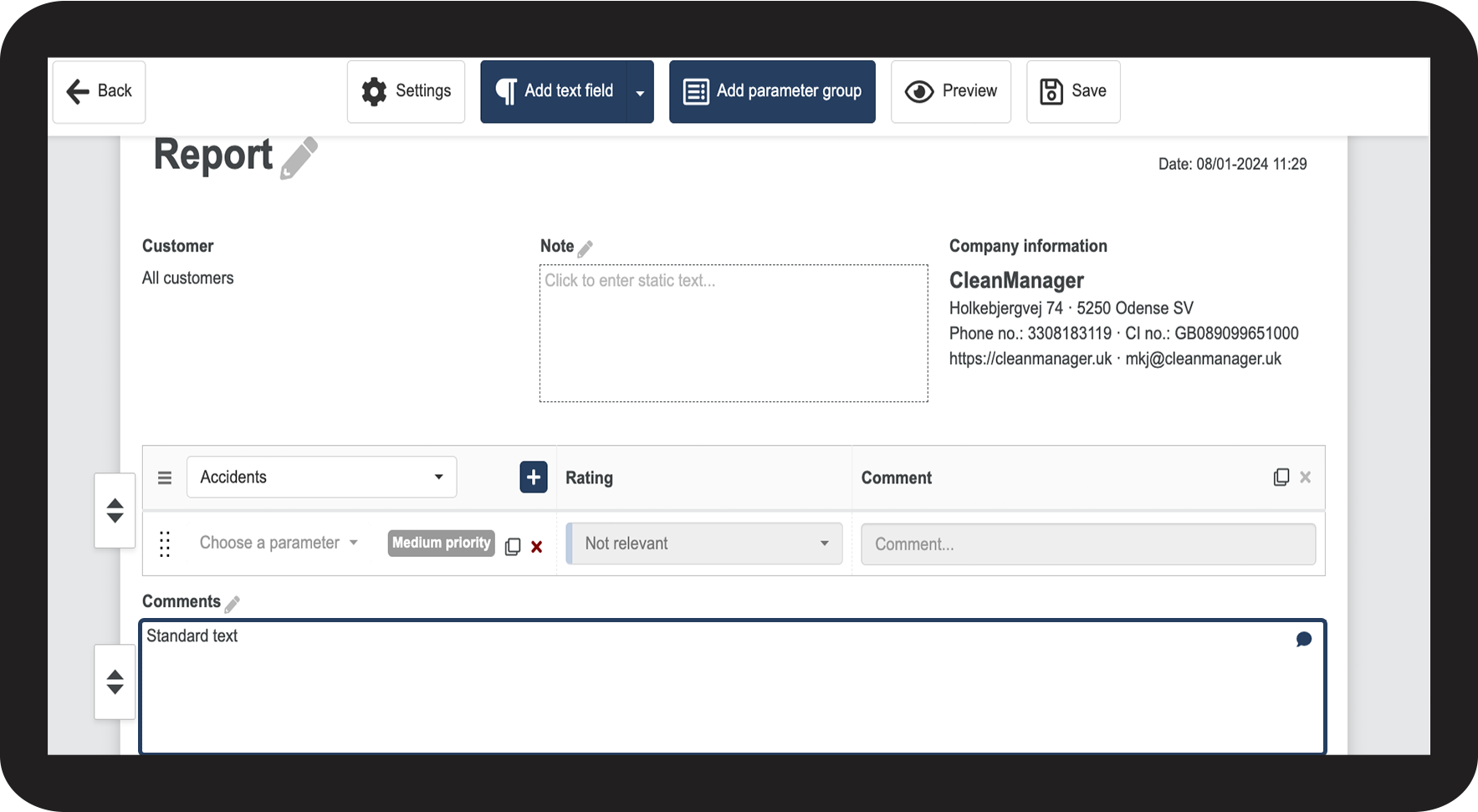
Setting up text fields for your report
How do I add text fields to my report template?
You have the option to add one or more text fields to your report templates.
Text fields allow you to add a comment that is not tied to any parameters when filling out a report.
You can choose between a single, double, or triple text field, and you can add multiple sections of text fields.
In this article, you will learn:
How to add a text field
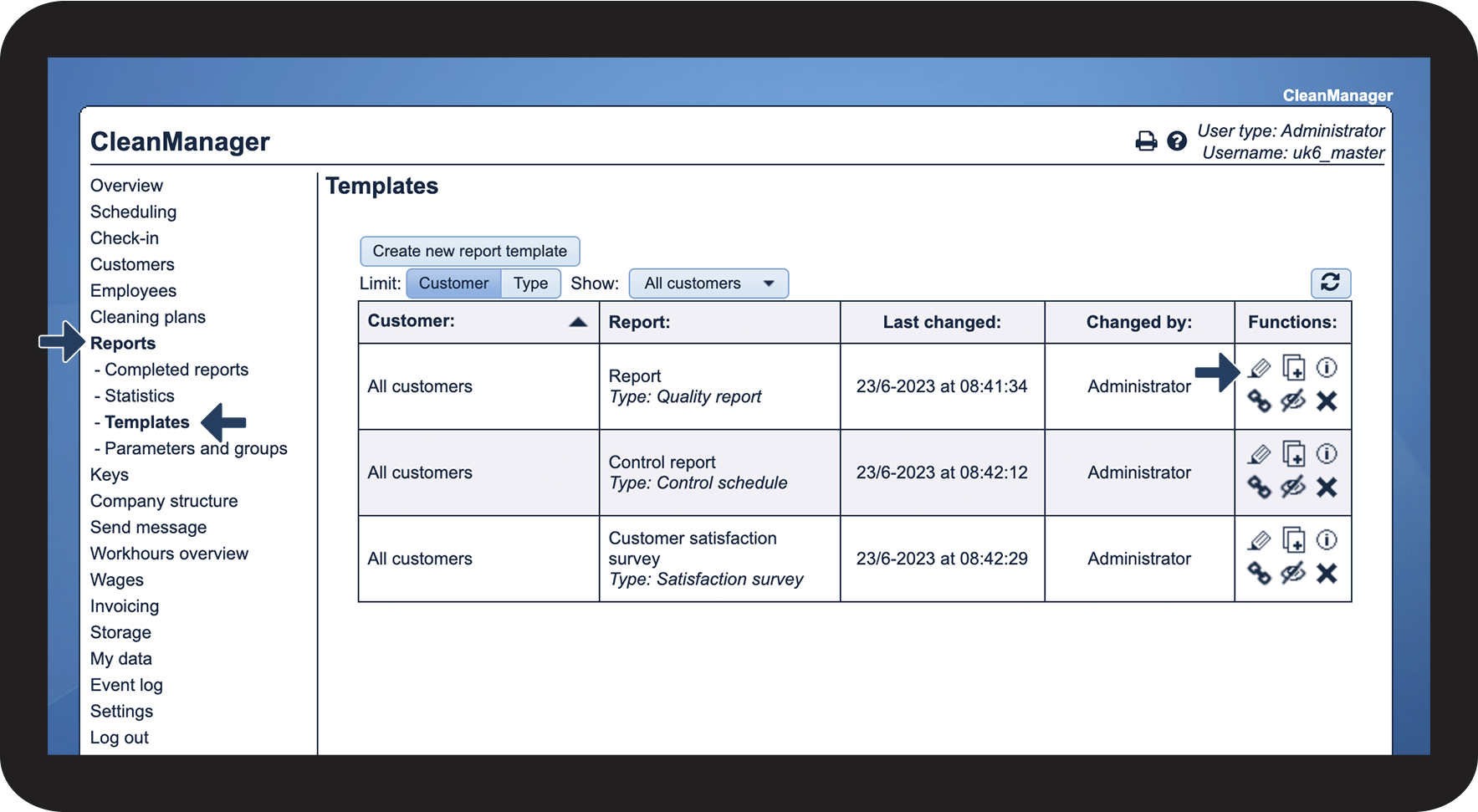
In the menu, click on Reports > Templates
Click on Edit report template 

NOTE:
Once you start using a template to fill out reports, you can no longer edit the template. Instead, you can create a new report template or copy an existing one and edit the copy.
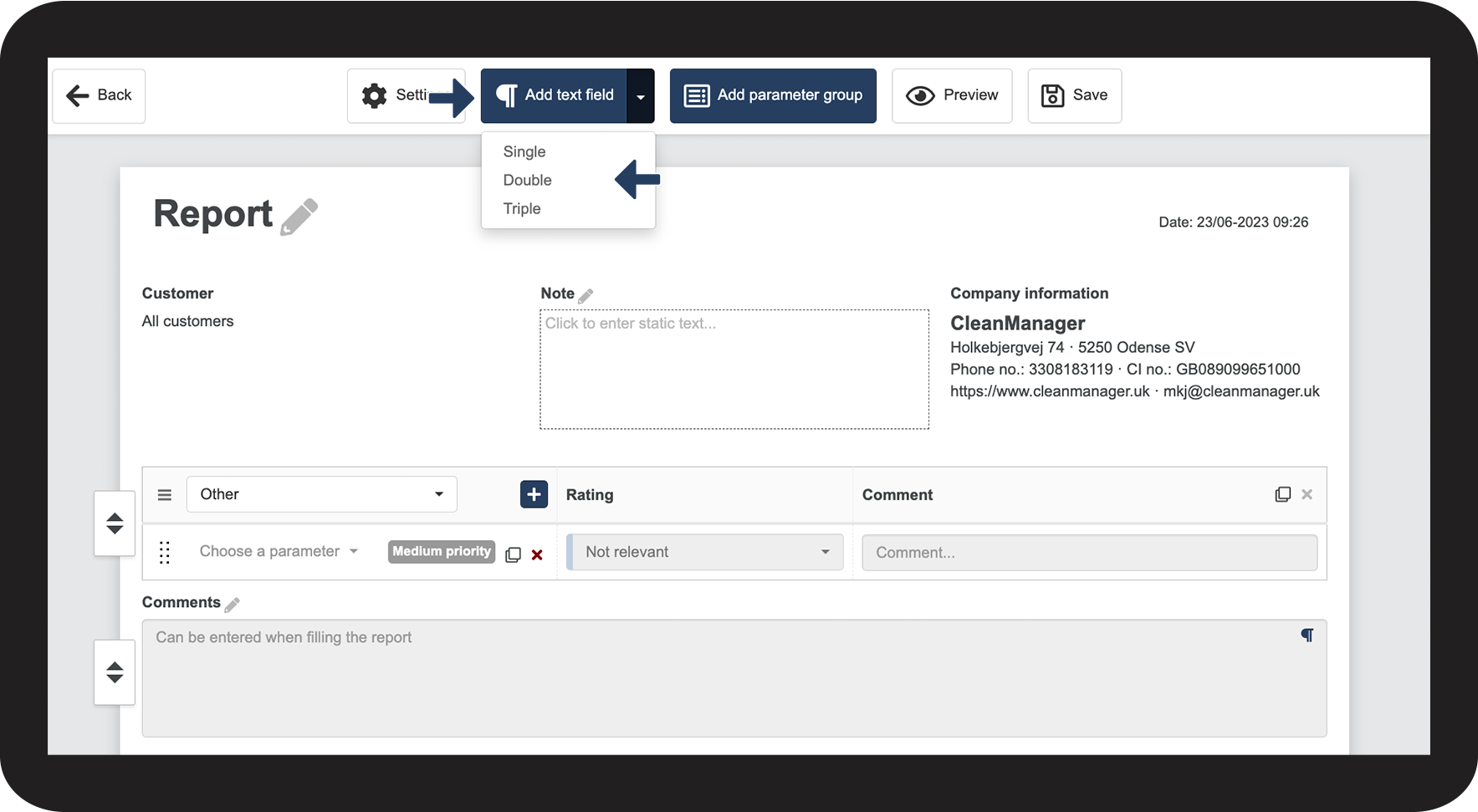
In the template, click on Add text field > Single, double, or triple

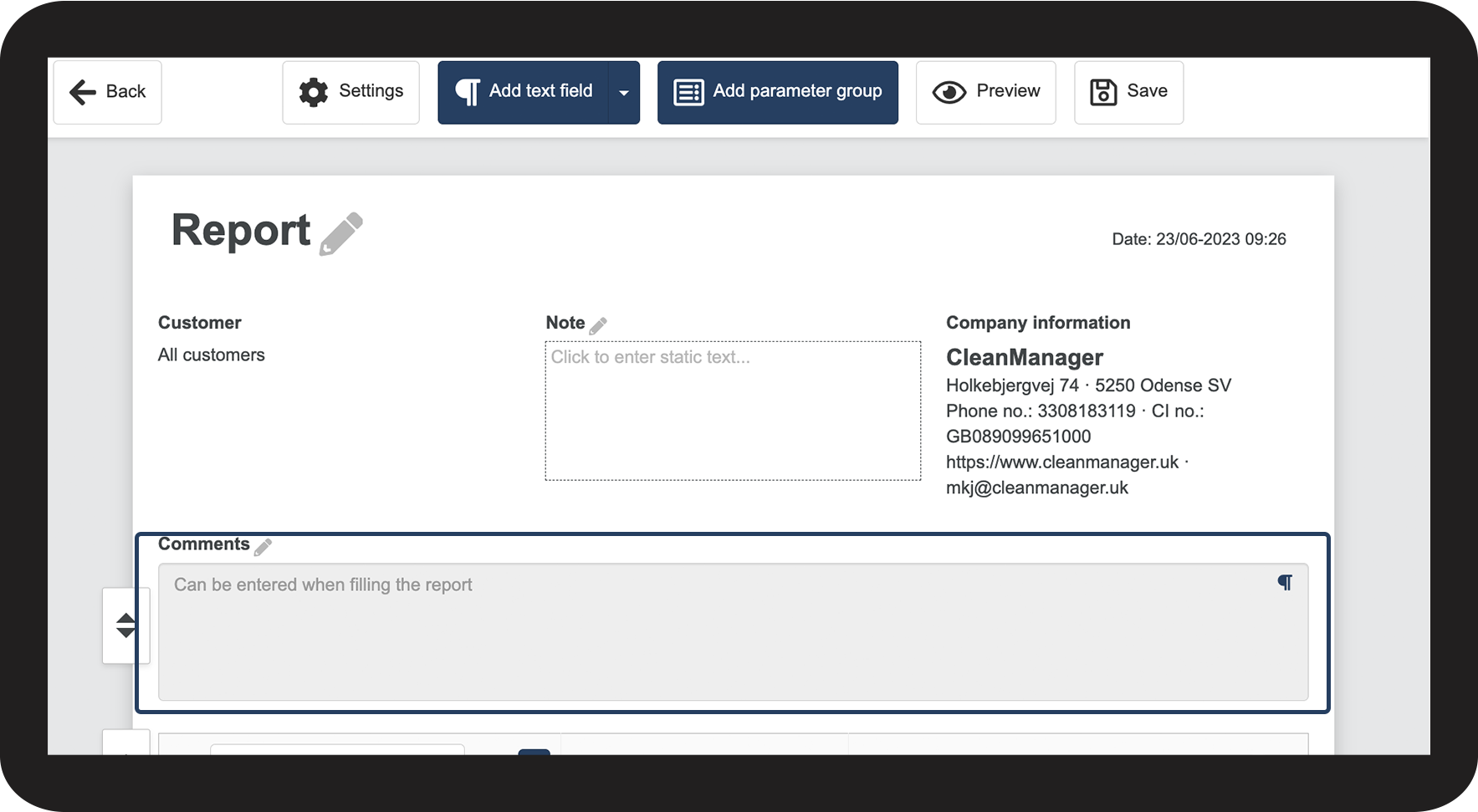
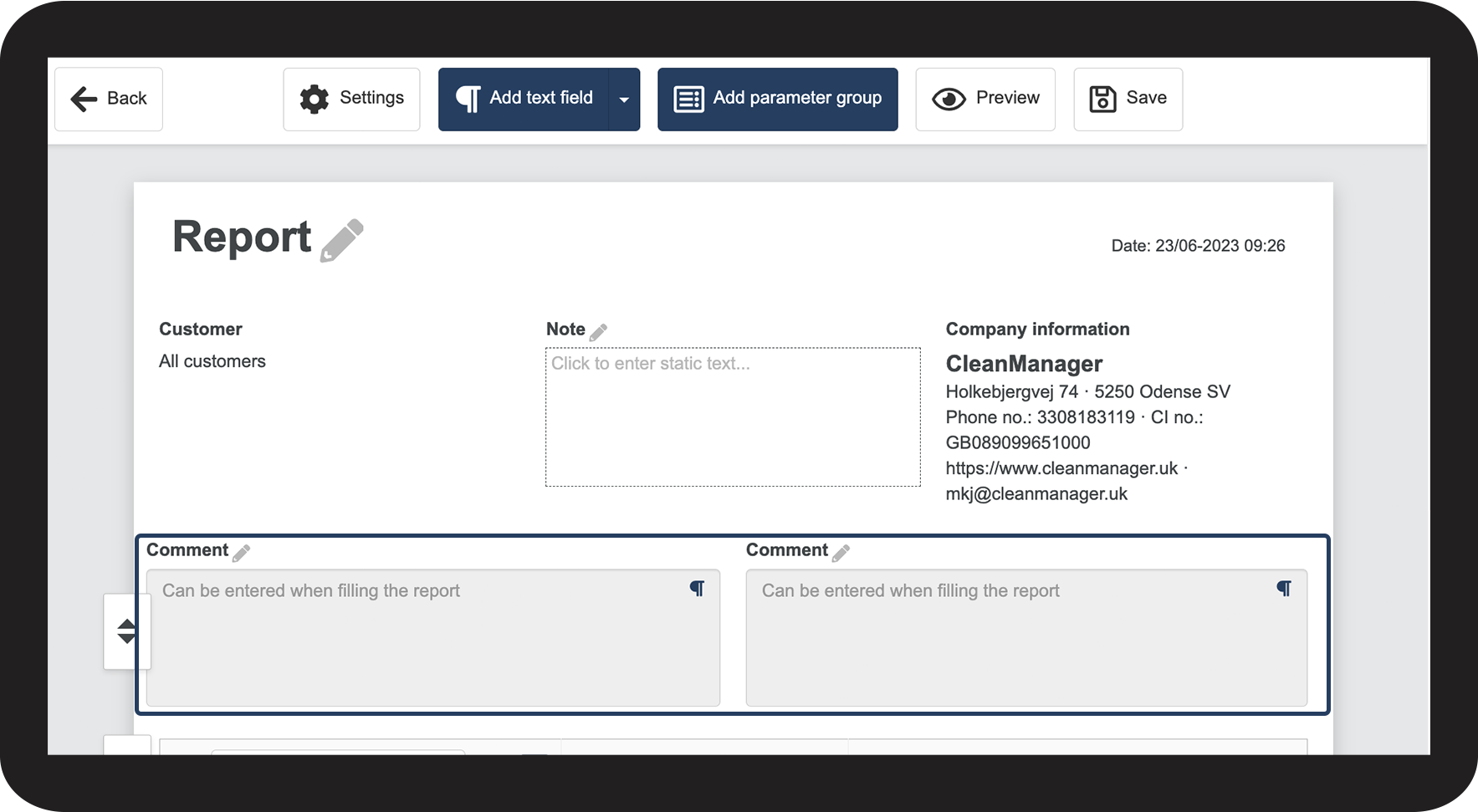
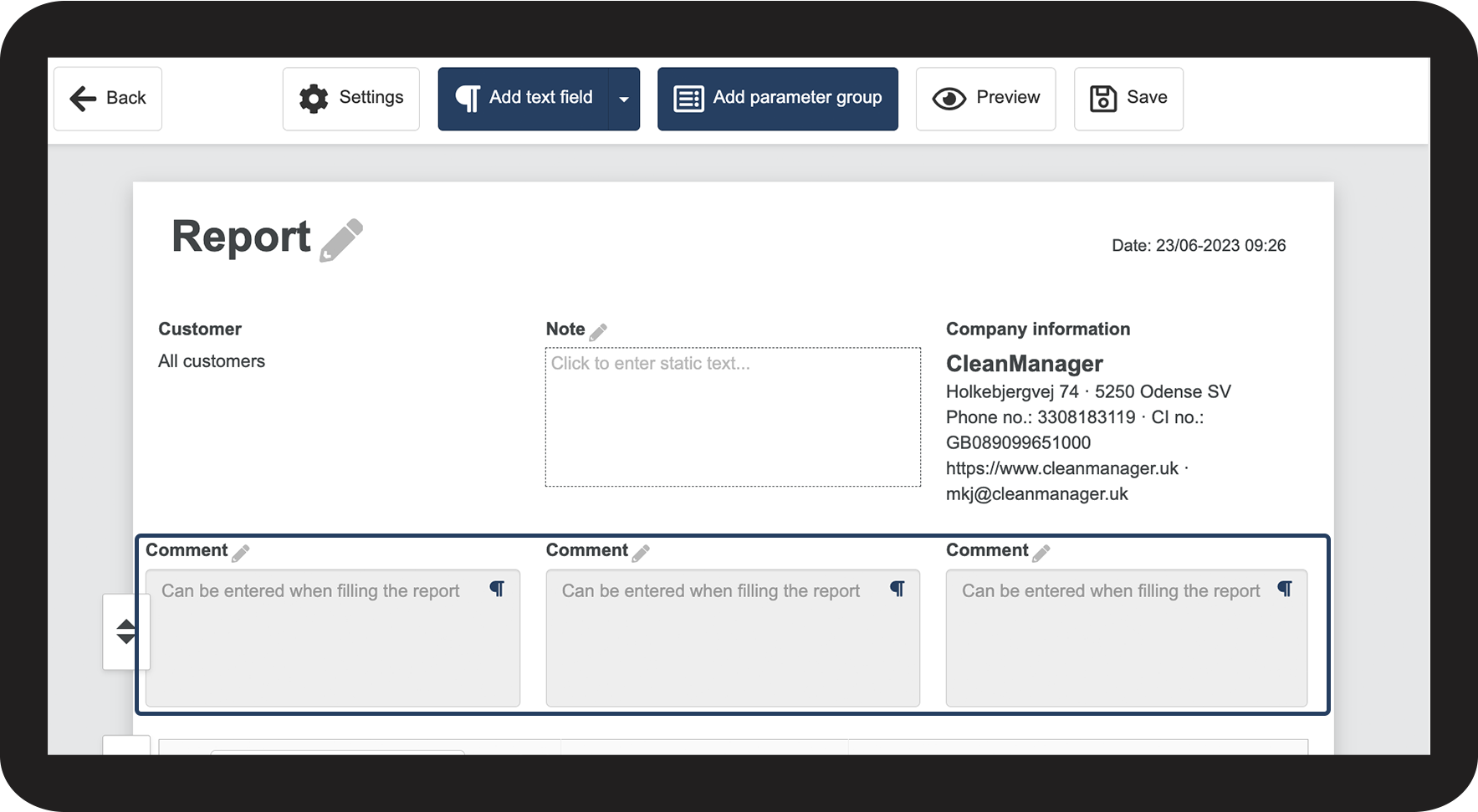
The following pictures show how a single, double, and triple text field will look in your report:
Single

Double


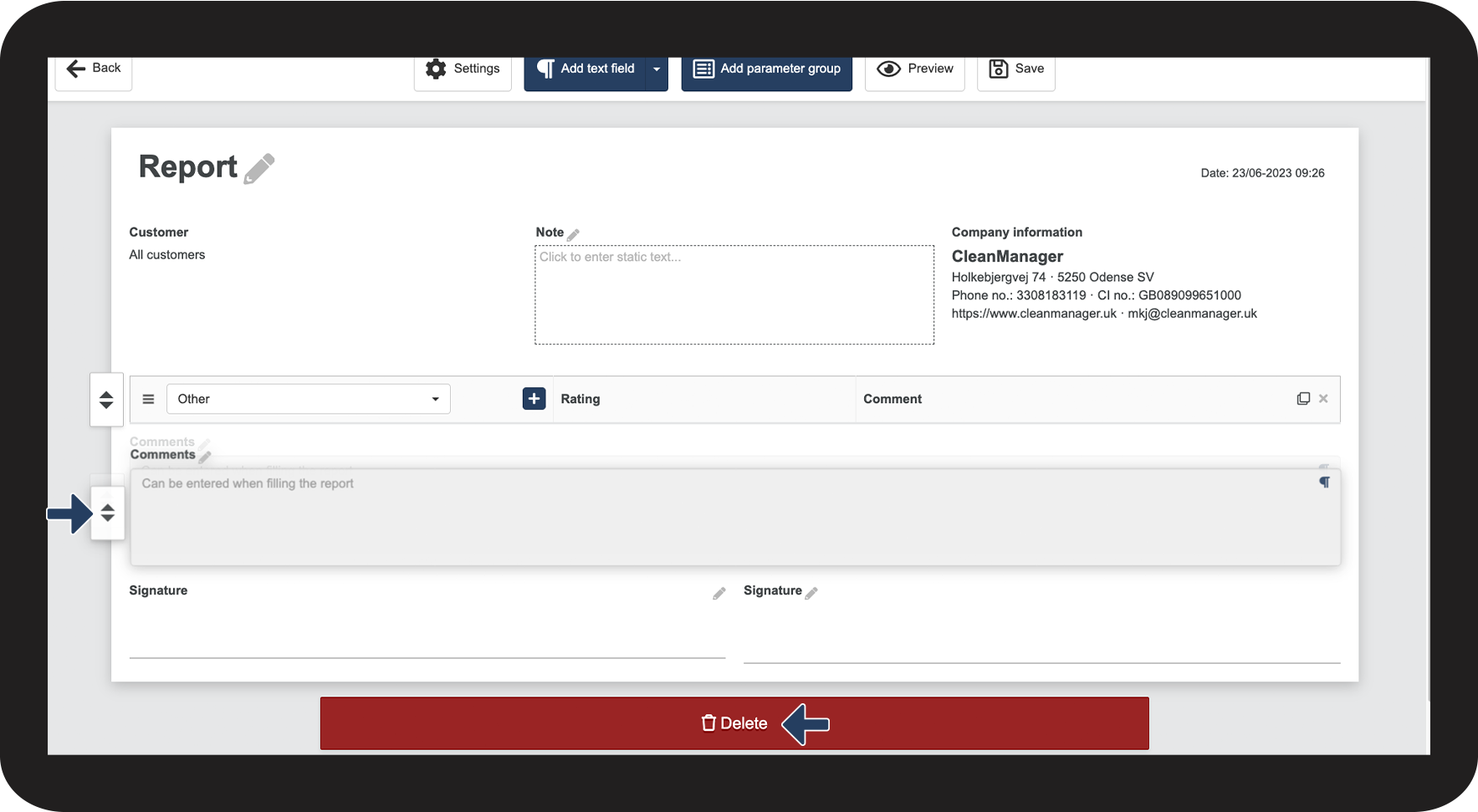
How to delete a text field
Click and hold
Drag the text field to the bottom of the screen to Delete.

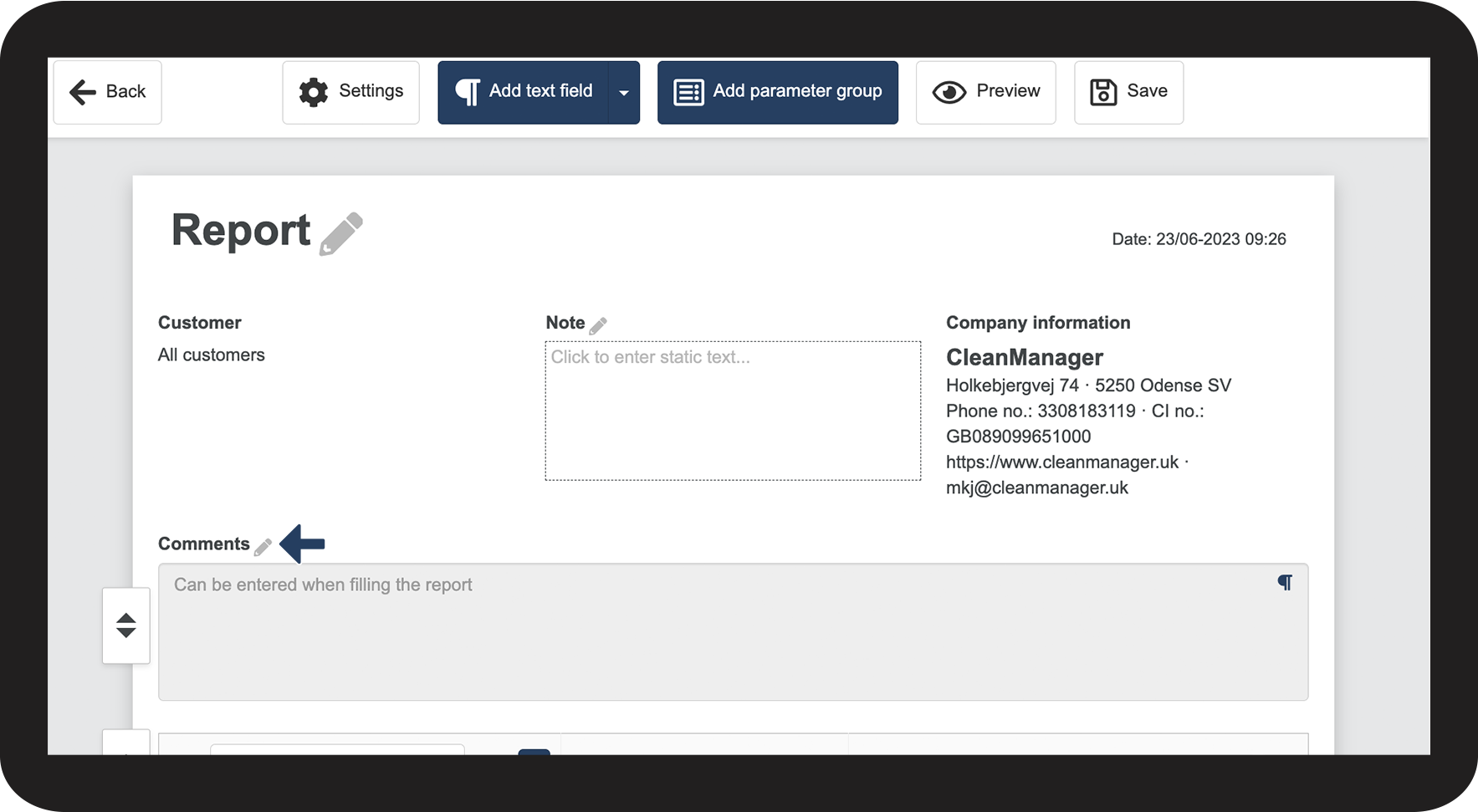
How to change the name of a text field
Click on
to change the name
You can use the name to describe the content of the text field.
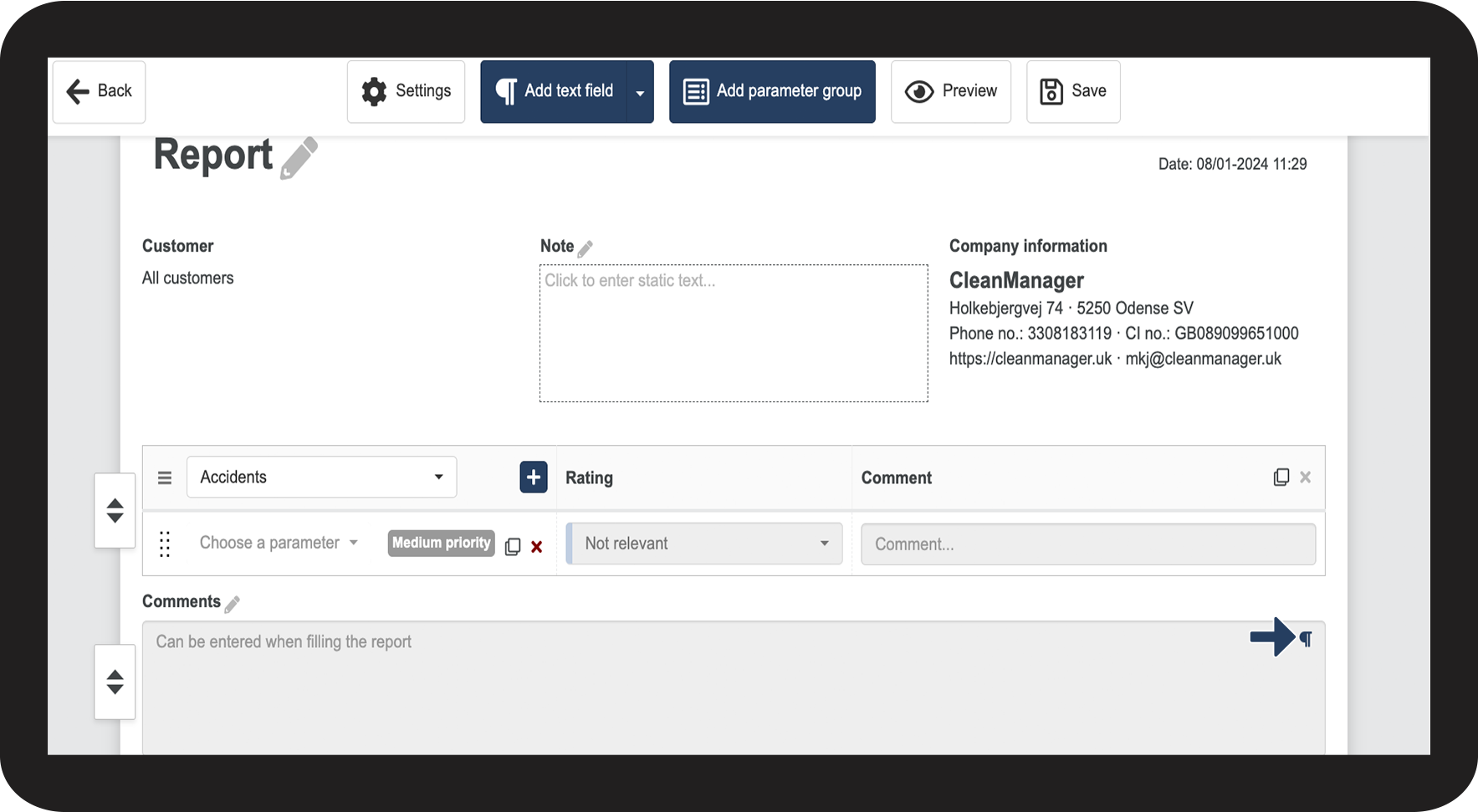
How to toggle the text field type
Click on
Toggle text field type
By doing this, the text field changes from a comment field, which can be freely added text to, while filling out a report, to a static text field. Comments in a static text field appear on all reports in the way, they have been added during the setting up of the template.

Write the comment you want to appear on the report