Skip to content
English
  • There are no suggestions because the search field is empty.

Setting up suppliers

How do I set up a supplier in the system?

As the administrator, you can set up suppliers in the storage administrator. Those suppliers can be used as filters when administrators or supervisors want to see which product is being sold by which supplier.

A supervisor can add, edit, or delete suppliers. However, it is required that the administrator enables this setting first. The following article will give you insight into how you can grant supervisors access to the storage administration: Storage.


In this article, you will learn how to set up, edit, and delete your suppliers:


This is how you set up a supplier

number_1.png

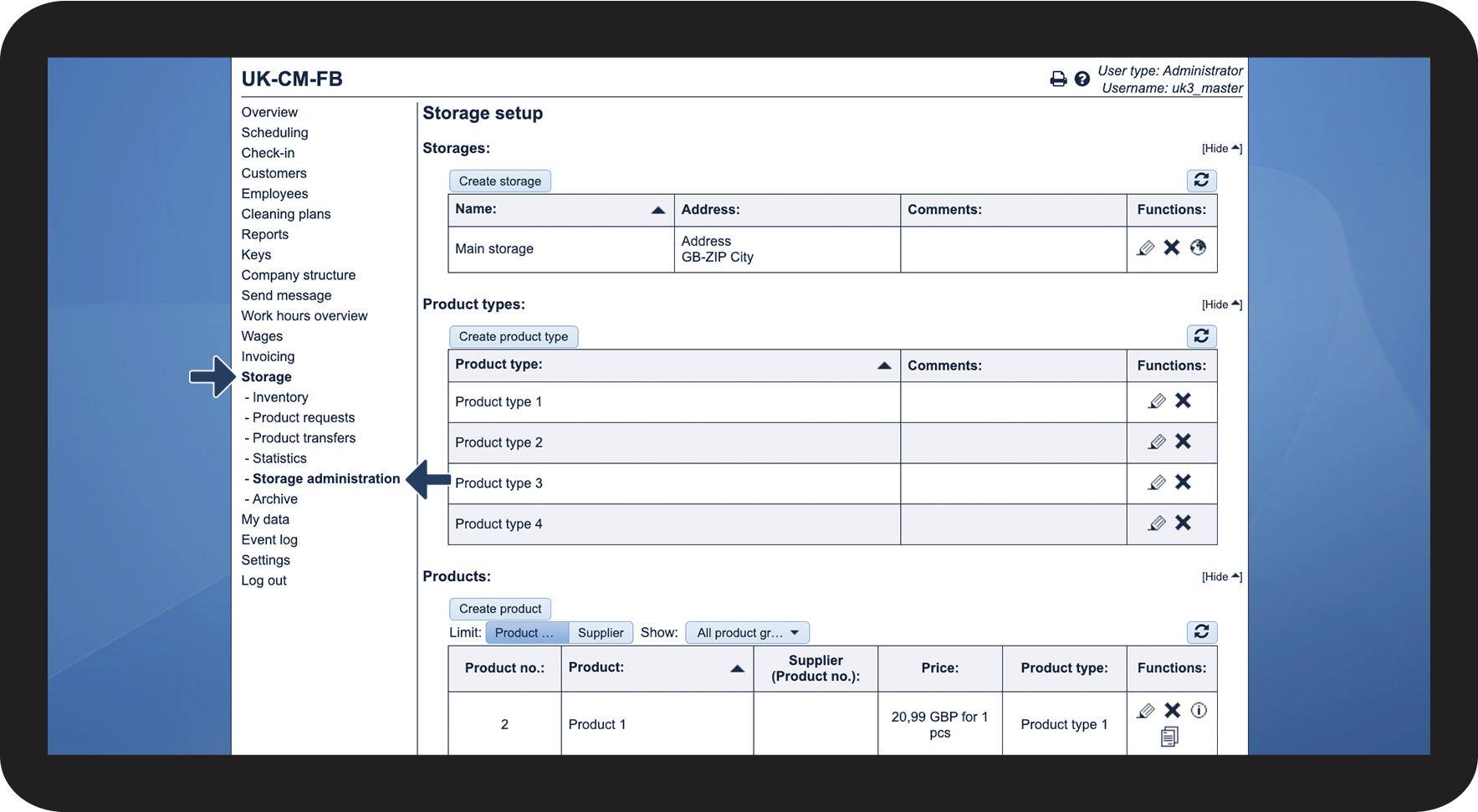
In the menu, go to Storage > Storage administration

1.1.png

number_2.png

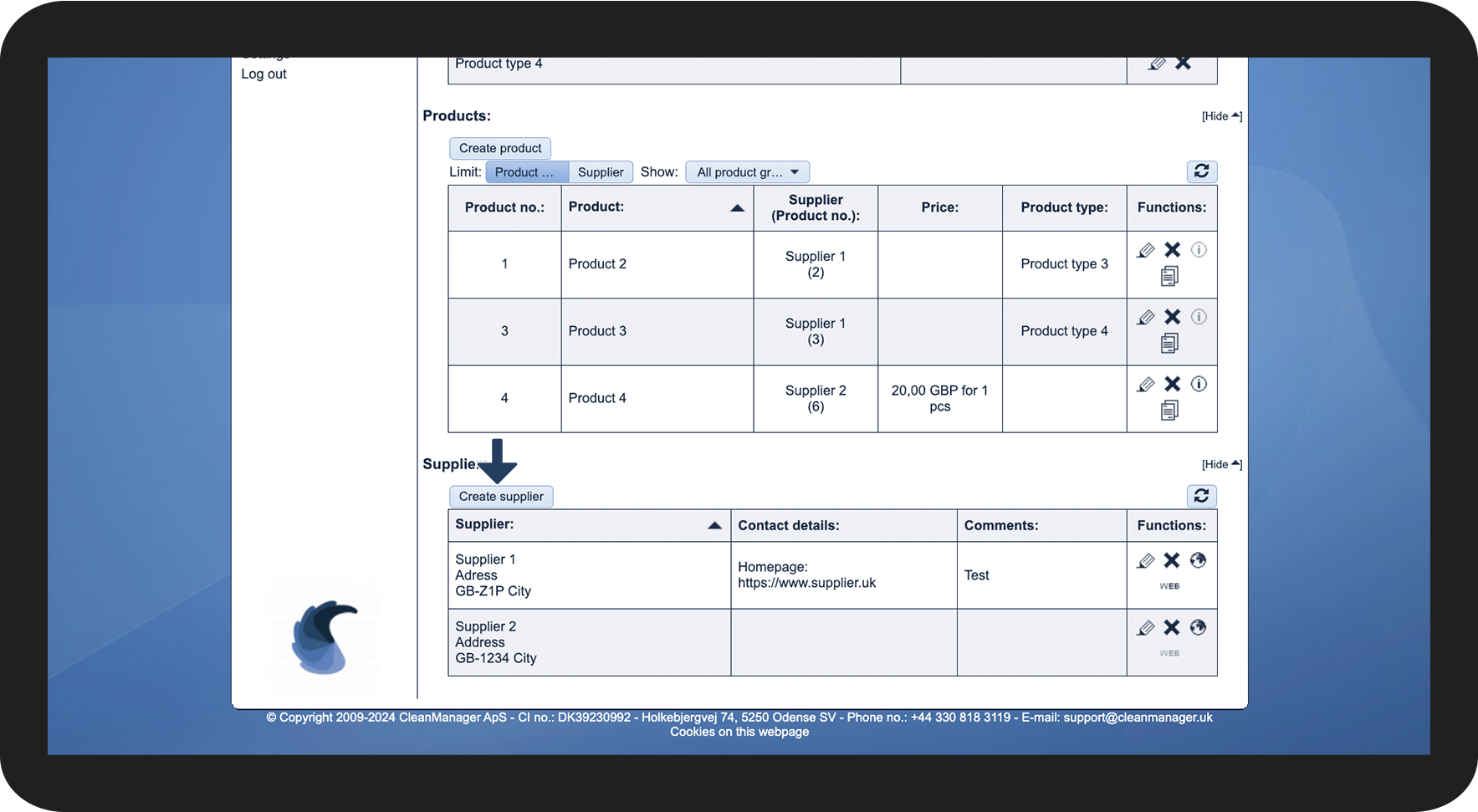
Scroll down and click on Create supplier

1.2.png
number 3 copy.png

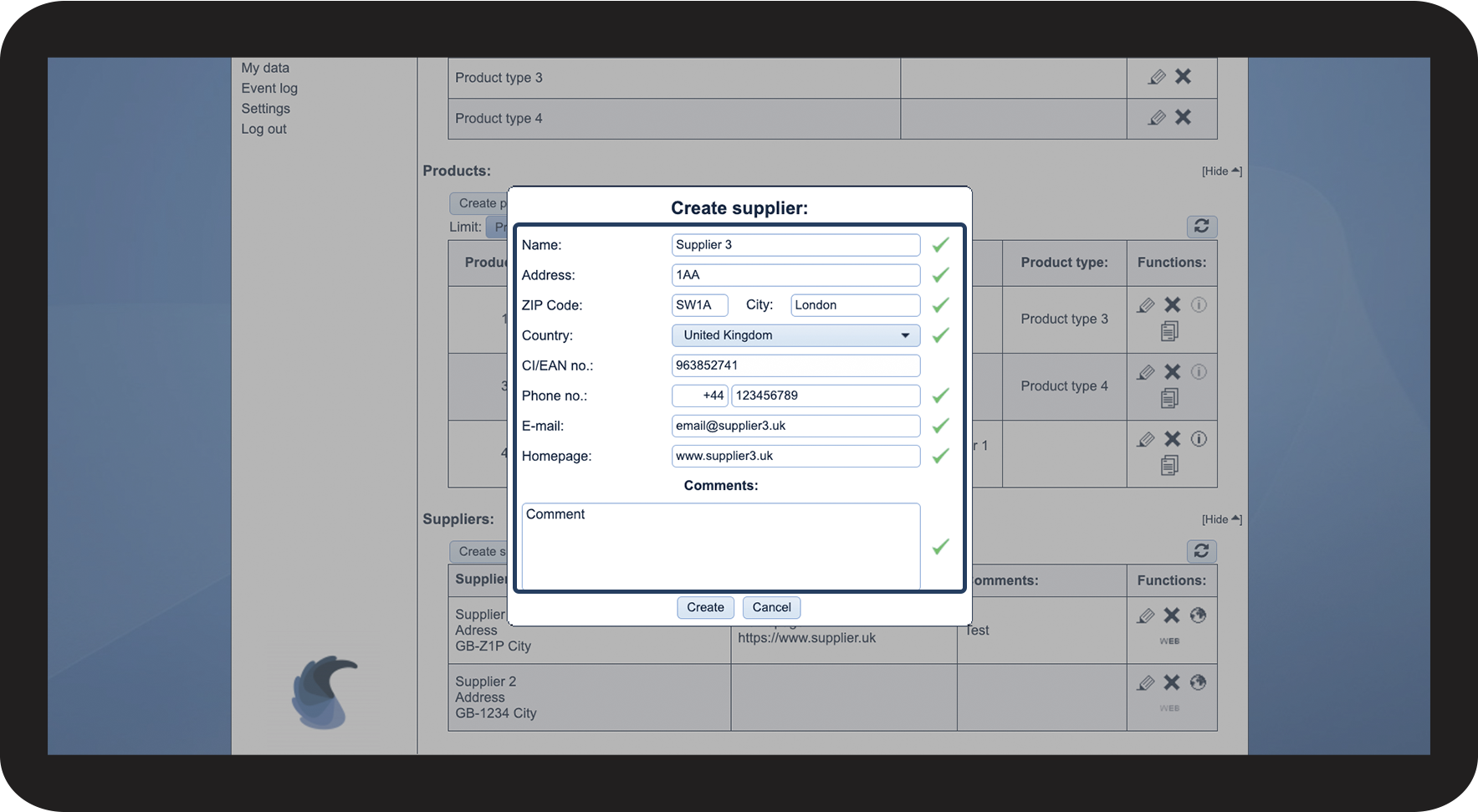
Fill in the necessary data


Data

Required/

Not required

Name

Required
Address
Not required
ZIP Code/ City
Not required
Country
Not required
CI/EAN no.
Not required
Phone no.
Not required
E-mail
Not required
Homepage
Not required
Comments
Not required

1.3.png

No-number copy.png

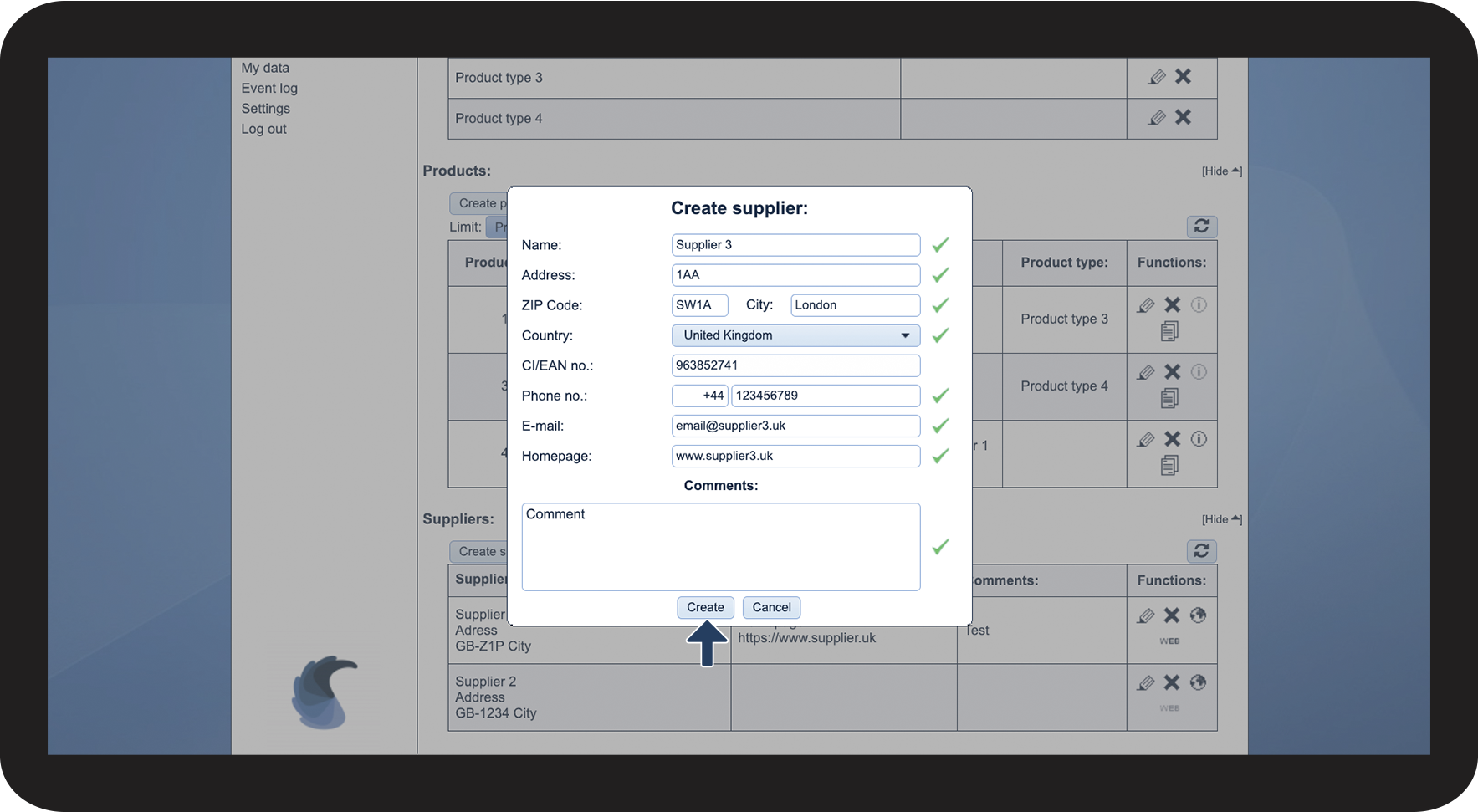
Thereafter, click on Create

1.4.png


This is how you edit a supplier

number_1.png

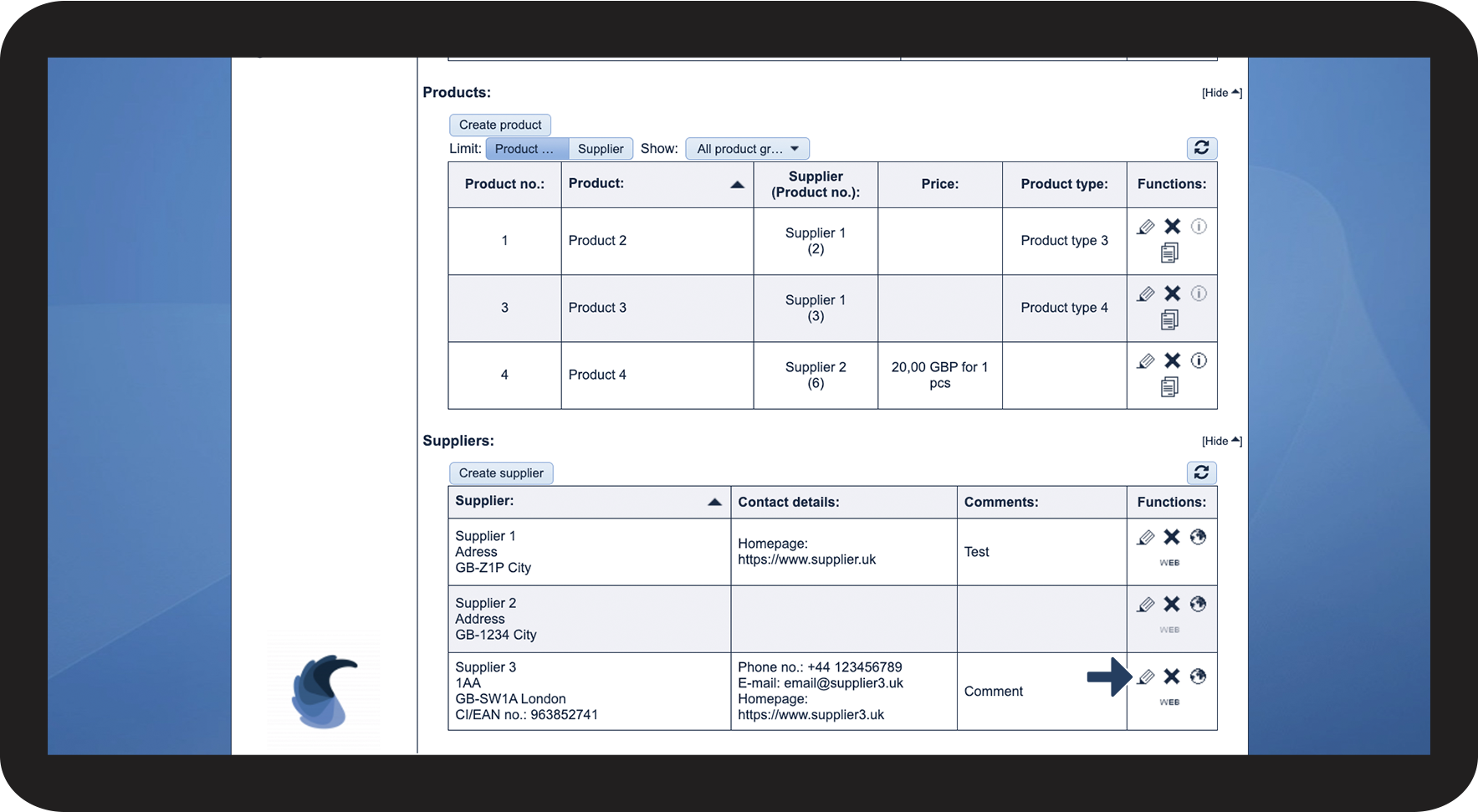
Click on Edit supplier rediger.png

2.1.png

number_2.png

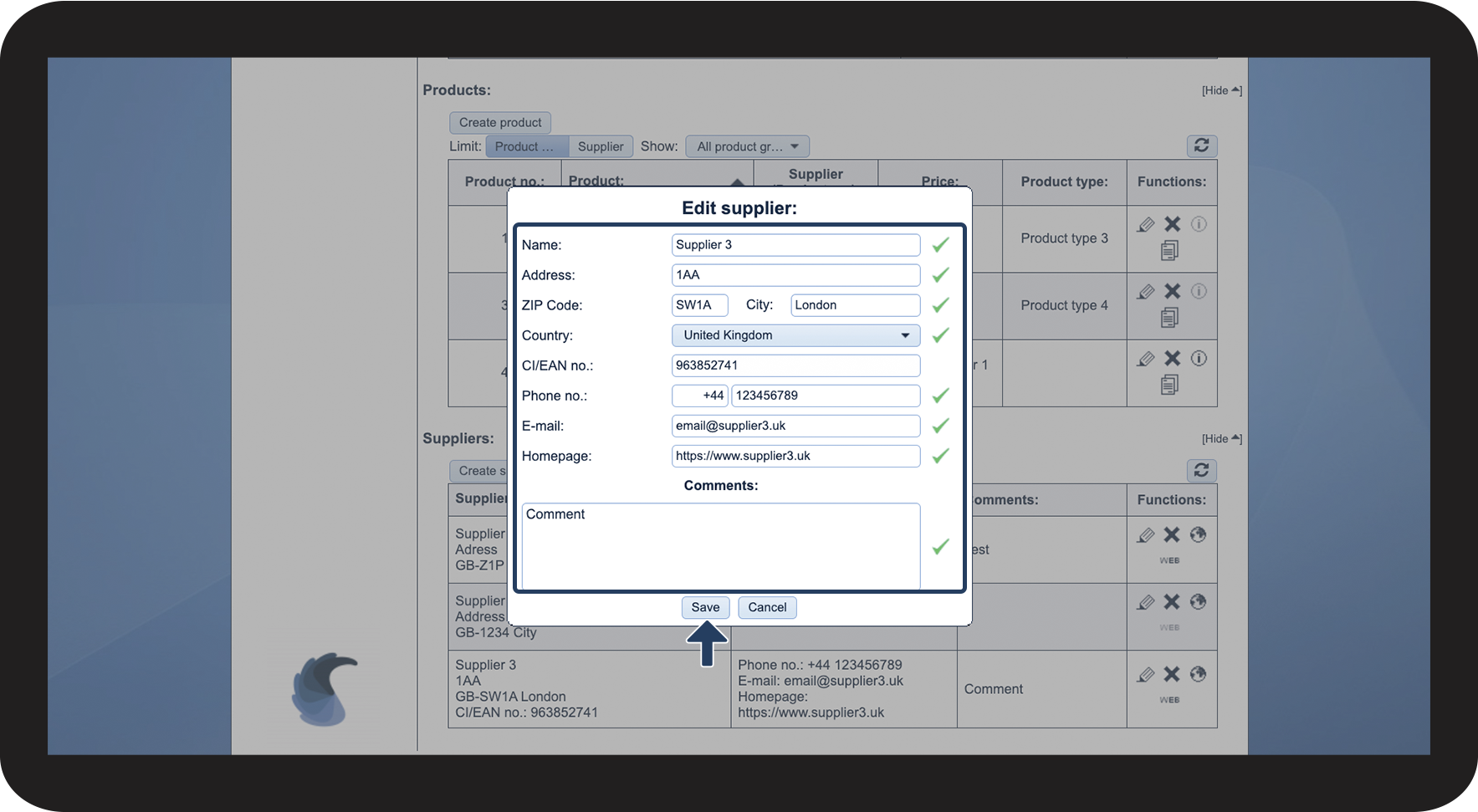
Edit the data


Thereafter, click on Save

2.2.png


This is how you delete a supplier

number_1.png

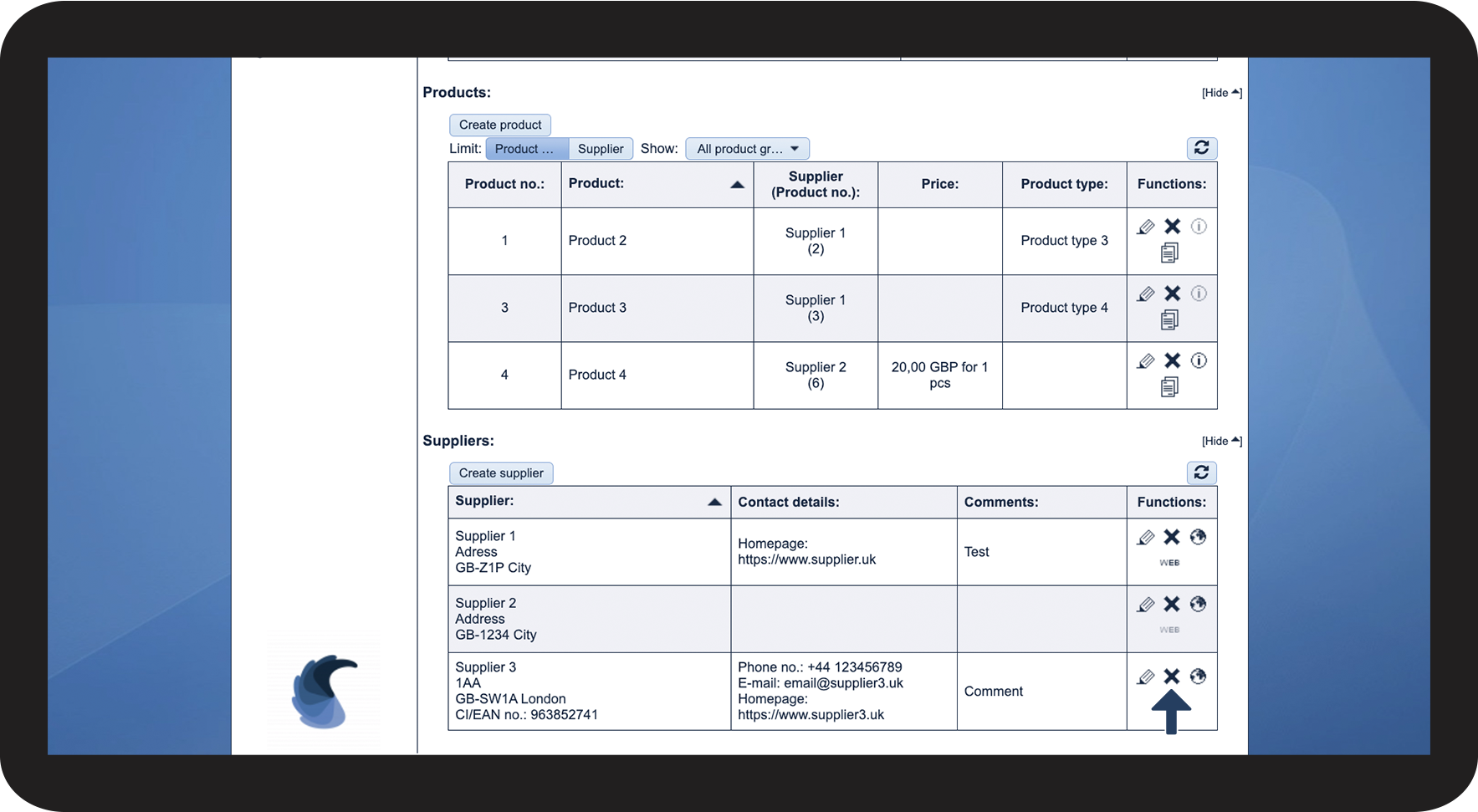
Click on Delete supplier Slet.png

3.1.png

number_2.png

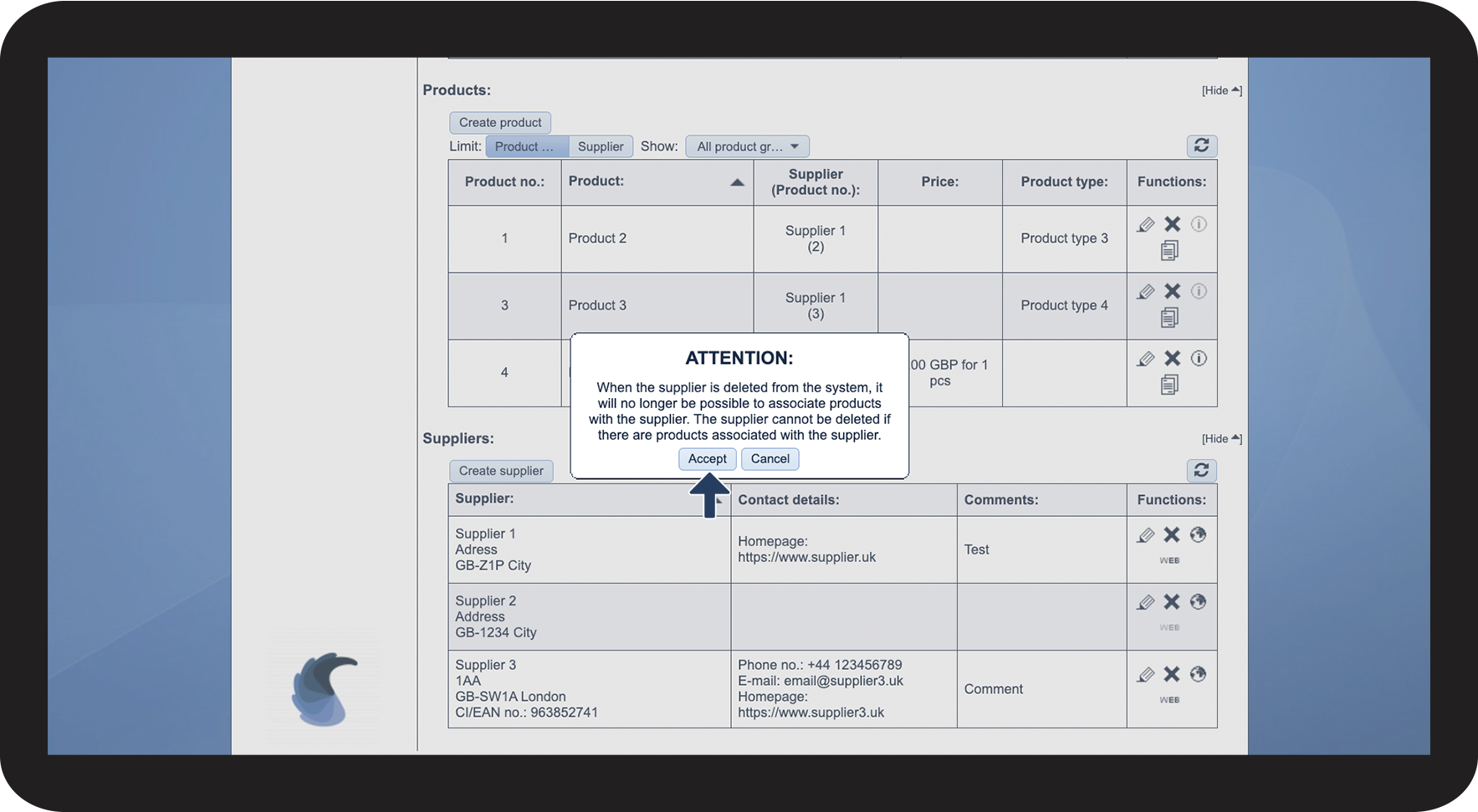
Thereafter, click on Accept


Note:

When a supplier is deleted from the system, it will no longer be possible to associate products with the supplier. The supplier cannot be deleted if there are products connected to the supplier.
3.2.png


This is how you can see a supplier's address on a map

number_1.png

Click on View address on mapKort.png

4.1.png

No-number copy.png
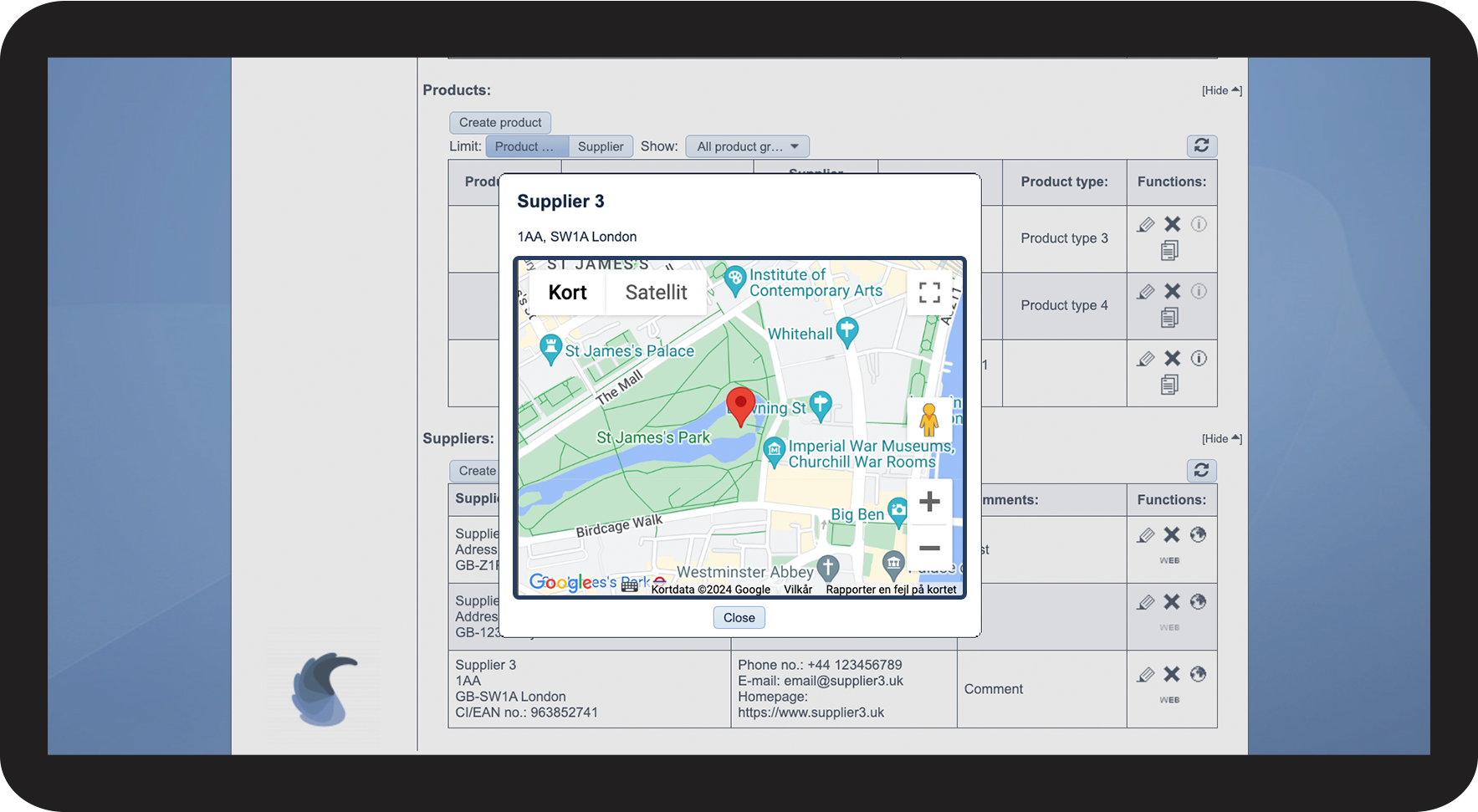
See the location of the supplier in Google Maps

4.2.png


This is how you can visit a supplier's homepage

number_1.png

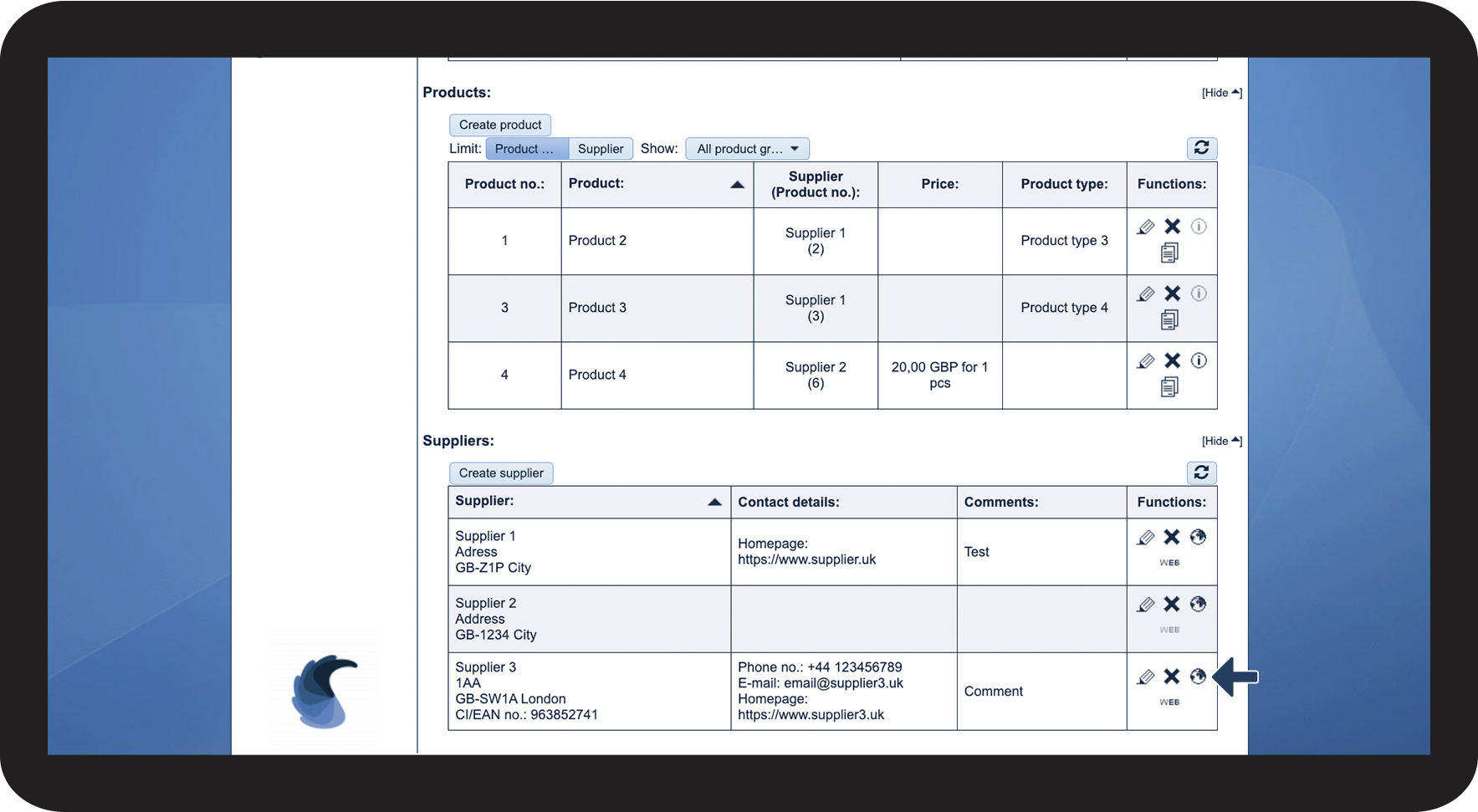
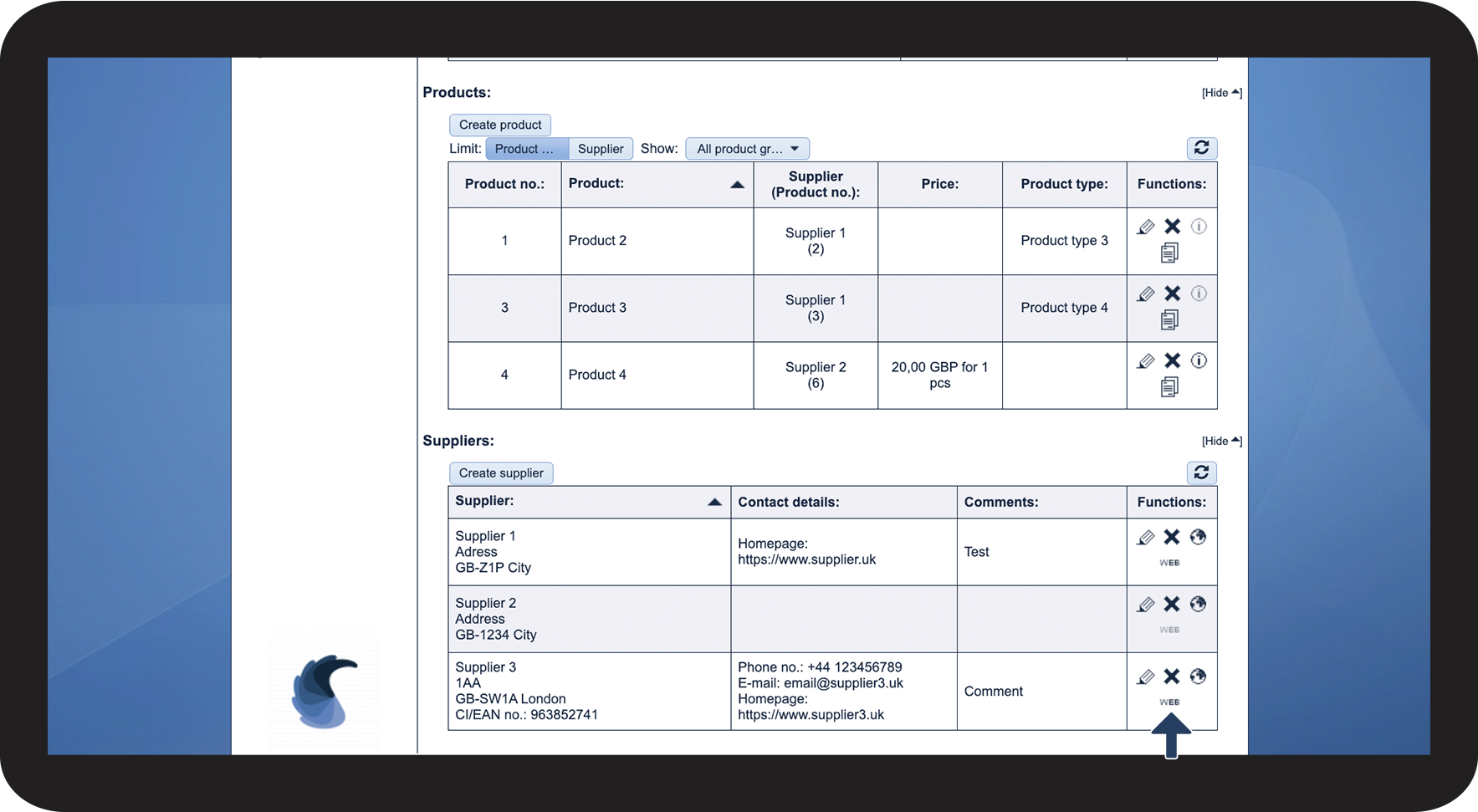
Click on View homepageWeb 1.png

5.1.png