How can I set up products?
The administrator can create products, which can either be consumer items for customers or cleaning products, which the employees use to execute their tasks. They can order the products in the CleanManager app. Learn more about how to order products here: Order products.
When a product has been set up, you can attach product and safety information. In this article, you will read about how your employees can access this information through the app: Product information.
As a supervisor, you can add, edit, and delete products. However, it is required that the administrator enables this setting first. The following article will give you insight into how you can grant supervisors access to the storage administration: Storage.
In this article, you will learn how to set up, edit, and delete products:
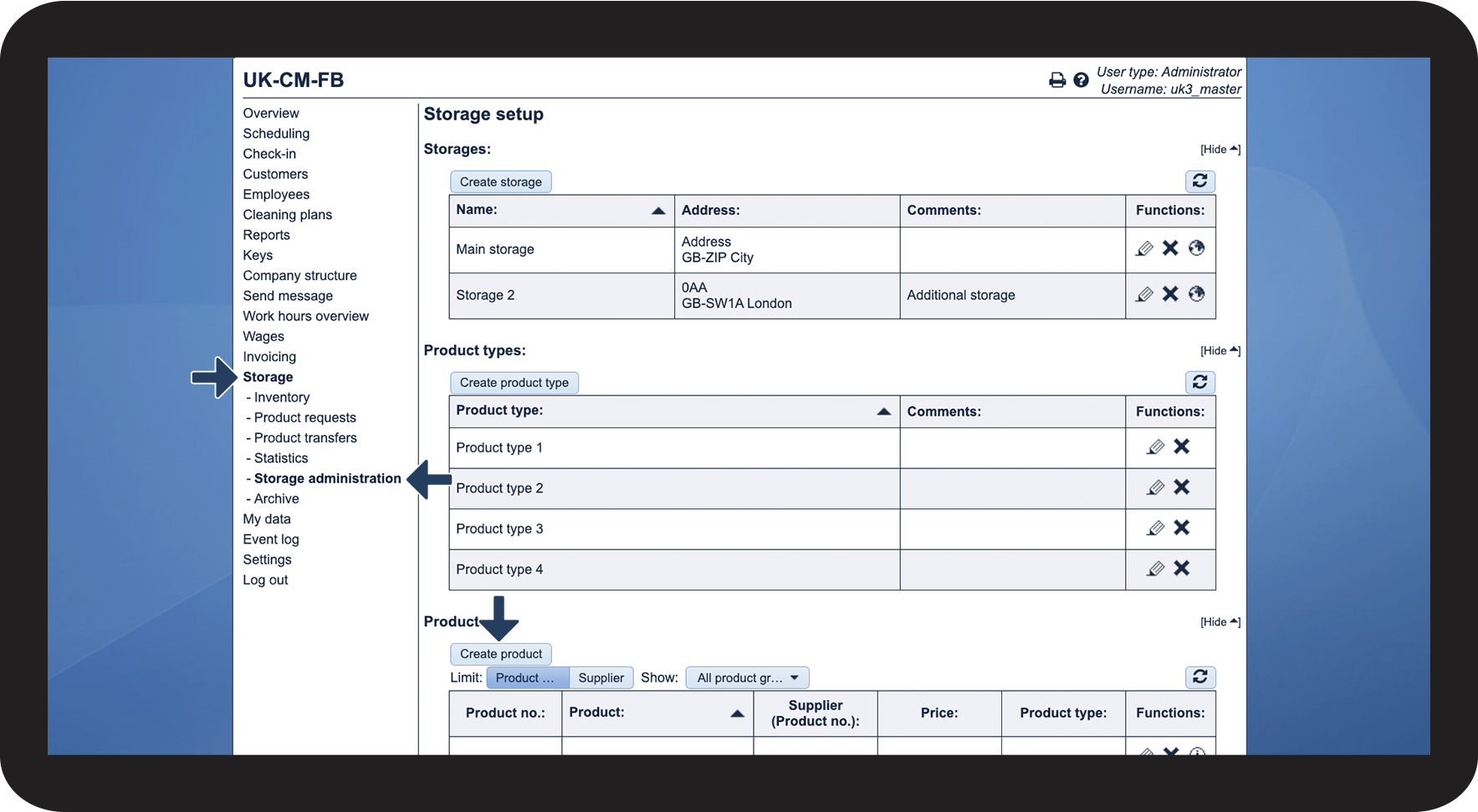
This is how you set up a product


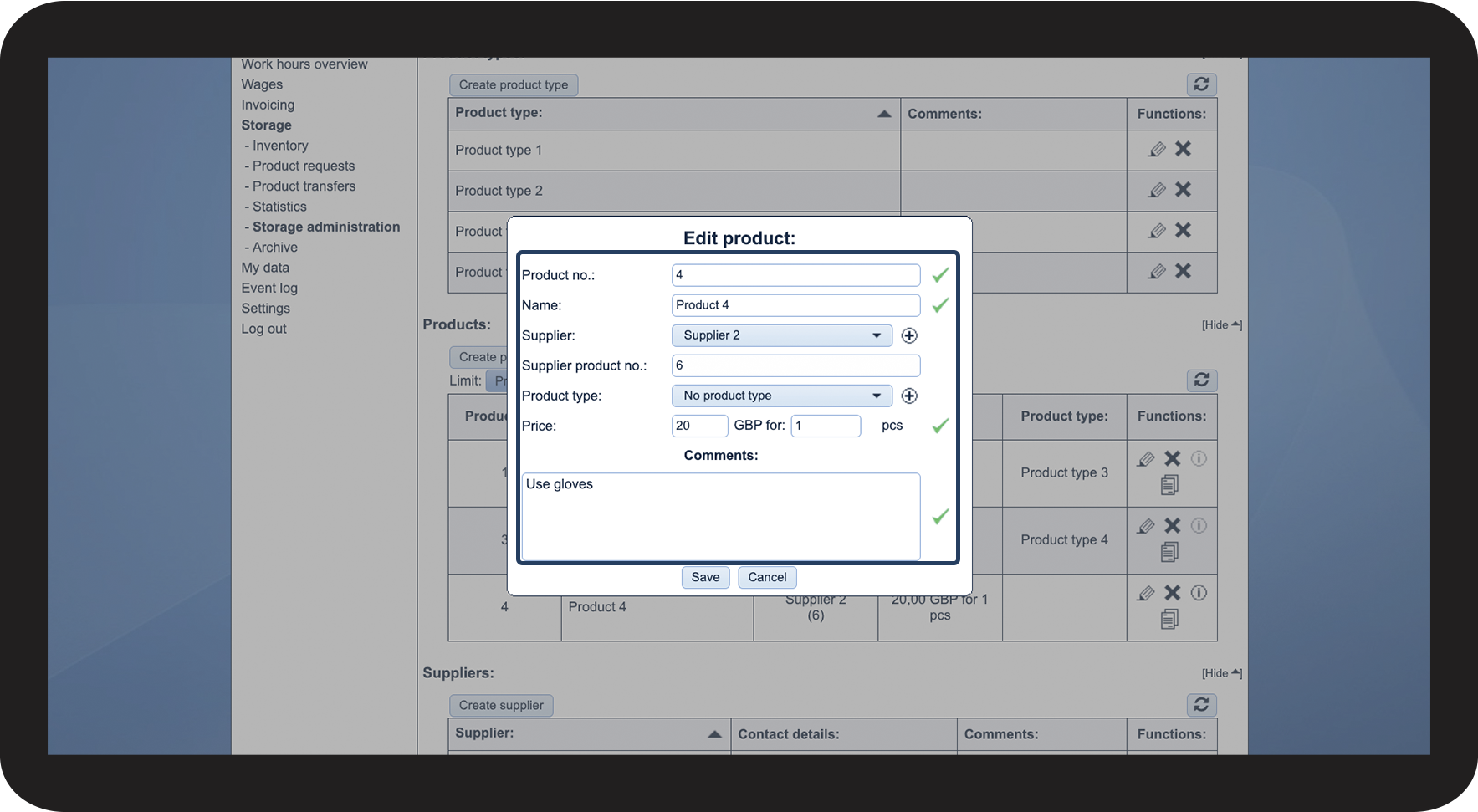

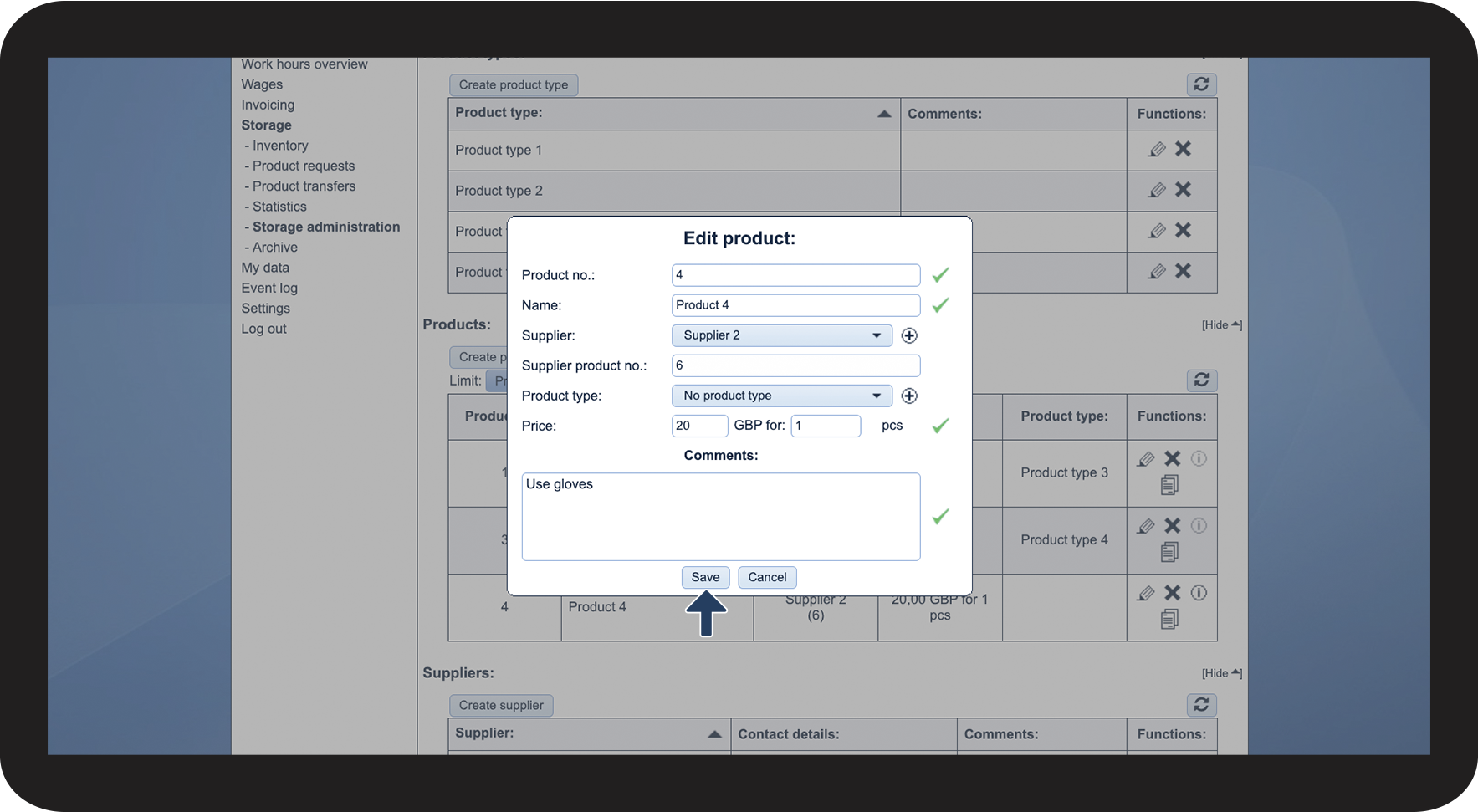
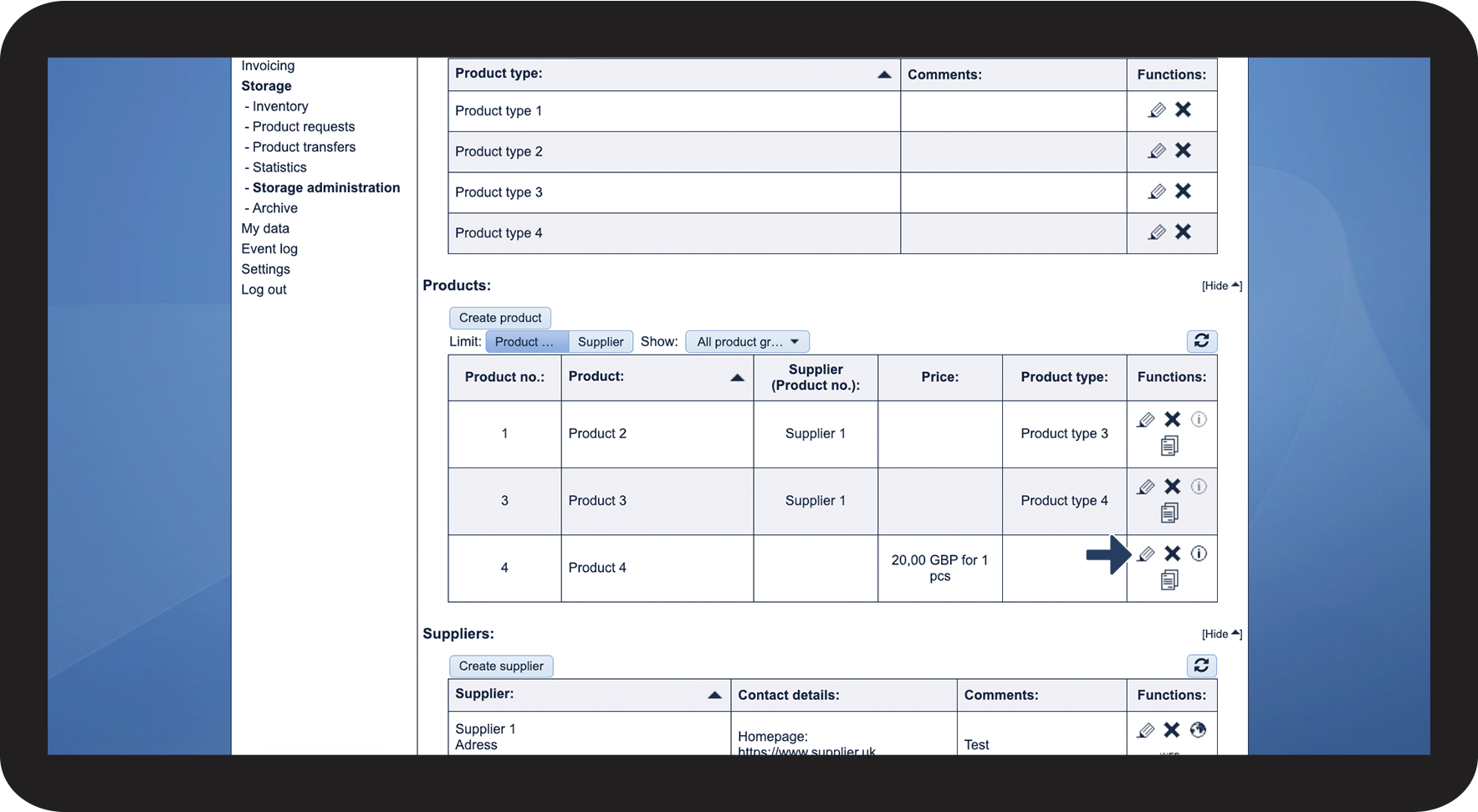
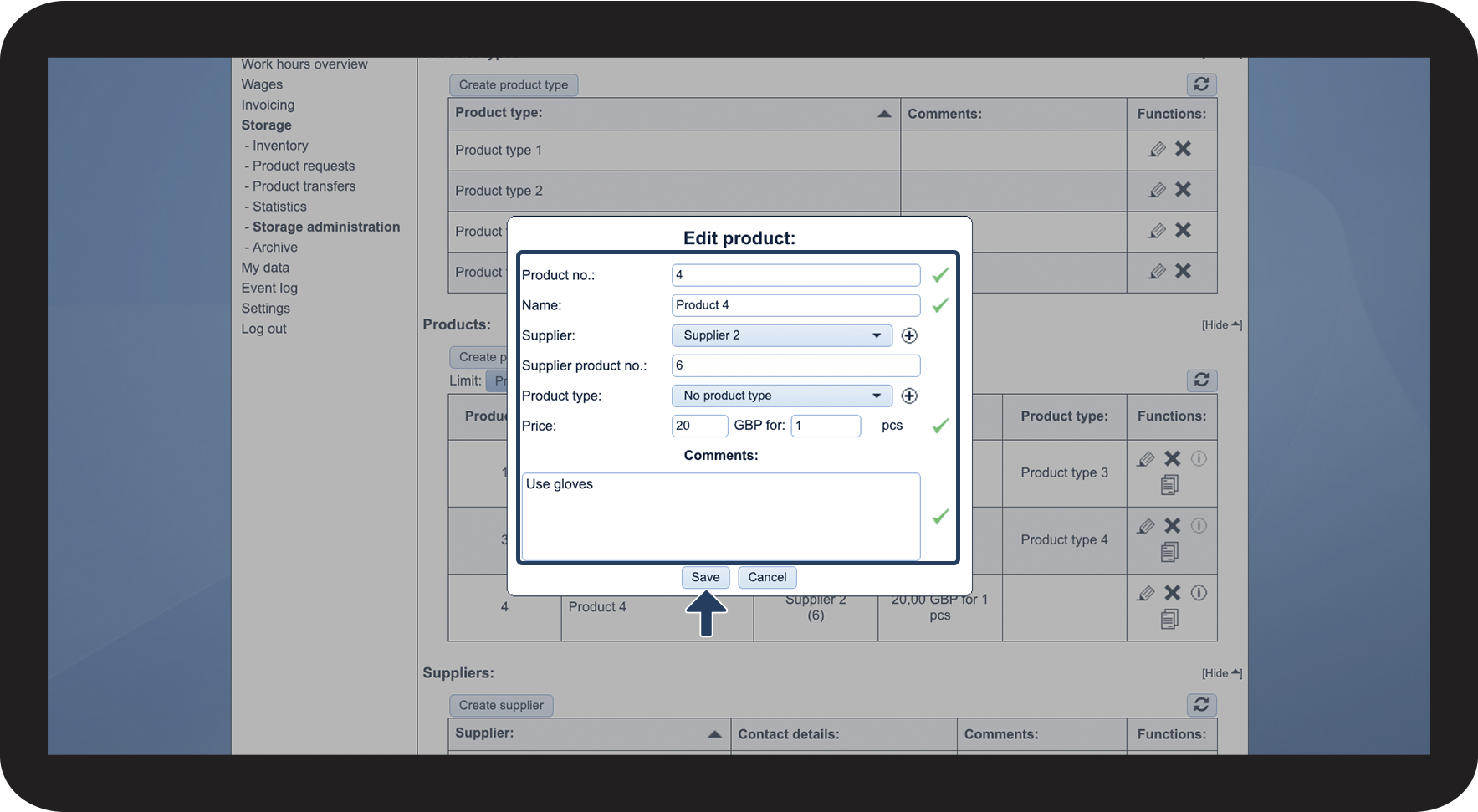
This is how you edit a product

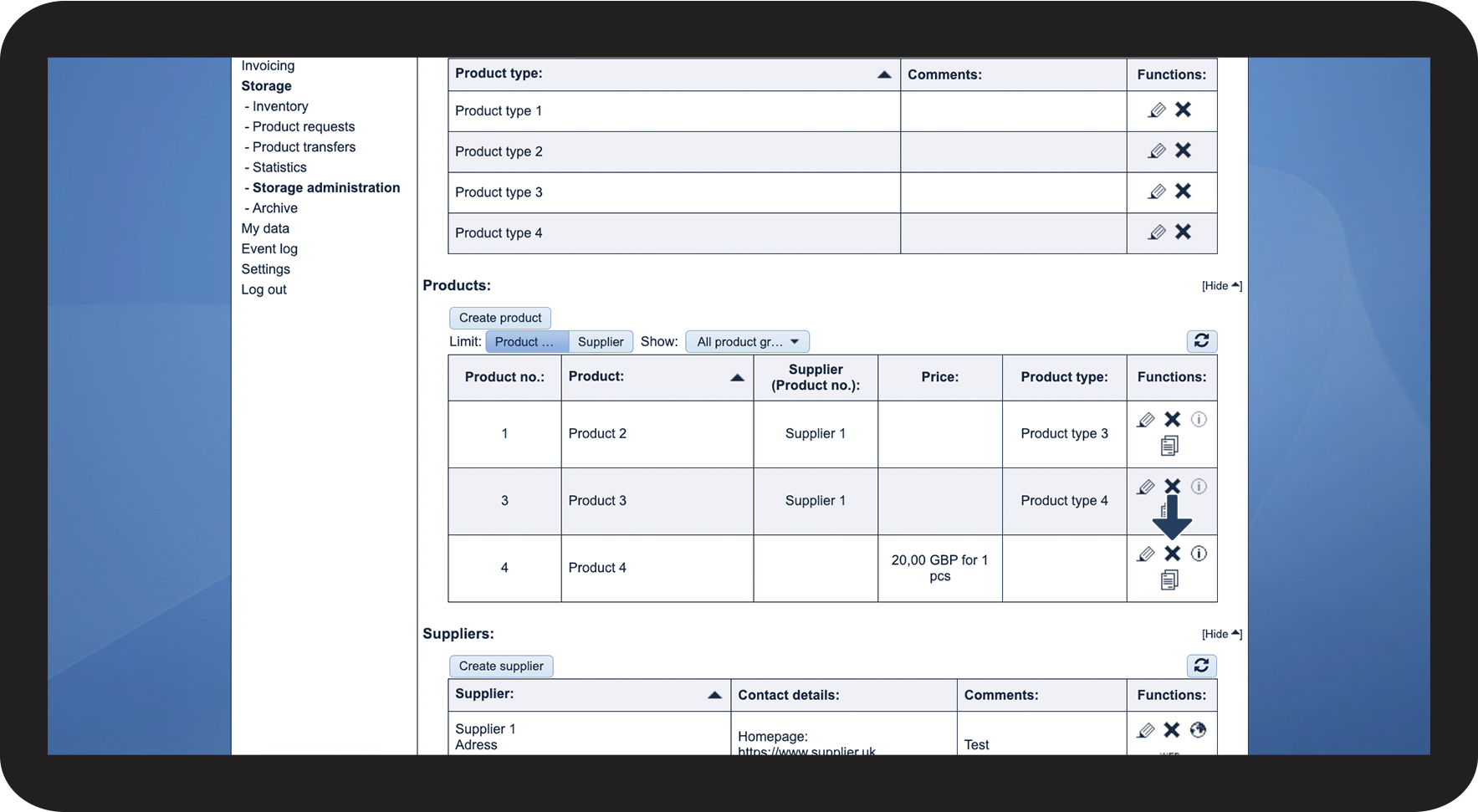
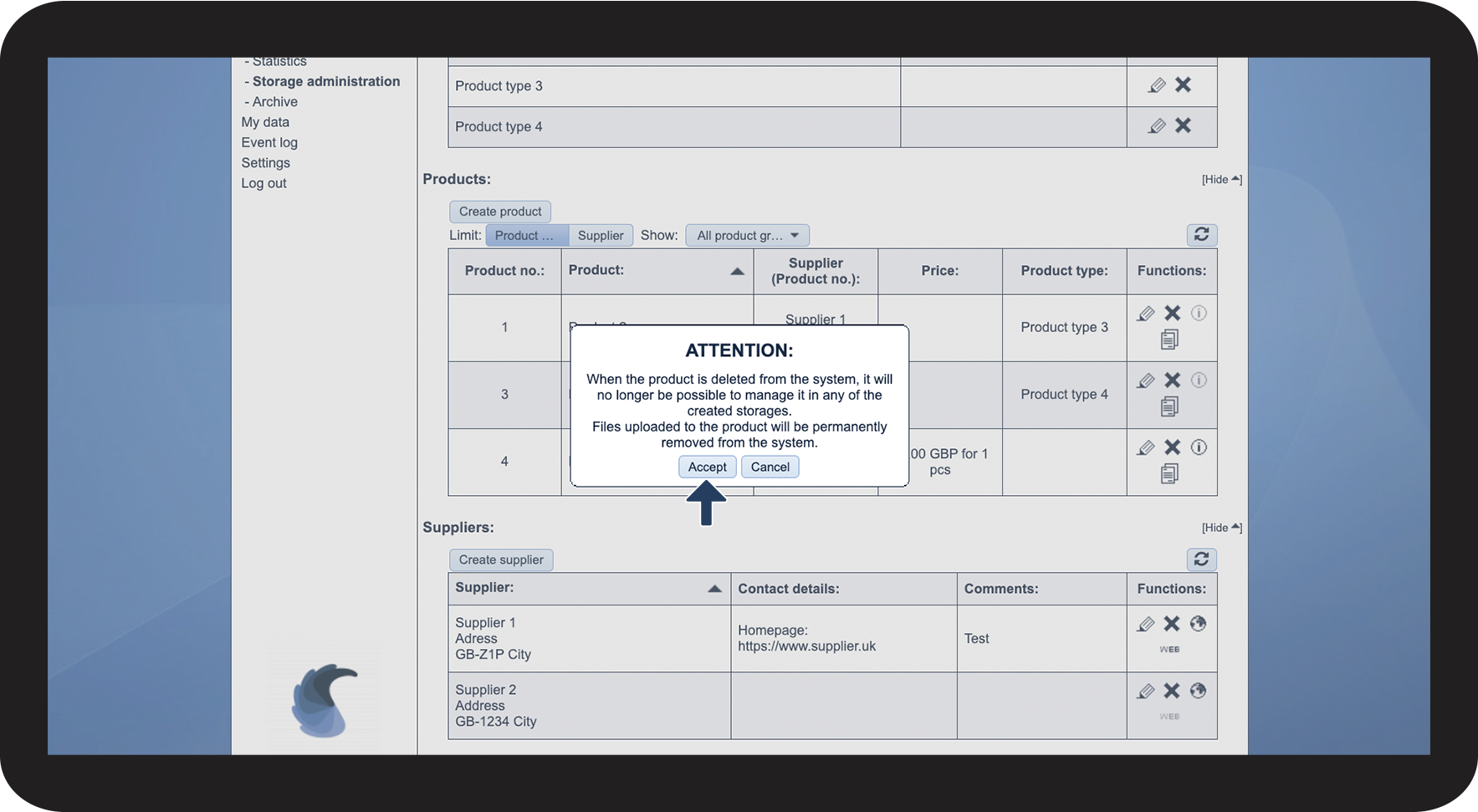
This is how you delete a product

Note:
If a product has been deleted, you will no longer be able to manage it in any of the storage setups. The files attached to a product will be permanently deleted.
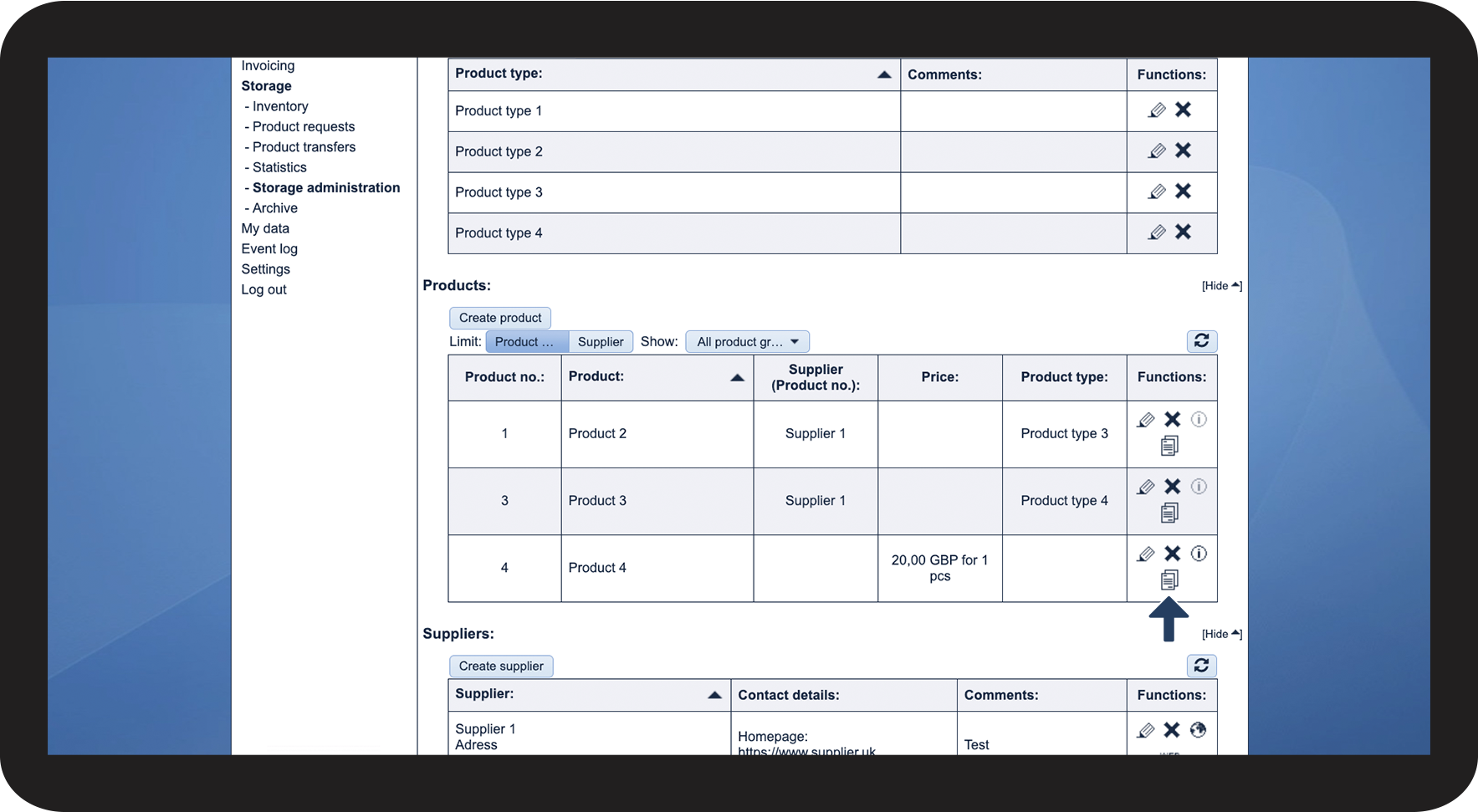
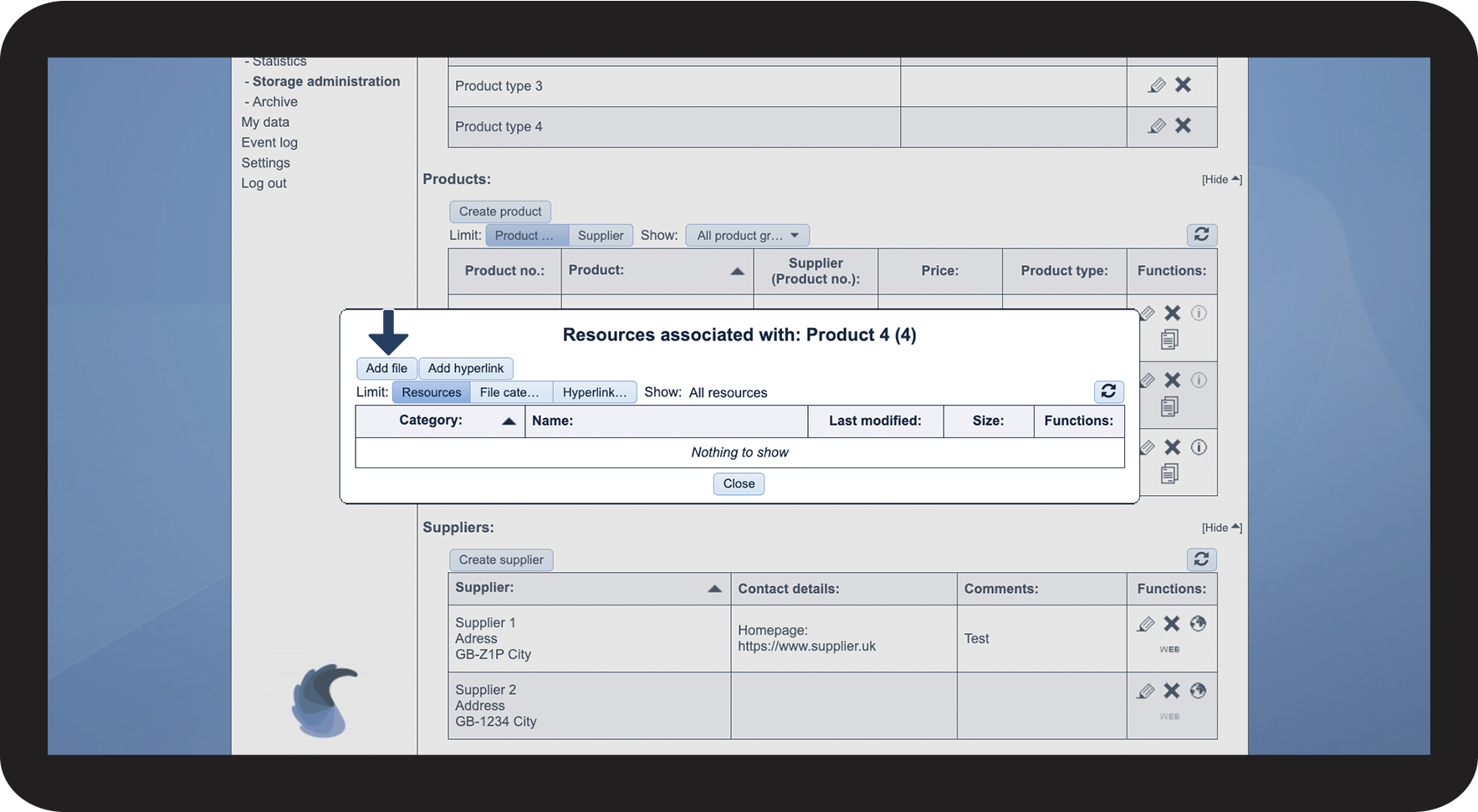
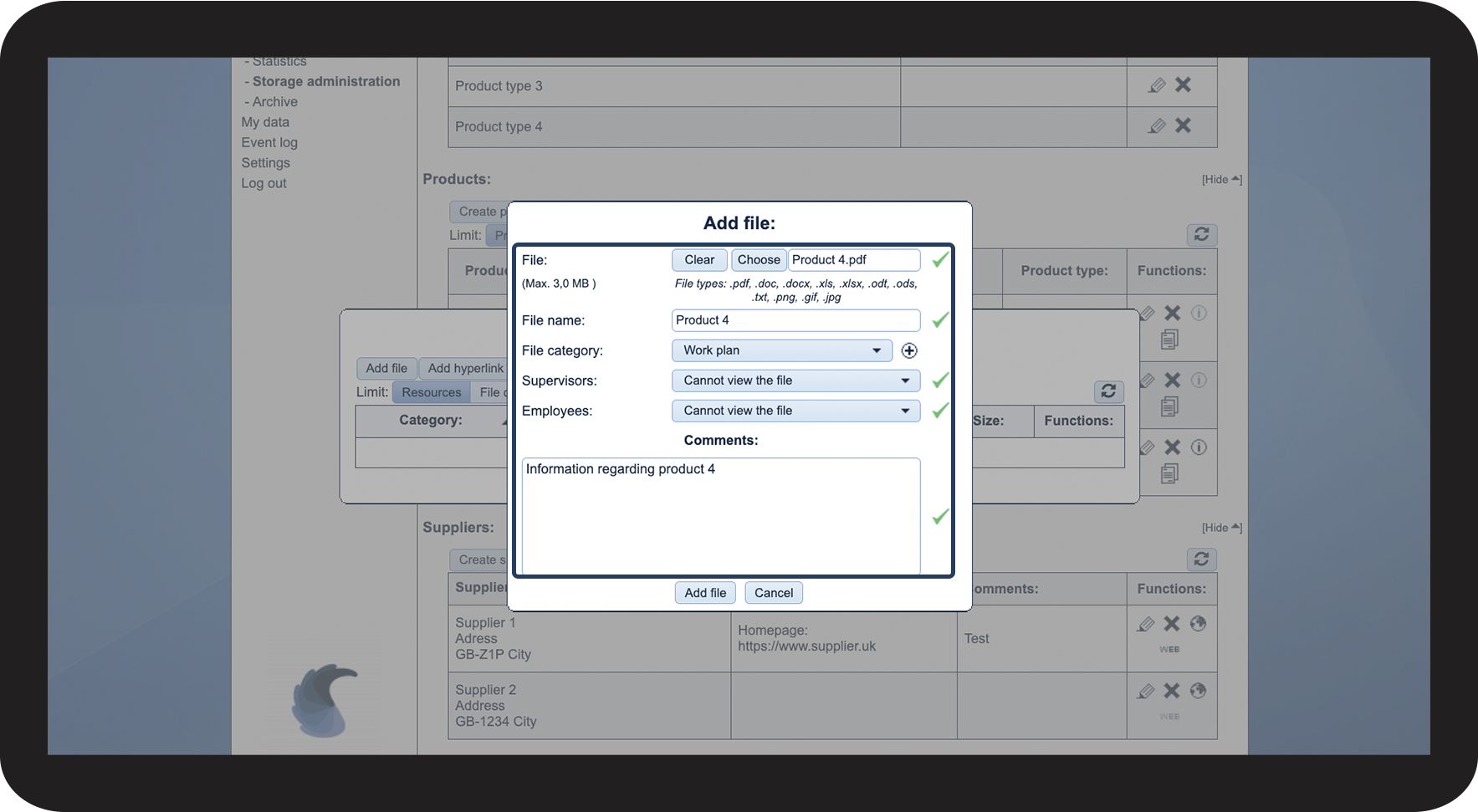
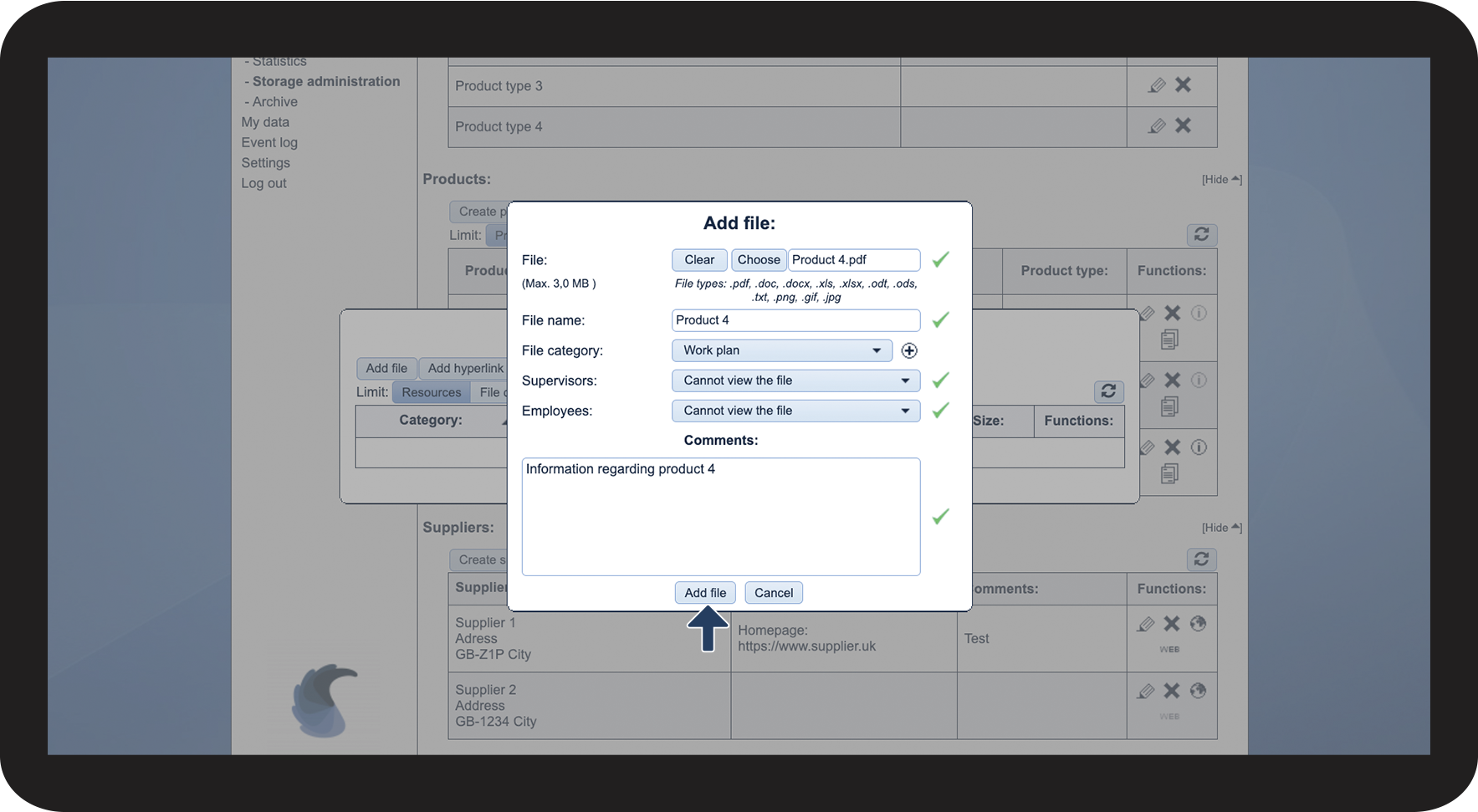
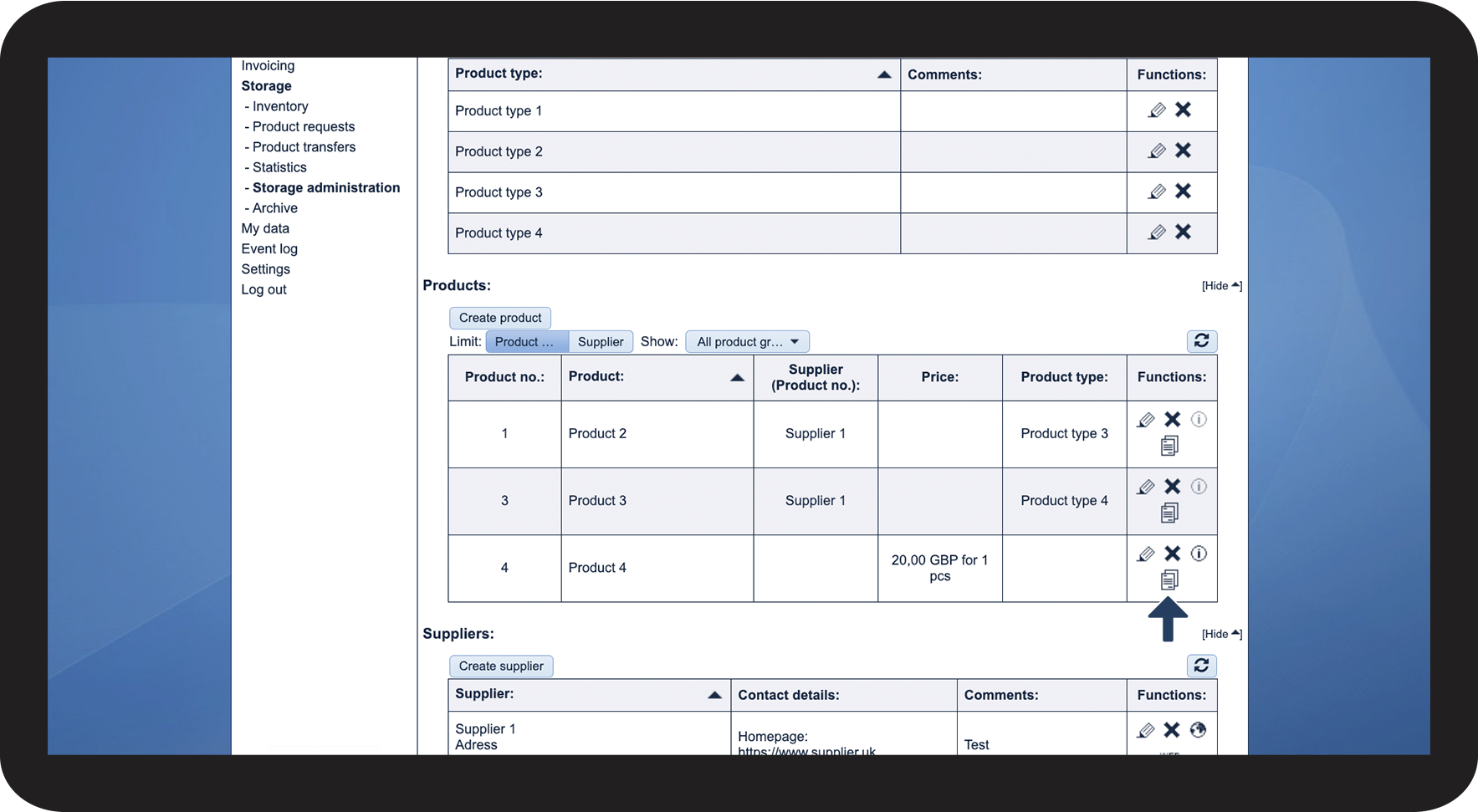
This is how you attach a file to a product


Note:
If you want your employees to be able to see the attached file, then you need to set the dropdown menus Supervisors and Employees to Can view the file.
Approved file types: .pdf, .doc, .docx, .xls, .xlsx, .odt, .ods, .txt, .png, .gif, .jpg
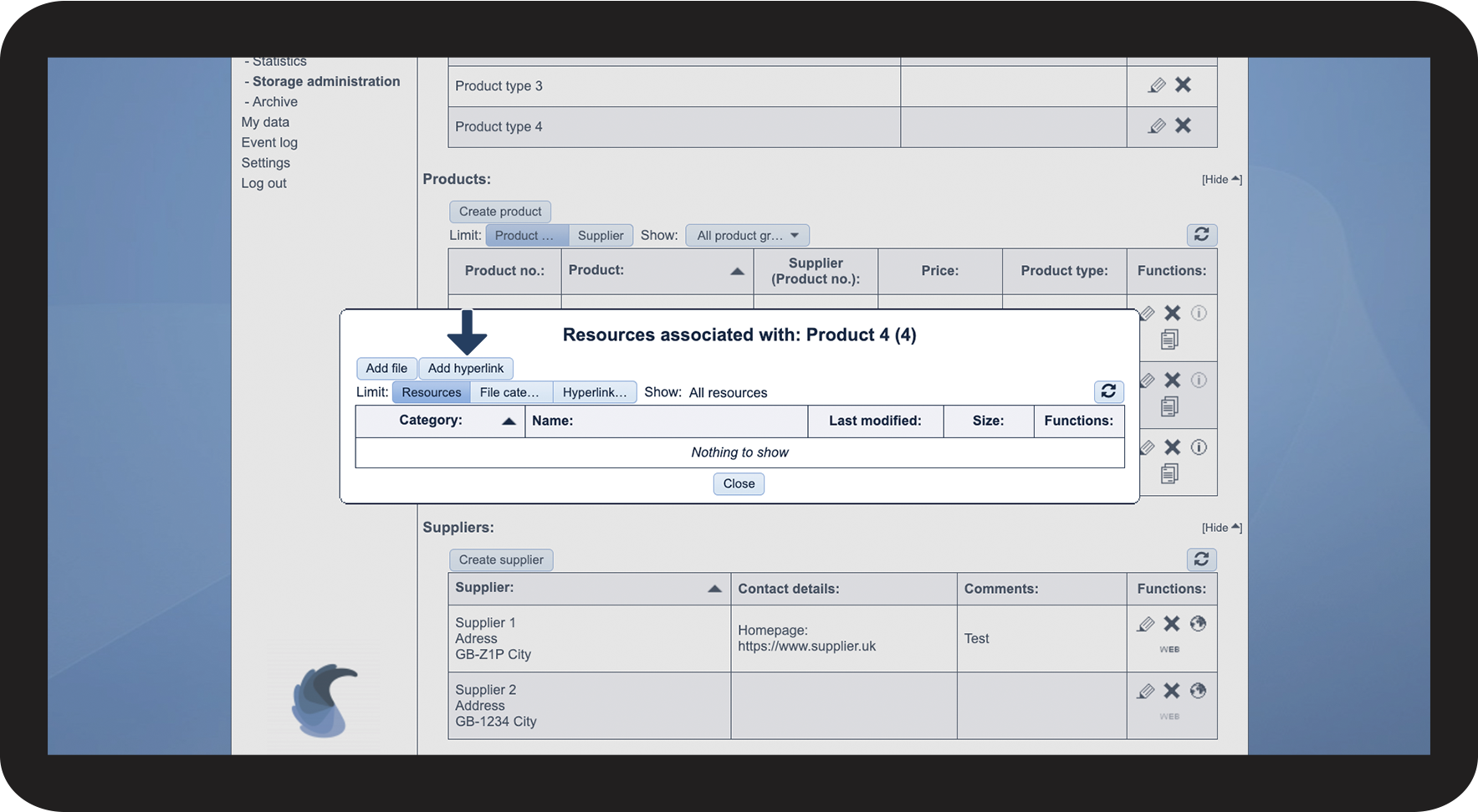
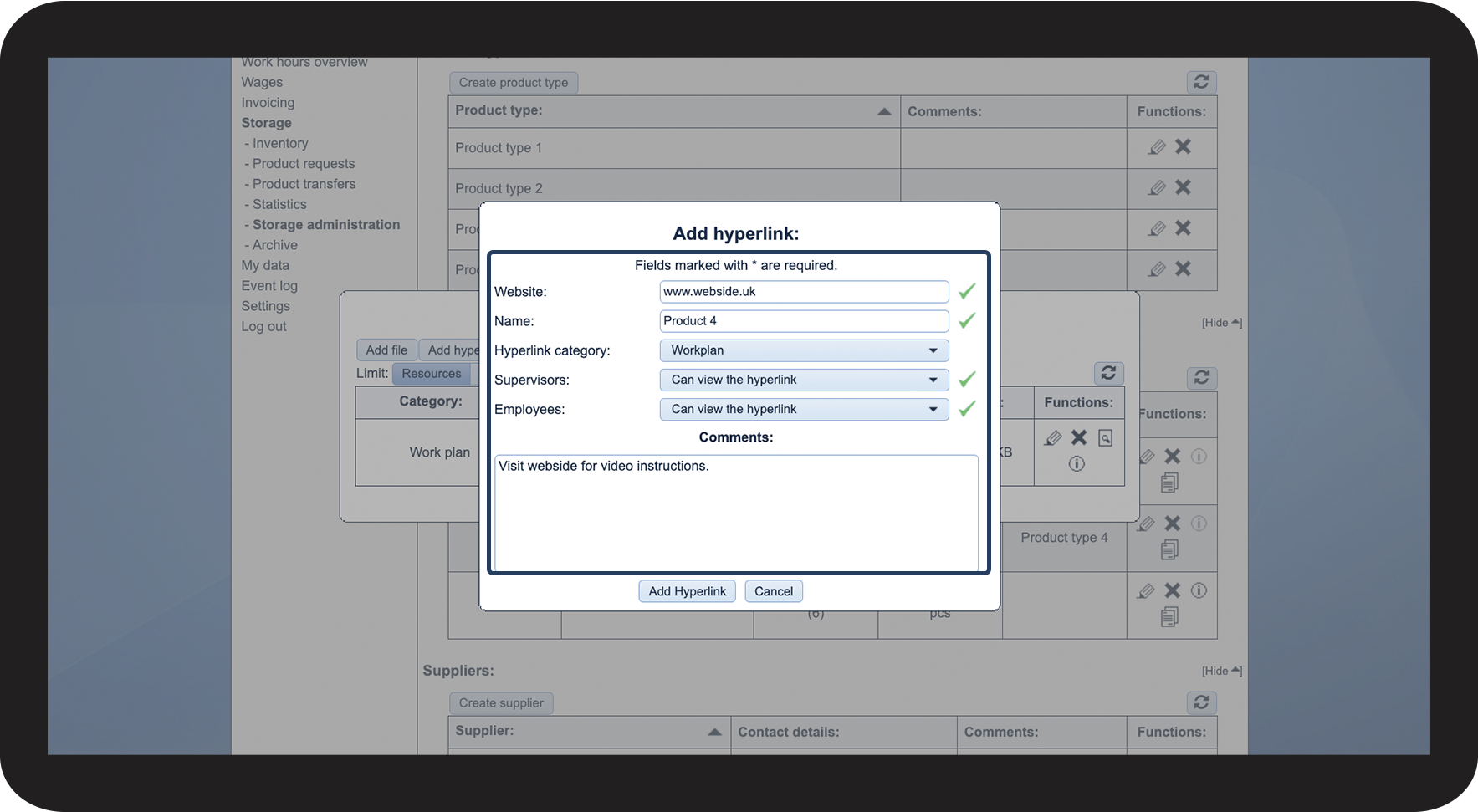
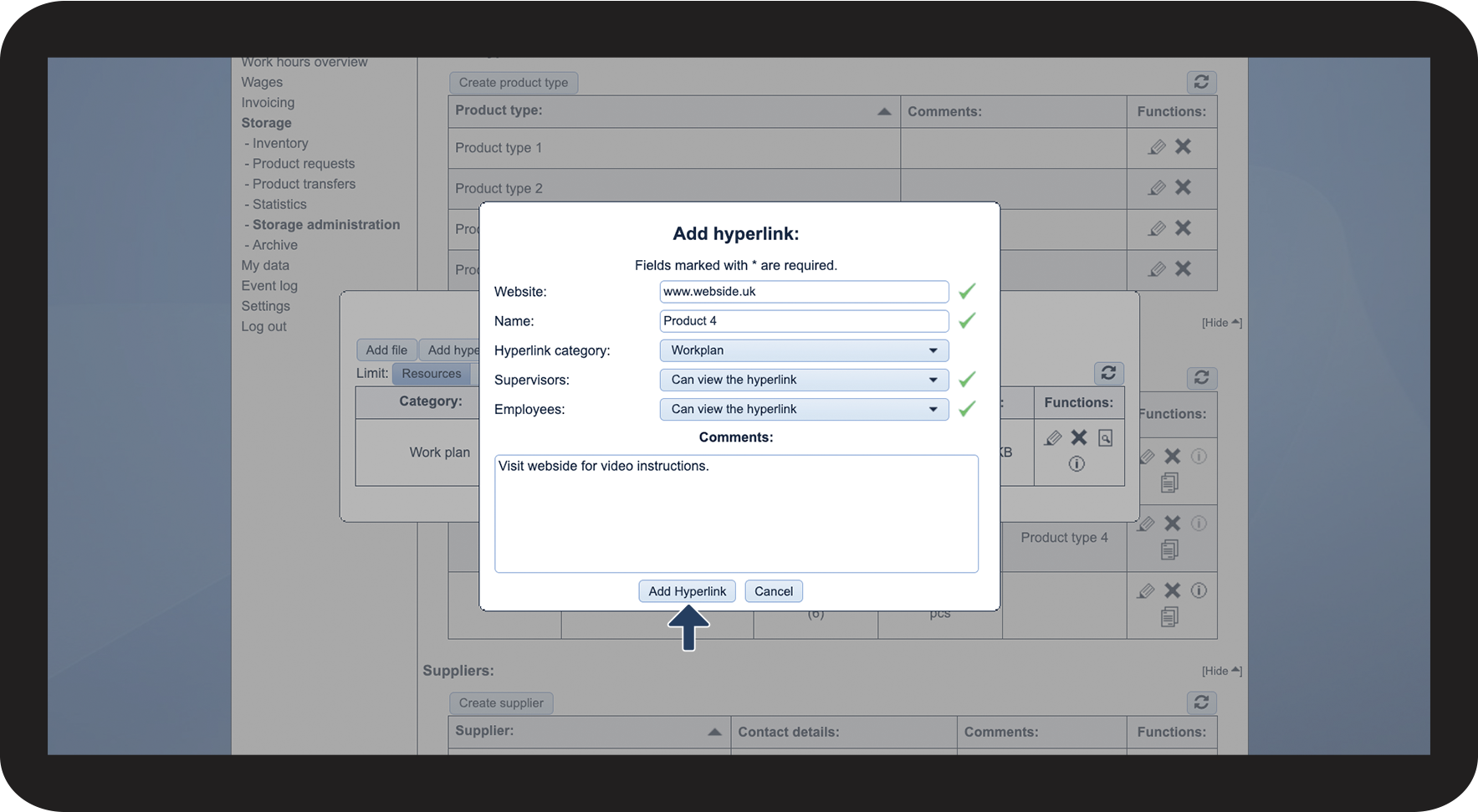
This is how you attach a hyperlink to a product
Note:
If you want your employees to be able to see the hyperlink, then you need to set the dropdown menus Supervisors and Employees to Can view the file.
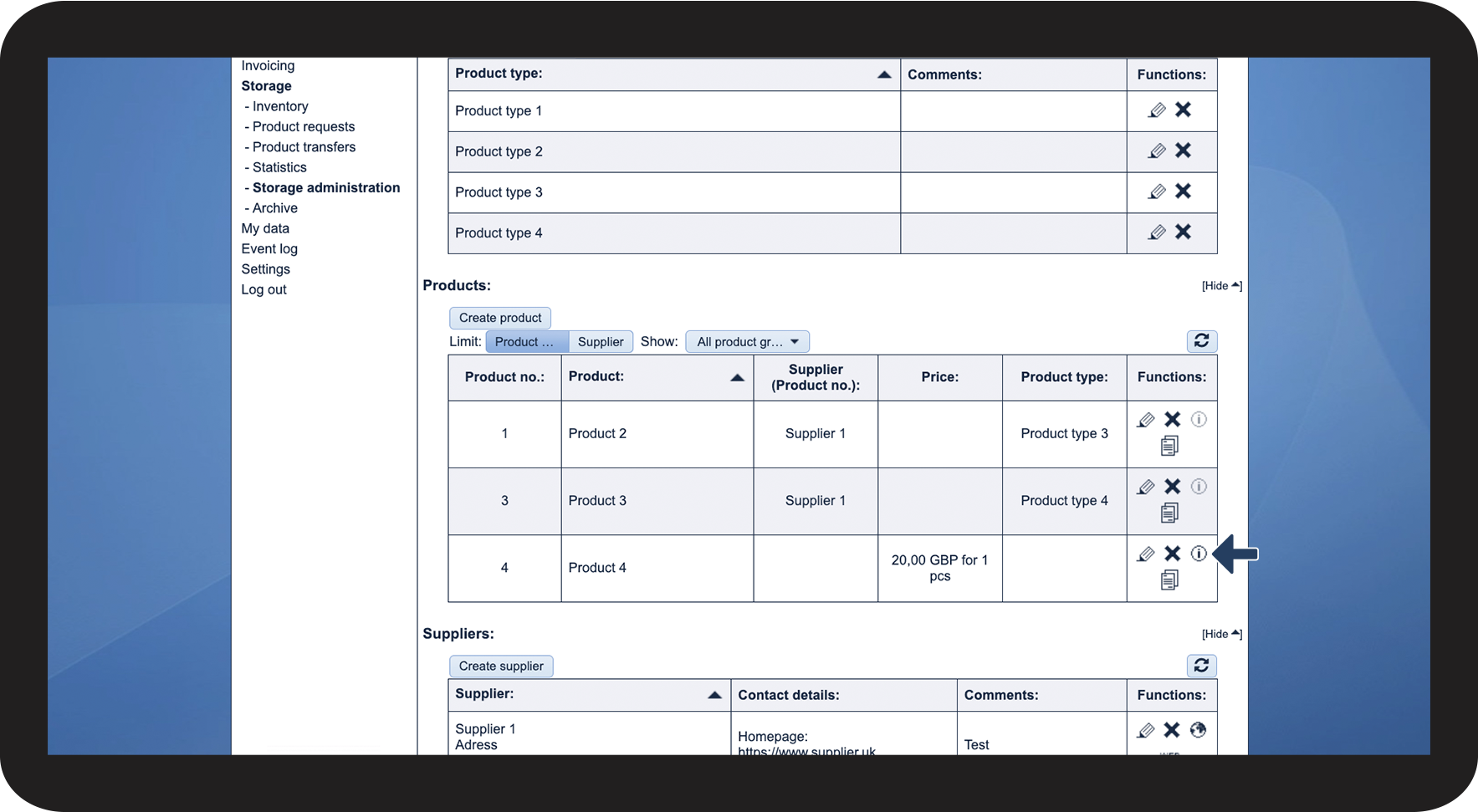
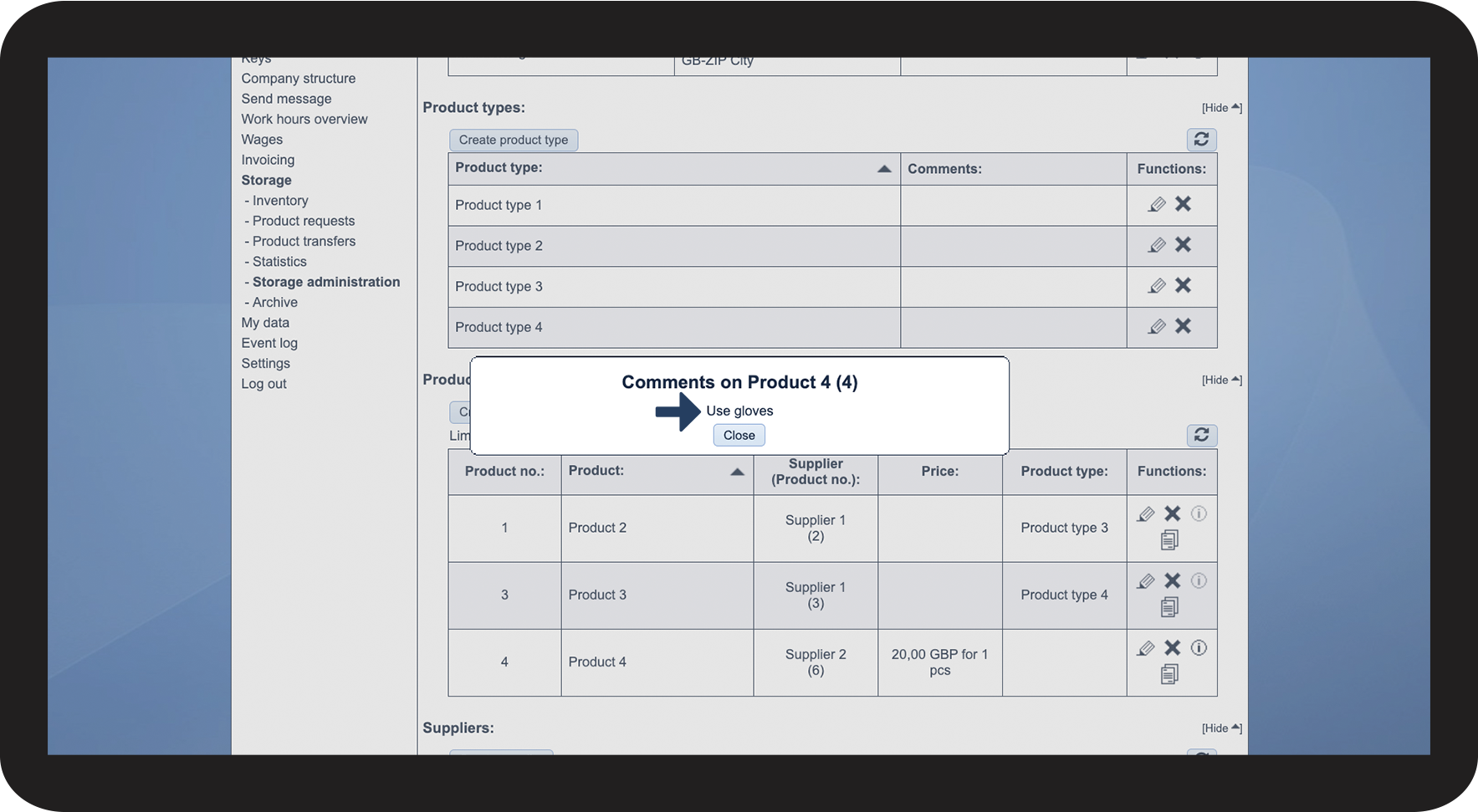
This is how you can see comments attached to a product