Skip to content
English
  • There are no suggestions because the search field is empty.

Setting up employee notifications

How do I set up a notification for an employee?

Would you like a reminder when, for example, it's the birthday of one of your employees? Notifications can be set up for each employee to help you remember this or other relevant things.

Notifications can be set up by the administrator and supervisors. Once a notification is set up, it will also be possible to edit and delete it.


In this article, you will learn how to create, edit and delete employee notifications:


This is how you create notifications for your employees

number_1.png
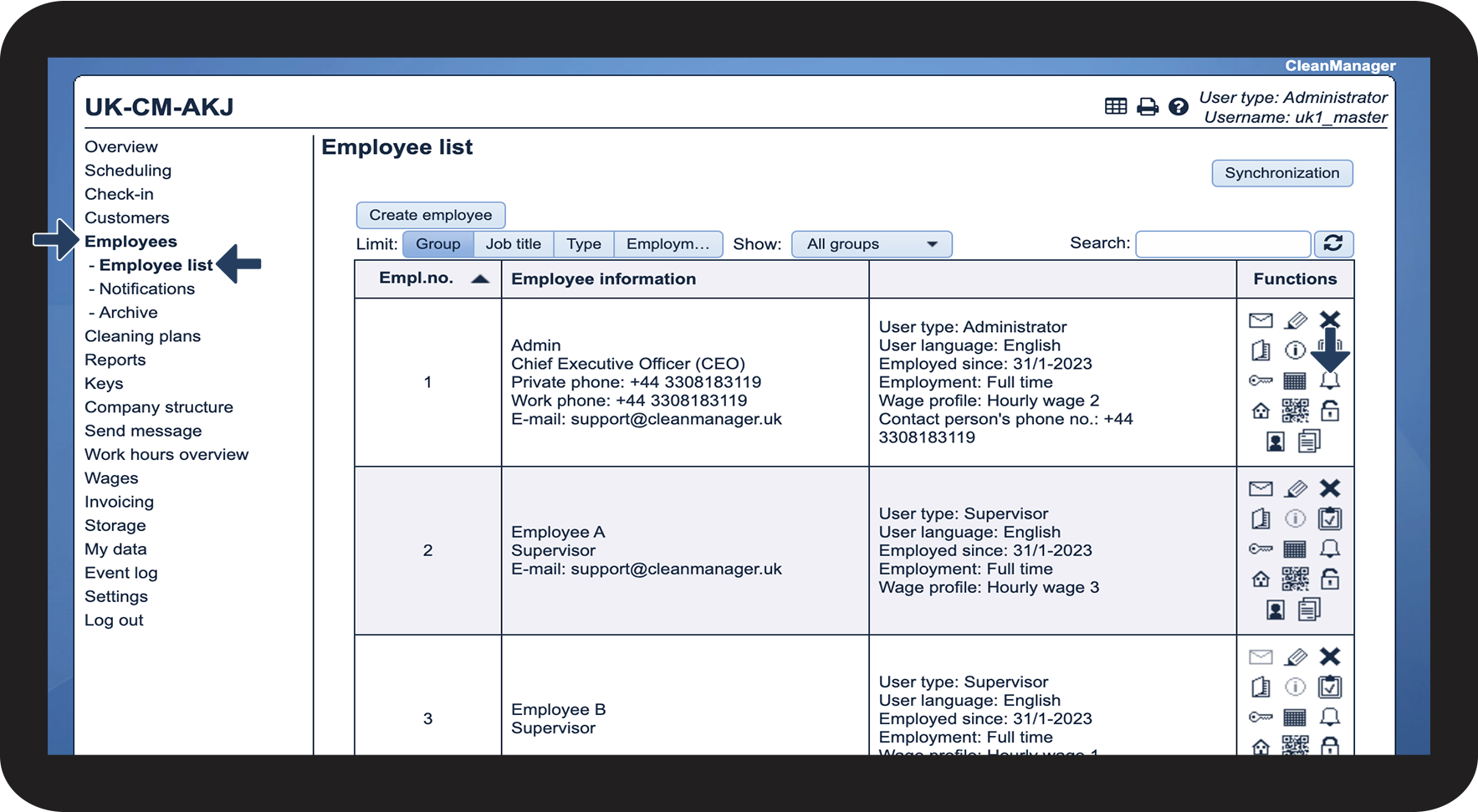
In the menu, go to Employees > Employee list
 
Click on Edit employee notifications Påmindelse.png

1.png

number_2.png

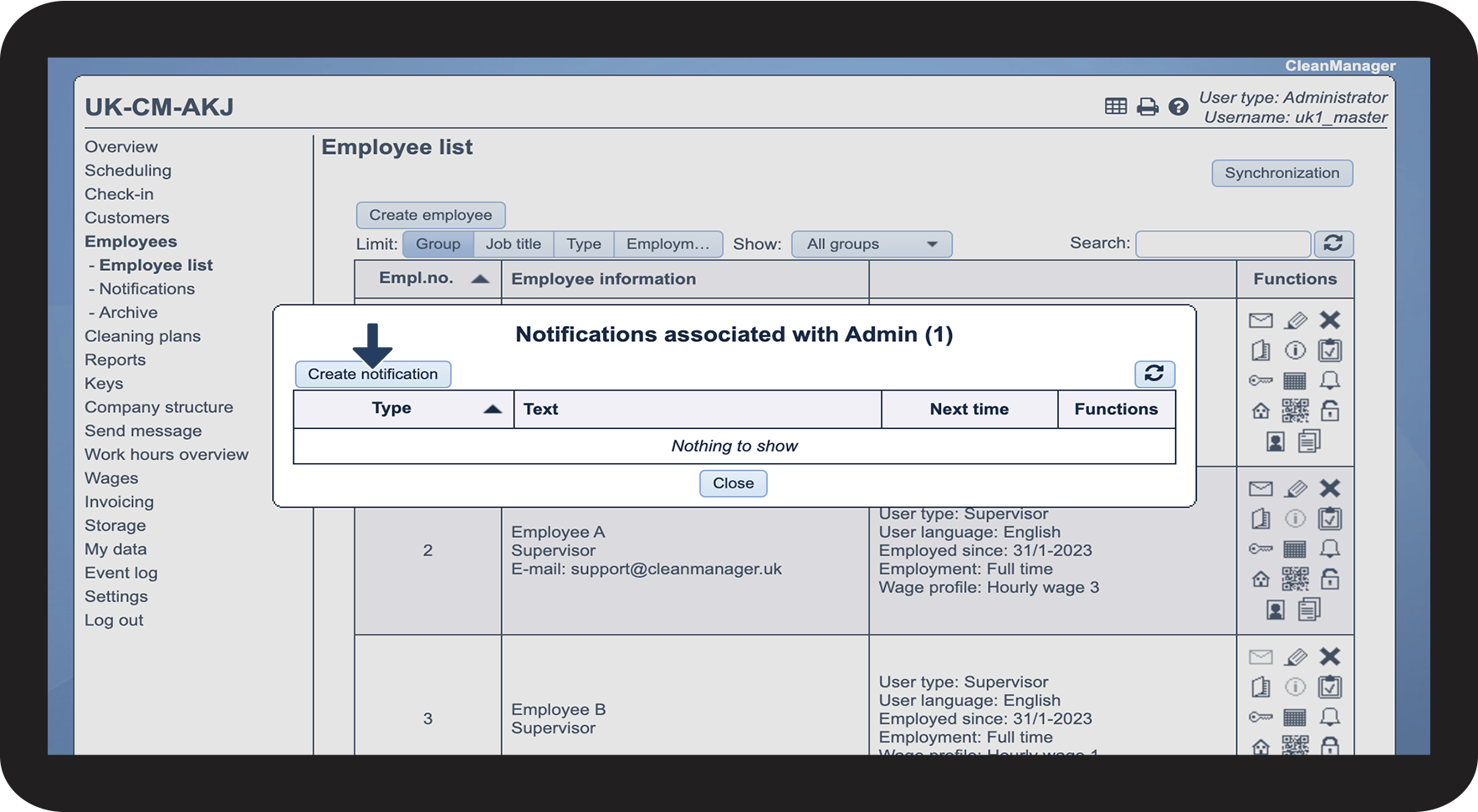
Click on Create notification

2.png

number_3.png
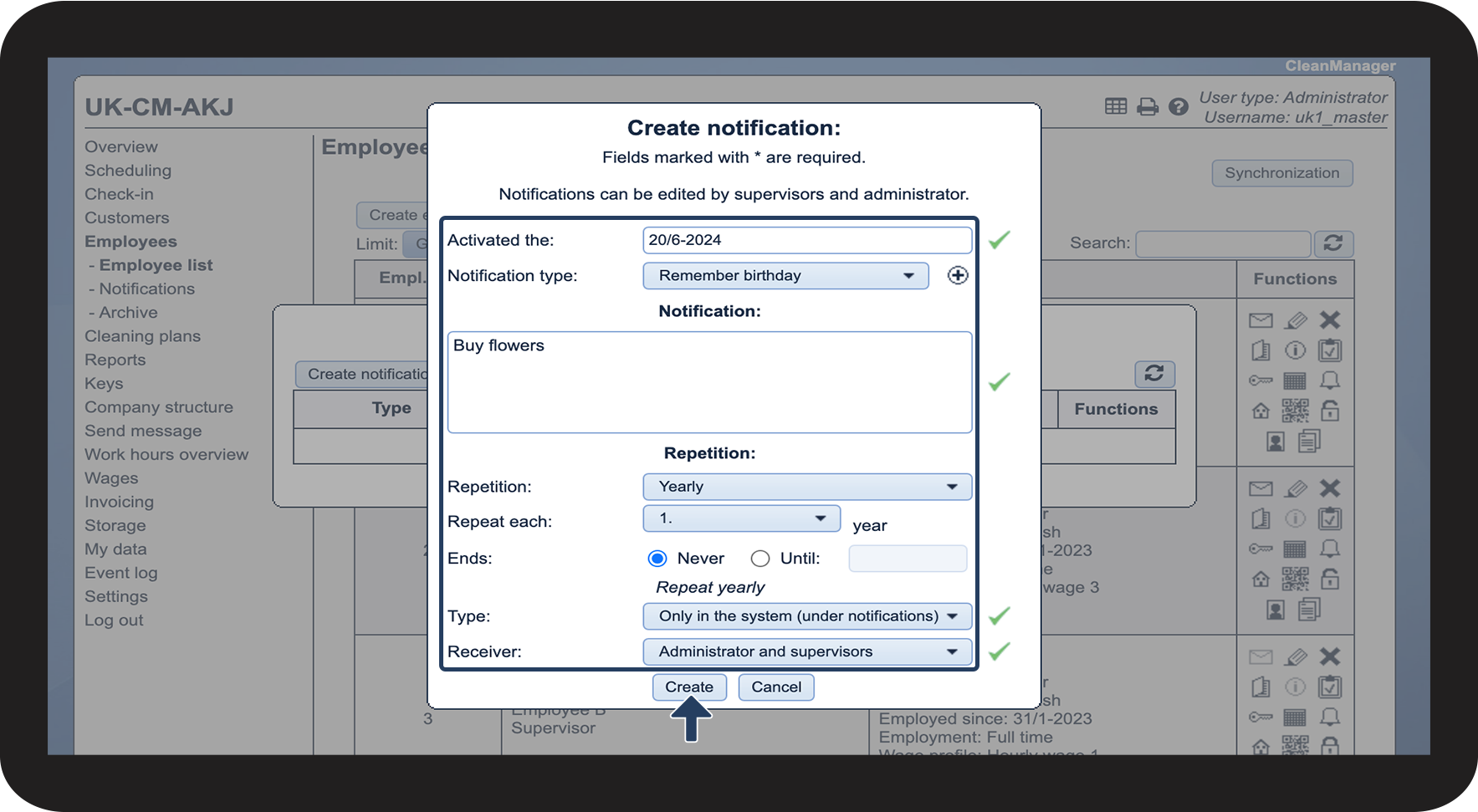
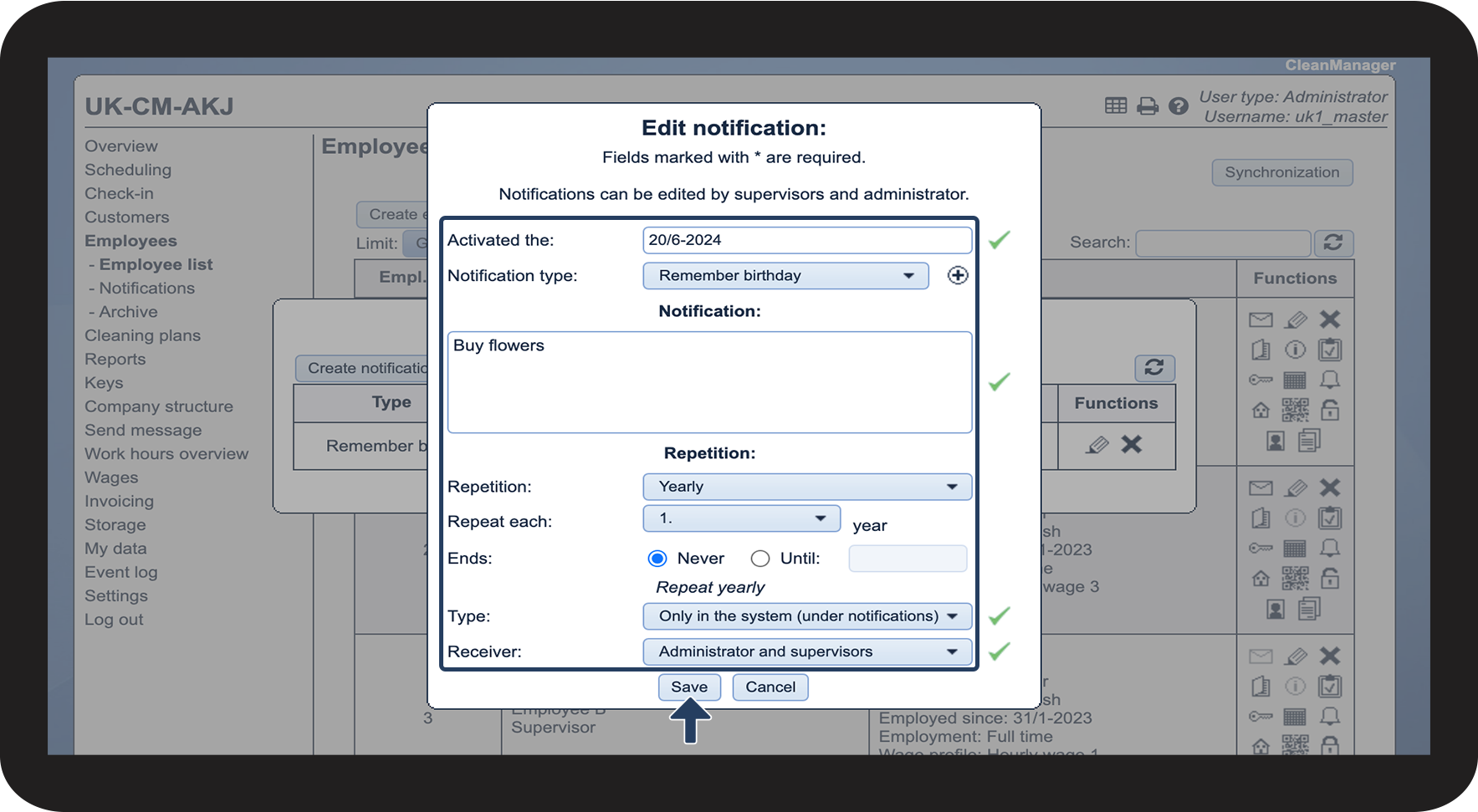
Fill in the following
 
Field
Description

Activated the

The date when the notification should be triggered

Notification type

Select the type that describes what the notification is generally about. New types can be added by clicking on Add tilføj.png

To learn more about notification types, see the following article: Introduction to notification types

NOTE! While notification types can be created by supervisors, they can only be deleted by the administrator.

Notification

Enter a description of the notification, e.g. buy flowers

Repetition

Select if the notification should be repeated. You can choose between the following:

  • Never
  • Daily
    • The notification must be repeated on a daily basis.
  • Weekly 
    • Select which day(s) the notification should be triggered on every week.
  • Monthly
    • Select whether the notification should repeat on this specific date every month, or for example the first Monday of each month.
  • Yearly
    • Notifications will be triggered every year on the same date.

Repeat each

Here, you can adjust the repetition, for example if it should be repeated every 2, 3, or 4 months

Ends

Here, you can decide whether the repetition pattern should end on a specific date or never stop.

Type

Select how to receive the notification:

  • Only in the system (go to Employees > Notifications or through the Overview)
  • By e-mail
  • By text message (NOTE! The add-on module Text Message must be activated)
  • By e-mail and text message (NOTE! The add-on module Text Message must be activated to receive text messages).

Receiver

Select who should receive the notification:

  • Only administrator
  • Only supervisors
  • Administrator and supervisors
number_4.png
Click on Create

3.png


This is how you edit employee notifications

number_1.png
In the menu, go to Employees > Employee list
 
Click on Edit employee notifications 

1.png

number_2.png

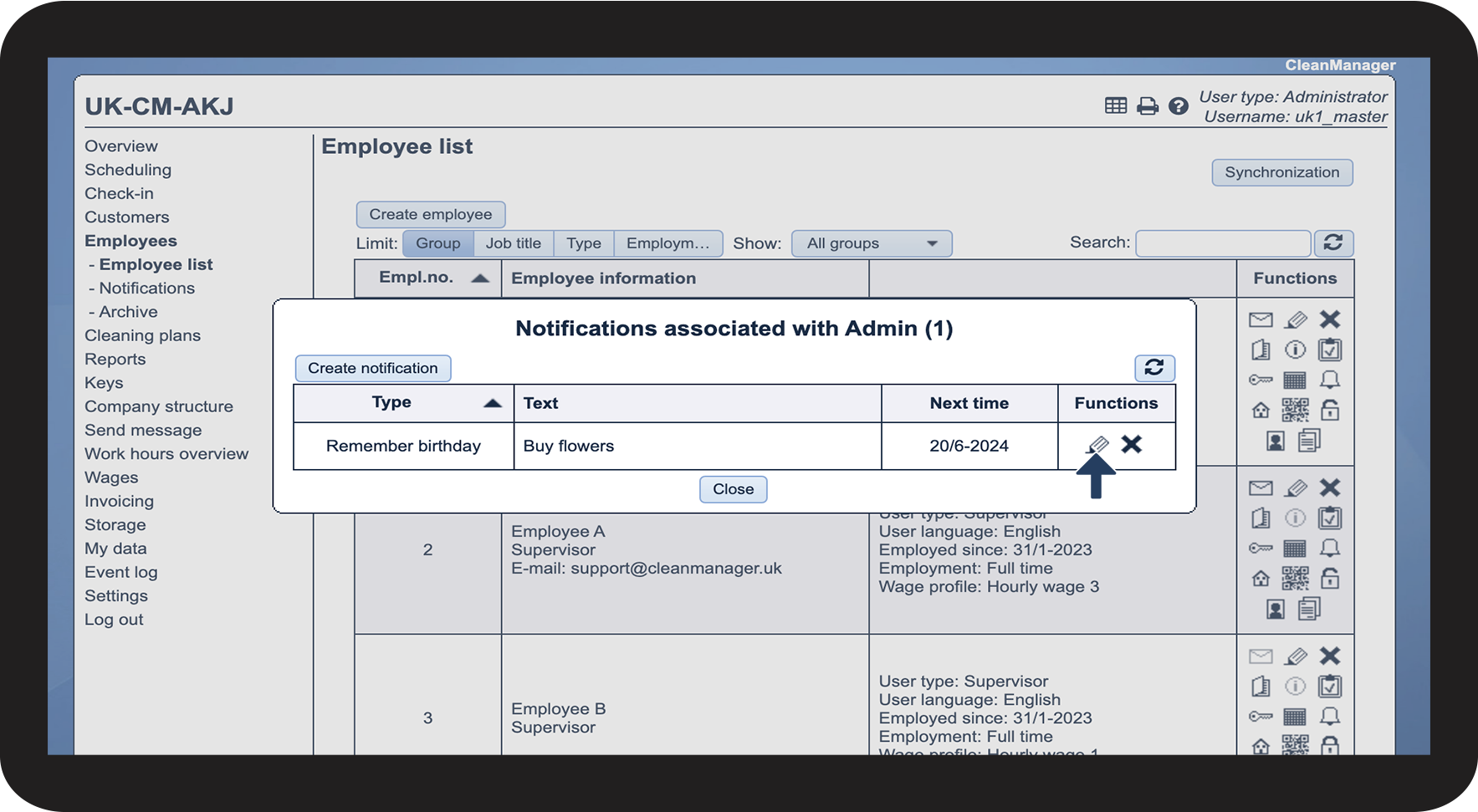
Click on Edit notification rediger.png

4.png

number_3.png
Edit the content
 
Click on Save

5.png


This is how you delete employee notifications

number_1.png
In the menu, go to Employees > Employee list
 
Click on Edit employee notifications Påmindelse.png

1.png

number_2.png
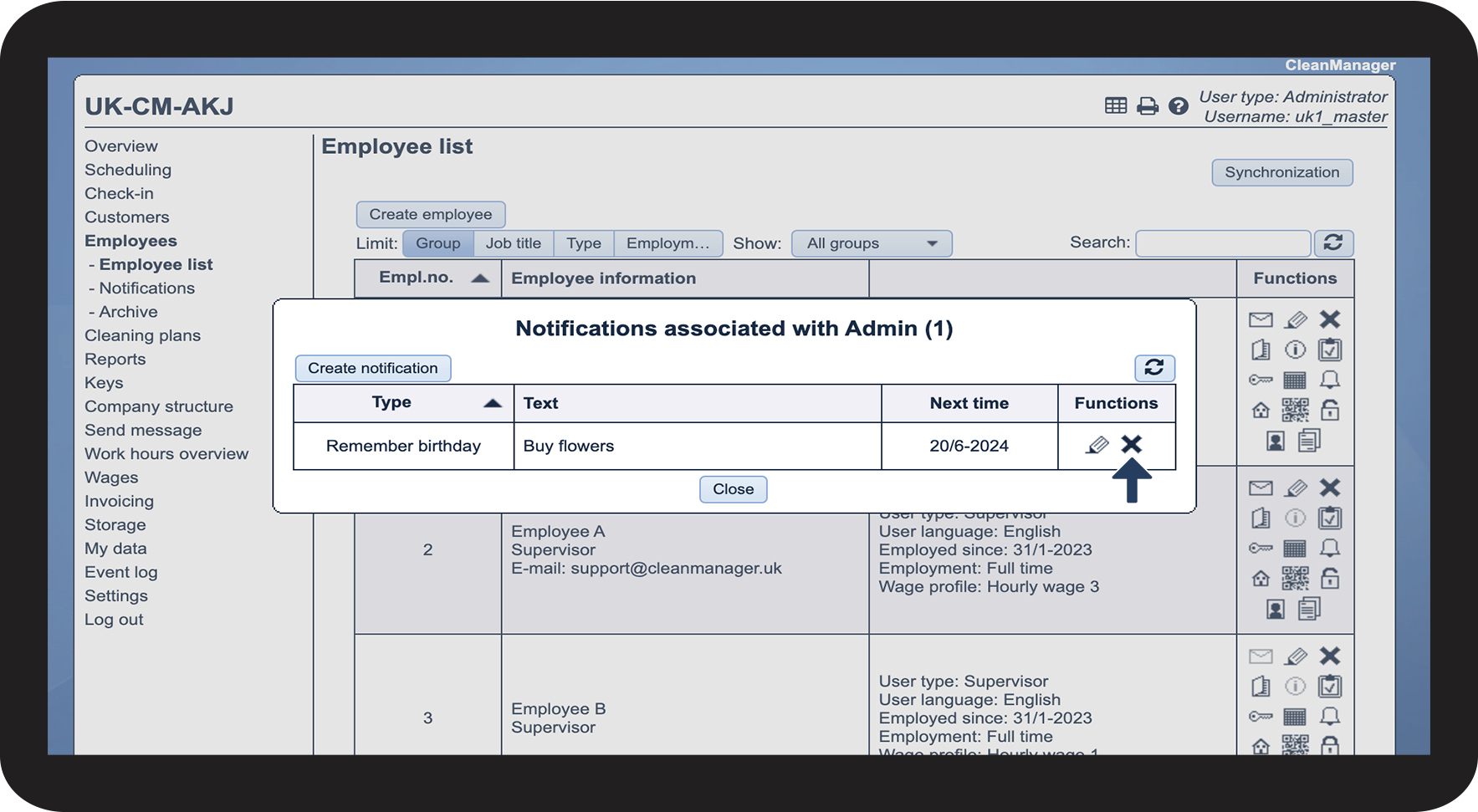
Click on Delete notification Slet.png
 
Finish by clicking on Accept


NOTE:

When the notification is deleted, it will no longer be displayed in the system and no e-mails and/or text message will be sent.
6.png