
How do I create a new report template?
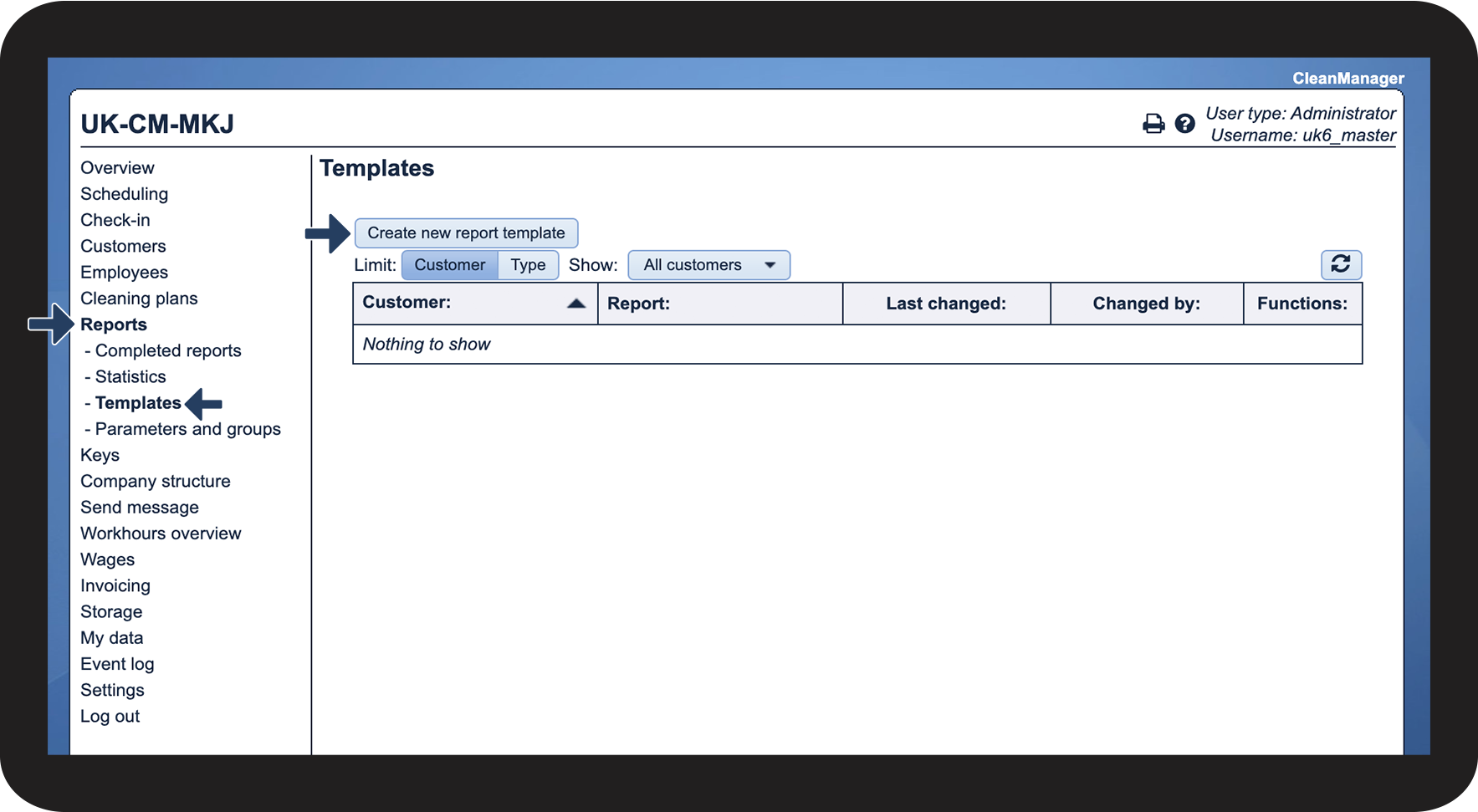
The administrator and the supervisors can create report templates in the menu Reports.
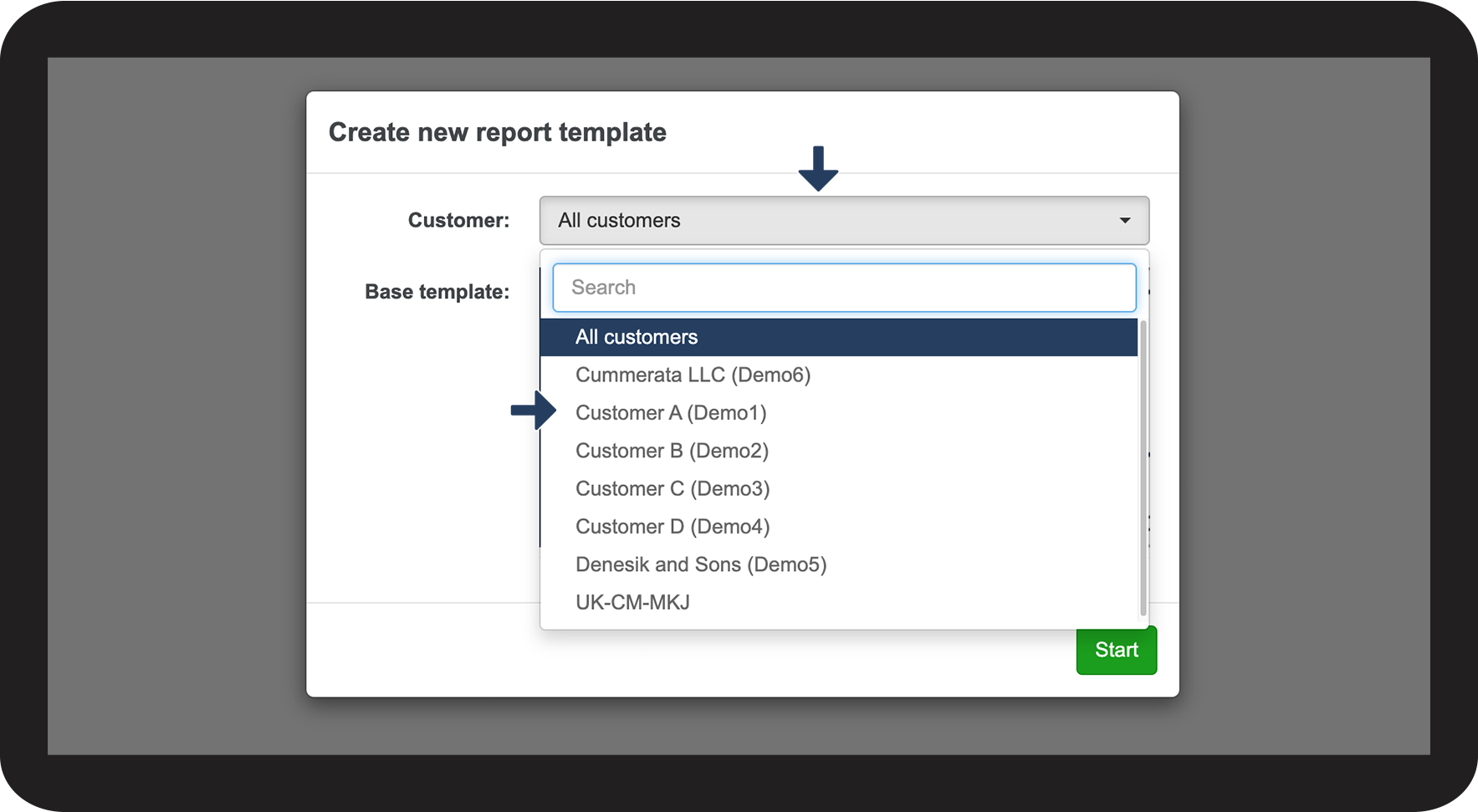
The administrator can create templates that can be used for all customers or a single customer.
Supervisors can only create templates that can be used for a specific customer to whom they have been granted access. For more information regarding this, go to Company Structure.
The templates are structured as a questionnaire, in which you can investigate if the tasks have been solved to a satisfying degree.
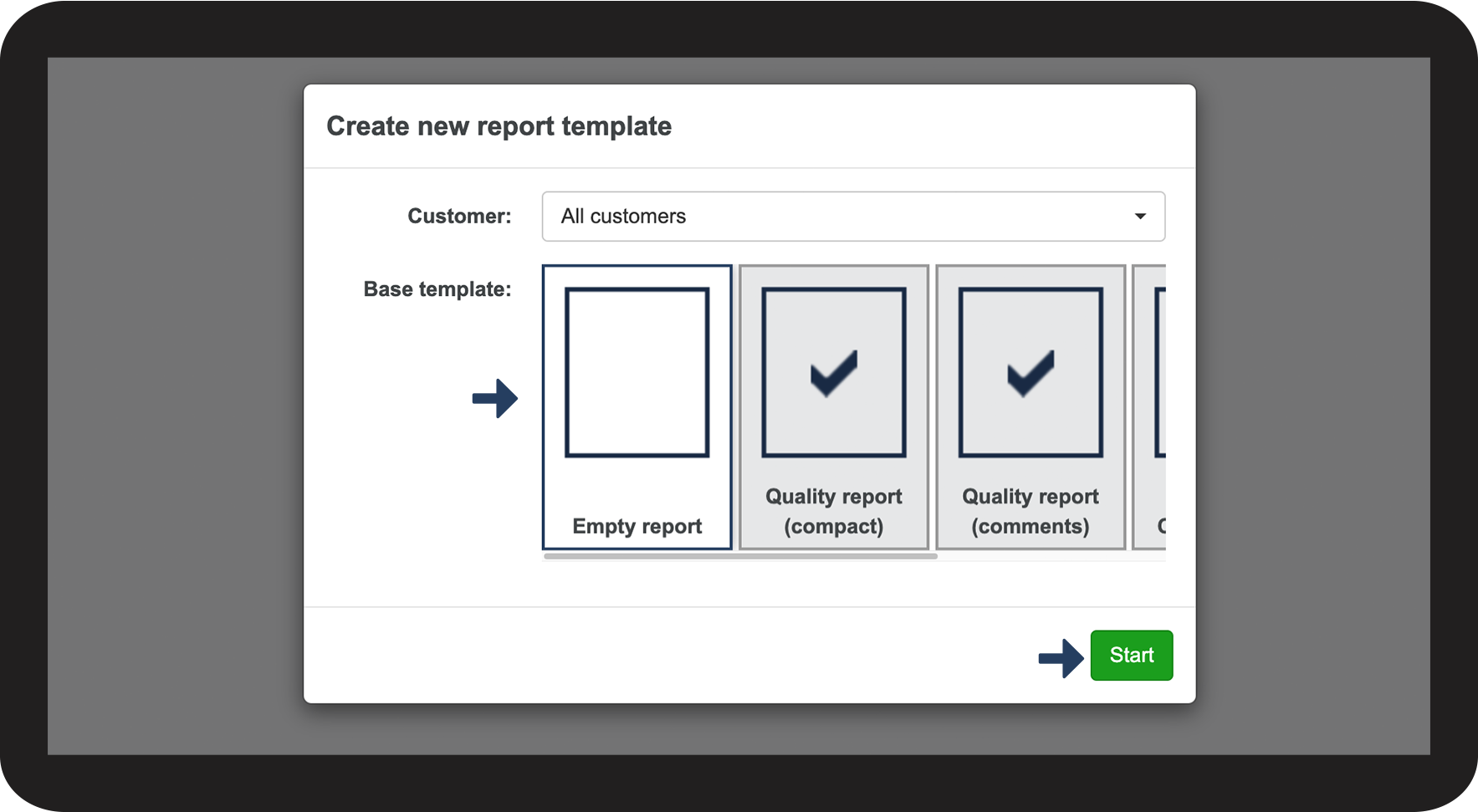
The existing templates can be used as they are, or you can adjust them to better match your needs. You can also create a new report from scratch by using an empty template.
In this article, you will learn how to create a new report template:
How to create a new report template


NOTE:
If you select All customers, you can fill out the report for all customers. If you pick a specific customer, the report can only be filled out for this customer.
Should you wish to use the template for another customer at a later point, you can either create a new template or copy the existing one and edit the copy.

INFO:
Learn more about the different types of report templates here:
Continue to the article Adjusting the report type on a report template
Learn how to adjust the settings for your new template