Skip to content
English
  • There are no suggestions because the search field is empty.

Sending a message from the calendar

How do I send a message from scheduling?

The Administrator/Supervisor has the option of sending either an E-mail or an SMS from the calendar.

This message can only contain the information that a task has been created for the employee in question, that a change has been made to an existing task or that a task has been deleted.

It will only be possible to do this through the web version of CleanManager.

NOTE:

If it has been chosen that an E-mail and/or an SMS should be sent, then a message, containing the relevant task information, will be sent to the employees, associated with the task.

This function is reset every time you save the task.

Please be aware that the system cannot send messages if an E-mail and/or work phone number has not been assigned to an employee.


If you want to send an SMS, the add-on module Text Messaging must be activated. The administrator will have the option to check if the module is activated by following this article: Add-on modules


In this article, learn how an Administrator/Supervisor sends a message through the calendar:


How to send a message while creating a task

number_1_copy.png
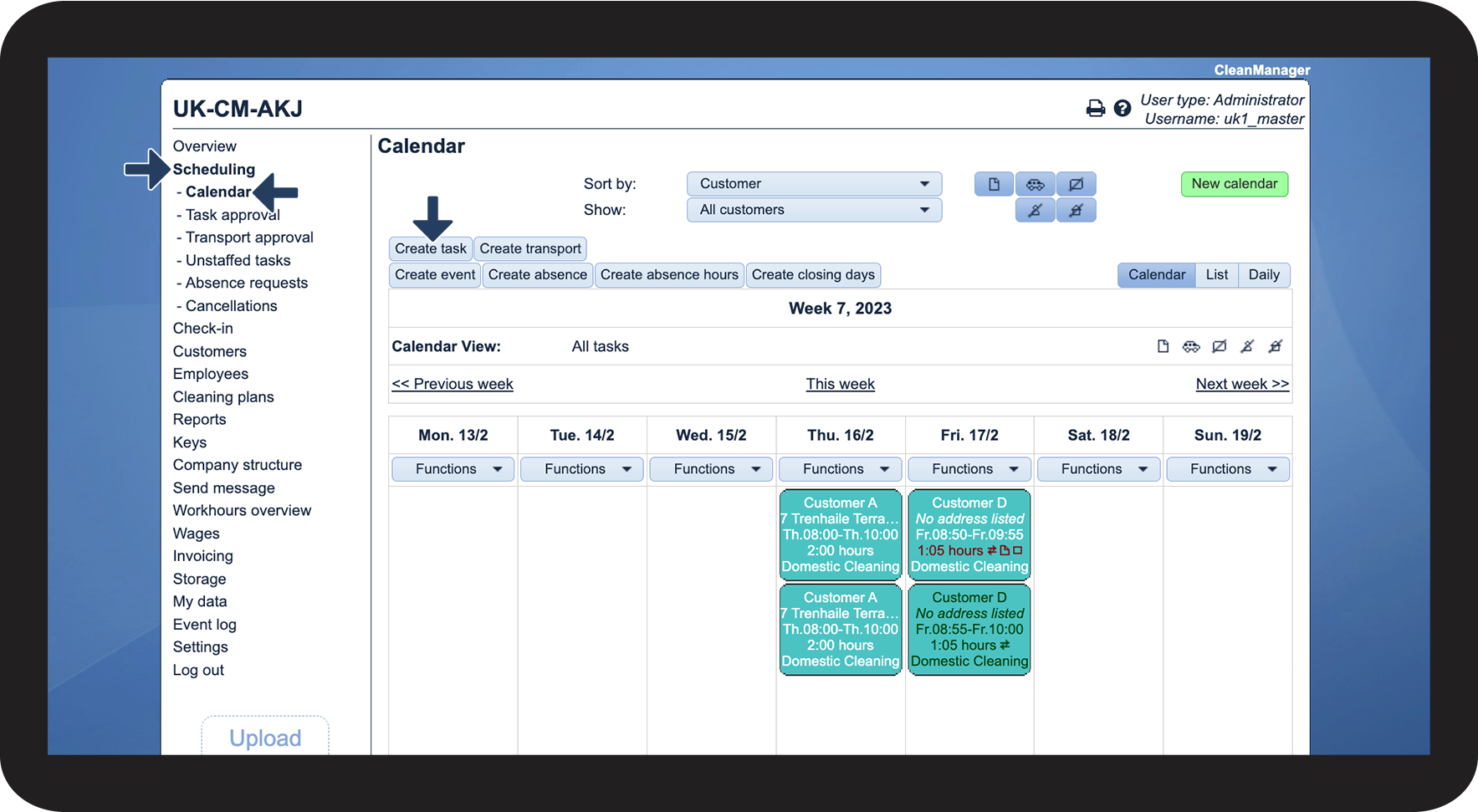
In the menu, click on Scheduling > Calendar
 
Then click on Create task

1.png

number_2_copy.png
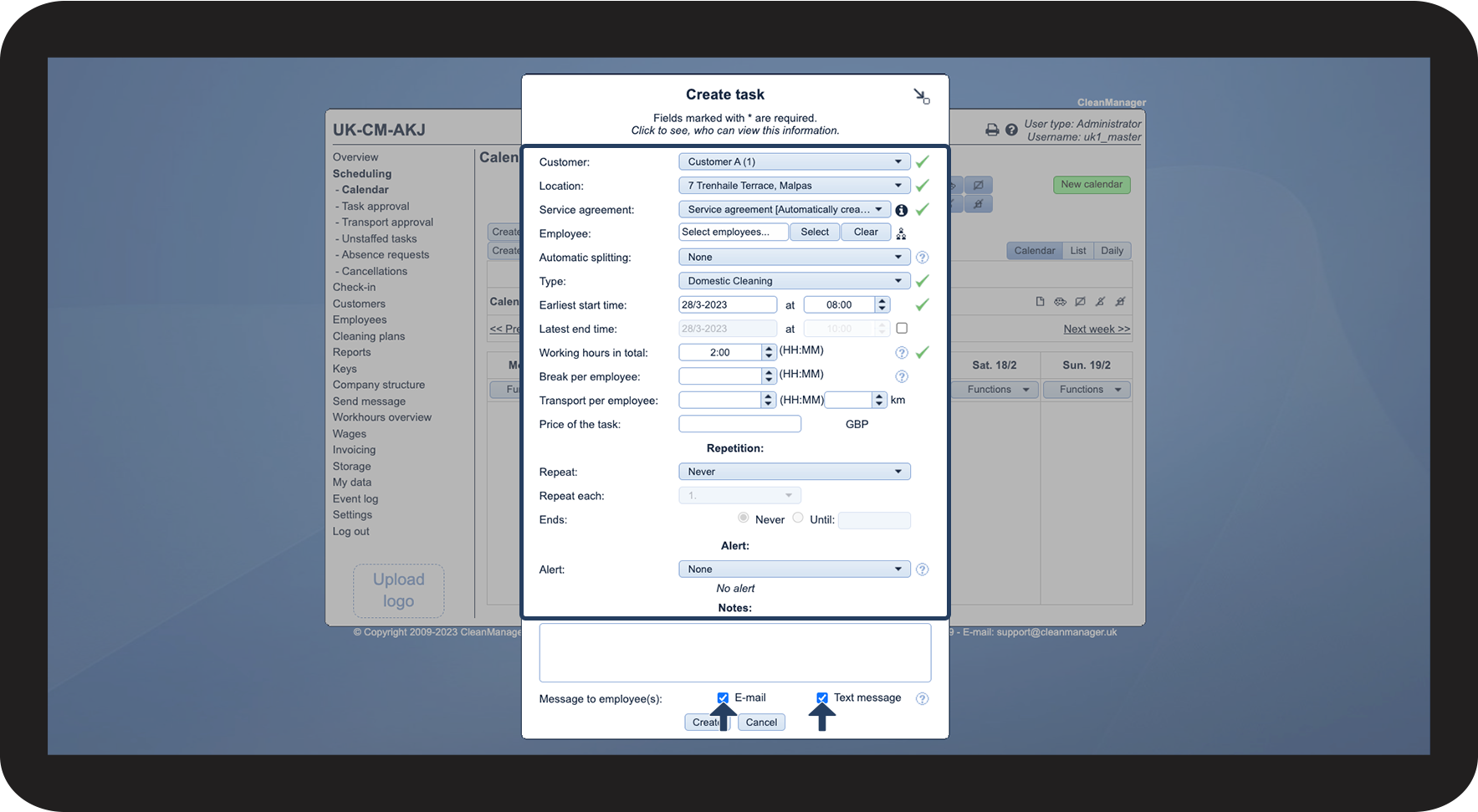
Fill in the task information
 
Then select whether it should be an E-mail and/or SMS, which the employees associated with the task should receive.
 
The associated employees will then receive a message on the device that has been selected.

2.png


How to send a message while editing a task
number_1_copy.png
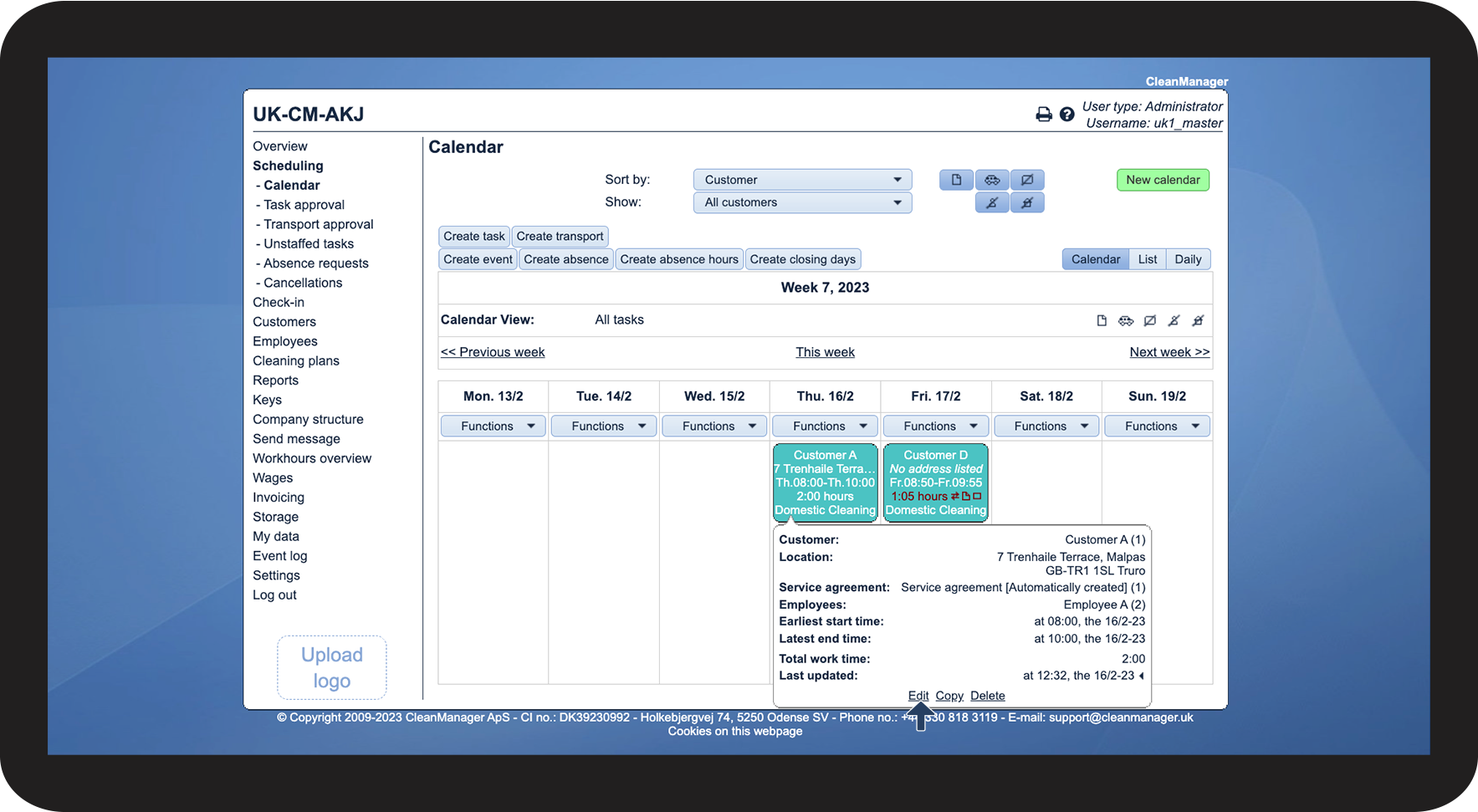
In the Calendar, click on the task in question
 
Then click on Edit

3.png

number_2_copy.png
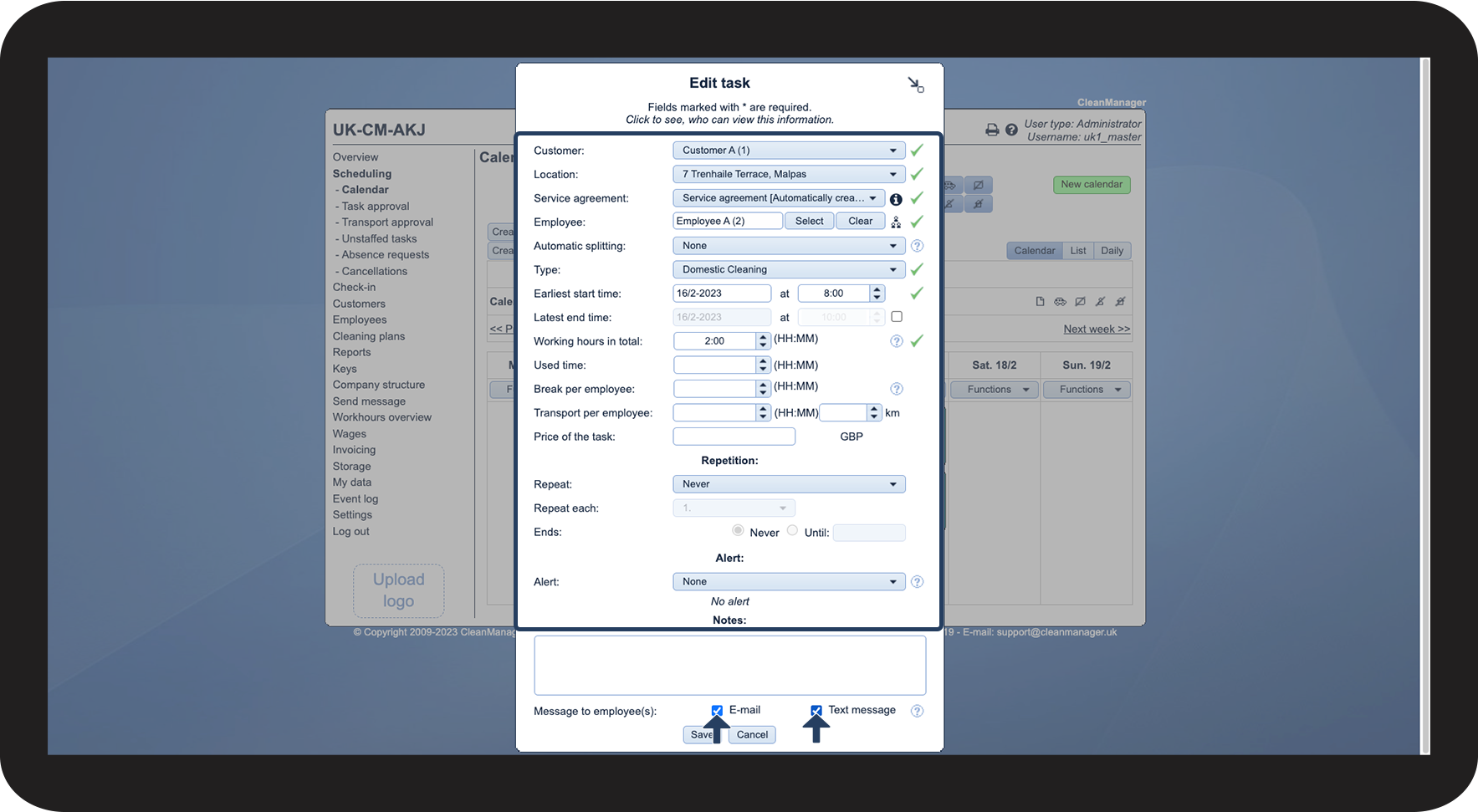
Edit the task
 
Then choose whether it should be an E-mail and/or SMS, which the employees associated with the task should receive.
 
The associated employees will then receive a message on the device that was picked.

4.png


How to send a message when deleting a task
number_1_copy.png
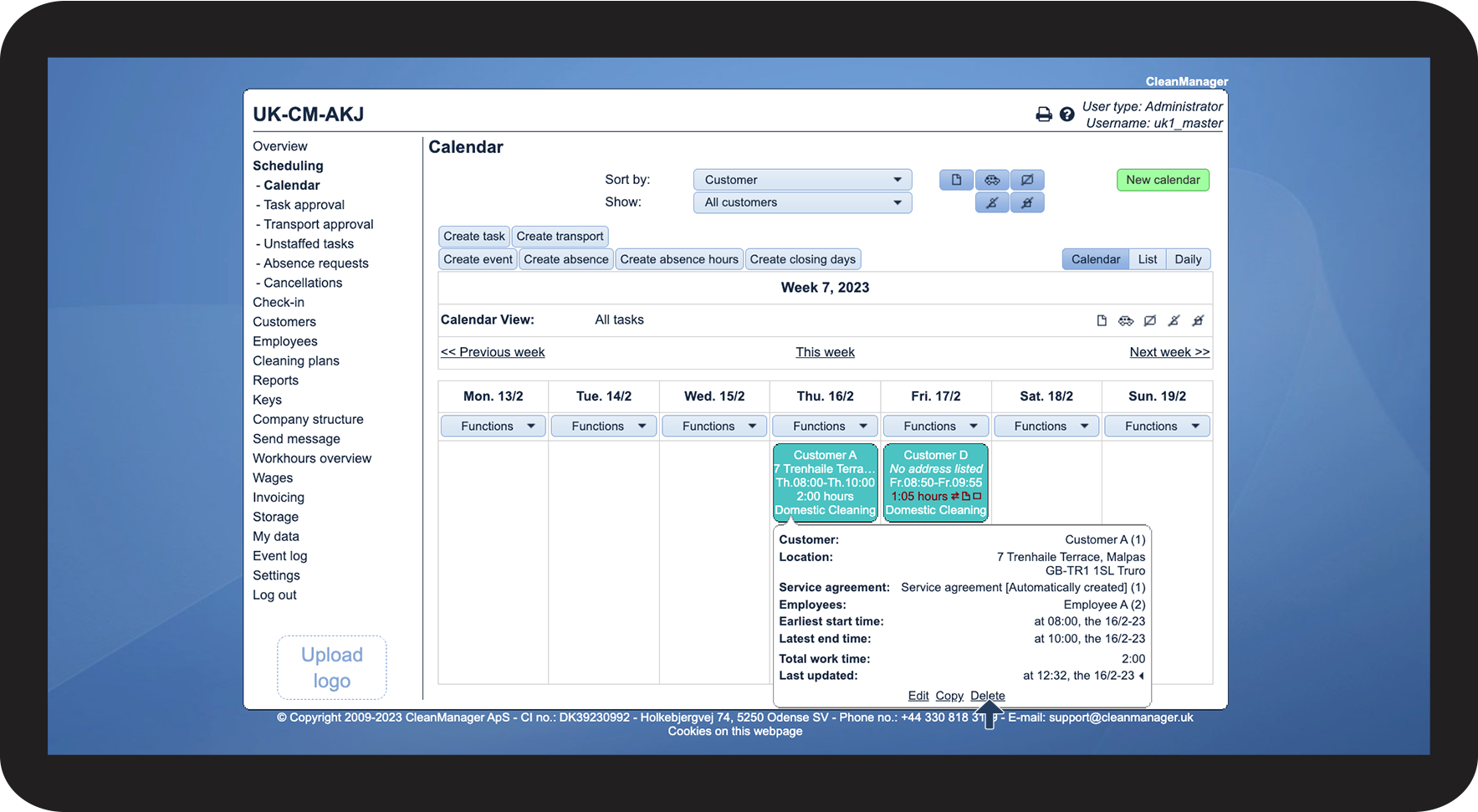
In the Calendar, click on the task in question
 
Then click on Delete

5.png

number_2_copy.png
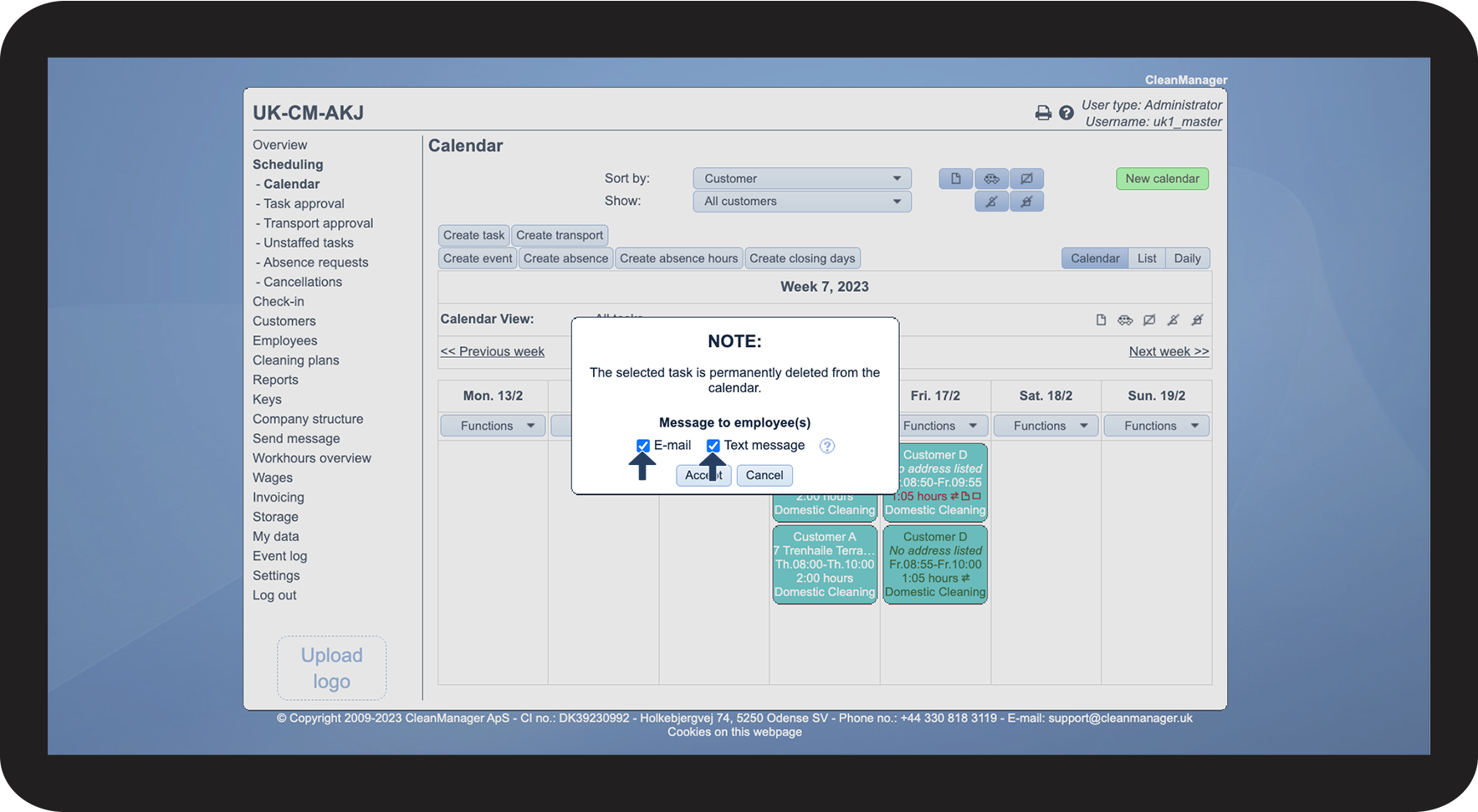
The selected task will be permanently deleted from the calendar
 
Then decide whether it should be an E-mail and/or SMS, which the employees associated with the task should receive.
 
The associated employees will then receive a message on the device that was picked.

6.png