
How are rounding adjustments handled in invoicing?
When you create and export service agreements in CleanManager, the time from your tasks is automatically converted from hours and minutes into decimal numbers, rounded to two decimal places.
In some cases, this conversion can result in small rounding differences, meaning that the total working hours shown on the invoice may differ slightly from the registered minutes in the system.
For example:
If you have three tasks of 20 minutes each, every task will be converted to 0.33 hours. When the system multiplies that by three, the total shown will be 0.99 hours.
If you have three tasks of 40 minutes each, every task will be converted to 0.67 hours. In this case, the invoice will show 2.01 hours instead of exactly 2.00 hours.
These small differences occur because the system rounds to two decimal places when converting minutes into hundredths. This is the standard method of handling rounding in accounting systems and ensures a consistent display of working time.
To make sure that the invoice always shows the most accurate total working time, you can now choose how the system should handle these rounding adjustments. The setting allows you to decide whether the rounding should be adjusted directly on the invoice lines, shown as a separate line on the invoice, or whether you want to keep the standard rounding.
In this article, you will learn how the three settings work in invoicing:
Keep standard rounding
If this setting is enabled, the standard rounding will be applied.

For example, three tasks of 40 minutes each will be shown as 0.67 hours.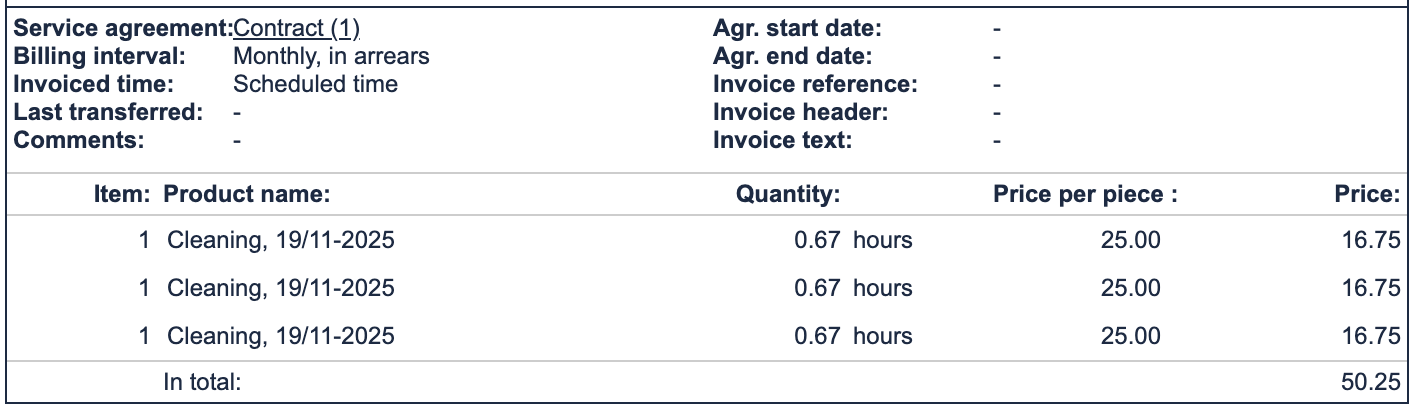
If you use the filter function and select Add all, the three tasks will be shown together as 2.01 hours.
If you select Add per day, all tasks on the same day will be displayed as a single value, which in this example will also be 2.01 hours.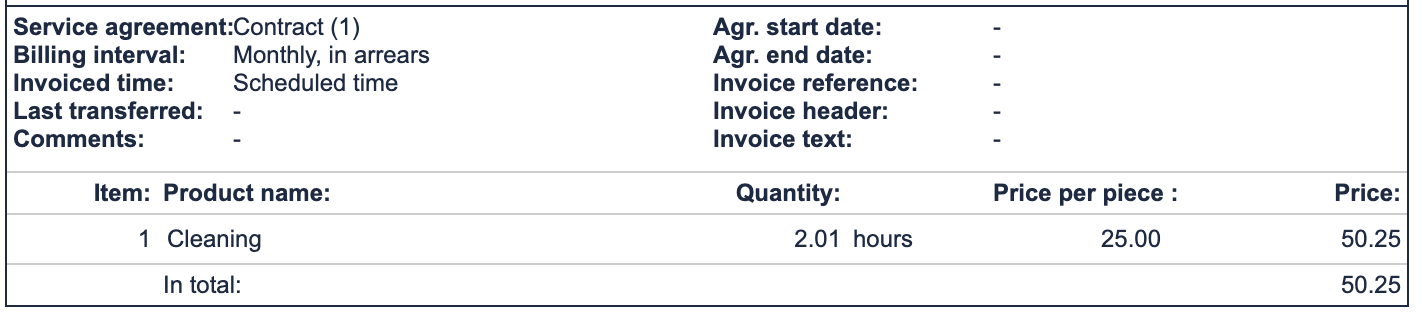
Adjust decimals on the invoice lines
If this setting is enabled, the system adjusts the decimals directly on the individual invoice lines.

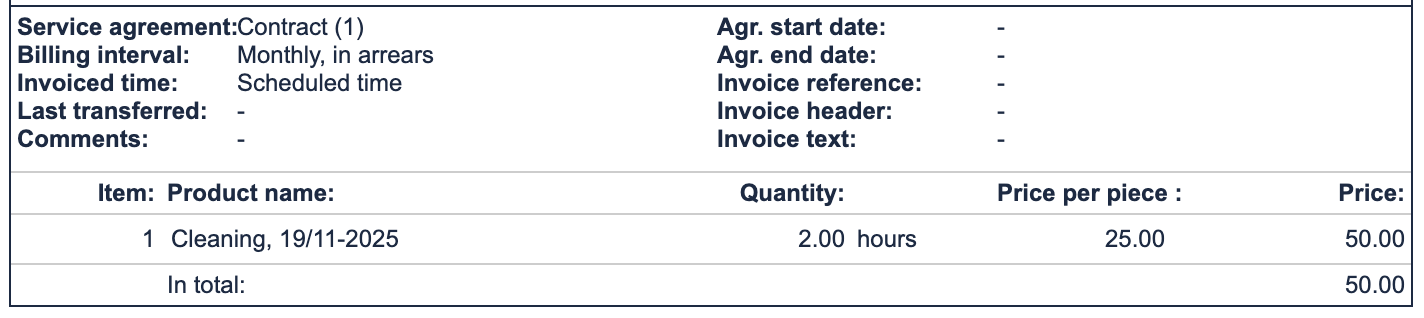
For example, if you have three tasks with the same cleaning type, they will not all be shown as 0.67 hours. Instead, the rounding is adjusted automatically so that some lines are shown as 0.66 hours, making the total exactly 2.00 hours instead of 2.01 hours.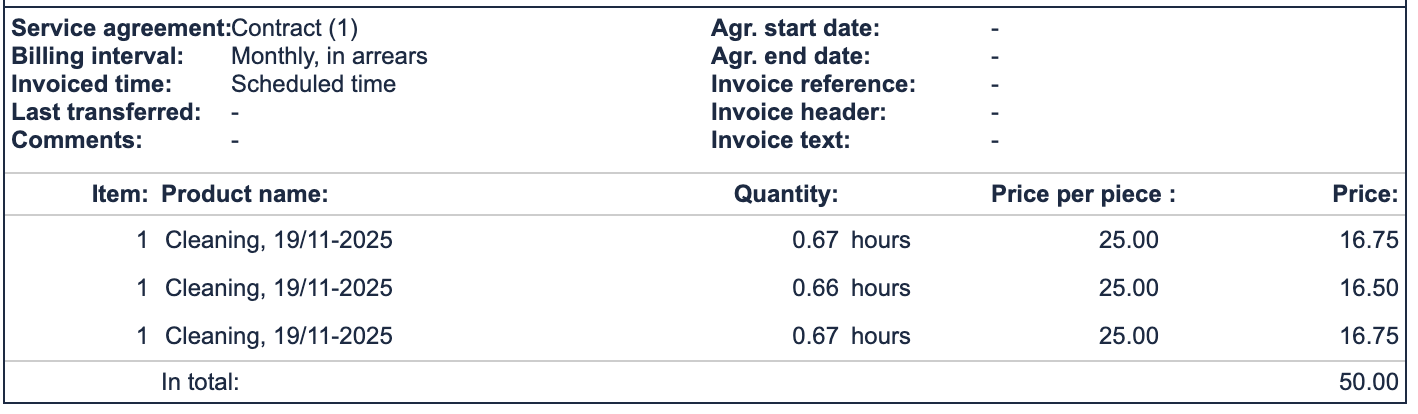
If you use the filter function and select Add all, the adjusted rounding of 2.00 hours will be shown instead of 2.01 hours.
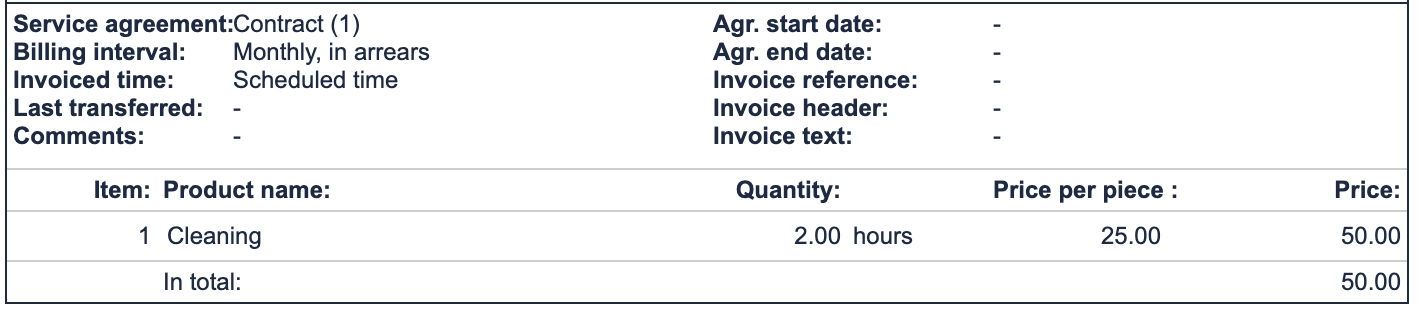
If you use the filter function and select Add per day, the total time for all tasks on the same day will be shown with the adjusted rounding, which in this example will also be 2.00 hours.
Add adjustment as a separate line
If this setting is enabled, a separate line on the invoice is automatically created for each cleaning type.

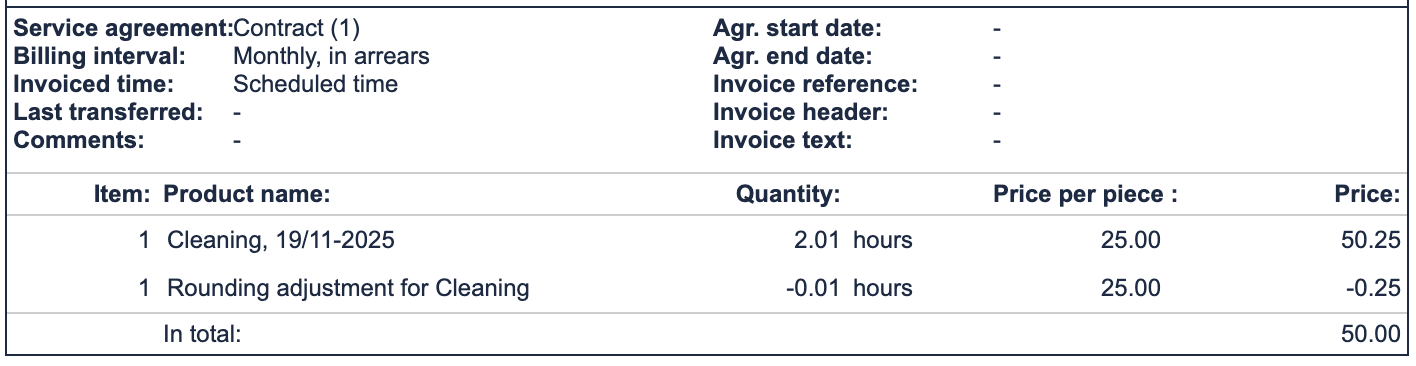
For example, if you have three tasks of 40 minutes each, the system adds an extra invoice line.
This line shows the rounding adjustment as either a positive or a negative value.
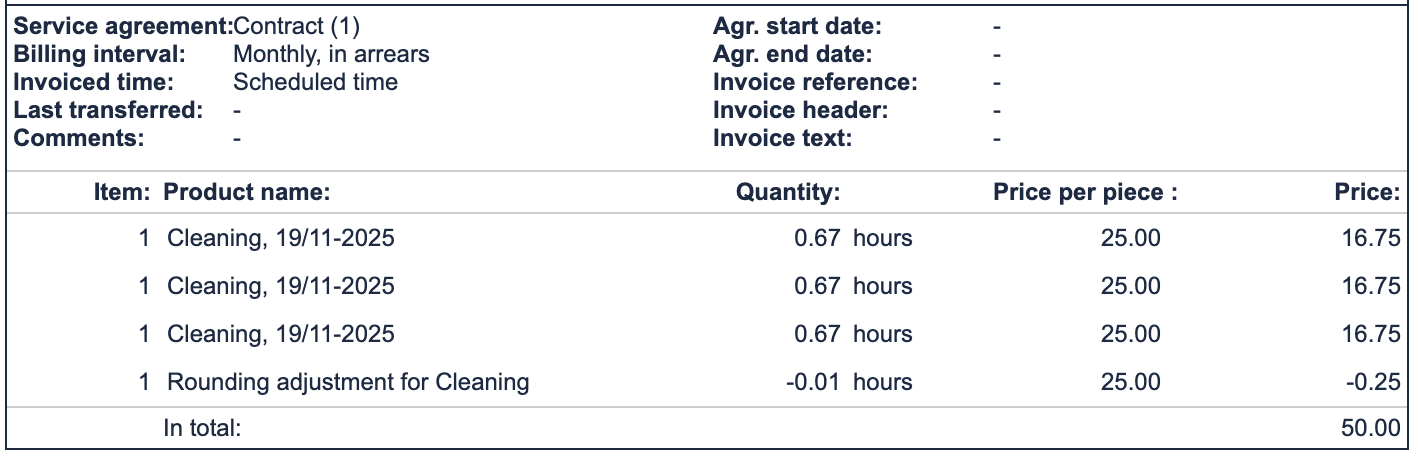
If you use the filter function and select Add all, the total time will be shown as 2.00 hours instead of 2.01 hours.
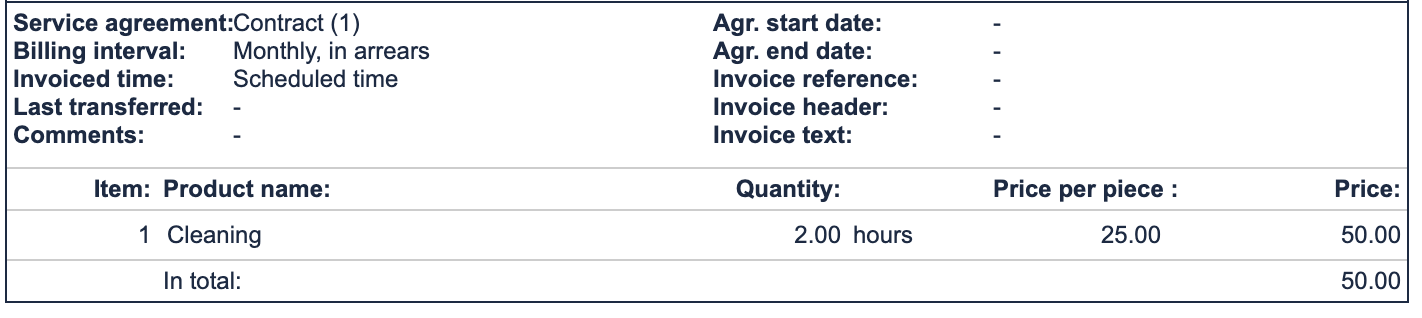
If you use the filter function and select Add per day, the extra line will still be added.
It shows the rounding adjustment as either a positive or a negative value.
NOTE:
In some cases, invoice lines with negative values may not be transferred to the accounting system, as some accounting systems do not support such values.
To avoid this, it is recommended to select the setting Adjust decimals on invoice lines or Keep standard rounding.
Negative rounding adjustments will still be displayed in invoicing, even if they may not be transferred to the accounting system.