Skip to content
English
  • There are no suggestions because the search field is empty.

Resources of the cleaning company

How do I add files and hyperlinks to my company? And how do I share them with my employees and customers?

You can add resources in the form of files and hyperlinks to your system.

To keep an overview of the data, the resources can be categorized.

It is possible to share the resources with your supervisors, your employees, and/or customers if they have been granted access to CleanManager.


In this article, you will learn how to add resources to your company:


This is how you add files to your company

You can add different file types to your company, however, no file can exceed 3 MB.

Supported file types are: .pdf, .doc, .docx, .xls, .xlsx, .odt, .ods, .txt, .png, .gif, .jpg

number_1.png

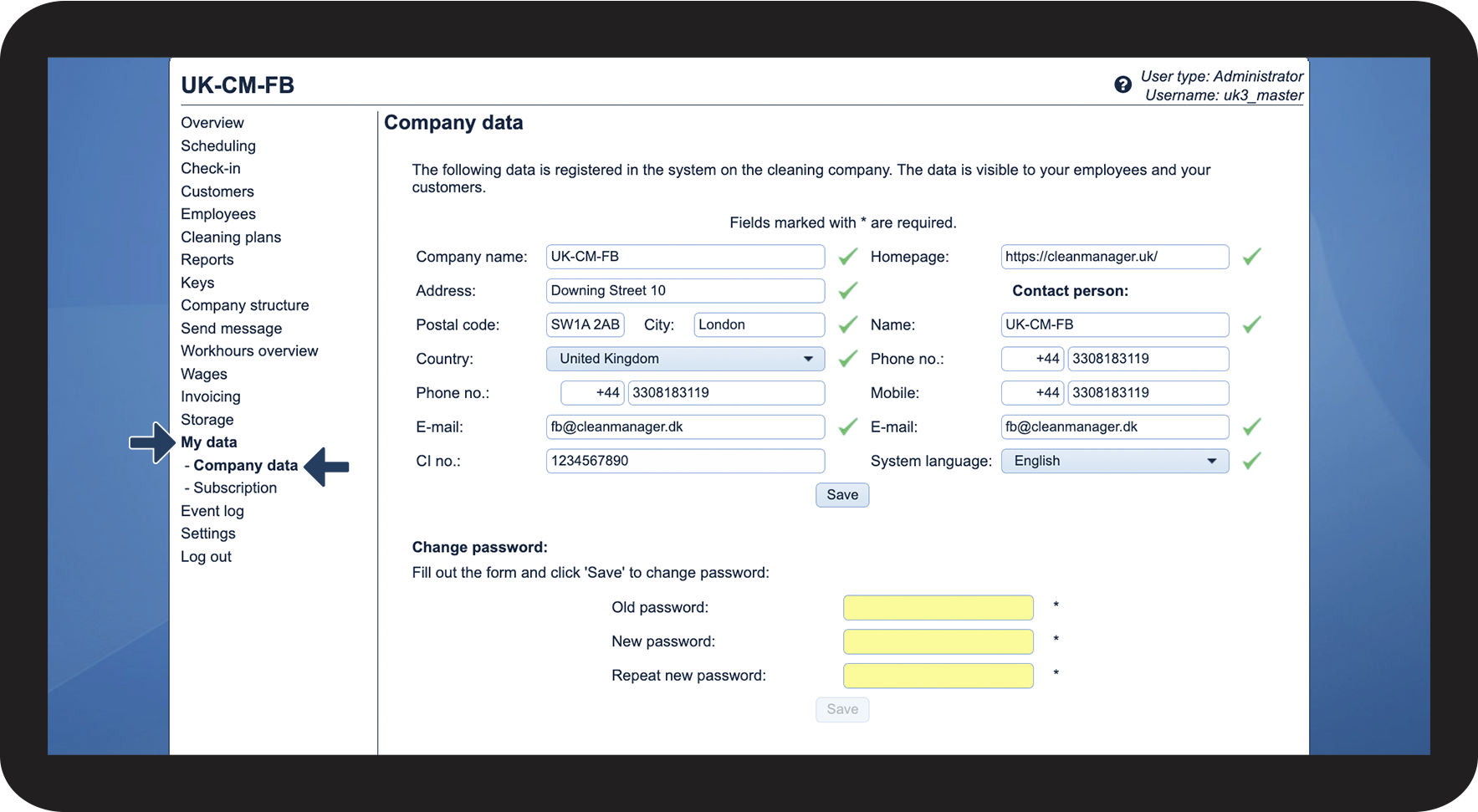
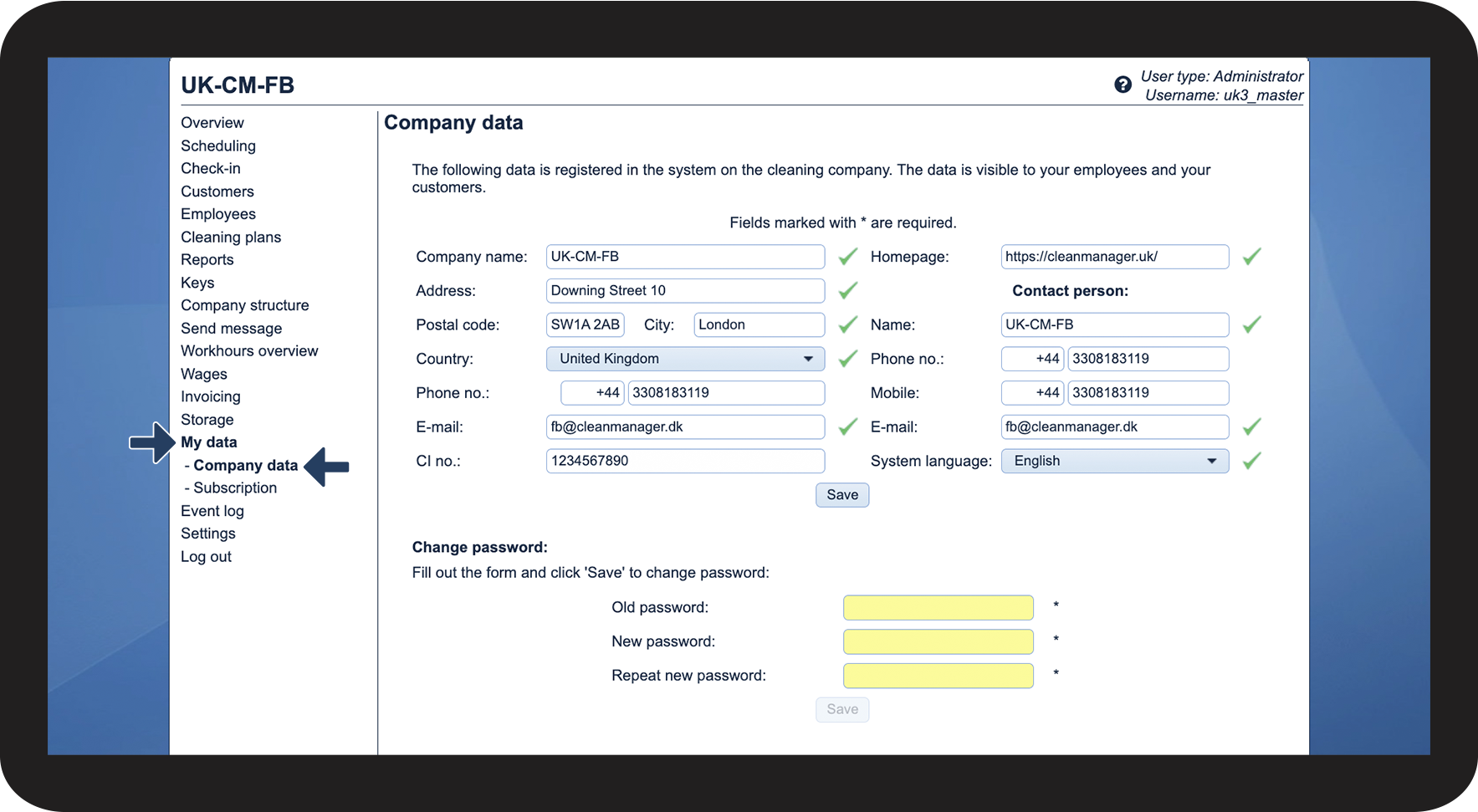
In the menu, go to My dataCompany data

1.1.png

number_2.png

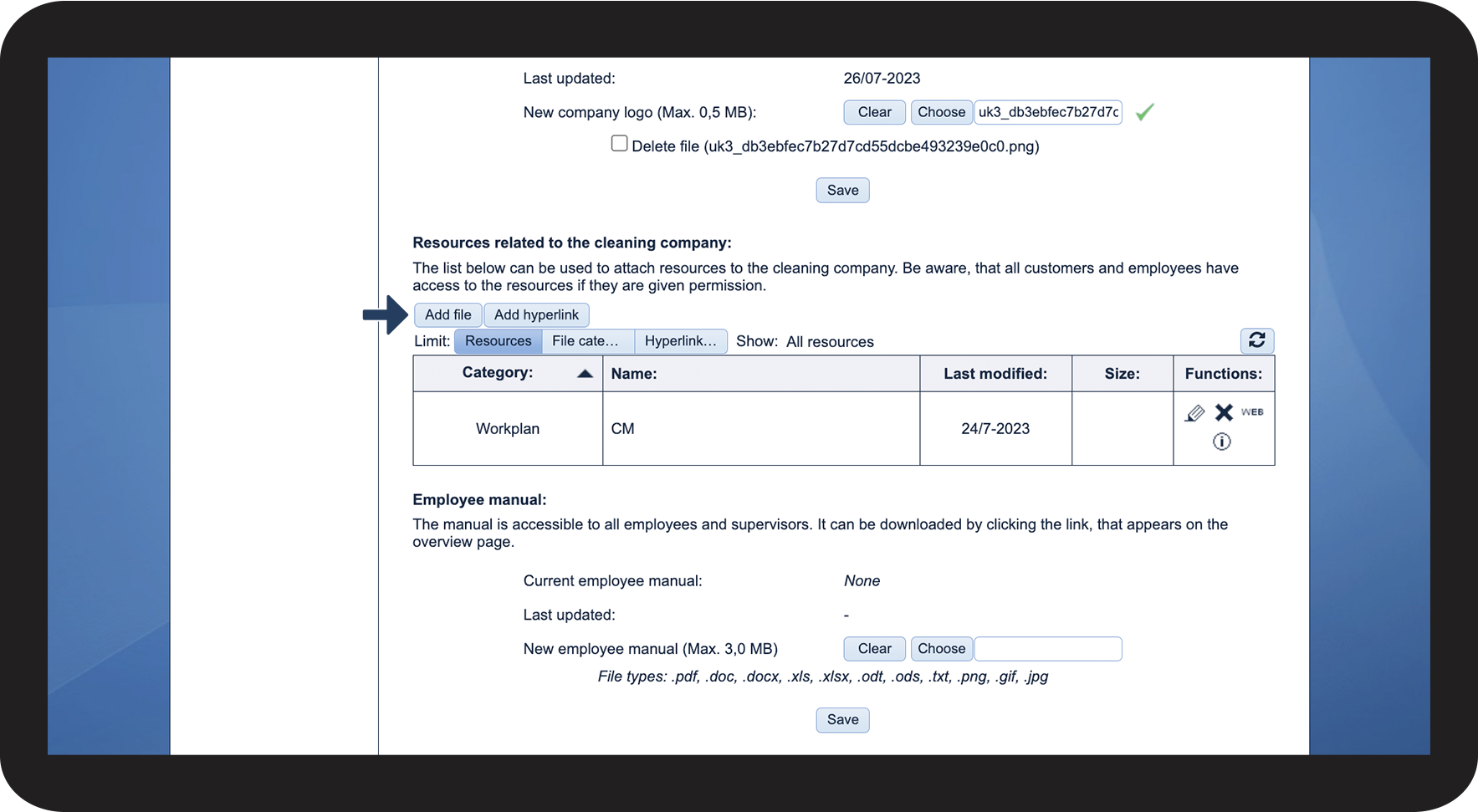
In the section Resources related to the cleaning company, click on Add file

1.2.png

number_3.png

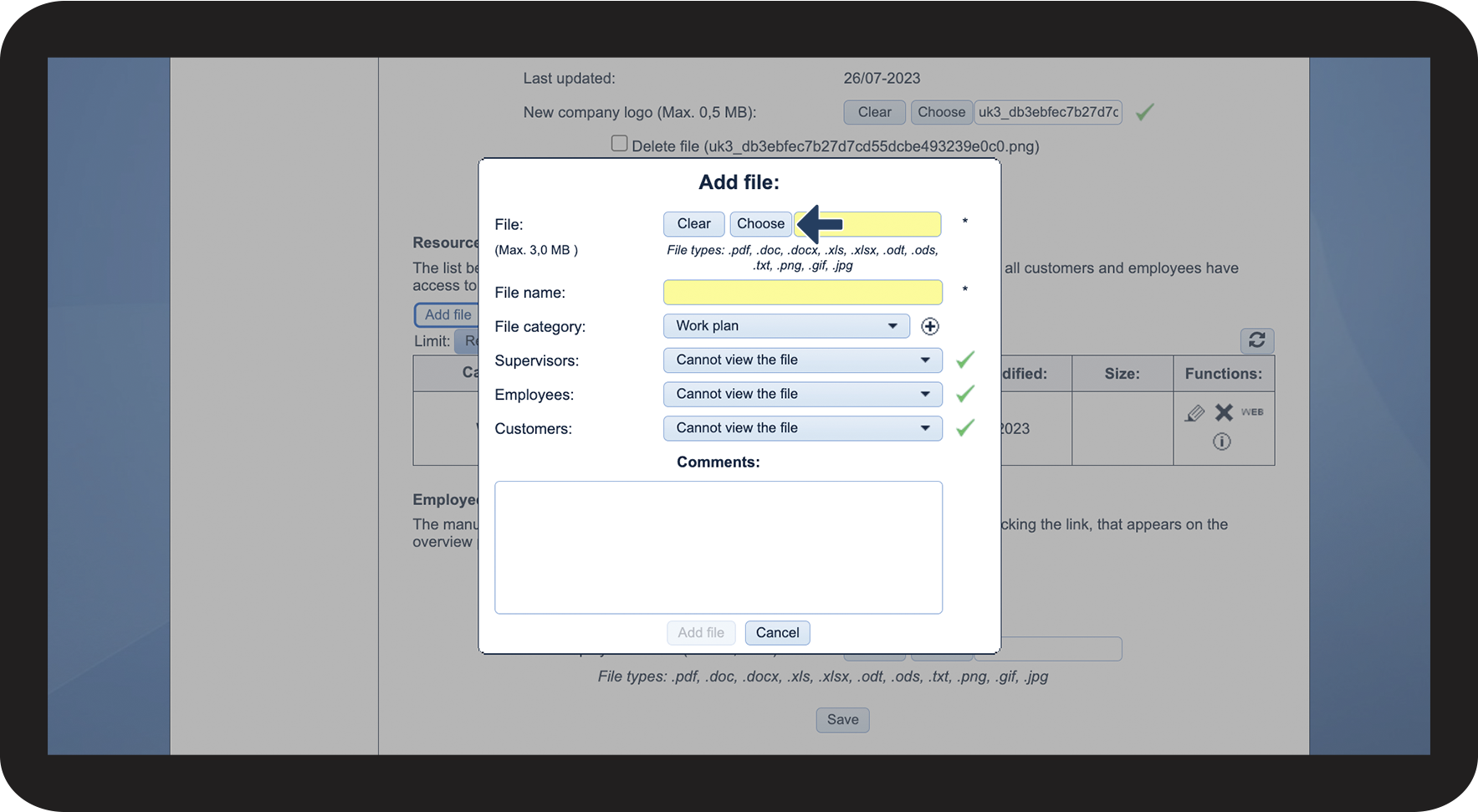
Click on Choose to find the desired file on your computer

1.3.png

number_4.png

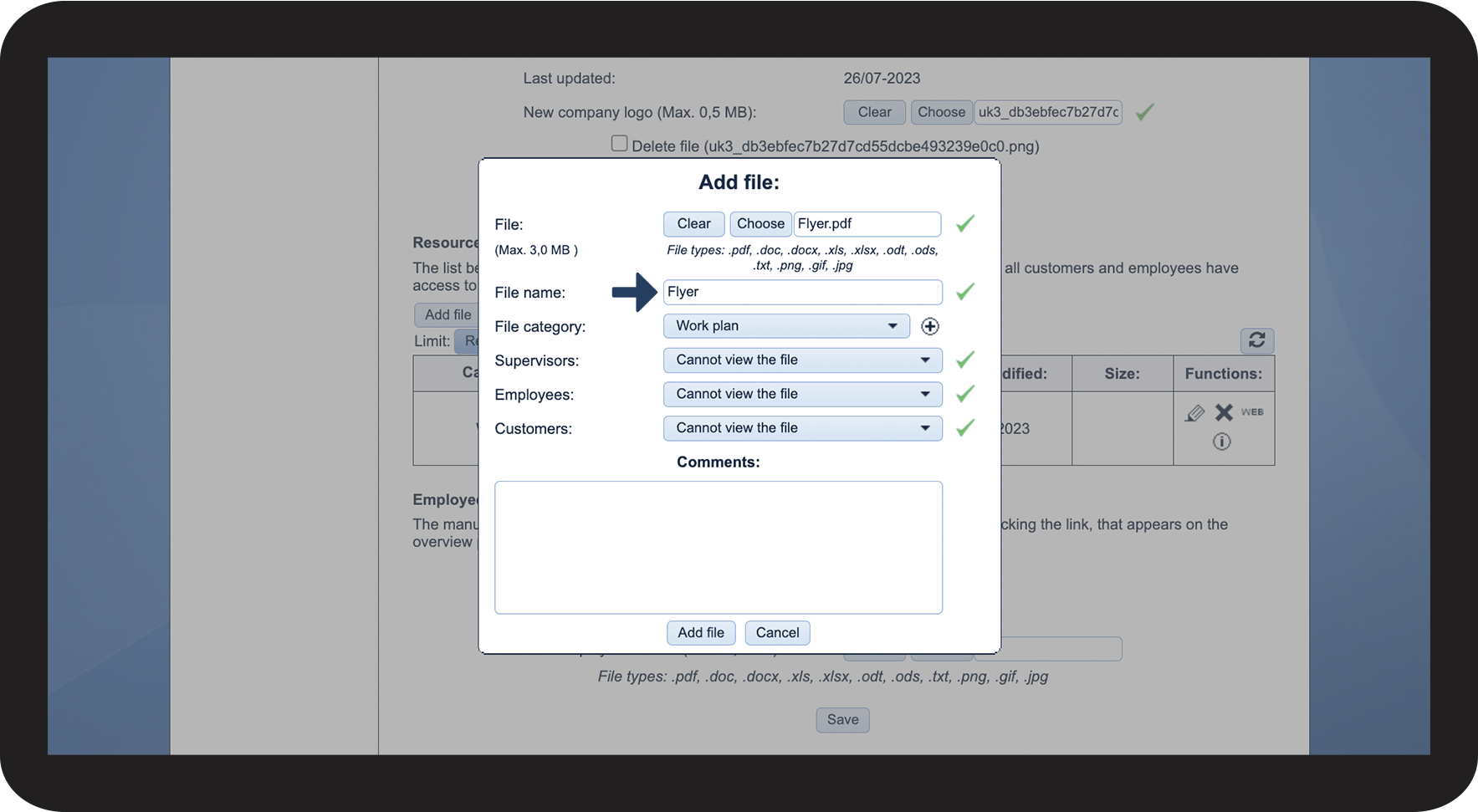
Fill out the section File name

1.4.png

number_5.png

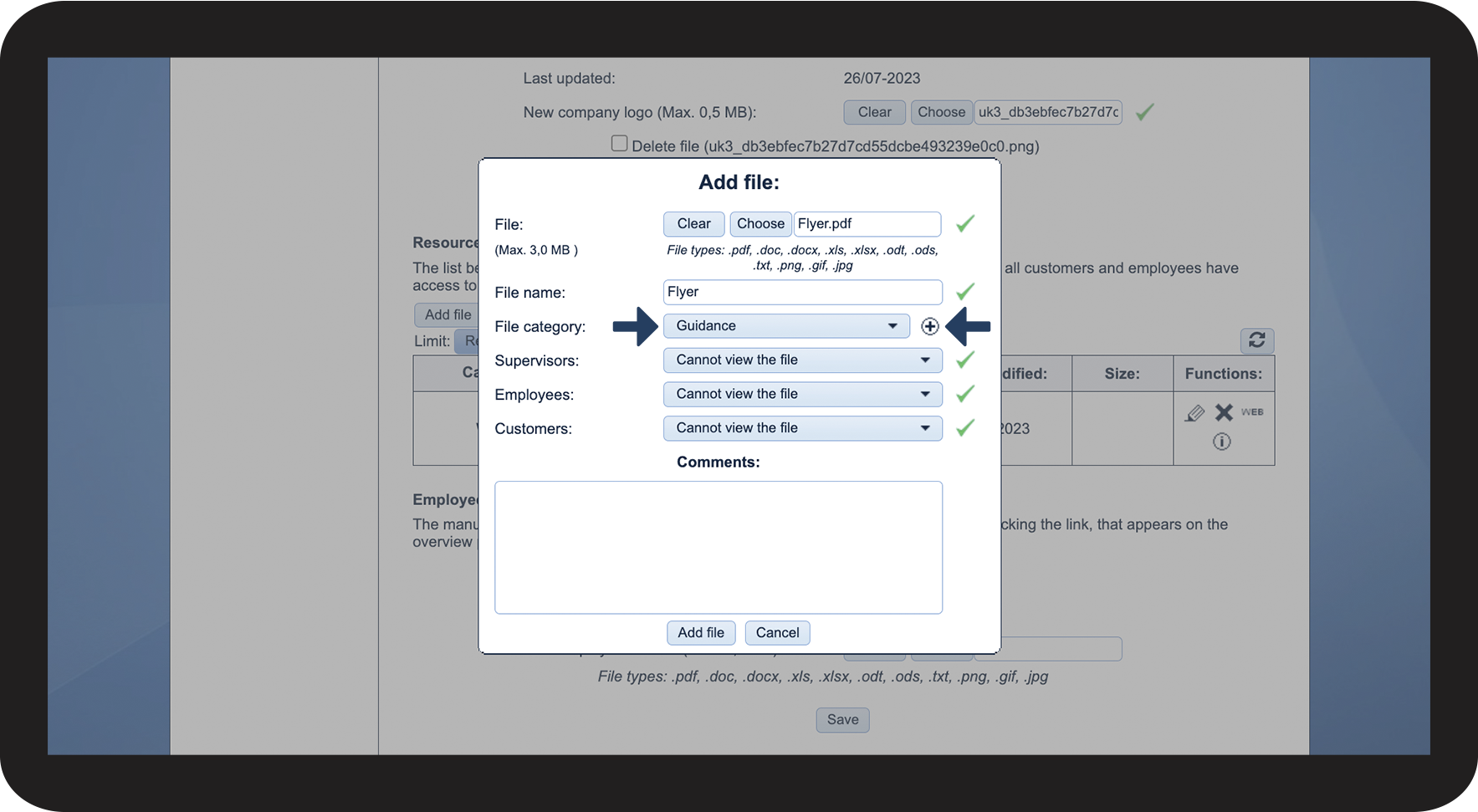
Click on the dropdown menu to select the file category you want your file to belong to. Another option would be to click on the tilf_j.png to add a new file category.

1.5.png

number_6.png

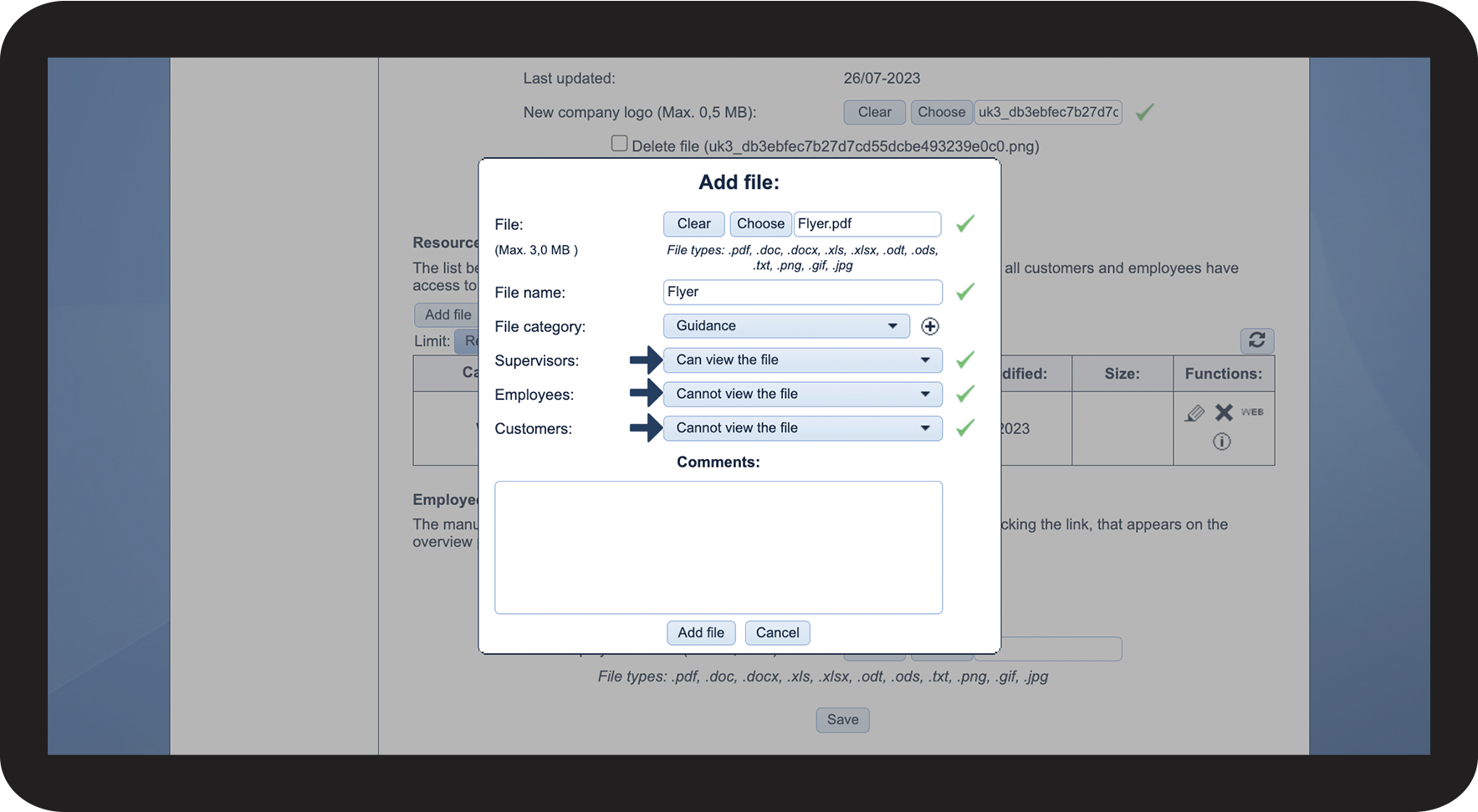
Click on the dropdown menus supervisors, employees, and customers to decide whether the selected group can view or cannot view the file.

1.6.png

number_7.png

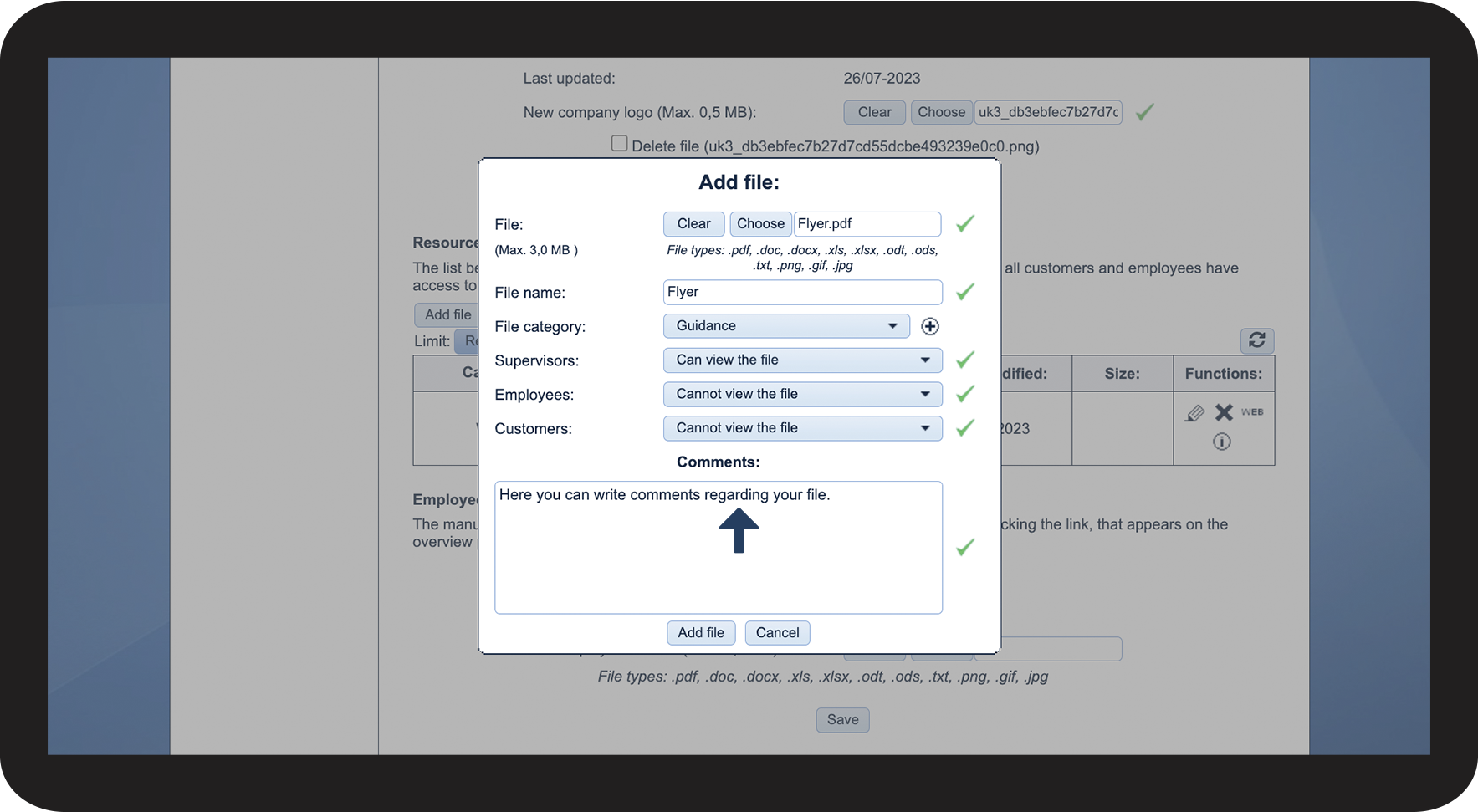
Click on the text box to add a comment to the file.

1.7.png

number_8.png

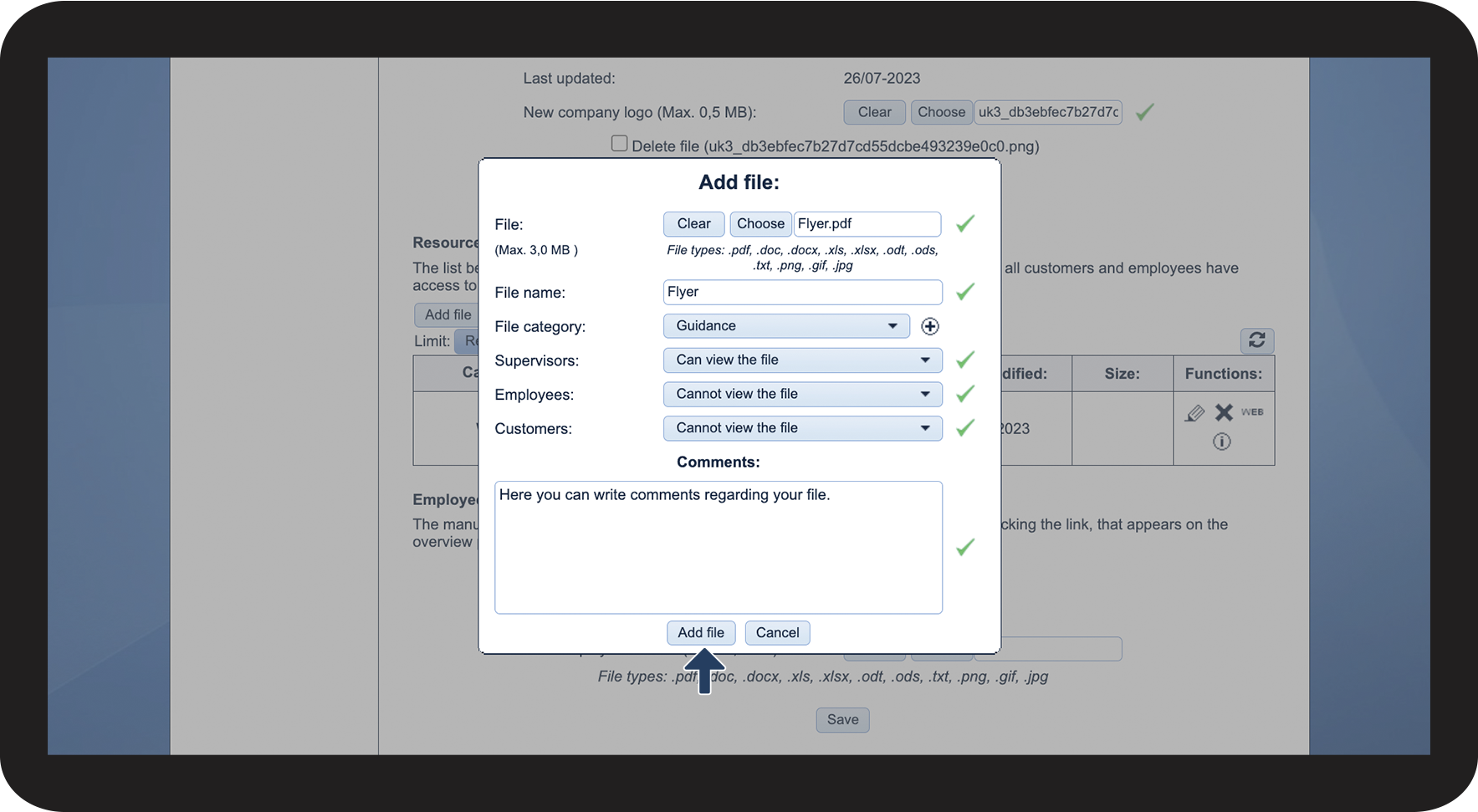
Click on Add file to complete the process

1.8.png

number_9.png

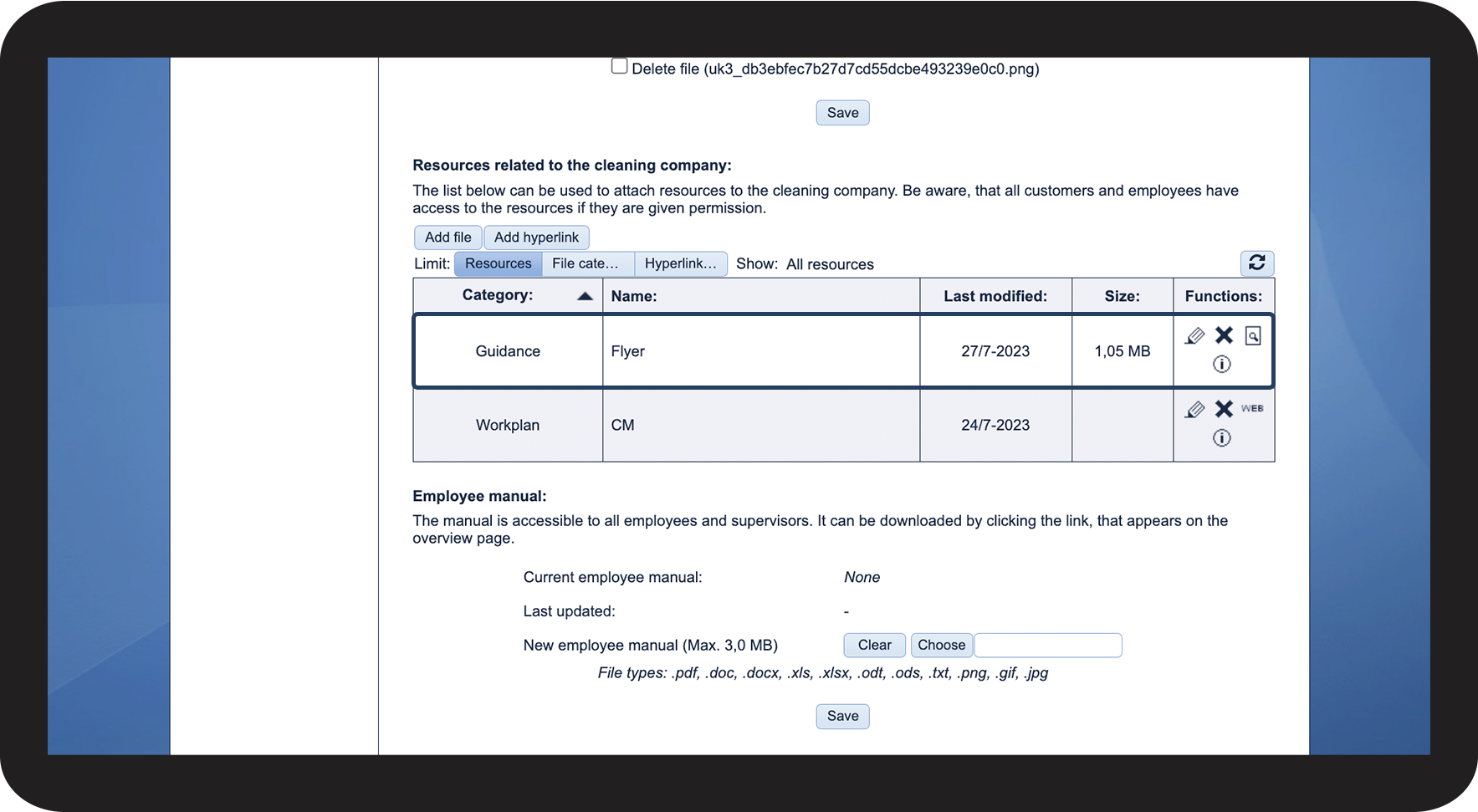
Your file has now been added to the list and can be accessed in various places in the system by the different user types.

1.9.png

INFO:

You can also edit your files by using the functions in the right columnrediger.png Edit file   Slet.png Delete file   hent_fil2.png Download file   Info2.png View comments


This is how you add links to your company 

You can add different links to your company, which can link to websites or to online storage of data.

number_1.png

In the menu, go to My data Company data

1.1.png

number_2.png

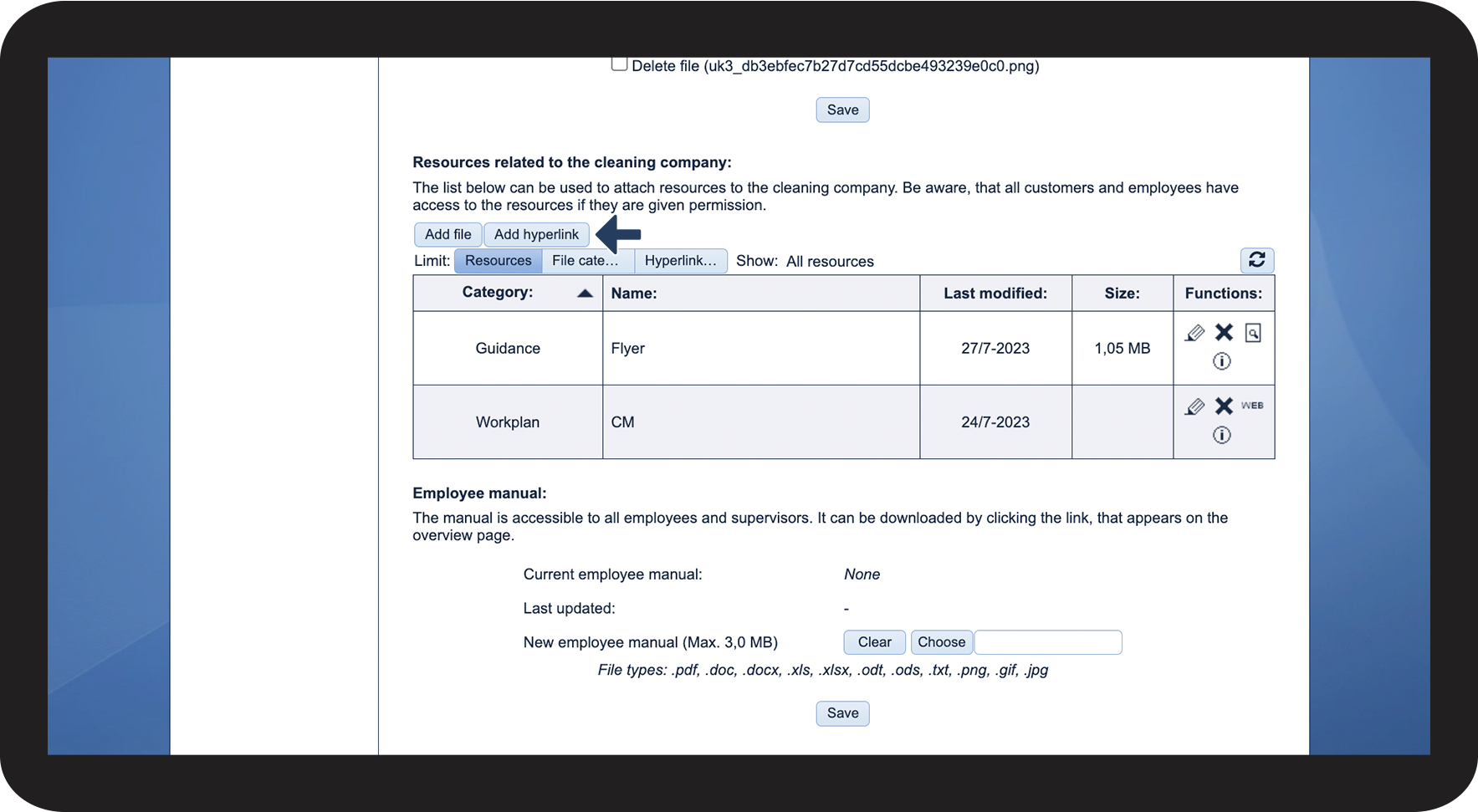
In the section Resources related to the cleaning company, click on Add hyperlink

2.2.png

number_3.png

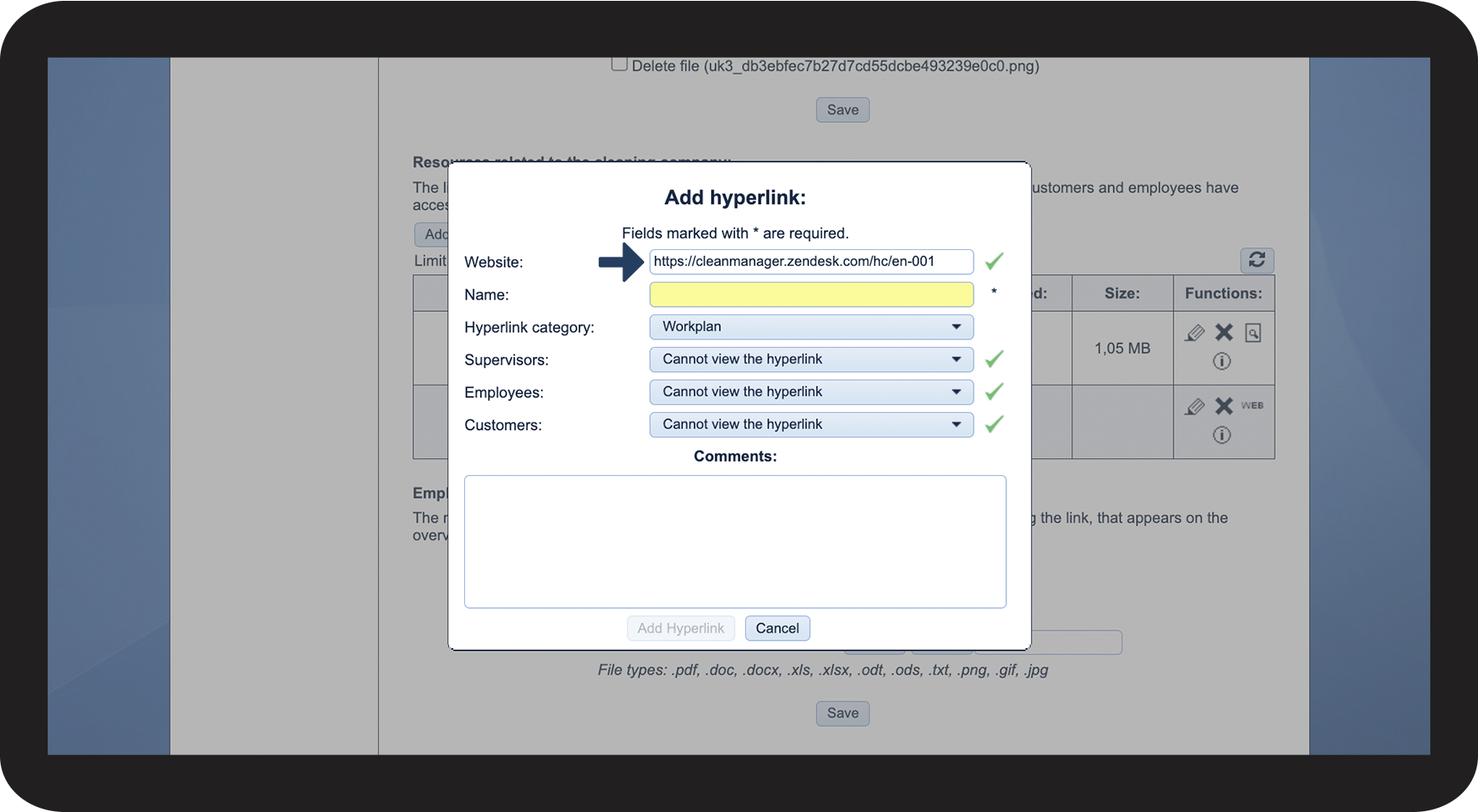
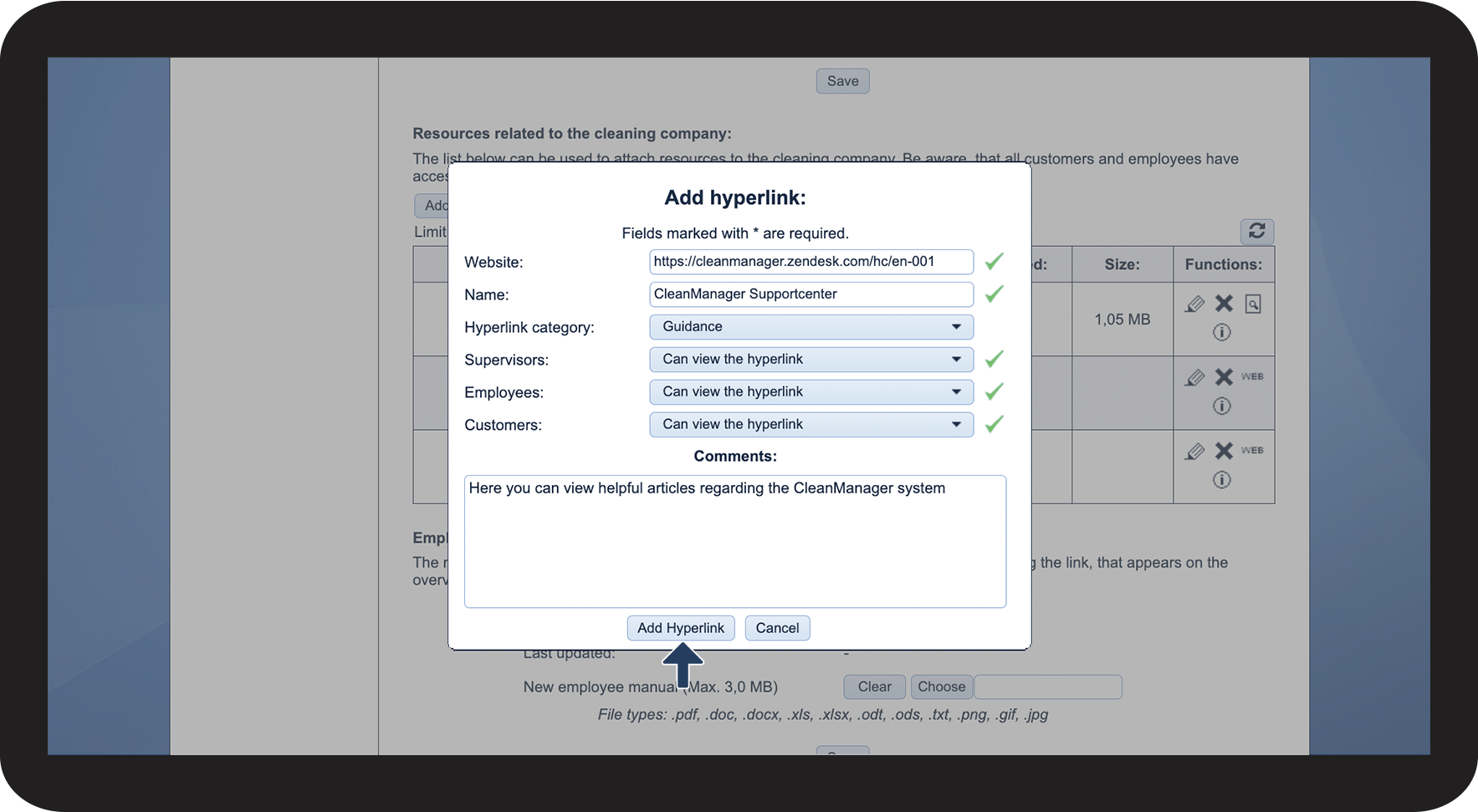
Fill in the address of the desired website  

2.3.png

number_4.png

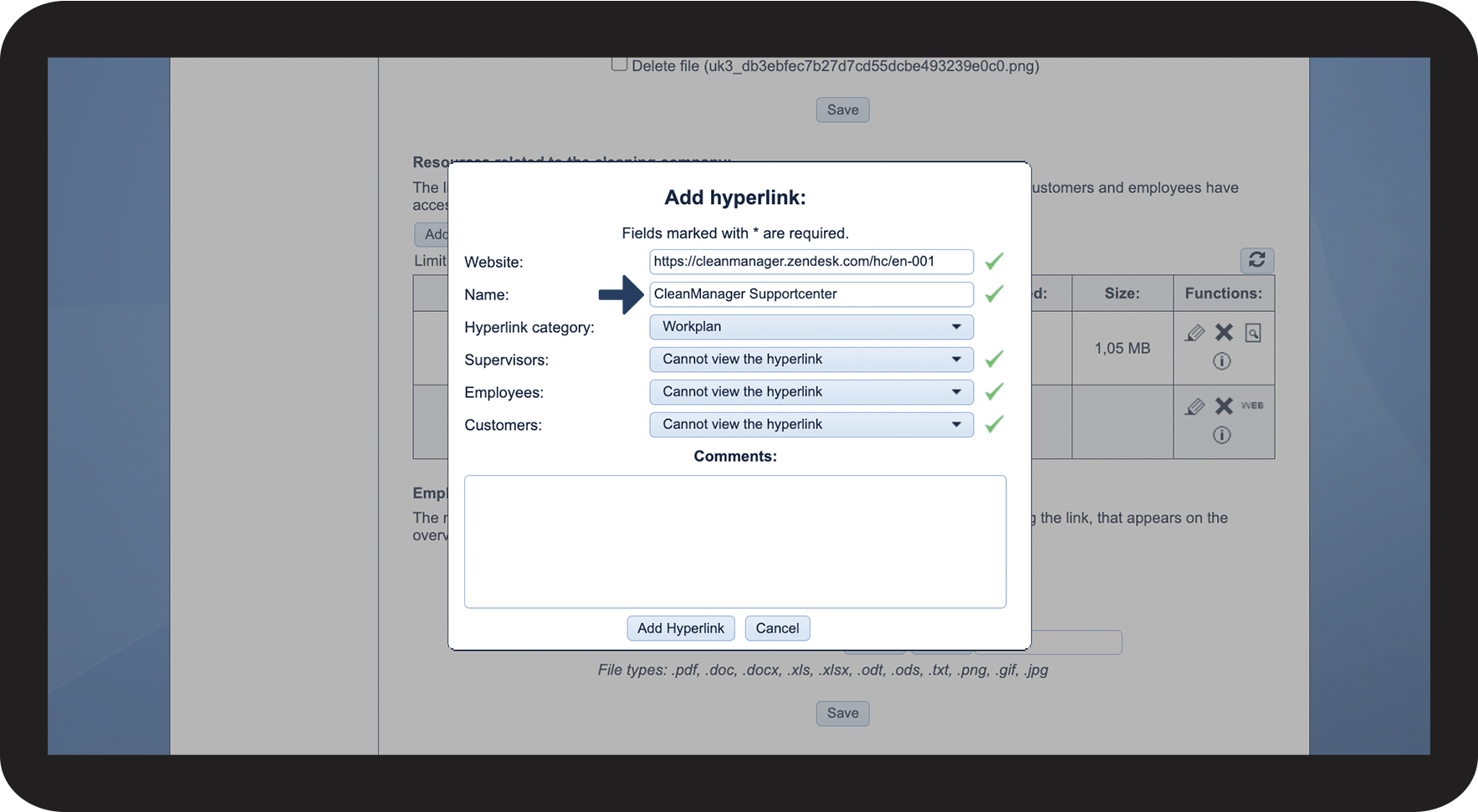
Give the link a name to make it more recognizable in different areas of the system

2.4.png

number_5.png

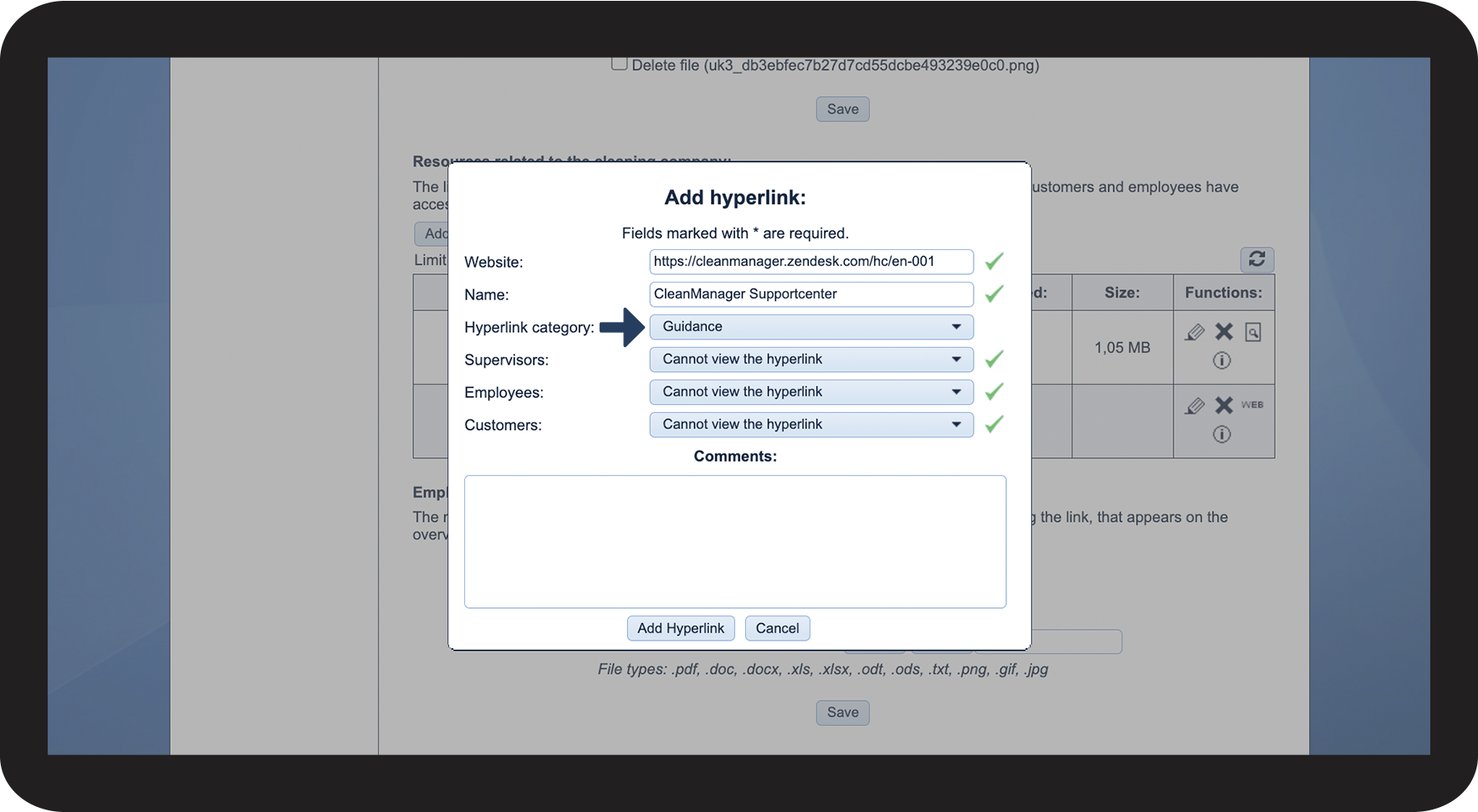
Click on the dropdown menu to pick the Hyperlink category for the link


You can create a new category if need be. For more information, go to the article: Creating resource categories

2.5.png

number_6.png

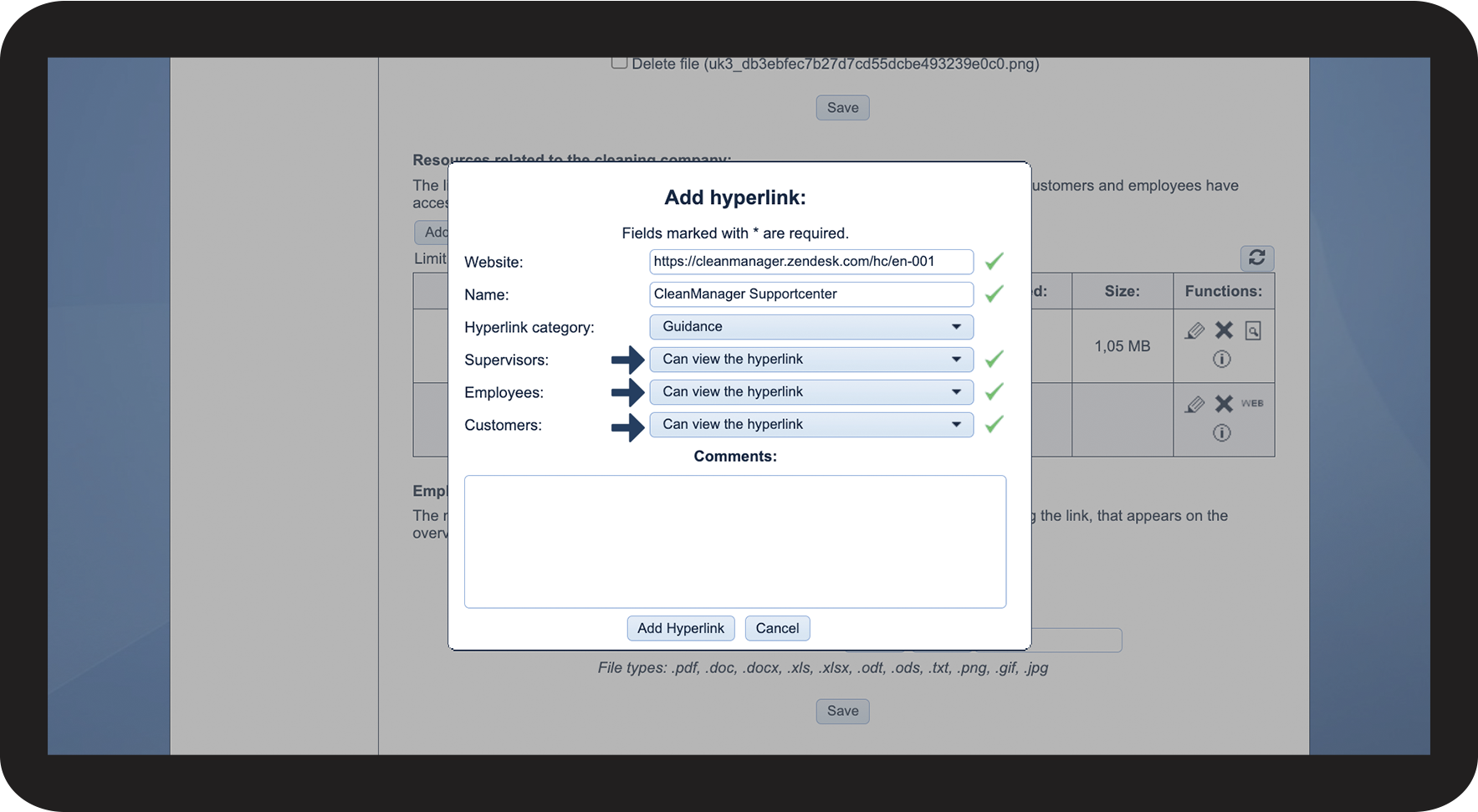
Decide whether supervisorsemployees, and/or customers can view or cannot view the hyperlink by clicking on the dropdown menu.

2.6.png

number_7.png

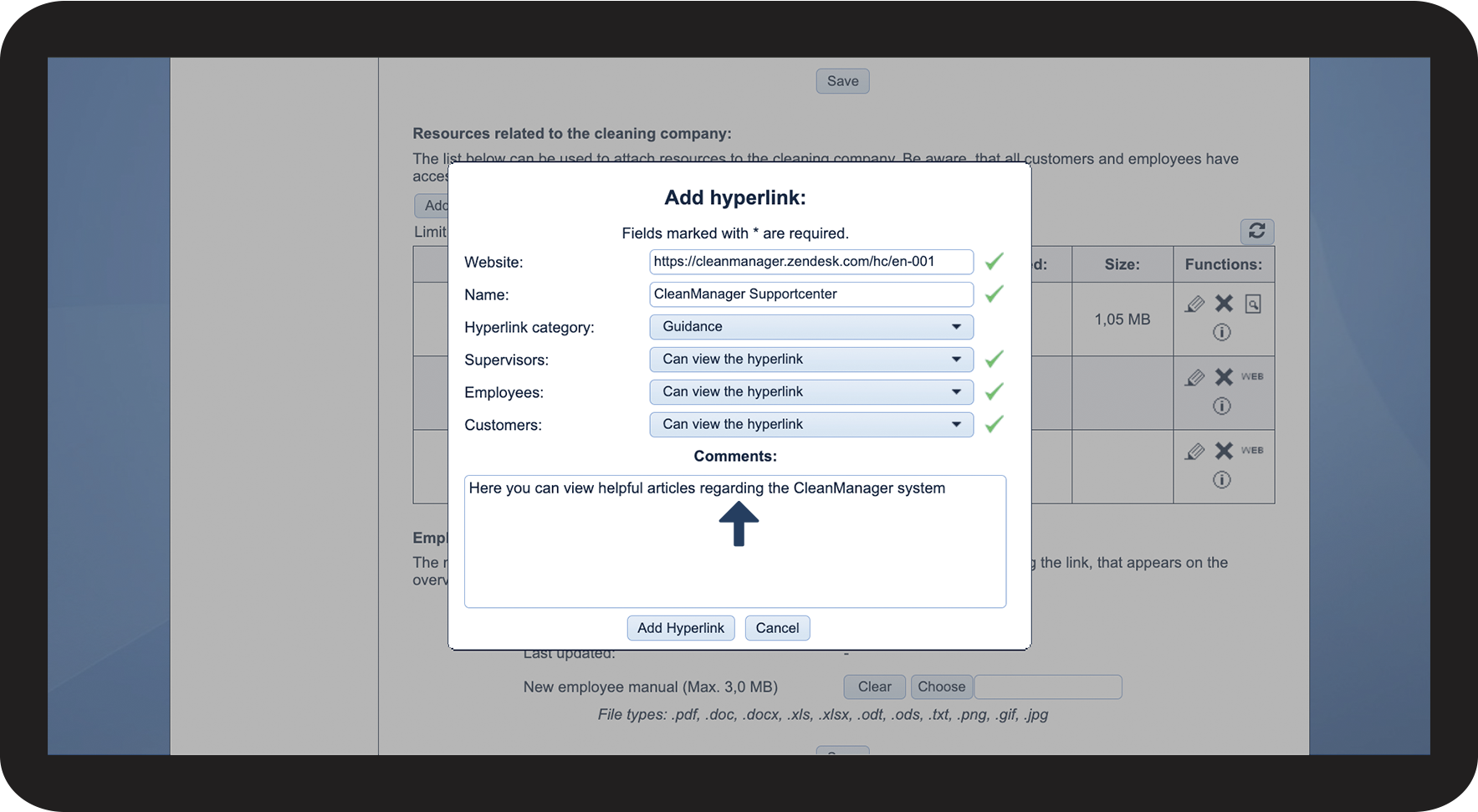
Click on the text box to add a comment to the hyperlink

2.7.png

number_8.png

Click on the button Add hyperlink to complete the process

2.8.png

number_9.png

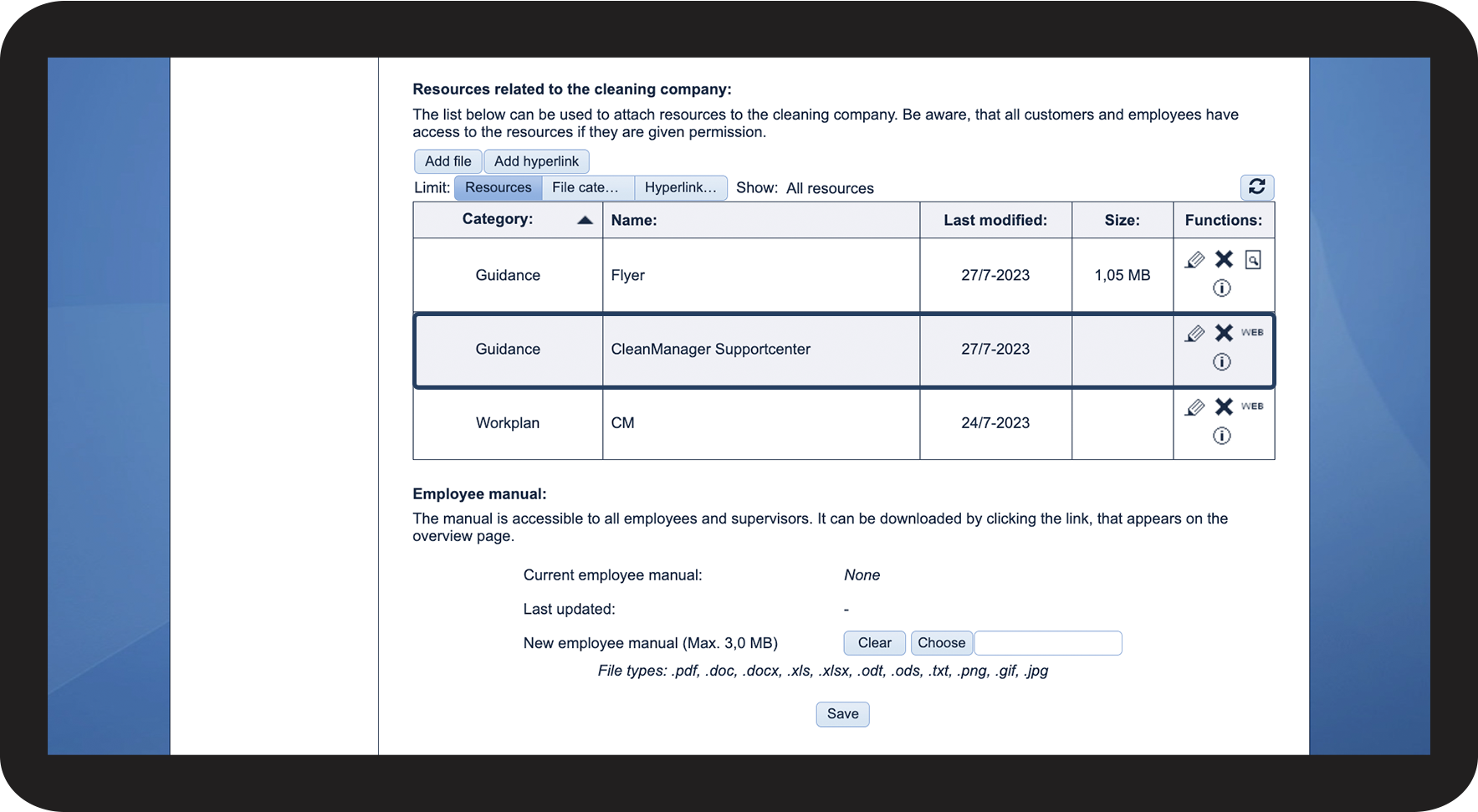
The hyperlink has now been added to the list and can be accessed in different areas of the system by the different users.

2.9.png

INFO:

You can always edit the links by using the functions in the right column:

rediger.png Edit link Slet.png Delete link  Screenshot_2021-08-05_at_14.35.12.png Open link  Info2.png View comments