Skip to content
English
  • There are no suggestions because the search field is empty.

Release notes 25/06/2024 Adding miles and square feet to the system

Introducing a new functionality for changing transport and area units in the system

This update offers expanded customization options to better accommodate users using the imperial system of measurement. With this update, you can now choose whether your system should display kilometres or miles, as well as square metres or square feet.


In this article, you will learn how to use the new functionalities:


This is how you change kilometres to miles

number_1.png
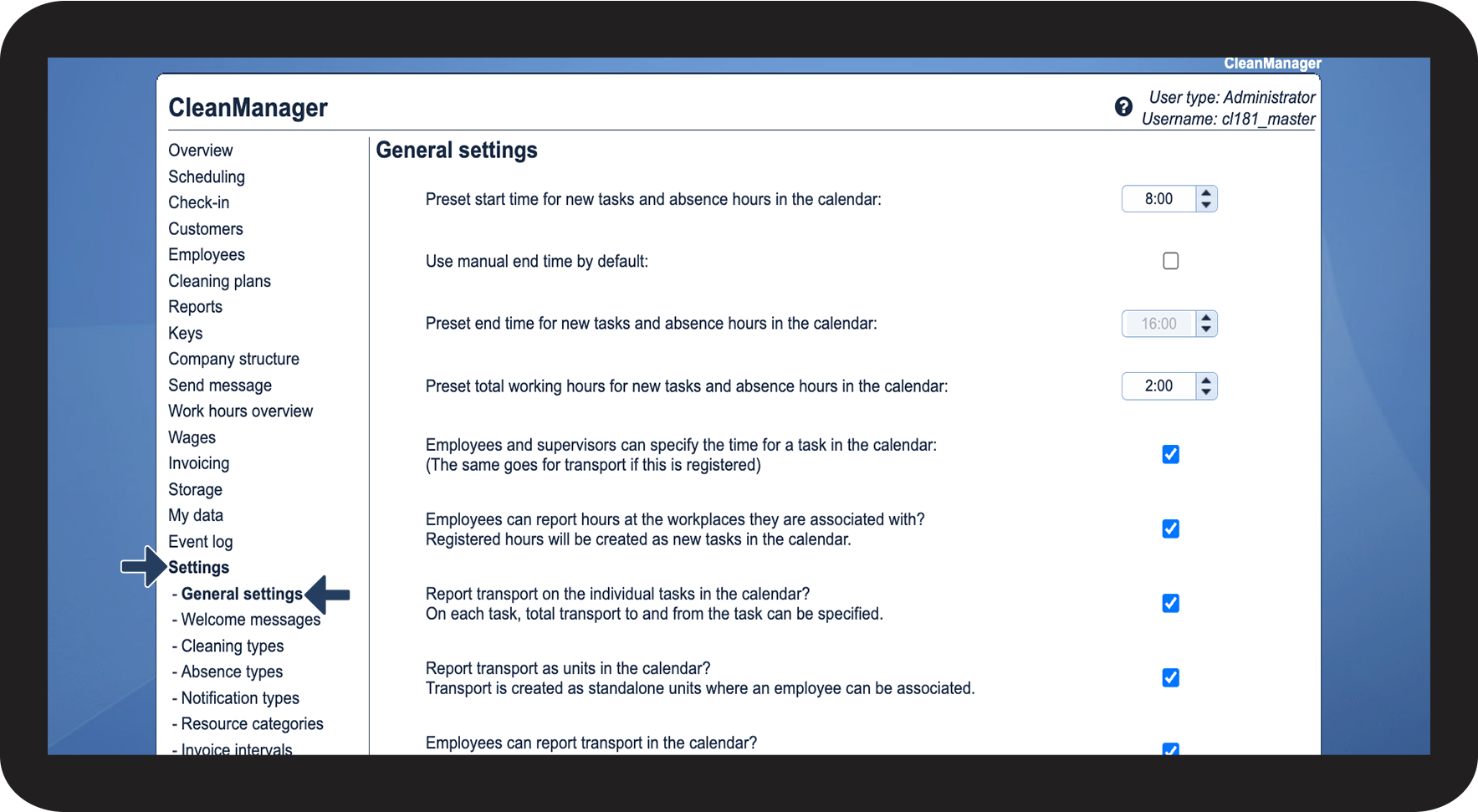
In the menu, go to Settings > General settings

1.1.png

number_2.png
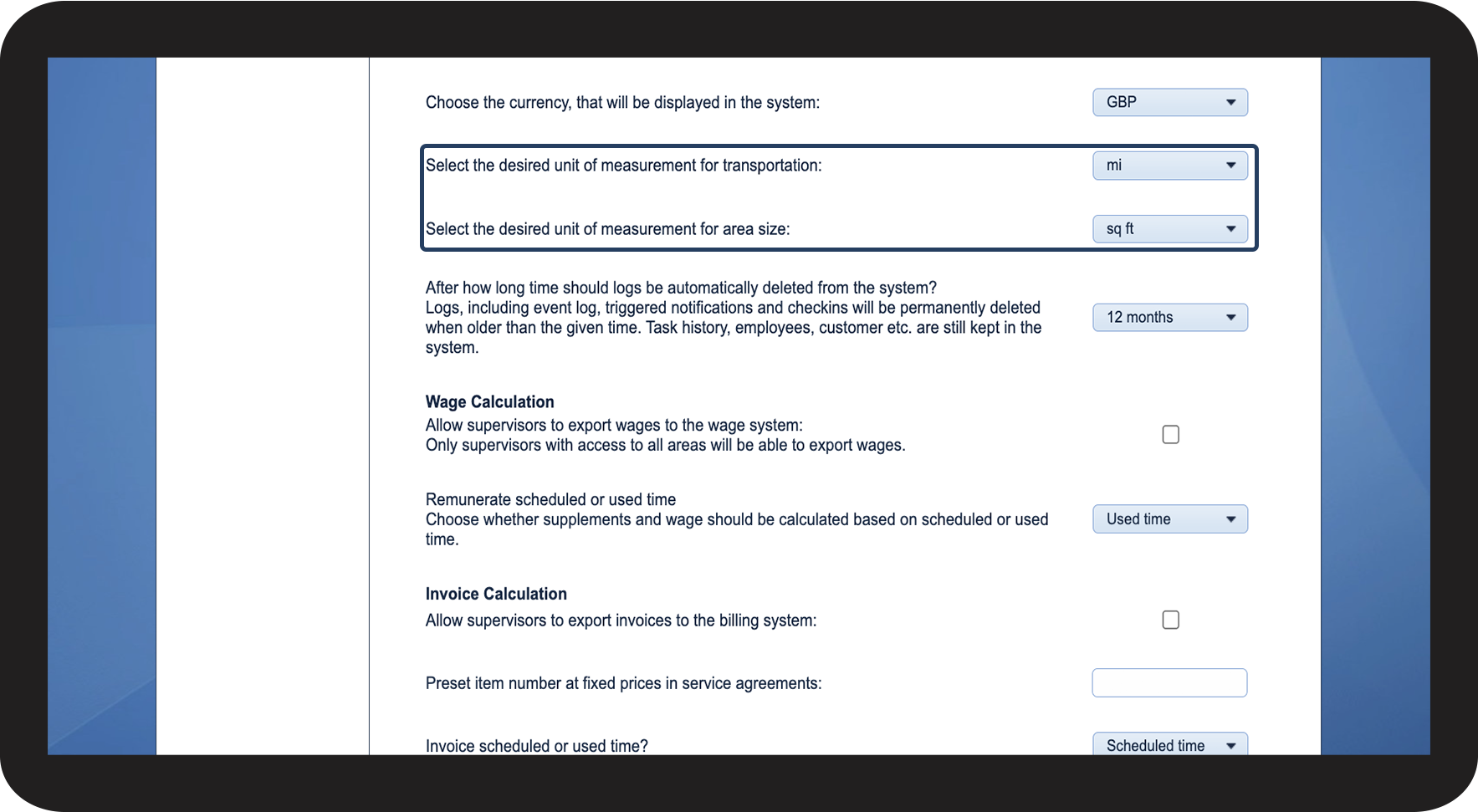
Scroll down the page

1.2.png

number_3.png
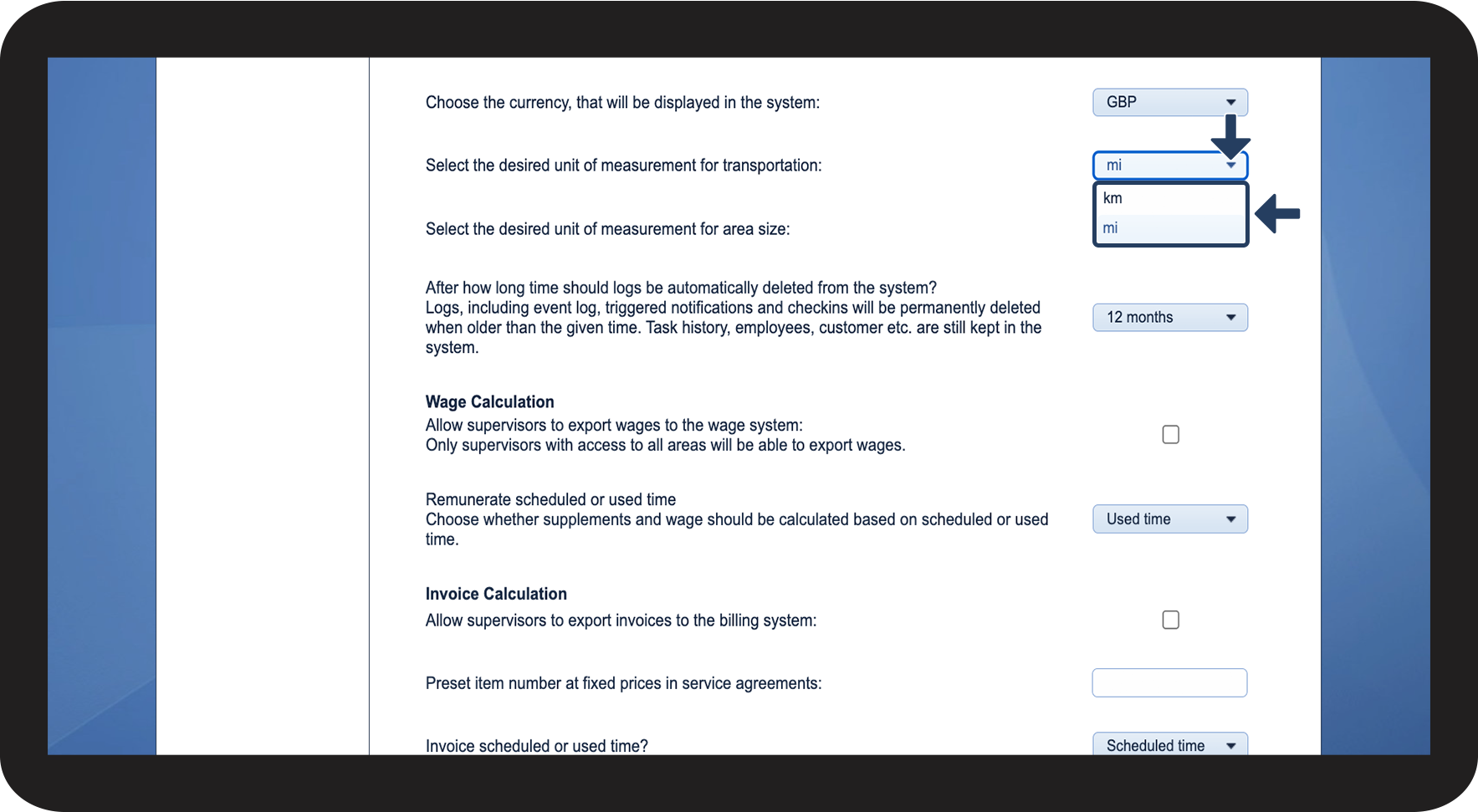
Click on the dropdown menu for Select the desired unit of measurement for transportation and select a unit of measurement for transportation (in this example miles)
 
Click afterwards on Save at the bottom of the page

1.3.png

number_4.png

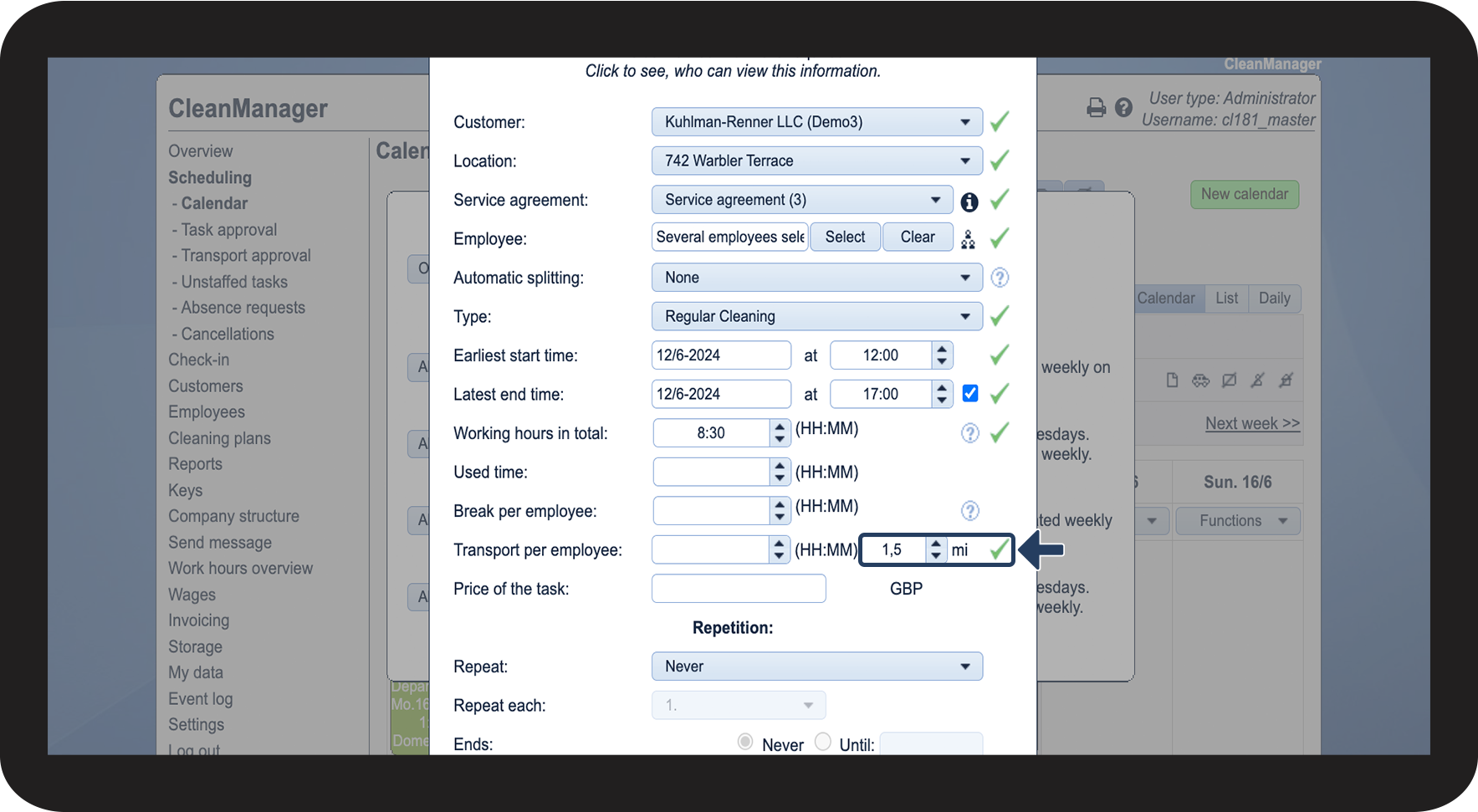
Miles will now be shown in the Classic calendar when creating and editing a task

1.5.png

number_5.png
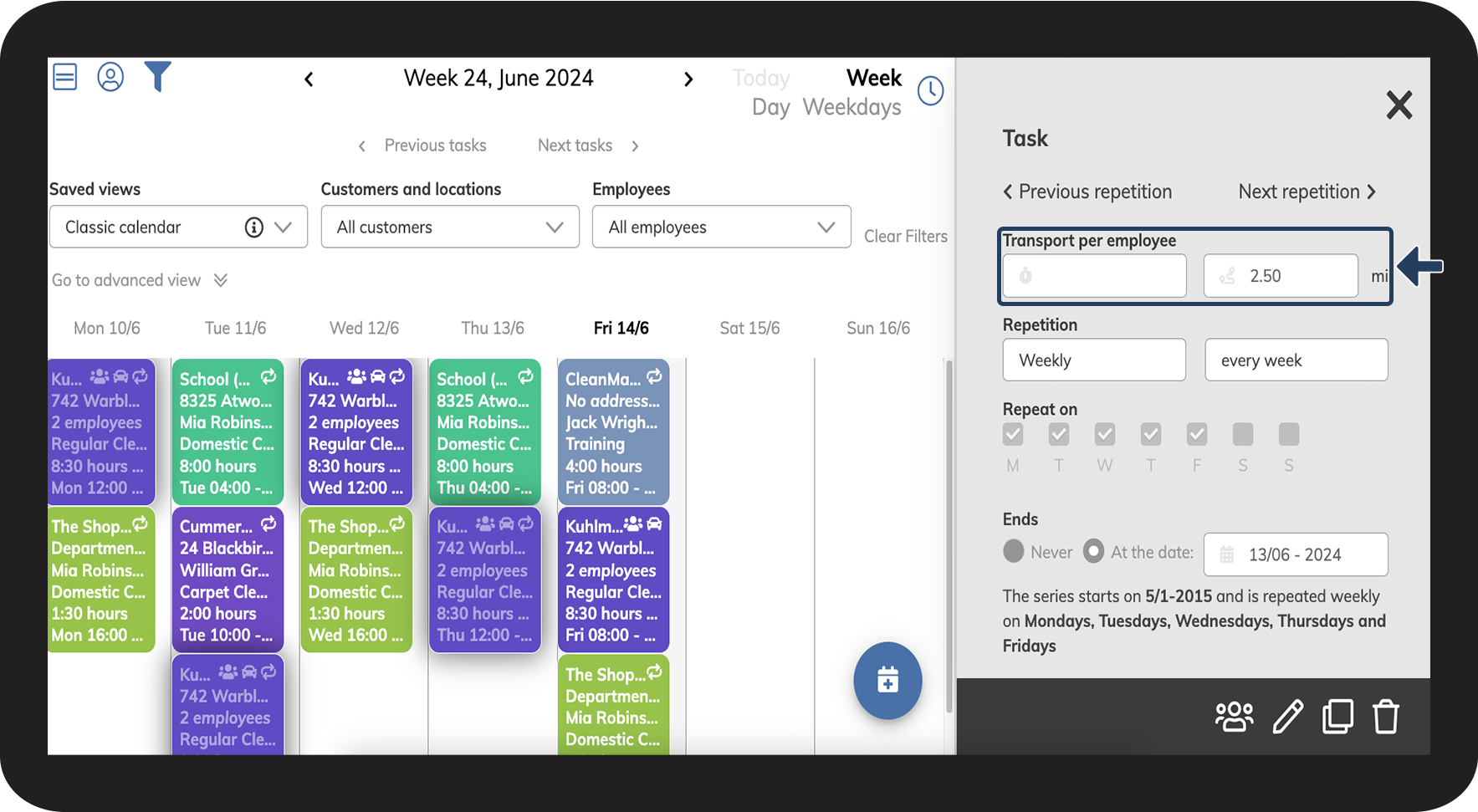
Miles will now be shown in the New calendar when creating and editing a task
1.6.png
number_6.png

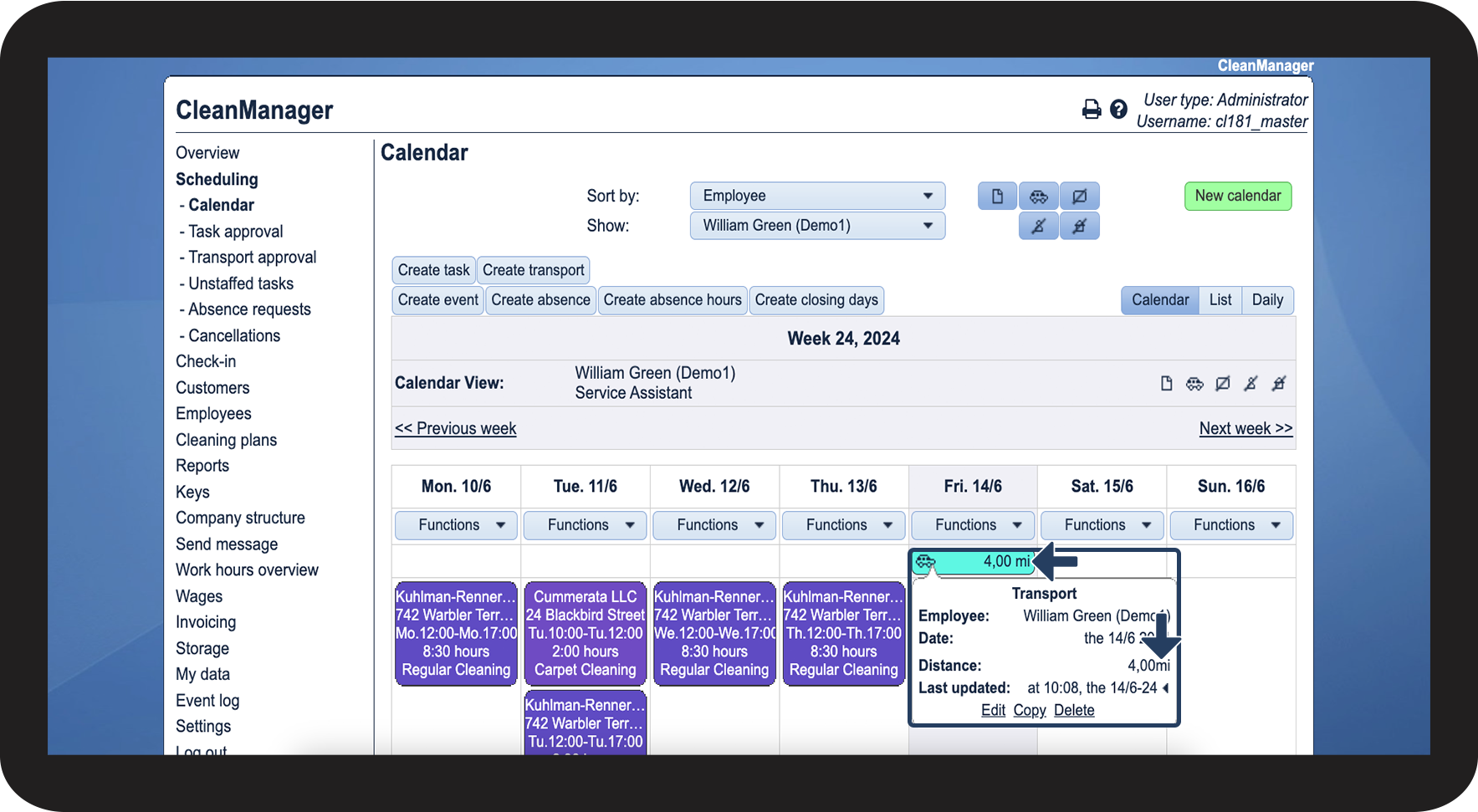
Miles will now be shown in the Classic calendar when creating and editing a transport unit

Transport unit 1.png
number_7.png

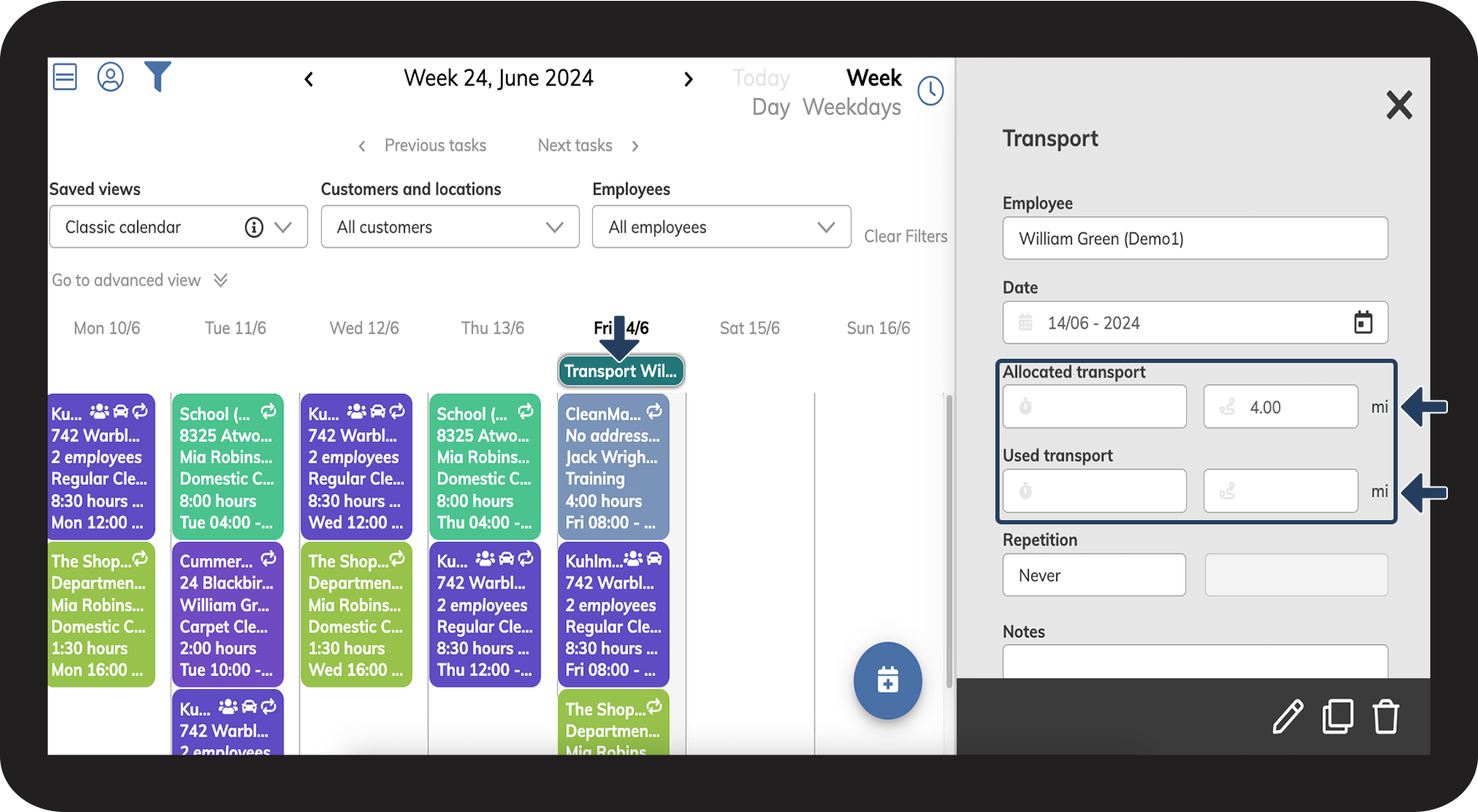
Miles will now be shown in the New calendar when creating and editing a transport unit

Transport unit 2.png

number_8.png

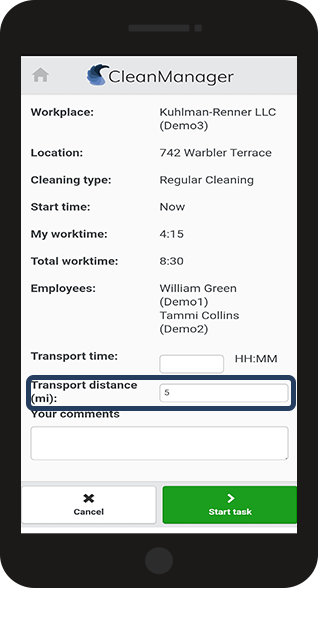
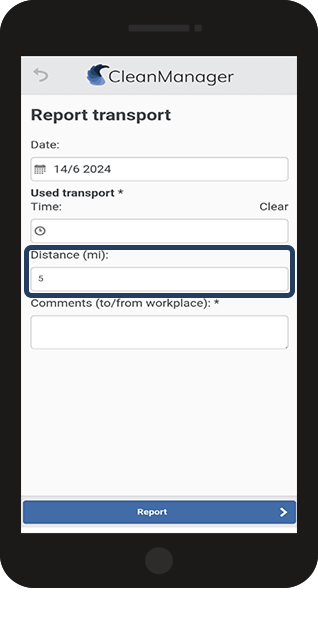
When employees register their transport distance in the app, it will now be in miles

1.7.png
number 9.png
This also includes registering transport as a unit
1.8.png
number 10.png
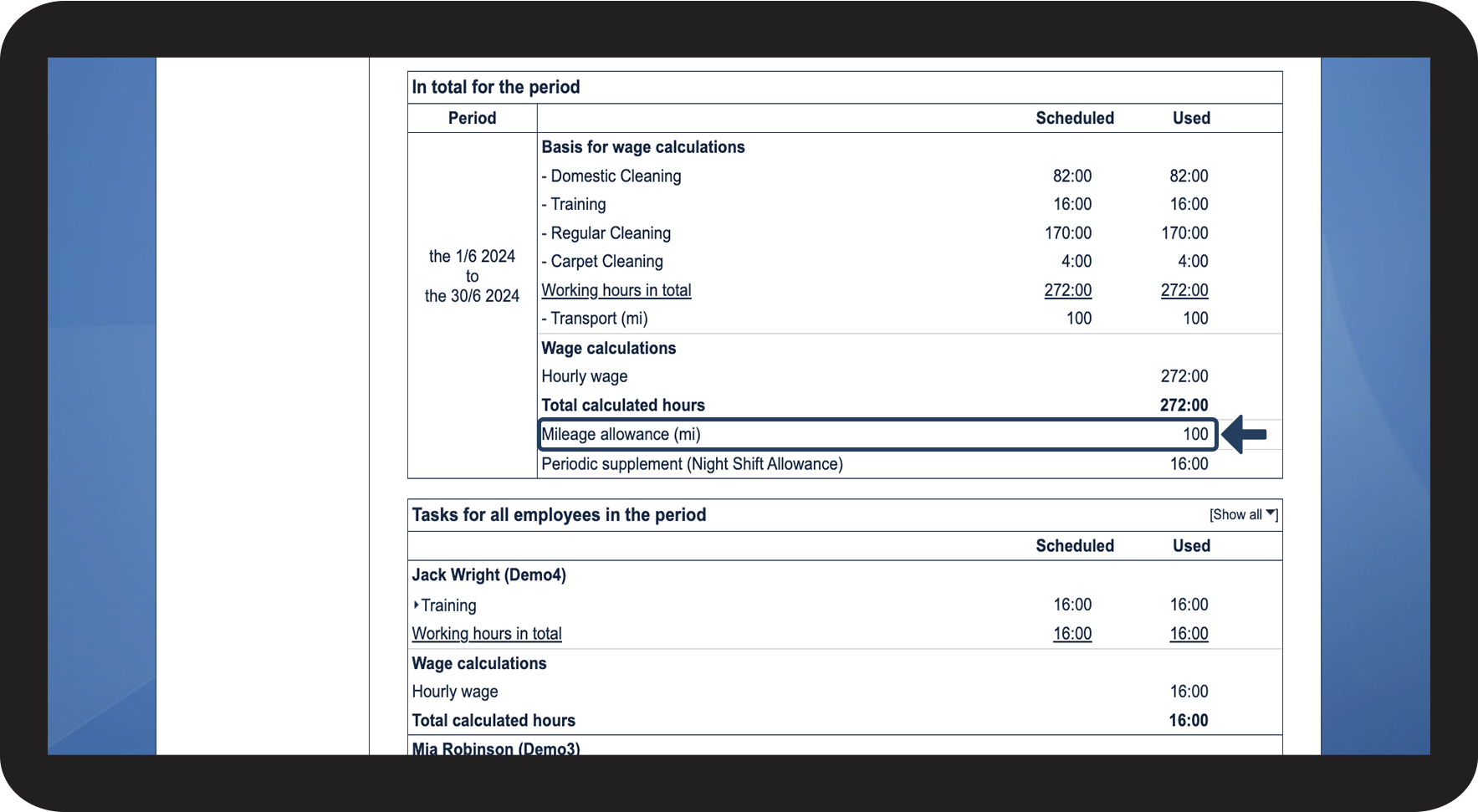
Finally, transport will be shown as miles in the Basis for wage calculations
1.9.png


This is how you change square meters to square feet
number_1.png
In the menu, go to Settings > General settings

1.1.png

number_2.png
Scroll down the page

1.2.png

number_3.png
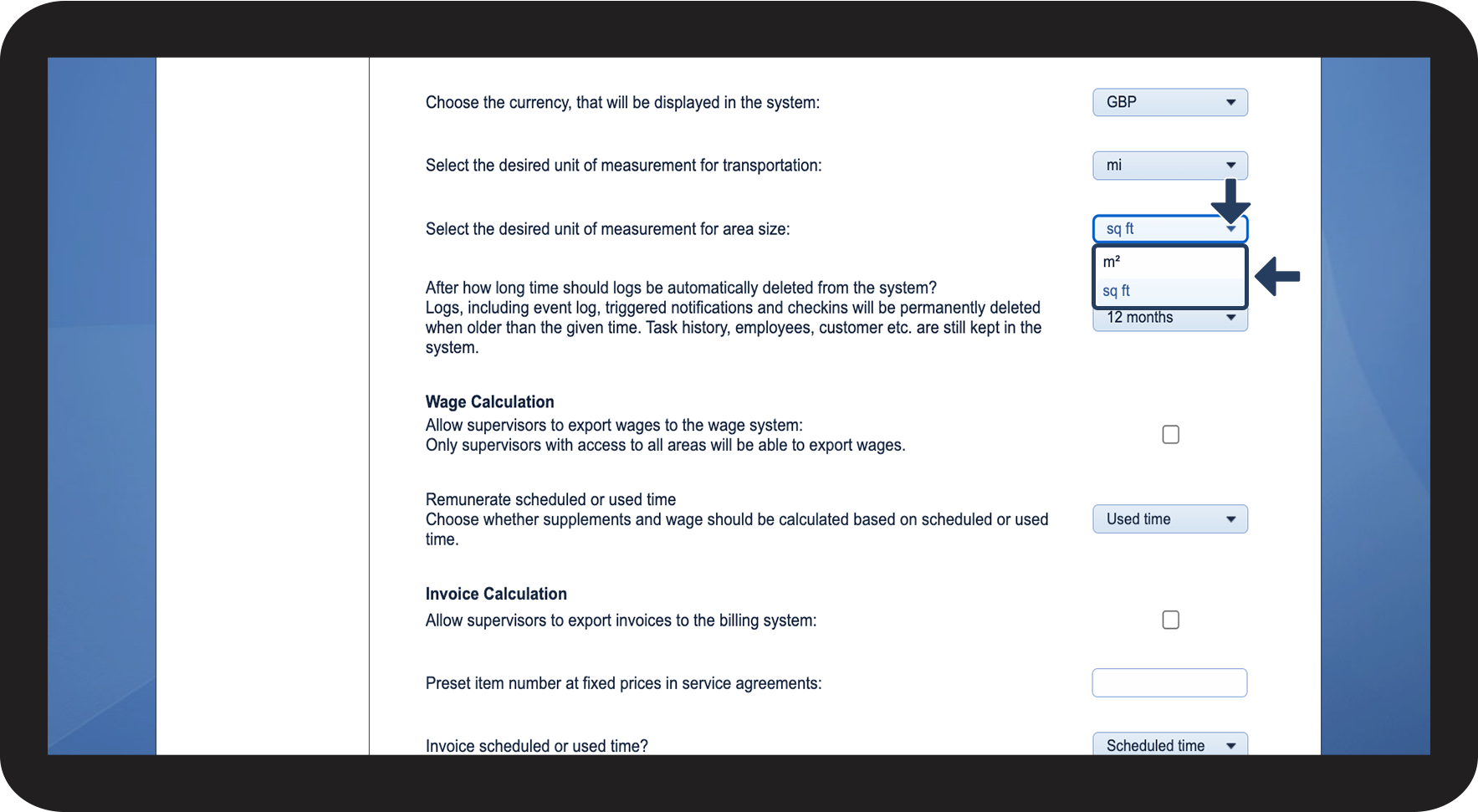
Click on the dropdown menu for Select the desired unit of measurement for area size and select a unit of measurement for area size (in this example square feet)
 
Click afterwards on Save at the bottom of the page

1.4.png

number_4.png

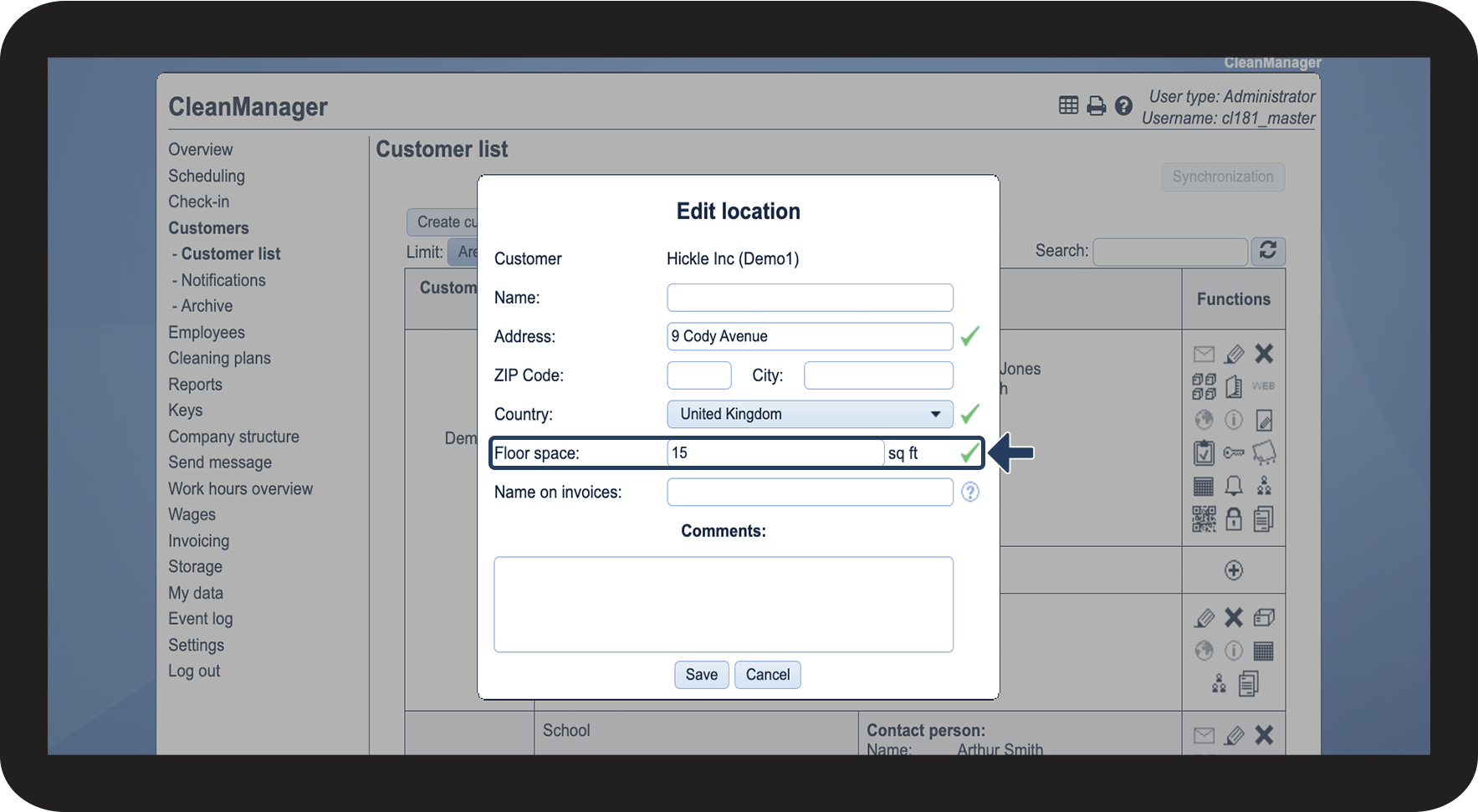
The area size of a location will now be shown in square feet

1.10.png