Skip to content
English
  • There are no suggestions because the search field is empty.

Periodic supplements

How do I set up periodic supplements?

Periodic supplements can be used to give your employees extra supplements for tasks, which are planned outside the normal working hours.

A periodic supplement is usually connected to work within unsocial working time, as well as bank and public holidays. For this reason, a couple of periodic supplements are already to be found in the system, when you start setting up your account.

These supplements can always be adjusted to fit the needs of your company. At the same time, you also have the option to create your own periodic supplements.


In this article, you will learn how to set up periodic supplements: 


This is how you create a periodic supplement

number_1.png
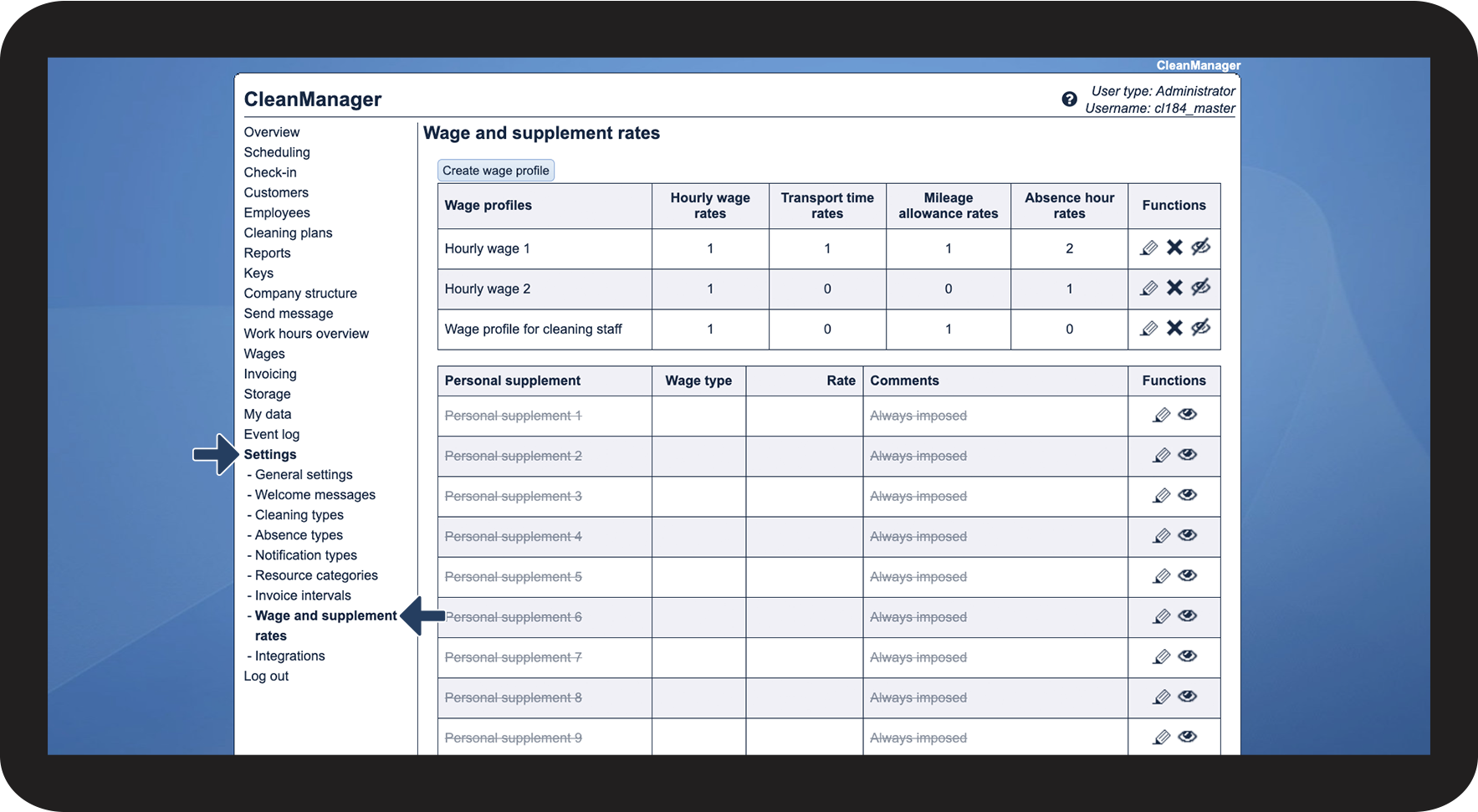
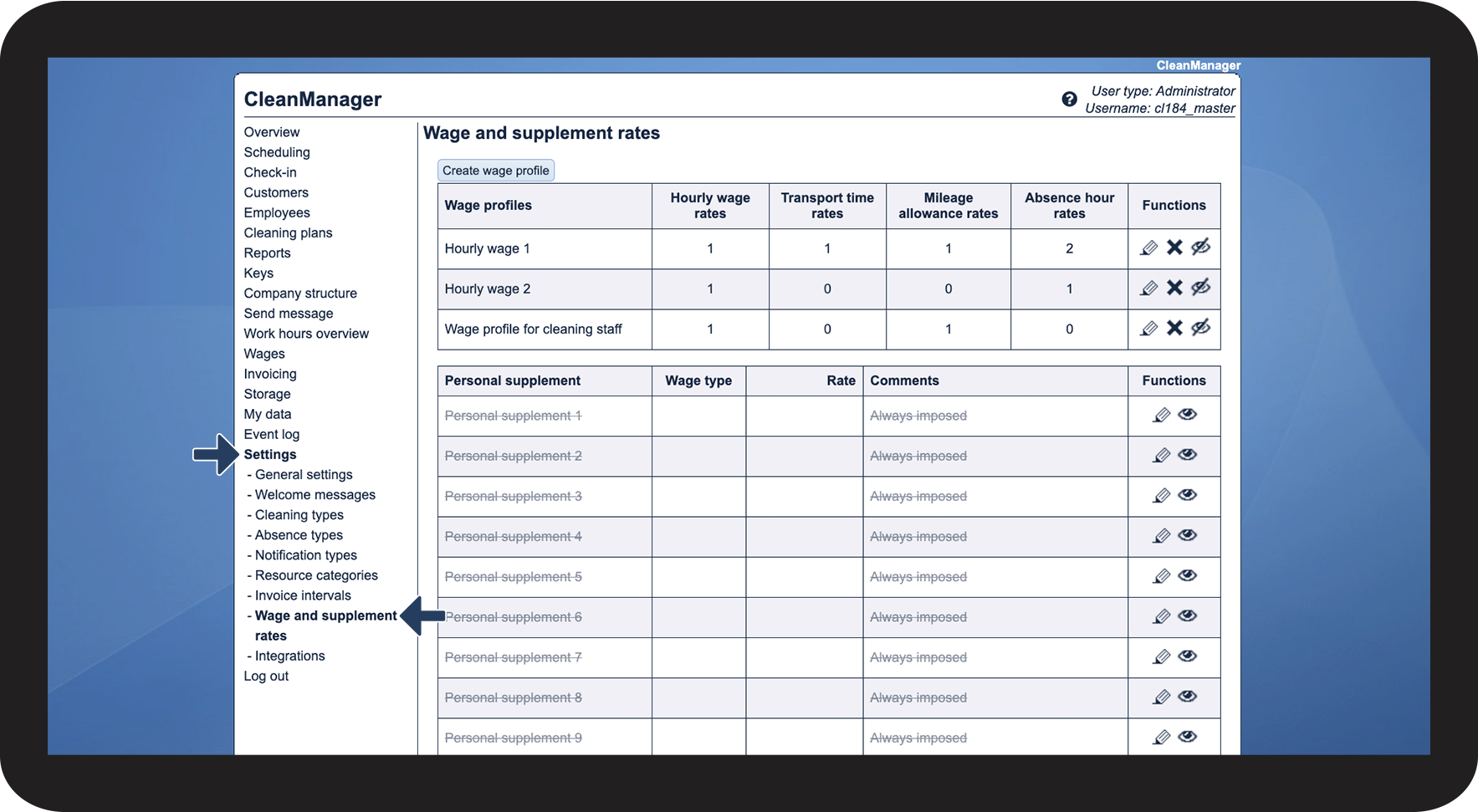
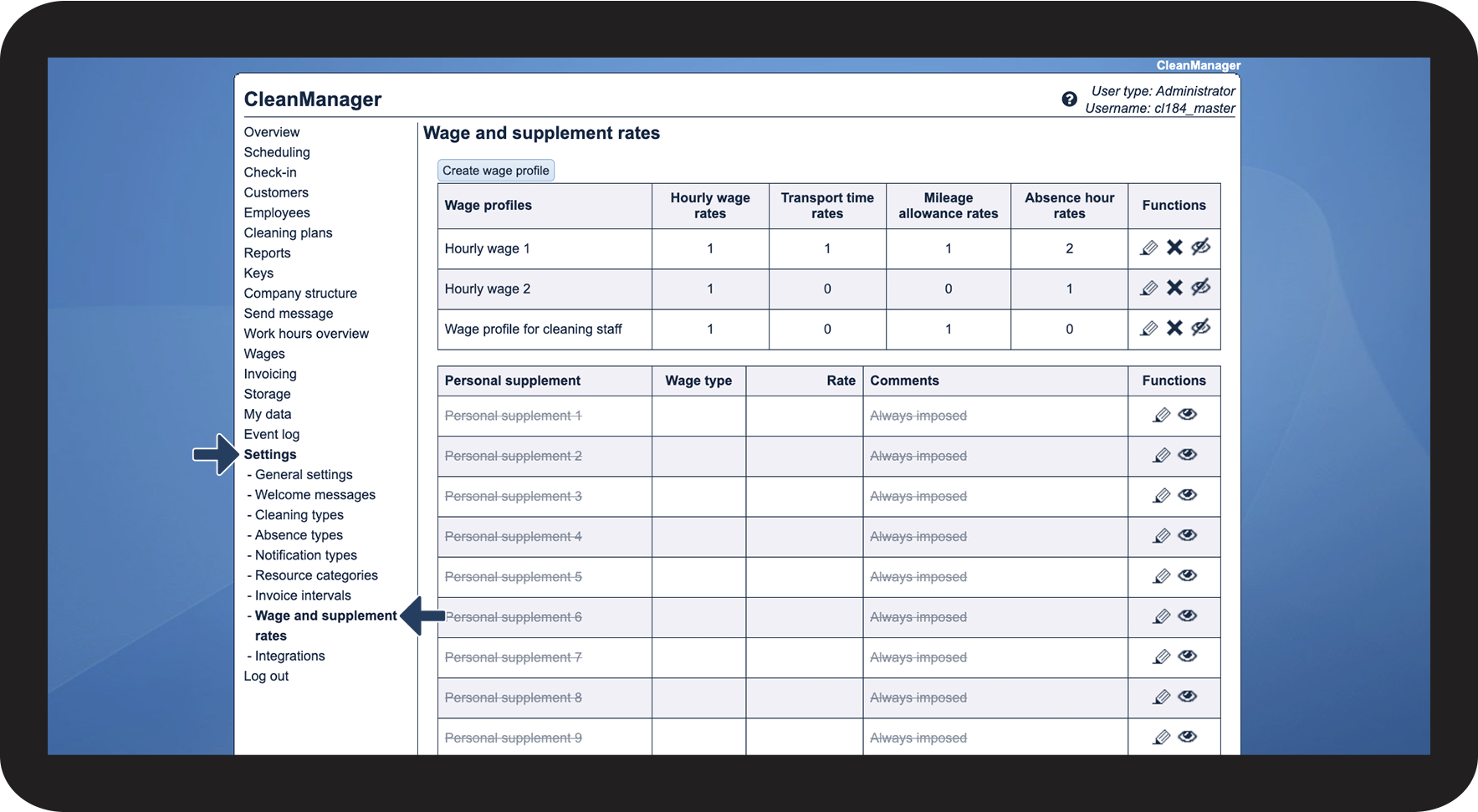
In the menu, go to Settings > Wage and supplement rates

1.1.png

number_2.png

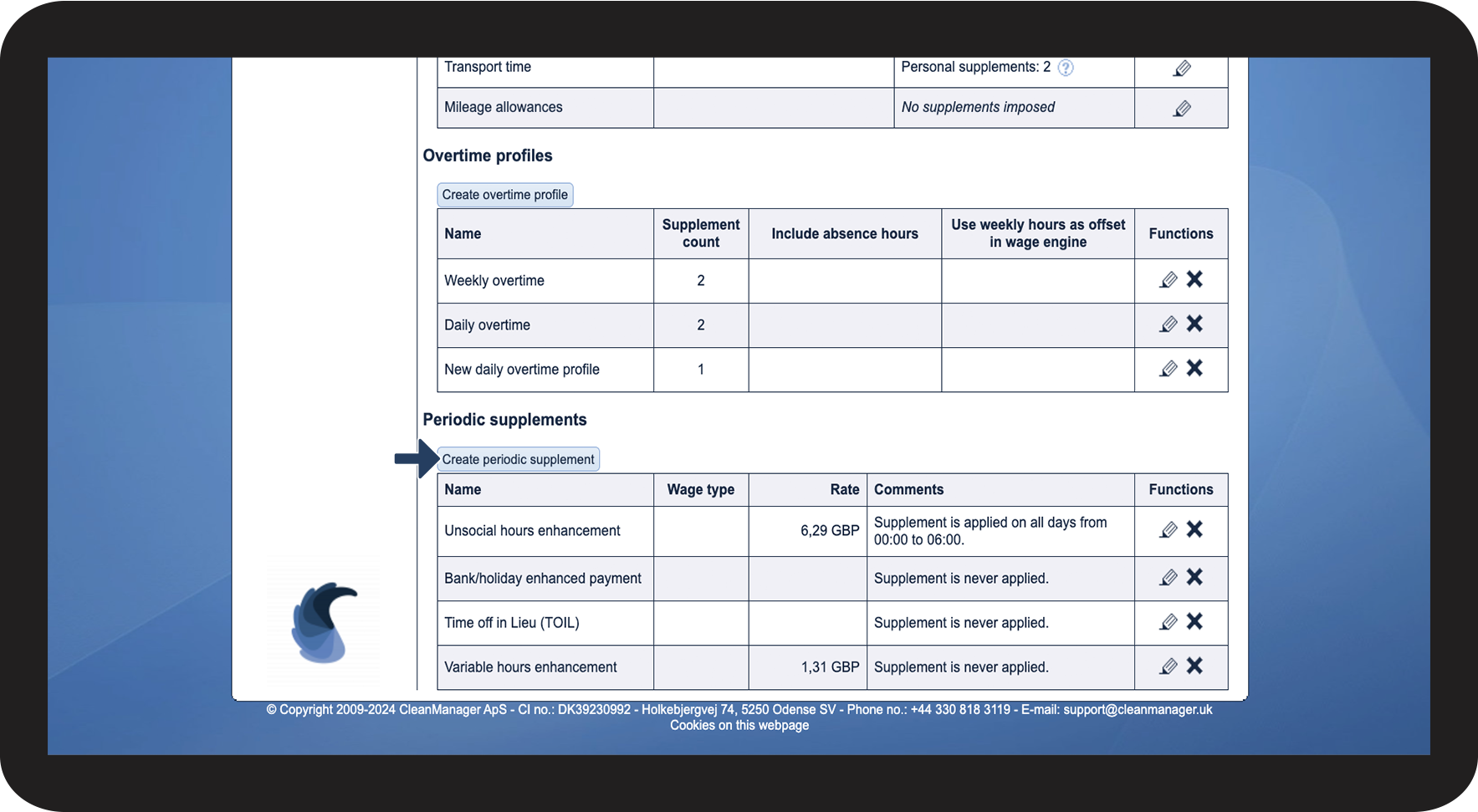
Scroll down to the bottom of the page.

At Periodic supplements, click on Create periodic supplement.

1.2.png

number_3.png

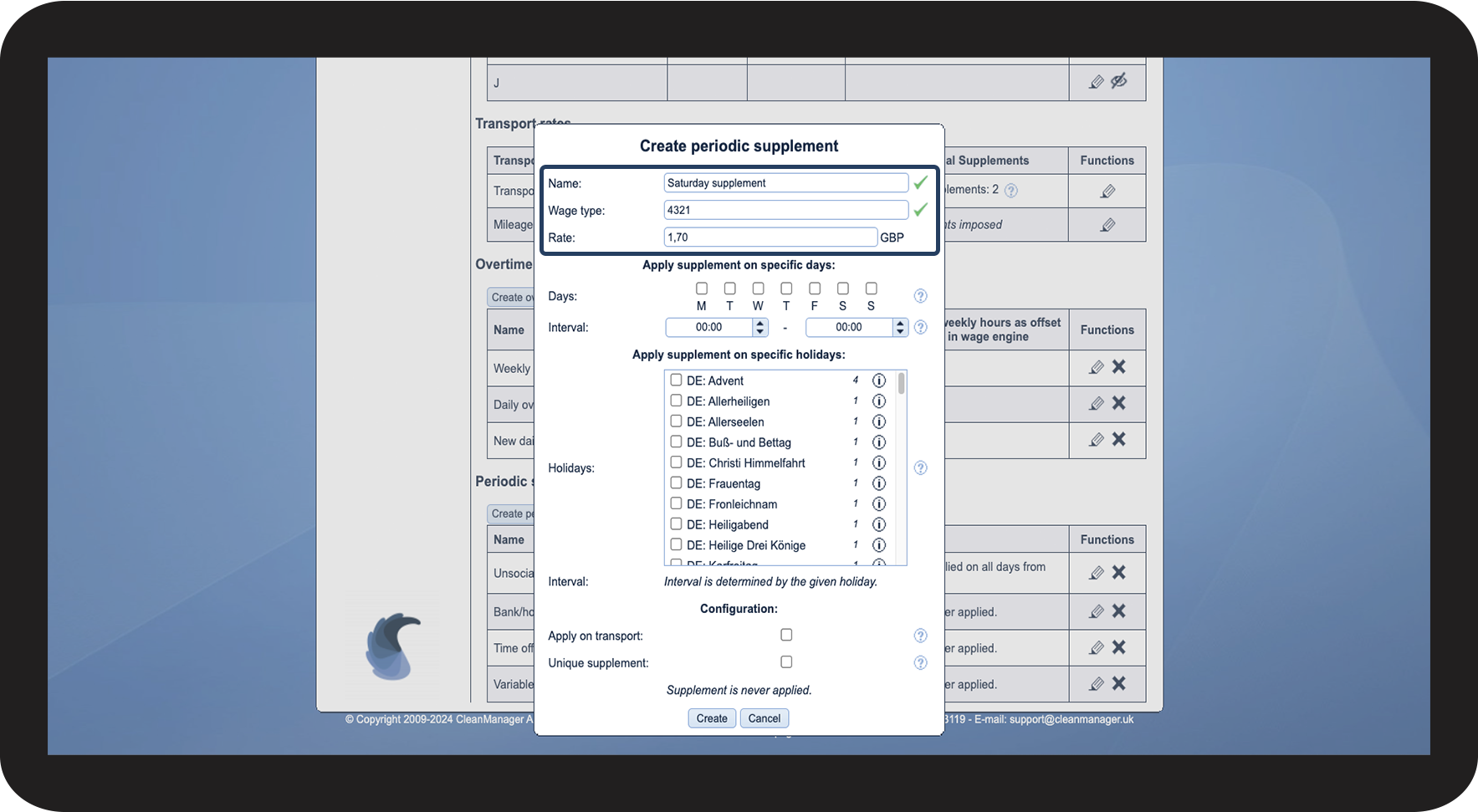
Type in the basic information: Name, Salary type, and Rate for the new periodic supplement

1.3.png

number_4.png

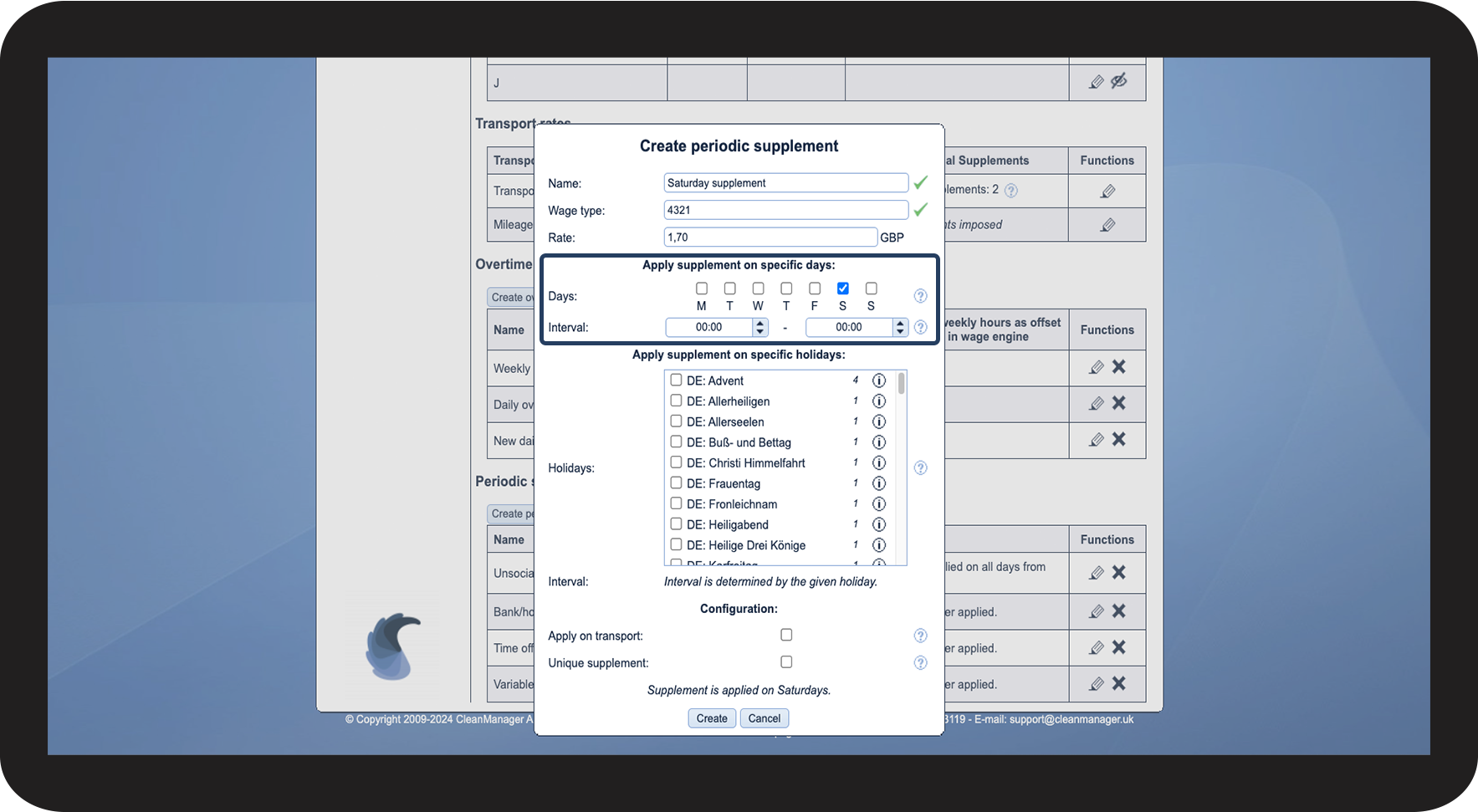
Decide on which weekdays the periodic supplement should be imposed on.


Set the time interval to reflect the time of the day, in which the supplement should be activated.

If the supplement should be imposed from 05:00 AM to 06:00 PM, then type in 05:00 to 18:00 in the interval.

If the supplement is supposed to be imposed for the whole day, then type in 00:00 – 00:00 as shown in the picture.


NOTE:

If the start time is equal to the end time, the supplement will be applied for the entire day.

If the end time is before the start time, the supplement will be applied in two separate intervals on the given day.
1.4.png

number_5.png

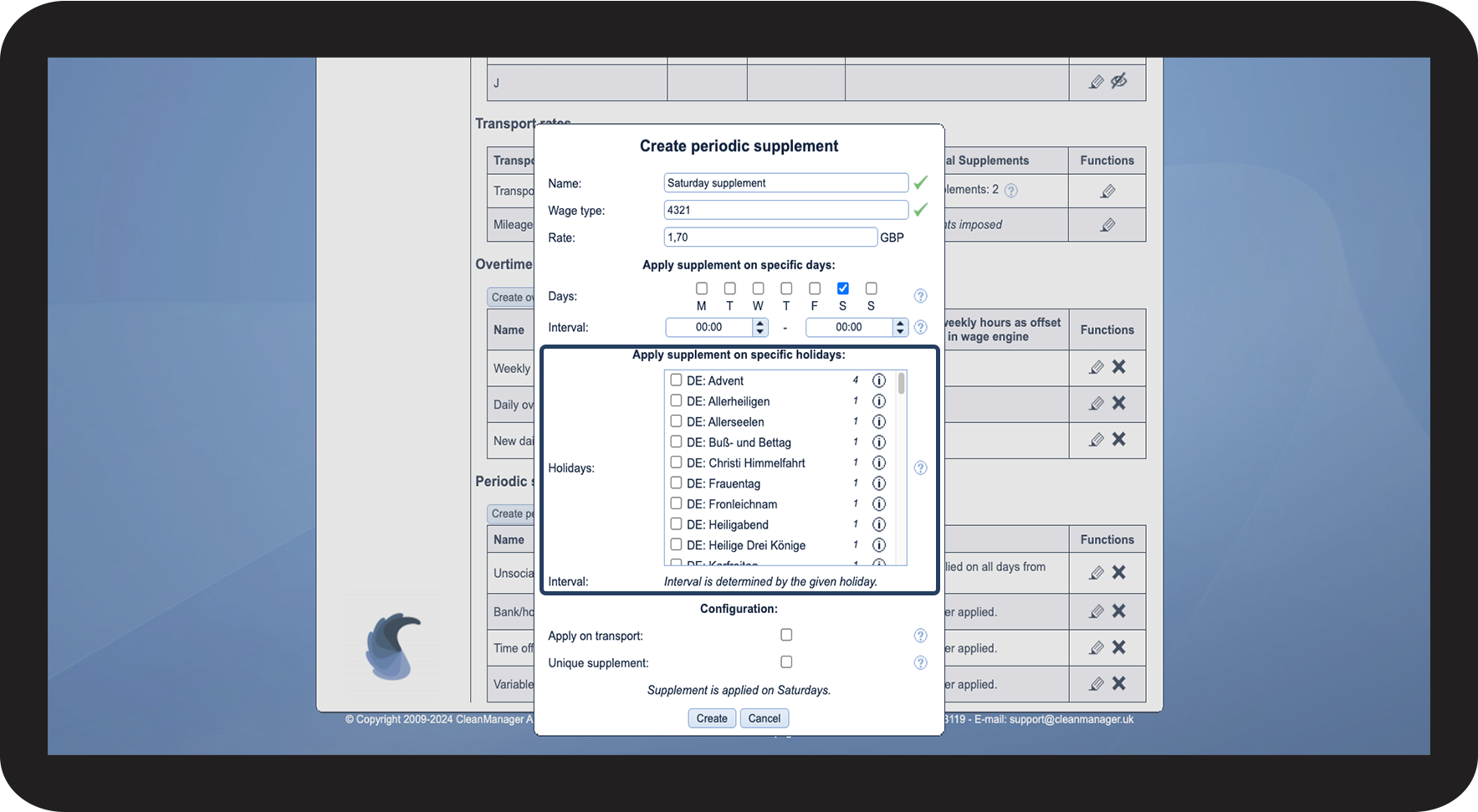
If you want the supplement to be activated on a specific holiday, then you have the option to do so in the section Apply supplement on specific holidays.


To learn more about the specific holidays and in which timeframe they trigger the supplement, click on the information symbol info-ny-kalender.png next to the given holiday.

1.5.png

number_6.png

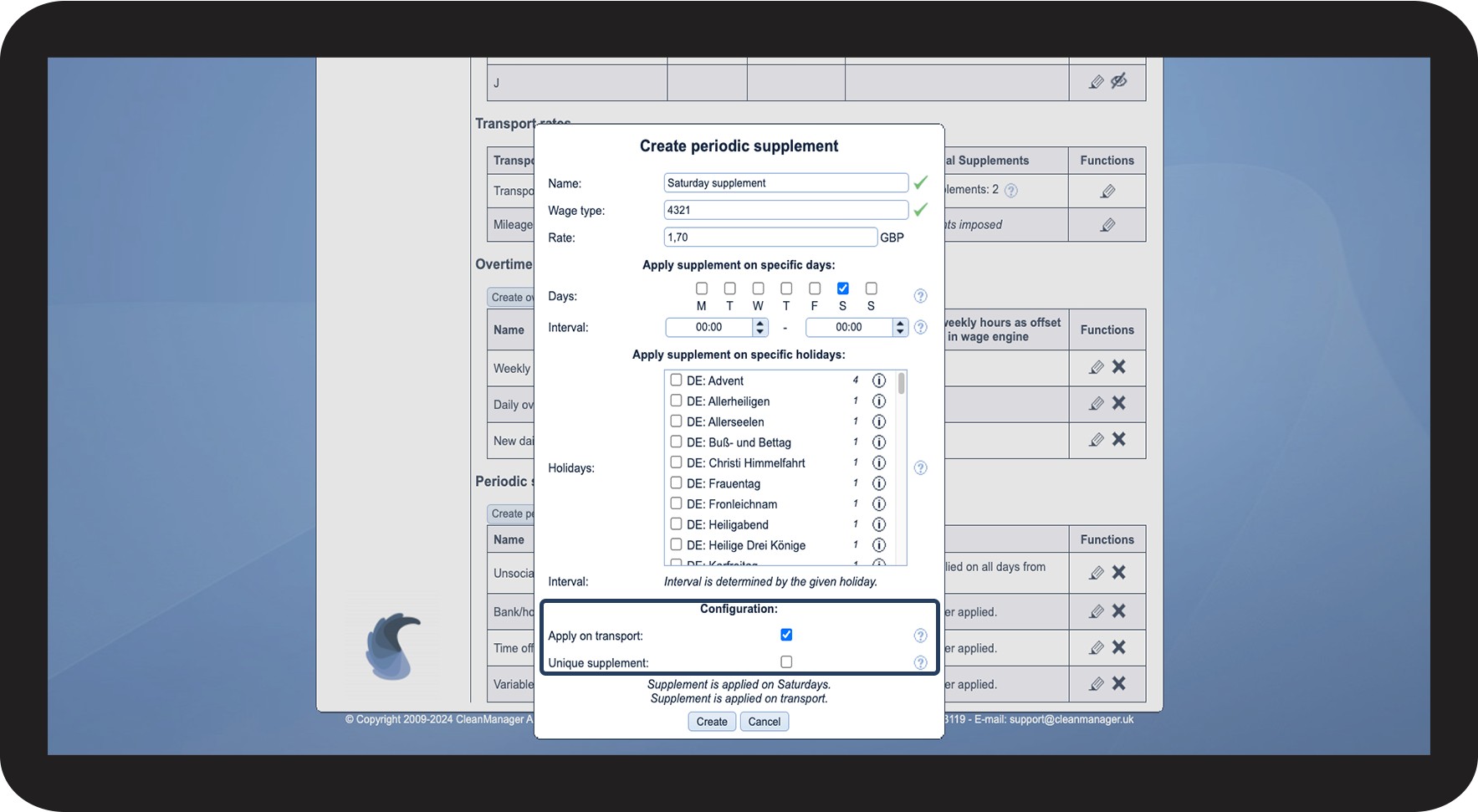
Continue the setup by deciding if the supplement should be applied to the transport.

(This only applies to transport, which has been registered for specific tasks, since there is a set time defined within the task. Transport units on the other hand are always registered as starting at 00:00 o'clock in the system. This means that this kind of transportation will only trigger periodic supplements if they have been set to trigger from 00:00 o'clock) 


Decide whether the supplement should be a Unique supplement.

A normal supplement will always be imposed, whereas a unique supplement only will be imposed on the basis of other unique supplements. If there is only one supplement, then it will always be imposed, but in the case of multiple supplements in the same time frame, only the one at the top of the list of the periodic supplements will be imposed. The others will simply be excluded.

1.6.png

number_7.png

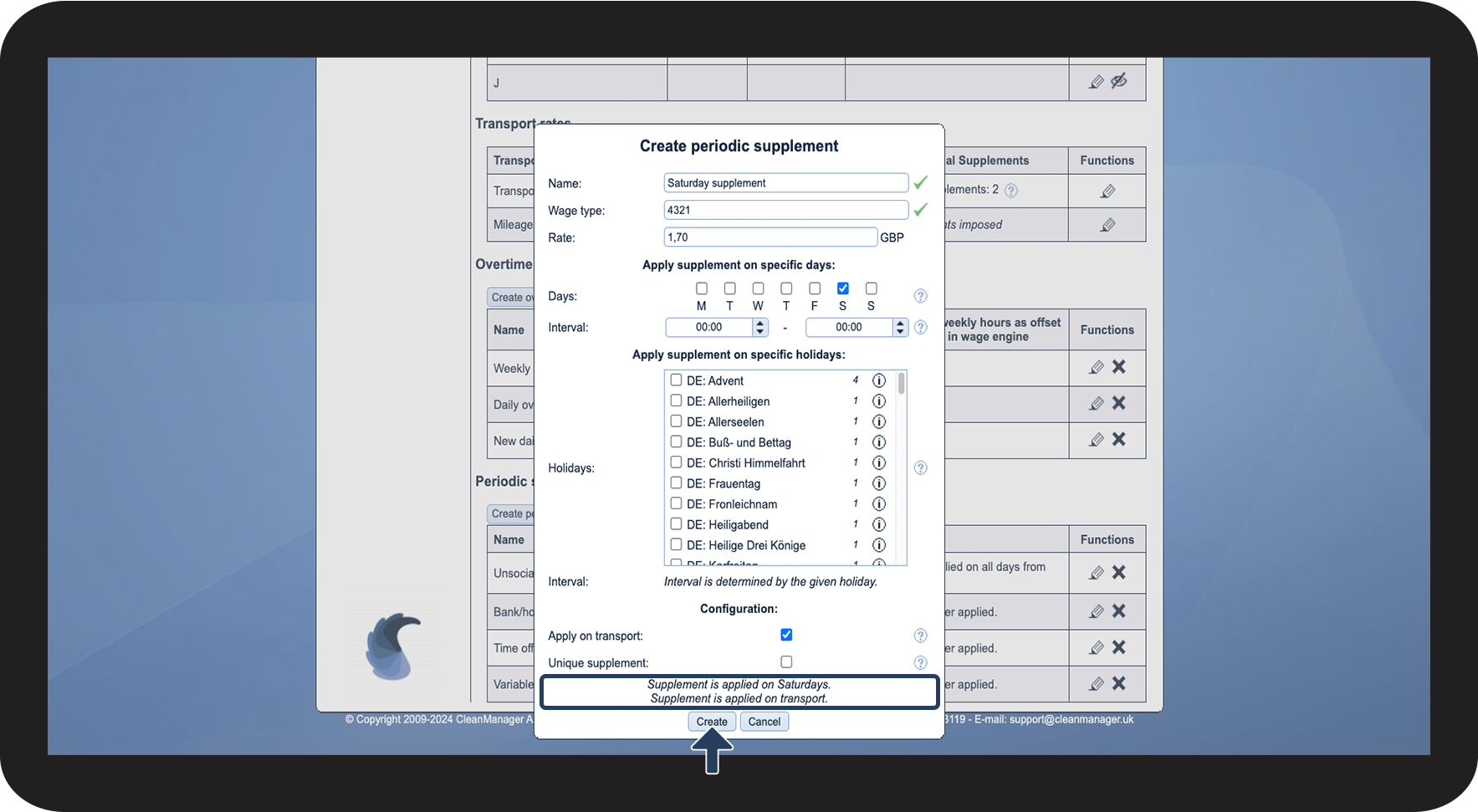
At the end you can see how the supplement has been set up and on which days the supplement will be triggered.

 
Click on Create to save the supplement in the system.

1.7.png


This is how you edit a periodic supplement
number_1.png
In the menu, go to Settings > Wage and supplement rates

2.1.png

number_2.png

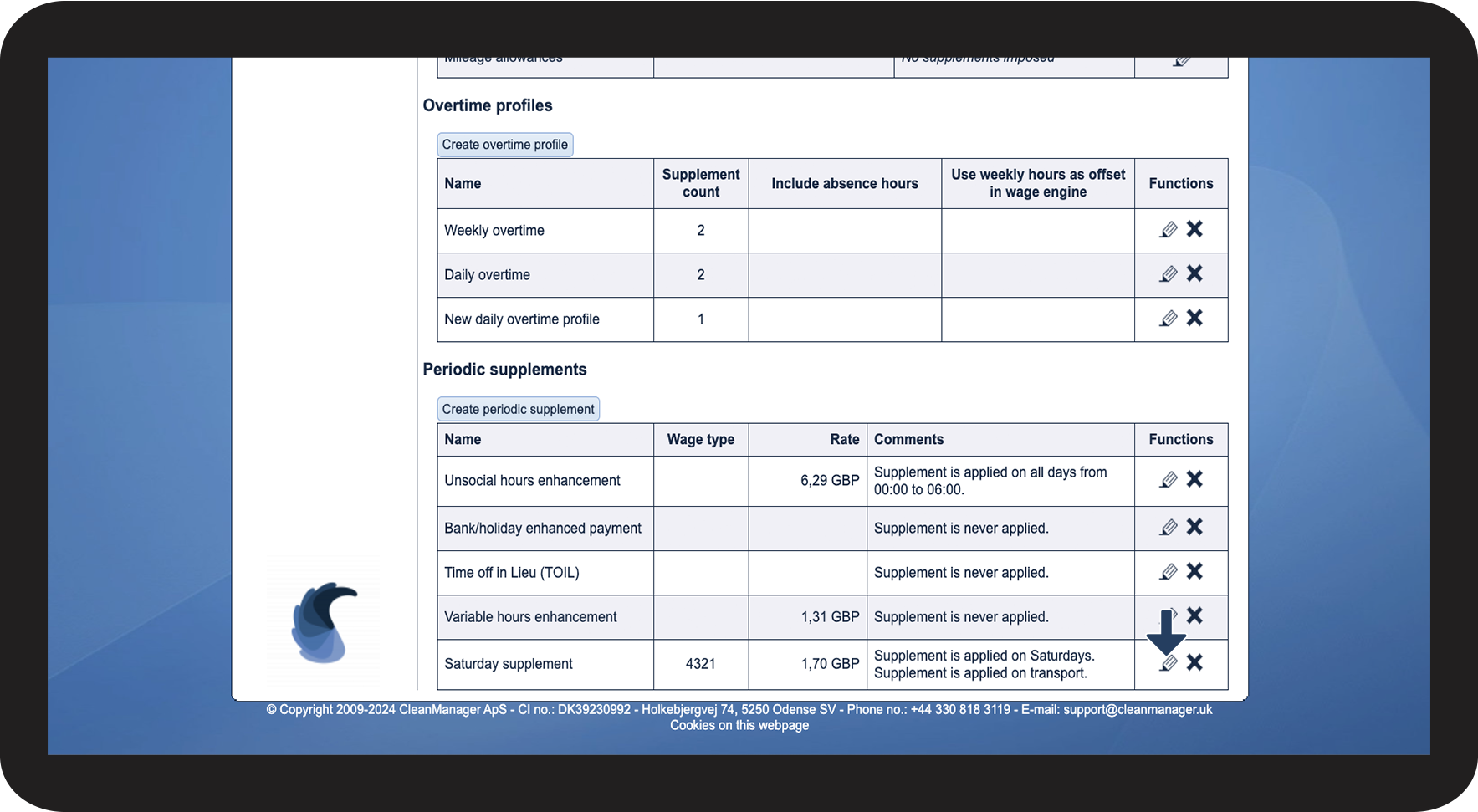
Scroll down to the bottom of the page.

At Periodic supplements, click on Edit periodic supplementrediger.png.

2.2.png

number_3.png

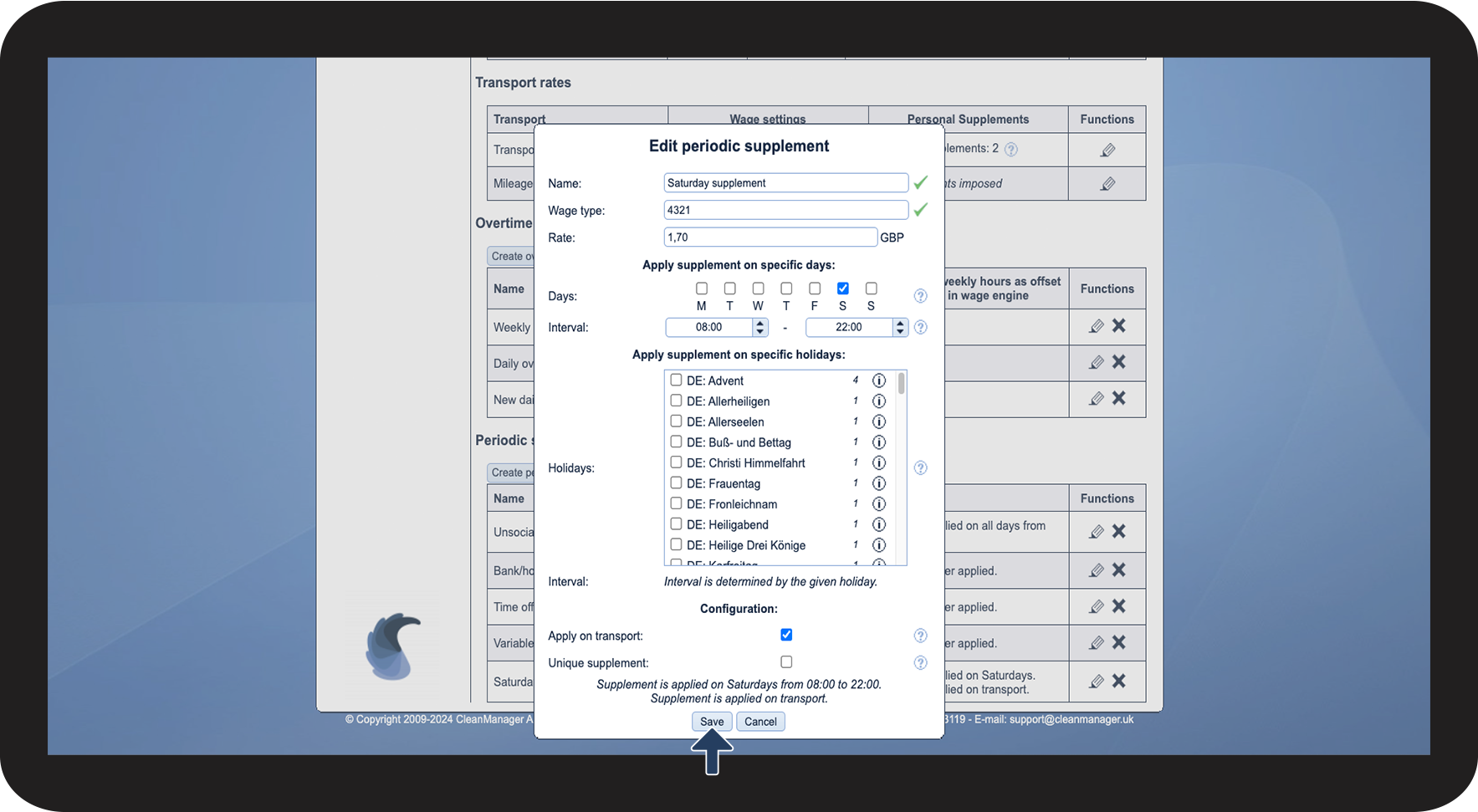
Edit the periodic supplement

(To learn more about the specific settings, reread the section: Creating periodic supplements)

 
Complete the process by clicking on Save

2.3.png


This is how you delete a periodic supplement
number_1.png
In the menu, go to Settings > Wage and supplement rates

3.1.png

number_2.png

Scroll down to the bottom of the page.

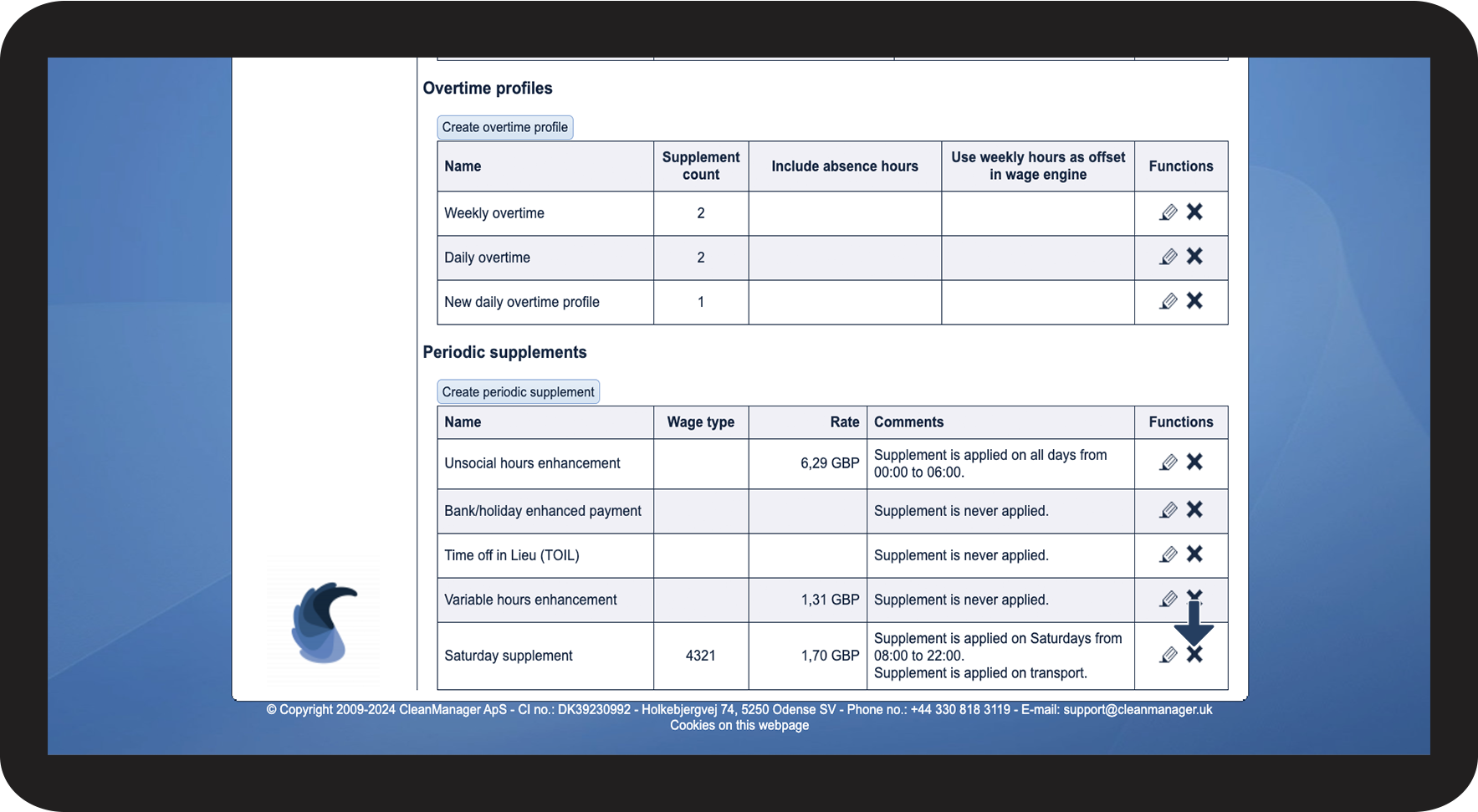
At Periodic supplements, click on Delete periodic supplement Slet.png

3.2.png

number_3.png

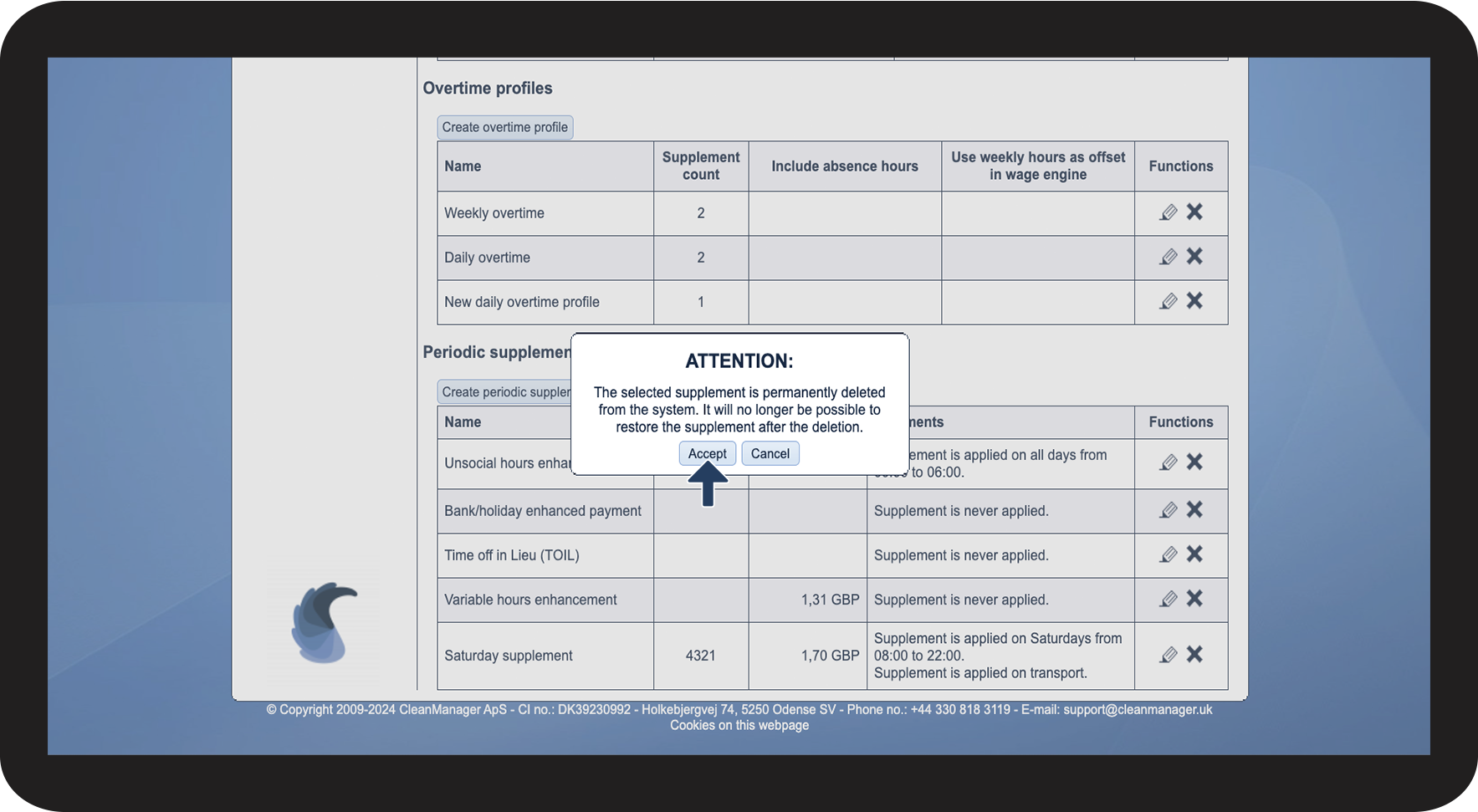
Click on Accept to finish the process.

(You will not be able to restore the periodic supplement)

3.3.png