Skip to content
English
  • There are no suggestions because the search field is empty.

Overtime profiles

How do I set up overtime profiles? 

Overtime profiles are used for adding extra supplements for employees in regard to overtime.

An overtime supplement is often connected with a supplement, which is triggered after a pre-defined period of time, either on a daily or a weekly basis.

Every CleanManager account includes two existing overtime profiles: Weekly overtime and Daily overtime.

Overtime profiles need to be activated for each employee individually.

You can edit overtime profiles to adjust them to your company's needs, or create new ones for a more advanced setup.

In this article, you will learn how to use overtime profiles:


This is how you edit overtime profiles

number_1.png

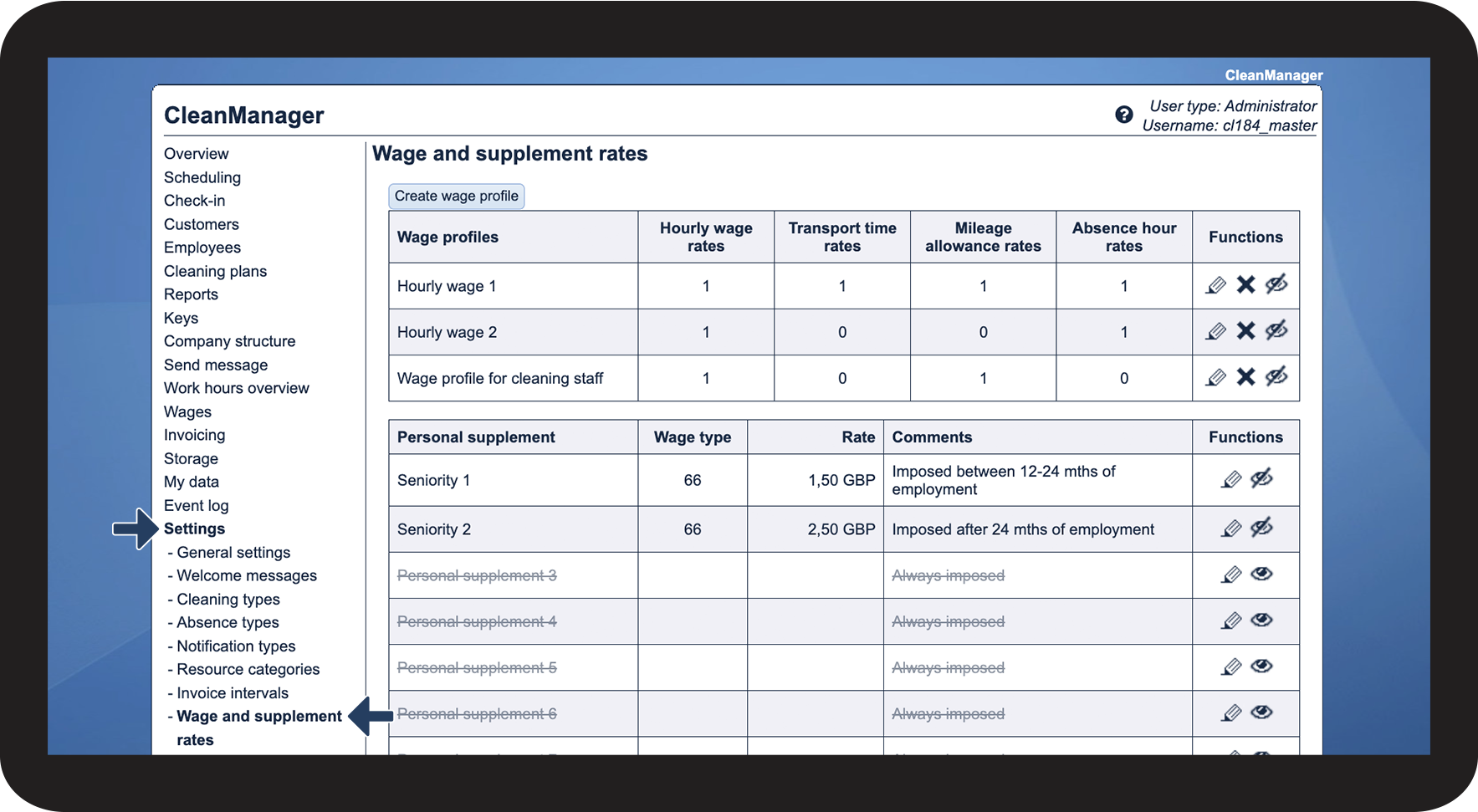
Go to Settings > Wage and supplement rates in the menu

1.1.png

number_2.png

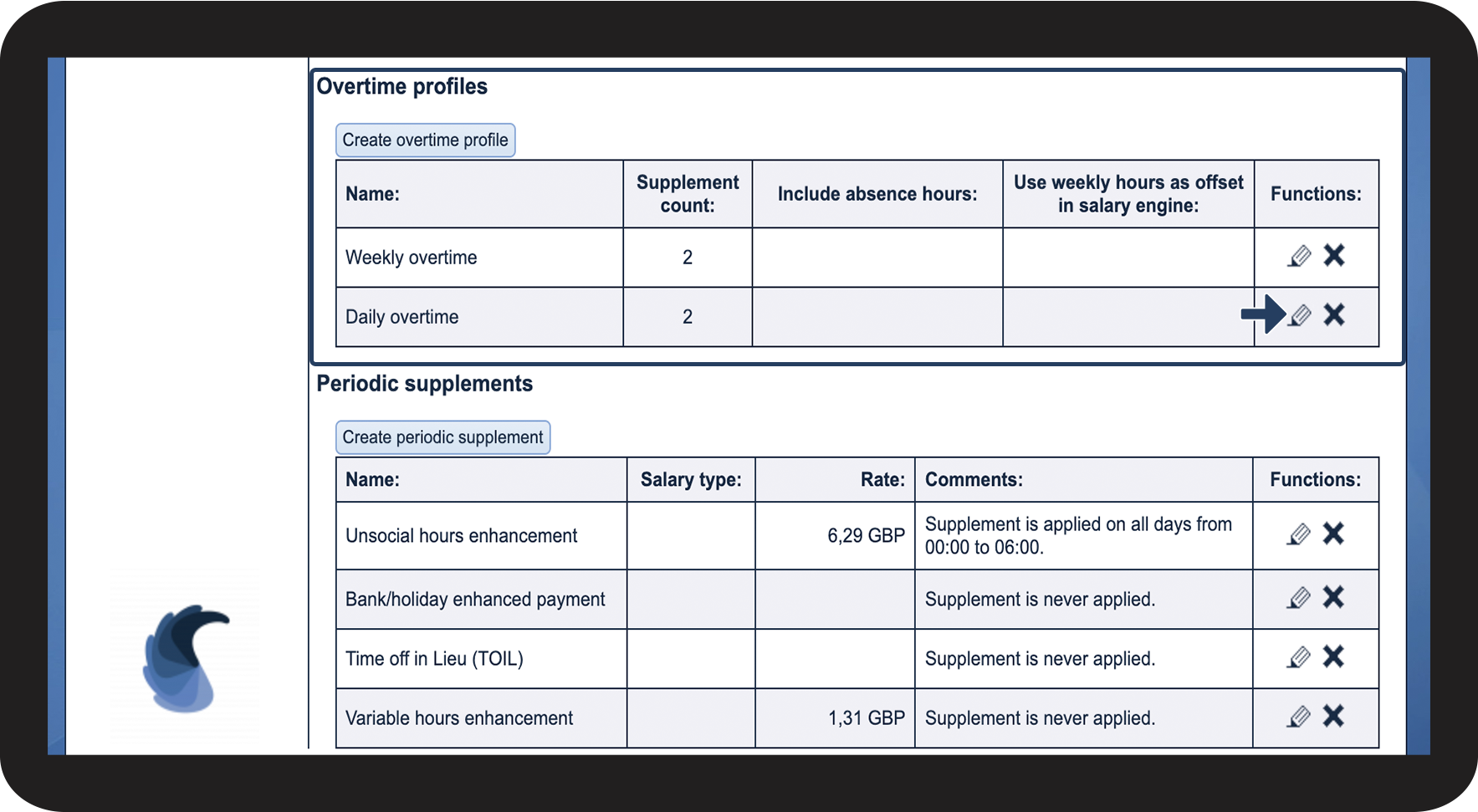
Scroll down to the section Overtime profiles. Then, click on Edit rediger.png next to the overtime profile you would like to edit
1,2.png

number_3.png

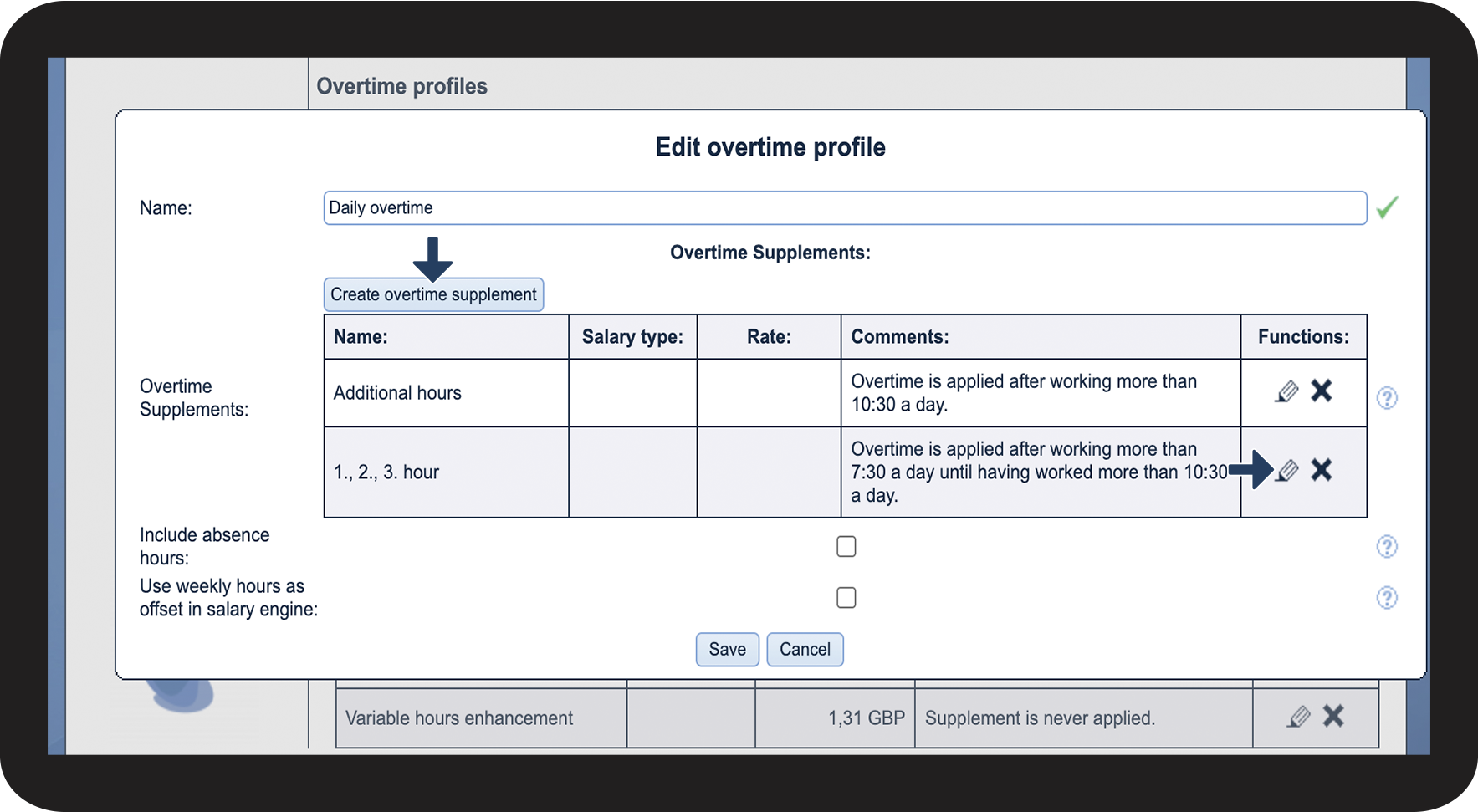
Edit the overtime profile


Edit the existing rules of the Overtime supplements or add new ones by clicking on Create overtime supplement.


End the process by clicking on Save.

1,3.png
 

Continue to the section Creating overtime profiles to see, how you can create new overtime profiles, as well as give them a more advanced setup.


This is you how you create overtime profiles
number_1.png
Go to Settings Wage and supplement rates in the menu

1.1.png

number_2.png

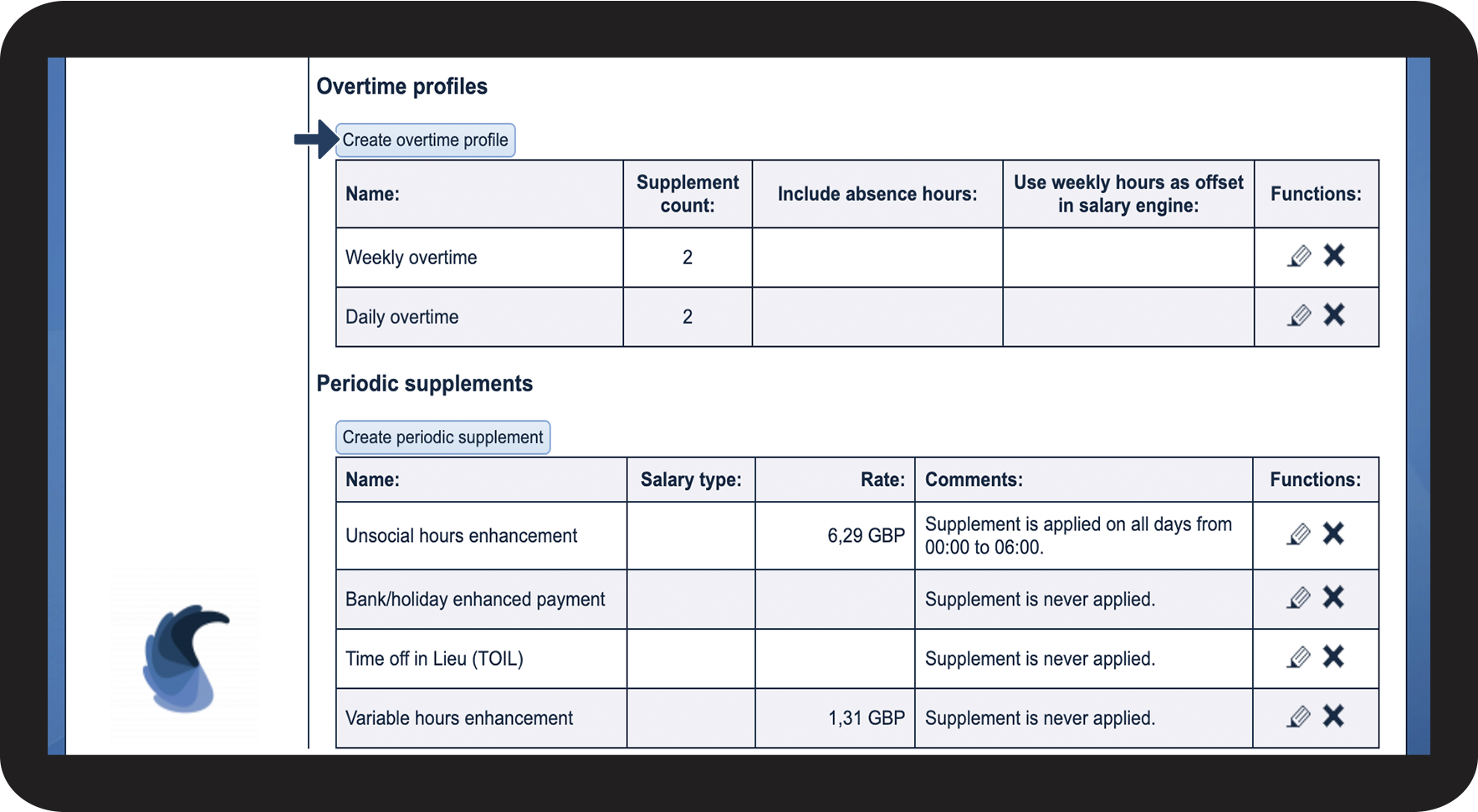
Scroll down to the section Overtime profiles.

Then, click on the button Create overtime profile.

2,2.png

number_3.png

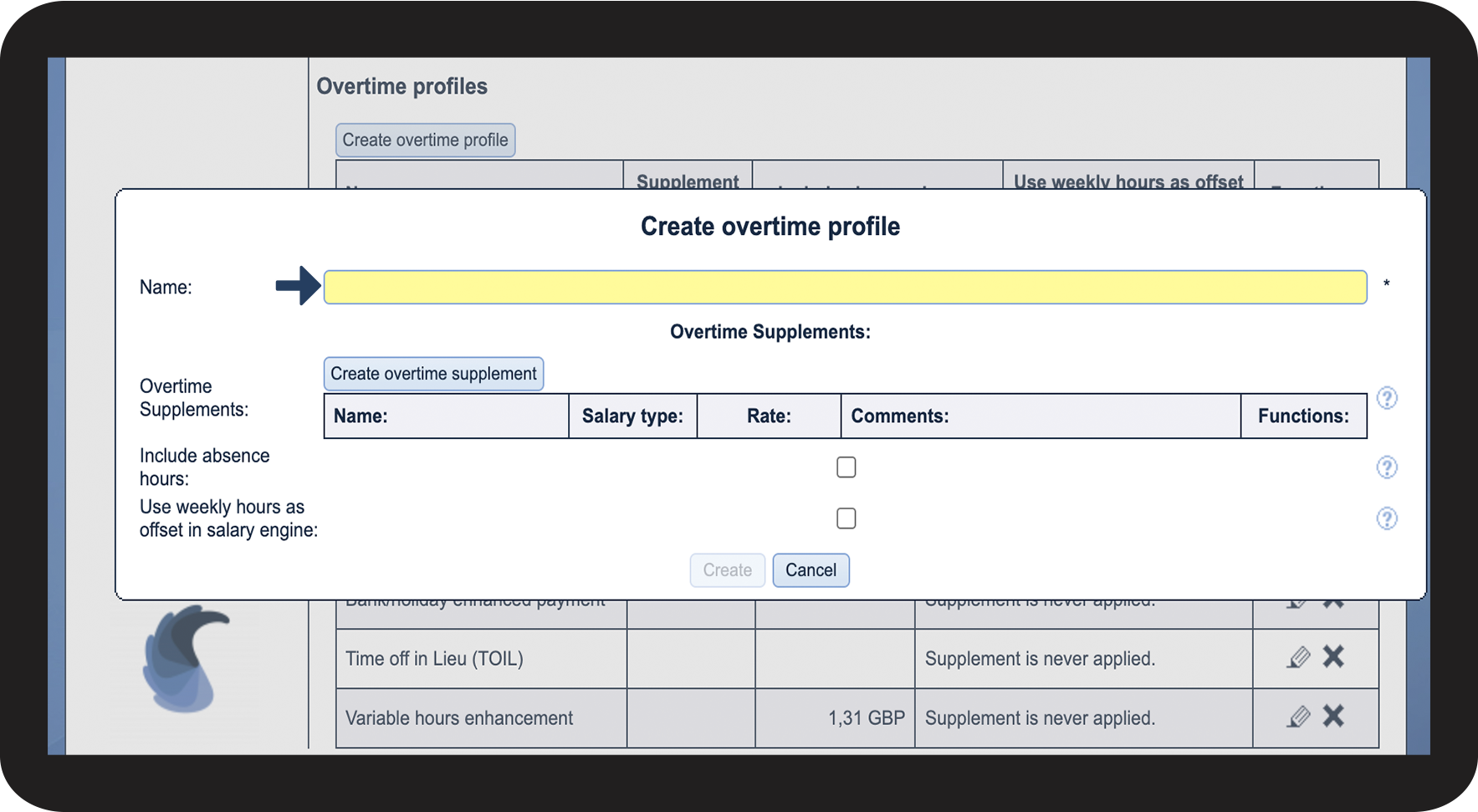
Click on the field Name to give the new overtime profile a name

2,3.png

number_4.png

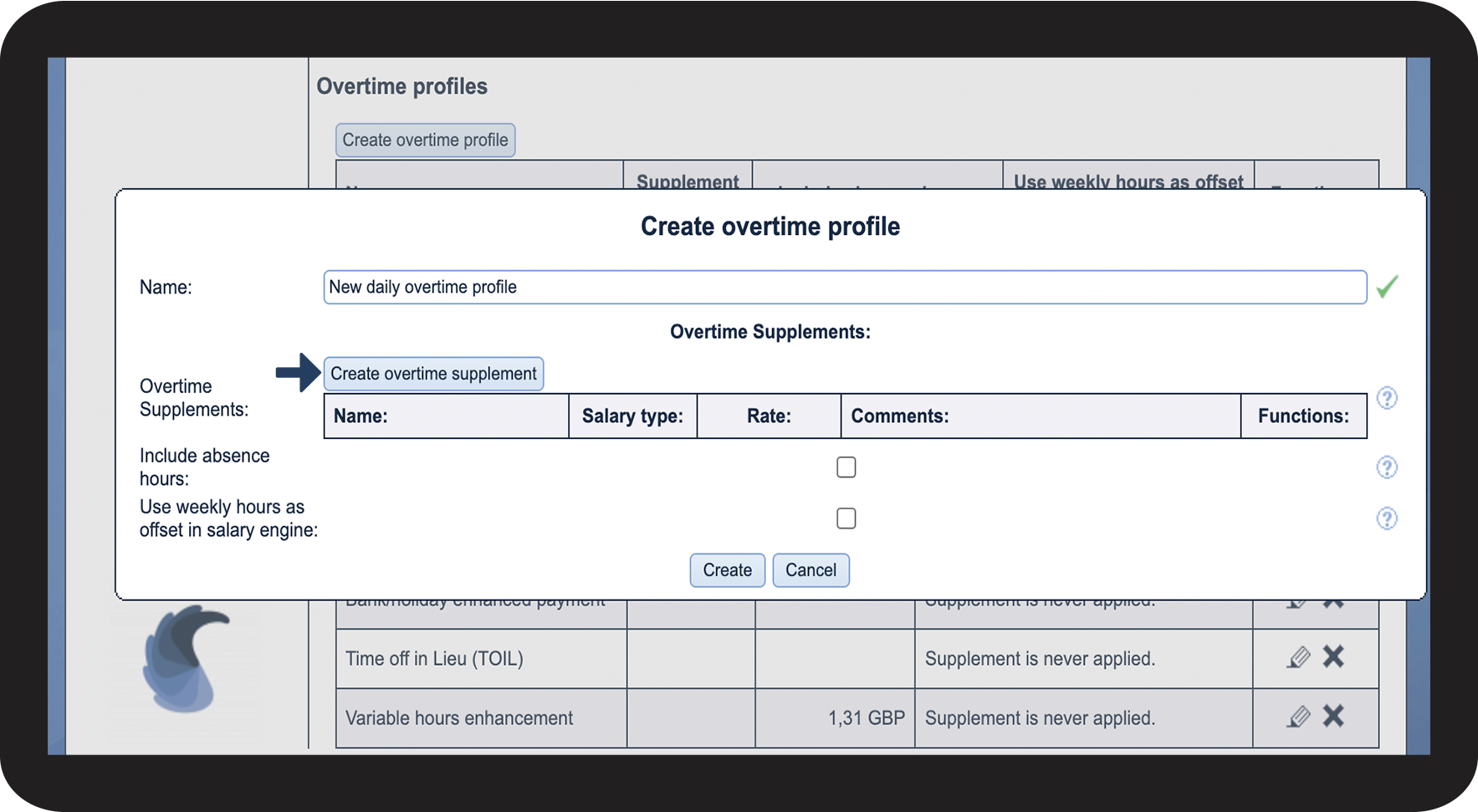
Create new overtime supplements by clicking on Create overtime supplement

2,4.png

number_5.png

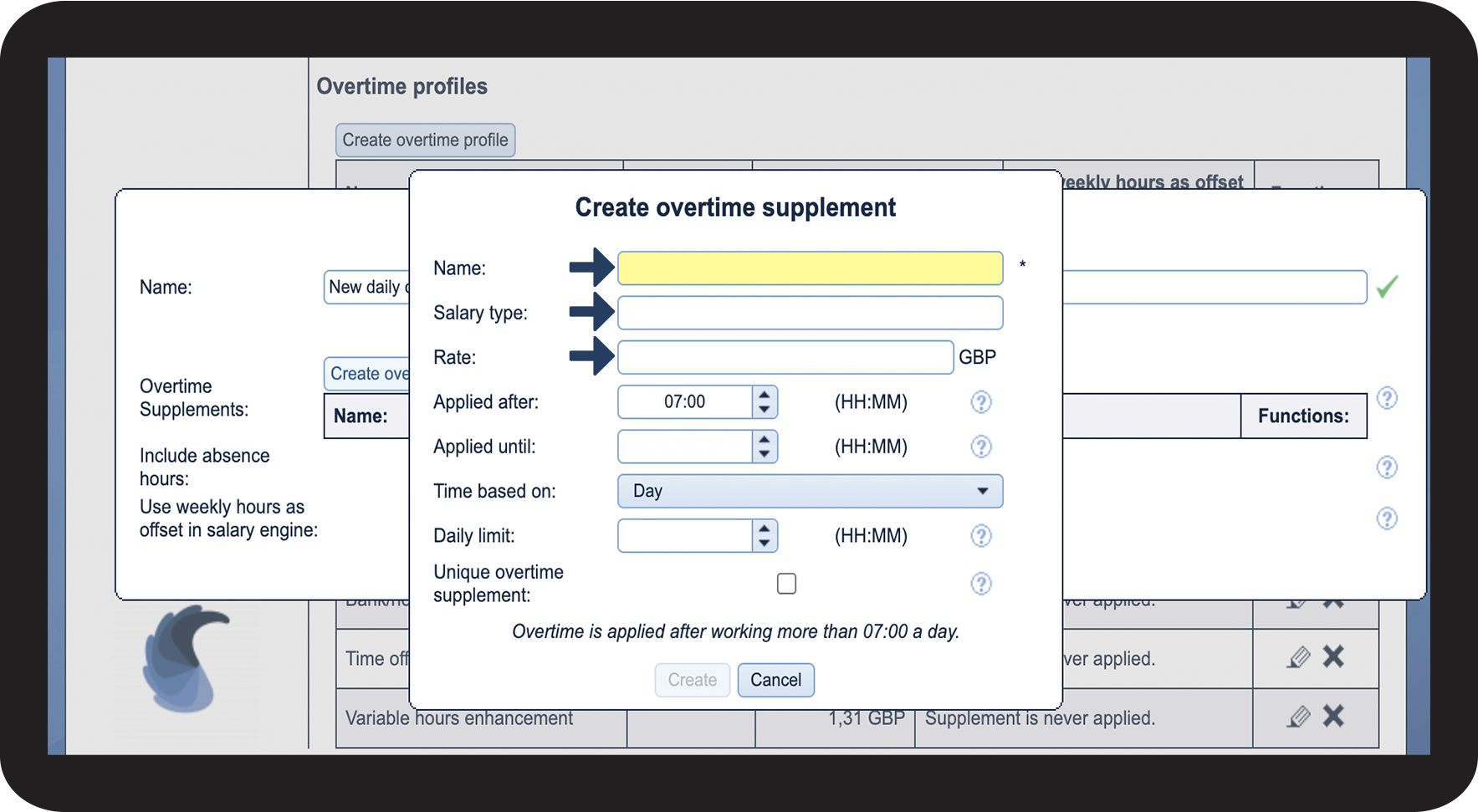
Start with the basic information


Name: Give the overtime supplement a name.


Wage type: State the wage type that should be used in an export.


Rate: State the rate that should be used when exporting to your payroll system.

2,5.png

number_6.png

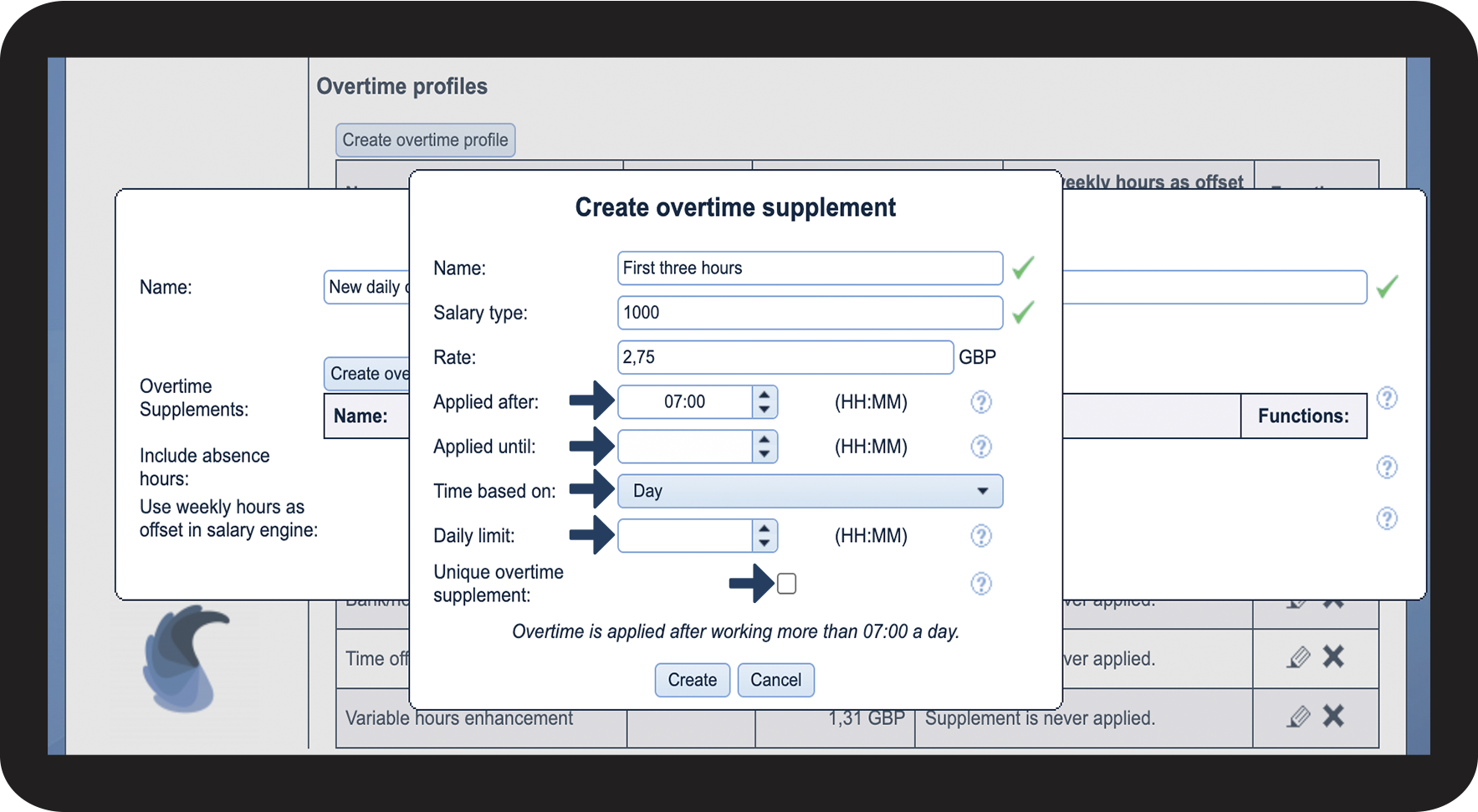
Define the timeframe the supplement should be activated in


In Applied after, define after how many working hours this supplement should be activated (e.g., 7:30 hrs)


In Applied until, define when the supplement should be deactivated (e.g. after 10:30 hrs). This would result in the supplement being active for 3 hours. 


In Time based on, you state whether the supplement should be paid on a daily or a weekly basis.


In Daily limit, you can state how many hours a supplement can maximum be active. (This is only necessary if you have a variety of different unique overtime supplements active on a daily basis, which is seldom the case. Usually, Applied after and until are all that is needed for a proper setup)


At Unique overtime supplement, you can state whether a supplement should be unique. This will result in only the supplement on top of the list being activated if there are several supplements within the same time period (normal overtime supplements will be imposed regardless)

2,6.png

number_7.png

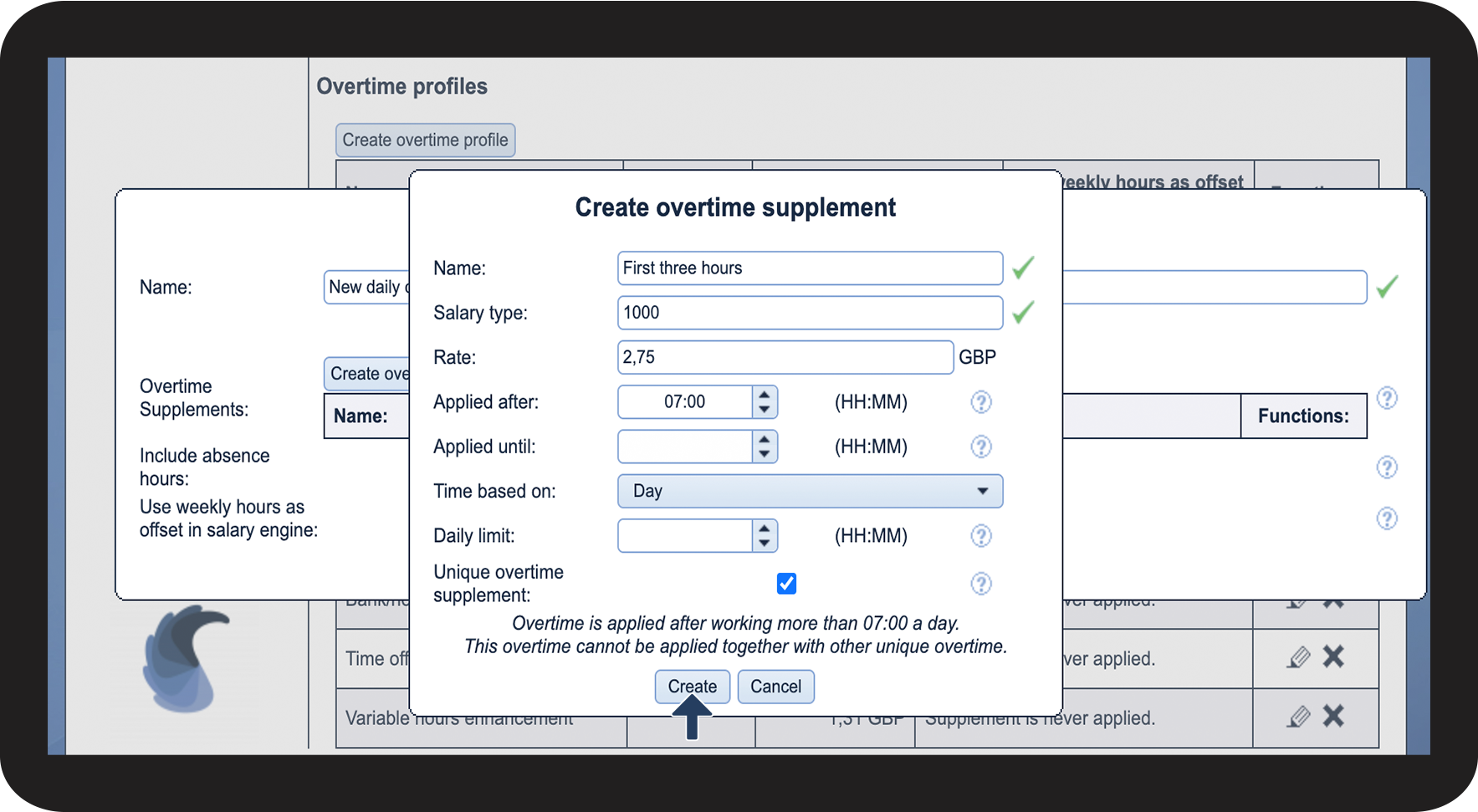
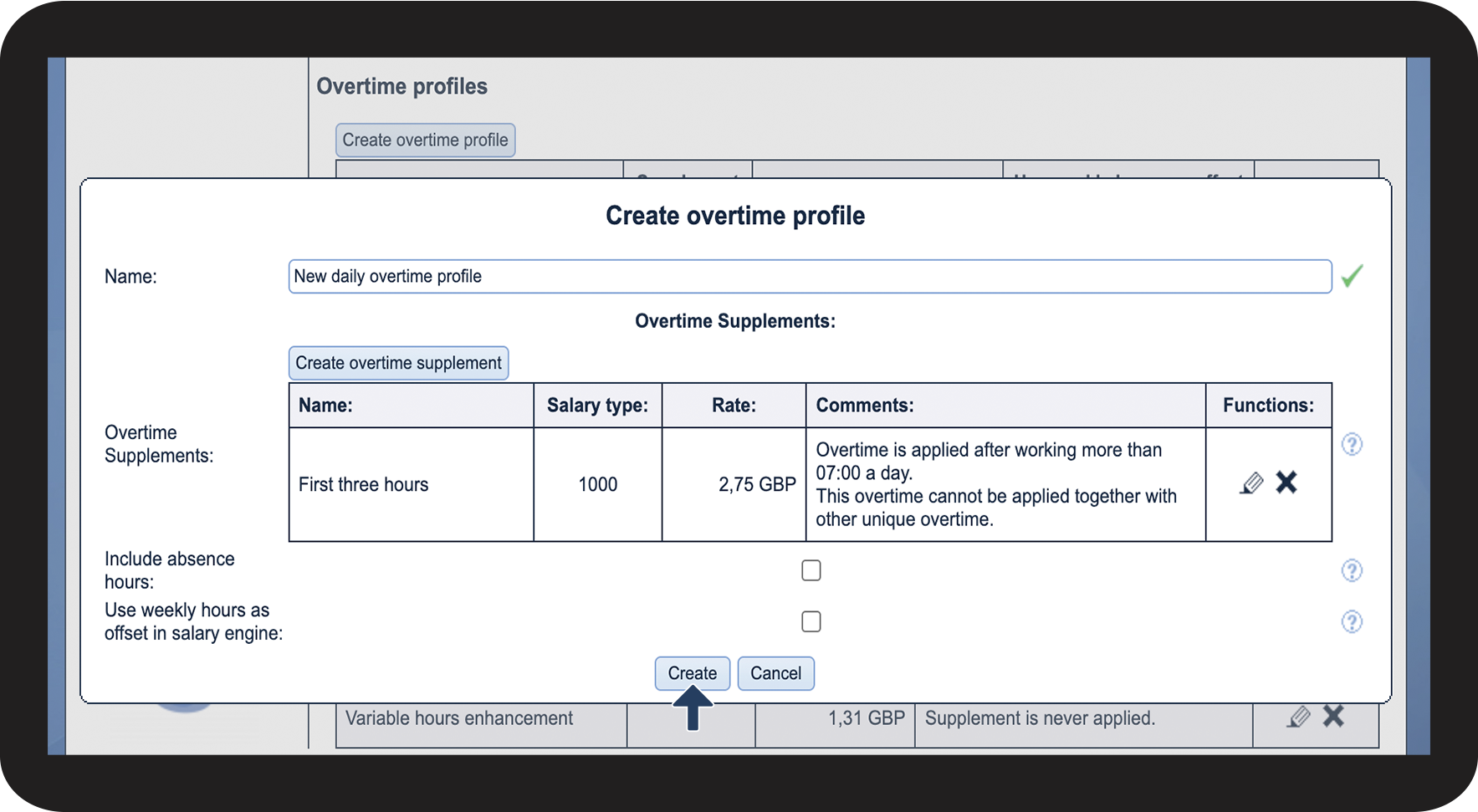
Click on Create to add the overtime supplement to the overtime profile

2,7.png


INFO:

There is no limit to how many overtime supplements can be set up for each overtime profile. Click on Create overtime supplement to add more.

number_8.png

Setting up further settings for the overtime profile


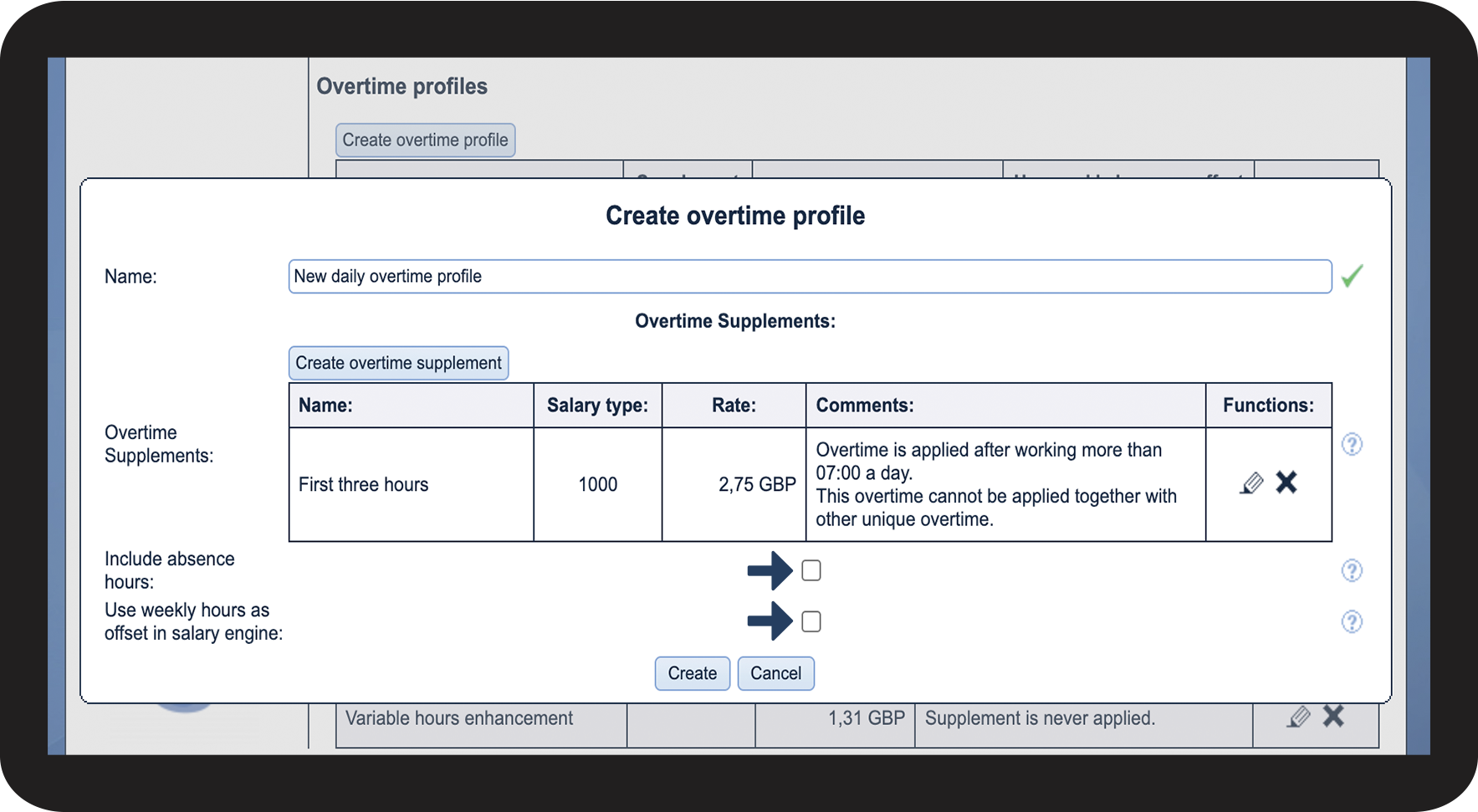
Tick off the box Include absence hours for the overtime profile to include planned absence hours from the calendar, to calculate the number of hours for each employee, thereby triggering overtime pay based on absence hours.


Tick off the box Use weekly hours as offset in wage engine for the overtime profile to calculate working hours based on the time specified in the employee list for an employee's weekly hours and the planned work in the calendar.

Example: You create an overtime profile that is triggered after 40 working hours. For Employee A, you have specified a weekly total working time of 37 hours. In the calendar, there are tasks for the employee that do not trigger overtime pay, as overtime is based on the specified weekly working hours. Therefore, if you create an additional task of five hours, these five hours will be added to the specified 37 hours, thereby exceeding the 40-hour threshold, and the employee will be paid overtime for two hours.

2,8.png
number_9.png

Click on Create to save the new overtime profile

2,9.png


This is how you delete overtime profiles

number_1.png
Go to Settings Wage and supplement rates in the menu

1.1.png

number_2.png

Scroll down to the section Overtime profiles and click on Delete Slet.png for the overtime profile you want to remove
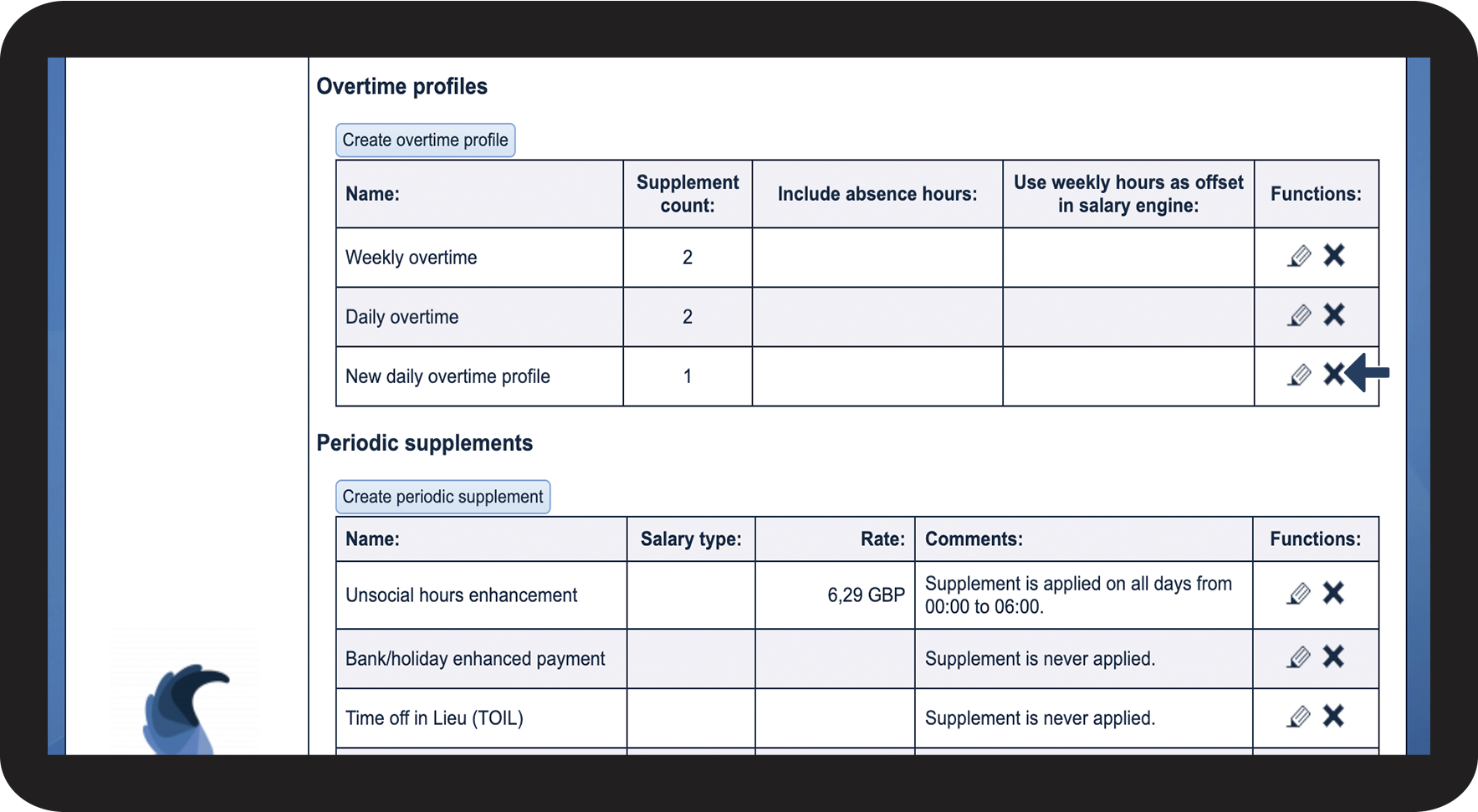
 

(You can delete overtime profiles even though they have been assigned employees. After being deleted, the employee will simply not be receiving any overtime pay until a new one is assigned to them)

3,2.png

number_3.png

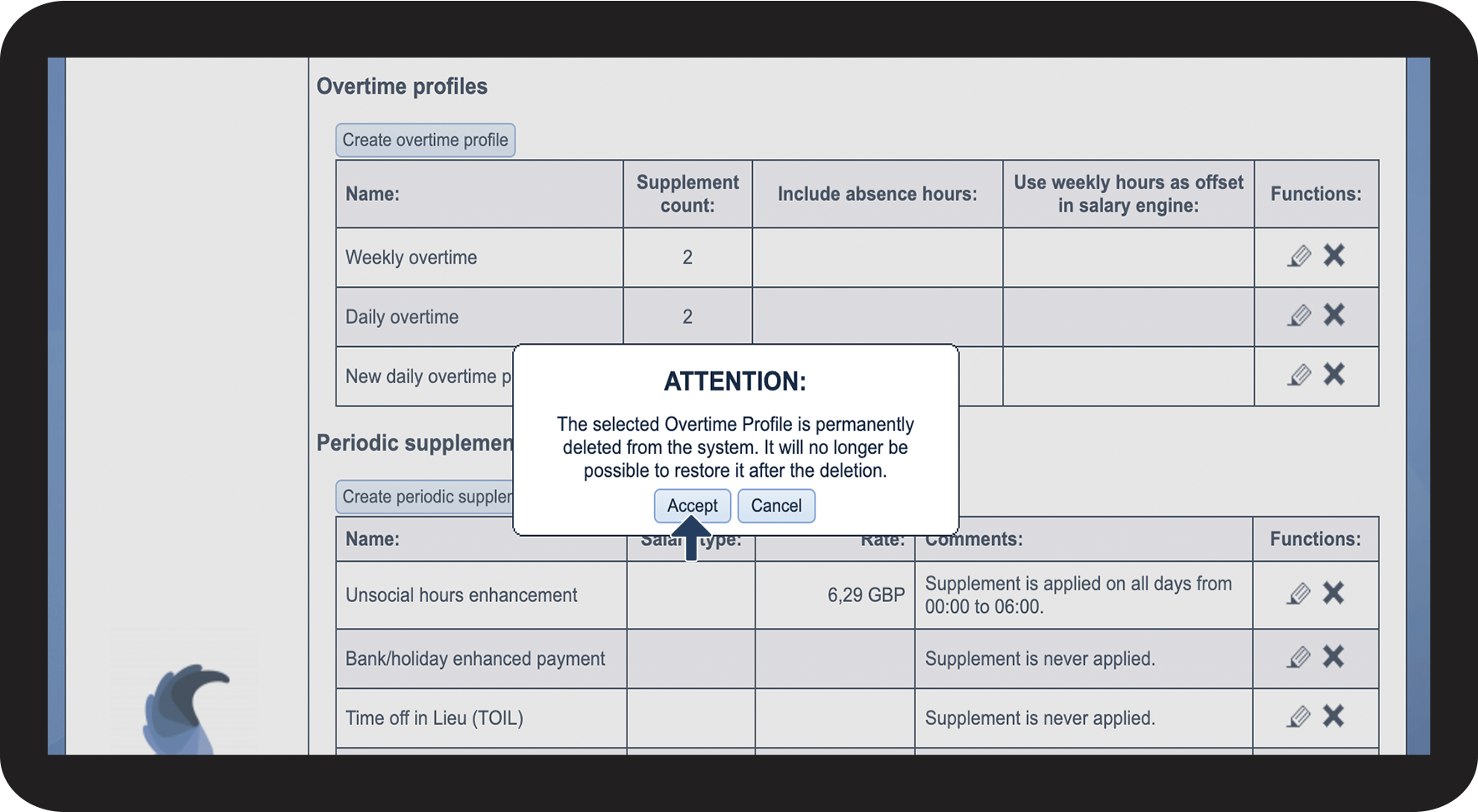
Click on Accept to complete the process.


(You will not be able to recover this profile)

3,3.png


This is how you activate overtime profiles
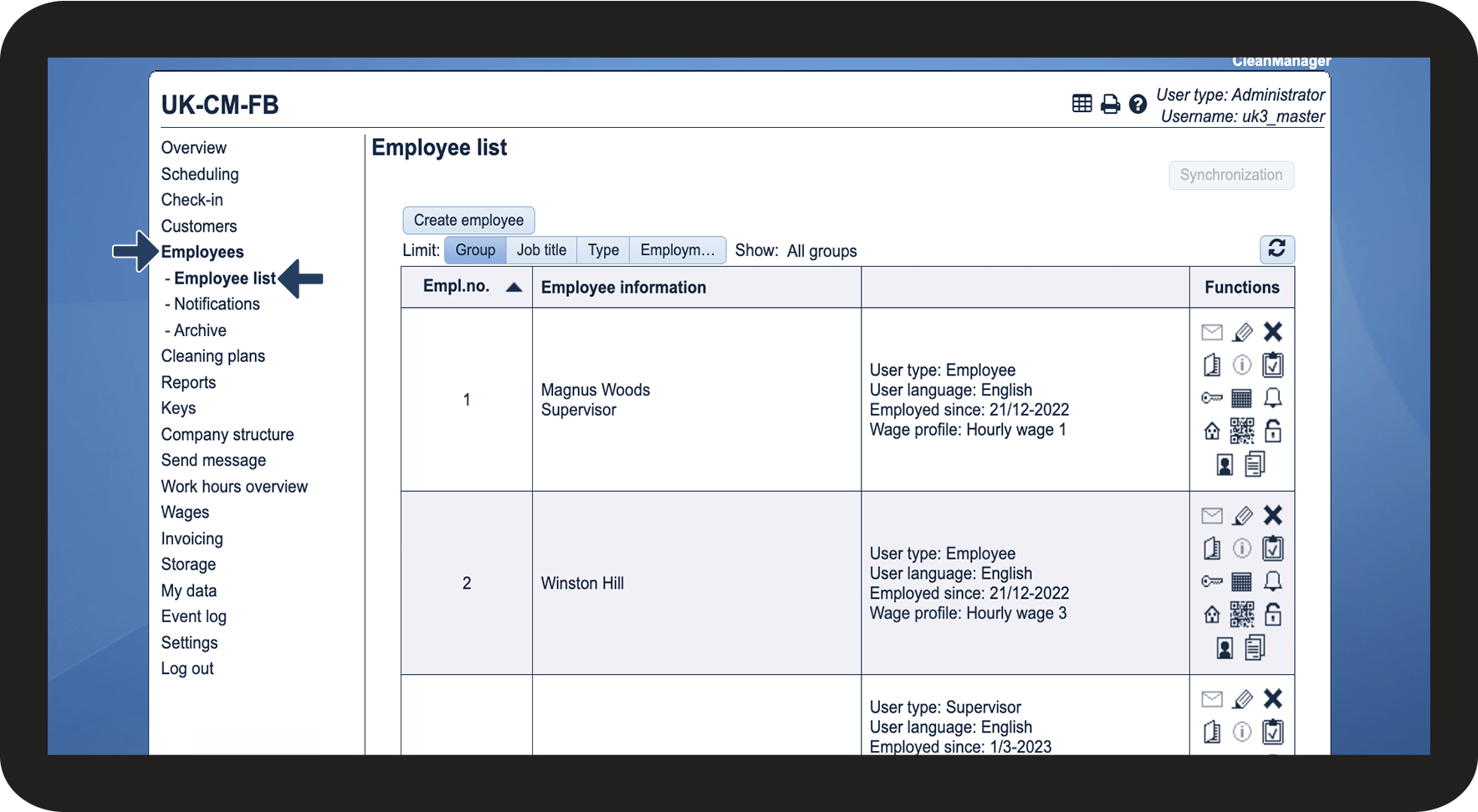
number_1.png

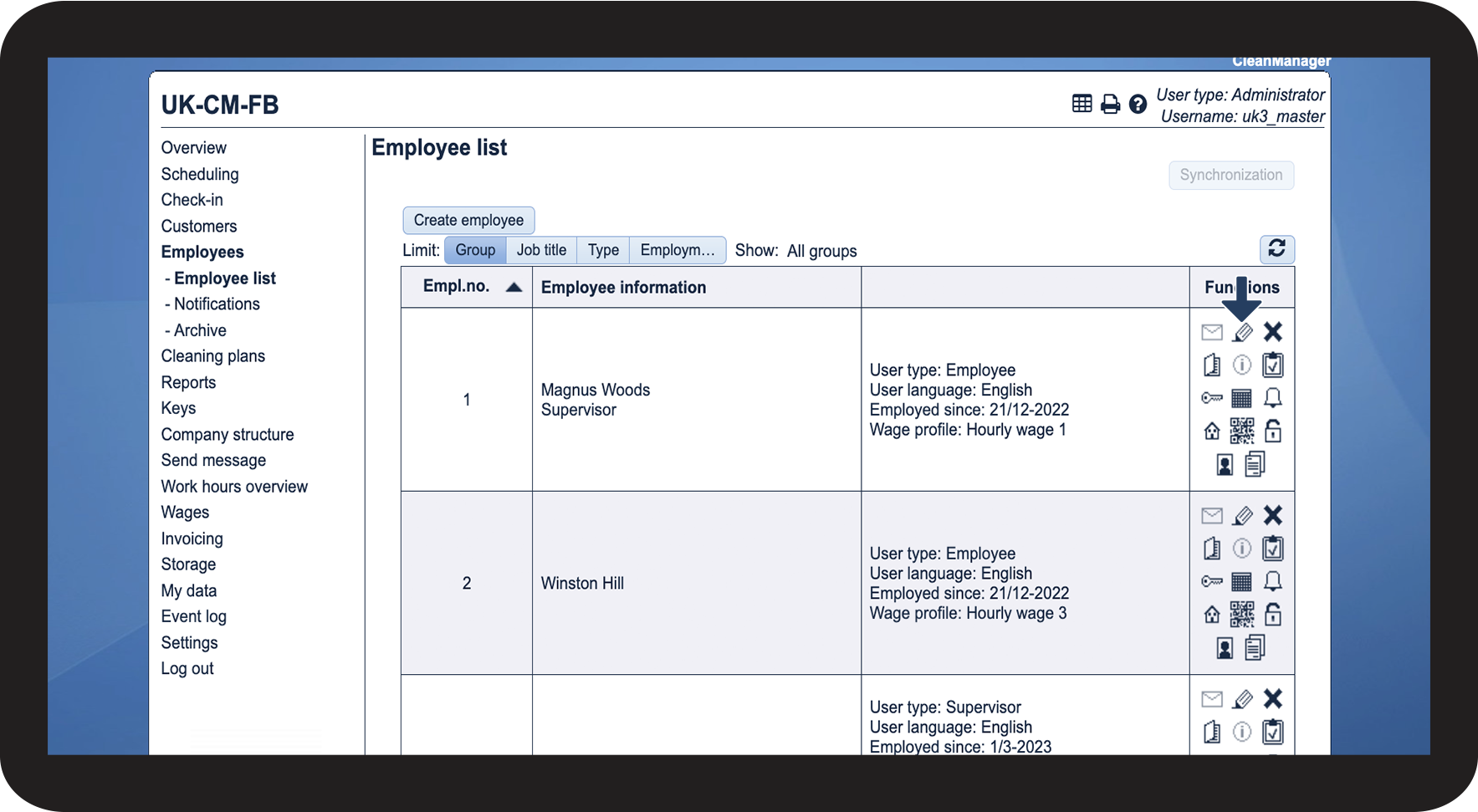
Go to EmployeesEmployee list

4,1.png

number_2.png

Click on Edit employee rediger.png for the employee you wish to edit

4,2.png

number_3.png

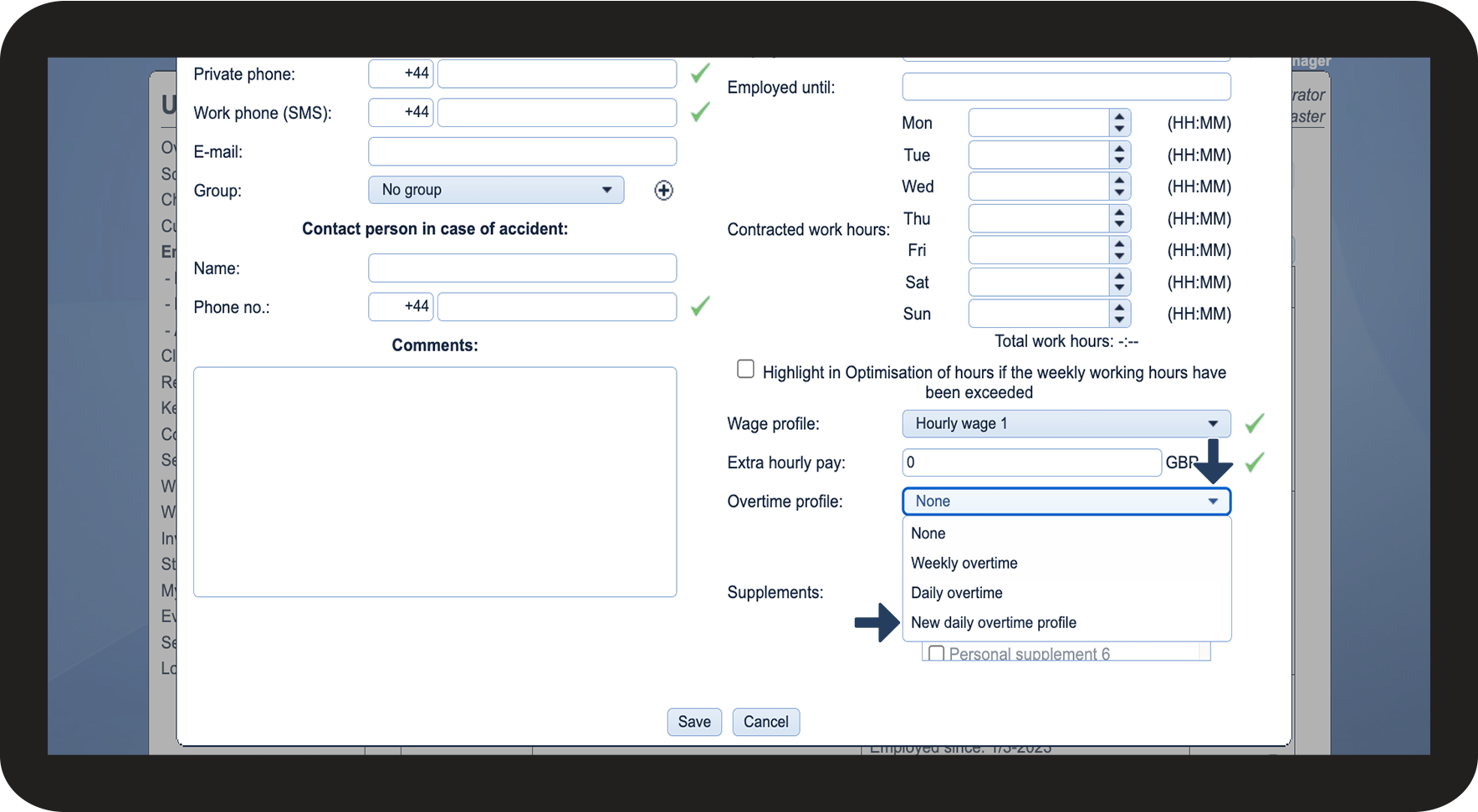
At Overtime profile, click on the dropdown menu, to select an overtime profile

4,3.png
number_4.png

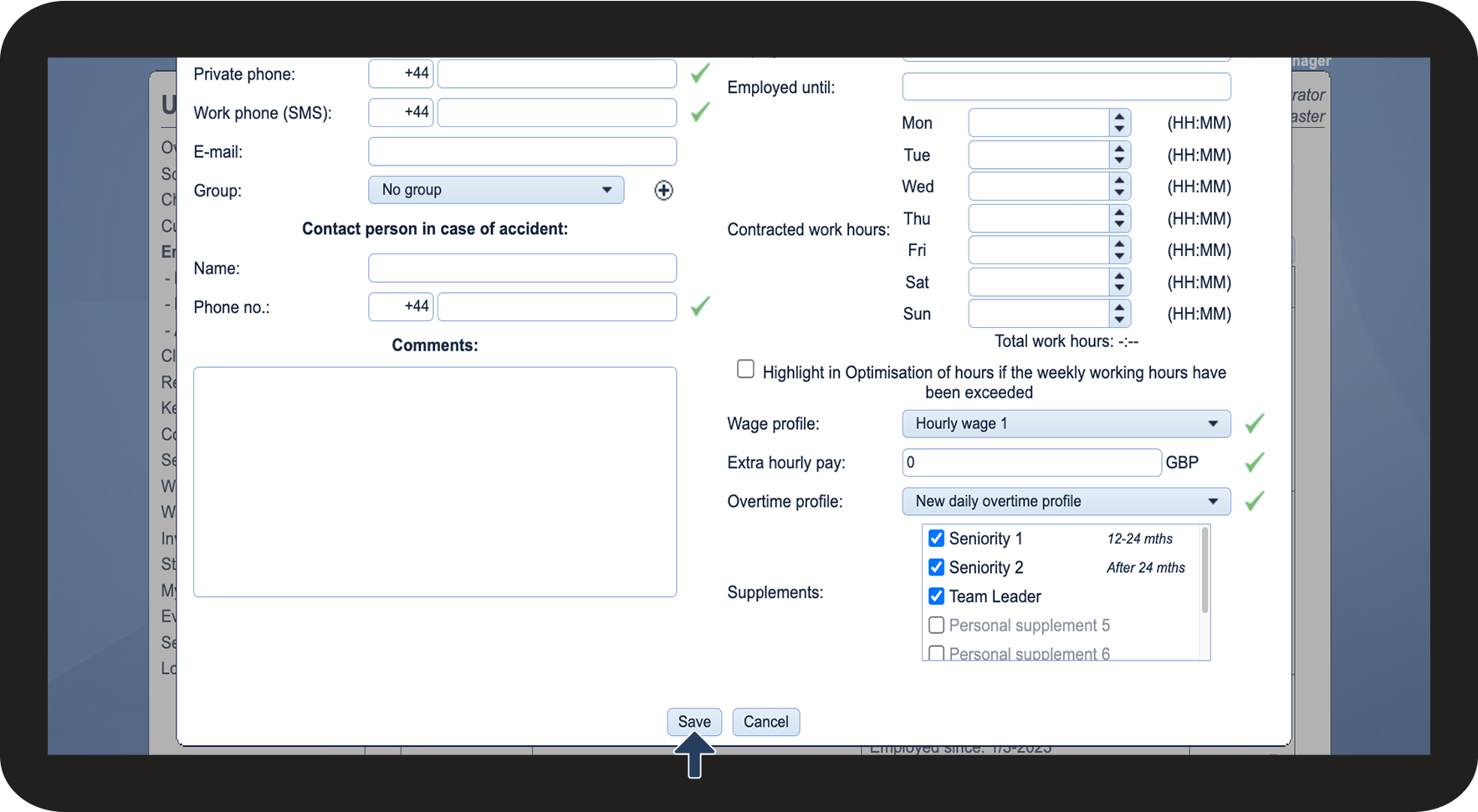
Click on Save to complete the process

4,4.png