Skip to content
English
  • There are no suggestions because the search field is empty.

Online meetings with screen share

How do I join an online meeting together with CleanManager employees?

At CleanManager we use the system Whereby for our online meetings.

Whereby is a quick system for joining meetings directly to our employees.

You gain a personalized service experience, and we can share information and screens in a secure online environment, whether it is for product showcasing or for succes-meetings, so you gain the full value of your CleanManager account.


See more here in the article on how to use Whereby:


Connect to a meeting room

When you need to connect to a meeting room with CleanManager, you will be forwarded a link similar to this in your scheduled meeting invitation: https://cleanmanager.whereby.com/pmm
Copy/Paste the link to your browser tab and afterwards you can set up your connection to the meeting room:

number_1.png
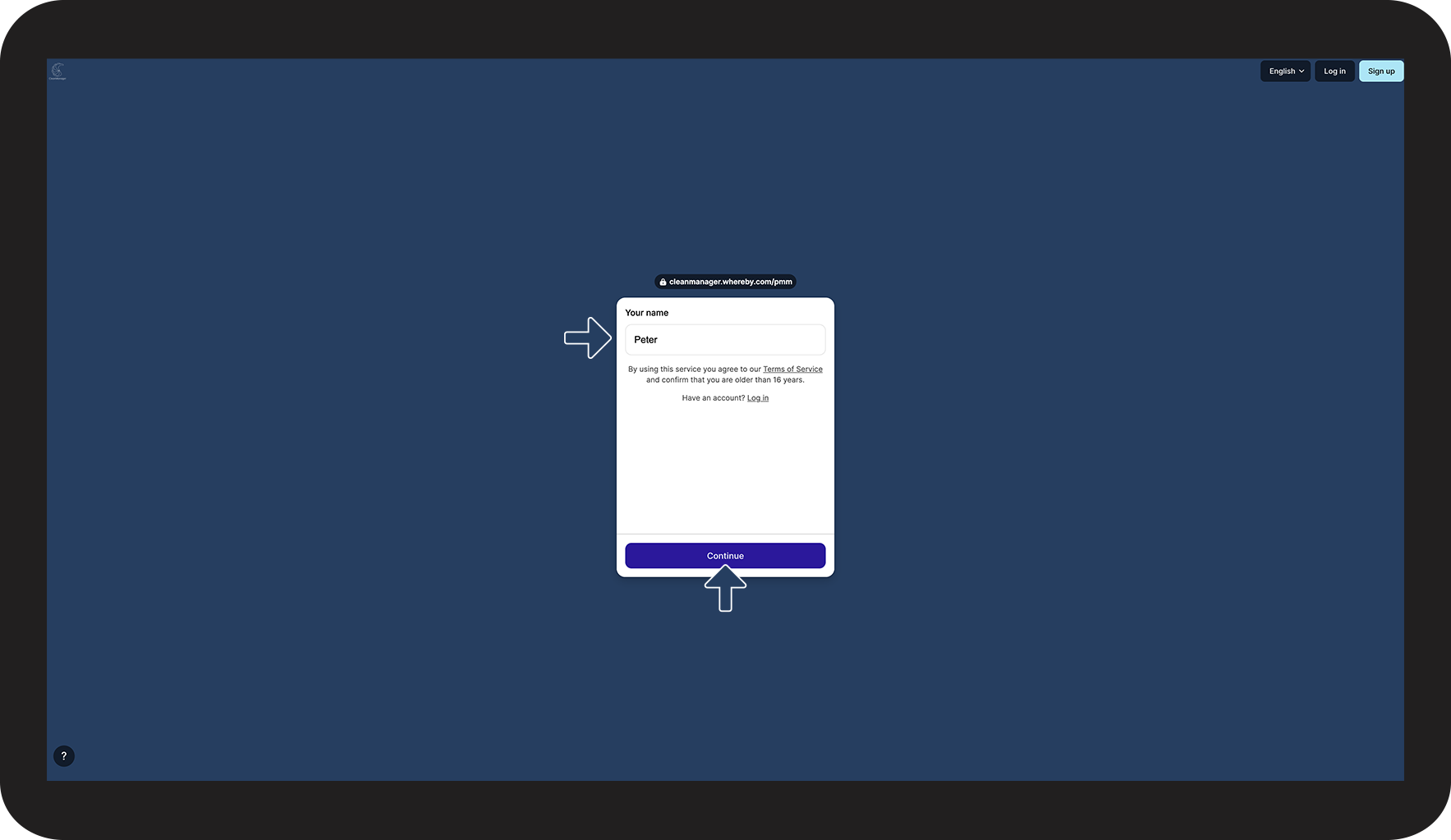
When you type in the link in your browser you will end up in the lobby of the meeting room.
 
Fill in Your name and press Continue 

Opret_adgang_1.png


number_2.png
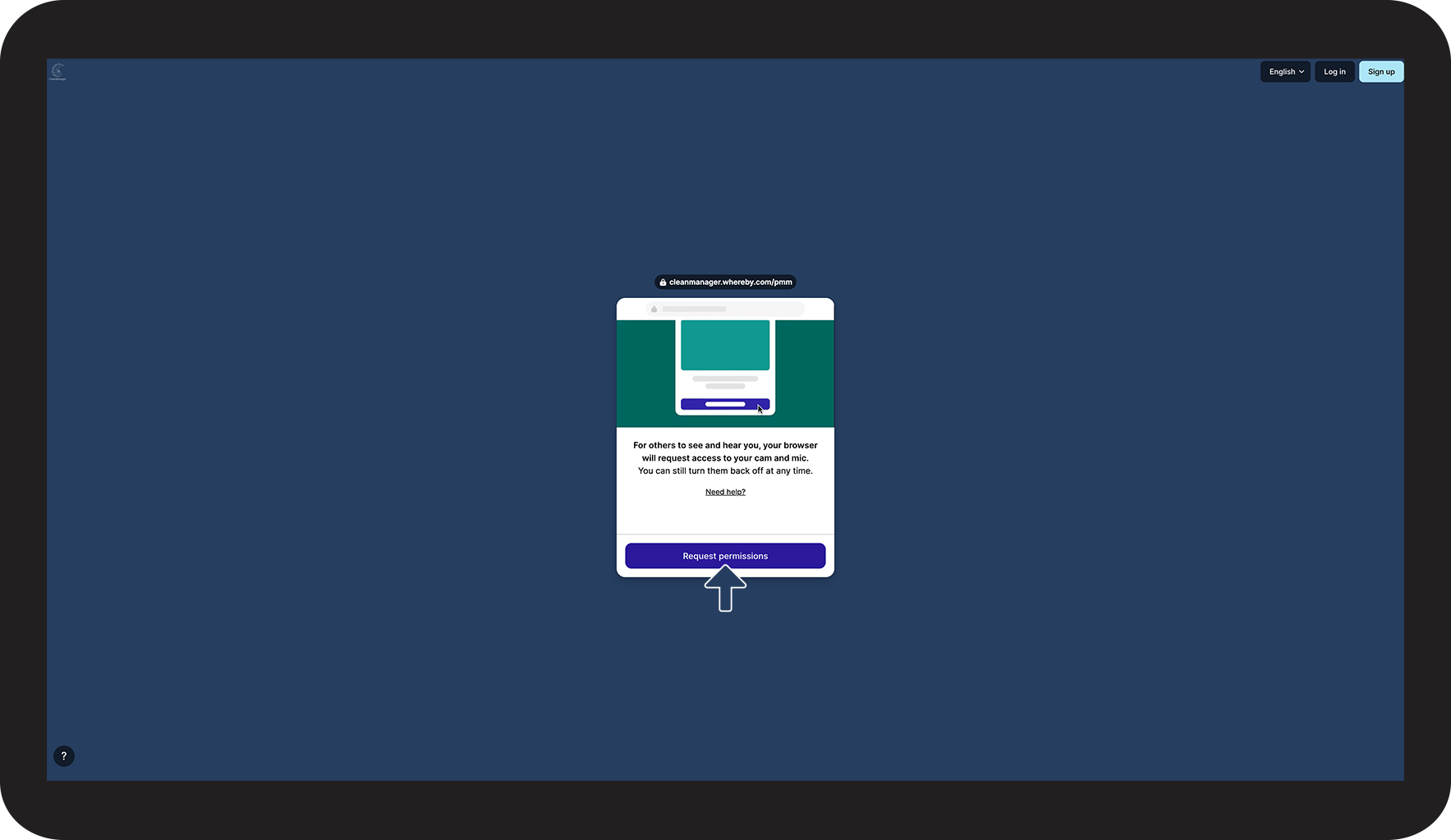
Click the button Request permissions to give Whereby access to your camera and microphone

Opret_adgang_2.png


number_3.png
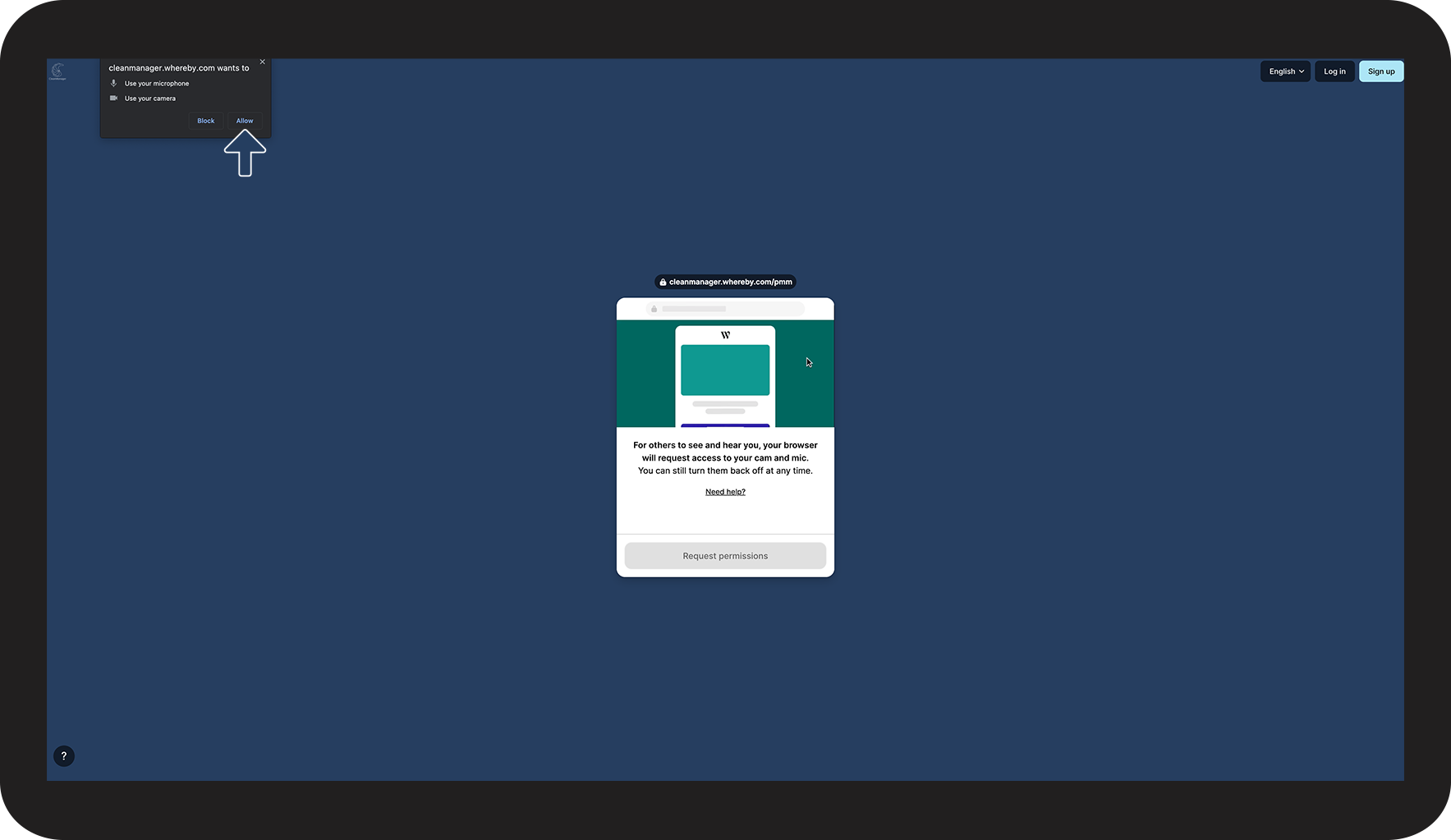
Click on Allow to accept

Opret_adgang_3.png


number_4.png

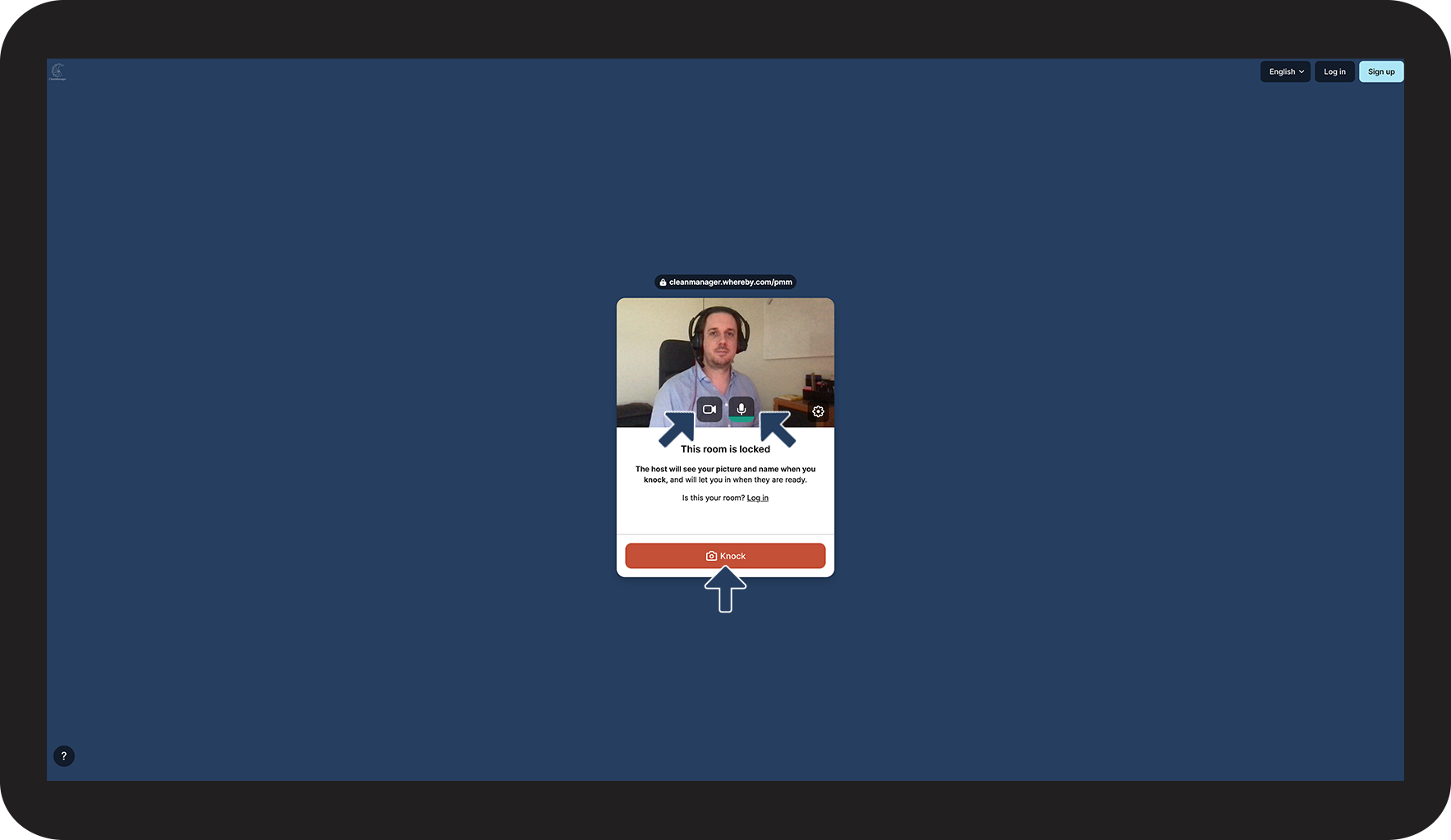
You can now see what your camera shows, and you can see that the microphone is recording sounds, by the green bar is going up and down when you speak.

 
Press the button Knock to request to join the meeting.

Opret_adgang_4.png


number_5.png
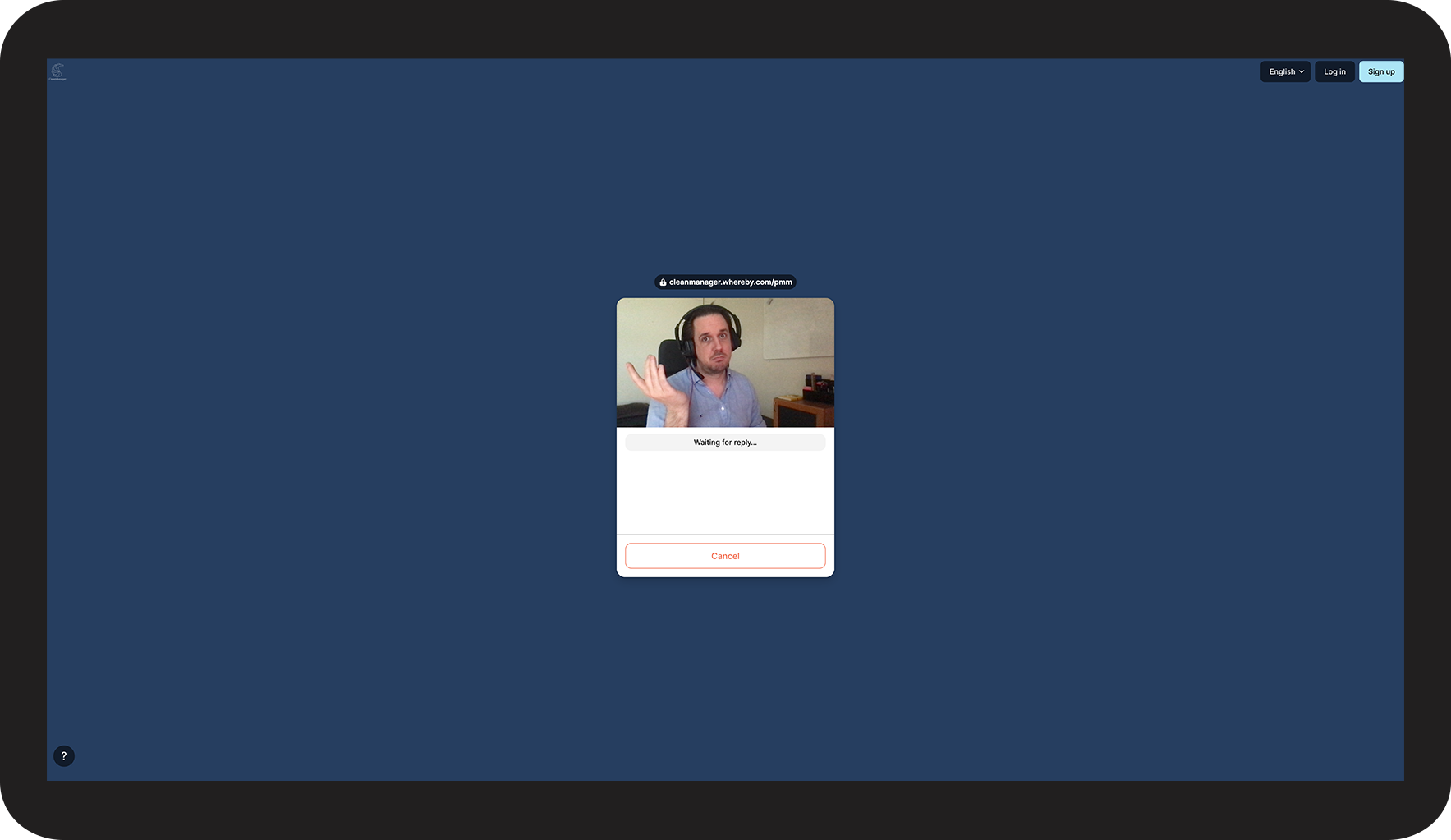
Wait for our employee to let you in to the meeting room.
 
That is also how we ensure that no one else, except the planned participants, joins the meeting.

Opret_adgang_5.png


number_6.png
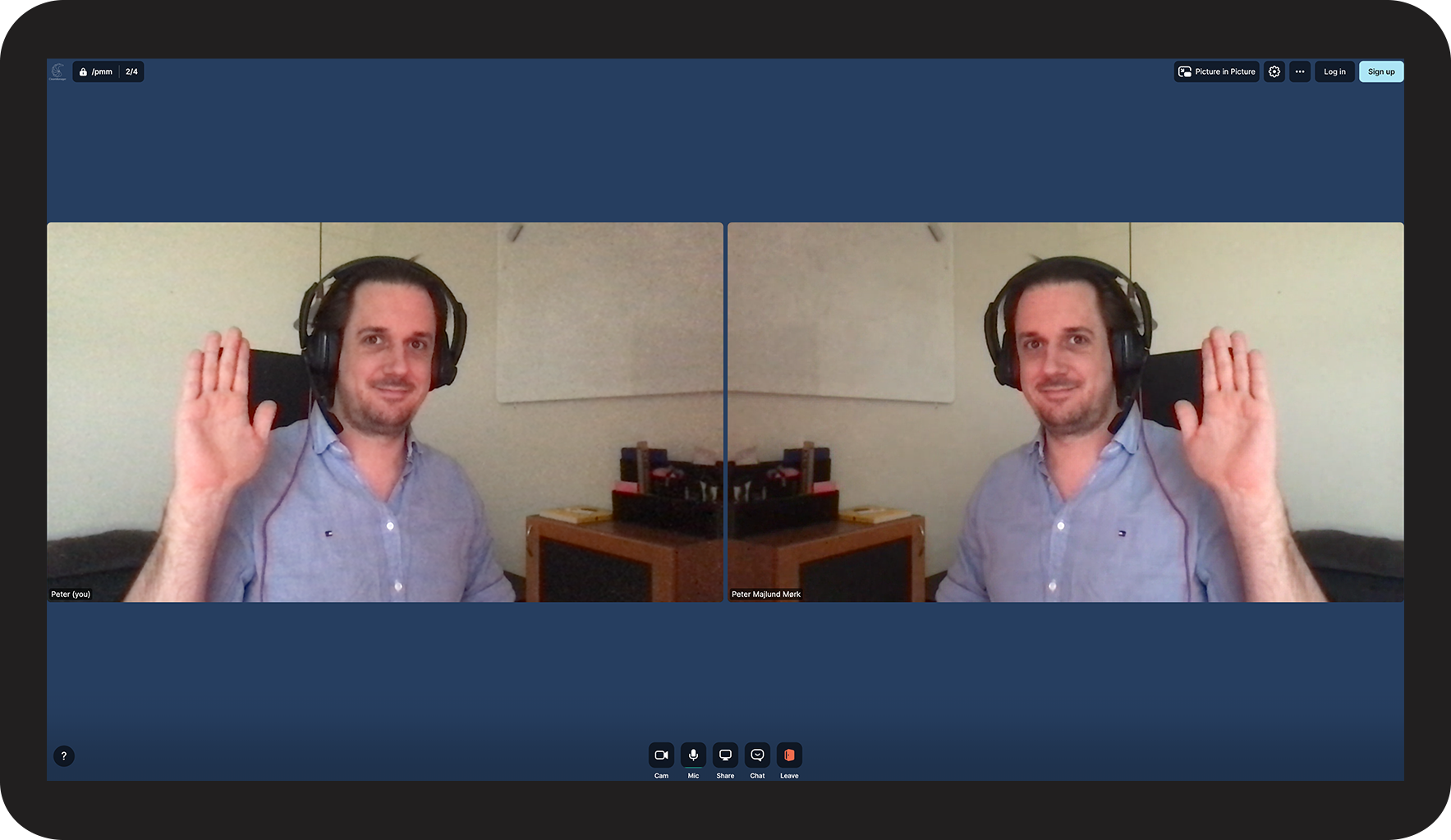
When our employee lets you in, the meeting will commence
Opret_adgang_6.png


Share your screen

Get the best and most efficient help to your account by sharing your screen with us.

By doing so we can go through your account together, or support you with your third-party software:
number_1.png
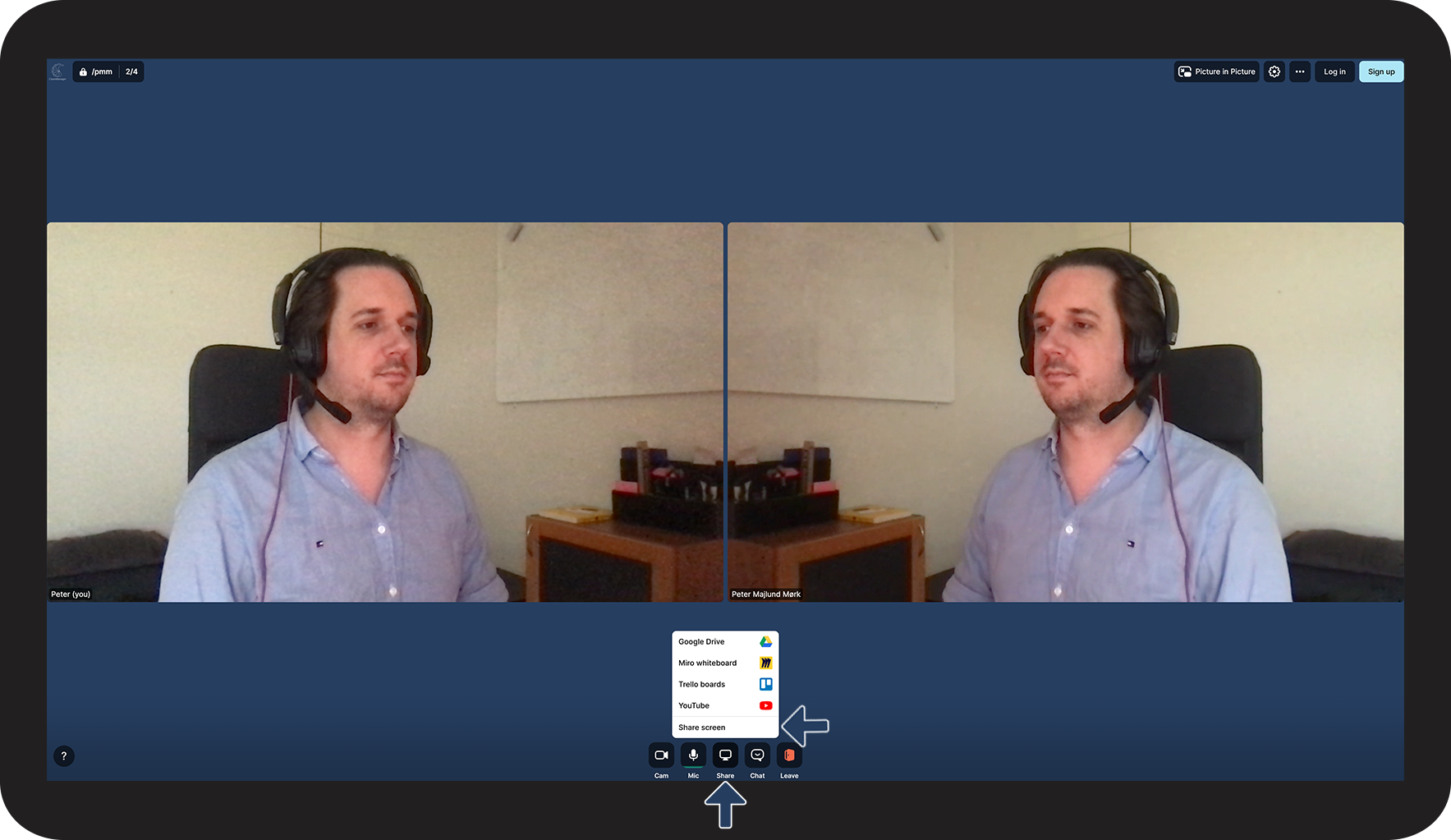
Click the Share button followed by selecting Share screen from the menu

Sk_rmdeling_1.png


number_2.png
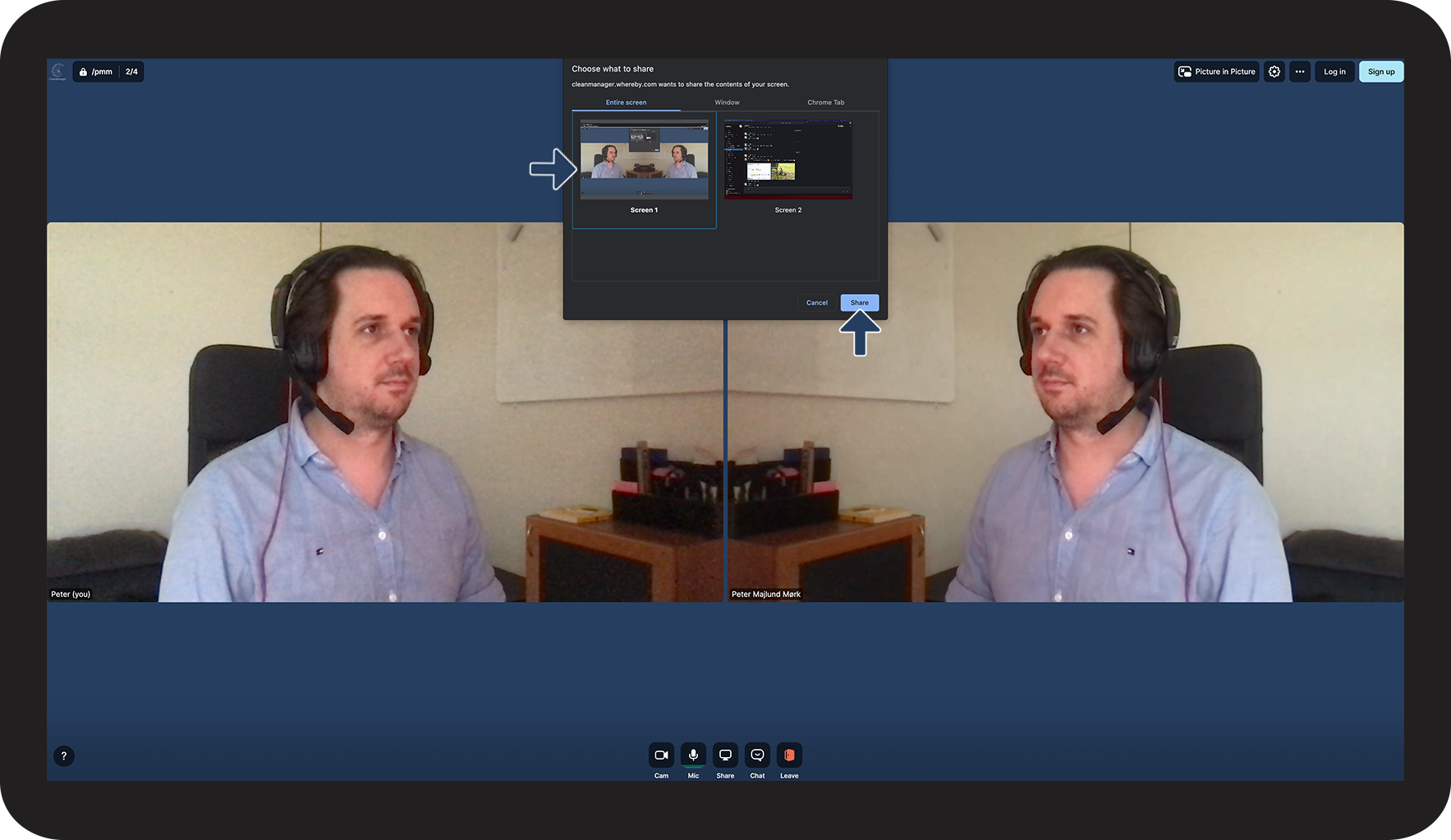
Select the screen you would like to share
 
Continue by clicking Share

Sk_rmdeling_2.png


number_3.png

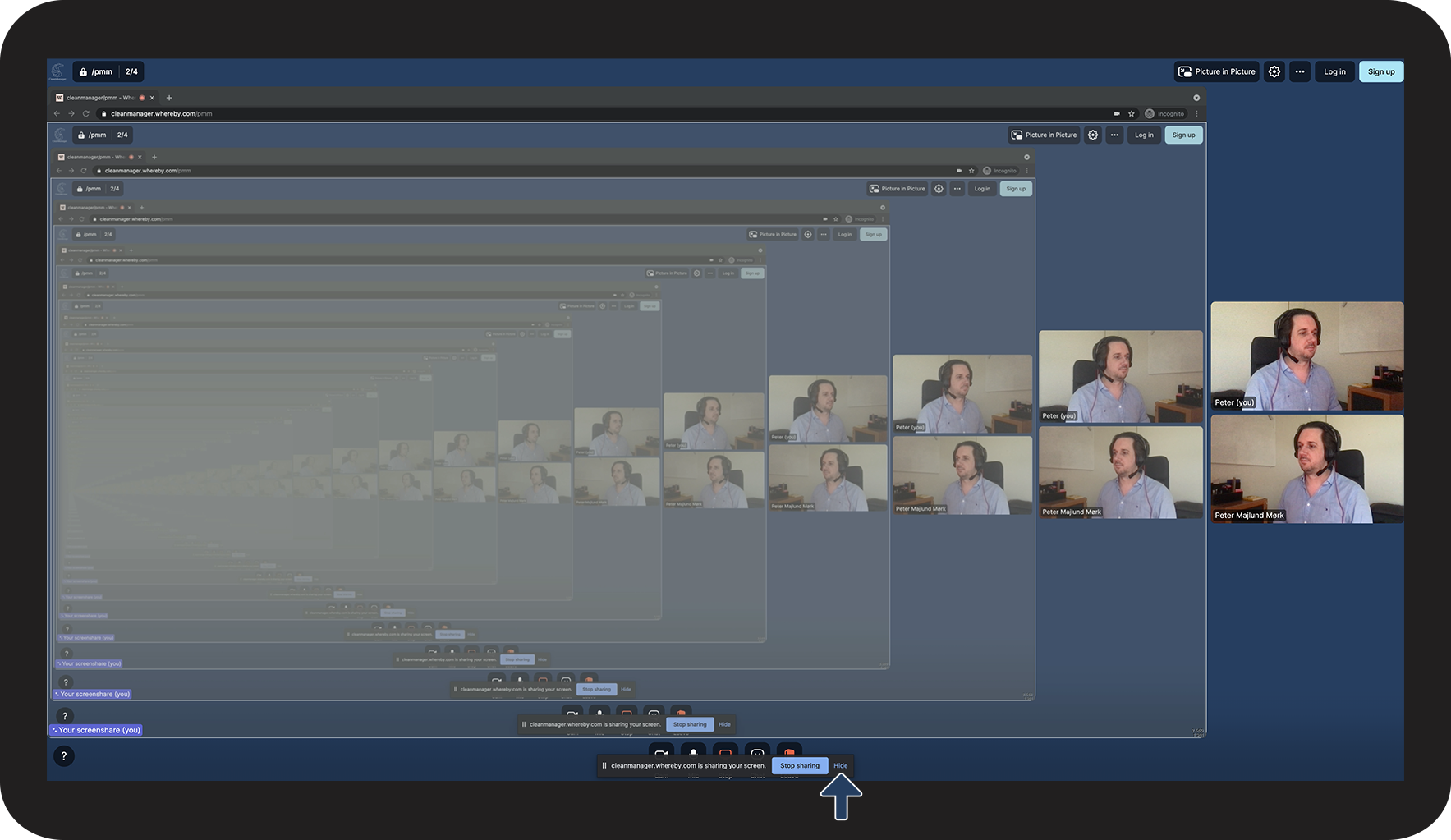
Your screen is now being shared. At the bottom, you will be shown that you are now sharing your screen. Click on Hide to remove this information.

Sk_rmdeling_3.png


number_4.png

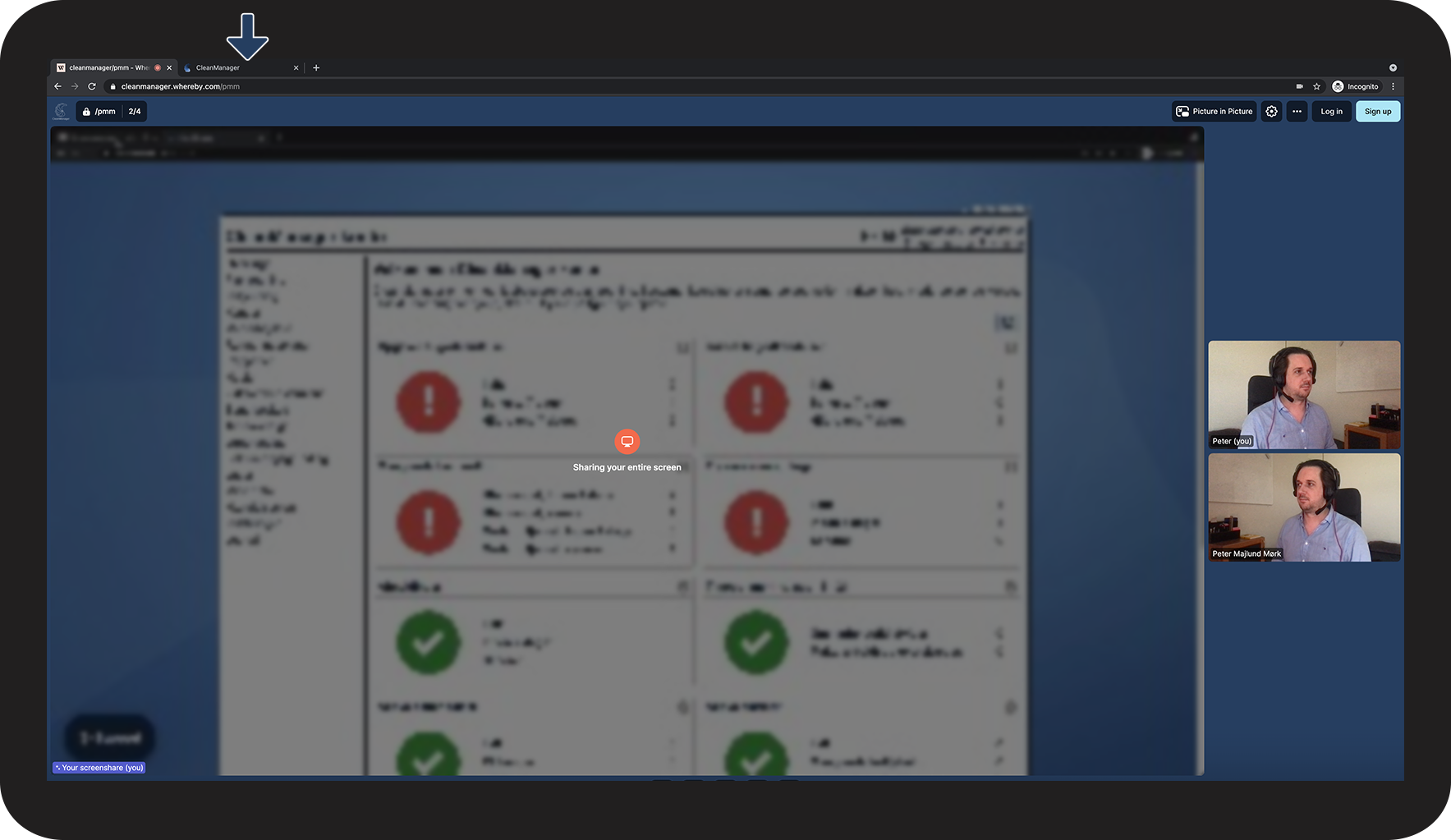
Change to another browser tab to show us your account, or show us other systems that you would like to share with us. 

Sk_rmdeling_4.png


Stop screen share or leave the meeting room
number_1.png
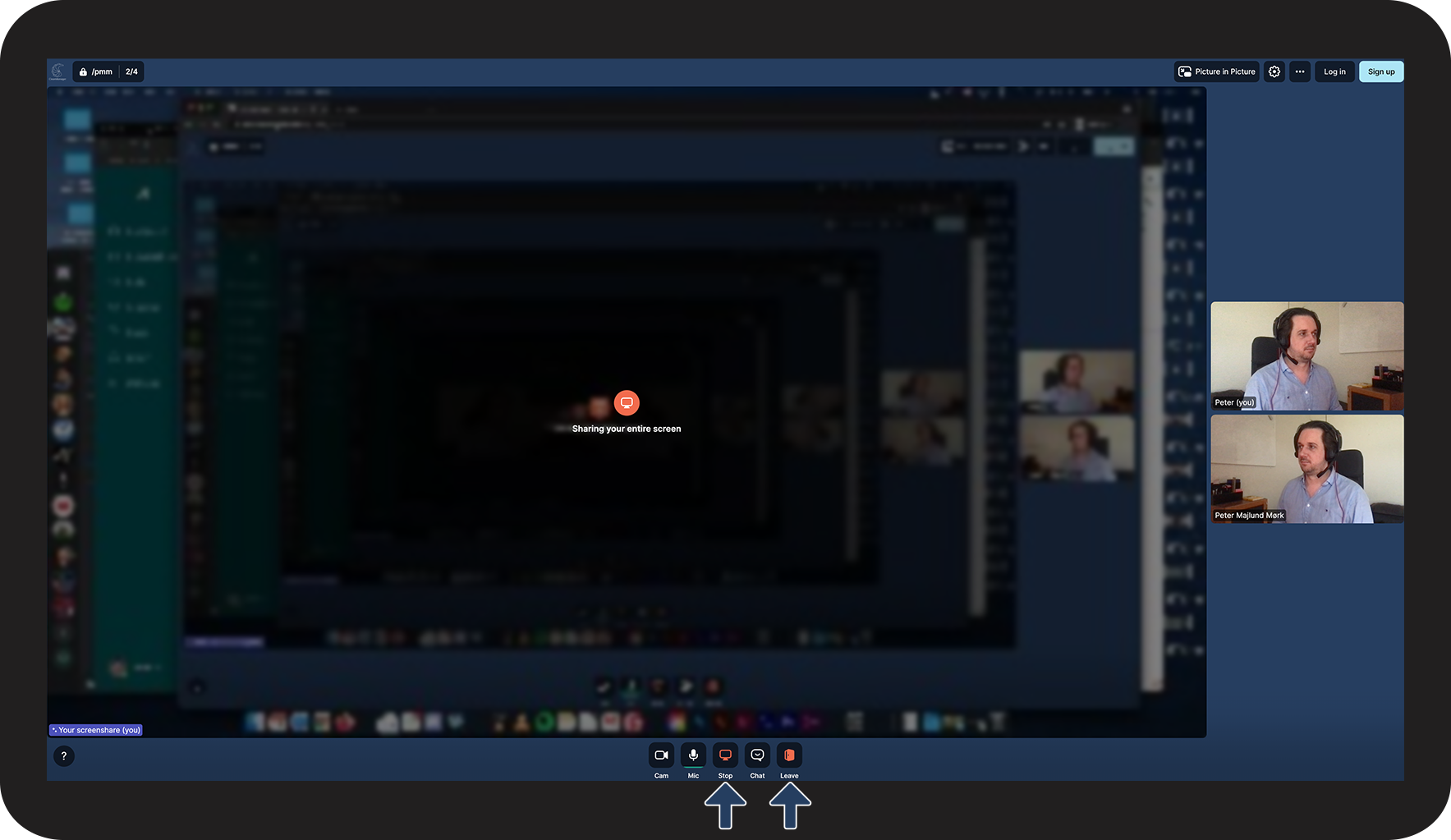
Click on Stop to deactivate your screen sharing
 
Or click on Leave to leave the meeting room
Stop_sk_rmdeling_eller_forlad_m_det.png