
What do I do if my device breaks down, while I am filling out a report?
It is sadly within the realm of possibility that our battery runs out of power at the most crucial moments or that our computer breaks, because of unforeseeable reasons.
But what to do, when the device one uses for filling out a report breaks down while filling out a report?
While filling out reports, CleanManager makes safety copies of your reports to ensure, that in case something goes wrong before they have been finished, they can be recreated.
NOTE:
The system makes a safety copy every minute. This means that even if a report can be restored, there is a chance that some information may be lost.
In this article, you will learn what you can do if the filling out process of your report is interrupted:
This is how you can restore a report on a computer



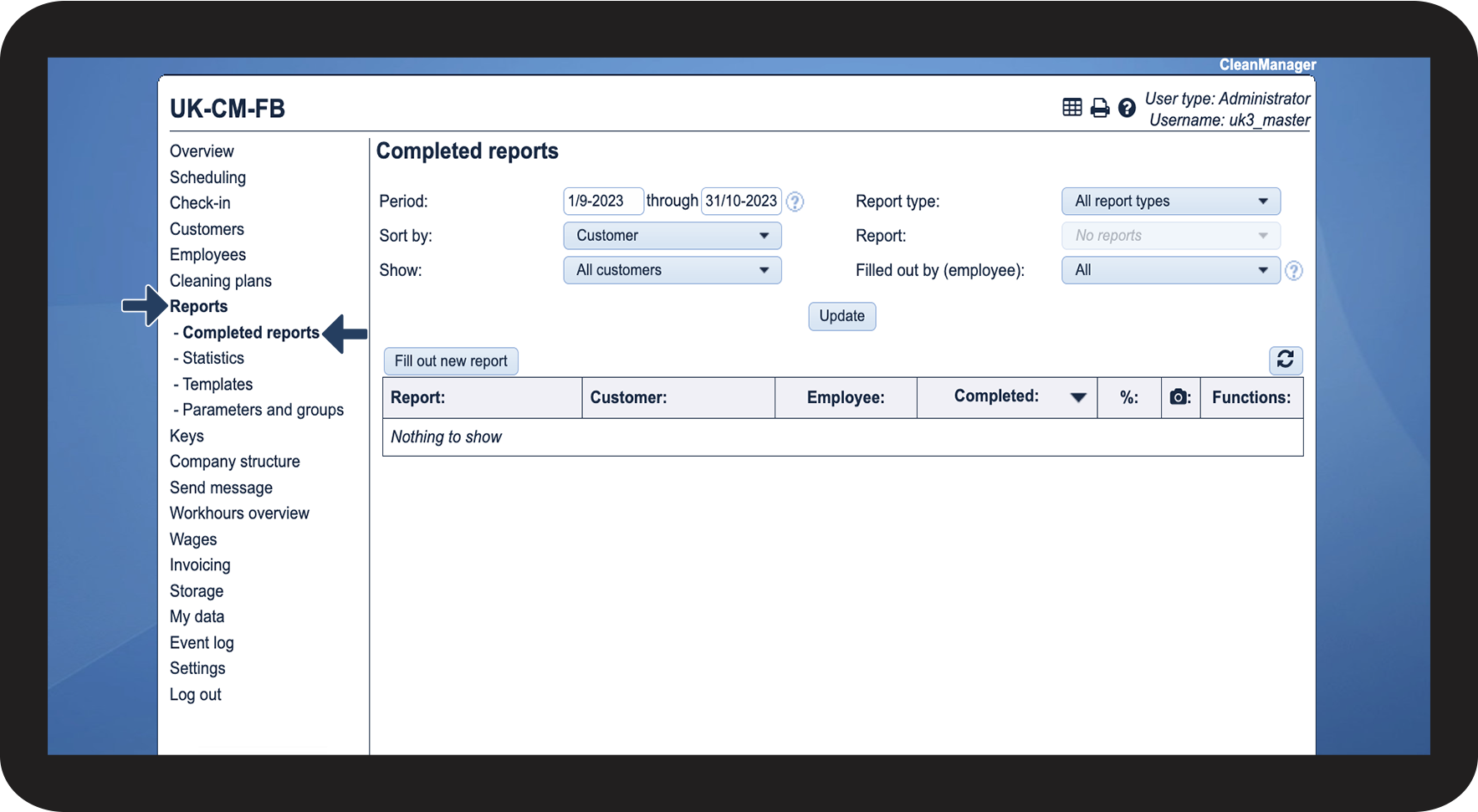

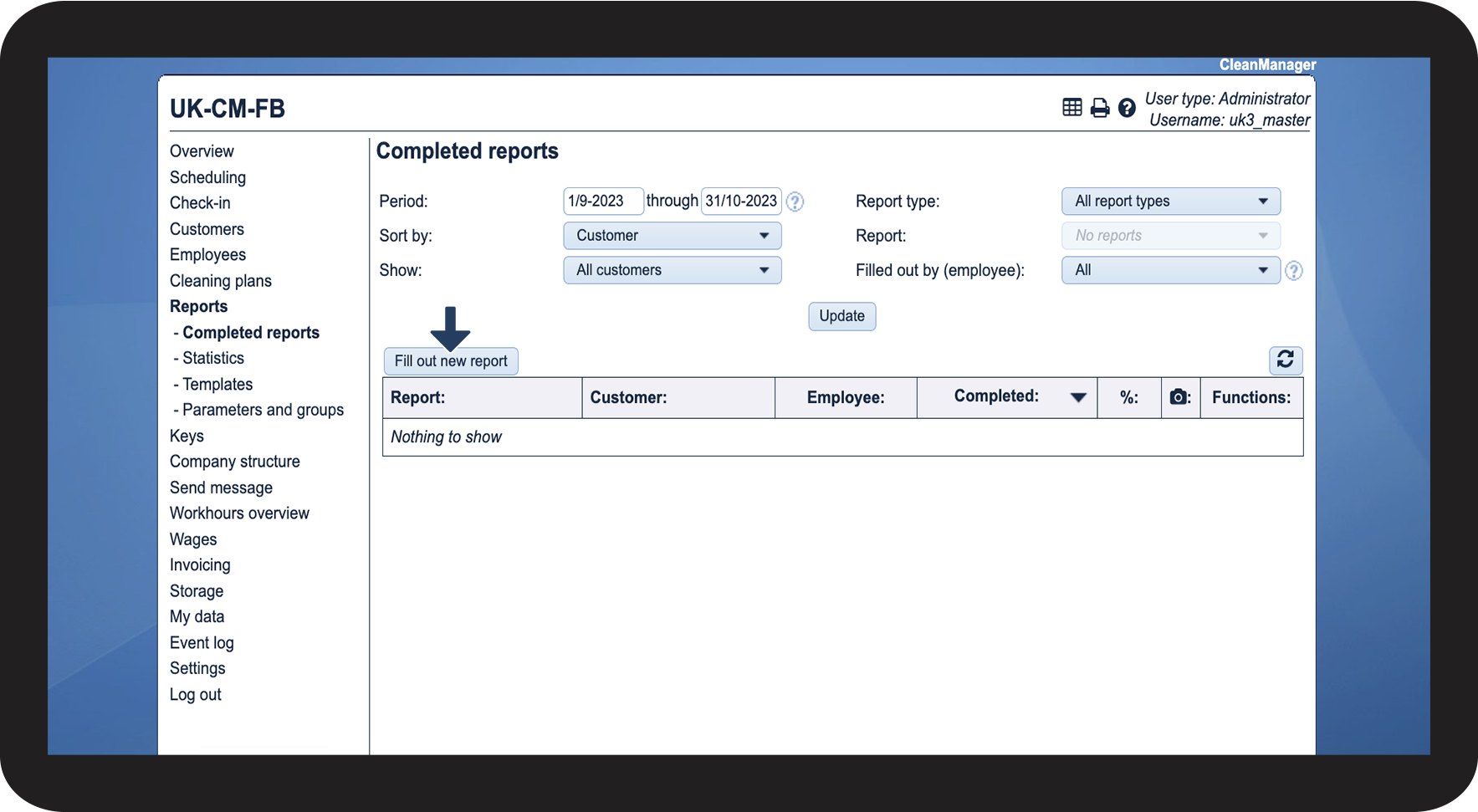

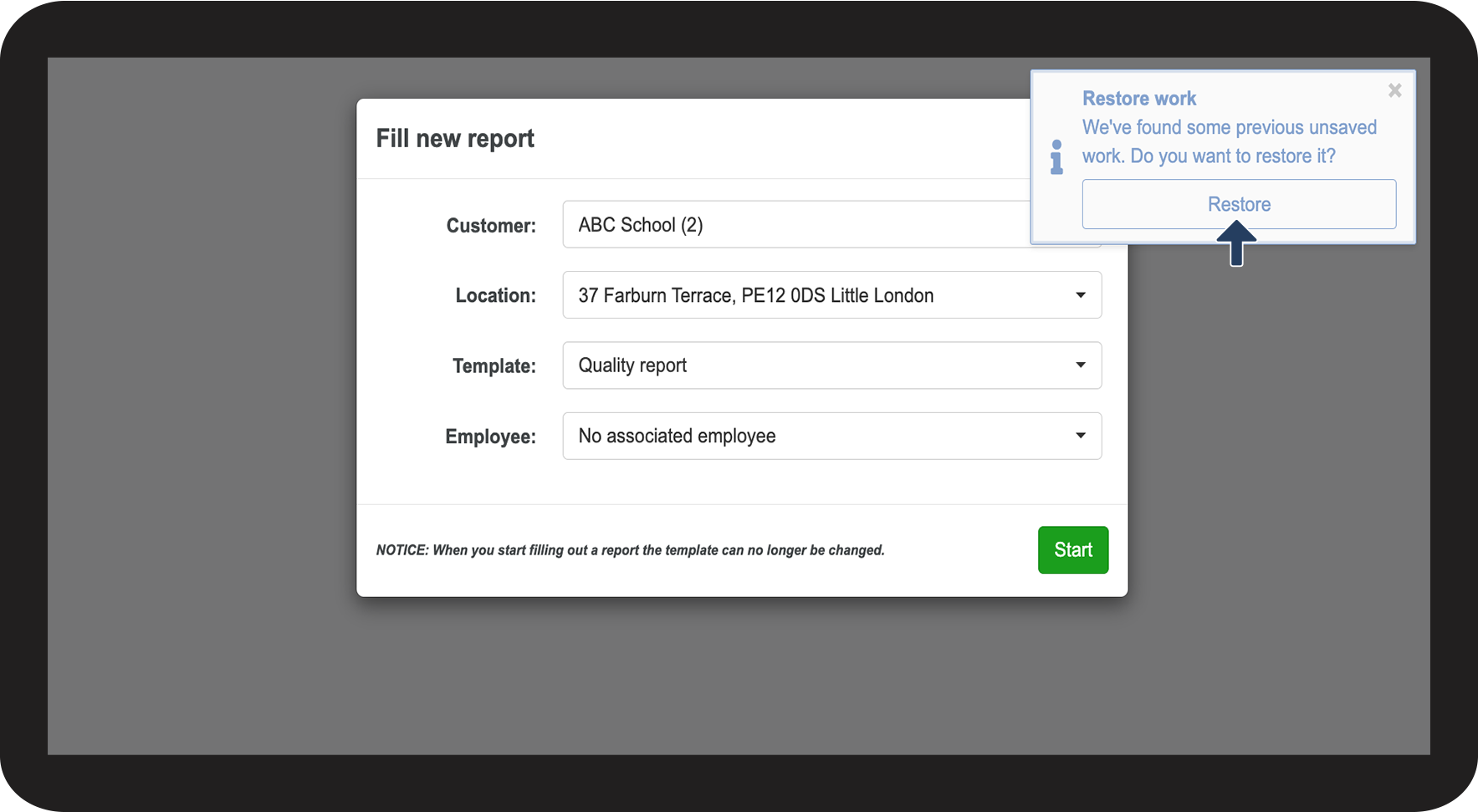
NOTE:
This box only appears at an inadvertent shut-down of a report. It will not appear if you close down the tab (where the report is open) yourself and click on Don't save/Leave.
If you close the box Restore work (by clicking on X) then the report will be permanently deleted with no way of restoring it again. This will also be the case when you start filling out a new report by clicking on Start.
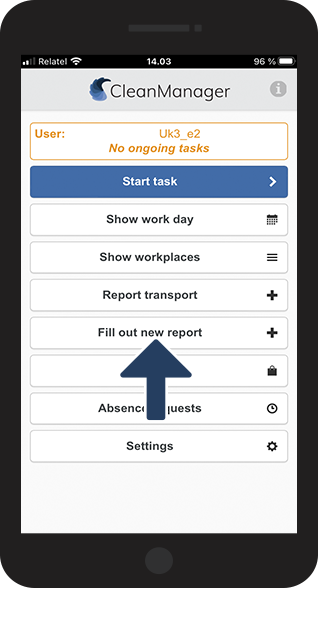
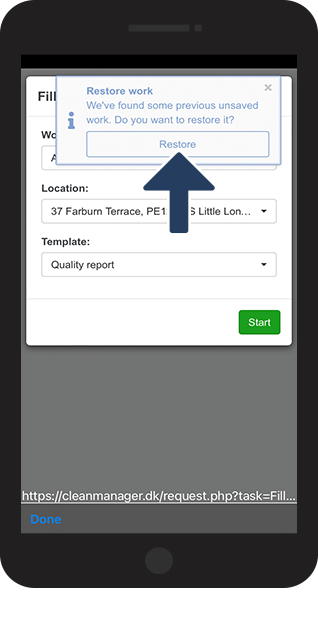
This is how you can restore a report in the app
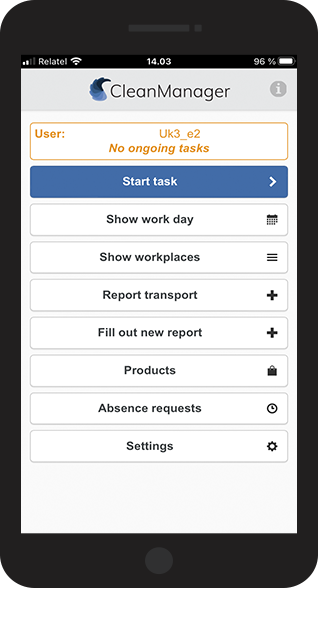
NOTE:
If you close the box Restore work (by clicking on X) then the report will be deleted permanently, with no way of restoring it. This will also be the case when you start filling out a new report by clicking on Start.