Skip to content
English
  • There are no suggestions because the search field is empty.

Managing employee notifications

How do I manage notifications for my employees?

You can manage employee notifications from two different parts of the system; Either from the Overview or from the menu item Employees. Continue reading as we will explain the two different ways to manage notifications, as well as the meaning of each column.


In this article, you will learn how to manage your employee notifications:


This is how you manage notifications from the Overview

number_1.png
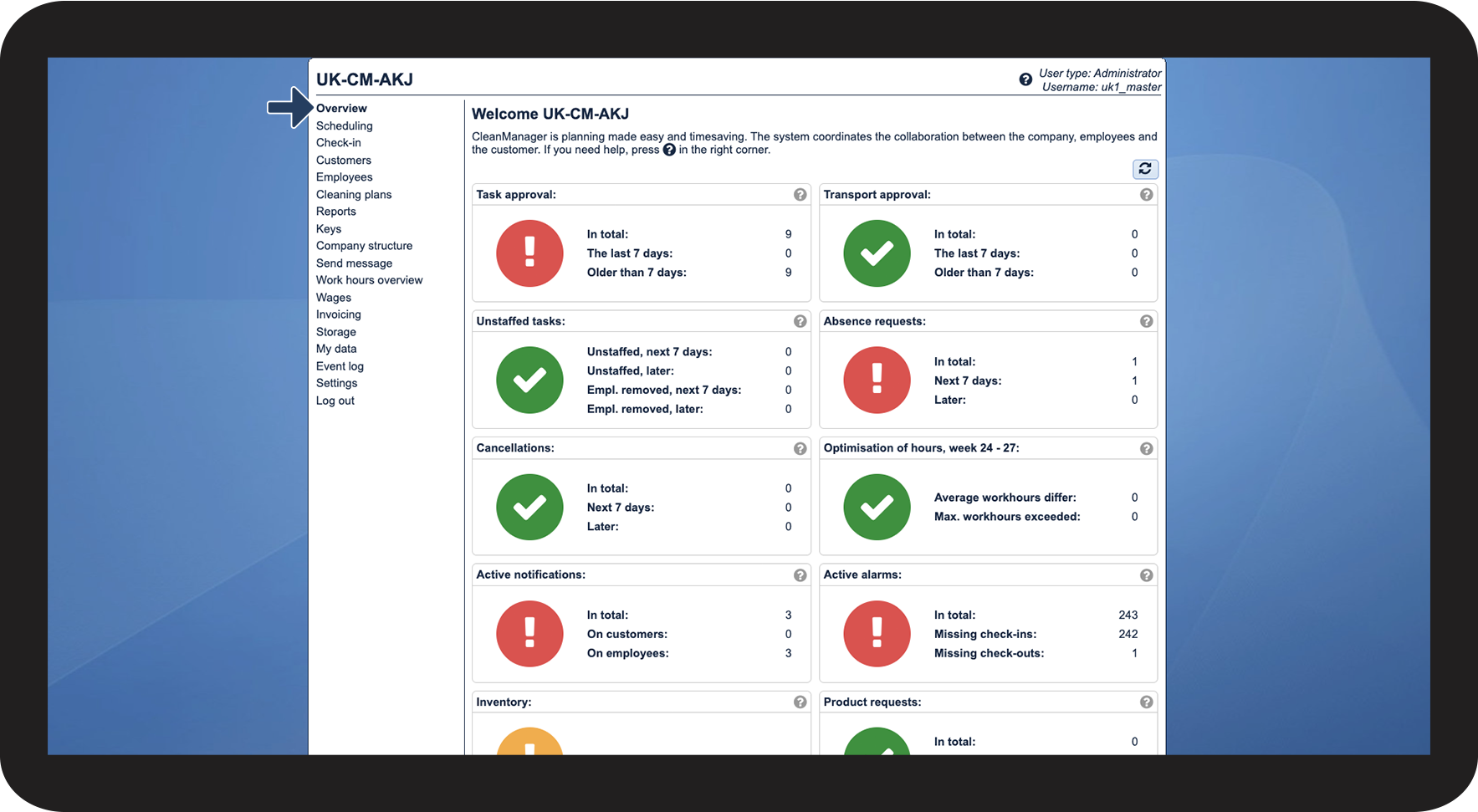
In the menu, go to Overview

1.png

number_2.png
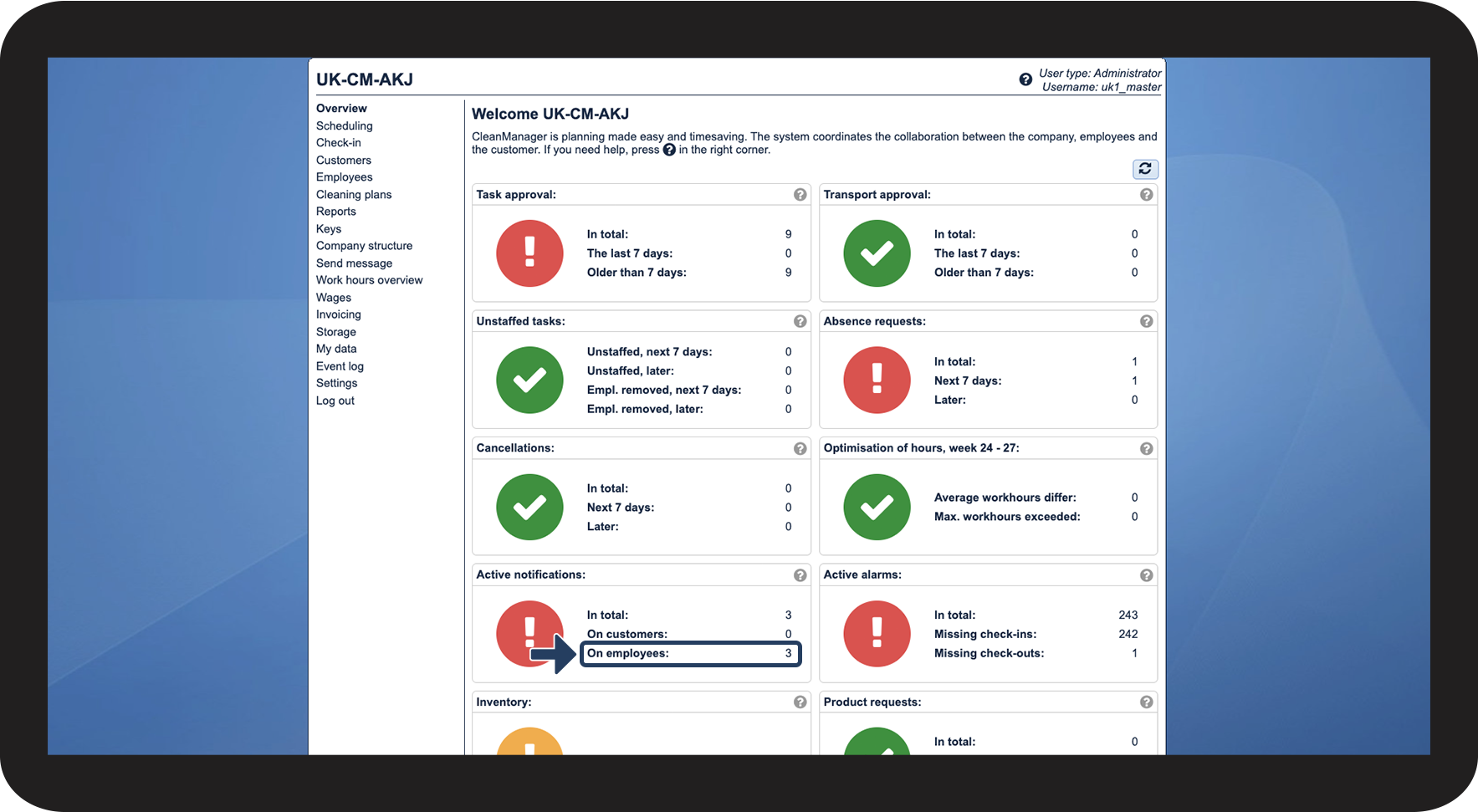
In the box Active notifications, click on On employees

2.png

number_3.png
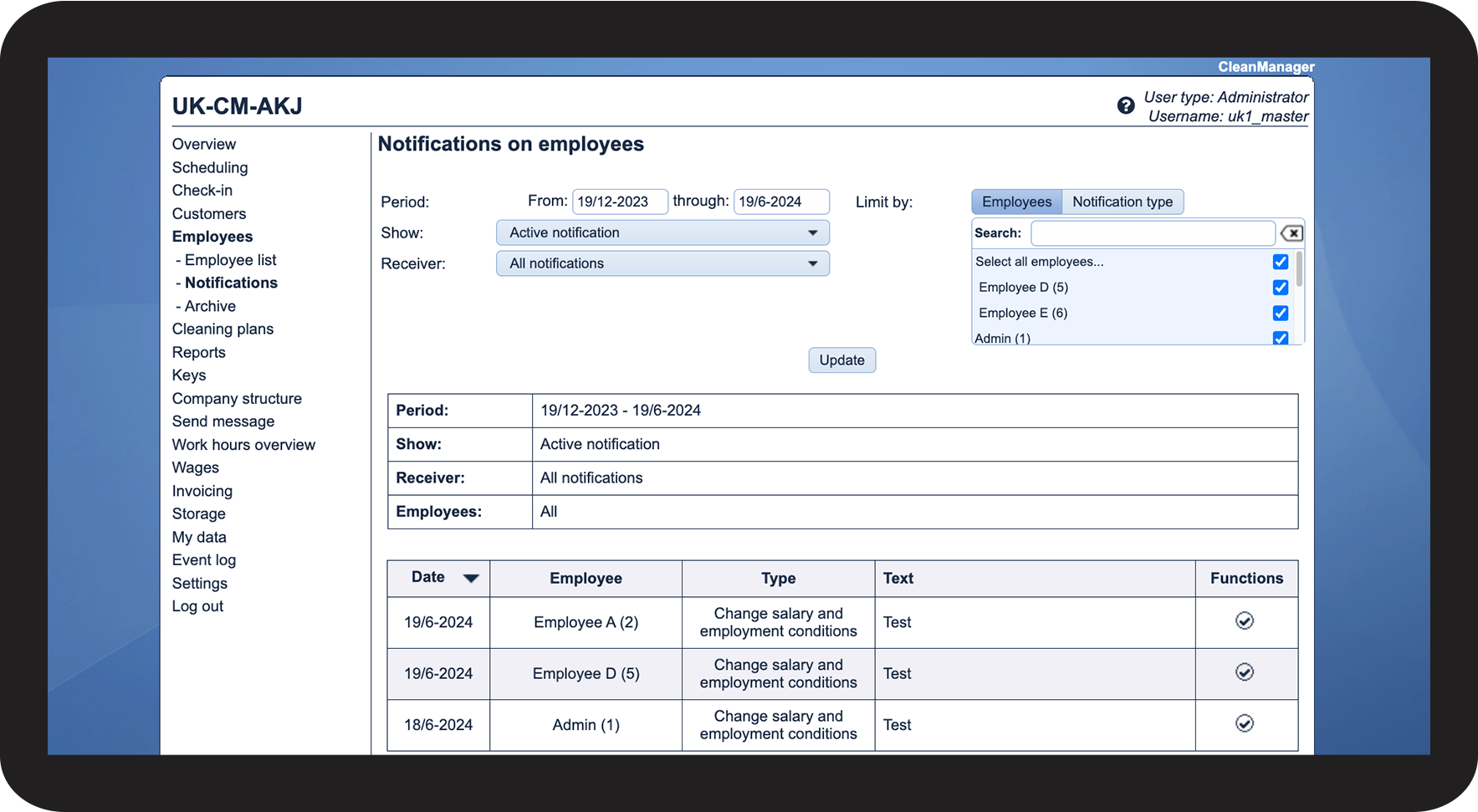
You will now be redirected to Notifications on employees

3.png

number_4.png
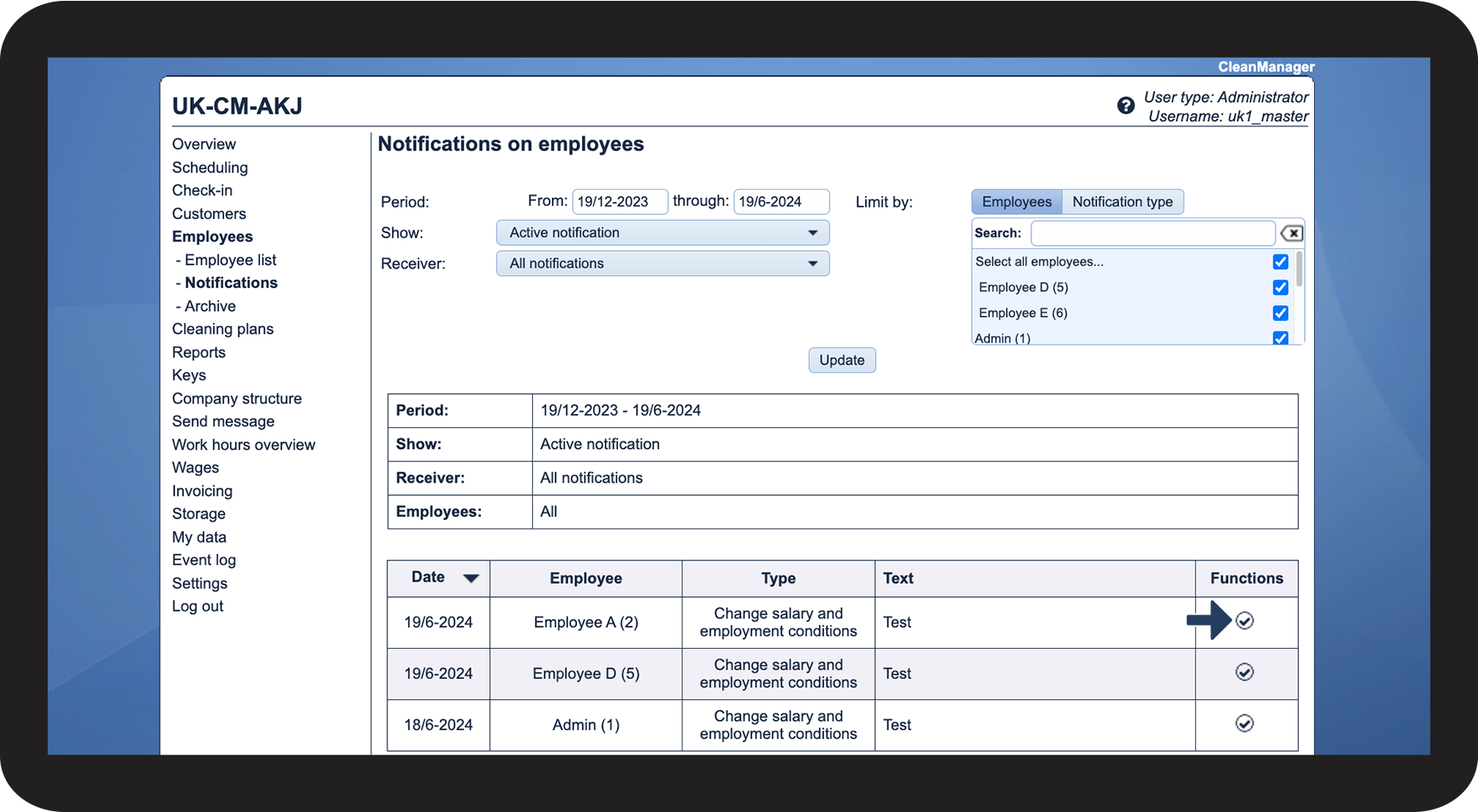
Click on Handle notification

4.png

number_5.png
Finally, add a comment or leave the box empty before clicking on Handle to remove the notification from the list of active notifications
5.png


This is how you handle notifications from Employees
number_1.png
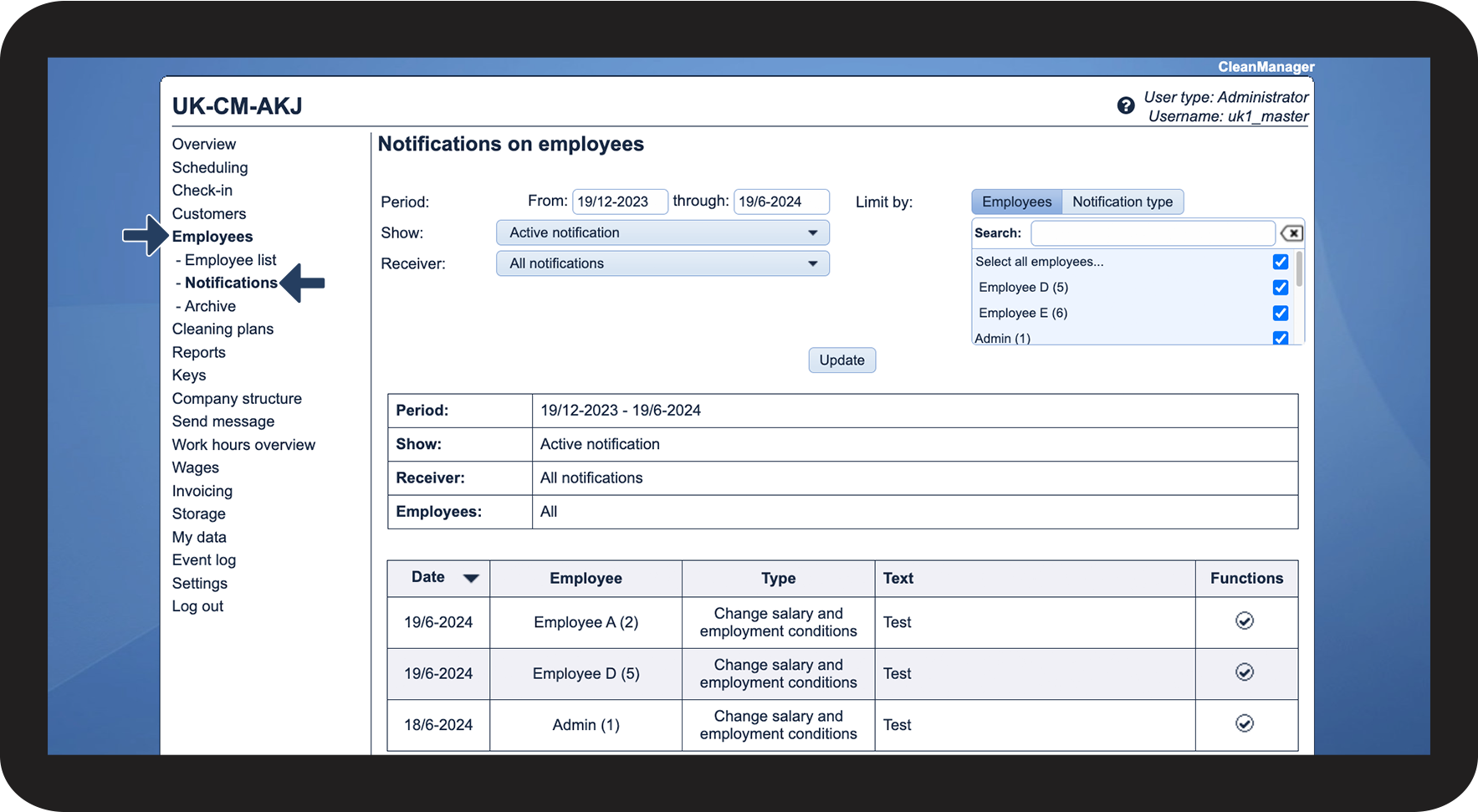
In the menu, go to Employees > Notifications

6.png

number_2.png

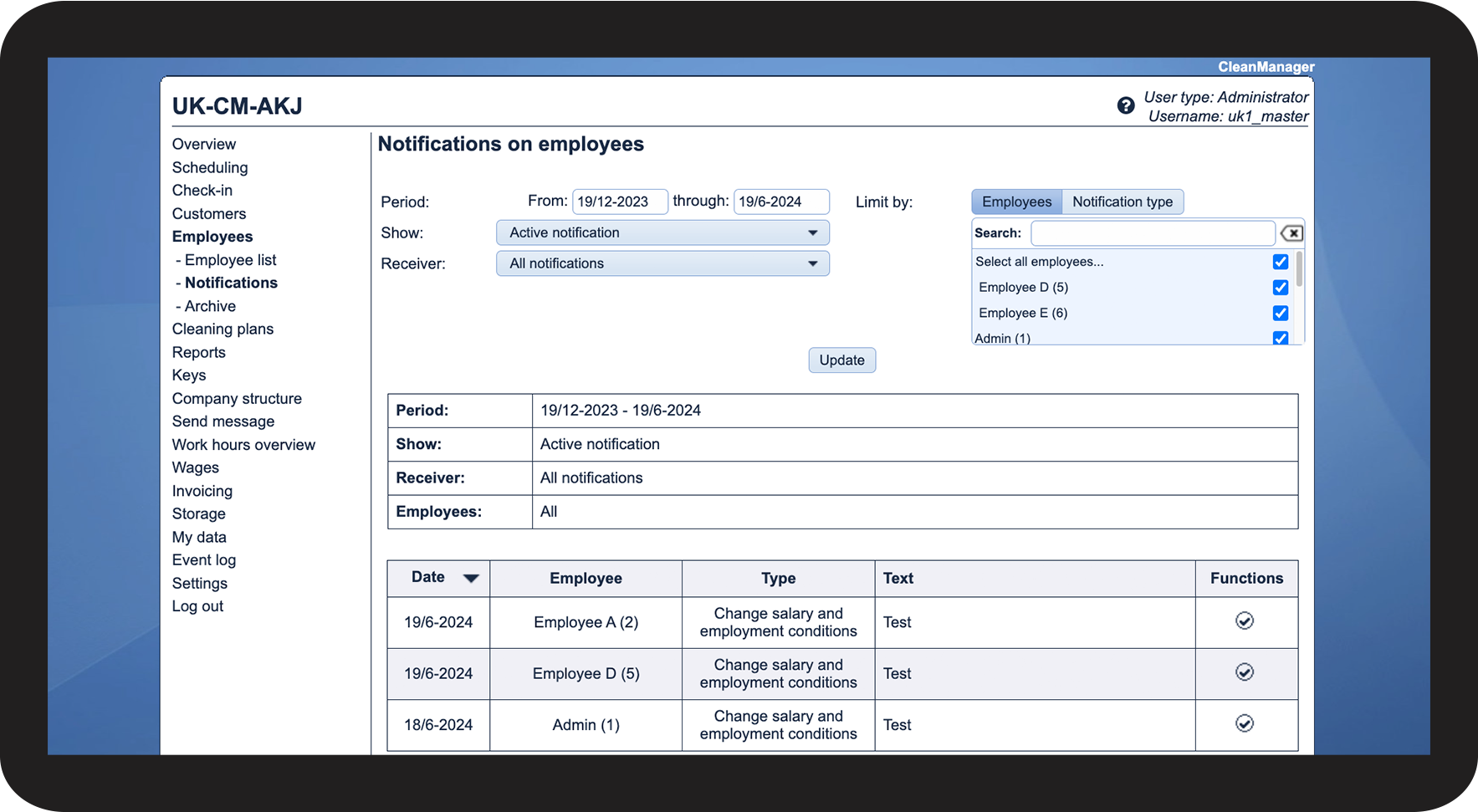
Here, you will be able to see a list of your active or managed notifications. Depending on your sorting, some notifications may not be displayed. Learn more about sorting the list in the following article: Filtering employee notifications.

The meaning of each column is explained in the section: This is what each column means

7.png

number 3.png
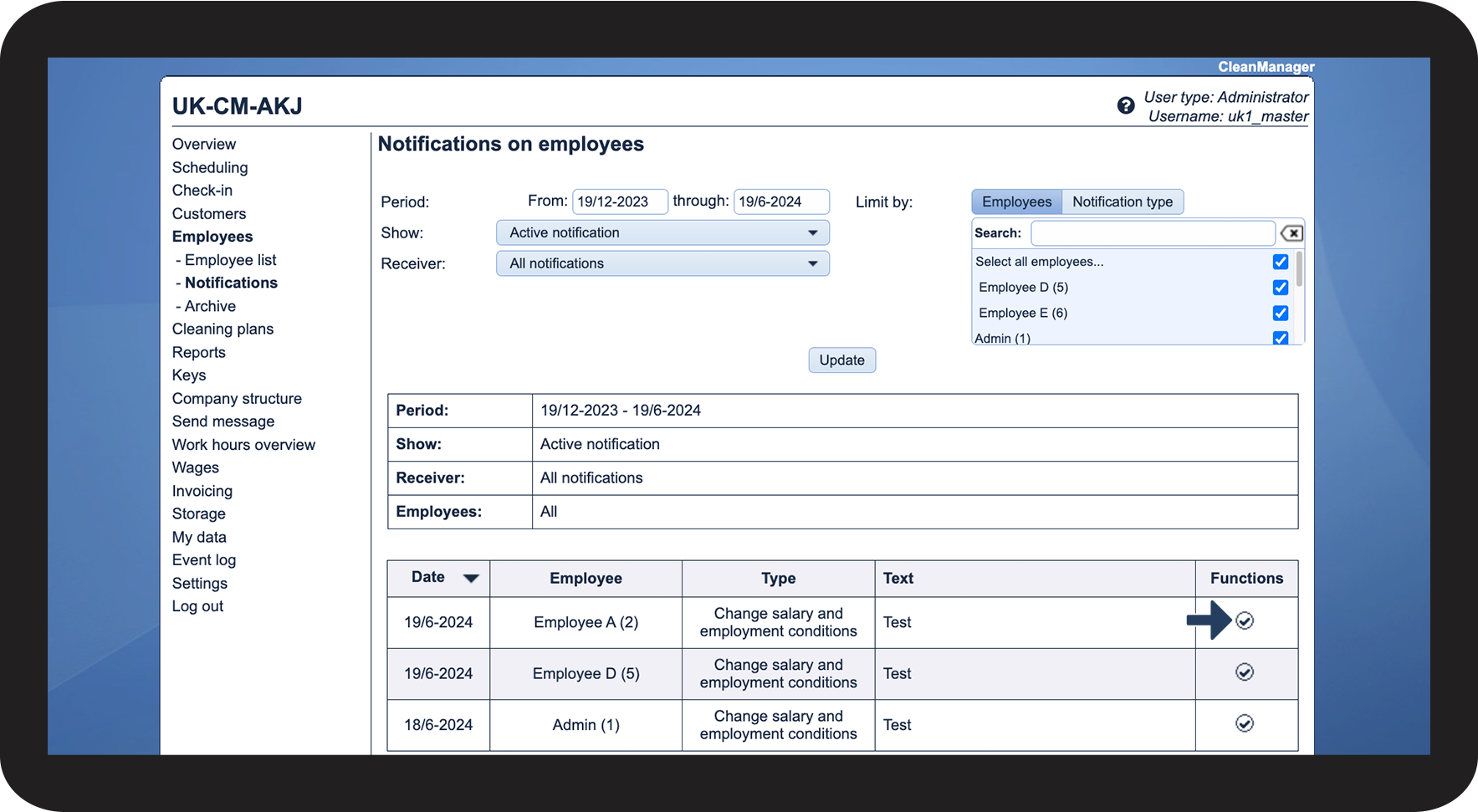
Click on Handle notification

8.png

number 4.png
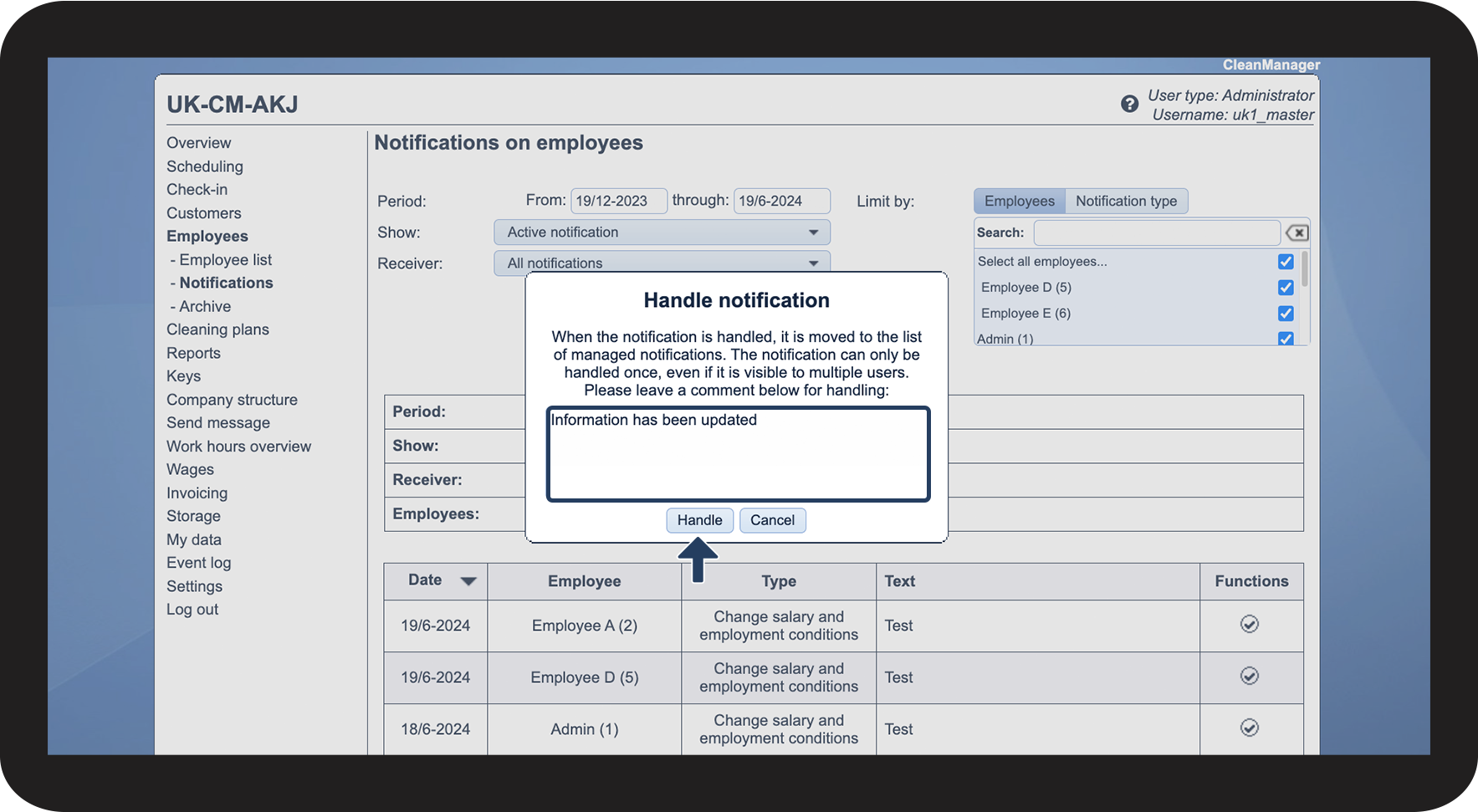
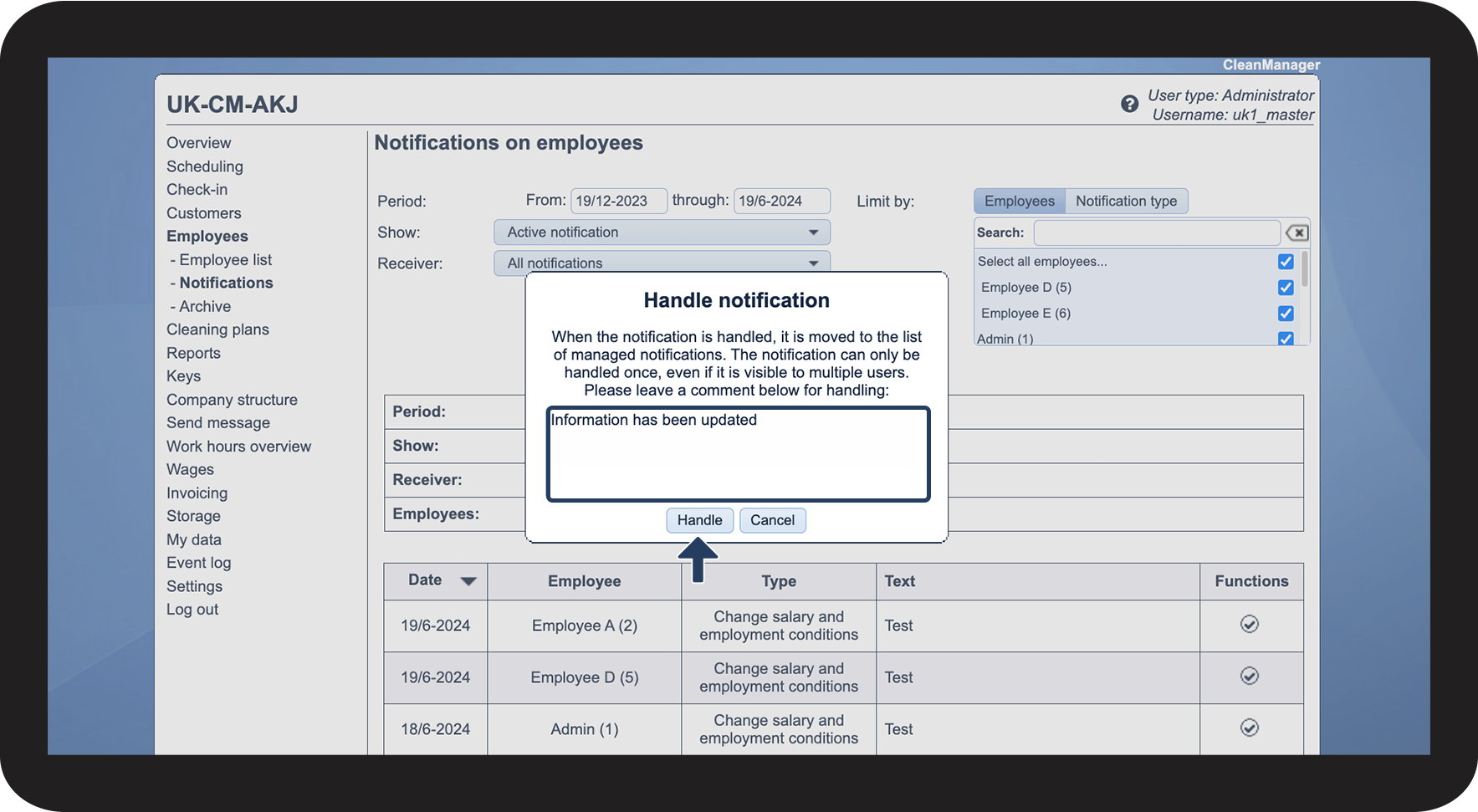
Finally, add a comment or leave the box empty before clicking on Handle to remove the notification from the list of active notifications
9.png


This is what each column means

 
Date

The day the notification was triggered

Employee
The employee the notification was triggered for
Type
The notification type of this notification. 
You can learn more about the different notification types in the following article: Introduction to notification types
Text

If you added a comment when creating the notification, it will be displayed here. You can learn more about creating notifications in the following article: Setting up employee notifications

Functions

Here, you will be able to click on Handle notification to indicate that a notification has been seen and handled


Continue to the article Filtering employee notifications

Here, you can learn more about how to sort the view of your notifications.