
Preset times for task and absence planning
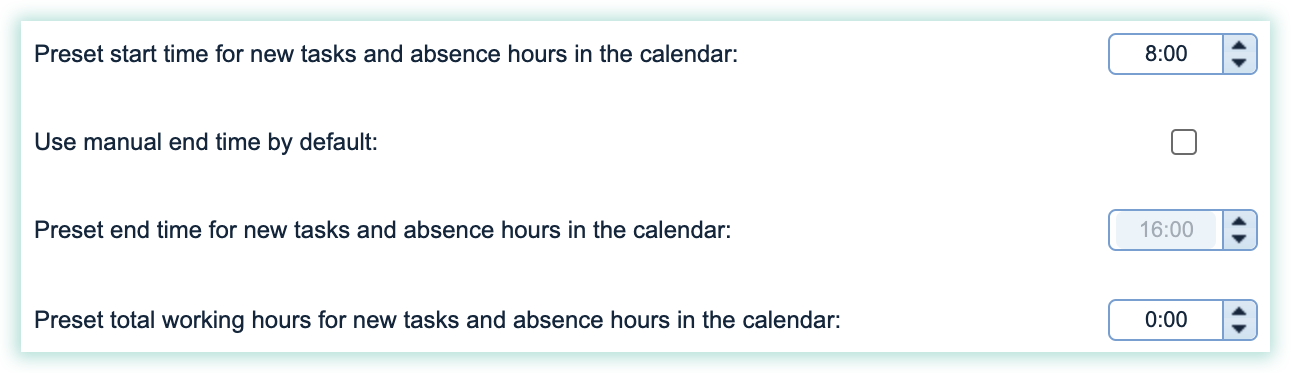
These settings enable you to standardize which times should appear with the creation of new tasks or sick hours which are being planned in the calendar.
Read more about the specific settings:
- Manage the starting time for new tasks or absences in the calendar
- Use manual end times as a standard
- Manage the total work time for new tasks and absences in the calendar
Manage the starting time for new tasks or absences in the calendar
The starting time can be set up to mirror the company's normal starting time for tasks.
If your tasks primarily begin at 8 am, this time will be kept for the setting of the Earliest start time. Otherwise, you can change the time to fit your planning better.
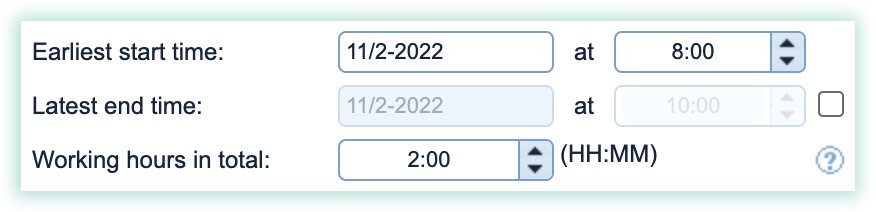
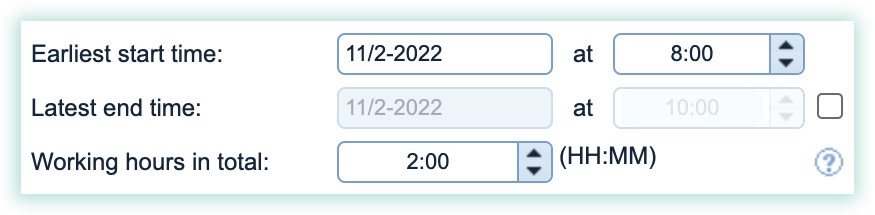
The Latest end time of a task will automatically be defined based on the Working hours in total which is added to the Earliest start time of a task in the calendar:
Use manual end times as a standard
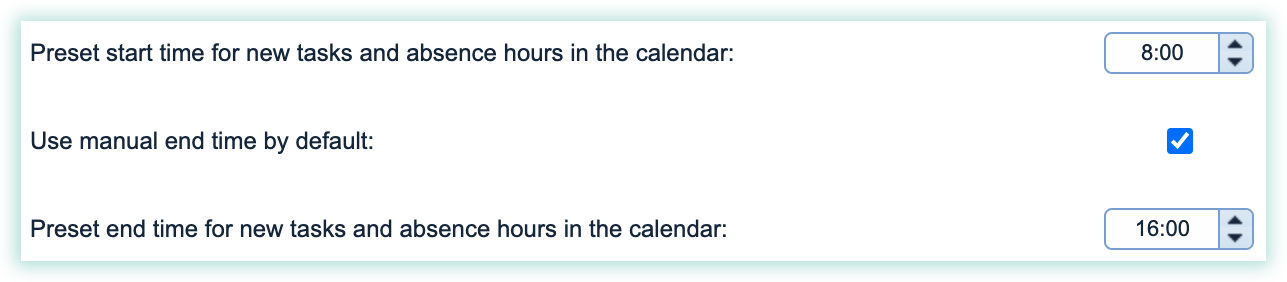
Activate this setting (Use manual end time by default) if you want to work with open timeframes in the calendar as a standard. (E.g. A two-hour task can be planned to be carried out between 8 am and 4 pm).
When activating, you open up the setting:
Preset end time for new tasks and absence hours in the calendar.
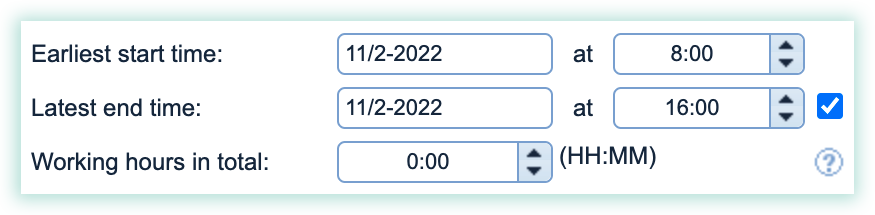
The end time can be set up to the preferred time when the task should be completed at the latest. The Latest end time will automatically be activated with the chosen end time for the task which is being planned in the calendar:
Manage the total time for new tasks and absences in the calendar
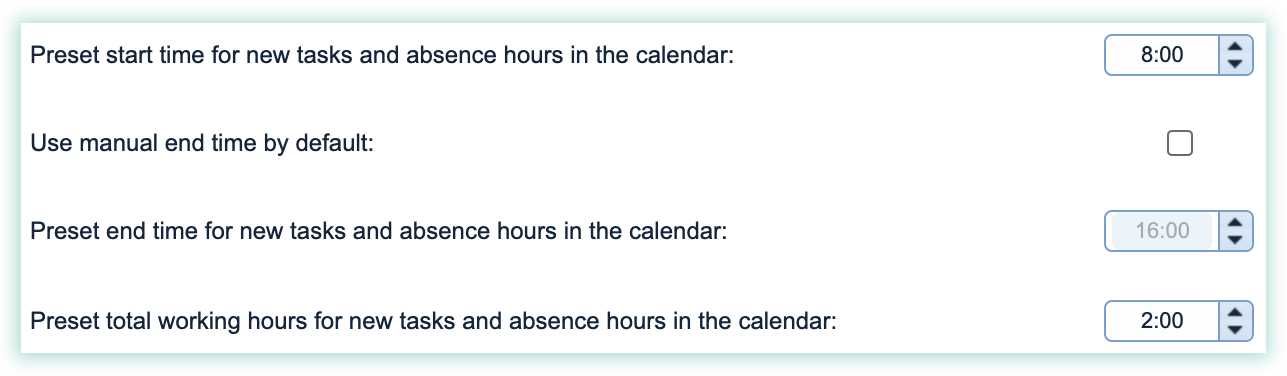
This setting is set up with the focus on how long tasks usually take to complete for your company.
If you do a lot of private cleaning it takes between 1-2 hours or if you do bigger more commercially based cleaning tasks, a task can take between 4-6 hours, so the working hours in total can be set to be the most accurate when a task is being created in the calendar:
INFO:
Some users keep working hours in total at 0:00 because the working times for different customers can vary a lot depending on the customer. 0:00 is, therefore, the starting point that can be set up and corrected for new tasks.