
How do I install the CleanManager app?
You can install the CleanManager app on iPhones as well as Android smartphones.
It is also possible to install the app on Windows phones, however, without the possibility of using the NFC scanner.
Choose your device from the list below to receive guidance for the installation of the app:
Do you have an iPhone or iPad with an Apple-id?
Do you have an Android smartphone or tablet with a Google Play account?
Do you have an Android smartphone without a Google Play account?
iPhone / iPad
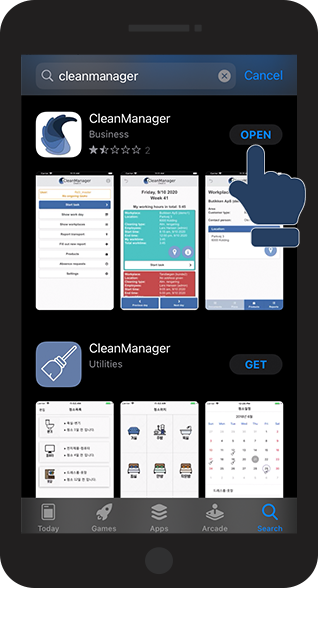
This is how you install CleanManager on your iPhone/ iPad

 on your iPhone/iPad
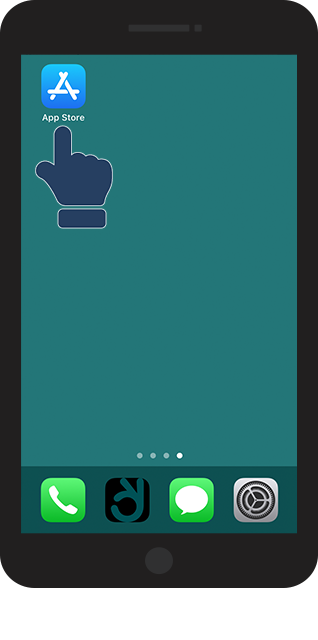

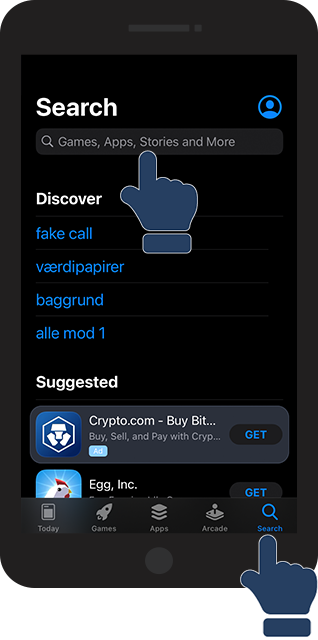

 to download and install CleanManager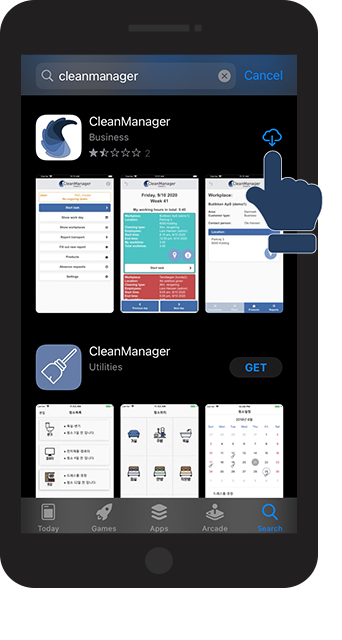


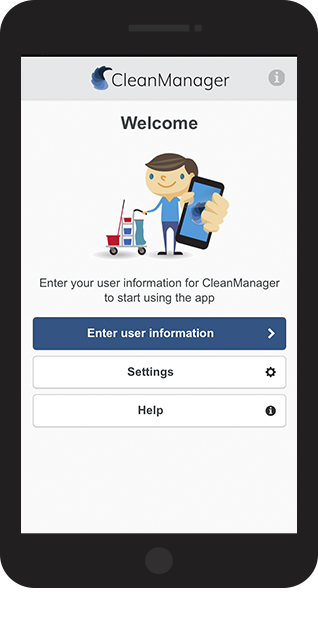
Android / Tablet This is how you install CleanManager on your Android smartphone/ tablet:
 on your smartphone/ tablet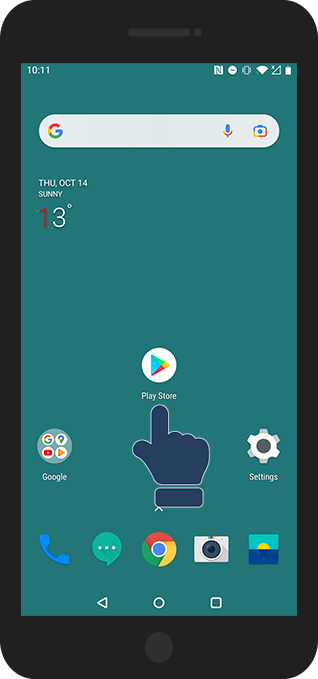
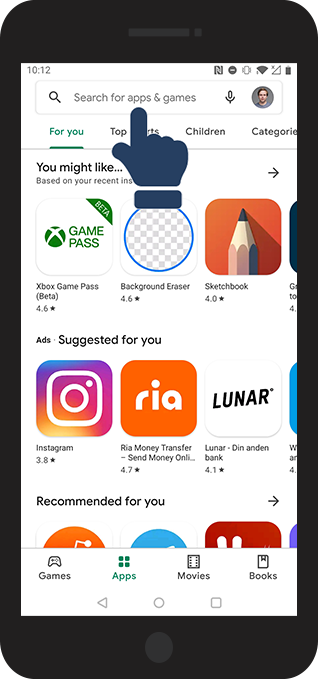
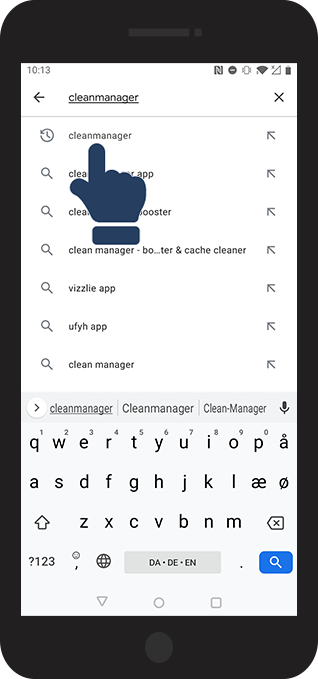
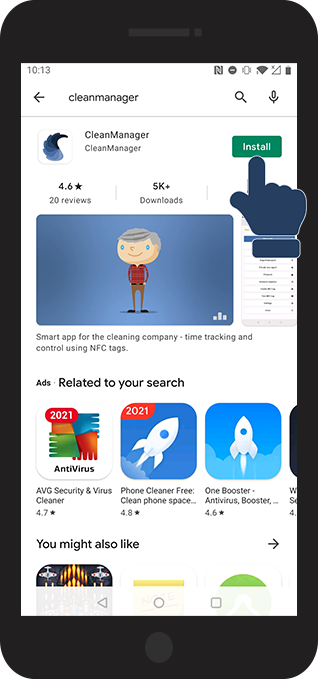
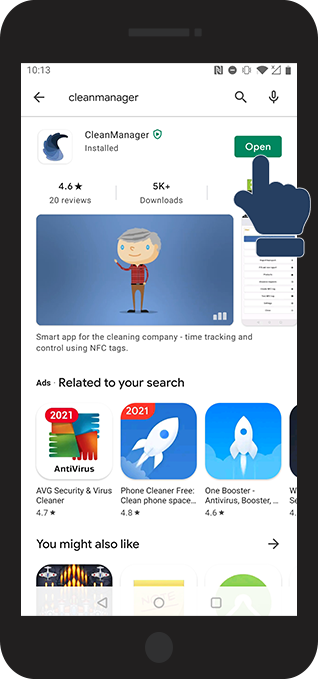

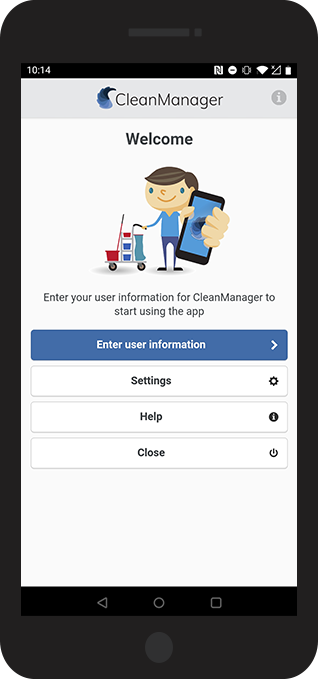
How do I install the app on an Android smartphone, when I do not have a Google Play account? If CleanManager needs to be installed on many smartphones, owned by a company, it will be easier and faster to install the app without using Google Play Store.
NOTE:
It is important to be aware of the fact, that this solution might be unsuitable for some companies.
We recommend including the IT department in the app installation process when doing it without the use of Google Play/App Store. The IT department might have some suggestions on how to best roll out the app in the organization in terms of updates and security.
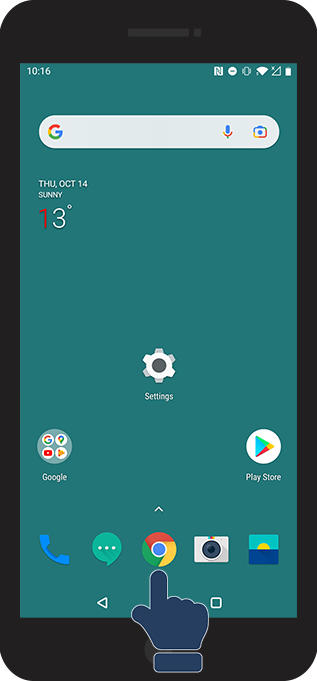
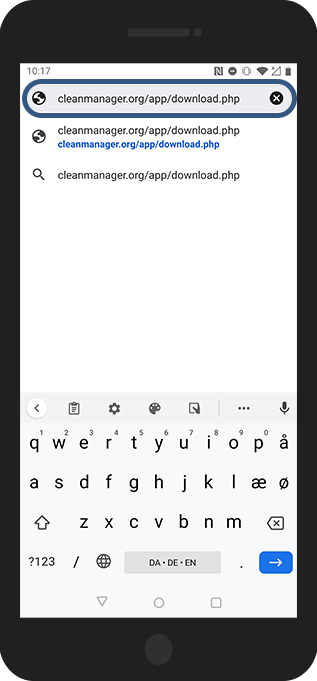
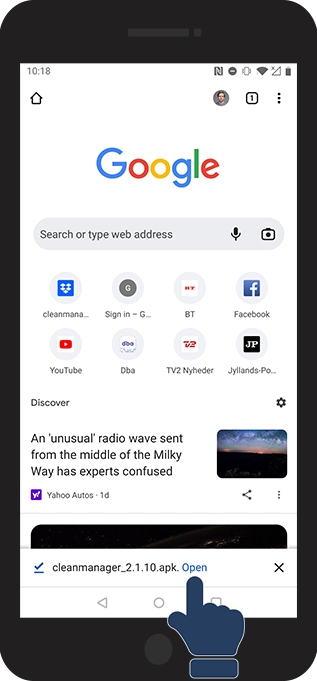
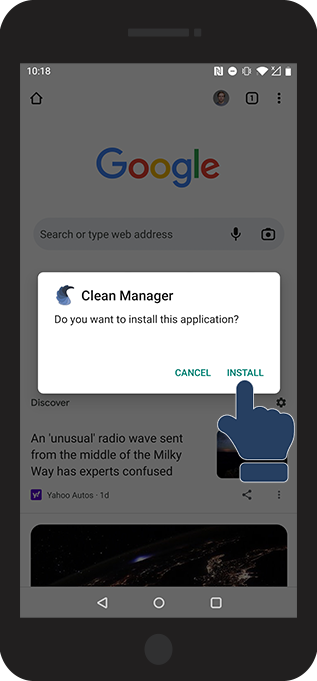
There are 2 steps, which need to be made before the app can be installed without using the Google Play Store:


OBS:
Allowing unknown sources to be downloaded onto your smartphone can vary based on the brand of the smartphone. (A useful rule of thumb is to search the “unknown sources” in the phone's settings).
Huawei smartphones, for example, need to download an apk file, when you install the file, you need to give permission for an unknown source to be installed.
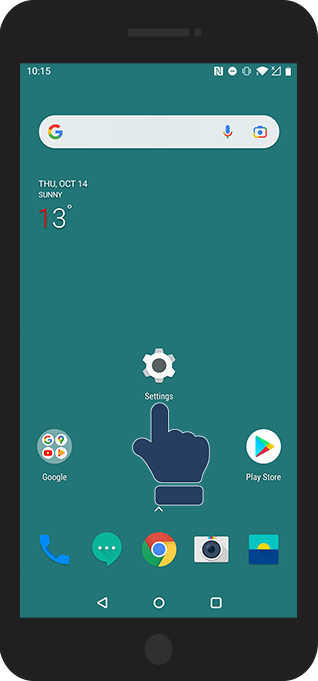
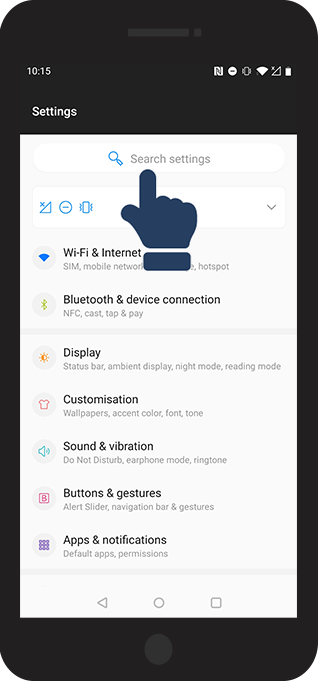
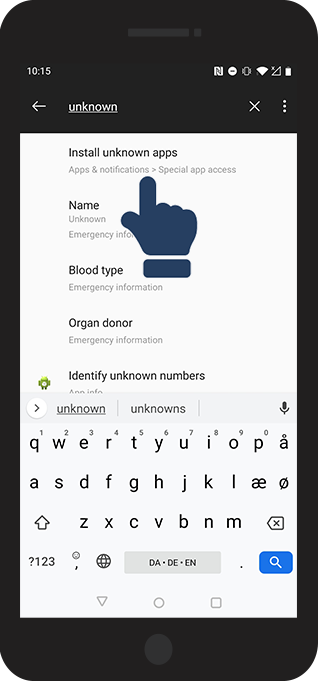
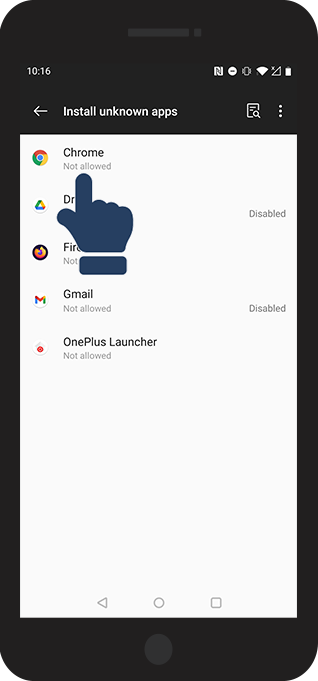
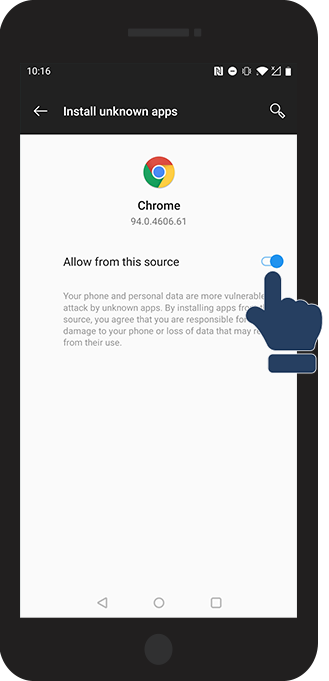
Now continue with Step 2

OBS:
If you are installing the app manually, you will only do a one-time download of the installation file.
This is because you won't have access to the Google Play Store and therefore, the CleanManager app will not update itself like you are used to with other apps.
Therefore, remember to update CleanManager manually, as soon as we publish a new version of the app, by downloading the file the same way as here in Step 2.
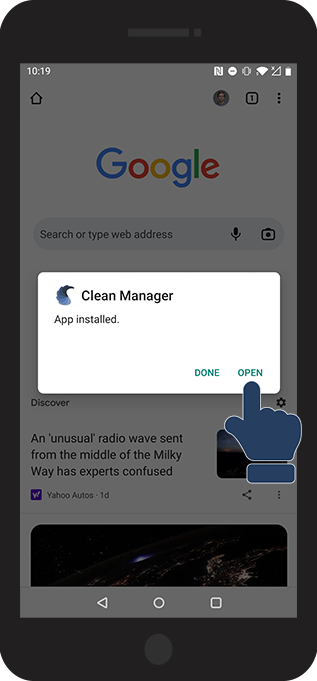
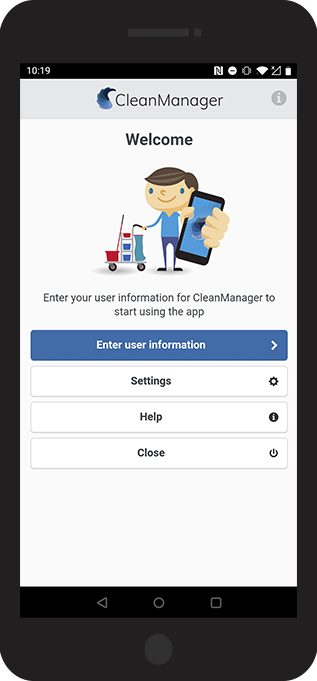
INFO:
The NFC scanner in smartphones can be used to install the app as well.
Contact CleanManager's support team at support@cleanmanager.org to receive a specific NFC tag with a link to install the app.
On Android smartphones, the tag just needs to be scanned, and then the installation will begin.