How do I import CSV files correctly in Excel?
When you export data from CleanManager (customer data, employee data, time summaries, etc.), the data is always exported as a CSV file. CSV files are plain text formats that do not contain any other kind of formatting. For example, in Excel, tables can be displayed in colours, and text can appear in bold or italics. This is not possible in a CSV file.
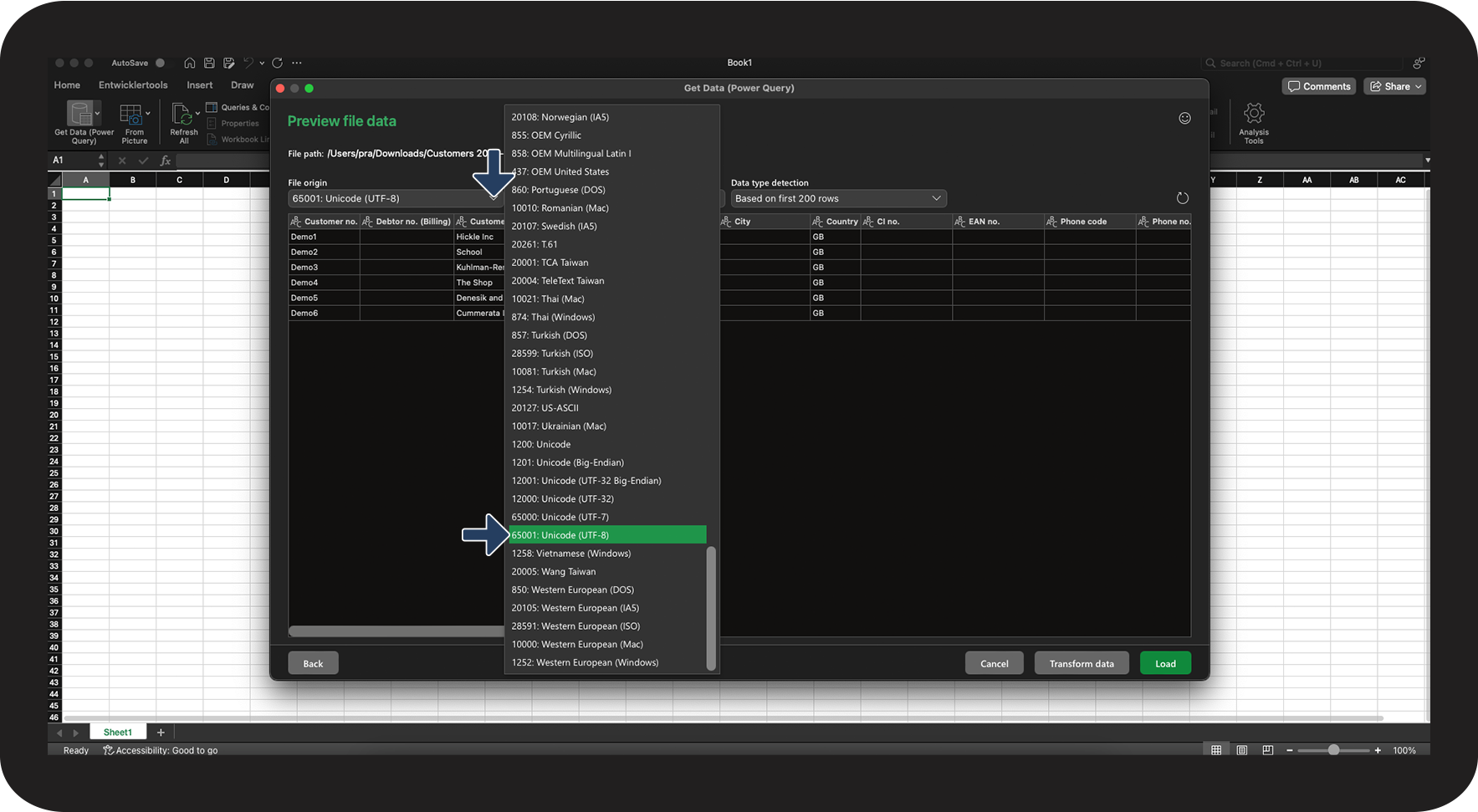
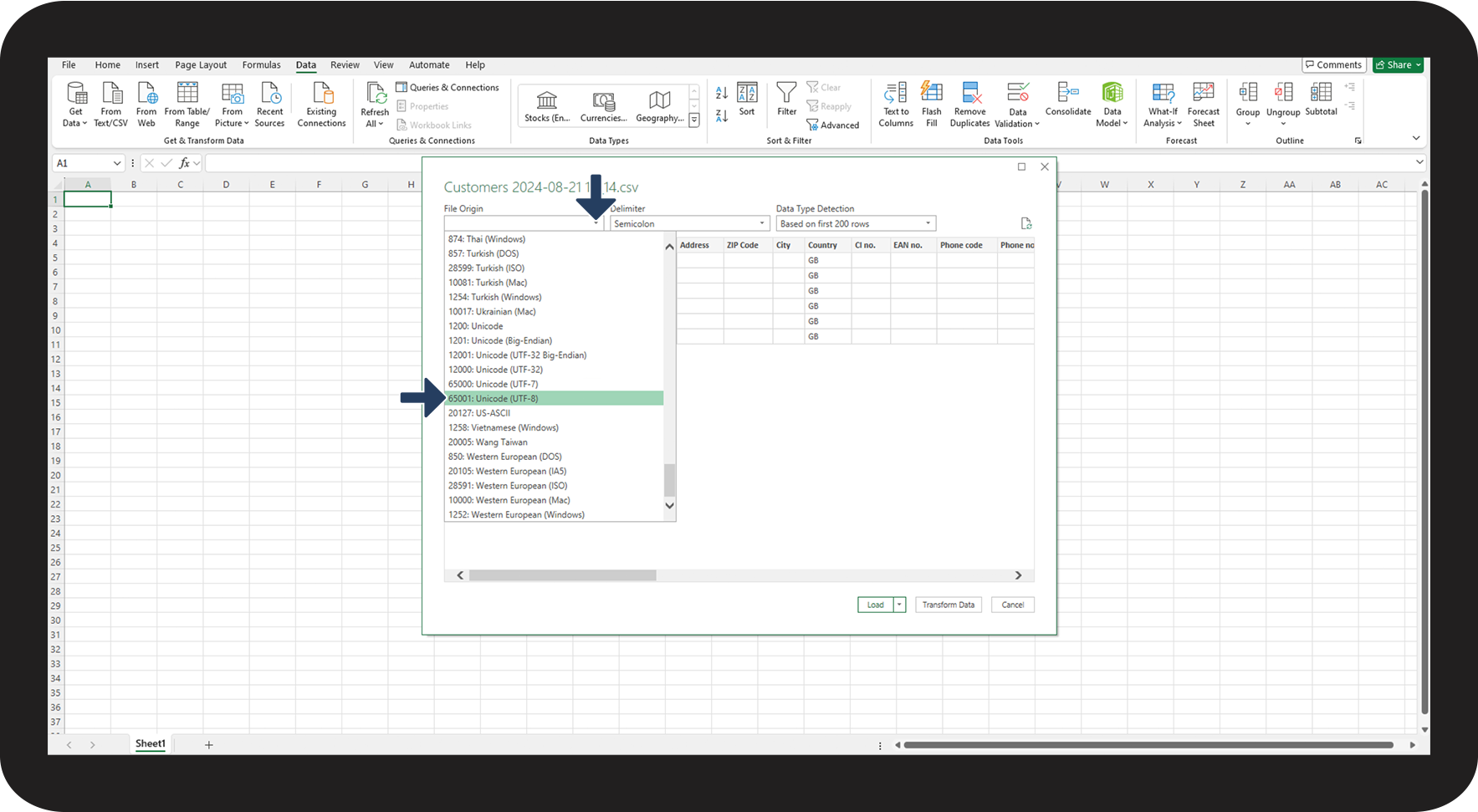
If you open CSV files directly in Excel, for instance by double-clicking on the downloaded file, the format shifts, making it at times hard to get a proper overview of the data. In case your data includes symbols like æ or ö, they might also be shown as √¶ or √∂. To prevent this, it is necessary to import CSV files correctly in Excel.
In this user guide, we will show you the proper way to import CSV files in Excel.
In this article, you will learn how to correctly open CSV files in Excel:
- How do I correctly import CSV files in Excel on a Windows computer?
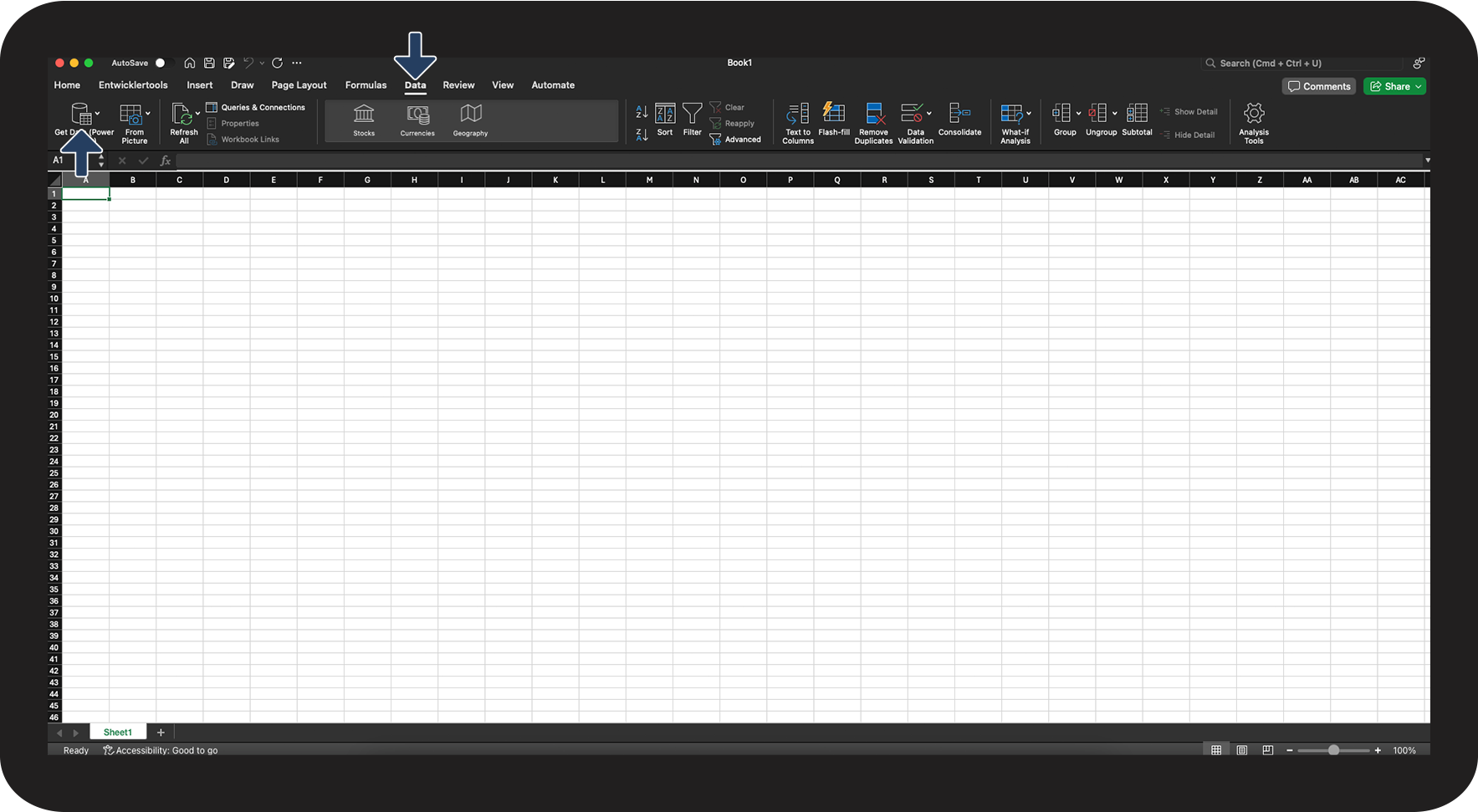
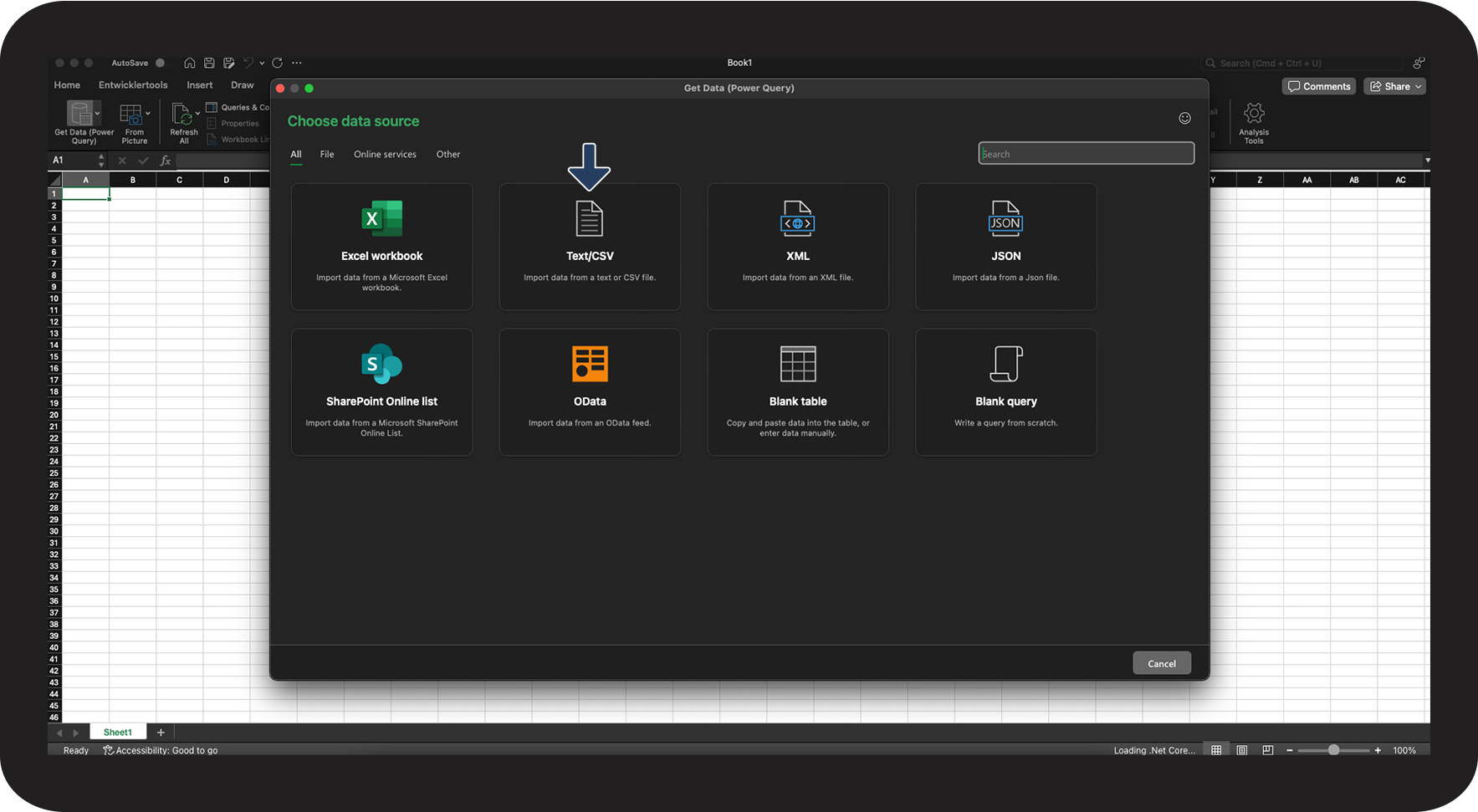
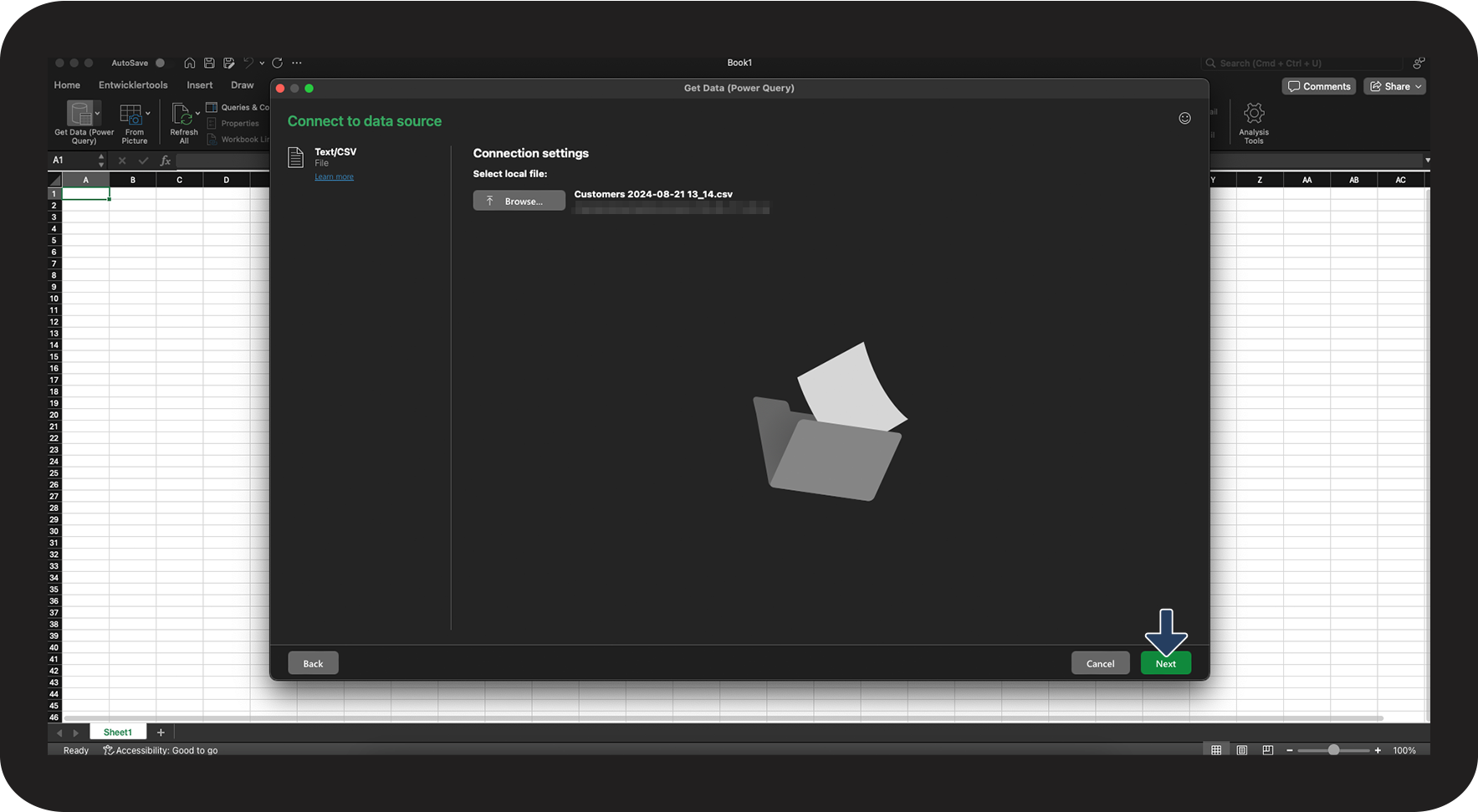
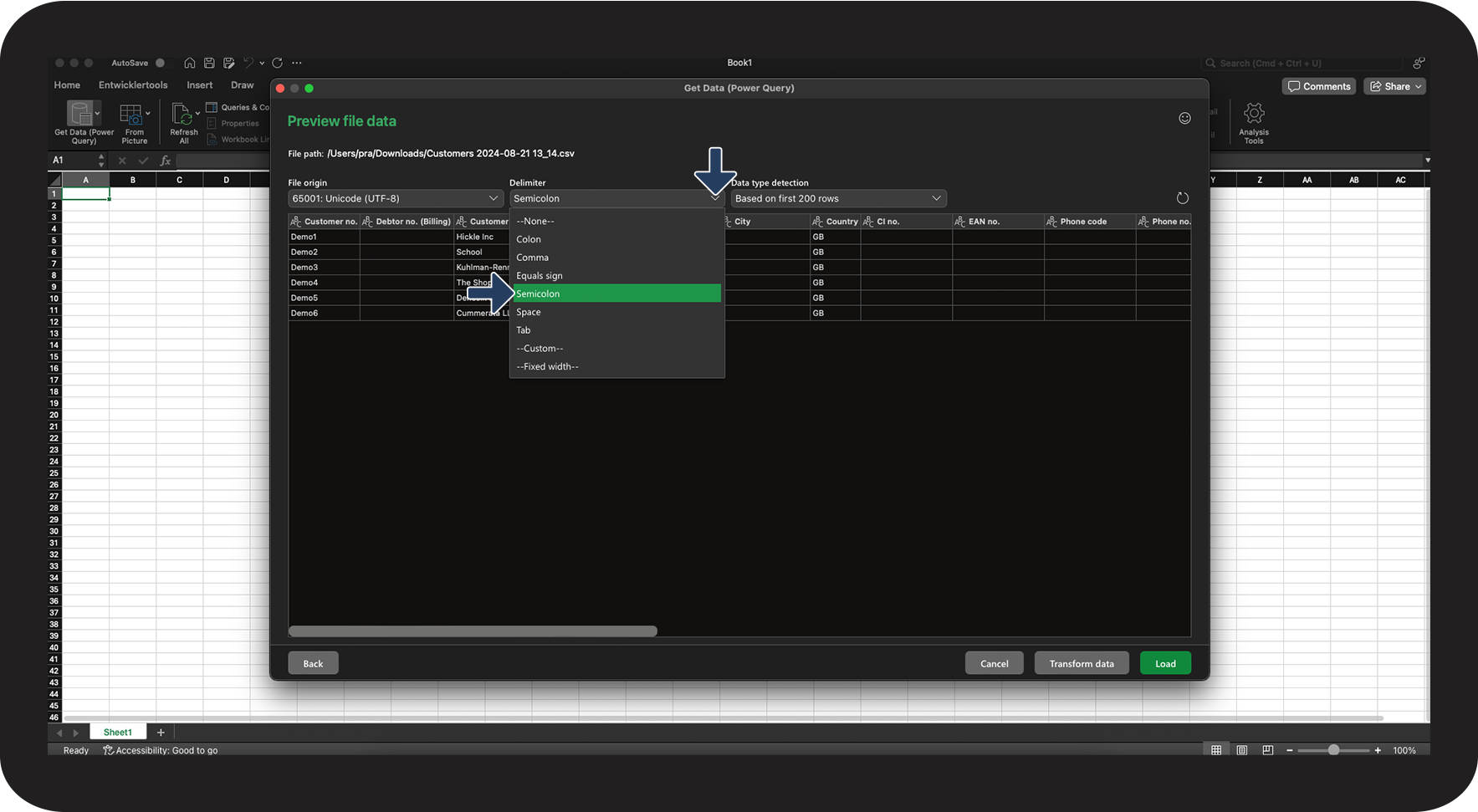
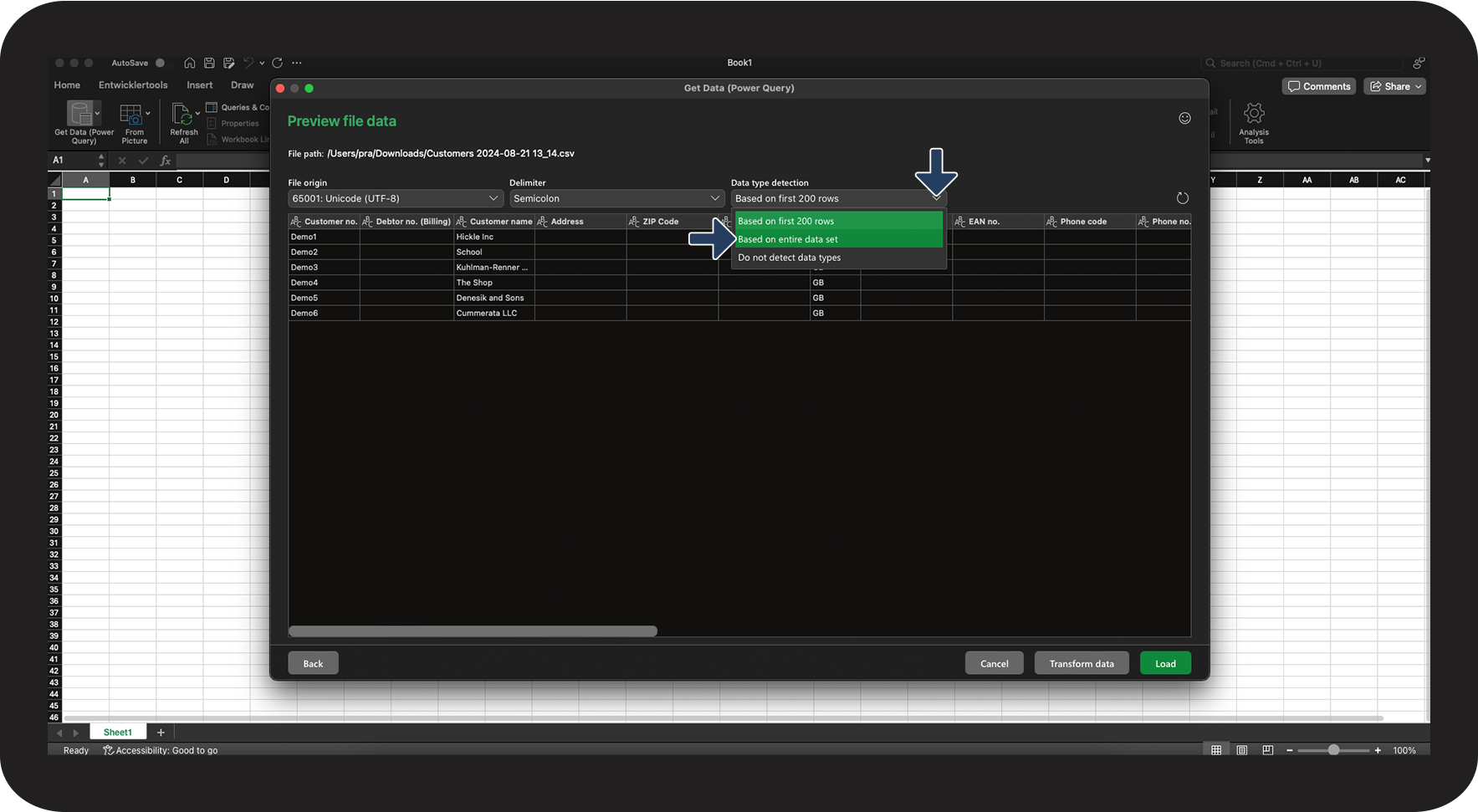
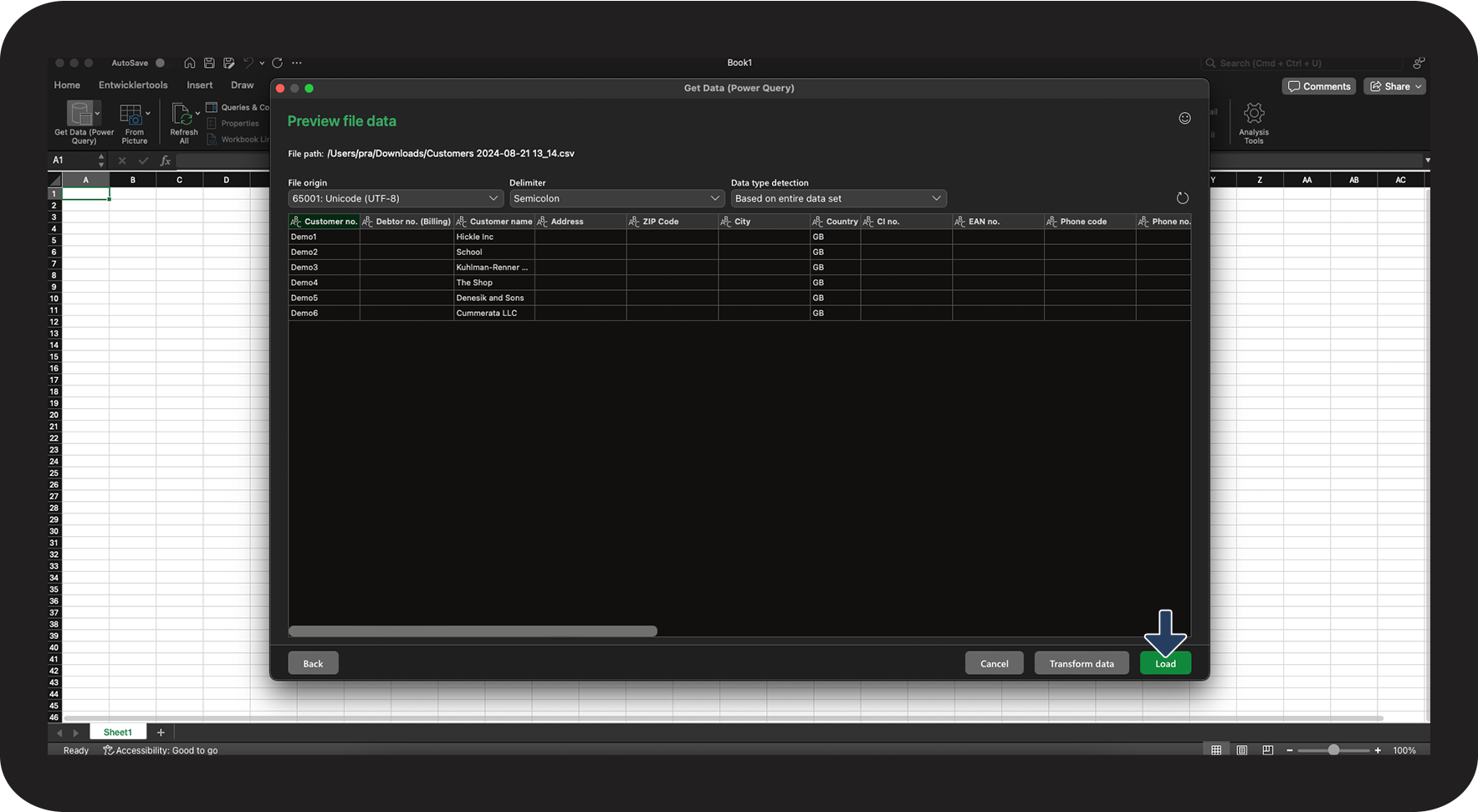
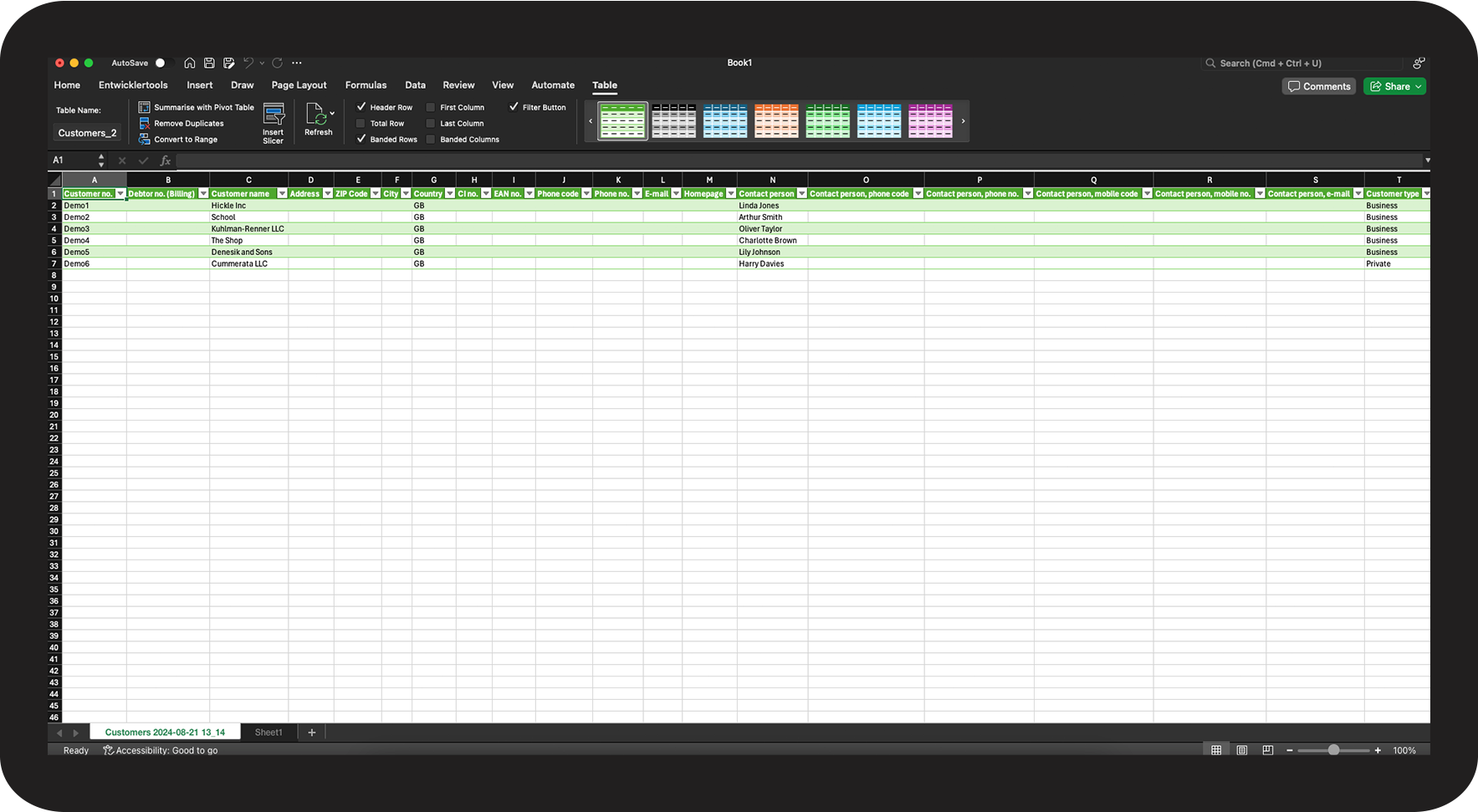
- How do I correctly import CSV files in Excel on a MacBook?
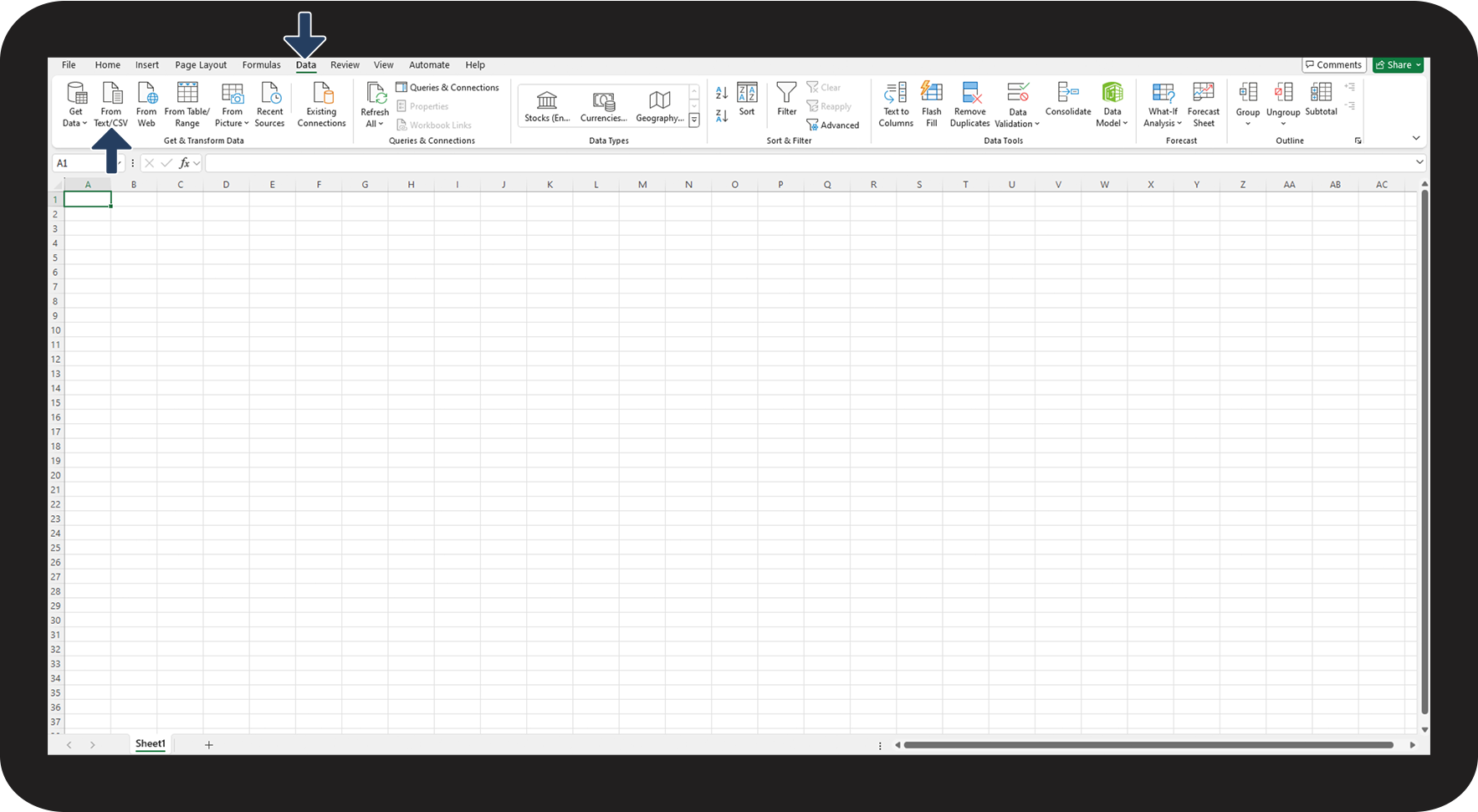
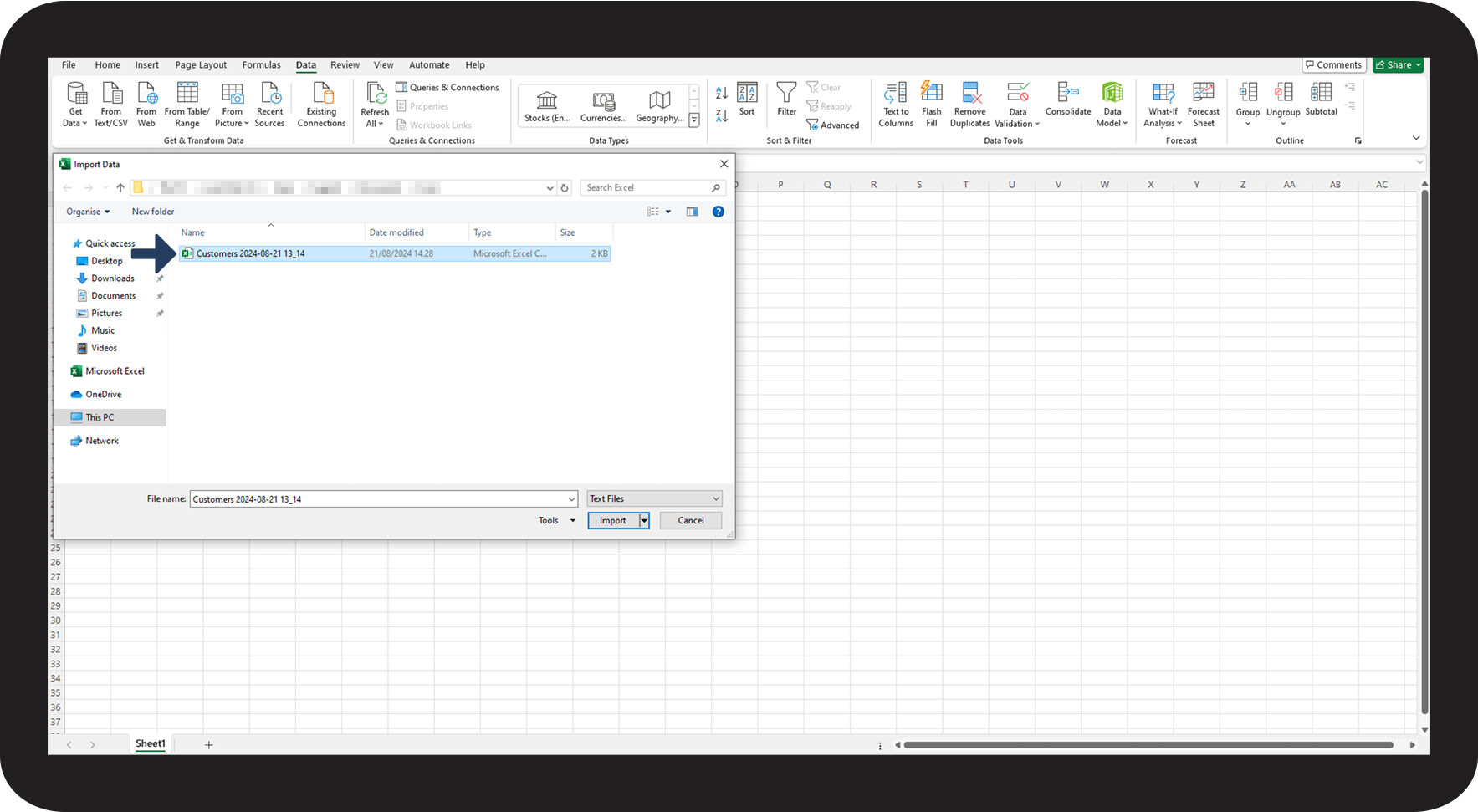
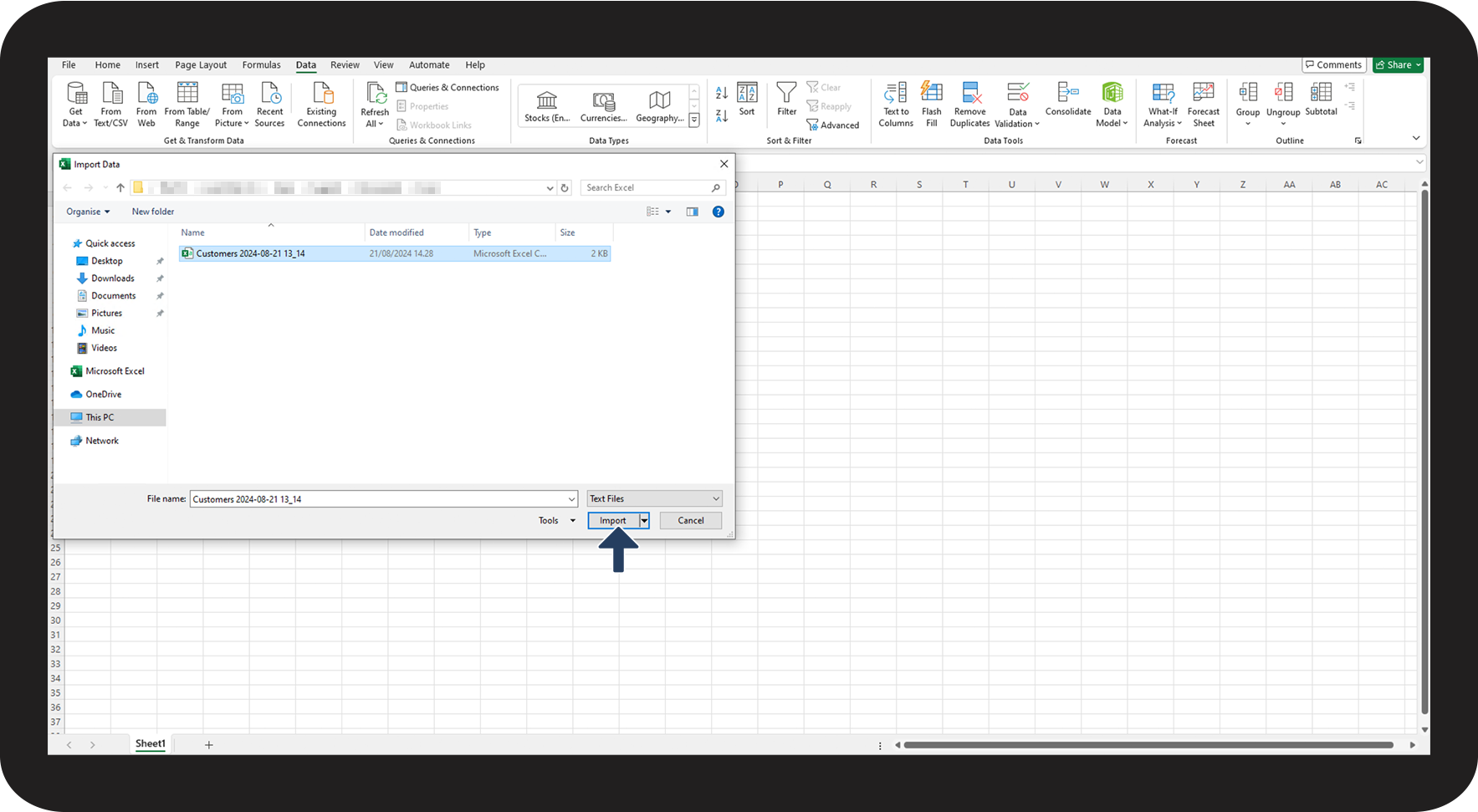
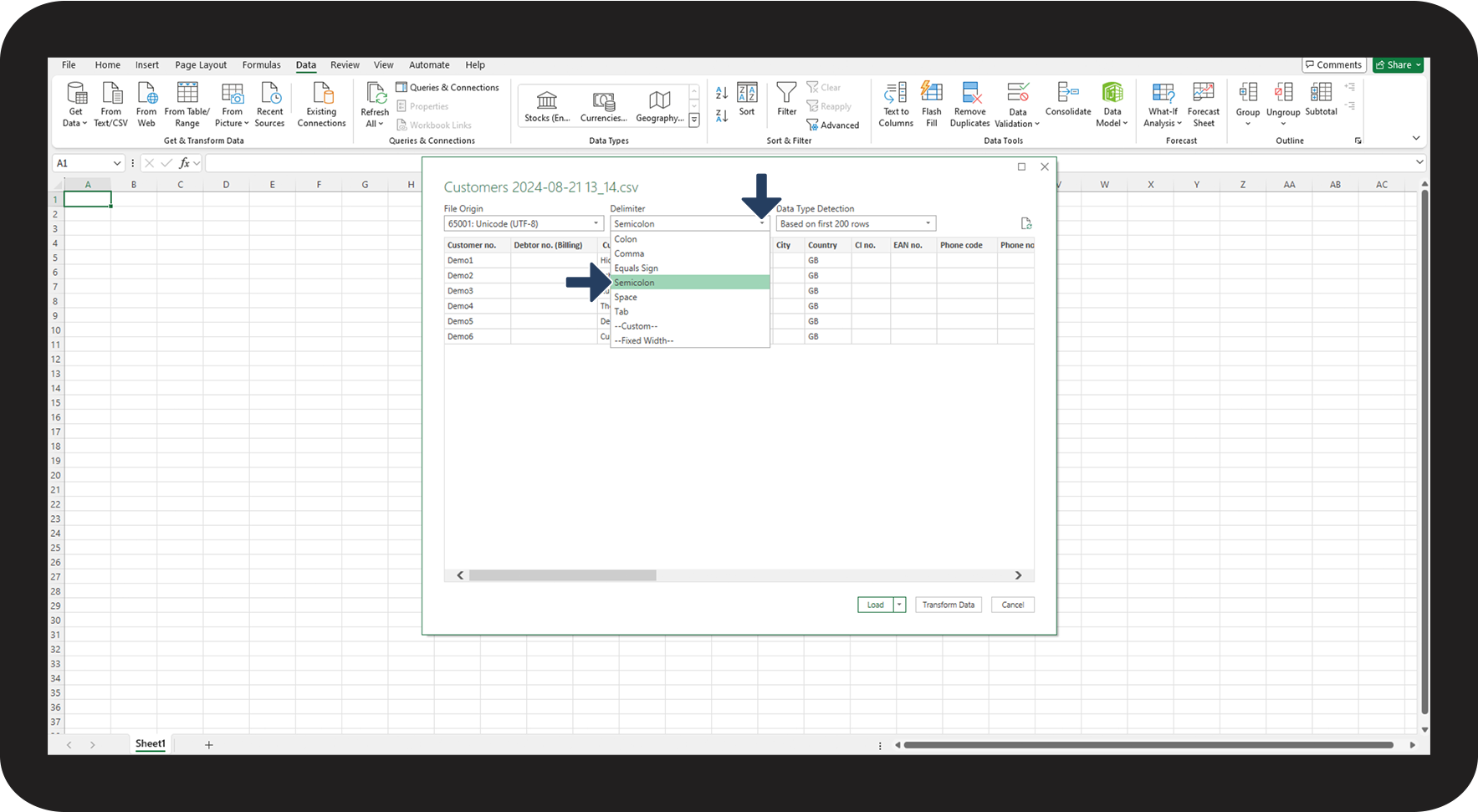
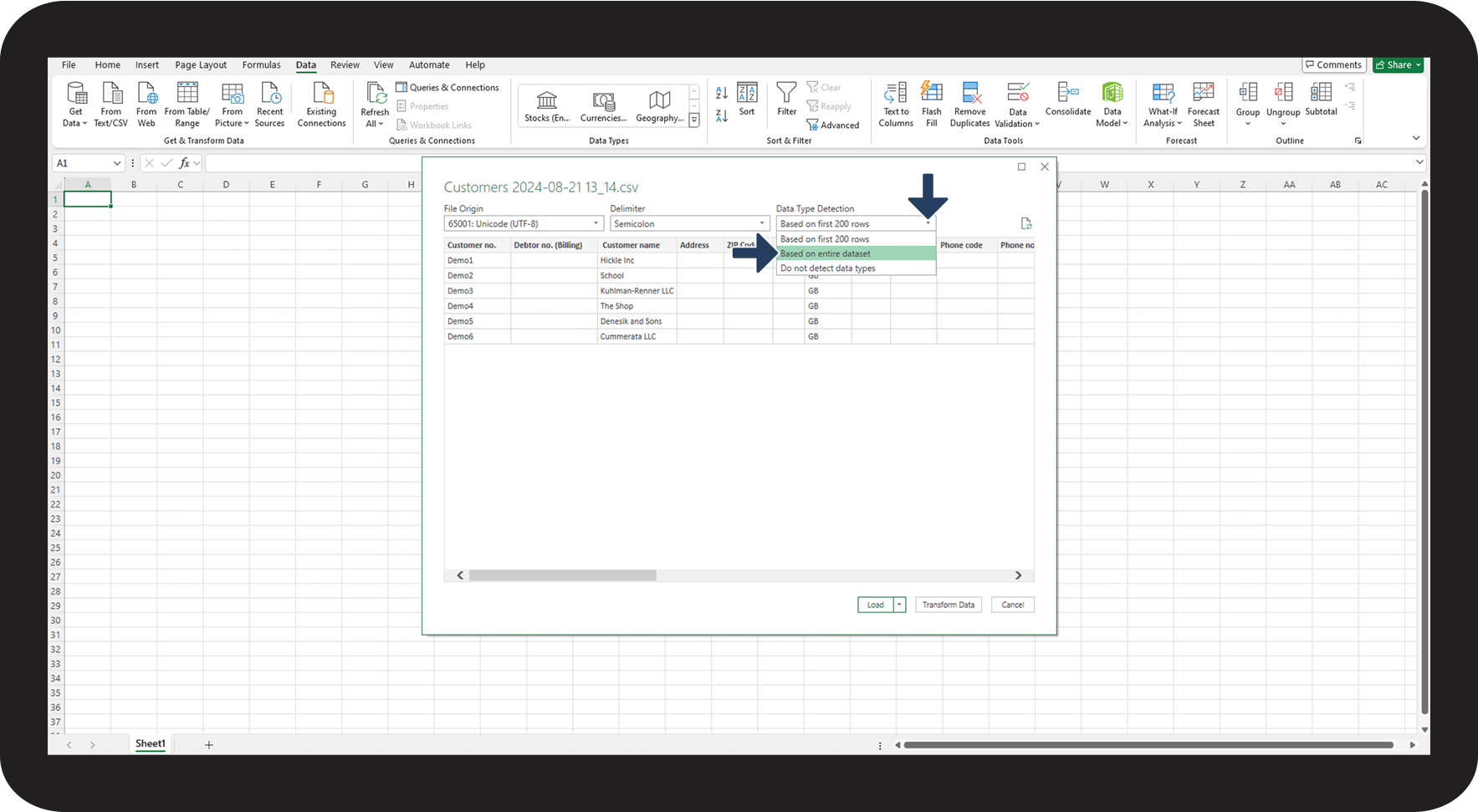
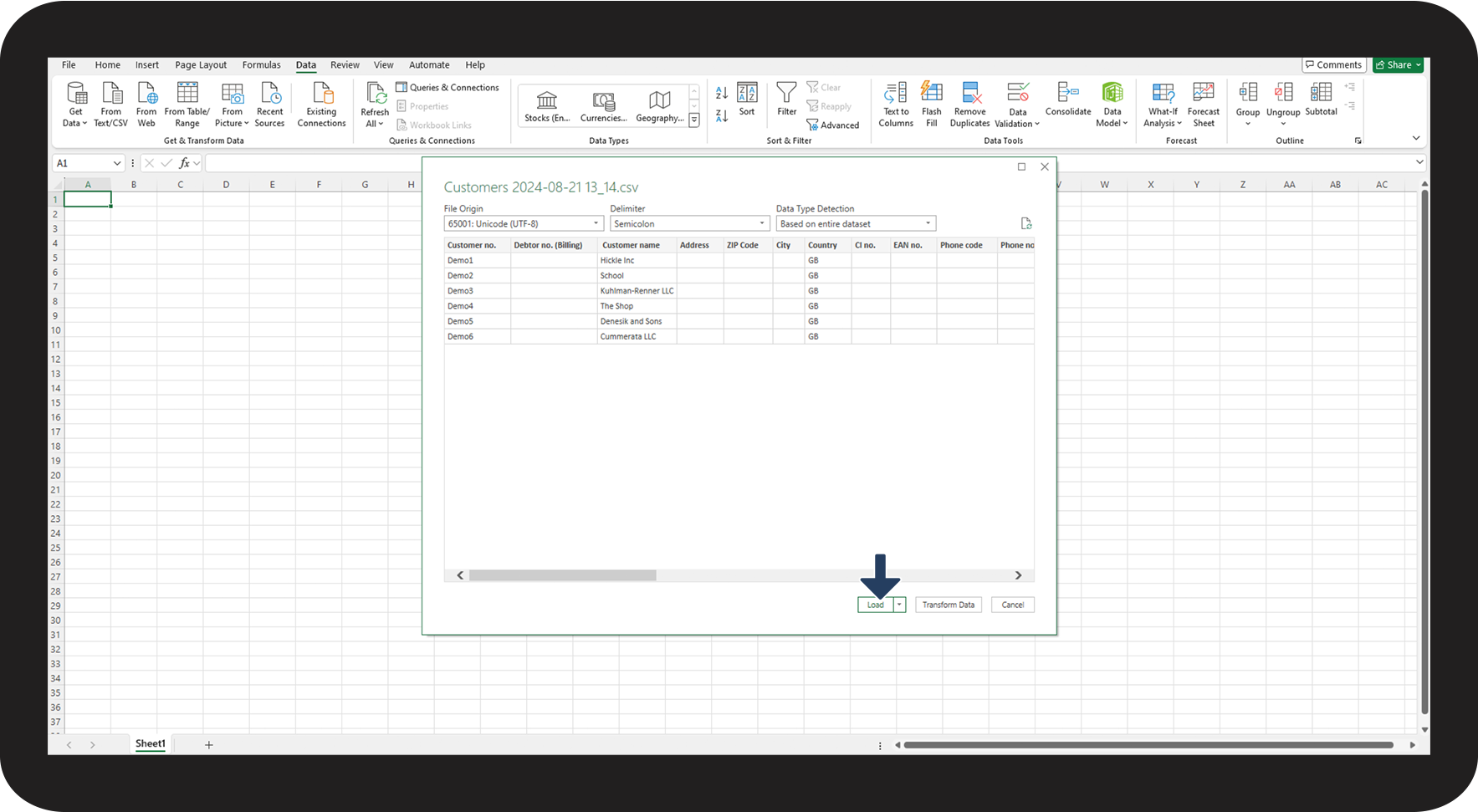
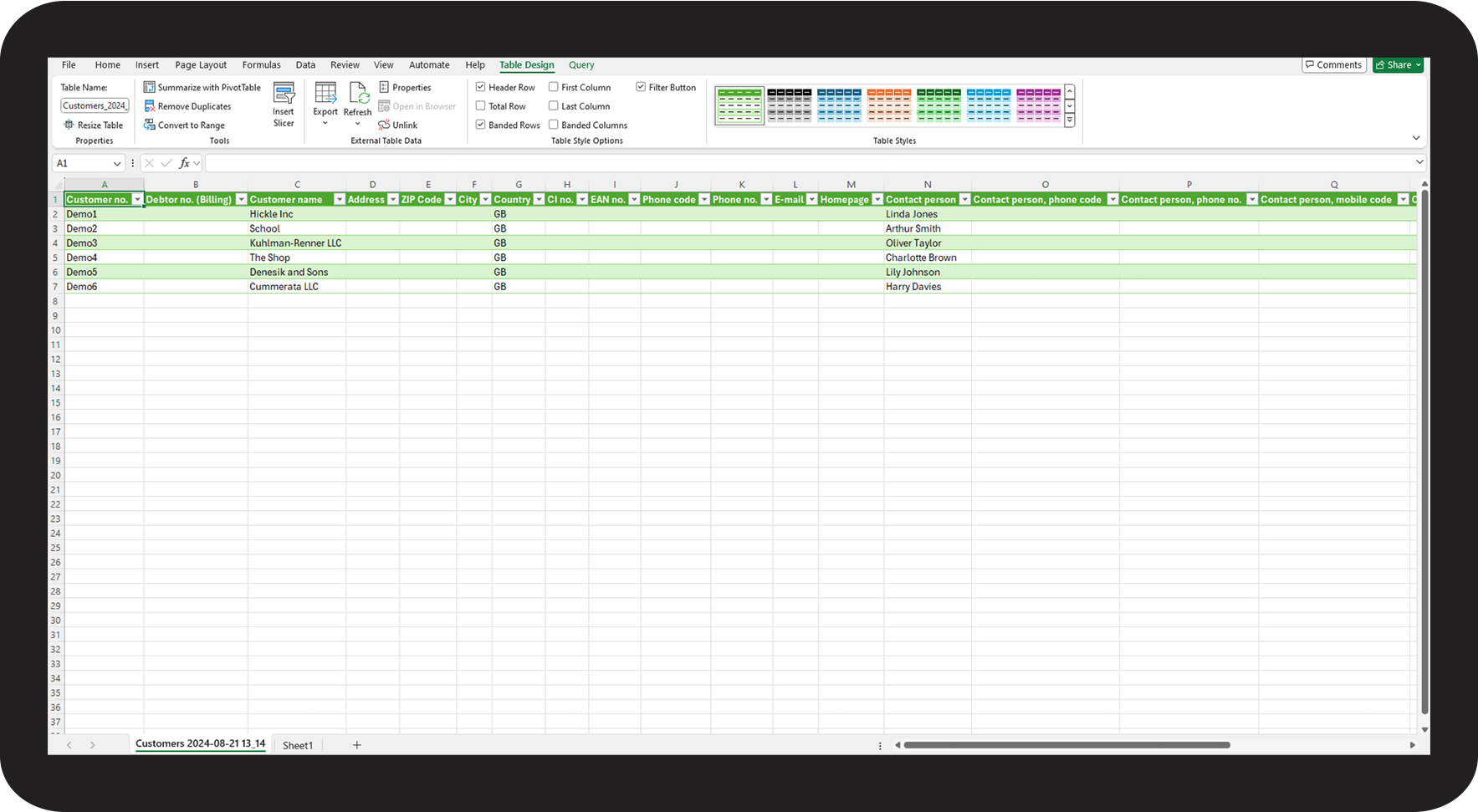
How to correctly import CSV files in Excel on a Windows computer








How to correctly import CSV files in Excel on a MacBook