Skip to content
English
  • There are no suggestions because the search field is empty.

Image documentation and comments on a task

How do I attach pictures and comments to my task?

Comments to a task can be added both when you start and/or end the given task.

You can also attach pictures, and add comments to the pictures, while you are working on your task.


In this article, you will learn how to add comments and images to tasks:


This is how you add a comment to a task

When you start or finish a task, you are able to attach comments.

number_1.png

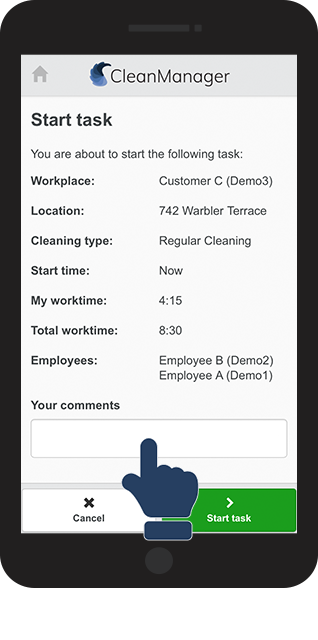
Click on the comment section when you start a task


Have you never started a task before? See more in the following articles:
Start a task - without NFC tag or Start a task - with NFC tag

1NY.png
number_2.png

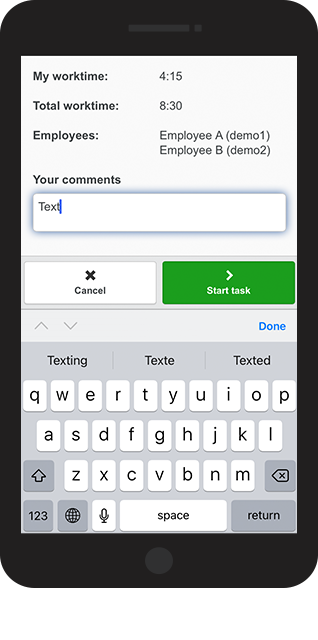
Write a comment and finish by clicking on Start task 

A2.png
number_3.png

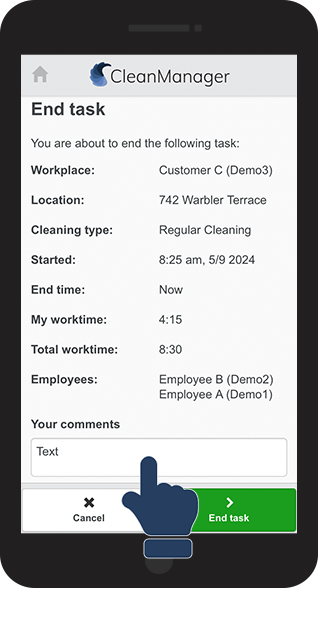
When you finish your task, you can also edit the comment section of the task


When ending the task, click on the comment section to change the comment, or enter a new one if you left the field blank when starting the task

3NY.png


This is how you add pictures to a task

Do you have to document your work, report broken equipment, or something entirely different? Then read here how you can add pictures to your task.

number_1.png

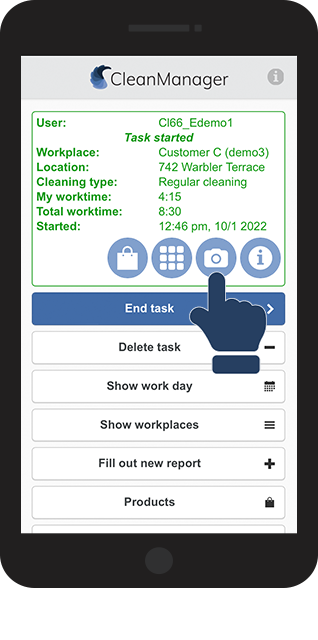
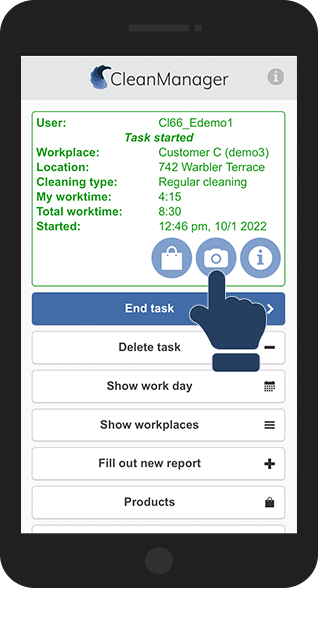
Once the task has been started, click on the Camera icon billede.png 

B1.png
number_2.png

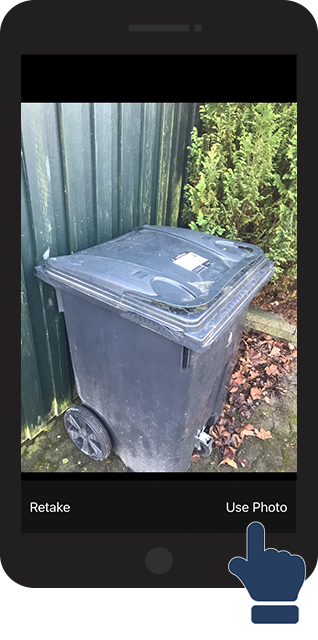
Click on Use Photo once the picture has been taken

B2.png
number_3.png

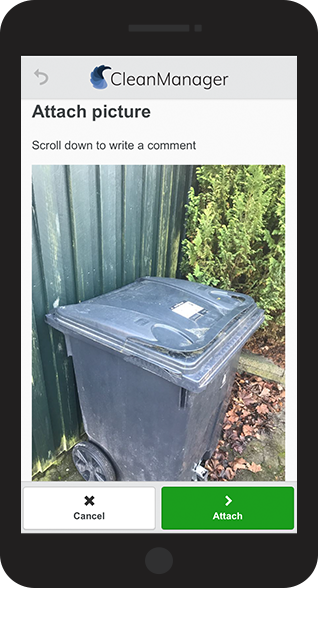
The picture has now been sent from your camera to the CleanManager app


Scroll down to add a comment to the picture

B3.png
number_4.png

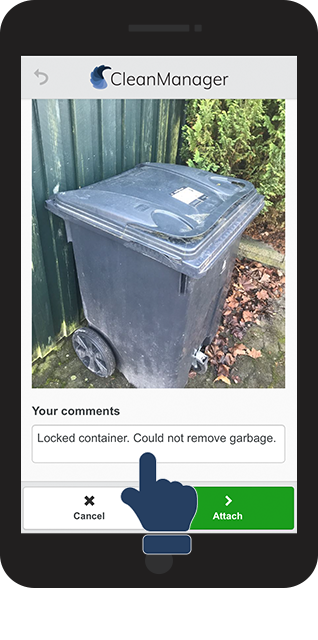
Click on the comment section to enter a comment to the picture

B4.png
number_5.png

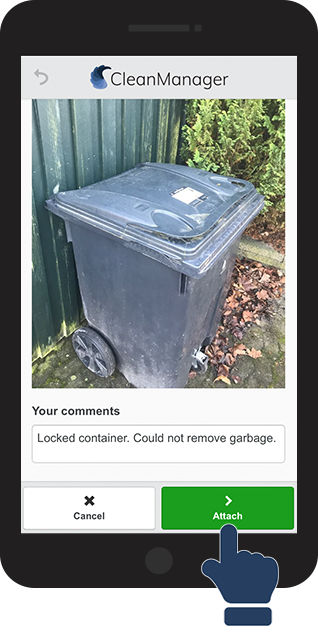
Click on Attach to complete the registration of the picture

B5.png
number_6.png

You can add multiple images to a task. Just click on the camera icon again

B6.png


Check if your picture has been uploaded to the image library of your task.

When a picture has been added to a task, an image library appears.

In this library, you can see all pictures attached to the task.
number_1.png

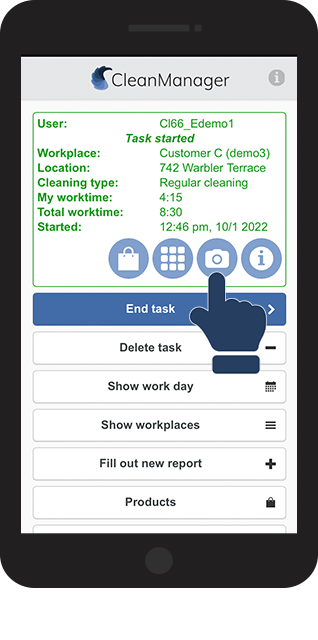
Click on the camera icon. Take a picture and attach it to the task.

C1.png
number_2.png

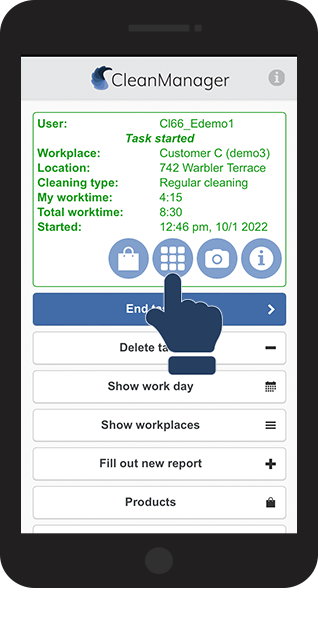
When a picture has been attached, the image library billedekartotek.png appears


Click on the image library icon to see the pictures

C2.png
number_3.png

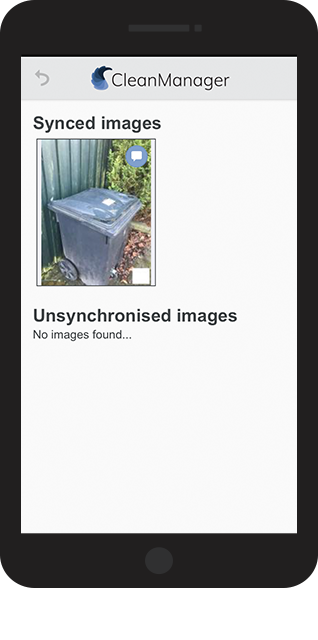
In the image library, you can see all pictures attached to the task


If you are connected to the internet, all pictures will be placed under Synced images.

If you are not connected to the internet, the pictures will be placed under Unsynchronized images until your phone is connected to the internet again

C3.png

NOTE:

For a task that is not planned, but has been created and started directly from the app, attached images will be placed under Unsynchronized images until the task has been ended.

The task will not be registered in CleanManager, until the task has been ended. After the completion of the task, the pictures will be uploaded and synchronized.