Icons that can appear in Daily tasks
What do the icons that are visible on the completed tasks mean?
A completed task with a registered used time can be found in the column Tasks that have been completed in the menu Check-in > Daily tasks.
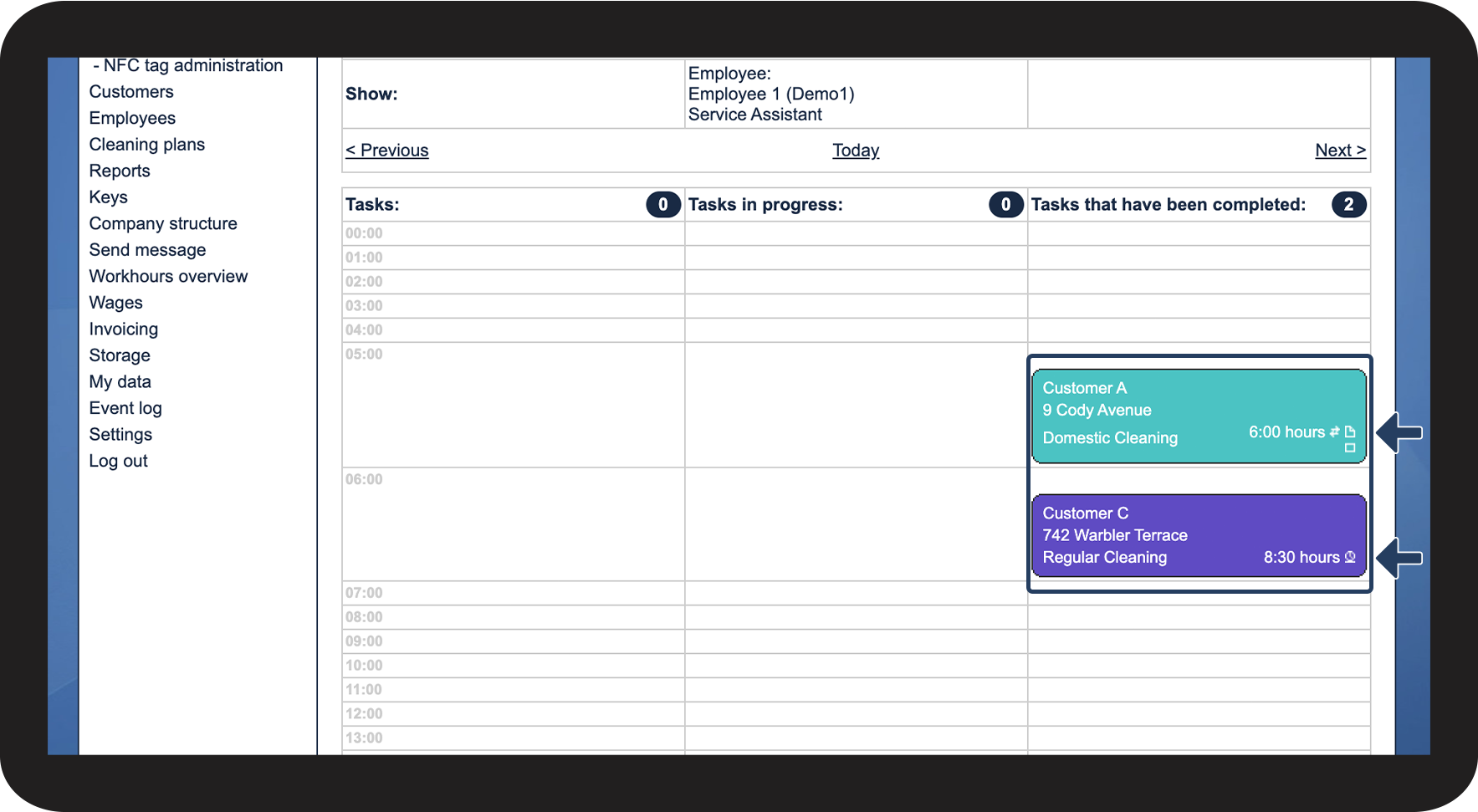
The used time can be registered either via the web system's calendar or the employee's app, and an icon will appear on the task to indicate how the used time has been entered. Furthermore, icons will show if the employee has attached a comment and/or an image to the task via the app.
In this article, you will learn where the icons can appear and what they mean:
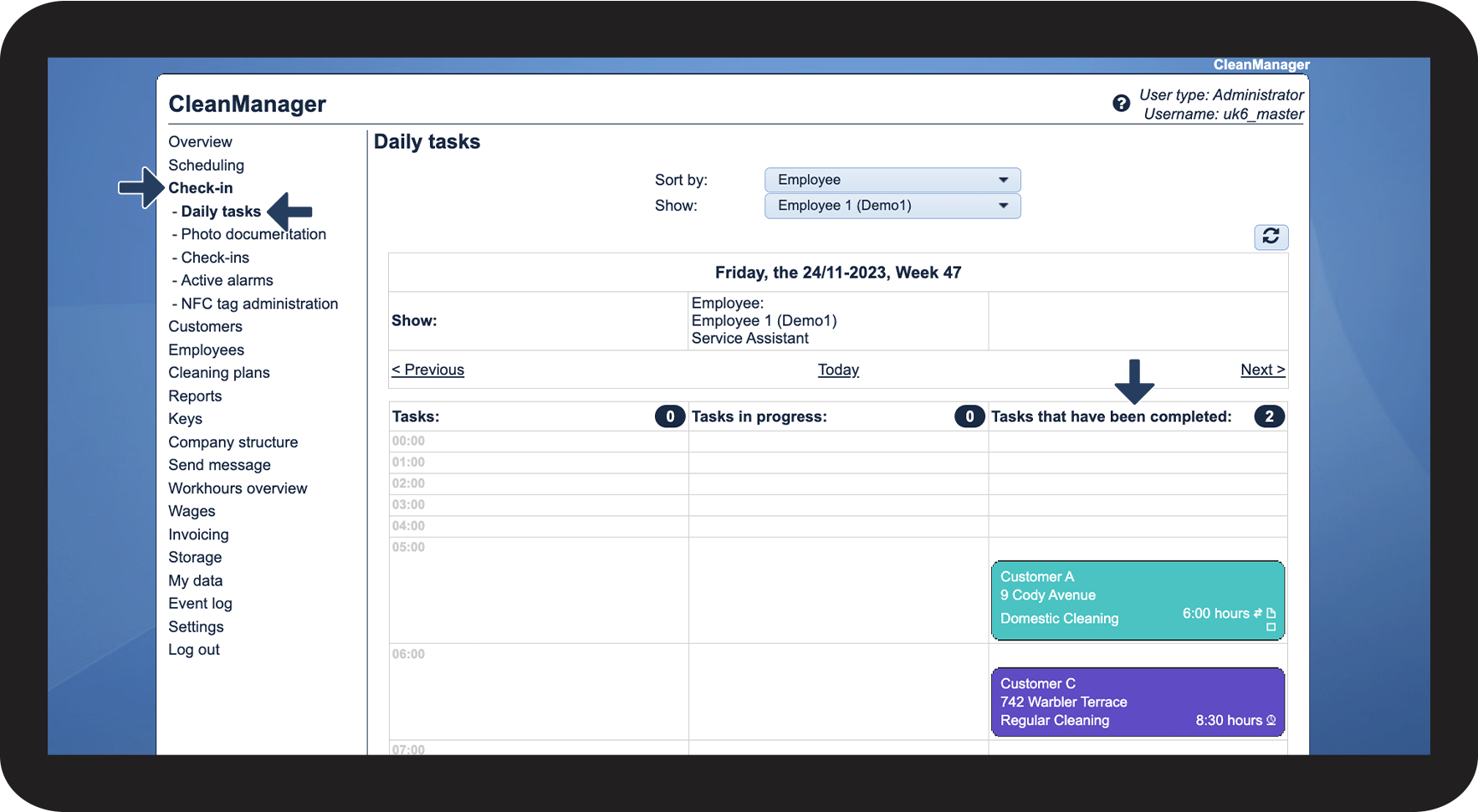
This is where the icons can appear
In the menu, go to Check-in > Daily tasks and look at the tasks in the column Tasks that have been completed

Find the icons on the completed tasks

This is what the icons mean
In the table below, you can see the different icons that can appear on a task as well as what they mean
Icon
Meaning
The hours are registered via the calendar
The hours are logged in via the check-in app
A comment has been added to the task by the employee
An image has been attached to the task by the employee
INFO:
Read more about to to start and end a task as well as how to add comments and images to a task in this section: Managing tasks