Skip to content
English
  • There are no suggestions because the search field is empty.

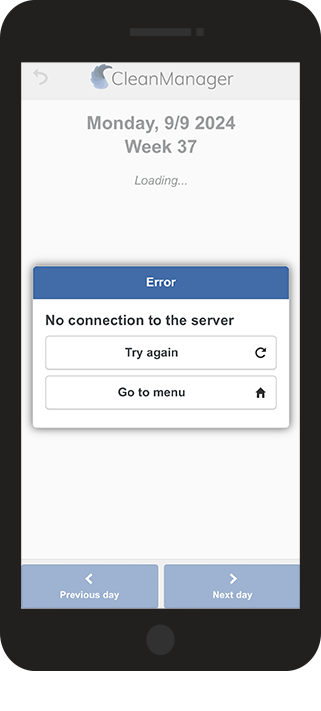
How to handle "no connection to the server"

What should I do if I do not have a connection to the server?

It rarely happens that you are without connection to CleanManager's servers.

If you still experience problems, you can find troubleshooting guidelines in this article.
1.png

In this article, you will find answers to issues primarily related to your internet connection.

See how you can solve the connection issue, or alternatively how to start and stop your tasks using an NFC tag without internet connection.

Afterward, when you are connected to the internet again, you can synchronise your tasks to CleanManager:


Error search when “no connection to the server”

This issue is often caused by problems with your 3G/4G/5G connection, your SIM-card, or Wi-Fi. Below, you can see how to make sure if your device is connected to the internet. 

number_1.png

Check your data settings


You find your data settings here:

iPhone:

Settings > Mobile Data > Mobile Data

(Click on the slider to activate/ deactivate mobile data)


Android: 

SettingsConnections > Mobile Networks

(Click on the slider to activate/ deactivate mobile data)


number_1.png

Check your Wi-Fi settings


Unless you connect the phone to your company's or your customer's Wi-Fi, the Wi-Fi should always be deactivated. Otherwise, your phone might connect to a guest network with no connection. You deactivate your Wi-Fi here:

iPhone:

Settings > Wi-Fi > Wi-Fi

(Click on the slider to activate/ deactivate Wi-Fi)


Android: 

Settings > Wi-Fi > Wi-Fi 

(Click on the slider to activate/ deactivate Wi-Fi)


number_1.png

Do you have a network connection?


If your data is turned on and your Wi-Fi is turned off, check if your phone has an internet connection.

You can check this in your browser Safari/ Chrome by accessing cleanmanager.org.

If there is no internet connection, the issue might be with your SIM card, e.g. you ran out of data.


number_1.png

Mobile data + Wi-Fi turned on


If you are working in an area with different Wi-Fi signals, your phone will often change in between networks. This causes your app to try to establish a connection every time the phone changes networks. Therefore, turn off your Wi-Fi and only use your mobile data. 


Start and end a task without internet connection and how to synchronise tasks

This is how you start and end your task offline with the CleanManager app, and how to synchronise the tasks afterward when you have re-established your internet connection:


There are 3 steps in the process:

Step_1.png

Start a task with an NFC tag (offline)


Step_2.png

End a task with an NFC tag (offline)


Step_3.png

Task synchronisation in CleanManager (online)


NOTE:

The task will not appear in CleanManager's system until the task has been synchronised, i.e. the administrator and supervisors will not be able to see updates for the task until that has been done.


Let's get started:
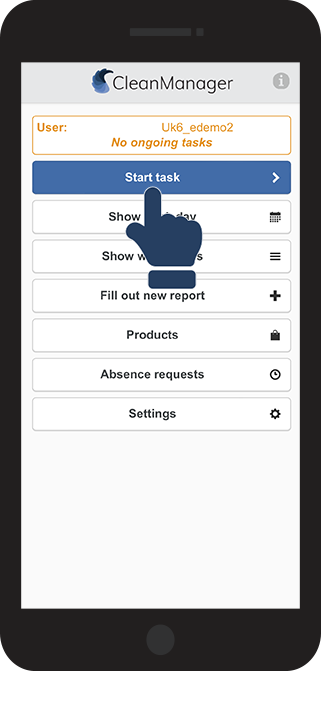


Step_1.png

Start a task with a NFC tag (offline)


number_1.png
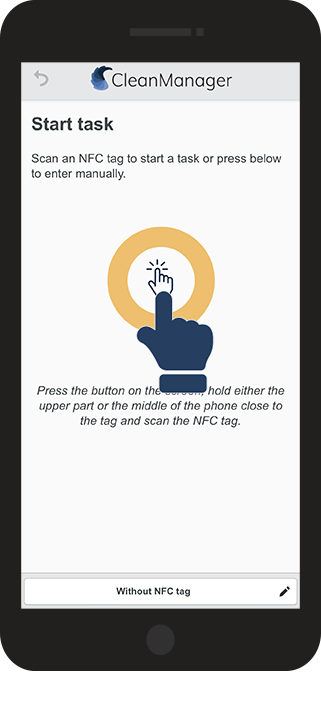
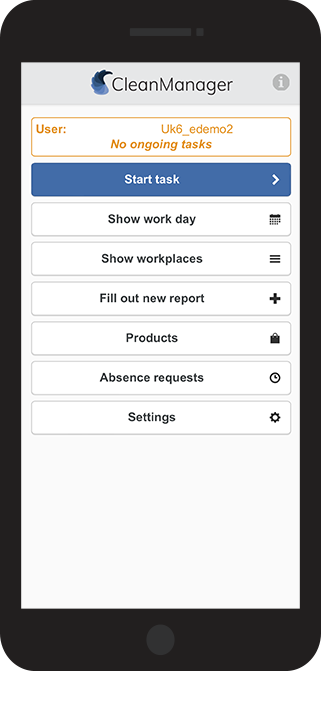
Click on Start task
2.png
number_2.png
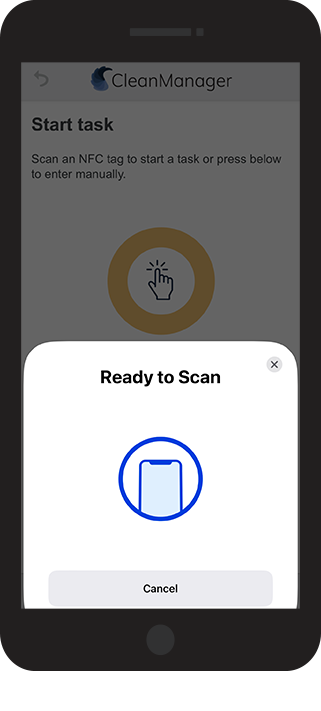
Activate NFC scanner by clicking within the circle
(Android Smartphones are already ready to scan)
3.png
number_3.png
Scan the NFC tag
4.png
number_4.png
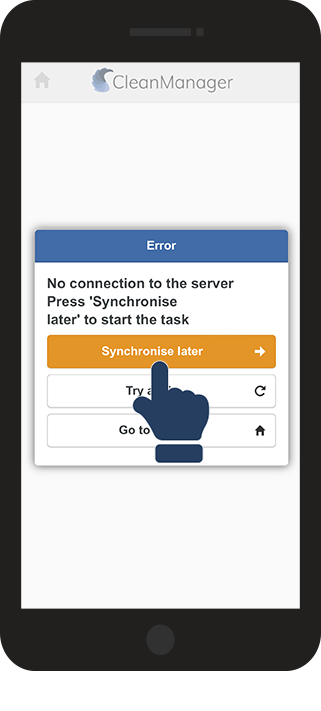
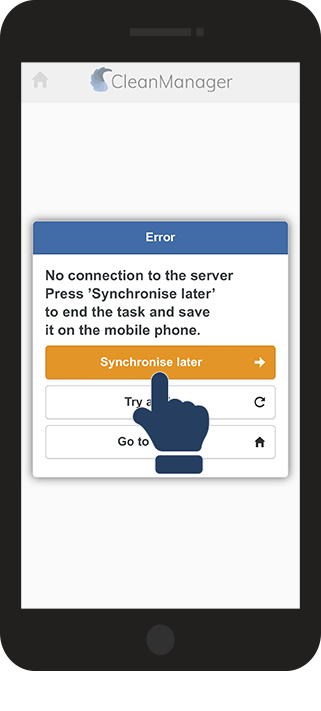
Click on Synchronise later (This will automatically be shown if you are not connected)
5.png
number_5.png
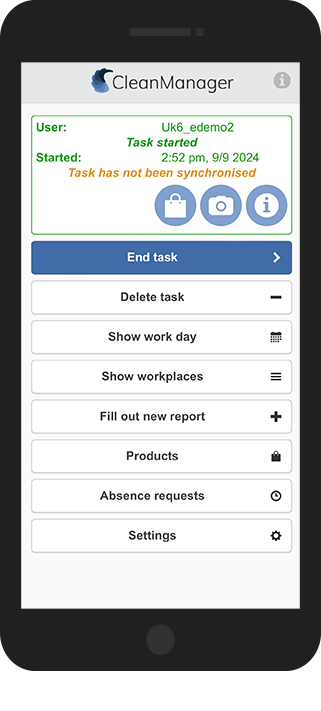
The task has now been started
6.png
number_6.png
You can still attach pictures and comments to your task
7.png


Step_2.png

End a task with a NFC tag (offline)


number_1.png
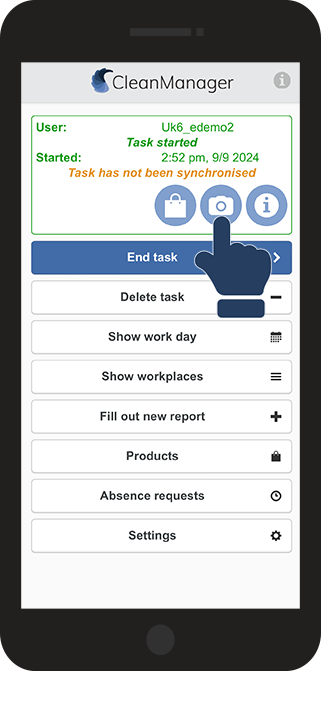
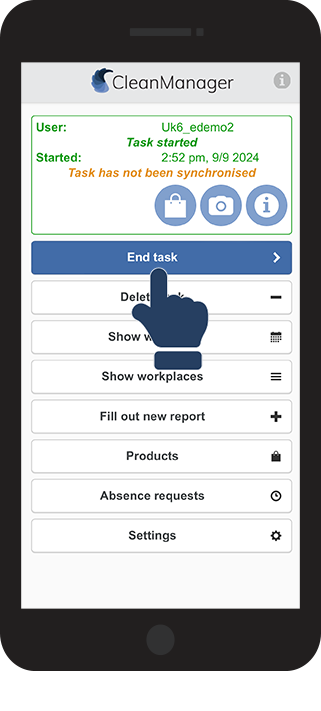
Click on End task
8.png
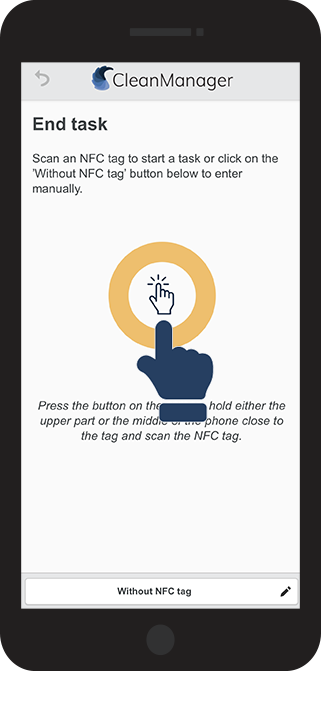
number_2.png

Activate NFC scanner by clicking within the circle
(Android Smartphones are already ready to scan)

9.png
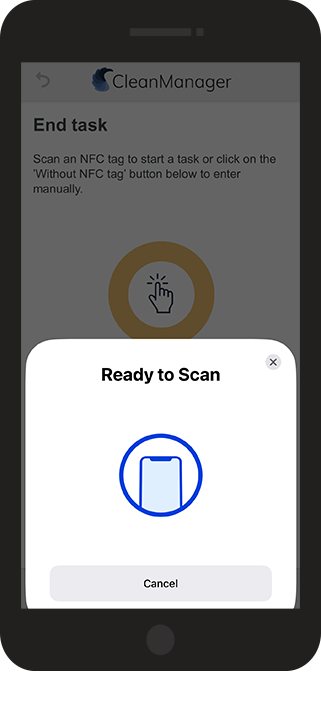
number_3.png
Scan the NFC tag
10.png
number_4.png
Click on Synchronise later
(This will be shown automatically if you have no internet connection)
11.png
number_5.png
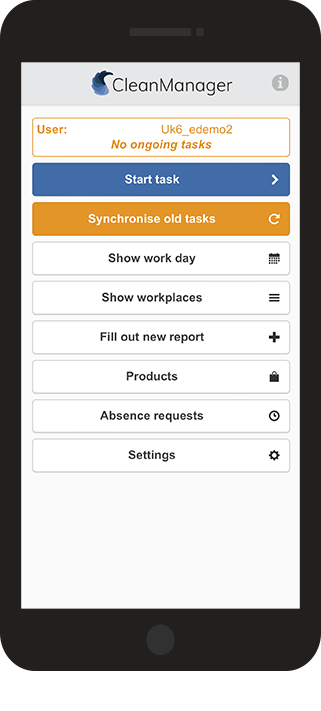
The task is now ended and saved under the section Synchronise old tasks
12.png


Step_3.png

Task synchronisation in CleanManager (online)


You can synchronise your task when your internet connection is re-established.   


number_1.png
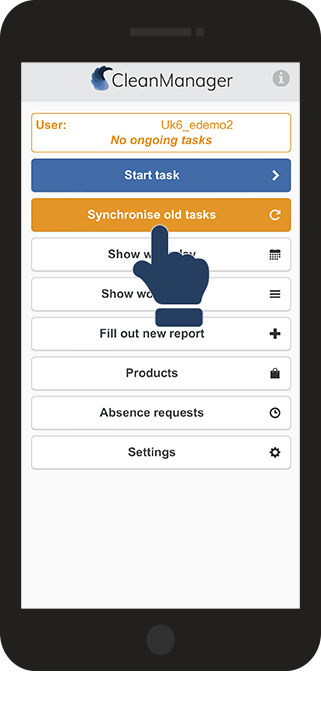
Click on the button Synchronise old tasks
13.png
number_2.png
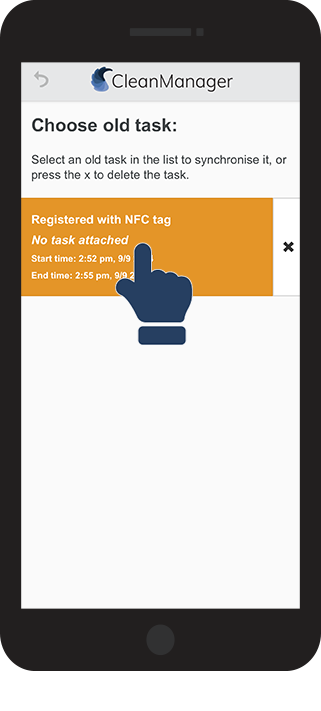
Click on the registered task that you want to synchronise
14.png
number_3.png
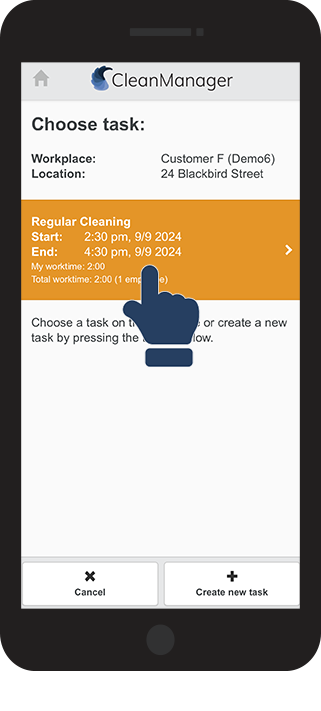
Choose an existing task that you want to synchronise your task with in CleanManager, or create a new task.
15.png
number_4.png
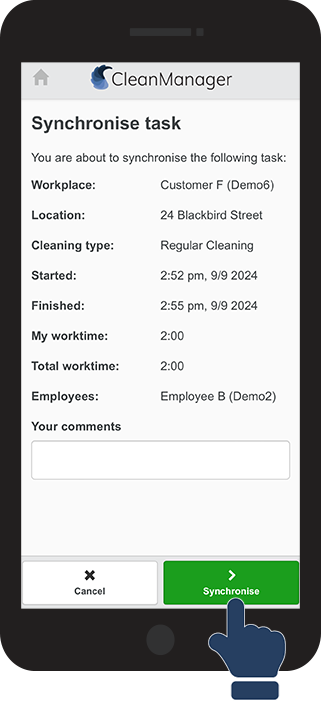
Click on the button Synchronise
16.png
number_5.png
The task is now synchronised
 
When all tasks are synchronised, the button Synchronise old tasks will disappear
17.png