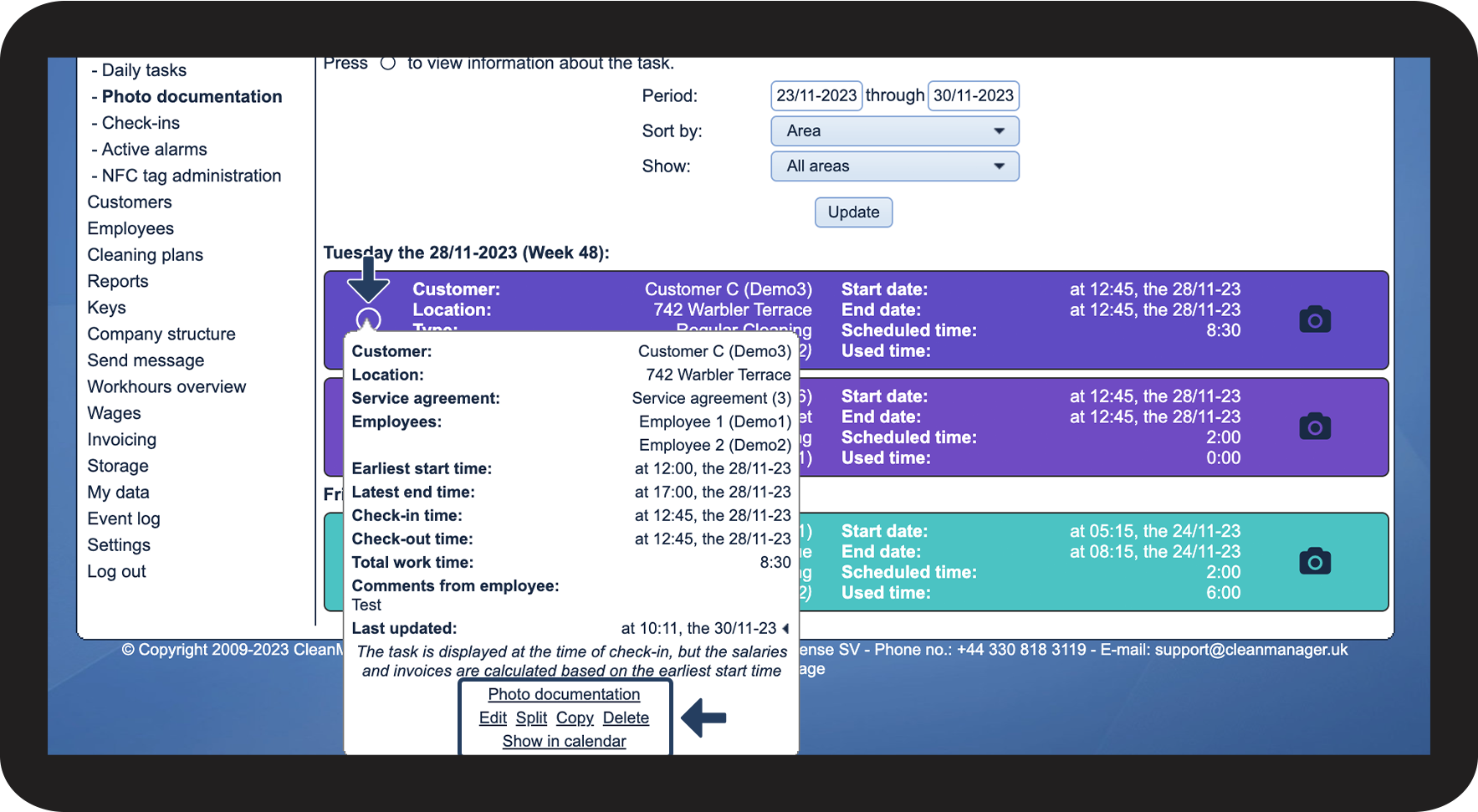
Where can I find the images that have been attached to the tasks, and how can I handle them as the administrator/supervisor?
As the administrator, you can see all tasks with attached images for all customers.
As the supervisor, you can see tasks with attached images for customers in the customer areas you have been assigned to. For more information regarding this, go to Company Structure.
In this article, you will learn where to find and how to handle attached images:
- How do I find tasks with attached images?
- Can I zoom in on an image?
- Where can I see comments on an image?
- How do I download an image from a task?
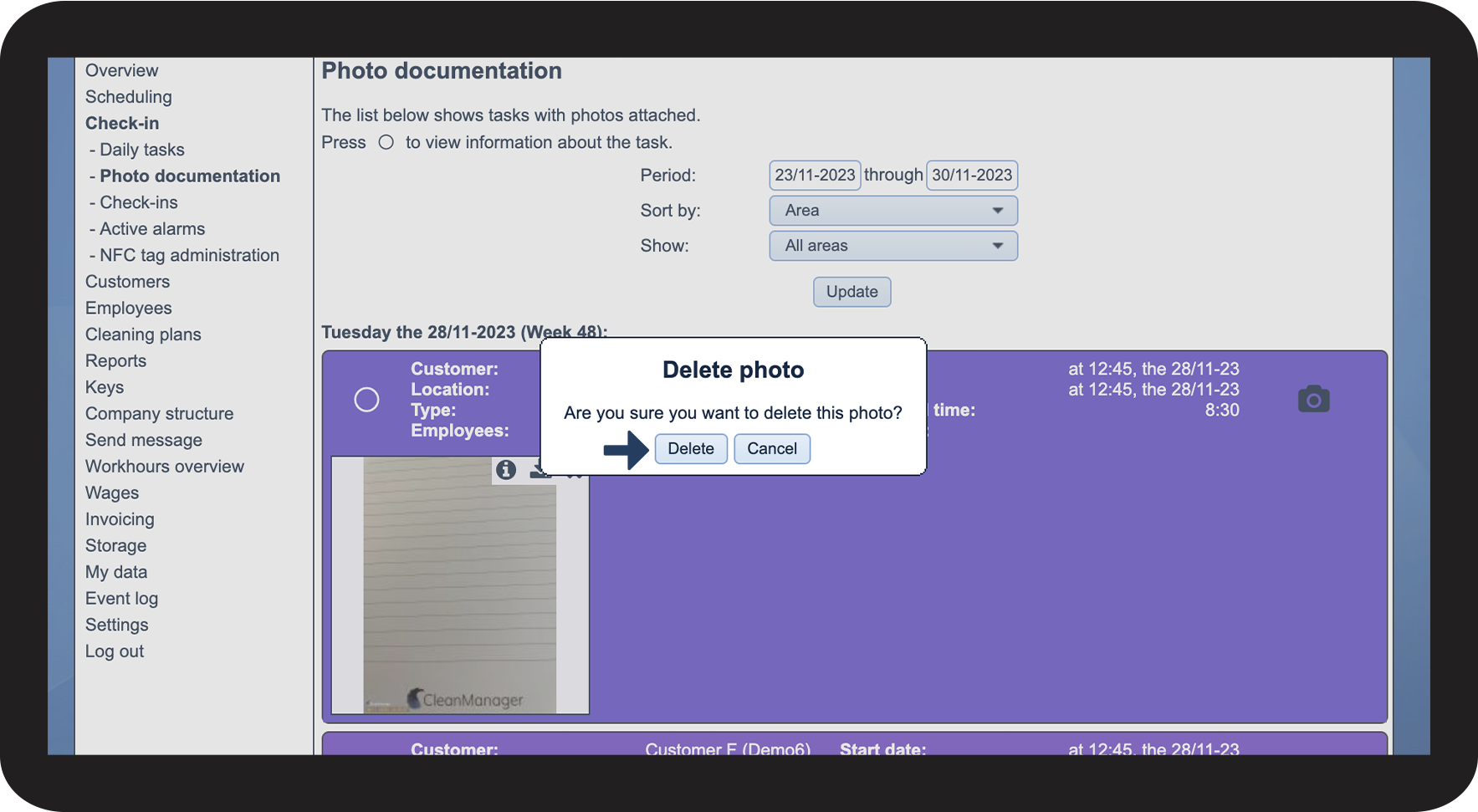
- How do I delete an image from a task?
- How can I handle the tasks?
This is how you find a task with attached images

INFO:
Learn more about how to attach images to a task using the app in the following article: Image documentation and comments on a task.
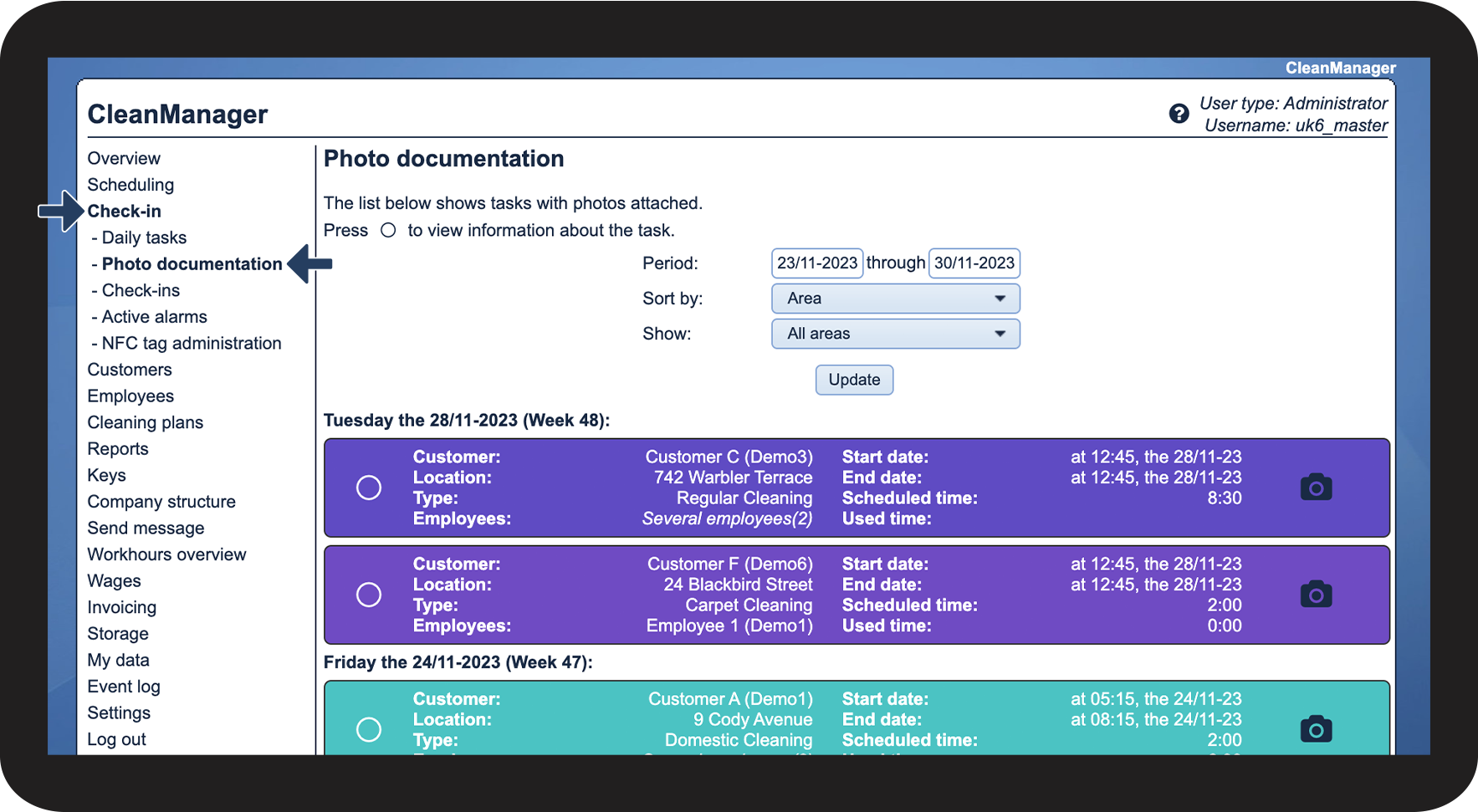

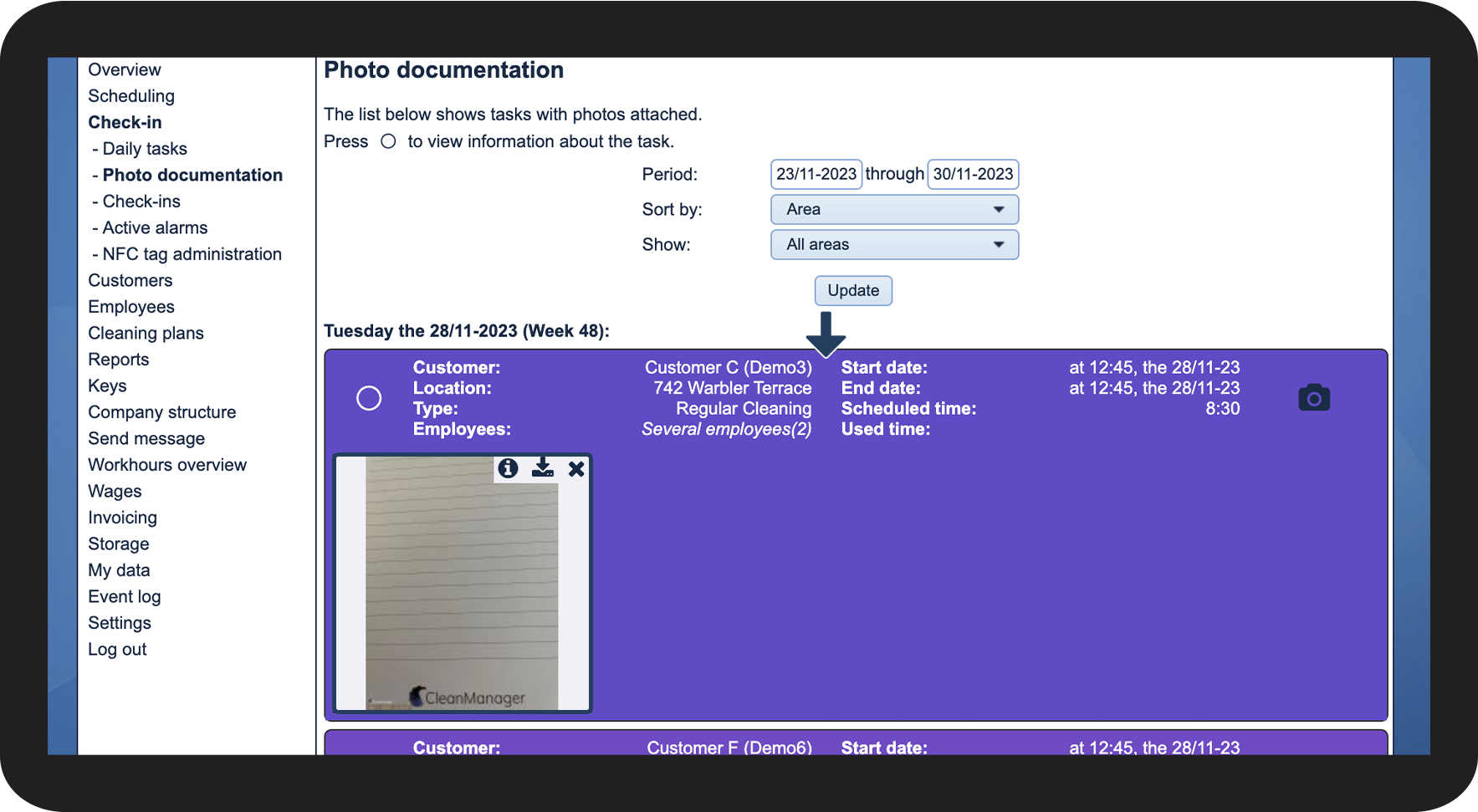
INFO:
If the phone is connected to the internet, the images will be synchronized immediately when you attach them. This means, that the administrator or supervisor is able to see the pictures in the websystem before the task has been ended.
However, if the phone does not have service, the images will not be synchronized until an internet connection has been re-established.
For more information about this, go to Image documentation and comments on a task and Handling of "no connection to the server".
This is how you can zoom in on an image
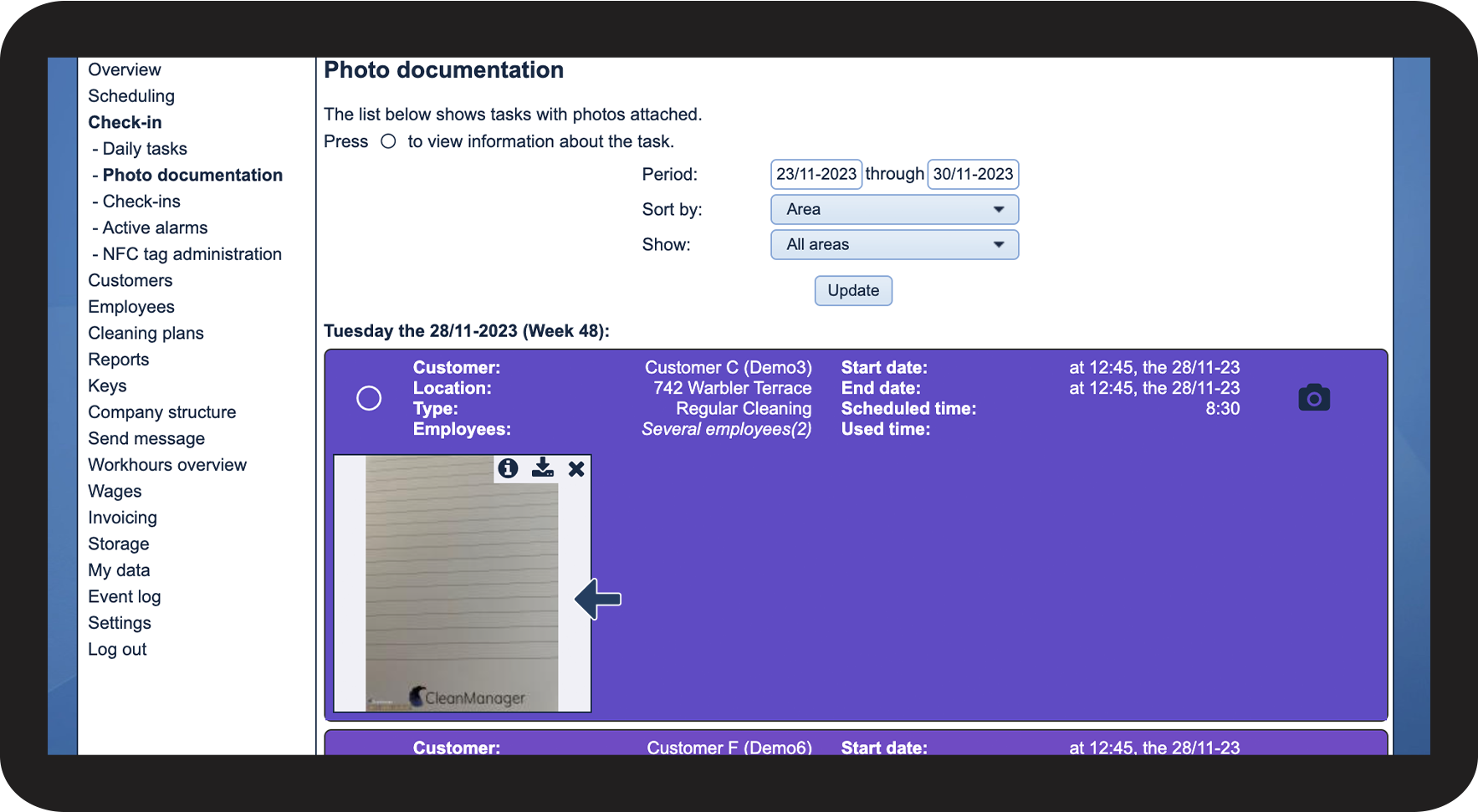
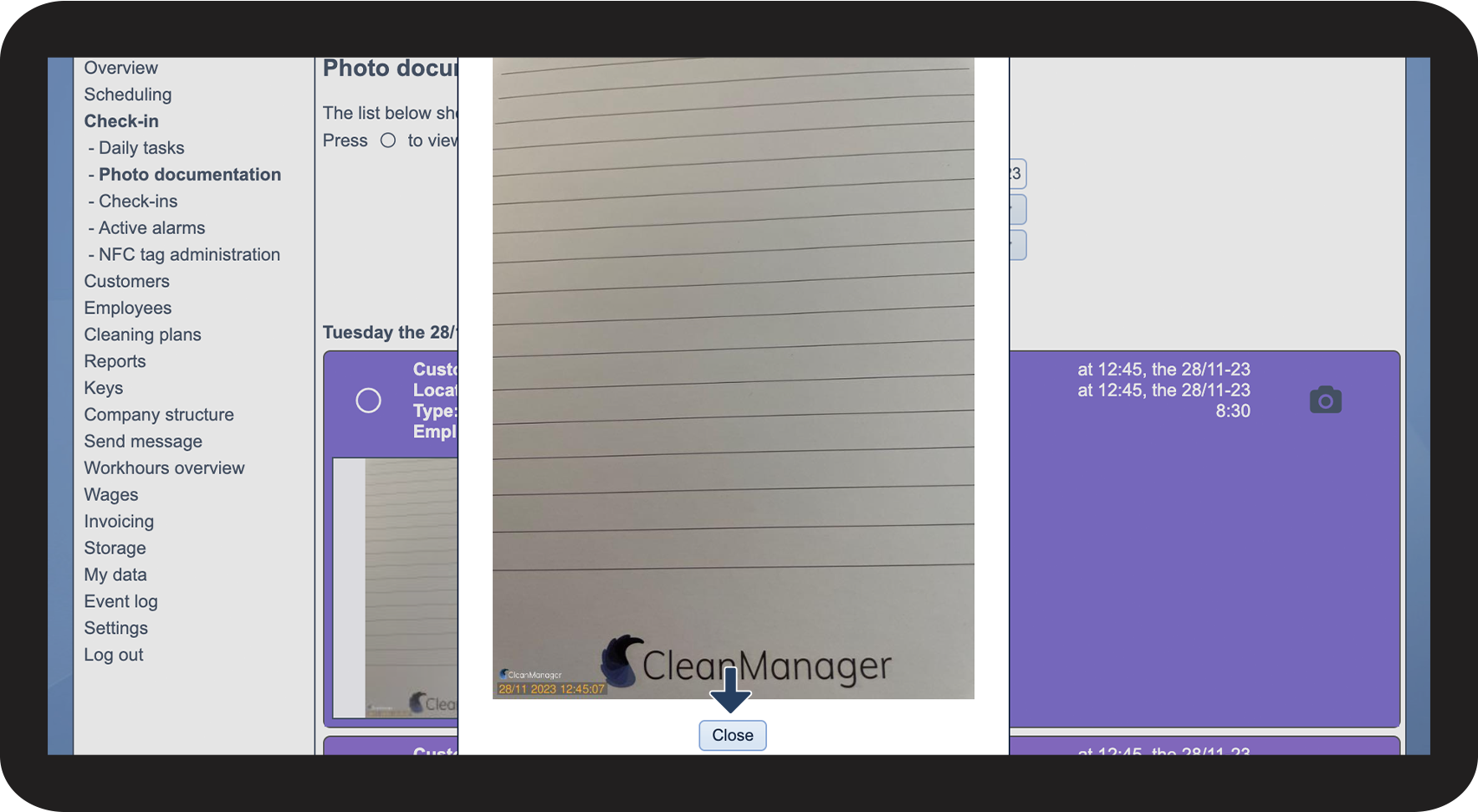
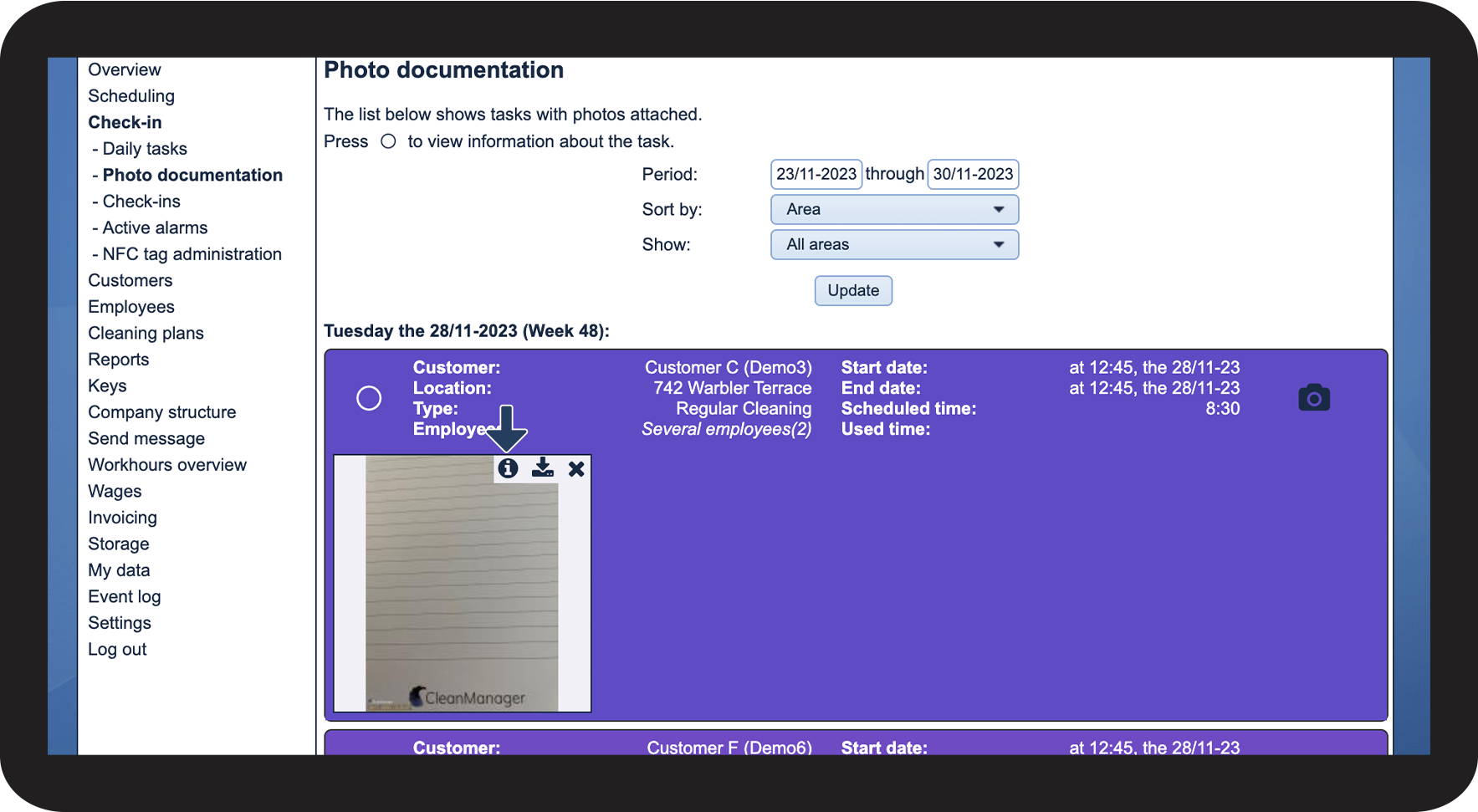
This is how you can see if a comment has been added to the image
 will appear. Click on the icon to see the comment
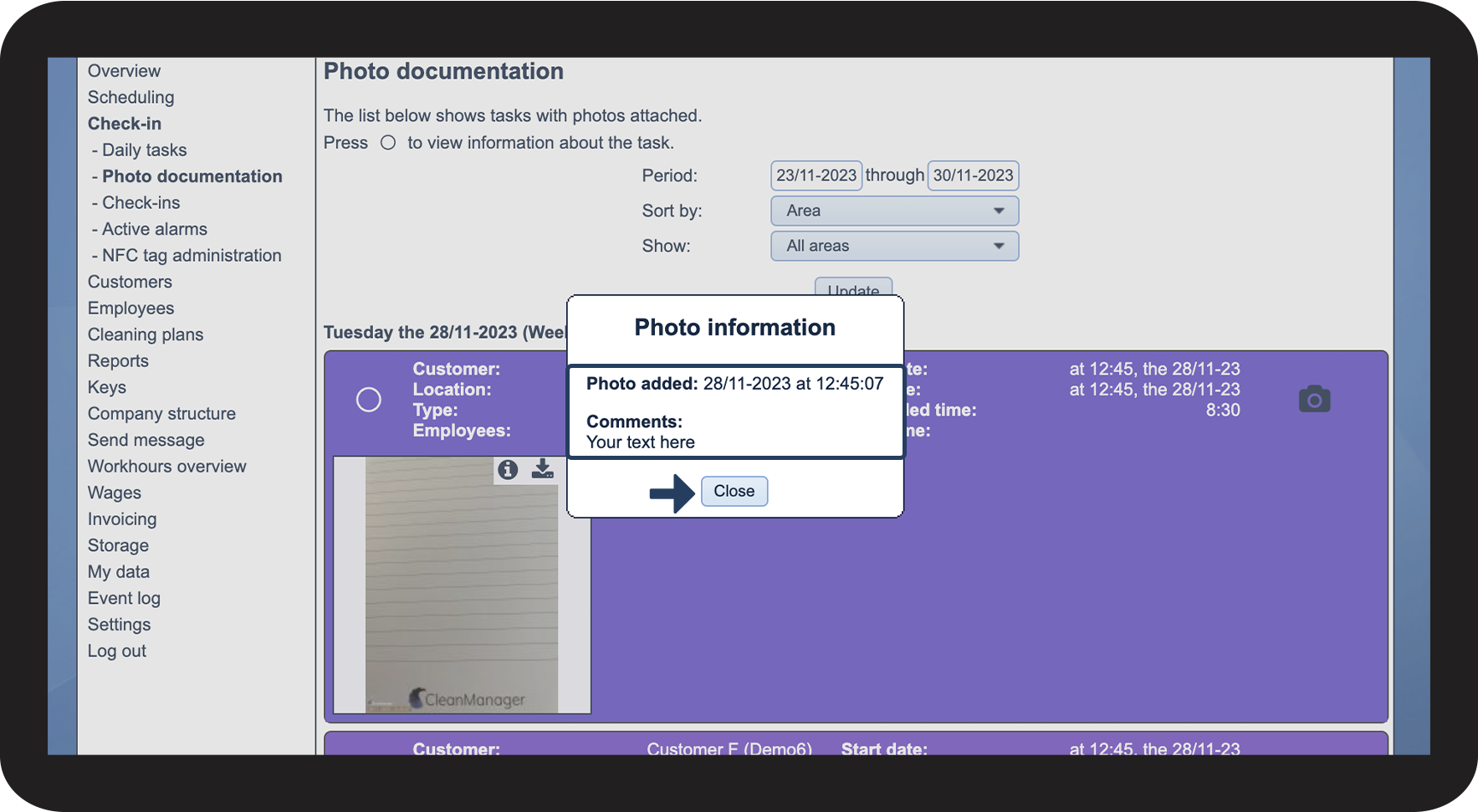
This is how you can download the image
 to download the photo to your computer
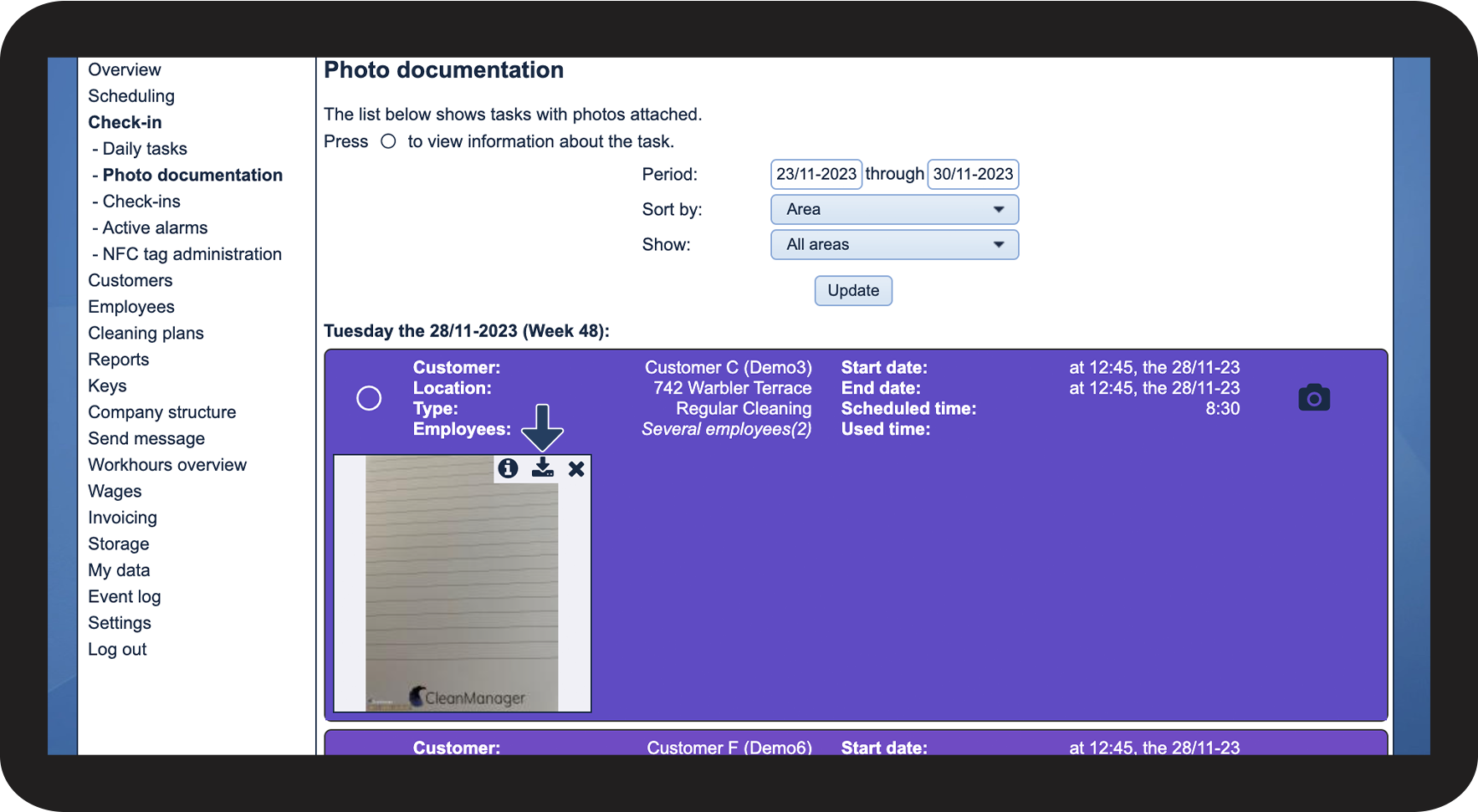
This is how you can delete an image
 to delete the photo
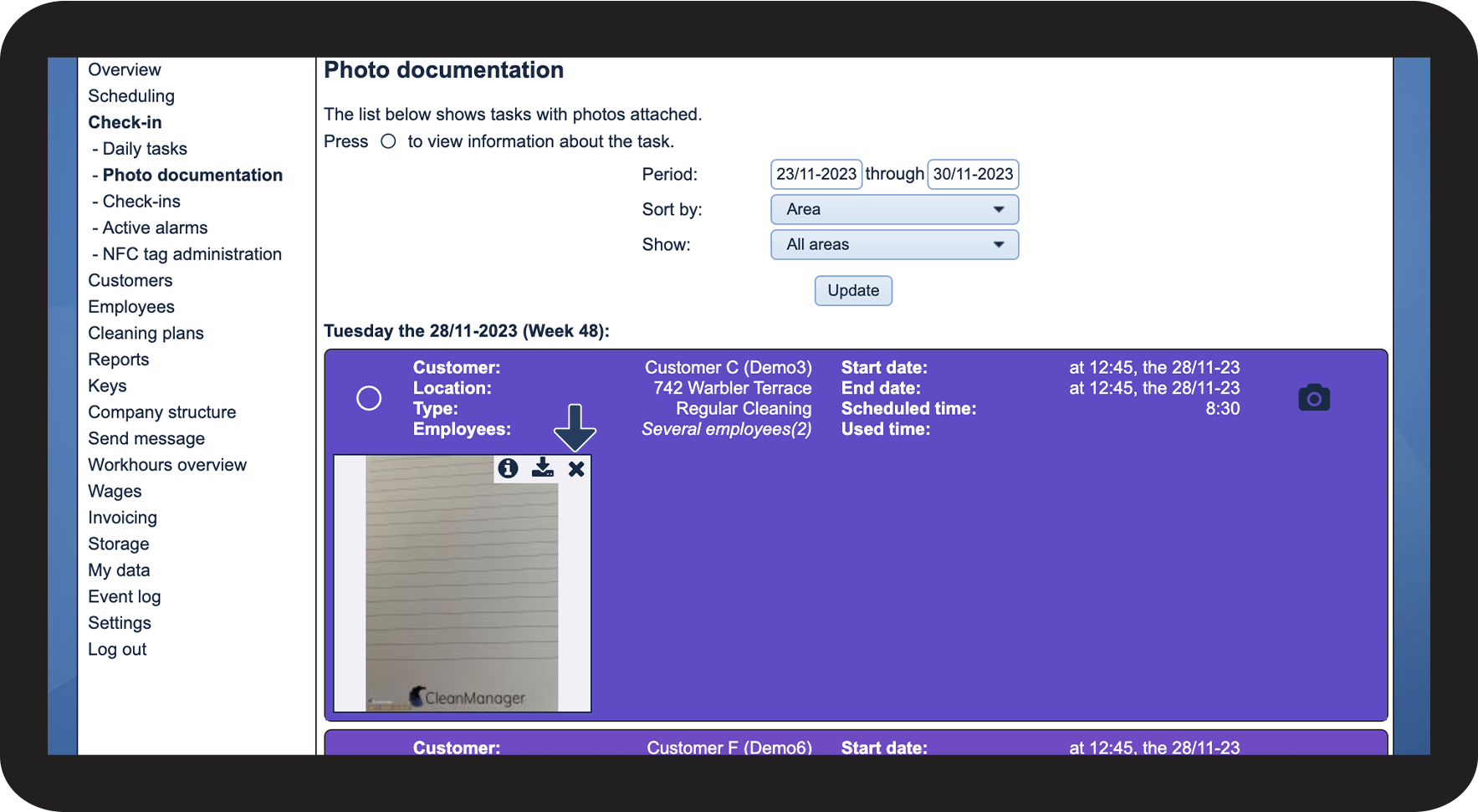
NOTE:
The photo will be permanently deleted and cannot be restored.
This is how you can handle the tasks
 to view the task information
NOTE:
Clear check-in time is only available if the task has not yet been ended in the app.
Approve hours and Reject hours are available if the hours submitted from the app have not yet been acted upon.