Skip to content
English
  • There are no suggestions because the search field is empty.

How do I see tasks with active alerts that need to be managed?

How can I see if an alarm has been triggered due to a missing check-in or check-out?

Are your employees about to check in and out for the first time? Are you unsure if they remember to do so, and want to make sure you are informed should they forget? Then you have the option to set alarms to be triggered on your tasks if they do not check in or out.


In this article, you will learn how to view and manage alarms in the Check-in menu: 


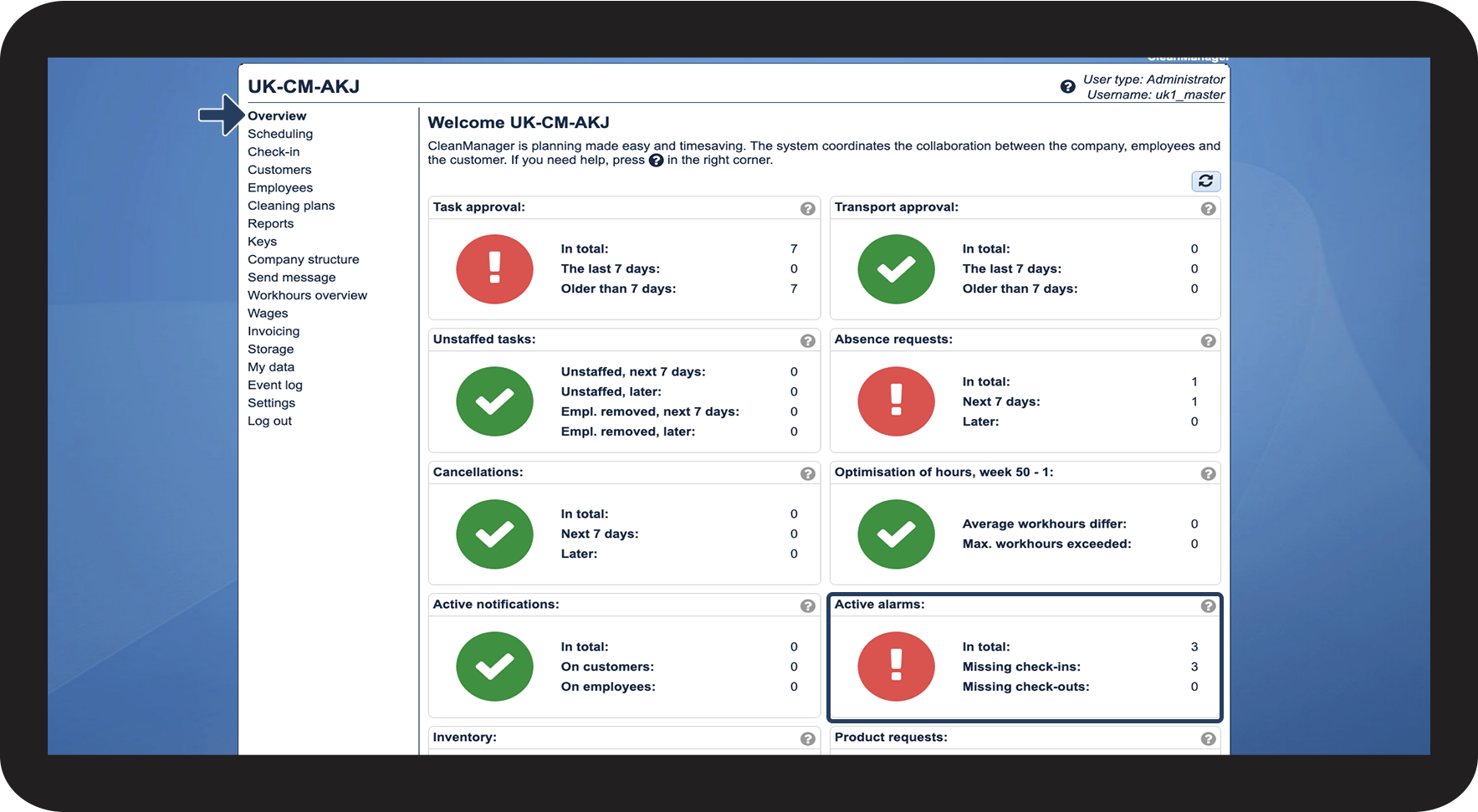
This is how you access active alarms from the overview

number 1.png

In the overview, you will always be able to see if alarms have been triggered and which ones have been triggered

1.png
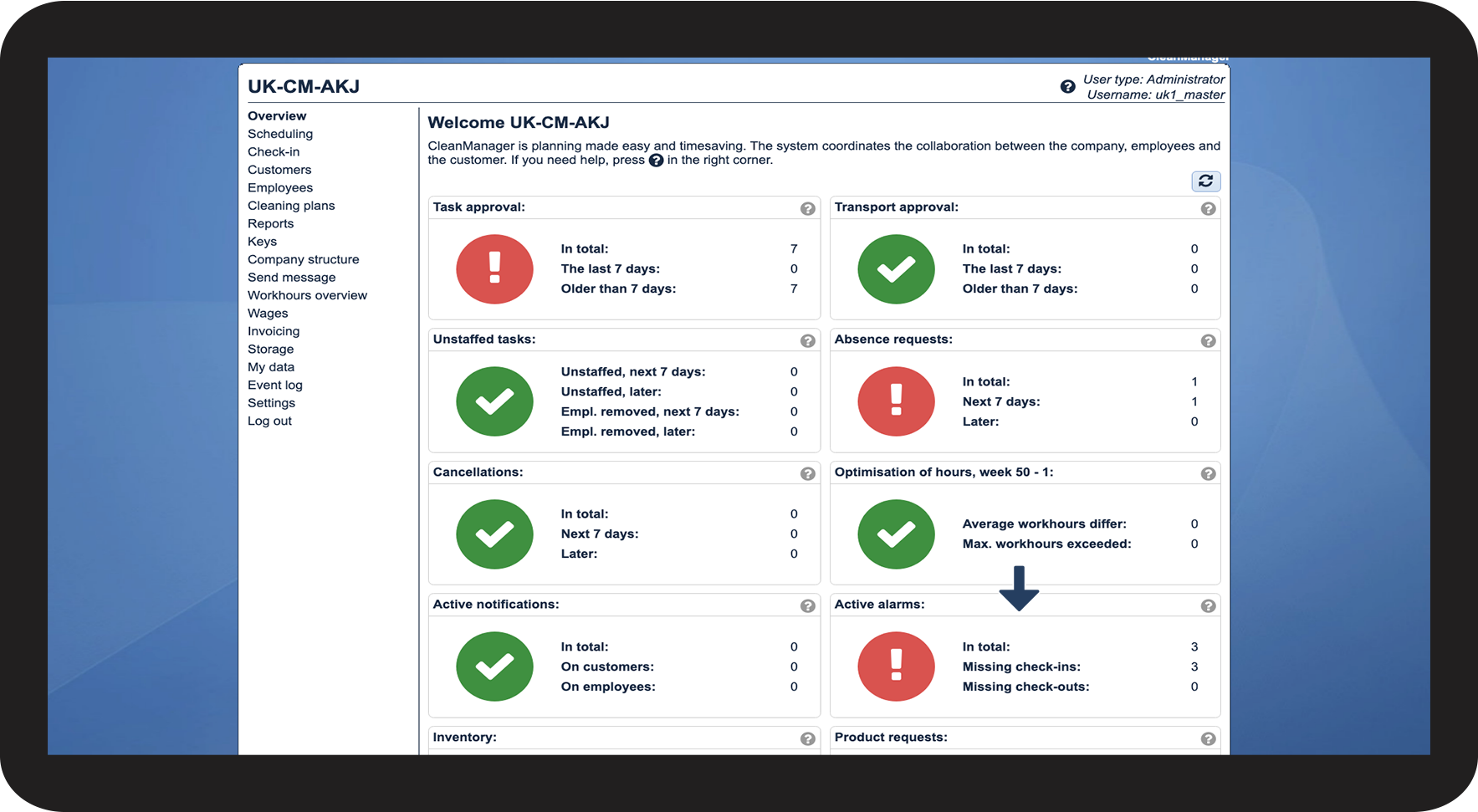
number 2.png

By clicking on Active alarms, you will be redirected to Check-in > Active alarms

2.png


How to sort tasks with active alarms

number_1.png

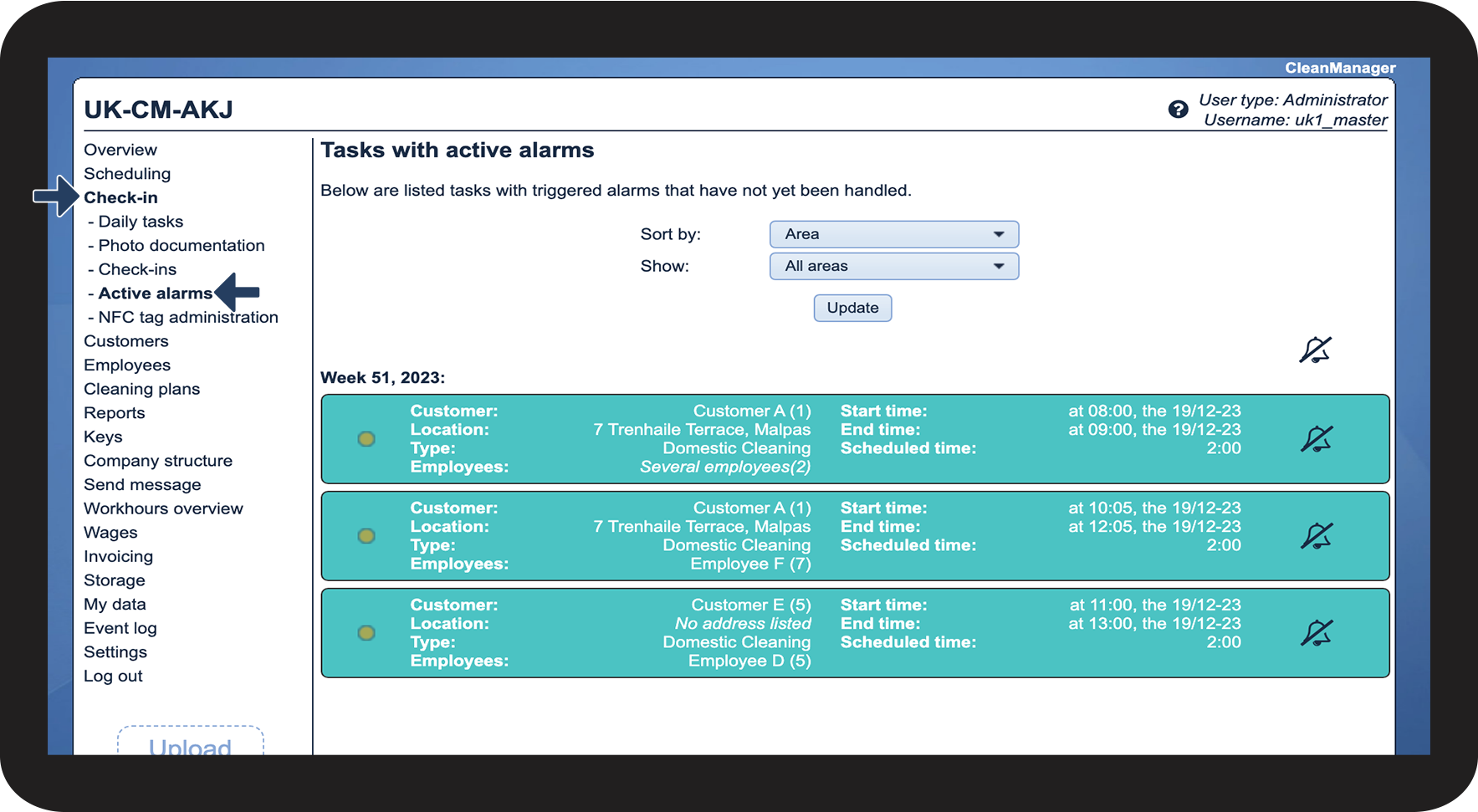
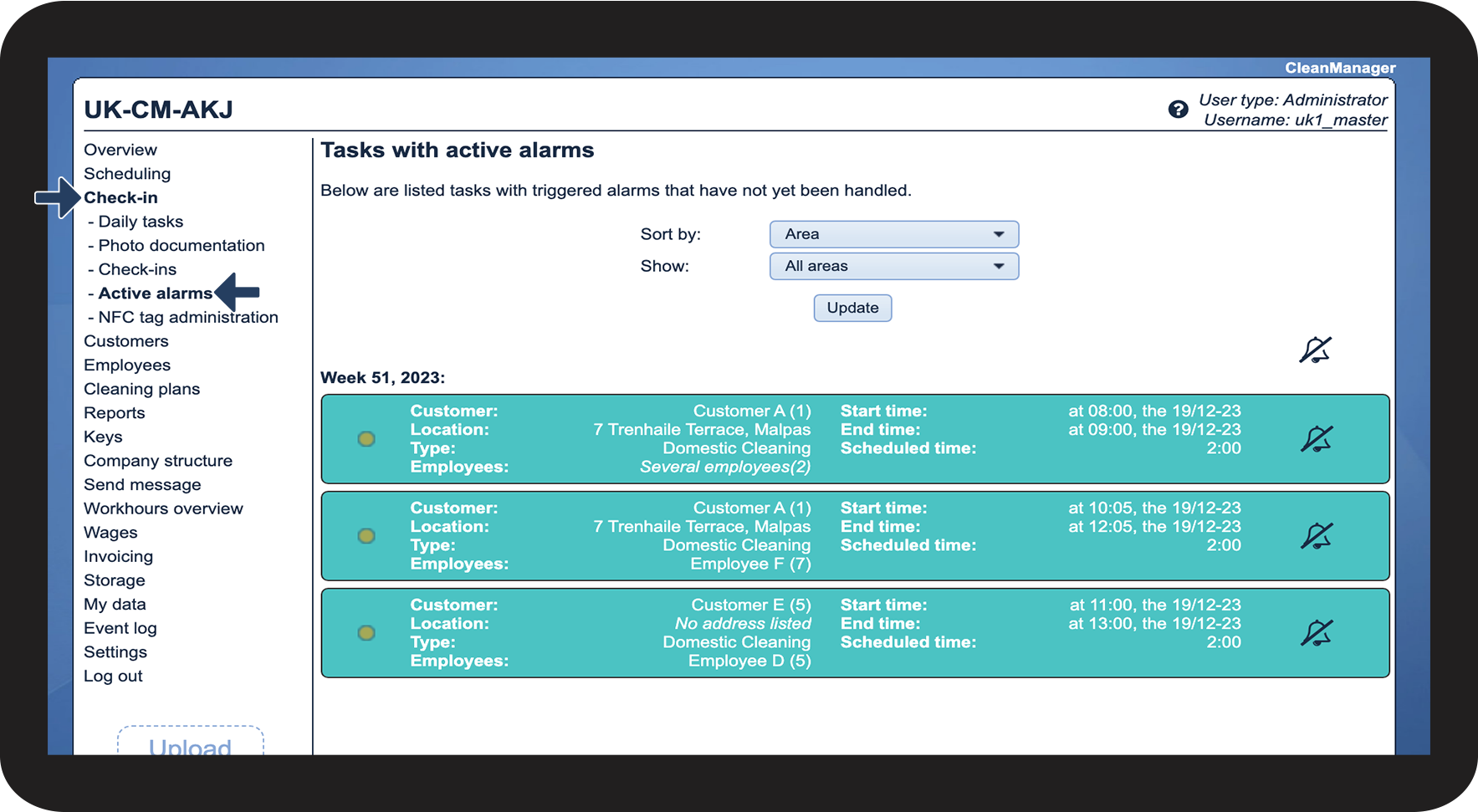
In the menu, go to Check-in > Active alarms

 
Here, you have an overview of all triggered alarms. This includes both those for no check-in and those for no check-out.

3.png

number_2.png

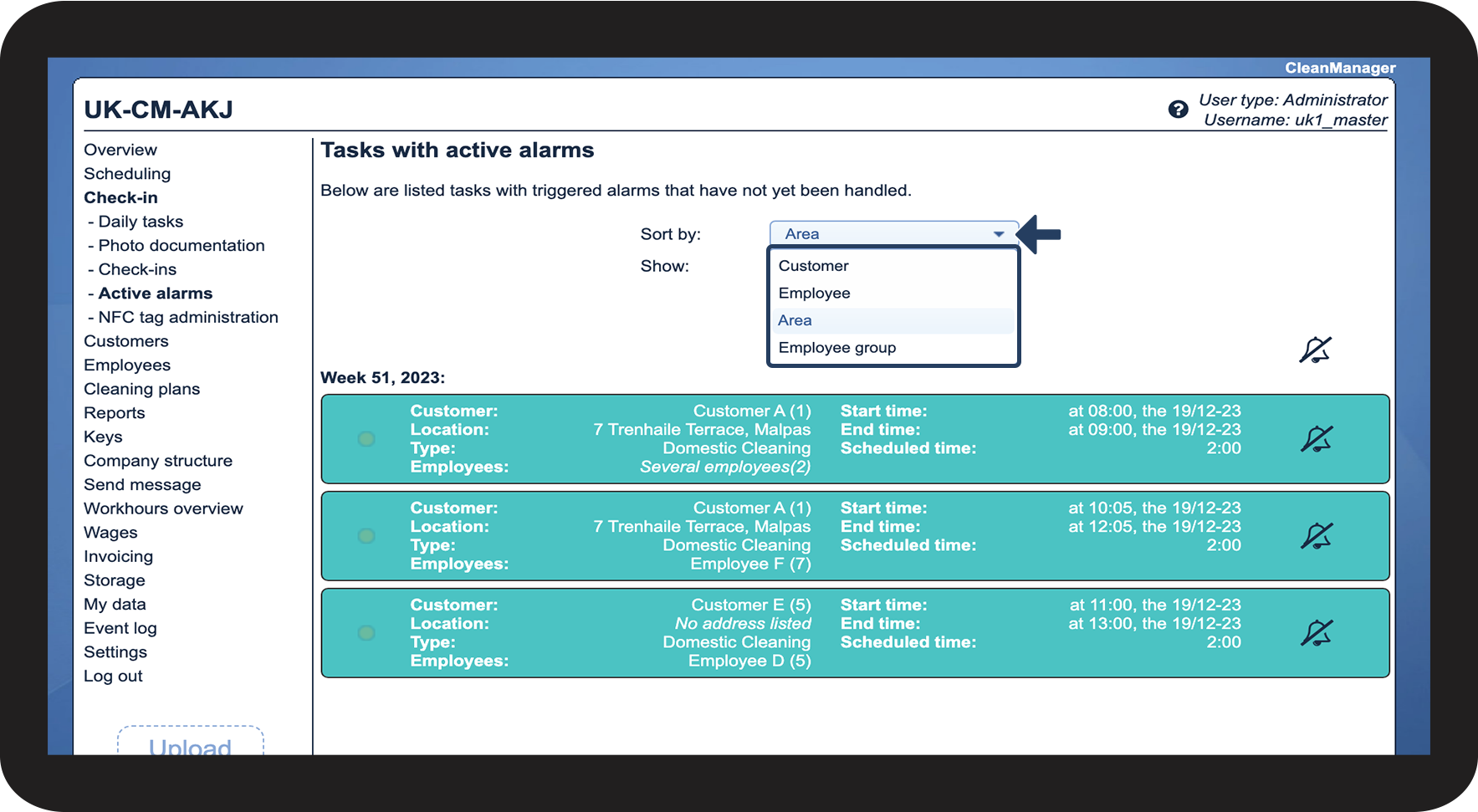
Click on Sort by and select which alarms to display


You can view alarms based on:

-Customer

-Employee

-Area

-Employee group


NOTE:

Inspectors can only view alarms for customers in their assigned areas. For more information regarding this, go to Company Structure.
4.png

number_3.png
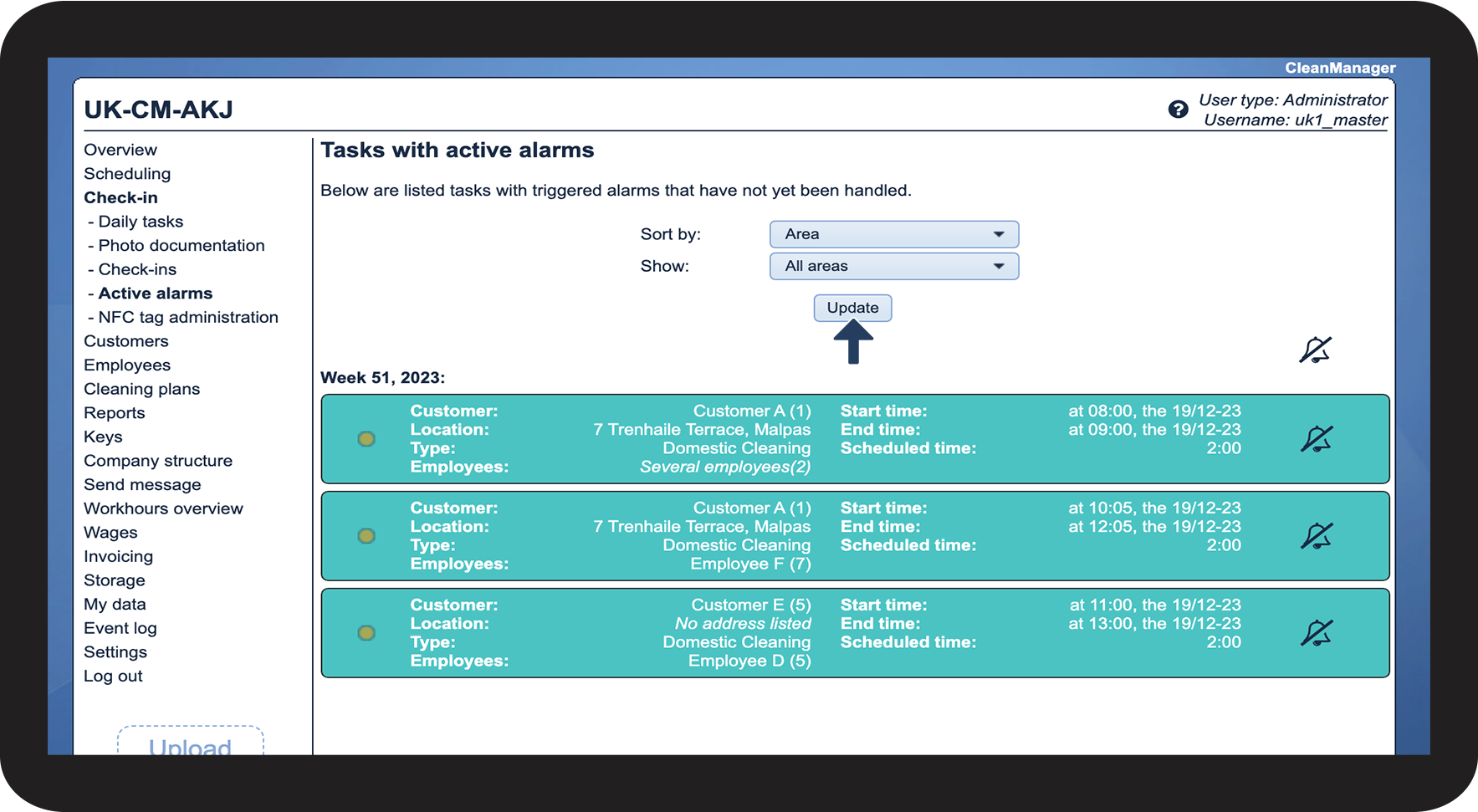
Click on Update

5.png

number_4.png

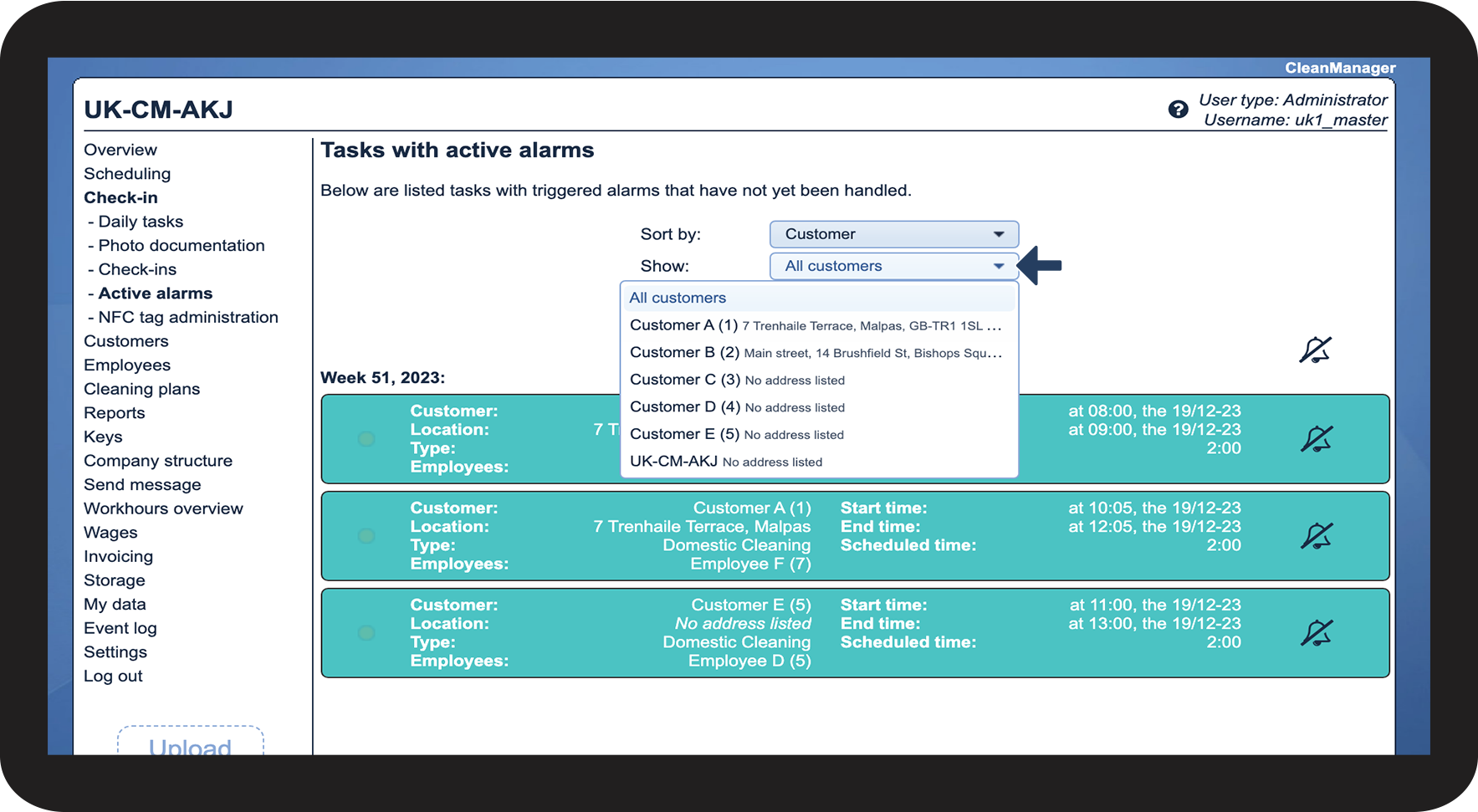
Click Show to sort by a specific customer/employee/employee group/area

Then click Update

6.png

number_5.png
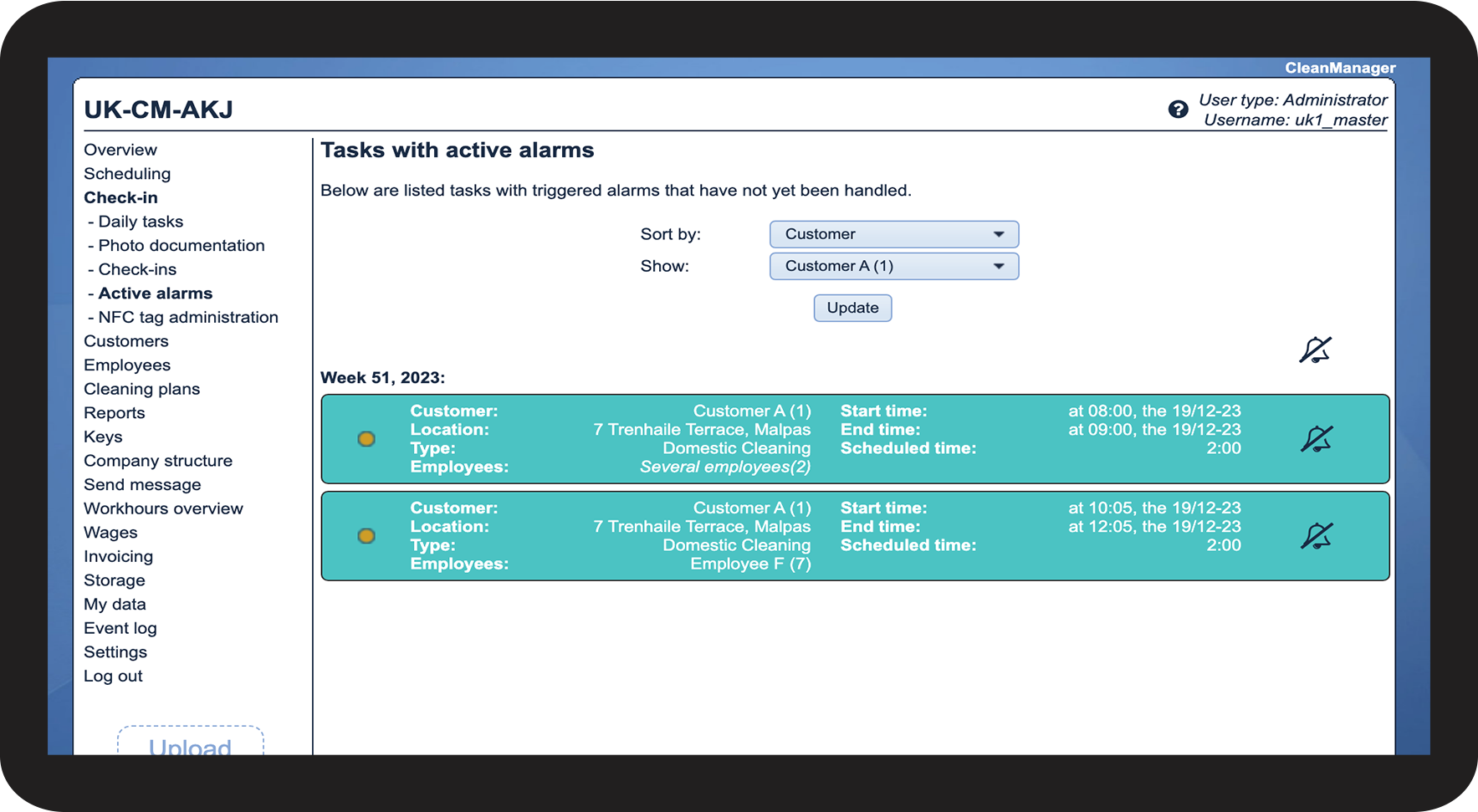
Now you can see the triggered alarms on the specific customer/employee/employee group/area
7.png


How to view and manage triggered alarms
number_1.png

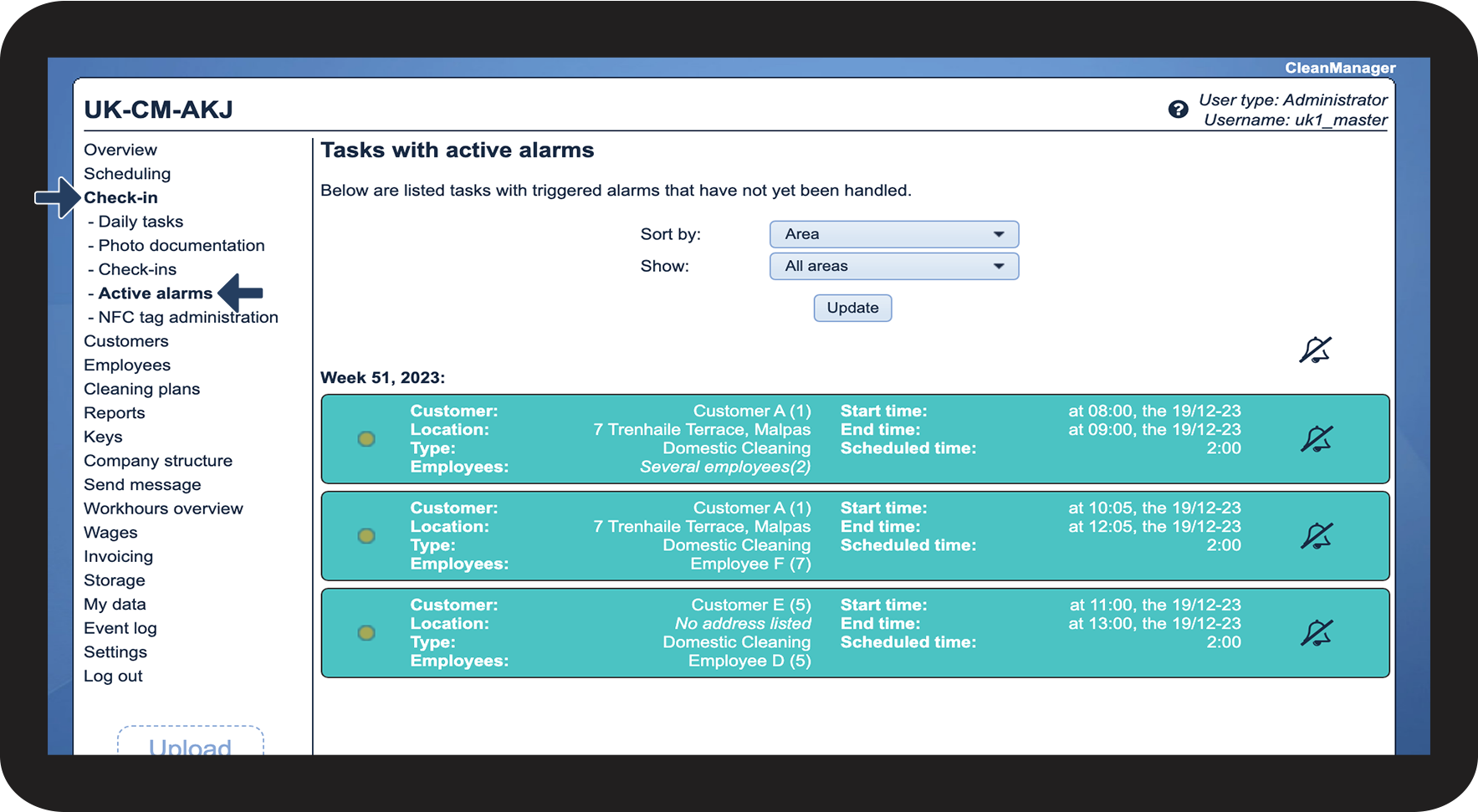
In the menu, go to Check-in > Active alarms

 
Here, you have an overview of all triggered alarms. This includes both those for no check-in and those for no check-out

8.png

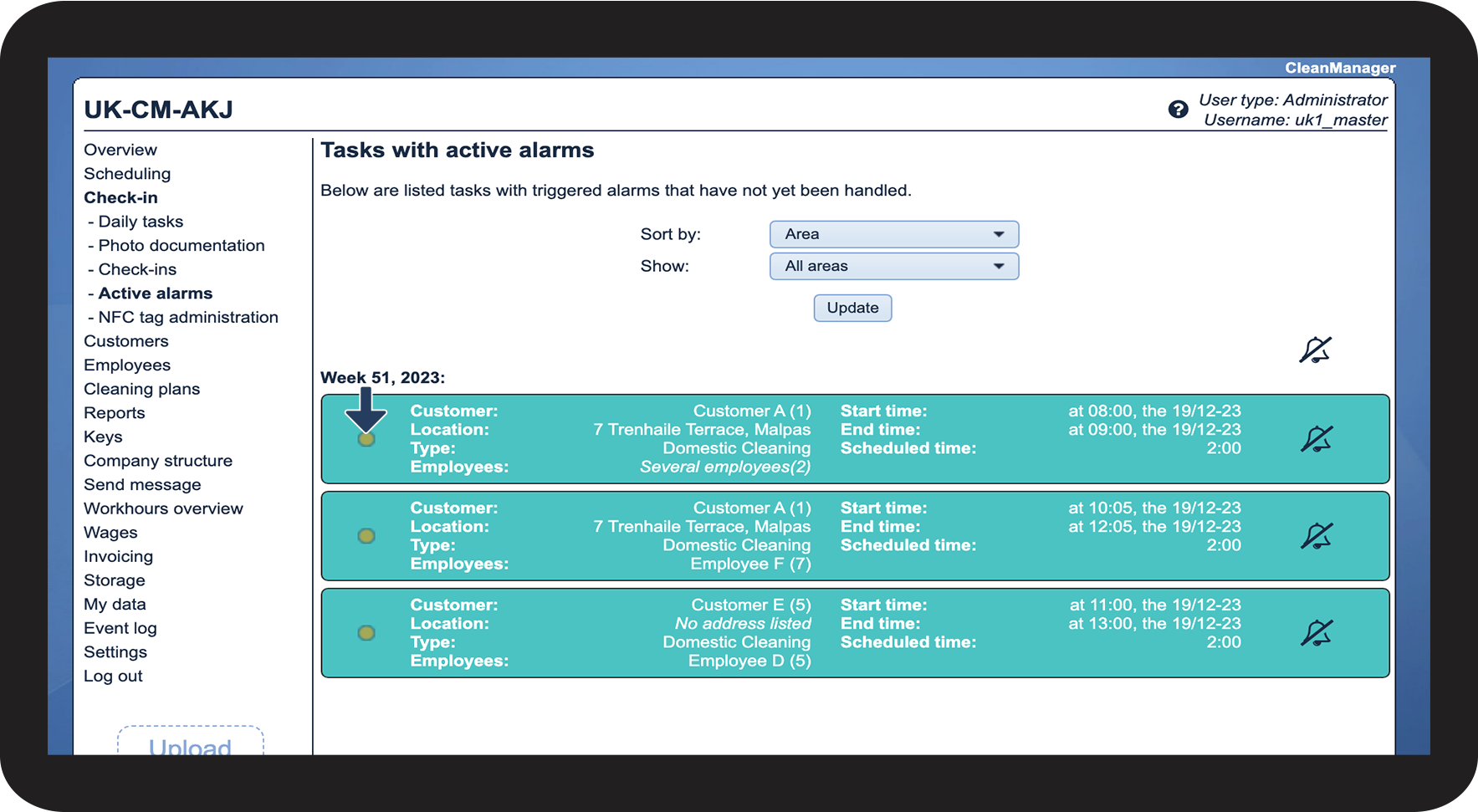
number_2.png

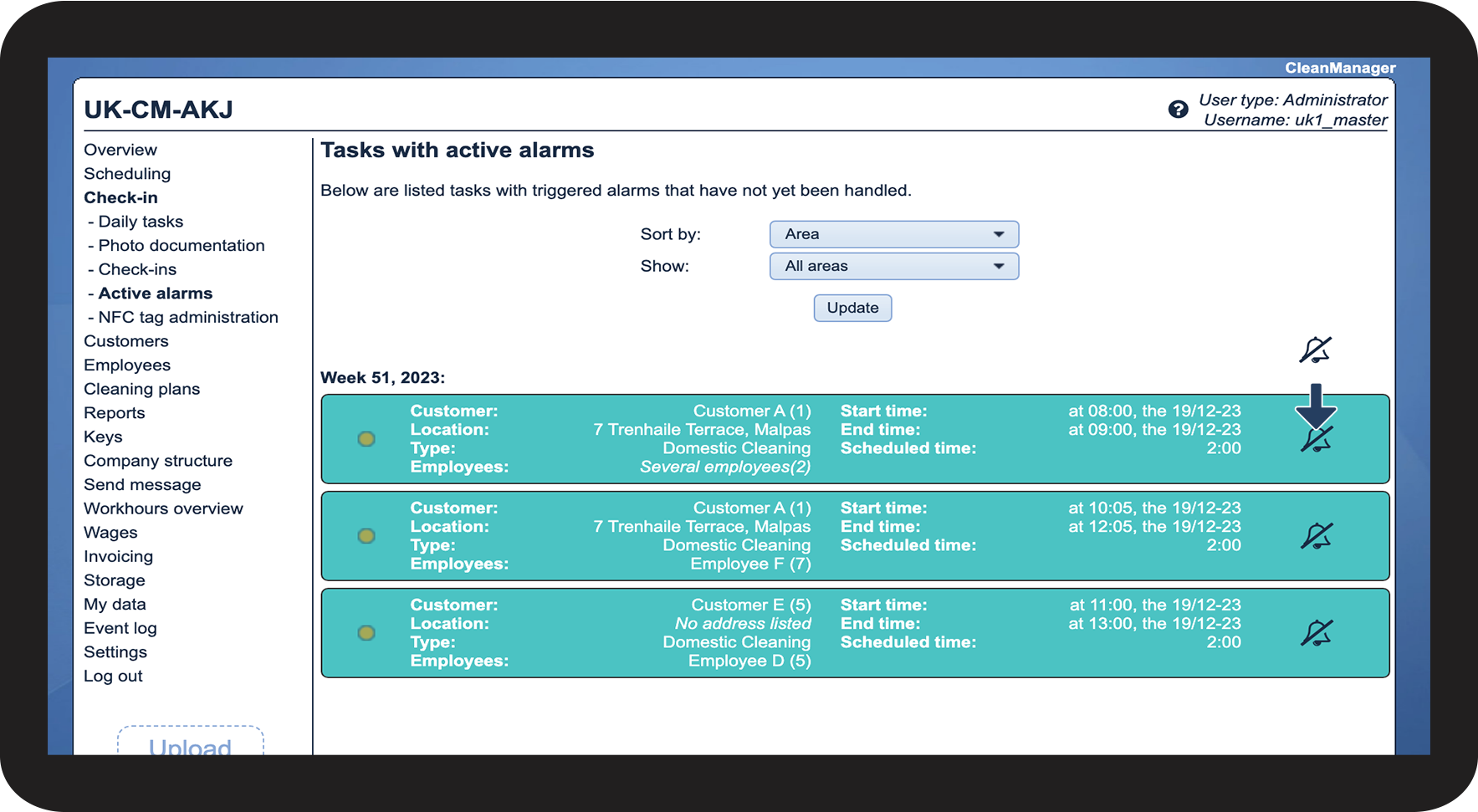
To clear an alarm, click Clear alarmBildschirmfoto 2023-11-01 um 10.29.37.png


NOTE:

A cleared alarm cannot be restored.
9.png

number_3.png
The alarm then becomes transparent and disappears as soon as you click refresh

10.png

number_4.png
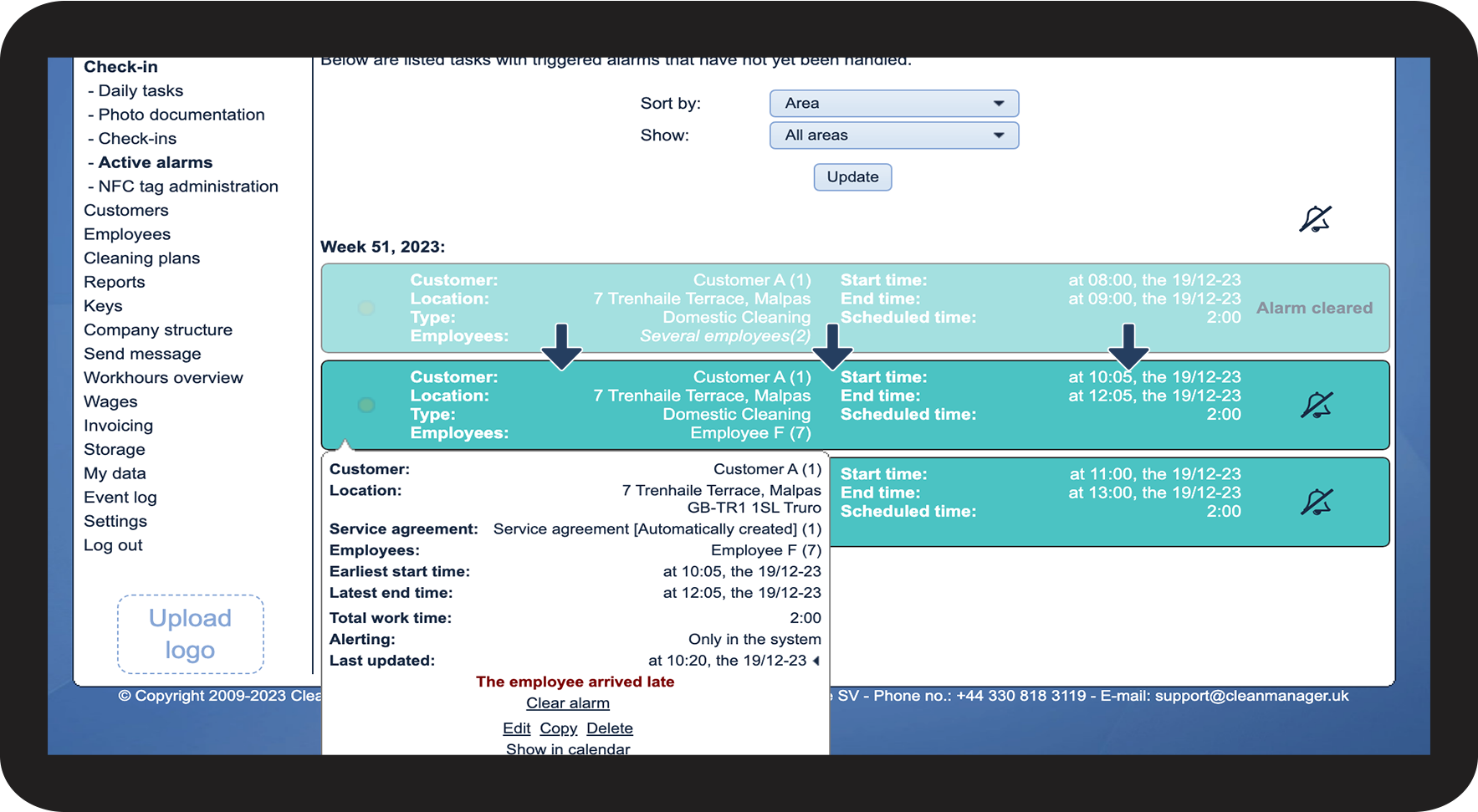
Alternatively, you can click on the alarm itself. Here you can both clear the alarm and customise the task

11.png

number_5.png
When you tap on an alarm, you get access to the following features:
 
 Clear alarm

This function lets you clear the alarm. NOTE! A cleared alarm cannot be recreated.

 Edit
This feature gives you the option to edit the task. If the task is part of a recurrence, you will be asked whether you want to edit only that task or several in the recurrence pattern.
 Split
You will only see this feature if more than one employee is assigned to the task. By clicking Split, the task splits, and the scheduled time is also split.
Copy
This feature gives you the option to copy the existing task. Here it will also be possible to edit the setup of the task.
Delete
This feature gives you the option to delete the task. If the task is part of a recurrence, you will be asked whether you want to delete only that task or several in the recurrence pattern. The task will be permanently deleted from the calendar.

Show in calendar

If you click this function, you will be taken to the calendar for the task in question.
Clear check-in time
The check-in time is removed from this task. If the employee checks out of the task at a later time, the check-in time will be registered again. Therefore, if you want to clear the check-in time completely, ask the employee to delete the task in their app. See more here: Deleting a task.
Photo documentation
This feature shows you the images attached to the task via the app.
Approve hours
This feature allows you to authorize the hours that the employee has logged in via the app. This will only appear if the alarm is triggered due to late check-in.
Reject hours
This feature allows you to reject the hours that the employee has enrolled via the app. This will only appear if the alarm is triggered due to late check-in.


How to see why an alarm has been triggered

number_1.png

In the menu, go to Check-in > Active alarms


Here, you have an overview of all triggered alarms. This includes both those for missing check-in and those for missing check-out

12.png

number_2.png
If an orange light is flashing, the employee has not checked in

13.png

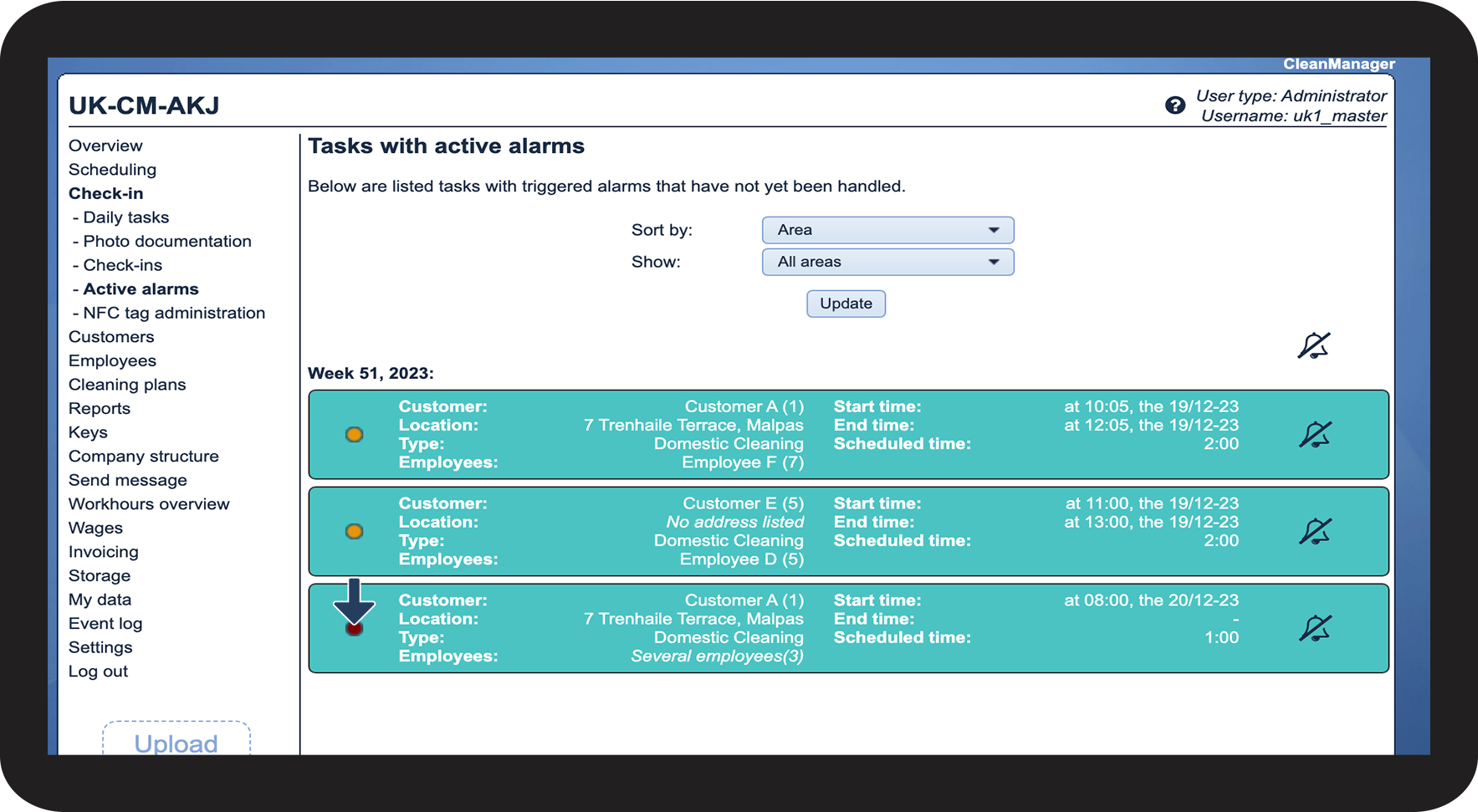
number_3.png
If a red light is flashing, the employee has checked in, but not out

14.png

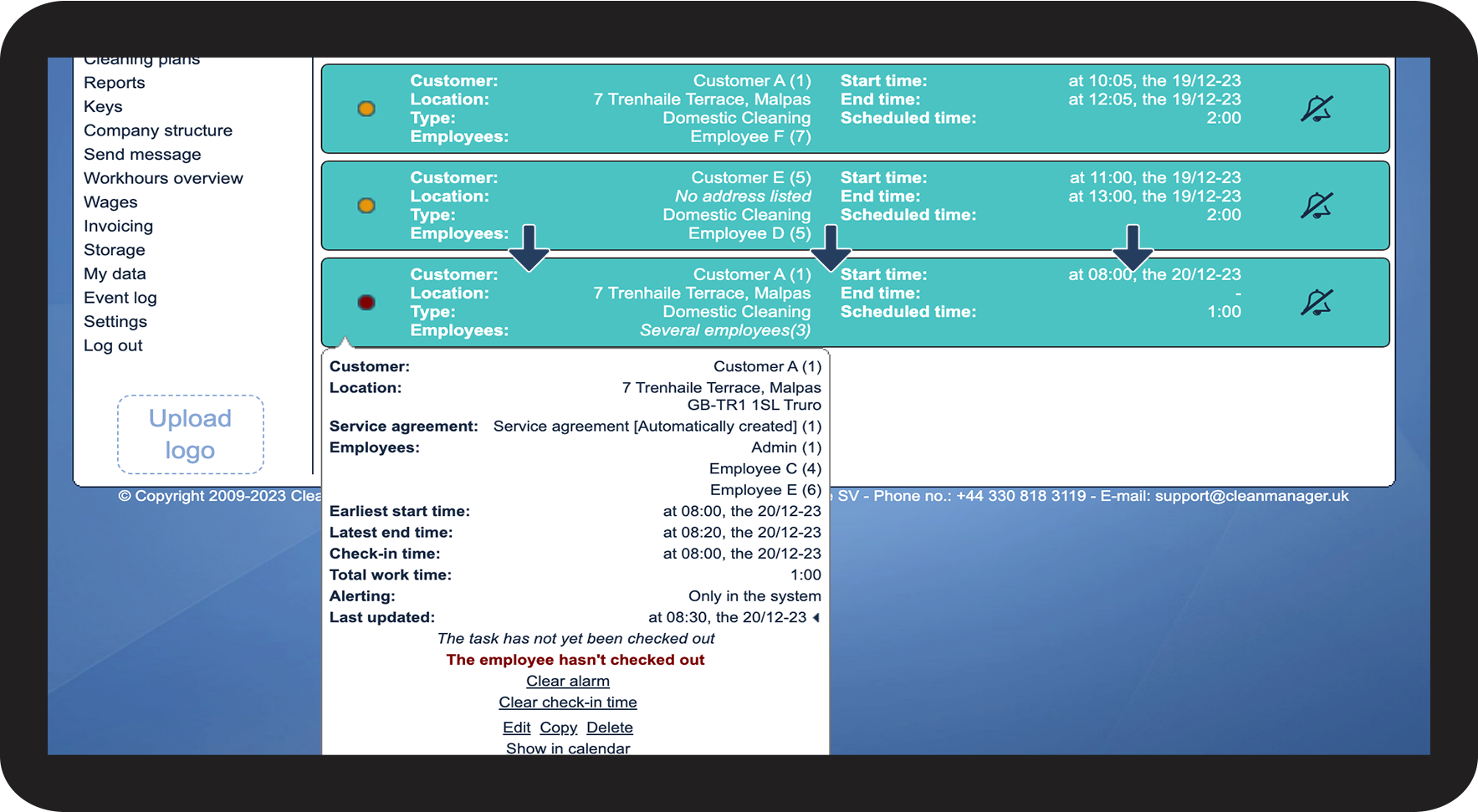
number_4.png
Alternatively, you can click on the alarm itself to see what triggered it (in this example, missing check-out)

15.png


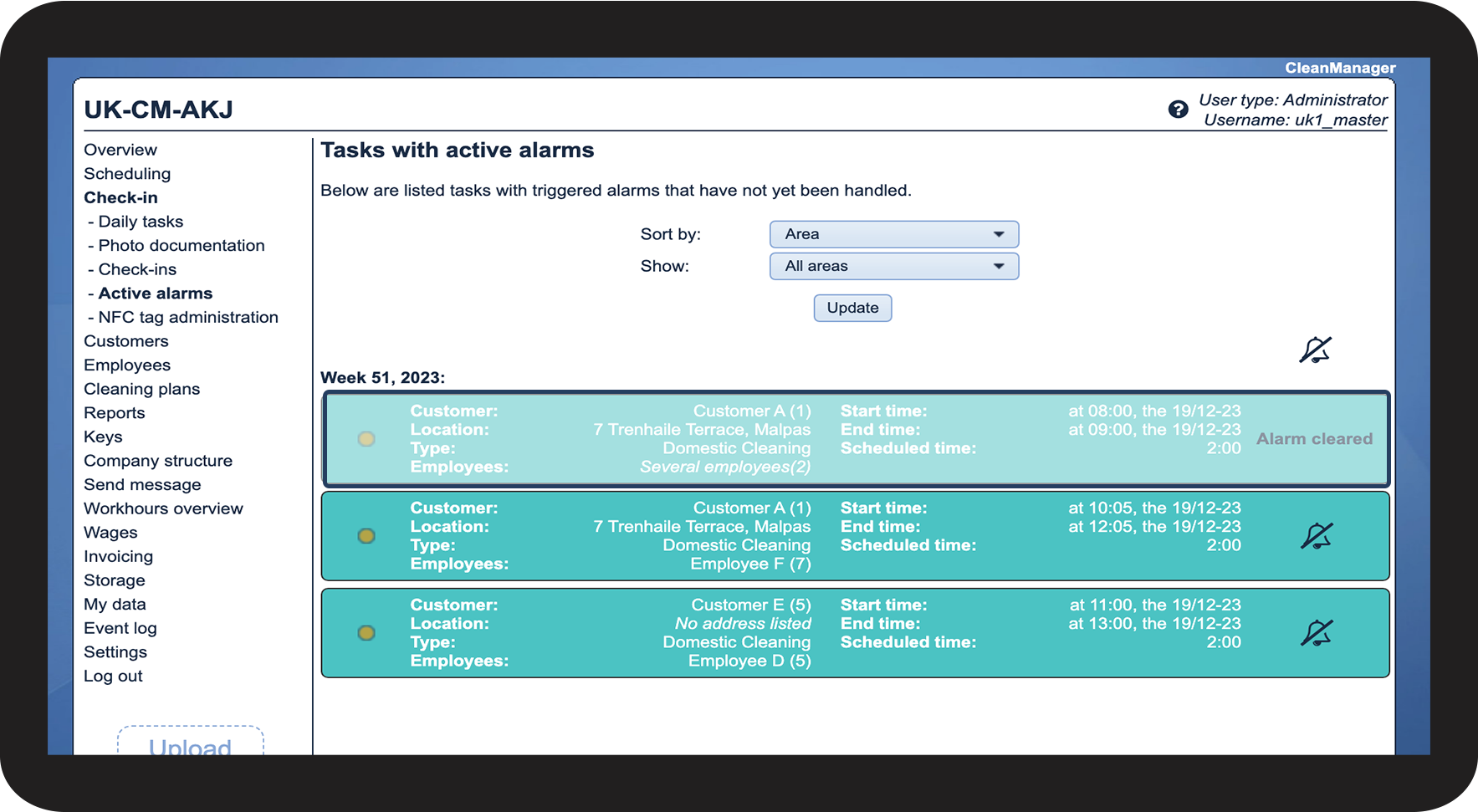
How to clear all alarms at once

number_1.png

In the menu, go to Check-in > Active alarms


Here, you have an overview of all triggered alarms. This includes both those for no check-in and those for no check-out

3.png

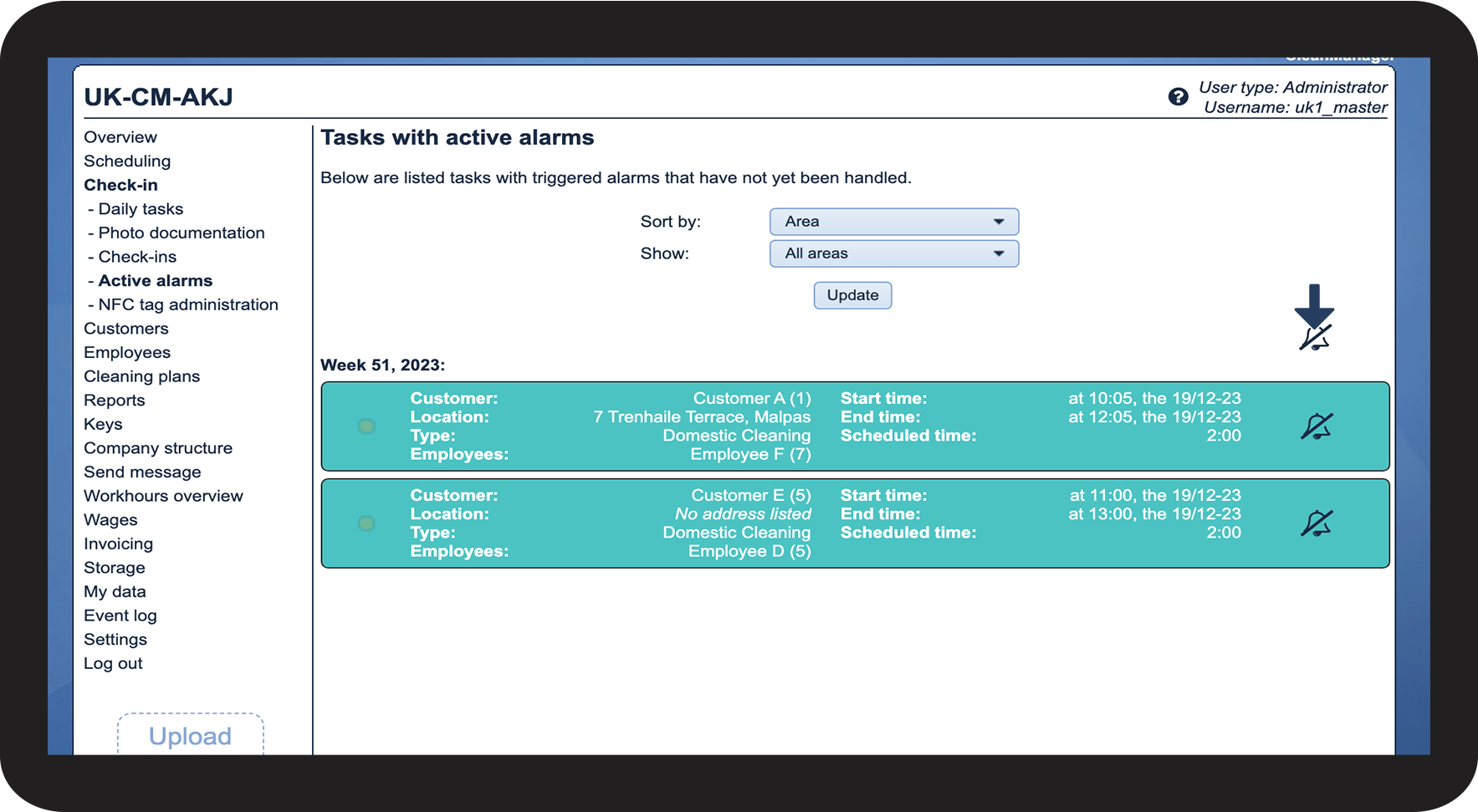
number_2.png

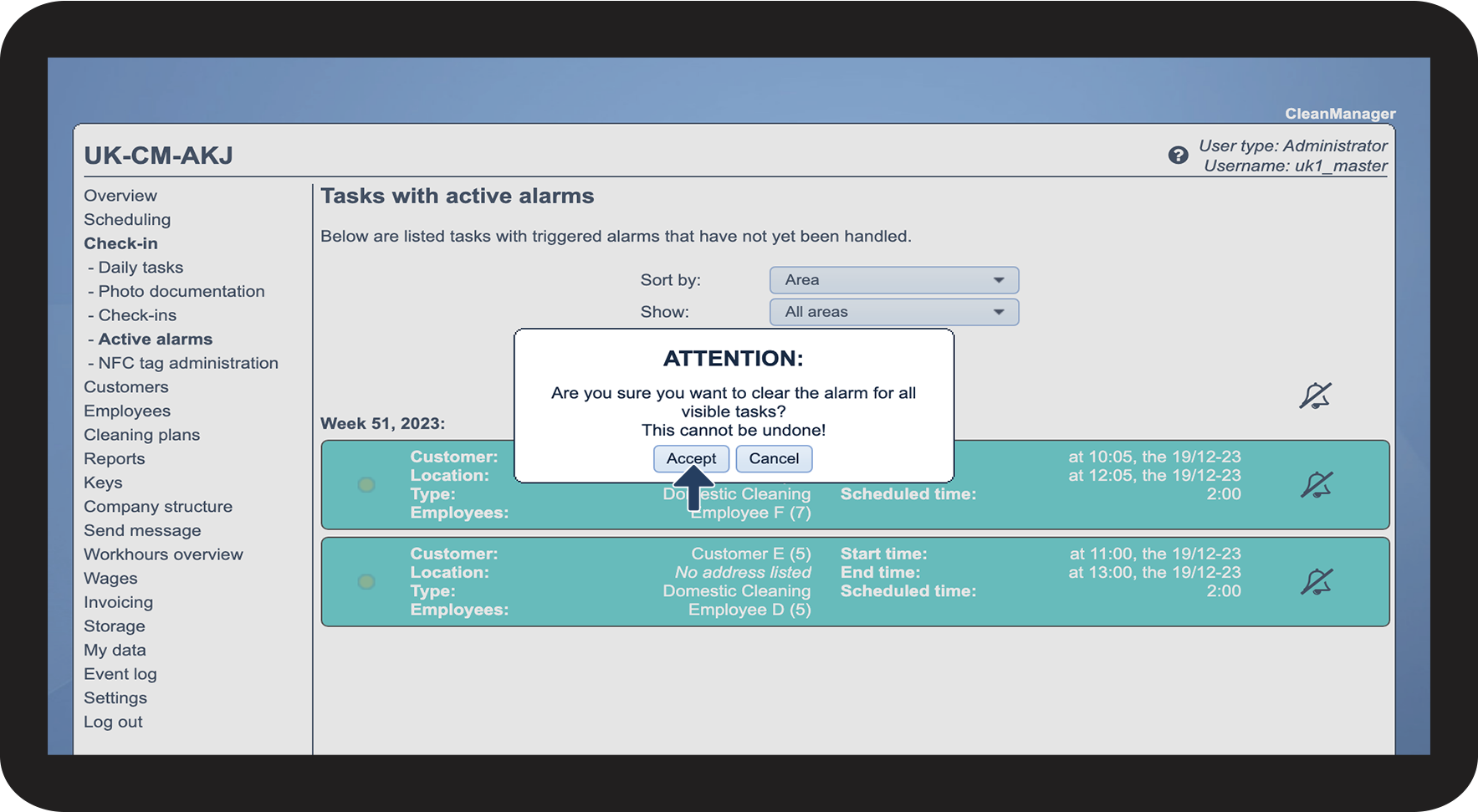
To clear all alarms at once, simply click the Bildschirmfoto 2023-11-01 um 10.29.37.pngsymbol in the top right corner


NOTE:

A cleared alarm cannot be restored.
16.png

number 3.png
Click Accept to clear all alarms

17.png


Read more in the article: Alarm settings

Here you can learn how to set tasks to trigger an alarm for missing check-in and check-out.