
Can I restore a customer who has been deleted?
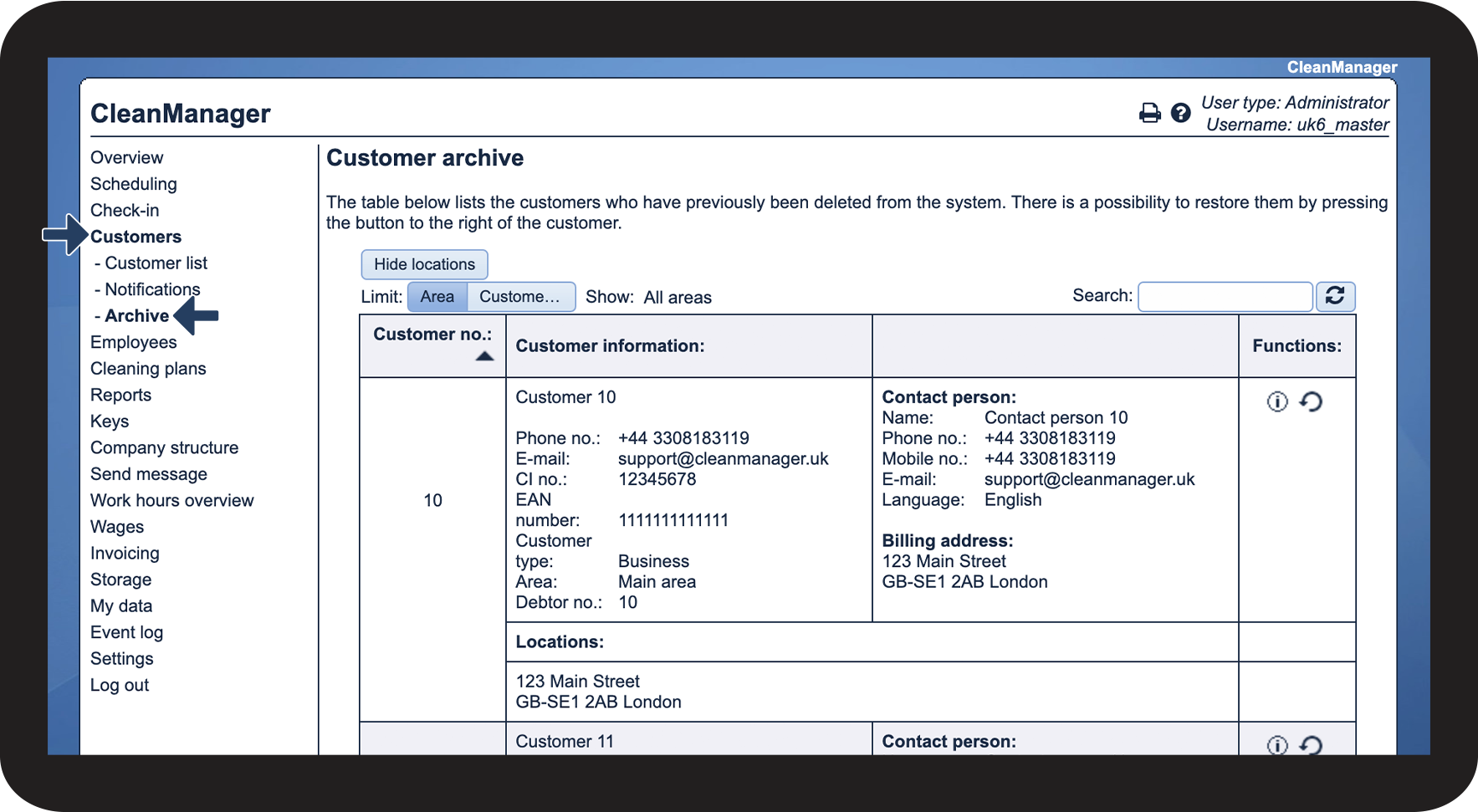
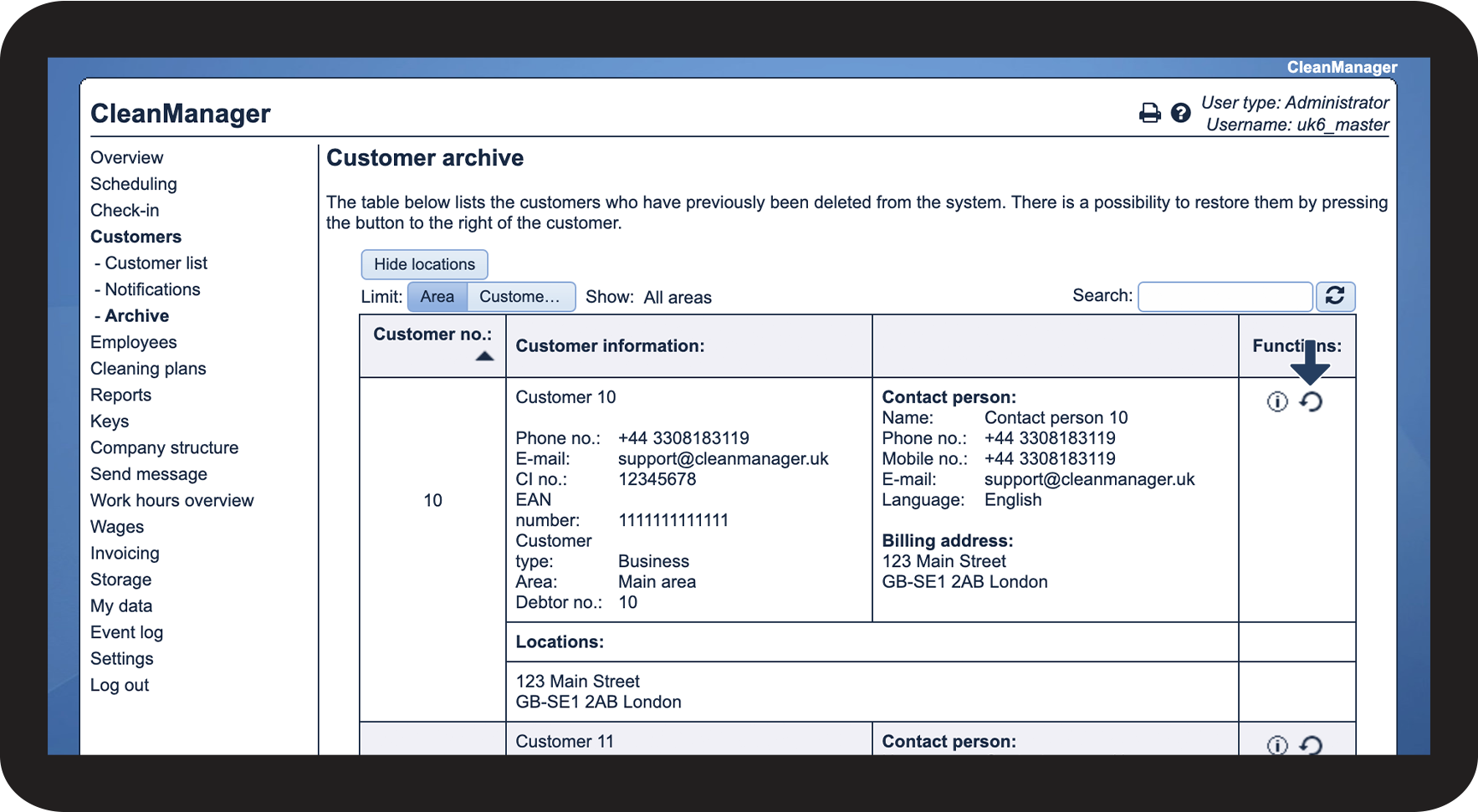
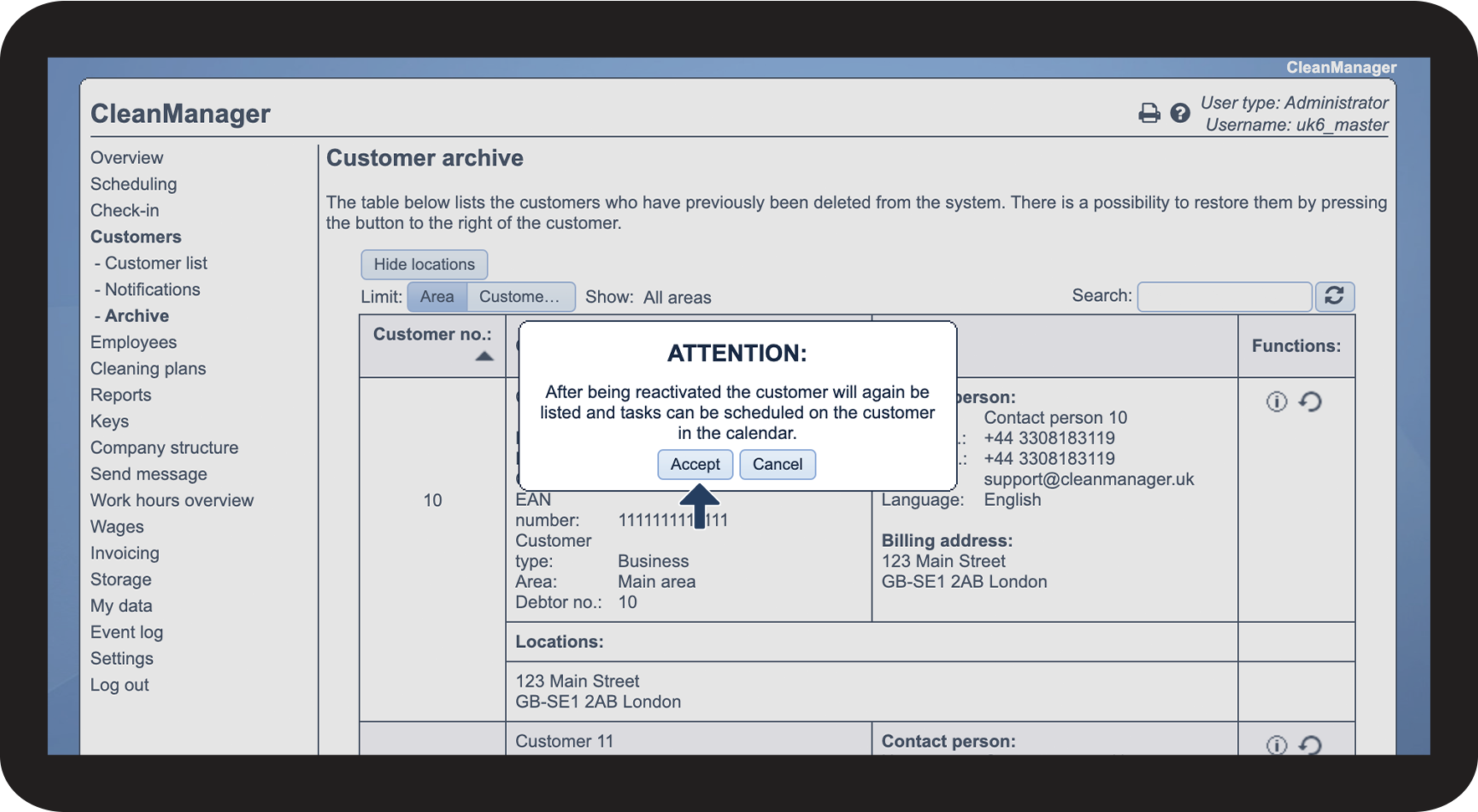
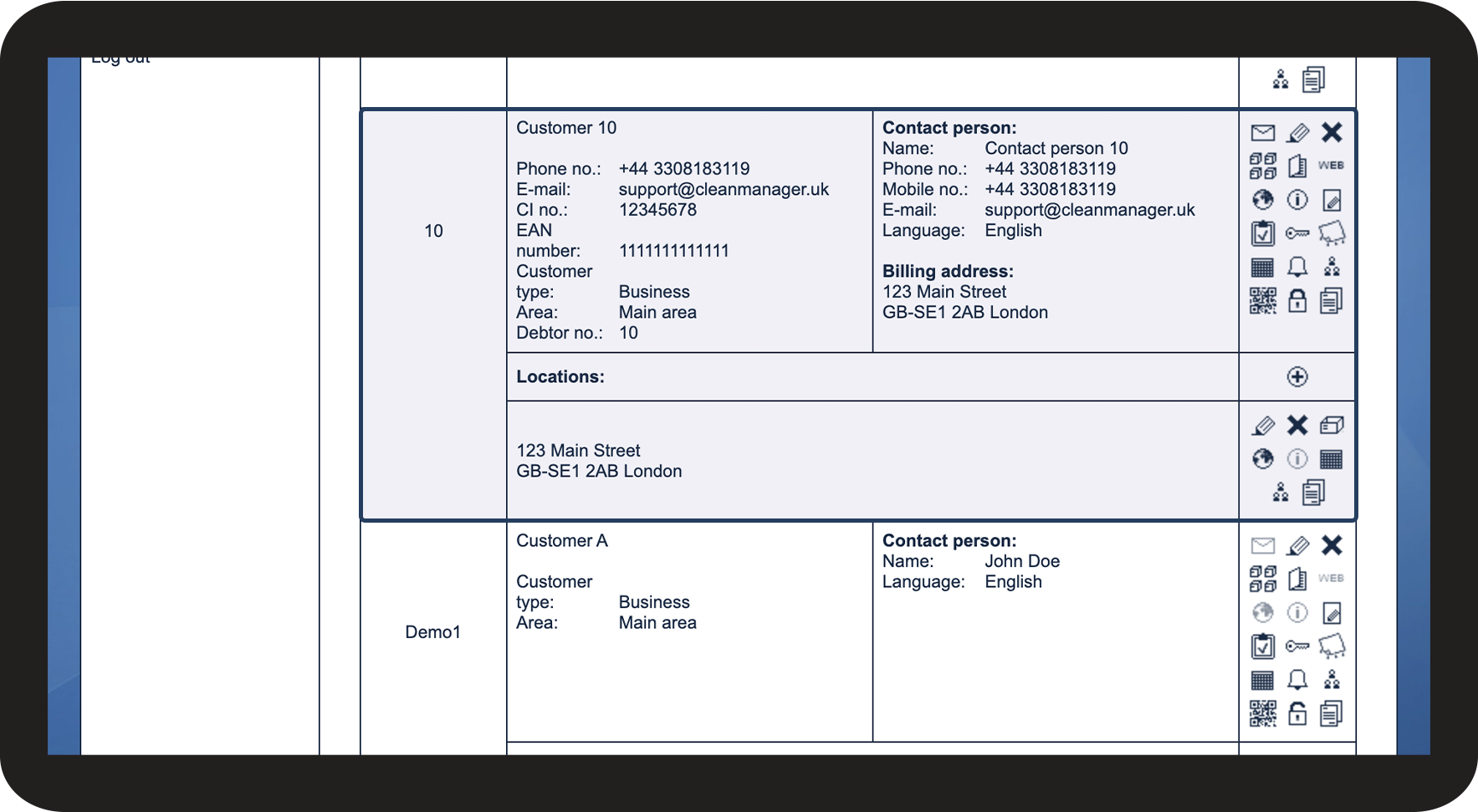
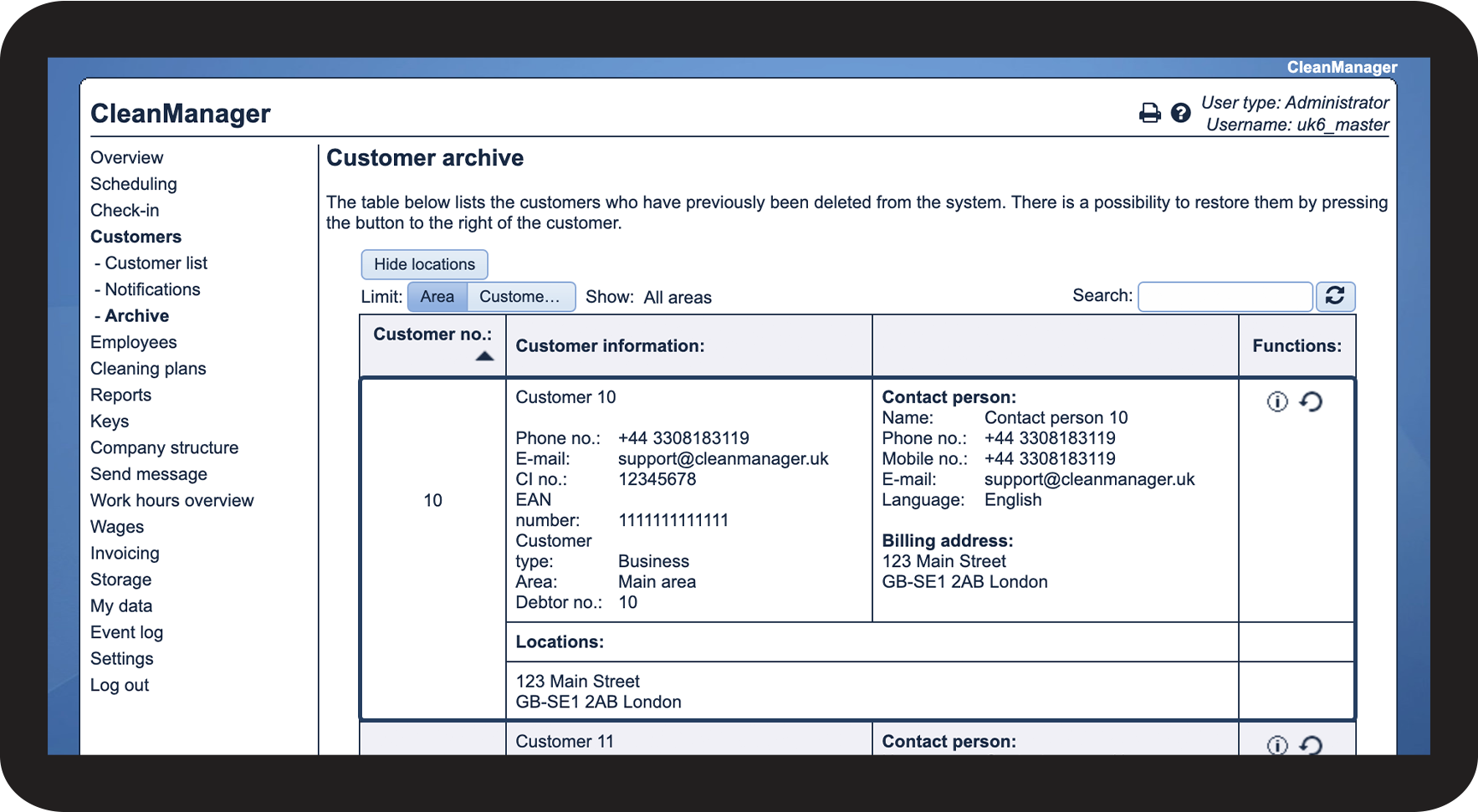
The short answer is; yes. In CleanManager, customers, employees, and storage products are never permanently deleted from the system. Instead, they are moved to the Archives. From the archive, you can easily restore your customers if you want them active in your system again.
NOTE:
Archives are only visible to supervisors if access for this has been granted by the administrator. For more information regarding this, see the following article: Archive access for supervisors.
Supervisors can only restore customers from the customer areas, they have been assigned. For more information regarding this, go to Company Structure.
In this article, you will learn how to restore customers from the archive:
- How do I restore a deleted customer?
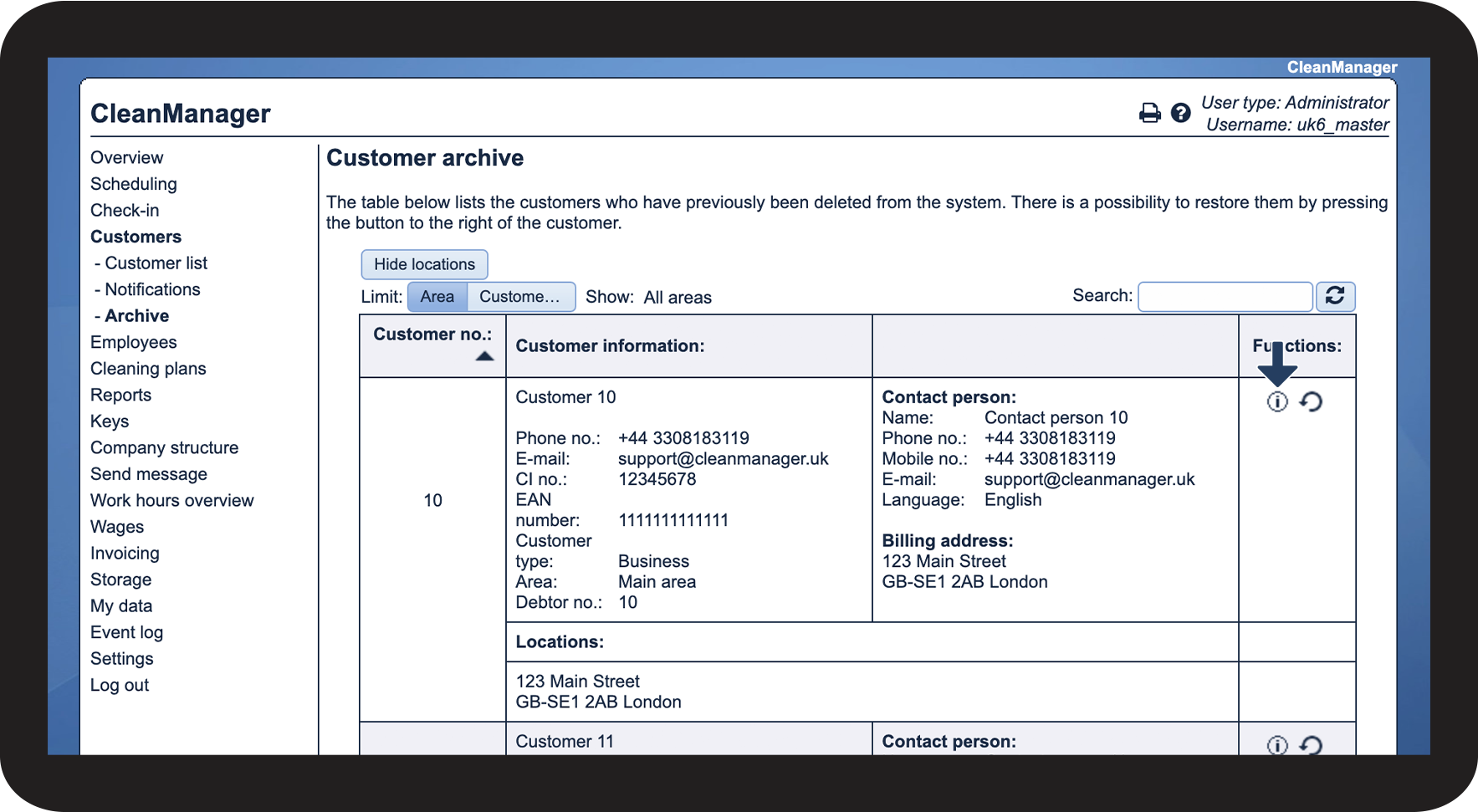
- What information about the customer is stored in the archive?
- How do I search for a specific customer in the archive?
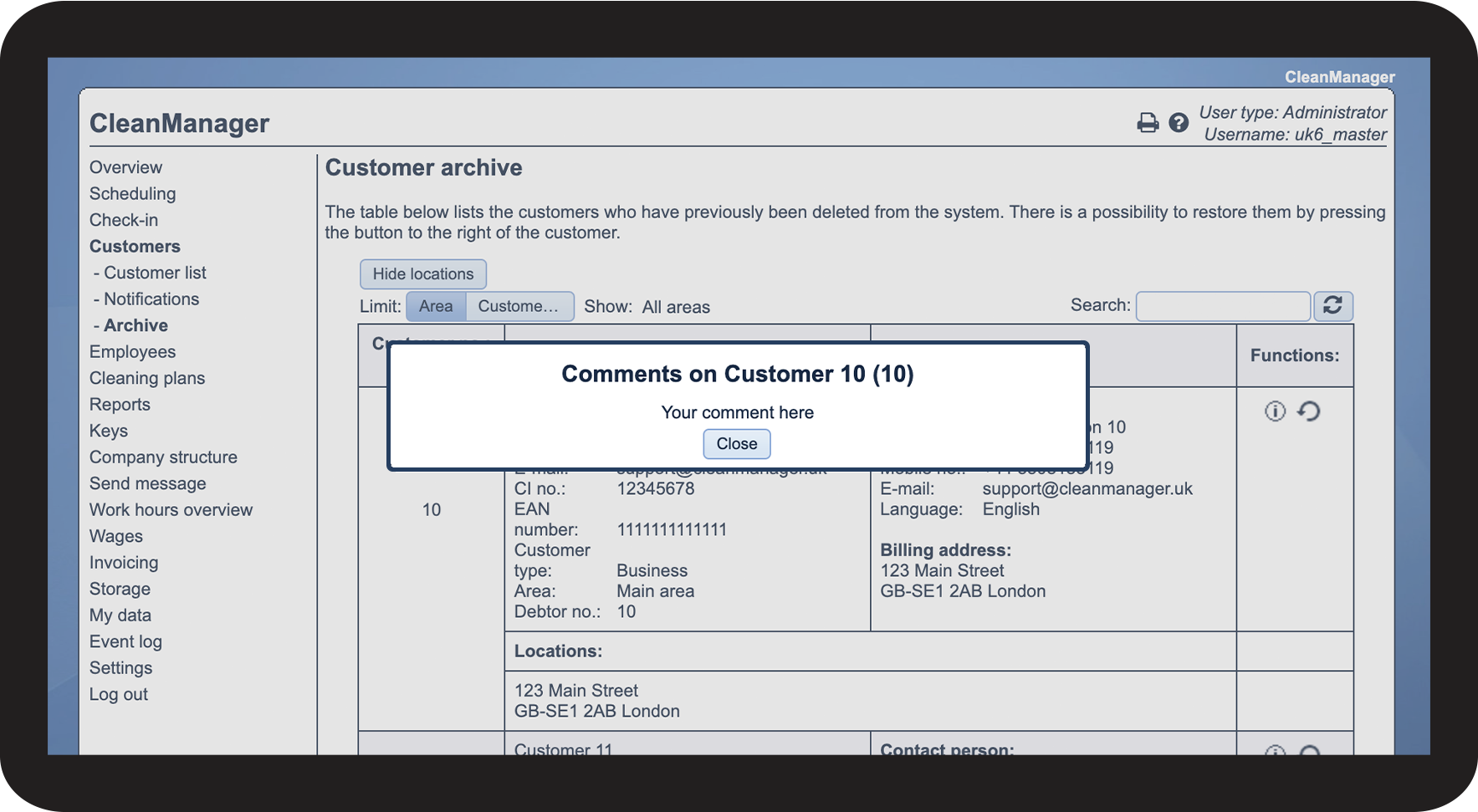
- How can I see comments attached to a customer in the archive?
This is how you restore a deleted customer





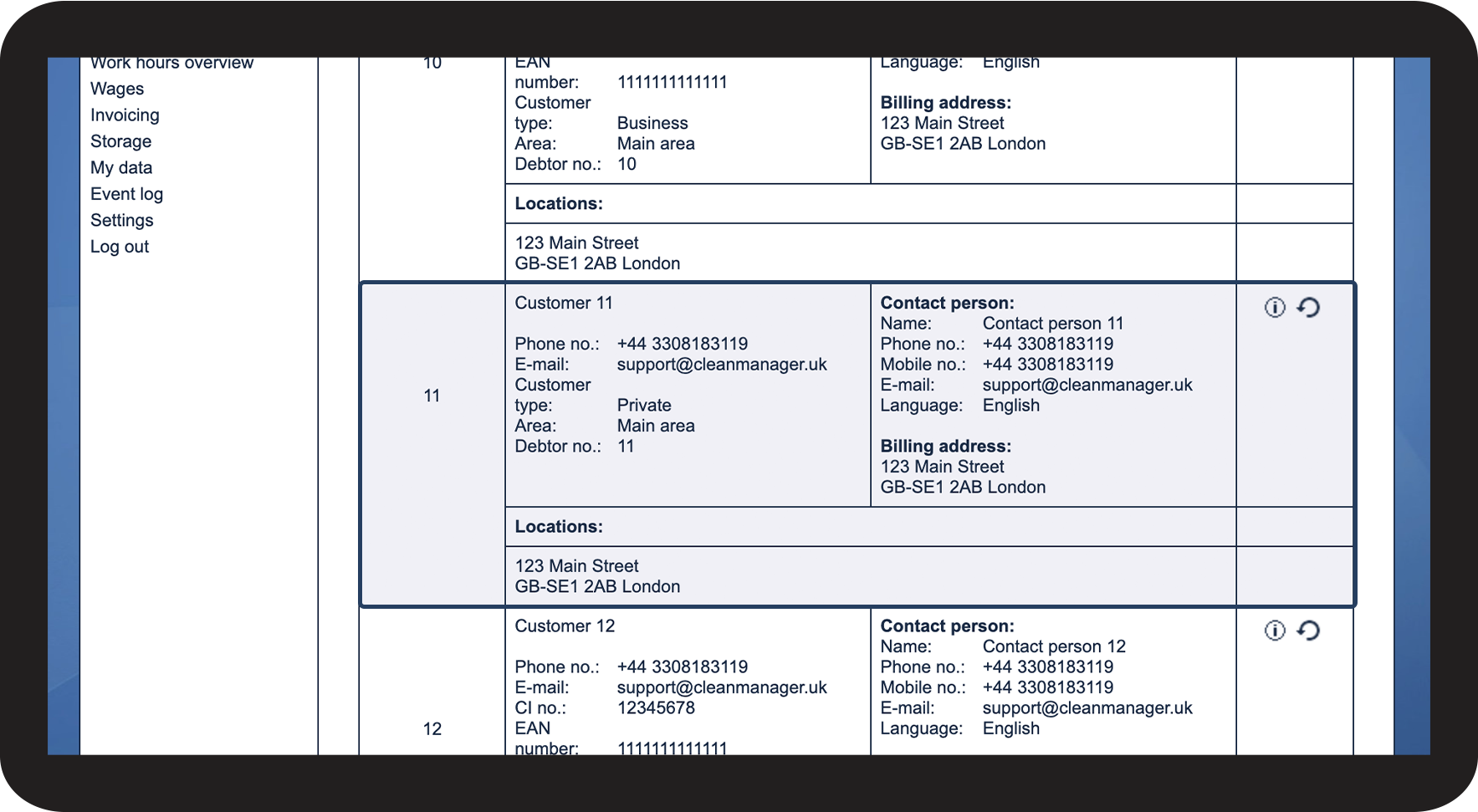
This information about the customer is stored in the archive
NOTE:
If the customer type is Private, the customer's SSN will be removed from the system and can therefore not be restored.
Files uploaded to the customer and underlying locations will be permanently removed from the system.

NOTE:
Files uploaded to the customer and underlying locations will be permanently removed from the system.
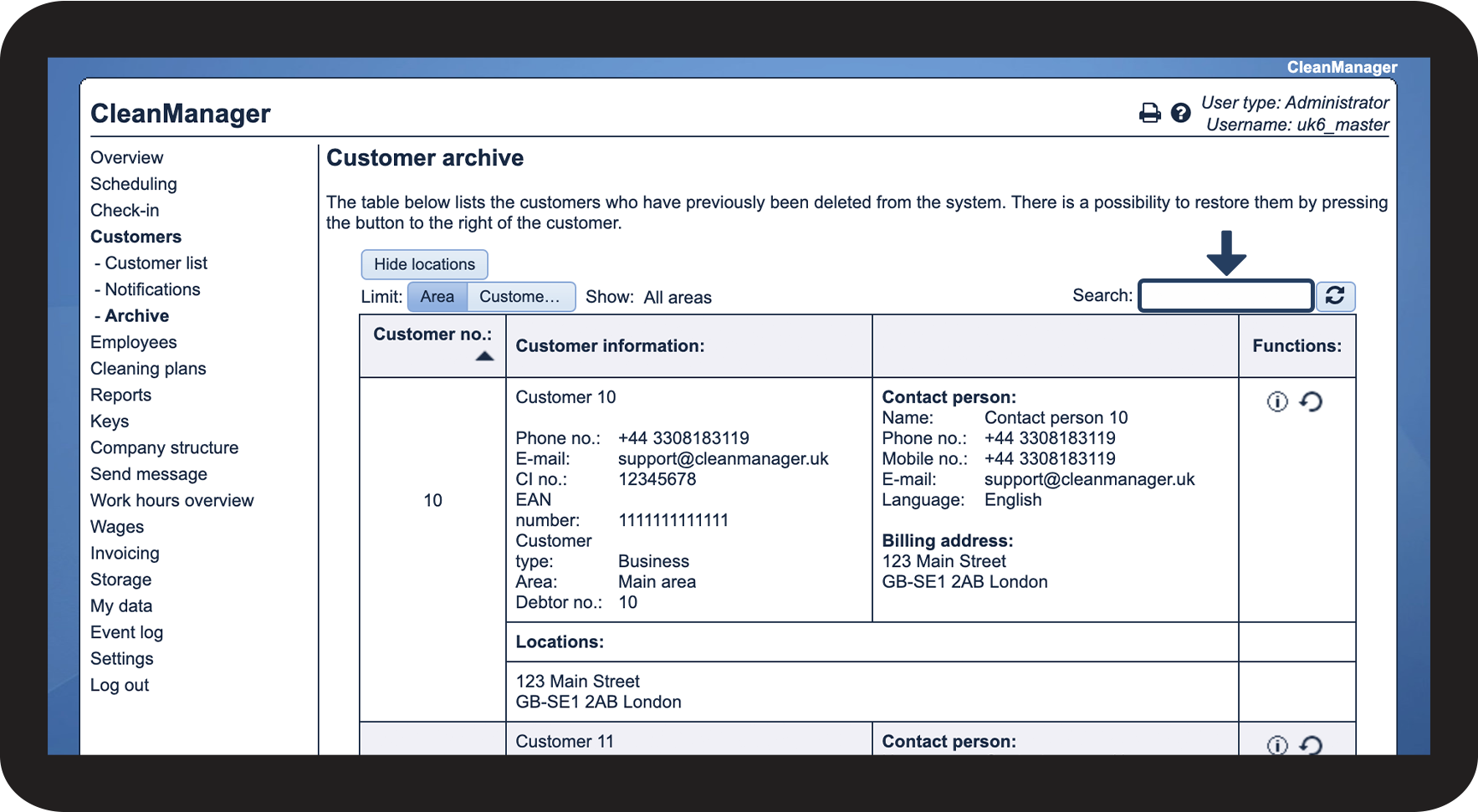
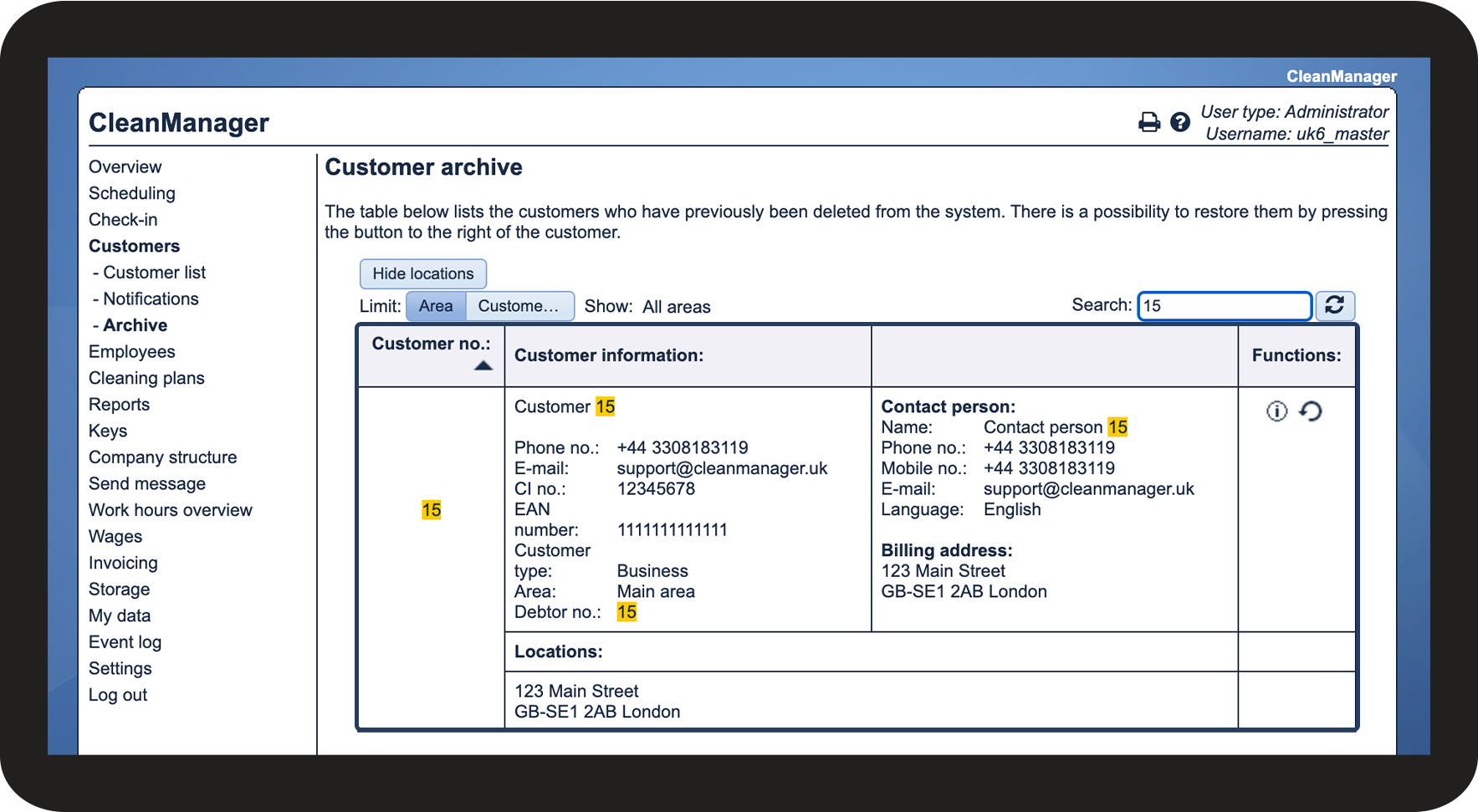
This is how you search for customers in the archive
NOTE:
The search field appears when you have more than five customers in the archive.
This is how you can see comments attached to a customer

Continue to the article Deleting a customer
Here, you can read more about how to delete customers from your customer list.