Skip to content
English
  • There are no suggestions because the search field is empty.

How do I manage tasks in the work hours overview?

How can I manage tasks through the work hours overview as the administrator/supervisor?

As the administrator, you can view all hours for all customers.

As a supervisor, you can see the hours for customers assigned to your customer areas. This means that a supervisor might not be able to view all the work hours for an employee if this employee also has been assigned to a customer outside the supervisor's areas.  For more information regarding this, go to Company Structure.

In the menu Work hours overview, you have different options for managing tasks.


In this article, you will learn how to manage tasks through the work hours overview:


This is how you find the work hours overview

number_1.png
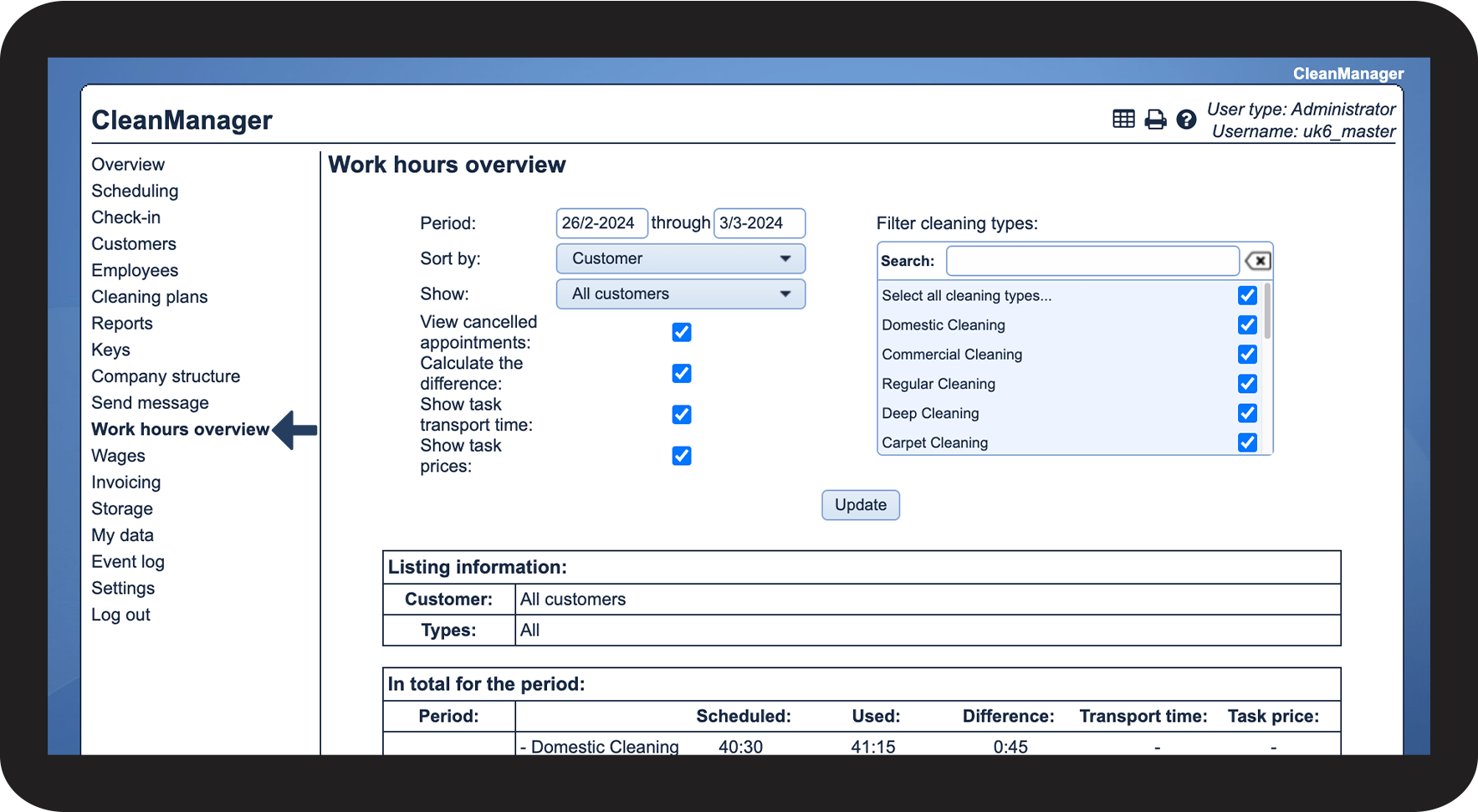
In the menu, go to Work hours overview

1.png

number_2.png
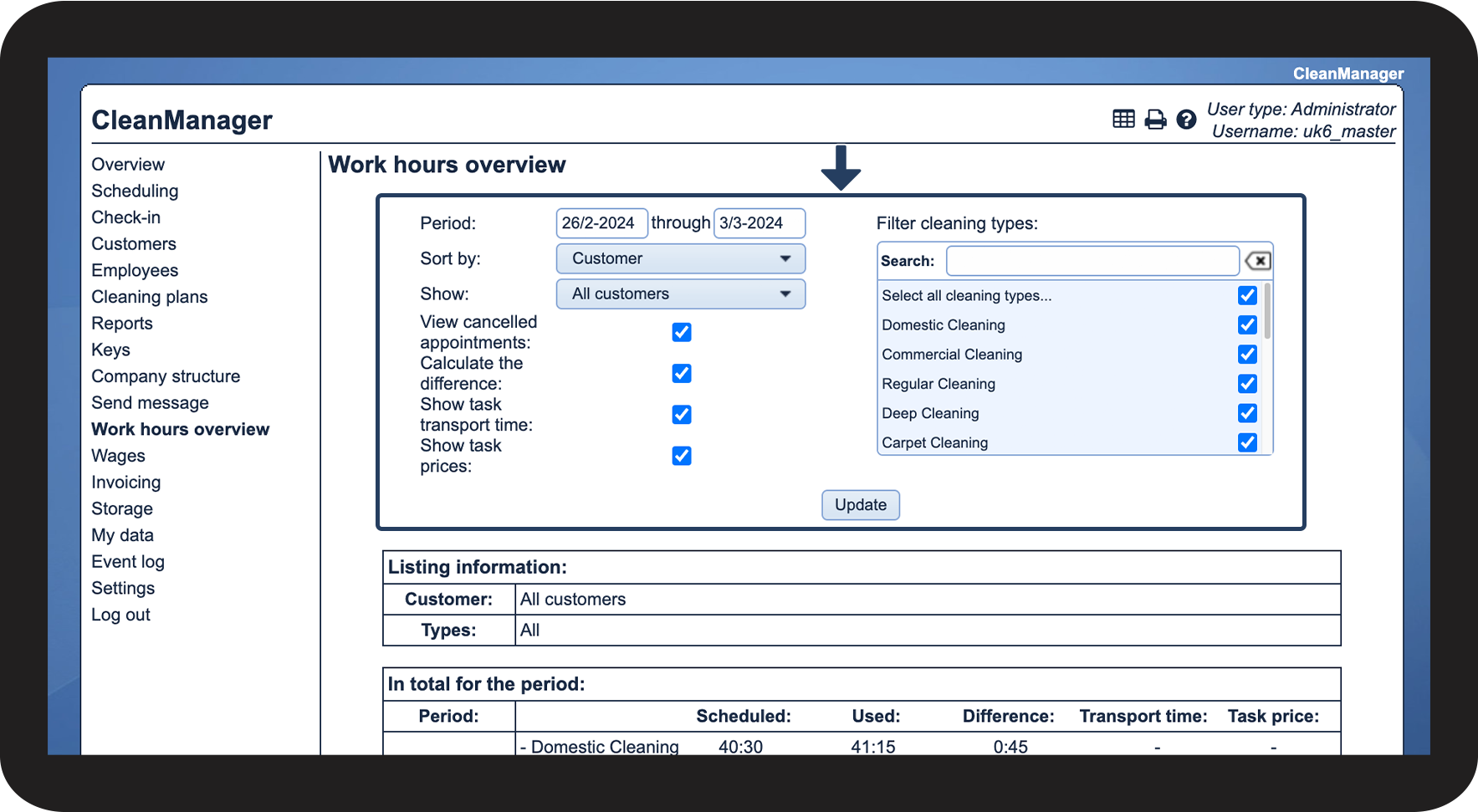
Set the sorting 
 
To learn more about what you can sort by, read the following article: How do I sort the view of the work hours overview?
2.png


This is how you can manage tasks

number_1.png
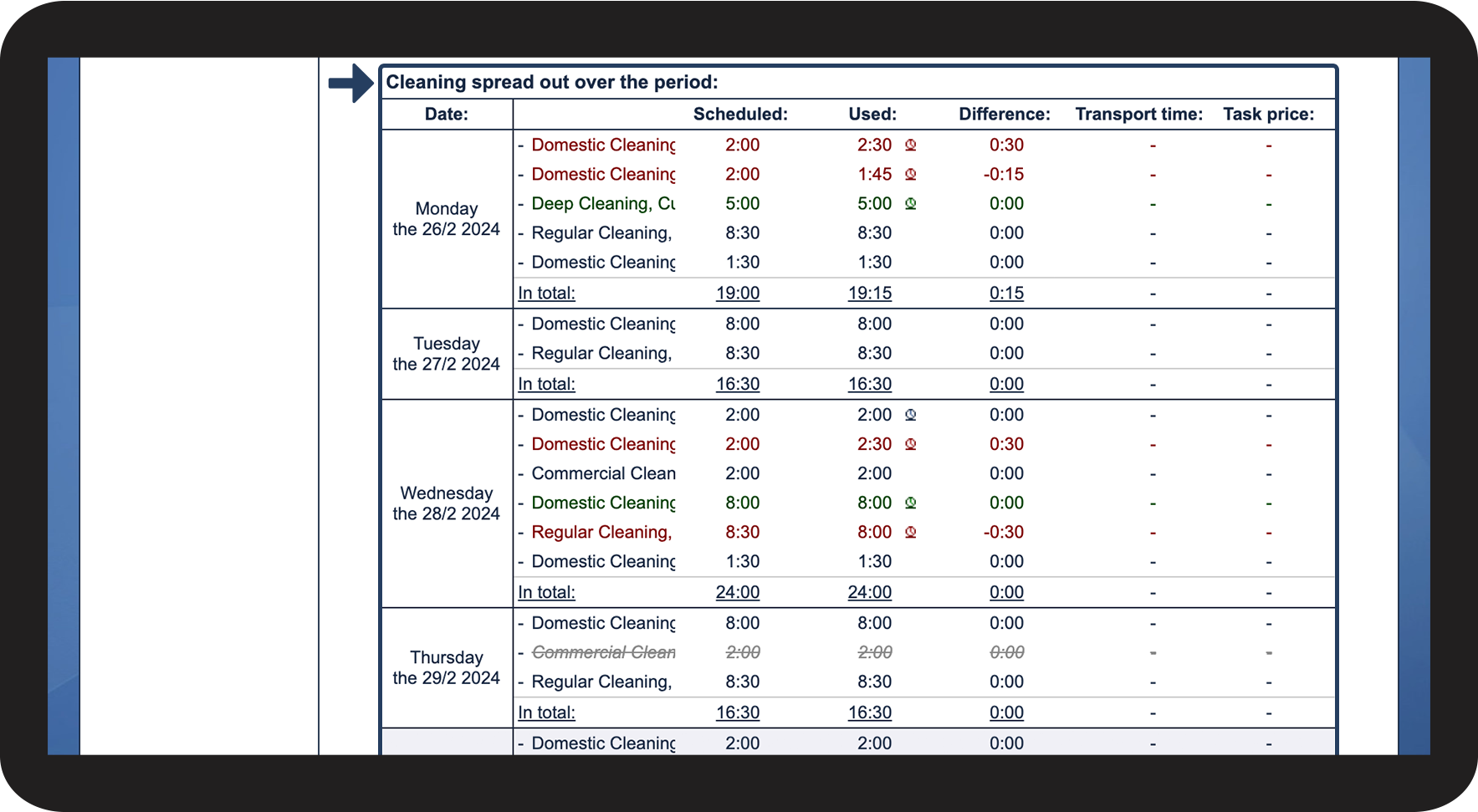
Scroll down to Cleaning spread out over the period


INFO:

If the sorting is set to show all customers, employees, or areas, you will also be able to manage the tasks by clicking on them in the view for Customers/ Employees/Areas with tasks during the period.
3.png

number_2.png

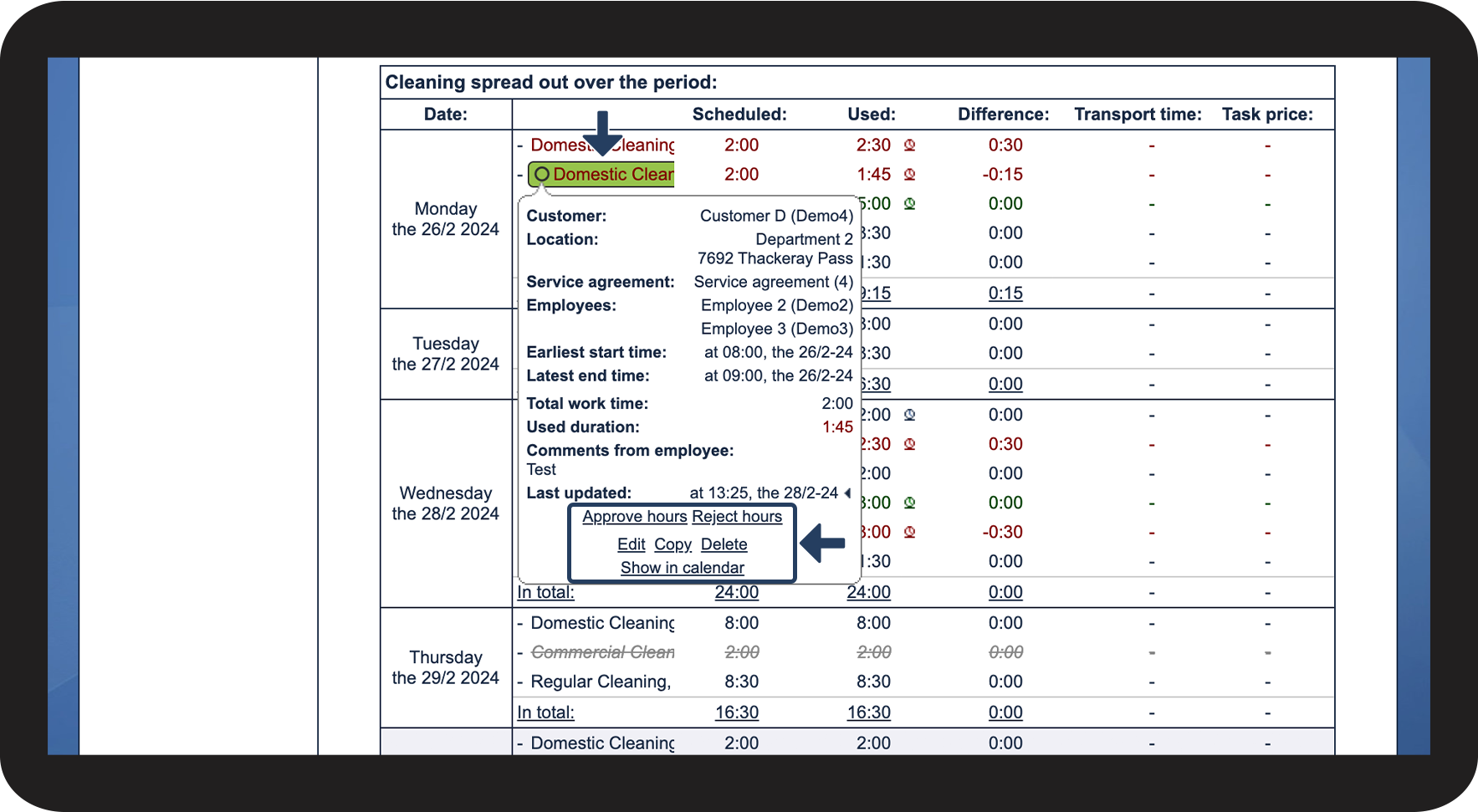
Click on a task to view its information. Here, you will also be able to see your options for managing the task.

If multiple tasks are highlighted when you click on a task, then this means that they are part of the same repetition.


NOTE:

Different options for managing a task may vary from task to task depending on its status, e.g., concerning alarms and checking in and out.
4.png

number_3.png
See the table below for an explanation of the different options


Edit
This option allows you to edit the task. If the task is part of a repetition, you will be asked how many of the tasks you wish to edit.
Split
This option is only available if you have added two or more employees to a task. The selected task is divided into separate tasks per employee and the total working time is evenly distributed among the employees.
Copy
This option allows you to copy an existing task. When you make the copy, you can also edit the task.
Delete
This option allows you to delete a task. If the task is part of a repetition, you will be asked how many you wish to delete. The task will be permanently deleted from the system.

Show in calendar

This option leads you to where you can find the task in the calendar.
Approve hours

This option allows you to approve the hours that the employee has registered via the app.

Reject hours

This option allows you to reject the hours that the employee has registered via the app.

Approve reported hours
Approve the work hours the employee has reported as a new task.
Approve cancellation
Approve your client's request for cancelling the task. An e-mail will be sent to your client with confirmation.
Reject cancellation
Decline your client's request for cancelling the task. An e-mail will be sent to your client that the request has been declined, and the task will remain active in the system.
Restore
This option is available if you have approved a cancellation of a task. The selected task will be restored in the calendar. It will also be visible again for the client and the assigned employees.
Delete permanently
This option is only available if you have approved a cancellation of a task. The selected task will be permanently deleted, and it will no longer be possible to restore it.
Clear check-in time

NOTE: The add-on module App with Time Registration must be activated.

The check-in time will be removed from the task. However, if the employee ends the task, the time will be registered again. If you wish to clear the check-in time completely, you can ask the employee to delete the task in their app. Read more about that here: Deleting a task.

Photo documentation

NOTE: The add-on module App with Time Registration must be activated.

By clicking on this option, you can see all the attached images. This option is only available if images have been attached to the task.

Clear alarm

NOTE: The add-on module App with Time Registration must be activated.

This option lets you clear the alarm. A cleared alarm cannot be recreated.


This is how you can see if an employee's used time has not been approved

number_1.png
Scroll down to Cleaning spread out over the period


INFO:

If the sorting is set to show all customers, employees, or areas, you will also be able to manage the tasks by clicking on them in the view for Customers/Employees/Areas with tasks during the period.

3.png

number_2.png
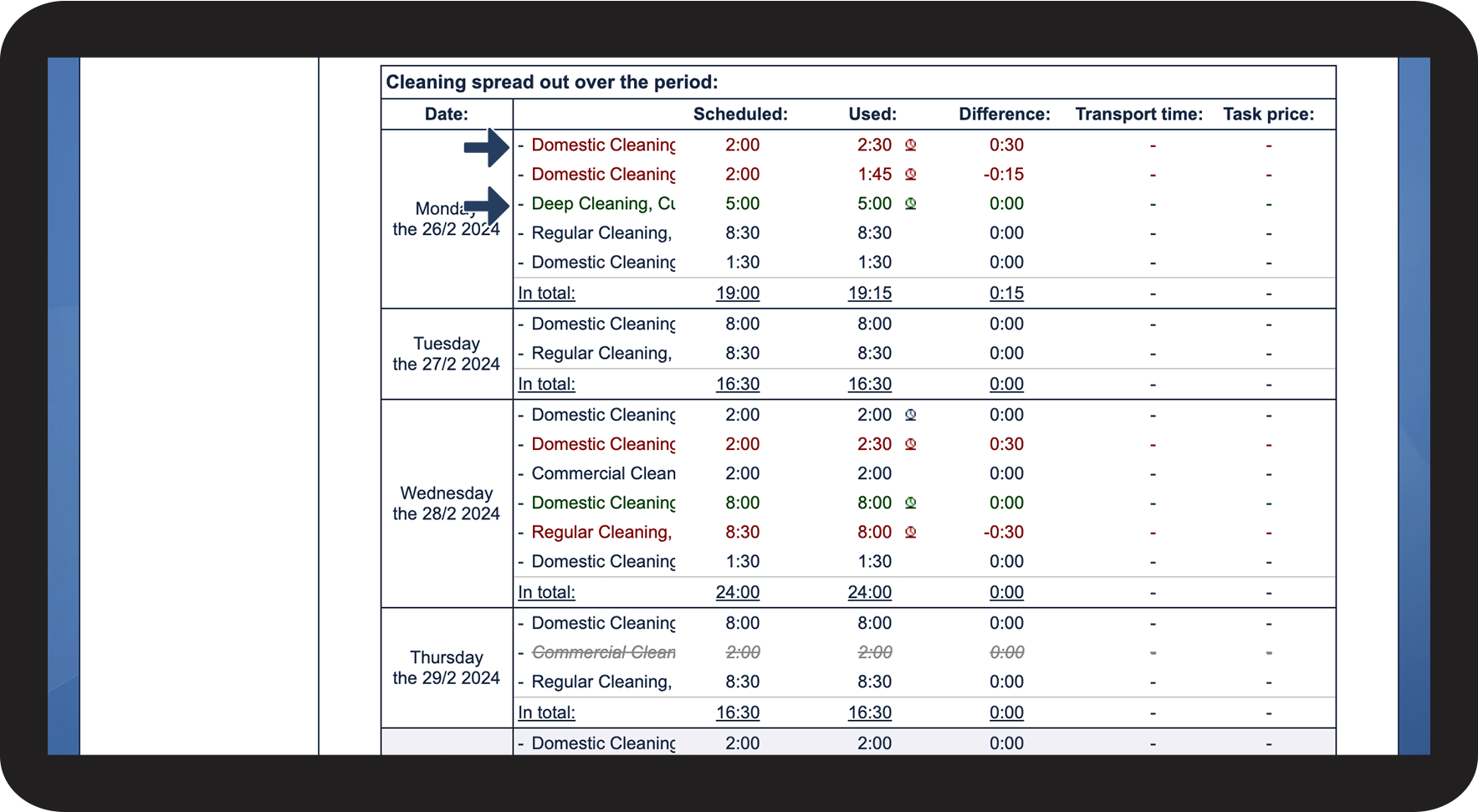
If a task appears in green or red, it means that the work hours have not yet been approved


INFO:

A green task indicates, that the employee has reported work hours as a new task.

red task indicates, that the employee has registered used time for an existing task.
5.png

number_3.png
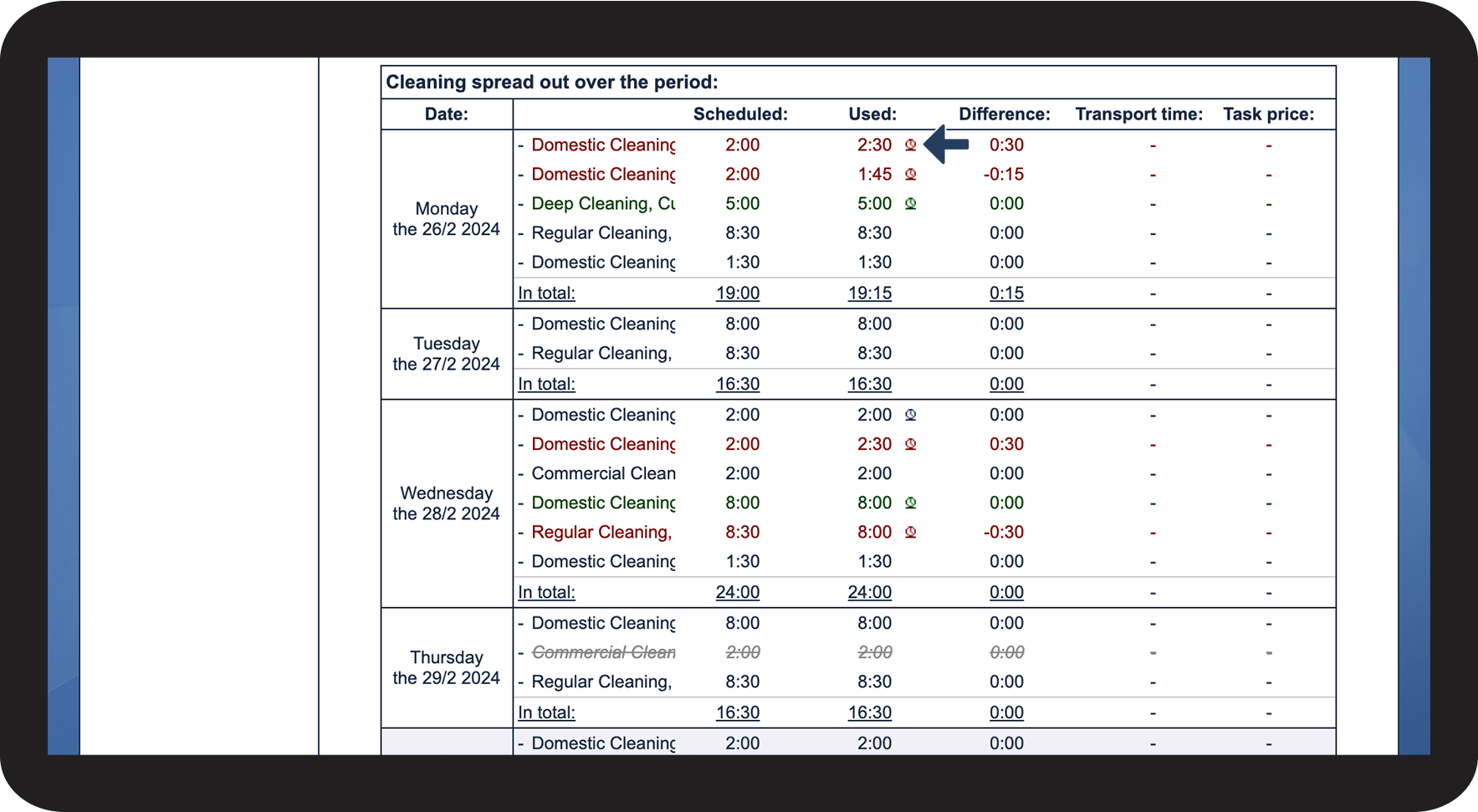
You can see if the time has been registered through the calendar or the app by the following symbols:
 

tid via kalender.png
The hours have been registered via the calendar
tid via app.png
The hours have been logged in via the check-in app


NOTE:

To use the app, the add-on module App with Time Registration must be activated. Read more about how to activate add-on modules here: Add-on modules


If you want your employees to be able to specify their time used through the calendar, it has to be enabled in the settings: Time registration
6.png


Continue to the article: How do I export the work hours overview?

Here, you can learn more about how you can export the work hours overview.